


Key Takeaways
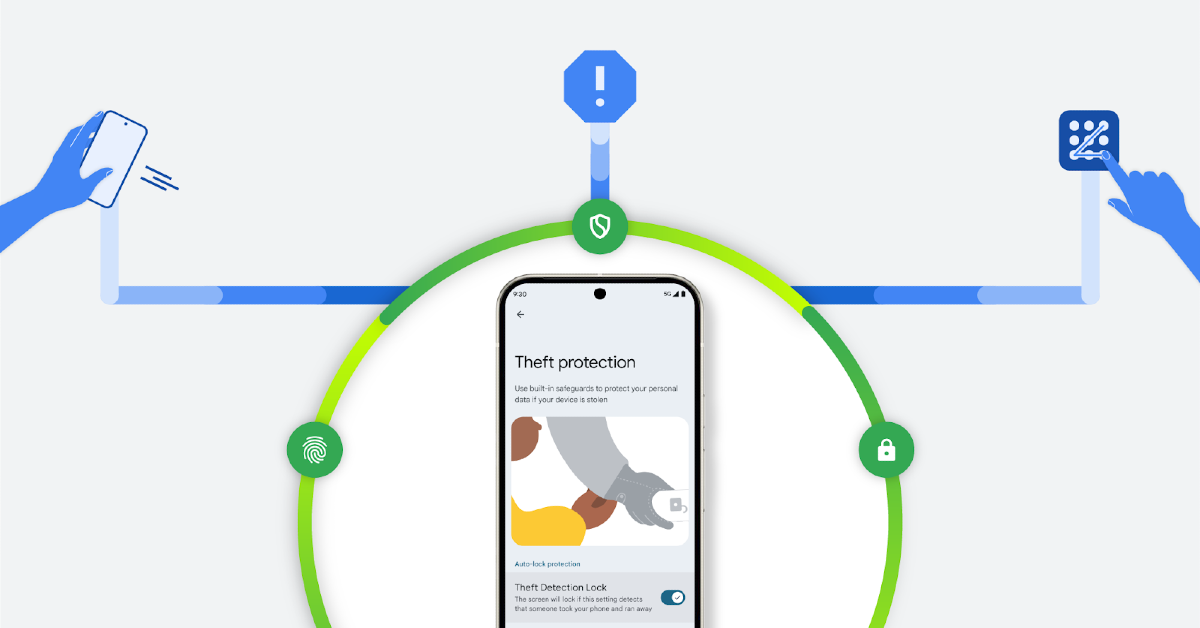
- Google's new Theft Protection feature for Android phones detects when your phone is snatched from your hands and automatically locks it.
- The feature uses sensors like the gyroscope and accelerometer to detect sudden movements and can also identify if the phone is abruptly disconnected from Wi-Fi or Bluetooth.
- On-device AI analyzes the data from these sensors to determine if a theft has occurred, forcing the screen to lock for data protection.
Over the years, Google has elevated its device protection game. What started with Find My Device now touches upon different facets of everyday life. Initially, you could track the location of your lost or stolen phone. Now, you can remotely lock it or erase its data before the malicious entities are able to break into it. Google’s newest Theft Protection feature for Android phones detects whenever someone snatches your phone from your hands and runs away, but it needs to be enabled beforehand. When this feature kicks in, it locks your phone right away, securing your data from the thief. We recommend enabling this feature to safeguard your device from any possible incidents of theft.
Read Also: Acer Iconia 8.7 (iM9-12M) and the Acer Iconia 10.36 (iM10-22) launched in India
In This Article
How does Theft Protection work on Android
You’re probably wondering how your phone is able to tell when someone else grabs it from your hands and makes a dash. The answer is quite simple. Your smartphone already has the necessary sensors to perceive any sudden movements. The gyroscope and accelerometer can tell indicate when your phone goes from a state of rest to sudden motion. Furthermore, if your phone suddenly gets disconnected from the nearby WiFi network or Bluetooth accessories, it is an even bigger tell that it has been snatched from your hands.
Google uses on-device AI to make sense of this collection of data and determine whether it is a case of theft. If the data and signals are strong enough to indicate that your phone has been stolen, its screen is forced to lock itself to protect your data. The new ‘Offline Device Lock’ feature does the same thing when your phone abruptly goes offline. For added security, you can use Remote Lock to lock your phone’s screen by using its phone number.
Enable Theft Protection on your Android phone
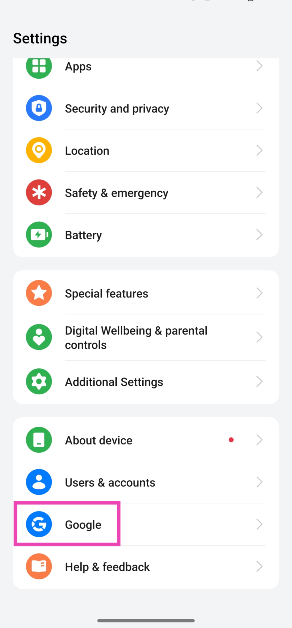
Step 1: Go to Settings and select Google.
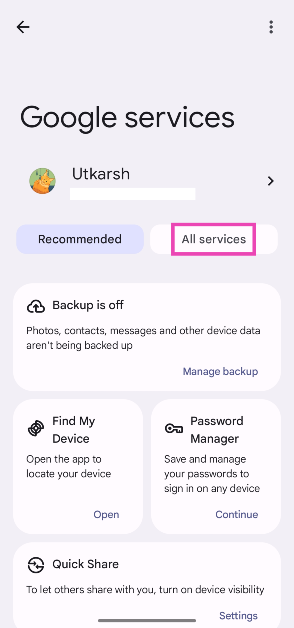
Step 2: Tap on All Services.
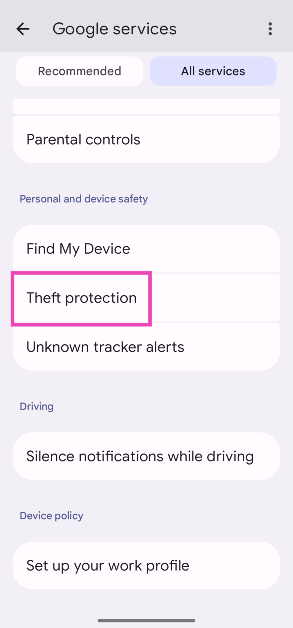
Step 3: Scroll down and select Theft protection.
Step 4: Turn on the toggle switch next to Theft detection lock.
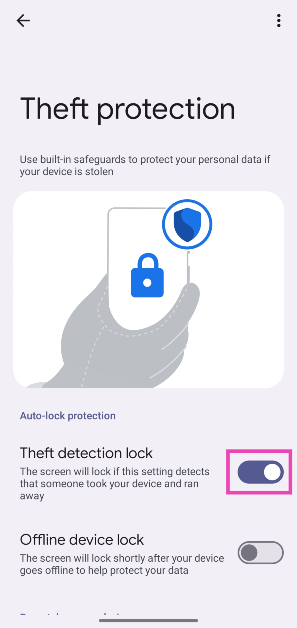
Bonus Tip: Enable Find Hub to track your device if it gets lost or stolen
Step 1: Go to Settings.
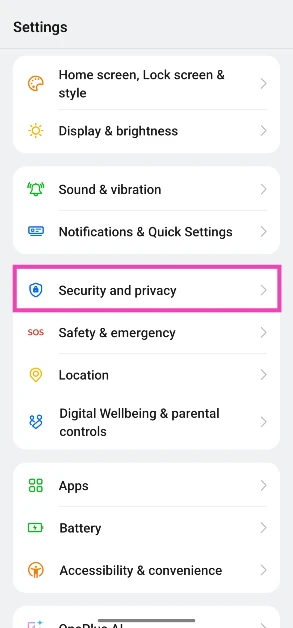
Step 2: Tap on Security and privacy.
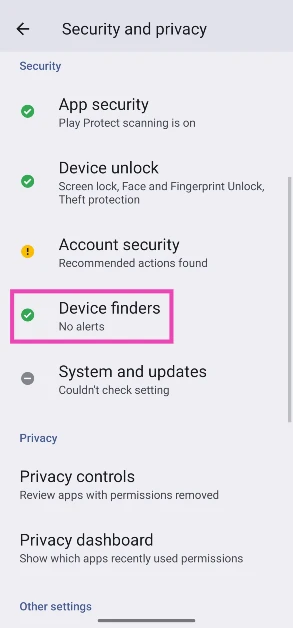
Step 3: Tap on Device finders.
Step 4: Select Find Hub.
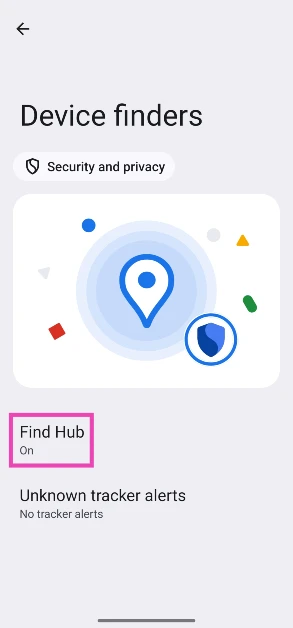
Step 5: Turn on the toggle switch next to Allow device to be located.
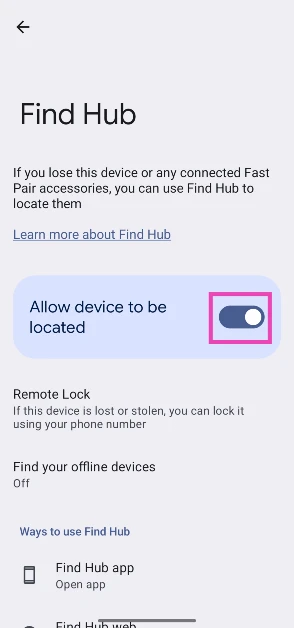
Step 6: If your device ever gets lost or stolen, go to Google’s Find Hub page and select it to find its location.
Frequently Asked Questions (FAQs)
Google’s ‘Theft Detection Lock’ uses AI and device sensors to detect if your phone has been snatched from your hands. Upon sensing a case of theft, it immediately locks your phone’s screen to protect your data.
Go to Settings>Google>All Services>Theft protection and turn on the toggle switch next to Theft detection lock.
Google’s new ‘Theft Protection’ feature for Android uses on-device AI along with the data from the phone’s gyroscope and accelerometer to determine if someone has snatched your phone and run away with it. In this scenario, this feature locks your phone, ensuring that the thief cannot access its contents.
You can enable Remote Lock in Google Services to be able to lock your phone in the unfortunate case that it gets stolen. Google’s Find My Device service lets you remotely erase the data on your lost or stolen phone.
Go to Google's Find Hub website and select your device from the sidebar to track it. What is Google’s ‘Theft Detection Lock’?
How do I turn on anti-theft on my Android phone?
Can AI stop phone theft?
Can I lock my stolen Android phone?
How do I track my stolen phone?
Read Also: How to add Apple’s election results tracker to your iPhone’s lock screen?
Final Thoughts
This is how you can enable Theft Protection on your Android phone. We recommend turning on Find My Device, Remote Lock, and Offline Device Lock as well. In case your phone gets stolen, report the incident to your nearest police station and provide them with the phone’s IMEI number to help them track the device.


