


Tab management is one of the biggest challenges for users who do a lot of their research online. Google Chrome, being one of the most popular web browsers, has a plethora of tools to colour-code tabs and group them together. Its newest feature, Split View, allows users to juxtapose two tabs and their contents without switching back and forth. Here’s how you can open 2 Google Chrome tabs in Split View.
Read Also: Best of 2025: Top tablets released this year
In This Article
Maximise productivity with Split View in Google Chrome
Initially introduced as an experimental feature, Split View is now available as a native tool in the stable version of Chrome. You can access it by right-clicking any passive tab on the web browser and selecting the option to add it to the current tab. Alternatively, you can right-click your current tab and open up a new one in split view. This also works while opening new links.
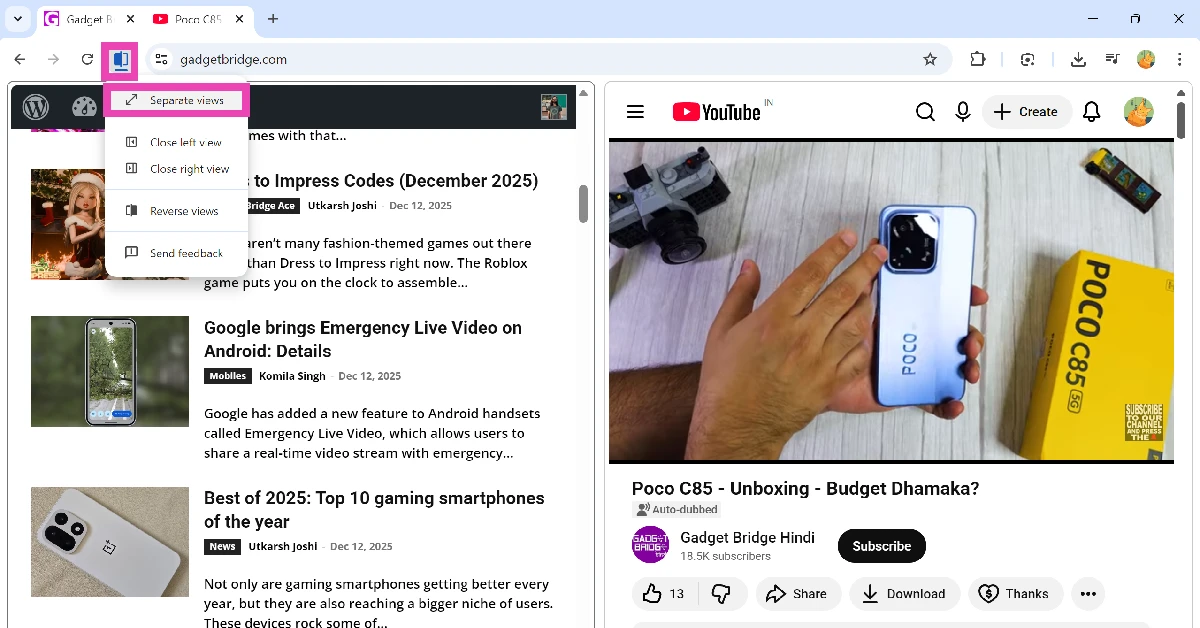
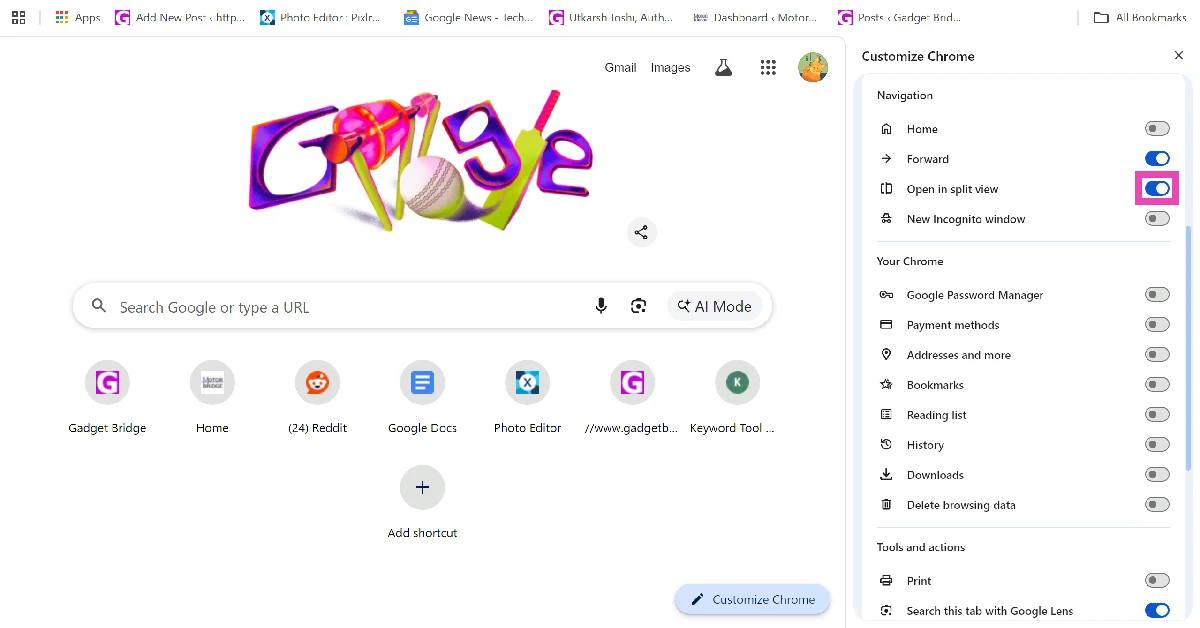
For easy access, you can add the Split View icon next to the address bar in Chrome. This option is tucked away in the customisation menu. You can access it by hitting the ellipses and going to More tools>Customise Chrome>Toolbar and turning on the toggle switch next to ‘Split View’. Clicking the split view icon creates a new panel for a new tab. You can open a maximum of 2 tabs in split view at once.
Open Google Chrome tabs in Split View
Step 1: Right-click a tab in the Chrome browser.
Step 2: Select ‘New split view with current tab’.
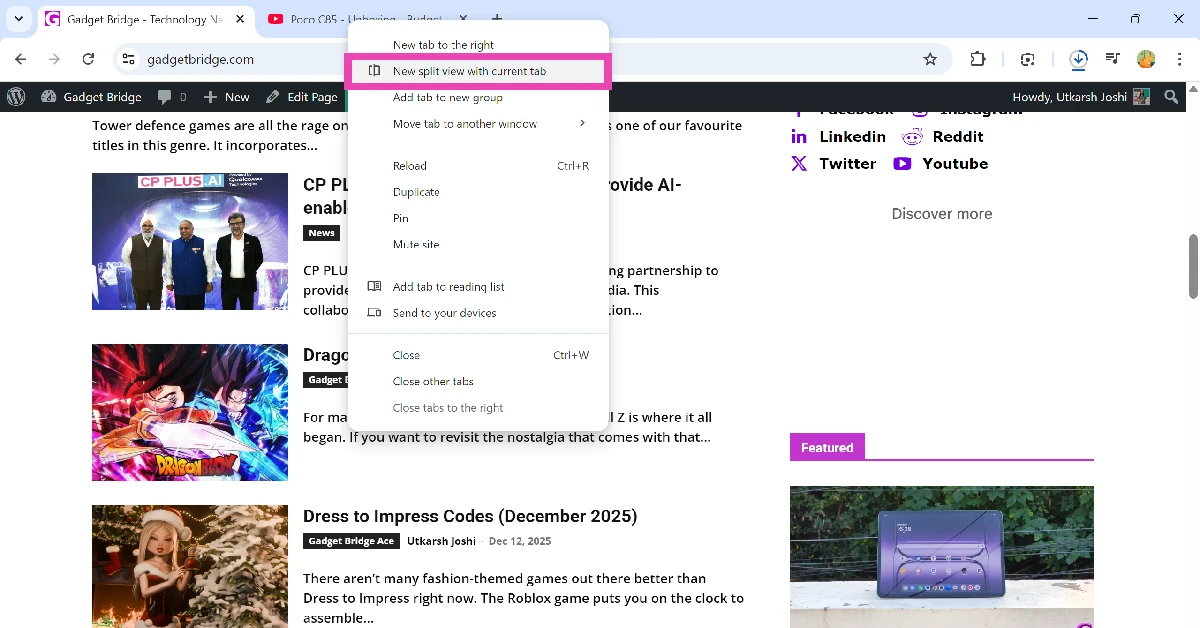
Step 3: If you’re opening a new link, right-click on it and select ‘Open link in split view’.

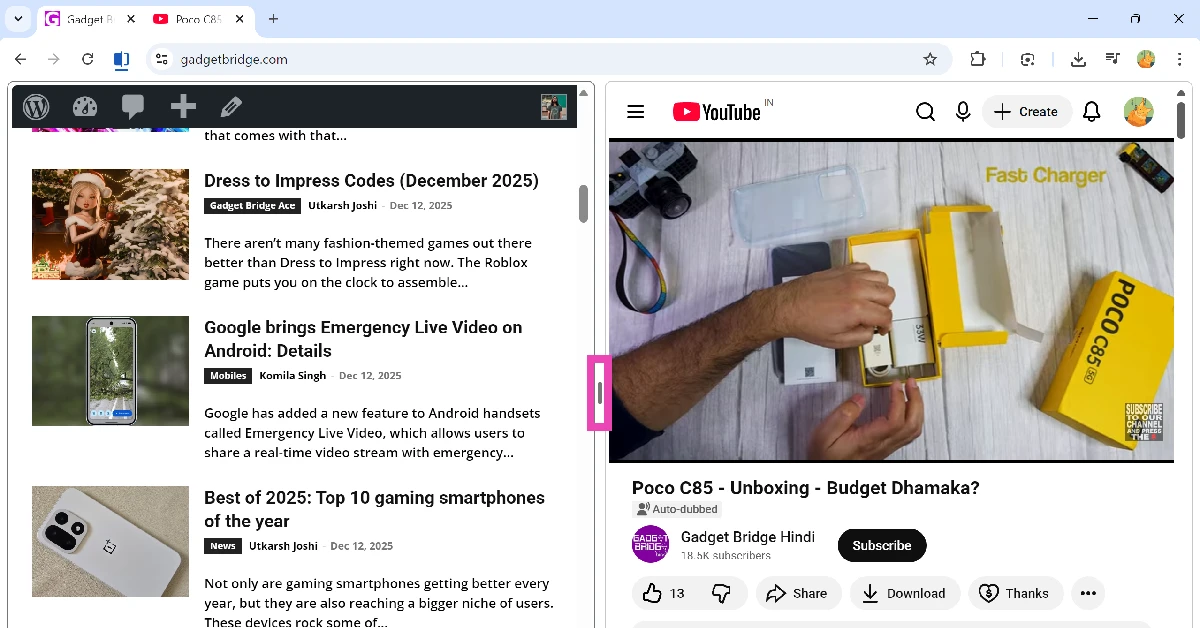
Step 4: Select and drag the border in the middle of the screen to adjust the sizes of the two panels.
Step 5: To swap the panel positions, right-click the merged tabs at the top of the screen or hit the split view icon next to the address bar. Go to Arrange split view>Reverse views.
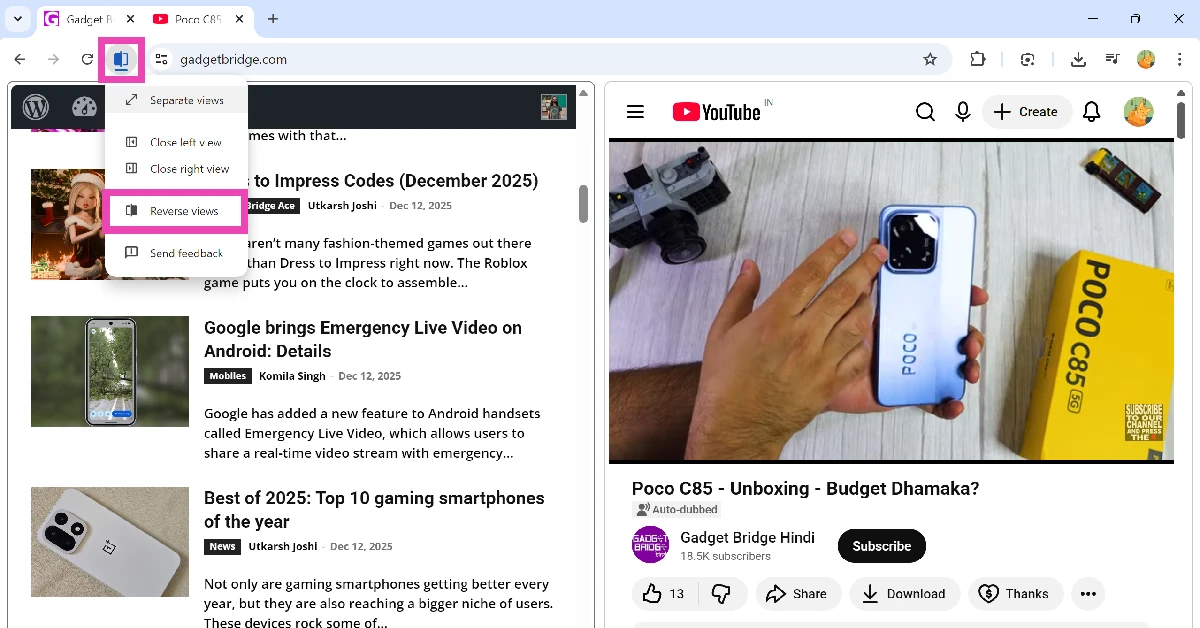
Step 6: To exit split view, right-click the merged tabs at the top of the screen and go to Arrange split view>Separate views. Alternatively, you can hit the split view icon and select the same option.
Add the Split View icon to the toolbar
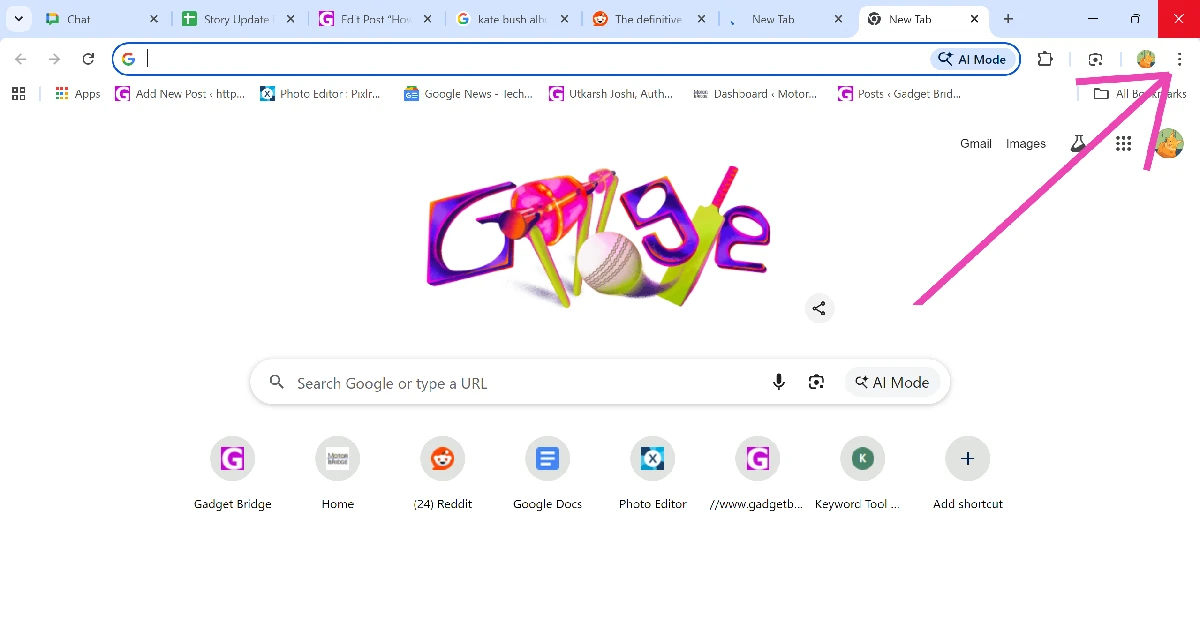
- Launch Google Chrome and hit the ellipses in the top right corner of the screen.

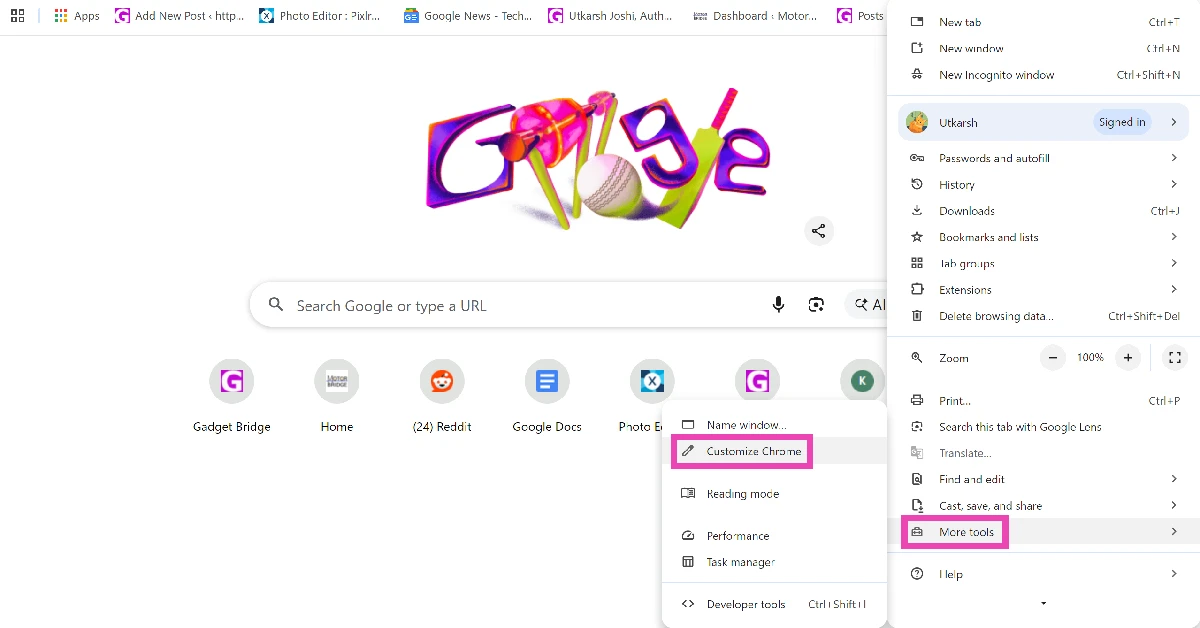
- Go to More tools>Customise Chrome.
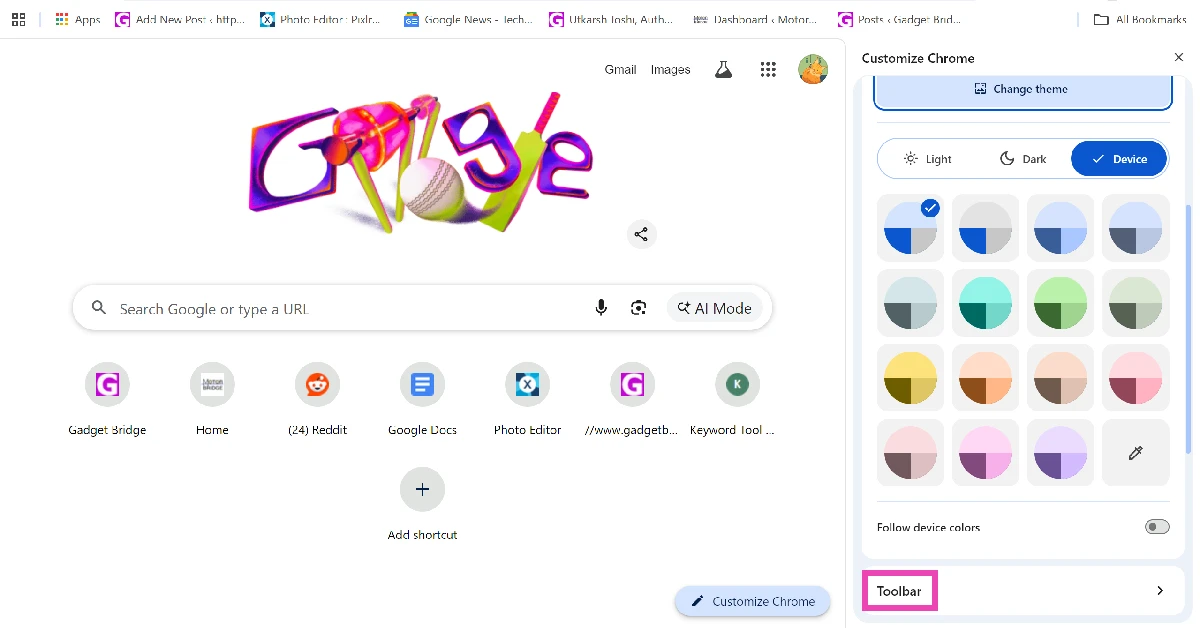
- Click on Toolbar.
- Turn on the toggle switch next to Open in split view.
Drag tabs into Split View
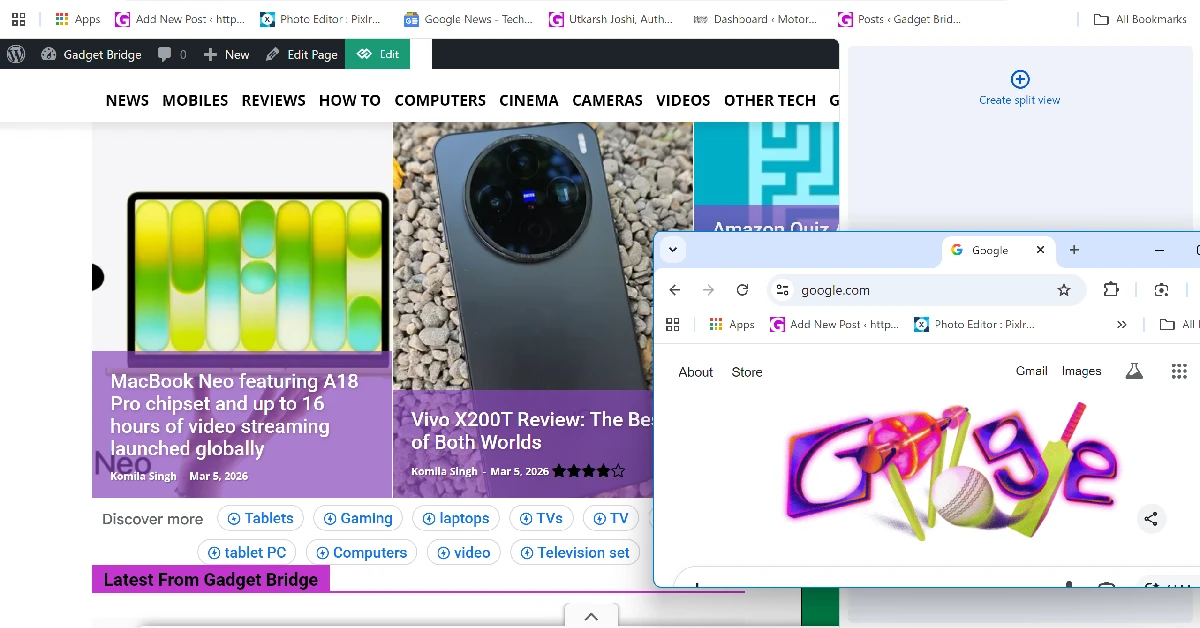
Need to quickly pop open a tab in Split View? Simply drag it down to your current tab and move it towards the left or right section of the screen. When you’re in the final third section of the screen, a pane with ‘Create split view’ written on it will appear on the screen. drop the tab in this pane to open it in Split View.
Frequently Asked Questions (FAQs)
What does Split View do in Google Chrome?
Split view merges two Chrome tabs together, allowing the user to view them side by side.
Can I open 3 tabs in Split View?
No, Chrome only allows you to open 2 tabs in Split View.
Can I open a link in Split View?
Yes, you can open a new link in a new panel on your current tab by right-clicking on it and selecting ‘Open link in split view’.
How do I add the Split View icon to the toolbar?
Launch Chrome and hit the ellipses in the top-right corner of the screen. Go to More tools>Customise Chrome>Toolbar and turn on the toggle switch next to Split View.
How do I exit Split View?
Right-click the merged tabs at the top of the screen, go to ‘Arrange split view’ and select ‘Reverse views’.
Read Also: Tower Defense Simulator Codes (December 2025)
Final Thoughts
If you can’t find the Split View option in Chrome, make sure the web browser is updated to the latest version. Alternatively, you can view the split-screen setup offered by Windows 11 by dragging a tab to the top of the screen and using the pop-up menu to place it on one side of the display. If you have any questions, let us know in the comments!


