




The new 24H2 update for Windows 11 is now live and available for all users. While the AI features are understandably garnering the headlines, there are a couple of quirks that haven’t gone down well with users. One of them is the ‘Learn About This Picture’ icon that appears when you set a Spotlight background on the desktop. If you’re not a fan of the feature, you may be annoyed to find that there’s no direct way to remove it. If your search to remove the ‘Learn About This Picture’ icon from your Windows 11 desktop led you to this page, you have landed on the right spot. Without further ado, let’s take a look at how you can resolve this issue.
Read Also: How to enable Voice Isolation while on a call on your iPhone
In This Article
What is ‘Learn About This Picture’ on the new Windows 11 update?
Windows 11 now allows you to set a Spotlight background on your desktop. Initially, Spotlight was only available for the desktop lock screen. When a Spotlight background is set to the desktop, a ‘Learn About This Picture’ icon appears on the screen. As the name implies, this icon gives the user more information about the background picture when it is clicked.
While this is quite a nifty feature, the dedicated icon for additional information can be a bit distracting for users who just want to enjoy a nice picture on their displays. Luckily, Windows 11 allows you to remove this icon from the desktop, but it is not a straightforward process.
Remove the ‘Learn About This Picture’ icon in Windows 11
Step 1: Use the search box in the taskbar to find Registry Editor.
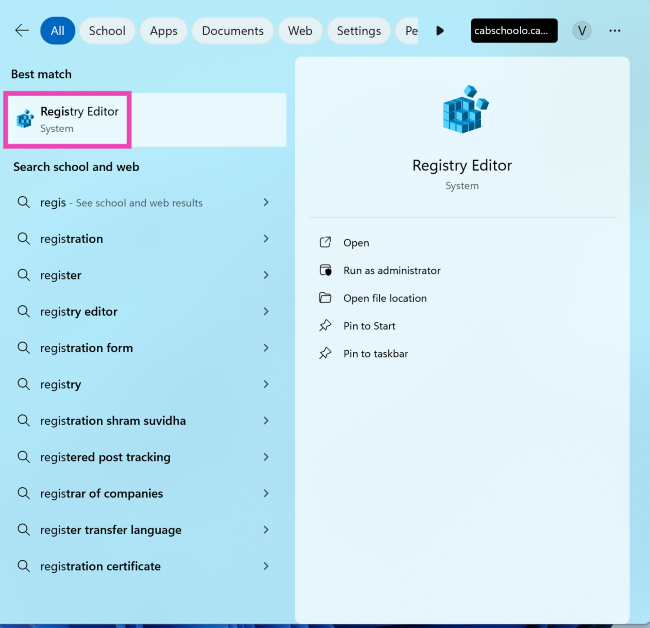
Step 2: Launch Registry Editor and paste the following text in its address bar:
Computer\HKEY_CURRENT_USER\Software\Microsoft\Windows\CurrentVersion\Explorer\HideDesktopIcons\NewStartPanel
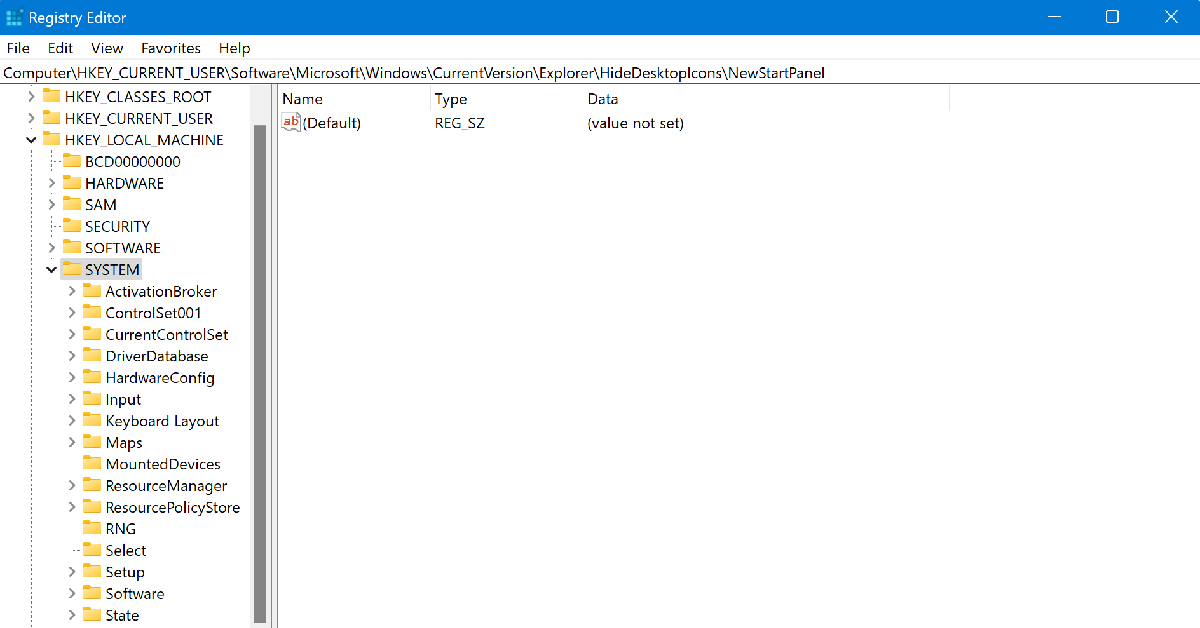
Step 3: Select the icon that says {2cc5ca98-6485-489a-920e-b3e88a6ccce3}.
Step 4: Set the Value data counter to 0.
Step 5: Hit OK.
Step 6: Refresh or restart your PC.
Frequently Asked Questions (FAQs)
How do I change the wallpaper on Windows 11?
Right-click on the desktop, select ‘Show more options’, click on ‘Personalise’, select ‘Background’, and choose a picture to set as the wallpaper.
How do I find my pictures on my Windows 11 PC?
Use the search bar to find the Photos app, launch it and switch to the ‘All Photos’ tab to view all your pictures.
Does Windows 11 have picture-in-picture mode?
PiP mode is baked into web browsers like Google Chrome and Microsoft Edge. You can watch YouTube videos in PiP mode by right-clicking the media player twice and selecting ‘Picture in picture’.
Read Also: Hackers Harness AI to Spoof Your Gmail Account: What You Need to Know
Conclusion
This is how you can remove the ‘Learn About This Picture’ icon from the desktop on your Windows 11 PC. Have you tried the 24H2 update for Windows 11 yet? If it is incompatible with your old PC, you can use these tricks to install it. If you have any questions, let us know in the comments!


