


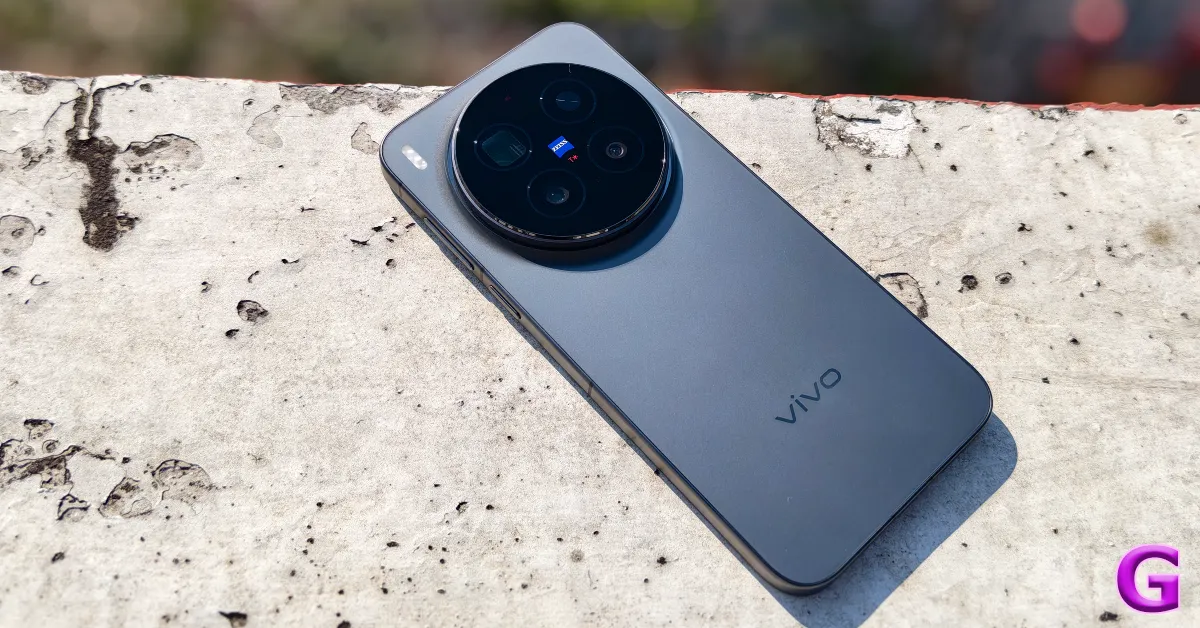
Convenience is all about accessibility. You could have a super-useful feature at your disposal, but it won’t be of much use if it’s buried somewhere in the device’s settings. Luckily, your Android phone offers quick and easy actions to access important tools and features. The flashlight is one of them. It is so well integrated into the OS that you don’t even need to wake up your phone to illuminate it. Let’s take a look at how you can turn on the flashlight by simply shaking your Android phone.
Read Also: Google Photos Memories features coming to Samsung AI TVs: Here’s when
In This Article
A note about availability
A simple shake gesture to turn on the flashlight seems quite obvious, but not all Android phones support it. As of now, it can only be found in Vivo/iQOO and Motorola smartphones. However, the good news is that there are plenty of third-party apps that can bring this feature to your device.
If you don’t want to download a third-party app on your phone, there are other quick gestures you might want to look into. Here are some of them.
- Quick Tap on Google Pixel smartphones.
- Double-pressing the side button on Samsung smartphones.
- Long-pressing the Volume Down key on OnePlus/Oppo smartphones.
- Using the Plus/Quick/Camera button on smartphones that support it.
Enable the ‘Shake for flashlight’ gesture on your Vivo smartphone
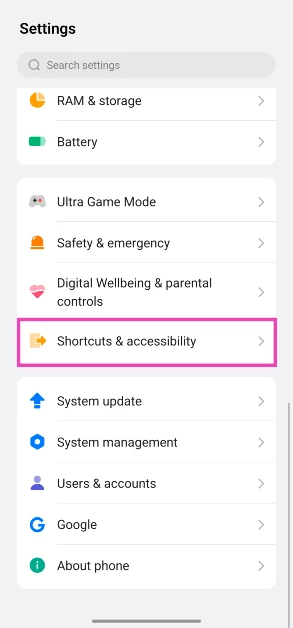
- Go to Settings.
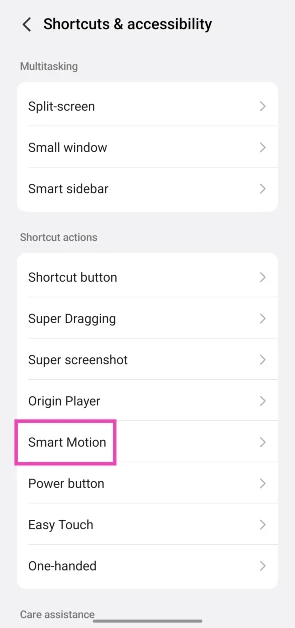
- Scroll down and select Shortcuts & accessibility.

- Tap on Smart Motion.

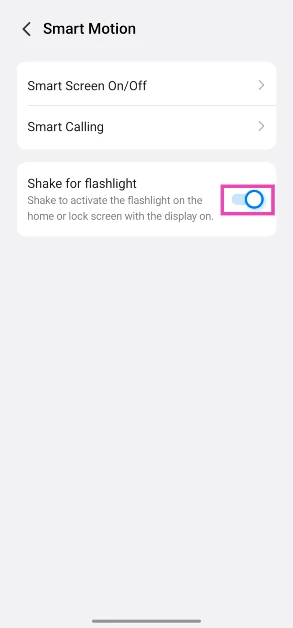
- Turn on the toggle switch next to Shake for flashlight.
- Go to the lockscreen or homepage and shake your phone a couple of times to turn on the flashlight. This does not work if your phone’s screen is not active.
- To turn off the flashlight, go to Quick Settings and tap the Torch tile.
Enable the ‘Fast Flashlight’ gesture on your Motorola smartphone
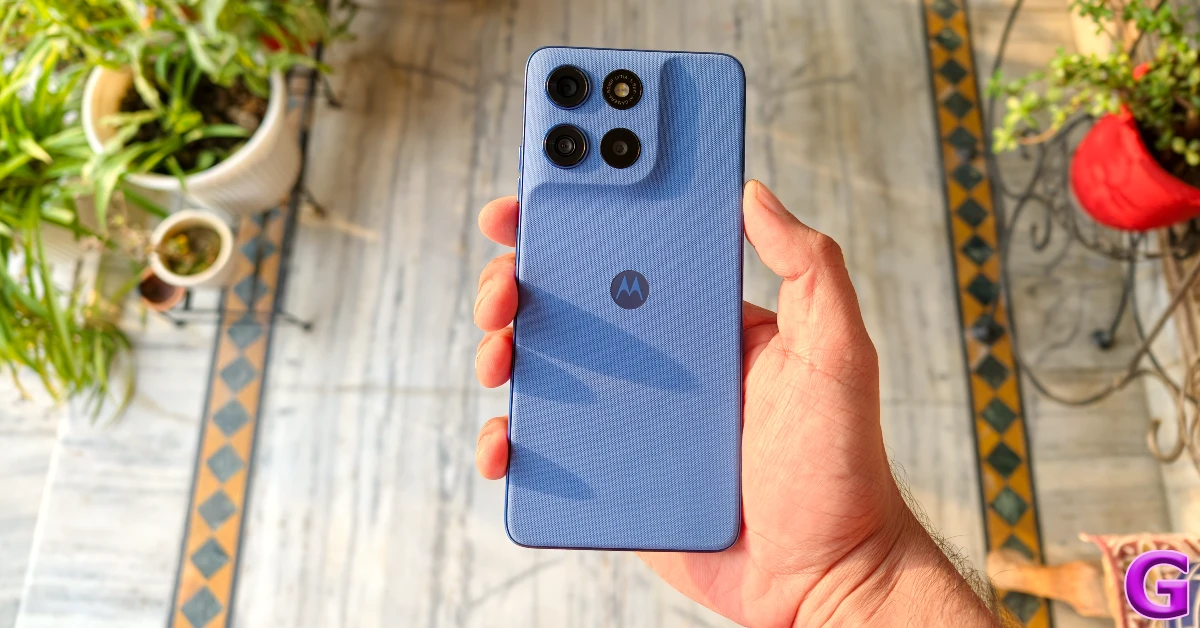
- Go to Settings.
- Select Gestures.
- Tap on Fast Flashlight to turn it on.
- Move your phone in a chop gesture to turn on the flashlight.
Other Android phones
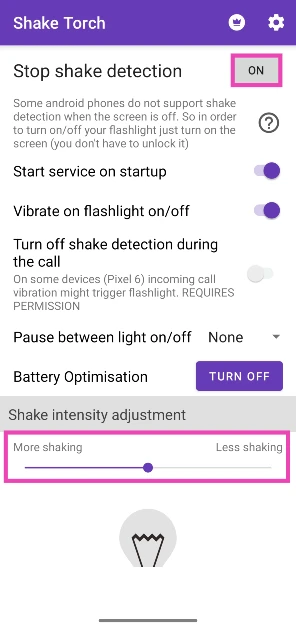
- Download the Shake Flashlight app from the Google Play Store.
- Launch the app and make sure the box next to Stop shake detection says On.

- Use the slider at the bottom of the screen to set your preferred shake intensity.
- Shake your phone in a chopping motion to turn on the flashlight. Some phones may not register this motion when they’re locked. Press the side button and carry out the gesture again to bring the flashlight to life.
- Shake your phone again to turn off the flashlight.
Frequently Asked Questions (FAQs)
How do I turn on my phone’s torch without touching it?
If your phone isn’t in your near vicinity, you can use Google Assistant or Siri to turn on its torch. Simply say ‘Ok Google/Hey Siri, turn on the torchlight’, and the phone’s flashlight will light up.
What’s the quickest way to turn on my phone’s flashlight?
You can add the flashlight icon to your phone’s lock screen if you want to access it without unlocking the device. Additionally, you can enable the shake and quick tap gestures to turn on the torchlight.
How do I add the flashlight icon to my Android phone’s lock screen?
Go to Settings>Home screen and Lock screen>Lock screen shortcuts and select ‘Torch’ from the list.
How do I use Quick Tap on my Google Pixel to turn on the torchlight?
Go to Settings>System>Gestures>Quick Tap, and select ‘Toggle flashlight’.
How do I enable shake gestures for my phone’s flashlight?
Go to Settings>Shortcuts & accessibility>Smart Motion and turn on the toggle switch next to ‘Shake for flashlight’.
Read Also: Best of 2025: Top 10 smart wearables of the year
Final Thoughts
Some smartphones may not be capable of detecting the shake gesture when their screen is off. In this case, press the side button before carrying out the gesture. If you have any questions, let us know in the comments!


