




Google started testing the ‘Hum to Search’ feature for YouTube Music back in March. The tech giant has now started rolling out this feature on its music streaming app. ‘Hum to Search’ is similar to the ‘Search song’ option in Google Assistant. The idea is simple – you hum the rhythm or melody of a song, and Google will find matching results. So, let’s take a quick look at how you can use ‘Hum to Search’ to find a song on YouTube Music.
Read Also: How to Perform a Safety Check on Google Chrome? (2024)
In This Article
How is ‘Hum to Search’ different from ‘Search song’ in Google Assistant?
If you’re an Android user, you must be familiar with the ‘Search Song’ feature in Google Assistant. This feature can be accessed in the Google app for Android or by triggering the Google Assistant. Unlike YouTube Music, Google’s ‘Song Search’ feature brings up multiple results that match your query. Each result displays its match percentage. Clicking on a result opens its Google search page.
On the other hand, YouTube Music brings up one accurate match for your query. This result can be opened in the YouTube Music app itself. You can add it to your playlist or download it for offline listening. Since Google is rolling out this feature in a phased manner, it may not be available for your device yet. Keep an eye out for it on the search page.
Use Hum to Search on YouTube Music
Step 1: Launch the YouTube Music app on your smartphone.
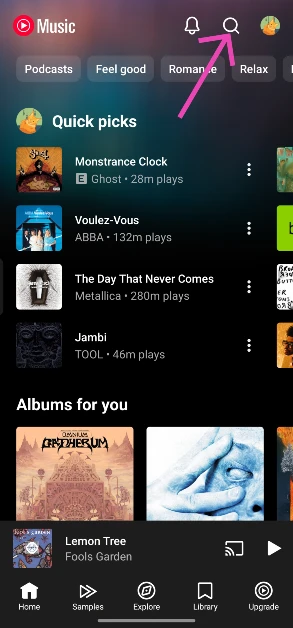
Step 2: Hit the search icon at the top right corner of the screen.
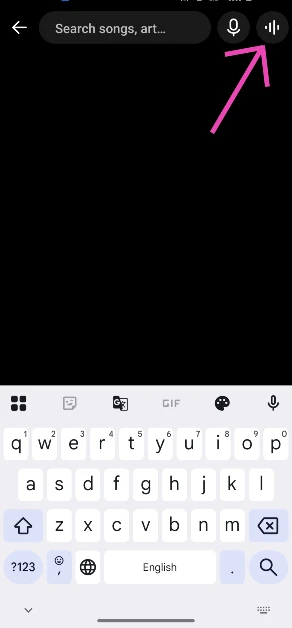
Step 3: Tap the wavelength symbol at the top right corner of the screen.
Step 4: Hum the song for 20-30 seconds.

Step 5: Google’s AI algorithm will look up the song that matches the melody. The song title, along with the artist name, album name, and release year, will appear on the screen.

Step 6: You can choose to play the song or add it to your playlist. If this is not the song you were looking for, tap the waveform symbol at the bottom of the screen to perform another search.
Frequently Asked Questions (FAQs)
Where is the Hum to Search feature in YouTube Music?
Launch the YouTube Music app, tap the search icon, and then hit the waveform symbol. Hum the song for 20-30 seconds. Google will present the match on the following page.
How do I search for a song by humming it on my phone?
Launch the Google app, tap the microphone icon, and hit ‘Search song’ at the bottom of the screen to search for a song by humming its melody.
How do I create an AI playlist on YouTube Music?
Go to YouTube Music>Library>New>AI playlist, type your prompt, and hit Enter.
How do I delete my YouTube Music history?
Launch the YouTube Music app, tap your profile picture, go to ‘Manage watch history’, and tap on Delete>Delete all time.
How much does a YouTube Music subscription cost?
The YouTube Music subscription comes bundled with YouTube Premium. Prices for YouTube Premium start at Rs 129 per month.
Read Also: Top 2 ways to schedule a text message on Android? (2024)
Conclusion
This is how you can use ‘Hum to Search’ to find any song on YouTube Music. If you don’t use YouTube Music, you can check out this feature on Google Assistant. Third-party apps like Shazam and SoundHound also offer this feature. If you have any questions related to searching songs on your phone, let us know in the comments!


