


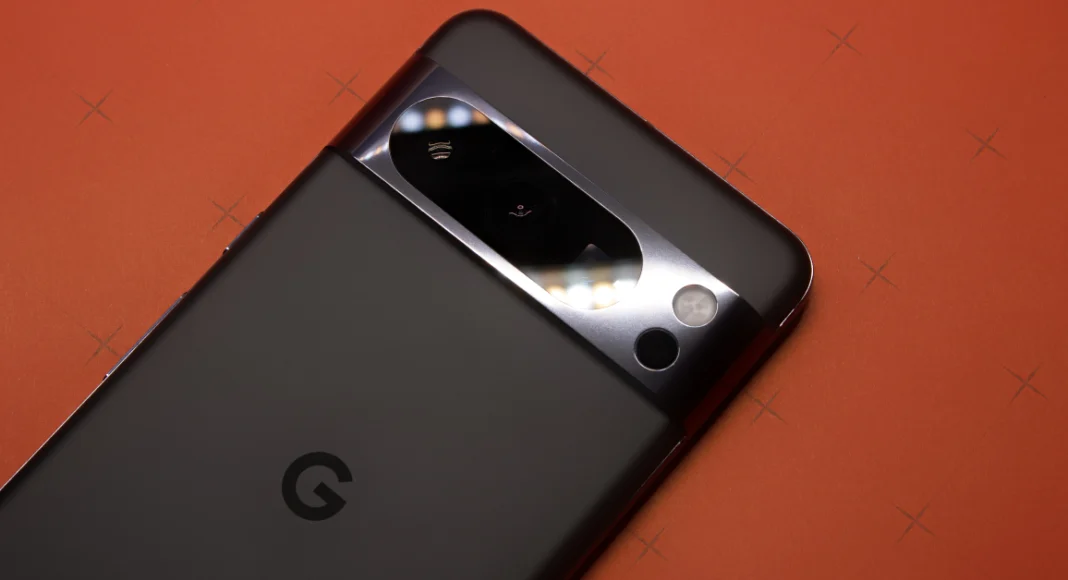
Google’s Pixel series smartphones may not rock the flashiest chipsets, but their amazing software experience and unique feature list are enough to distinguish them from their peers. One of our favourite things about the Pixel is its temperature sensor. Introduced on the Pixel 8 Pro, this piece of hardware has found its way into every successive Pro model. Using this sensor, your Pixel can take the temperature of objects and human bodies within seconds. The native Thermometer app makes the process very easy to follow. Here’s how you can use your Google Pixel Pro’s thermometer to measure the temperature of an object or body.
Read Also: Best of 2025: Top 10 TVs of the year
In This Article
Some tips to keep in mind
- Position the temperature sensor within 5cm/2in of the object’s surface.
- If the object is radiating steam, choose an area that is not covered by steam. Better yet, wait for the steam to clear.
- Choose the object or material in the Thermometer app before taking the temperature.
- If the object is large, the temperature readings may vary for different parts of its surface.
- If the object is very hot, a red circle will appear on the display. Observe caution while taking the reading.
- Make sure your smartphone is cool before taking a reading.
Use your Google Pixel’s temperature sensor to measure the temperature of objects
Step 1: Launch the Thermometer app on your Google Pixel. Grant it the necessary permissions.
Step 2: Tap on Object temperature.
Step 3: Select one of the Routine Measurements. If the object you’re measuring the temperature of isn’t on the list, hit the Plus icon at the bottom of the screen.
Step 4: Tap Default at the bottom of the page and choose a material that matches your object.
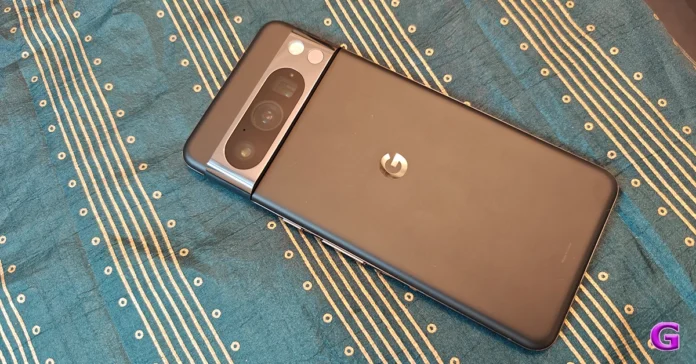
Step 5: Point your phone’s rear camera bar closer to the object. For best results, the distance between the object and the temperature sensor on the visor should be within 5cm/2in.
Step 6: Hit the Tap to measure button.
Step 7: Your Pixel will record and display the temperature of the object. Hit the arrow icon to take another reading.
Use your Google Pixel’s temperature to measure body temperature
Step 1: Launch the Thermometer app on your Google Pixel. Grant it the necessary permissions.
Step 2: Tap on Body temperature.
Step 3: Tap the dropdown menu in the top-right corner of the screen and select your age range.
Step 4: Hit the Tap to measure button.
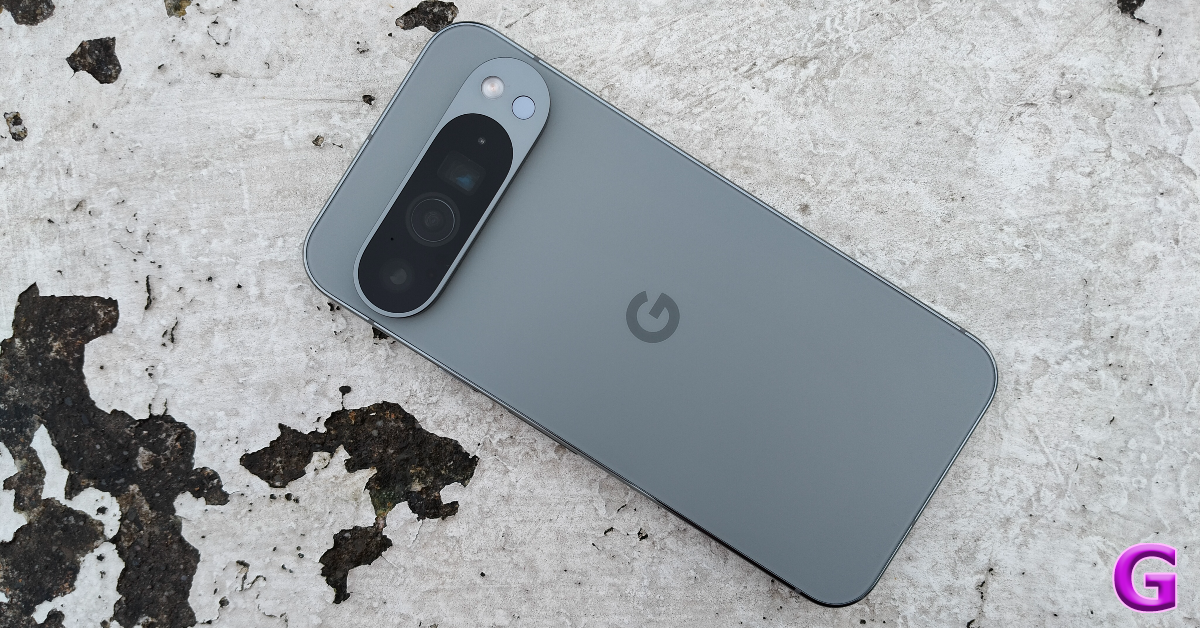
Step 5: Turn your phone around and bring it closer to your forehead until you hear it vibrate. Make sure the temperature sensor on the camera visor is directly pointing at your forehead.
Step 6: Move the across your forehead and over a temple. Wait for your phone to vibrate.
Step 7: Your phone will vibrate when it has recorded your temperature. Hit Save to save the reading on the Fitbit app.
Frequently Asked Questions (FAQs)
Does the Google Pixel have a thermometer?
Only the Pro models from the Google Pixel 8 series and up come with a temperature sensor. This sensor is located in the rear camera visor/bar.
Does Google save my body temperature taken with the Pixel?
When you take your body temperature using the Thermometer app on your Pixel, the reading is automatically deleted from the app after 7 days. You can choose to save the reading to the Fitbit app on your device.
How do I record the temperature of an object using my Google Pixel?
Launch the Thermometer app on your Pixel Pro, select ‘Object temperature’, pick an object from the list, hit the ‘Tap to measure’ button, and bring the temperature sensor within a 5cm (2in) distance of the object.
Is the Google Pixel’s temperature sensor accurate?
Google claims that the temperature sensor on the Pixel Pro can calculate body temperature in the range of 96.9°F – 104°F (36.1°C – 40°C) to within ±0.3°C when compared with an FDA-cleared temporal artery thermometer.
Does the Pixel’s Thermometer app need internet access to function?
No, the Thermometer app does not require an internet connection to take a temperature reading.
Read Also: Nothing Phone (3a) Lite Review: CMF performance in a Nothing body
Final Thoughts
Once you get the hang of your Pixel Pro’s temperature sensors, you will stop relying on traditional thermometers to check your body temperature. If you’re thinking of buying the new Pixel 10, make sure you read our review of the smartphone before making the purchase.


