


Key Takeaways
- The ability to pause video recordings, previously a staple on Android, has now been introduced to iPhones with the release of iOS 18.
- This new pause feature, available on iOS 18 RC, allows for real-time editing, enabling techniques like jump cuts and switching between different camera lenses during recording.
- By pausing and resuming recordings, users can create less bulky video files, thus saving significant storage space on their devices.
The option to pause a video recording has been a mainstay on Android phones for the past several years. iPhone users got this feature with iOS 18. It was showcased alongside the iPhone 16 series at the Glowtime event in September 2024. Apple gave everyone a glimpse into some additional features that will be a part of the upcoming iOS 18. One of these features is the option to pause a video recording on the iPhone. As of now, this feature is available on iOS 18 RC.
Read Also: Truke Yoga Beat Review: An ultra-affordable headset for a niche audience
In This Article
The new pause button enables real-time editing
The option to pause the video recording process opens the door to a lot of creative ideas. By clever use of the pause button, you can jump cut to a different subject. You can also choose to switch to a different lens – be it the selfie camera or the ultrawide/telephoto sensors. This tremendously cuts down the work that one has to do in the editing stage.
If you’re at a family gathering or a sporting event, you don’t need to keep the camera pointed at the action all the time anymore. With a simple tap of a button, you can choose to pause or resume the recording anytime. This leads to less bulky video files and saves a lot of storage space.
Pause video recordings on iPhone
- Make sure your iPhone is running iOS 18 (or higher OS version).
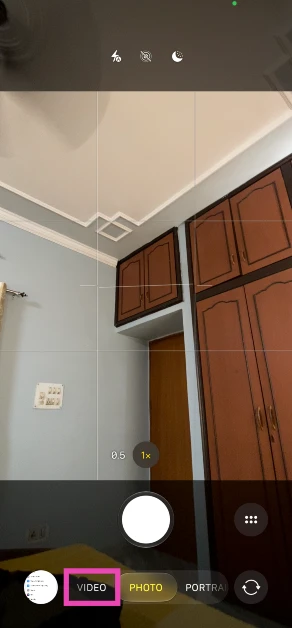
- Launch the Camera app and switch to video mode.

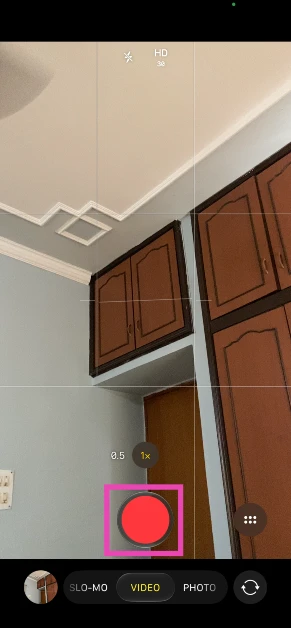
- Hit the red circle button to begin recording a video.

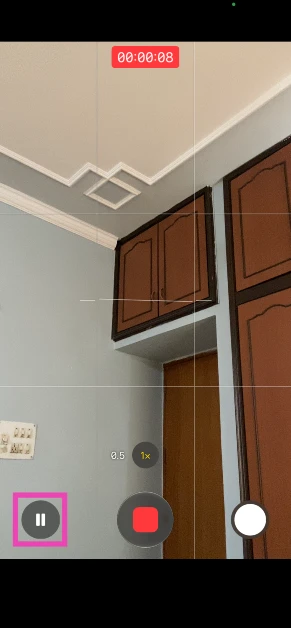
- A pause button will appear at the bottom corner of the screen. Hit this button to pause the video recording.
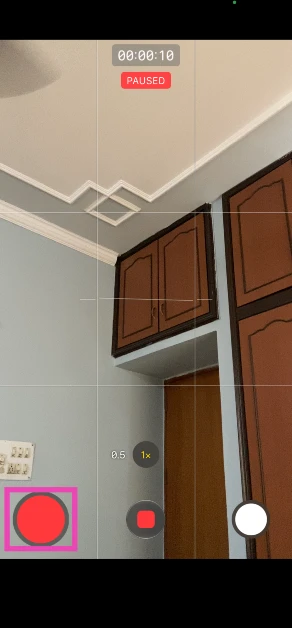
- When you pause the video recording, an indicator will appear below the timer. The pause button will be replaced by a record button.
- Hit the record button at the bottom corner of the screen to resume recording the video. Pressing the button in the middle ends the recording.
Frequently Asked Questions (FAQs)
How do I pause a video recording on my iPhone?
Open the Camera app, switch to video mode, begin the recording, and tap the pause icon at the bottom corner of the screen.
How do I resume the video recording once I have paused it?
Once you pause a video recording on your iPhone, the pause icon turns into the record icon. Tapping it will resume the recording. If you hit the button at the centre, the recording will end, and it will be saved on your device.
Can you record a video while playing music?
Your iPhone lets you record a video with music playing in the background. All you need to do is press and hold the shutter icon (without leaving Photo mode) and slide it to the right to lock it. Your iPhone will record a video without pausing the music.
How do I record calls on my iPhone?
To natively record calls on your iPhone, launch the Phone app, make a call, and hit the record icon at the top-right corner of the screen.
Read Also: Tecno Pova 6 Neo 5G with AI features launched in India
Final Thoughts
This is how you can pause a video recording on the native Camera app on your iPhone. Are you excited about this feature? How are you going to use it in your videos? Let us know in the comments!


