



If you use a big monitor with your PC, the default size of the content may not be enough to fit the screen. This is particularly true while browsing the web and reading ebooks. Looking for the zoom function of every application can be quite cumbersome whenever you want to take a closer look at the content. Luckily, there are a couple of keyboard shortcuts for this task. Here are the top 3 ways to zoom in or out with your keyboard on Windows 10/11.
Read Also: It is now possible to scan documents using the camera on WhatsApp: Report
In This Article
Which method should you use?
There are 2 distinct ways to zoom into your PC using your keyboard (other than trackpad gestures). The first method requires using a fairly standard keyboard shortcut (Ctrl and +) that works on most applications. If you’re browsing a web page on Chrome, reading an e-book, or viewing images in the native Photos app, this shortcut will come in quite handy. However, you may come across a situation when this shortcut does not trigger anything.
In that situation, you can rely on the native Magnifier tool on your Windows PC. This tool can be summoned using the Windows + shortcut. The Magnifier works on every application on your PC. It zooms into the position of the cursor. Using device settings, you can customise this tool and set its zoom level, zoom increment level, and more.
Use the keyboard shortcut
Most applications (Chrome, Edge, Photos) on your Windows 10/11 PC support the ‘Ctrl +’ keyboard shortcut for zooming into the content on the screen. Press and hold the Ctrl key on the keyboard, and keep pressing the + key to zoom in. The zoom level maxes out at 500% for most applications. Similarly, you can press and hold the Ctrl key and hit the – key to zoom out. Once you reach 100%, you can zoom out further until you reach 25%. Press Ctrl + 0 to return to default magnification.
Use the Magnifier tool
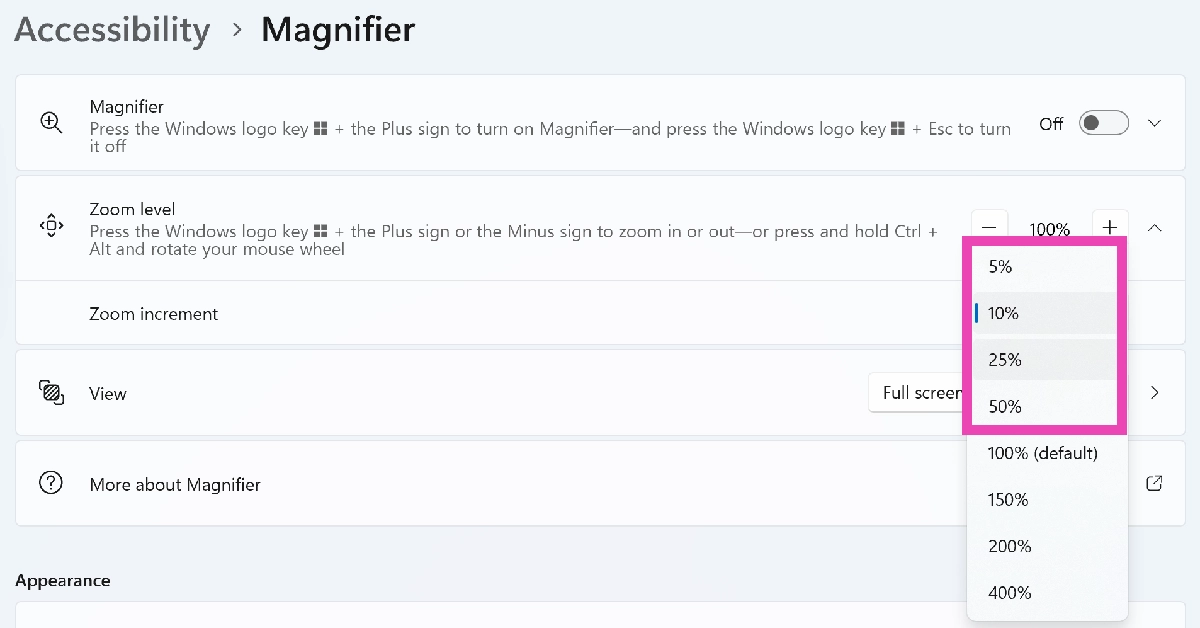
You can summon the native Magnifier tool on your Windows 10/11 PC by pressing the Windows and + keys. This will zoom in on the screen in the direction of the cursor. Here’s how you can change the zoom increment level to your desired setting.
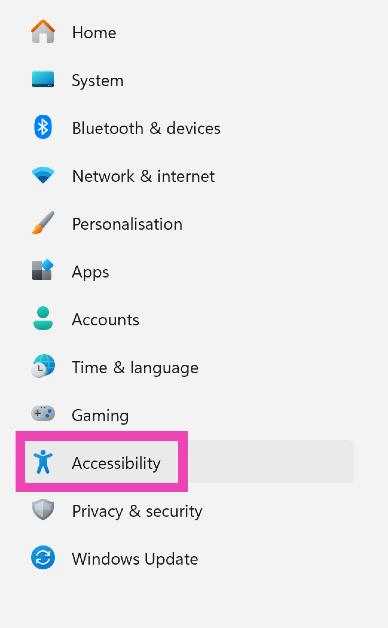
Step 1: Go to Settings and select Accessibility from the sidebar.
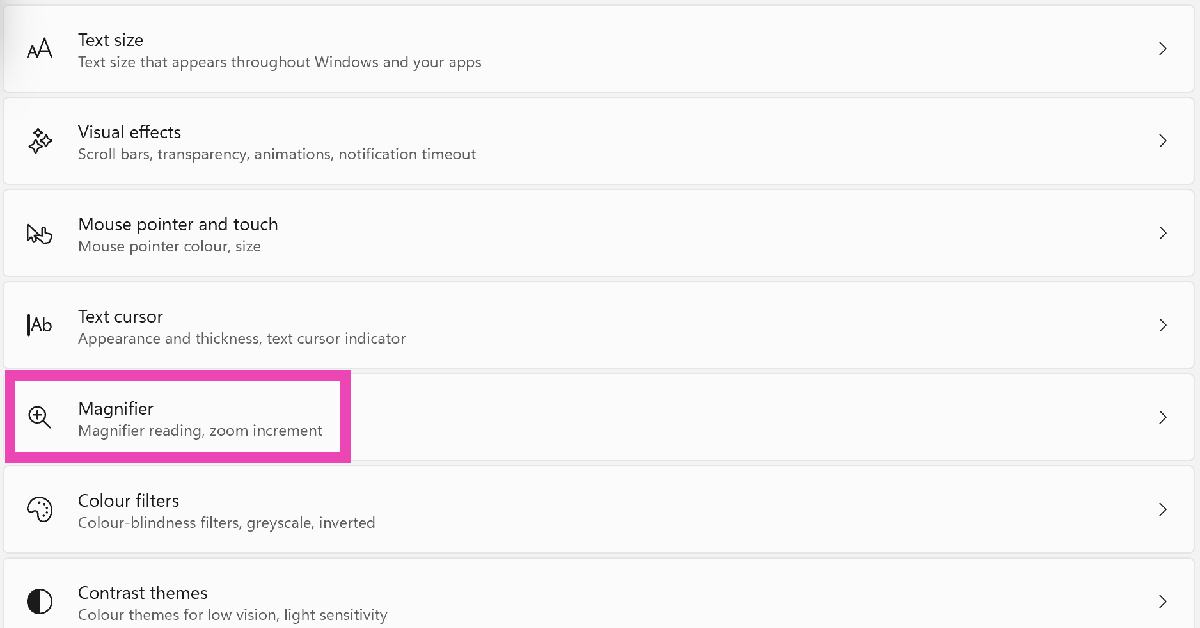
Step 2: Click on Magnifier.
Step 3: Hit the dropdown menu next to Increment and select your preferred level.
Use the touchpad
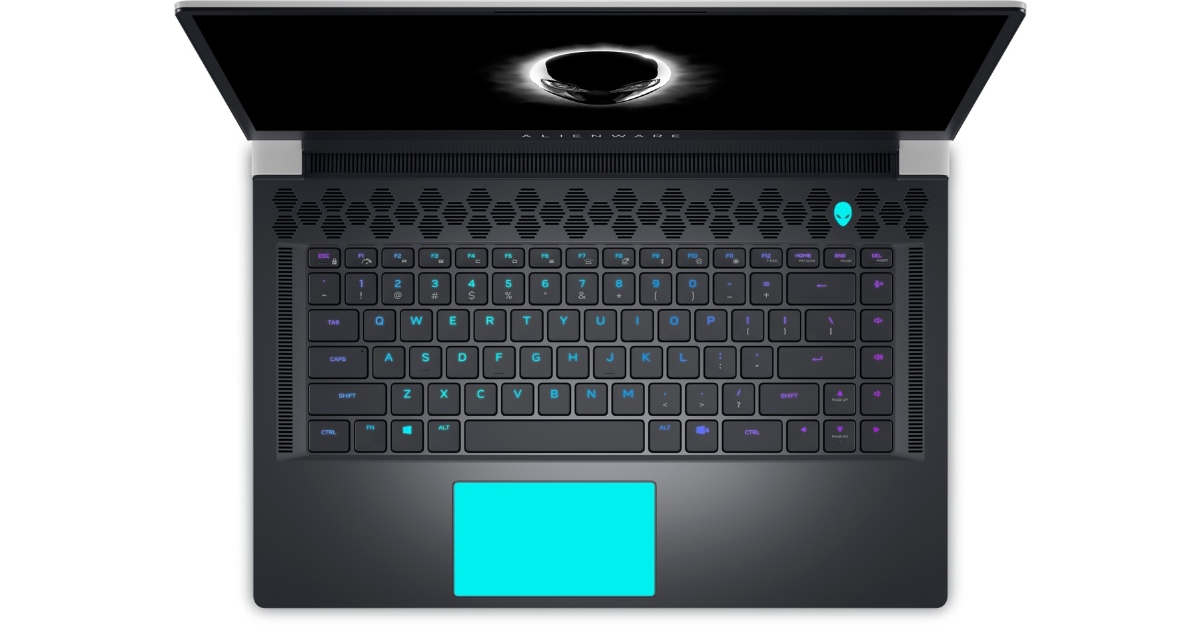
If you’re on a laptop, you don’t need keyboard shortcuts to zoom into a page. Simply drag two fingers in opposite directions on the touchpad to get a closer look at the content on the page. This is a universal gesture that works in almost every app. To go back to default view, move the two fingers closer to each other.
Frequently Asked Questions (FAQs)
Which shortcut key is used to zoom in?
On your Windows PC, you can use the Ctrl and + key shortcut to zoom into the content on the screen.
How to zoom out on a PC?
Press the Ctrl key and hit the – button on your keyboard to zoom out.
How do I zoom in and out?
You can zoom in and out on your Windows PC by long-pressing the Ctrl key on the keyboard and rotating the scroll wheel on the mouse.
How do I use the Magnifier tool on my PC?
Press the Windows and + keys together to trigger the Magnifier tool on your PC. You can change its increment level by going to Settings>Accessibilty>Magnifier.
Read Also: Top 6 Ways to Hide and Unhide Rows and Columns in Excel
Final Thoughts
This is how you can zoom in and zoom out using just the keyboard on your Windows 10/11 PC. If you don’t mind using your mouse, long-press the Ctrl key and rotate the scroll wheel to zoom in and out. Do you know any other ways to zoom in and out using the keyboard? Let us know in the comments!


