



Read Aloud on Microsoft Edge takes content accessibility to the next level. If you’re occupied with a task and can’t read a web page or a document, this feature can quite literally read it out loud for you. You can set your desired speed and even change the voice of the narrator. This feature is particularly useful to users with vision disabilities. If you can’t get it to work, we have some quick fixes for you.
Read Also: Moto G57 Power Review: A lot of phone for Rs 15,000!
In This Article
What’s causing Read Aloud to malfunction?
Here are some of the common issues that can disrupt Read Aloud’s functioning.
- Poor internet connection
- Speaker drivers are outdated or corrupt
- Background software issues
- PC is muted
- The webpage you’re trying to use Read Aloud on is corrupt
Restart your PC

A quick restart resolves any background issues with your PC. If you suspect these issues are causing Read Aloud to malfunction, save all of your work and hit the Restart button. Once your PC is up and running again, launch Edge and check if Read Aloud’s functionality has been restored. If that is not the case, move on to the other fixes in this list.
Update Microsoft Edge
If the issue is bug-related, chances are that it has already been resolved with an update. Here’s how you can update Edge to the latest version.
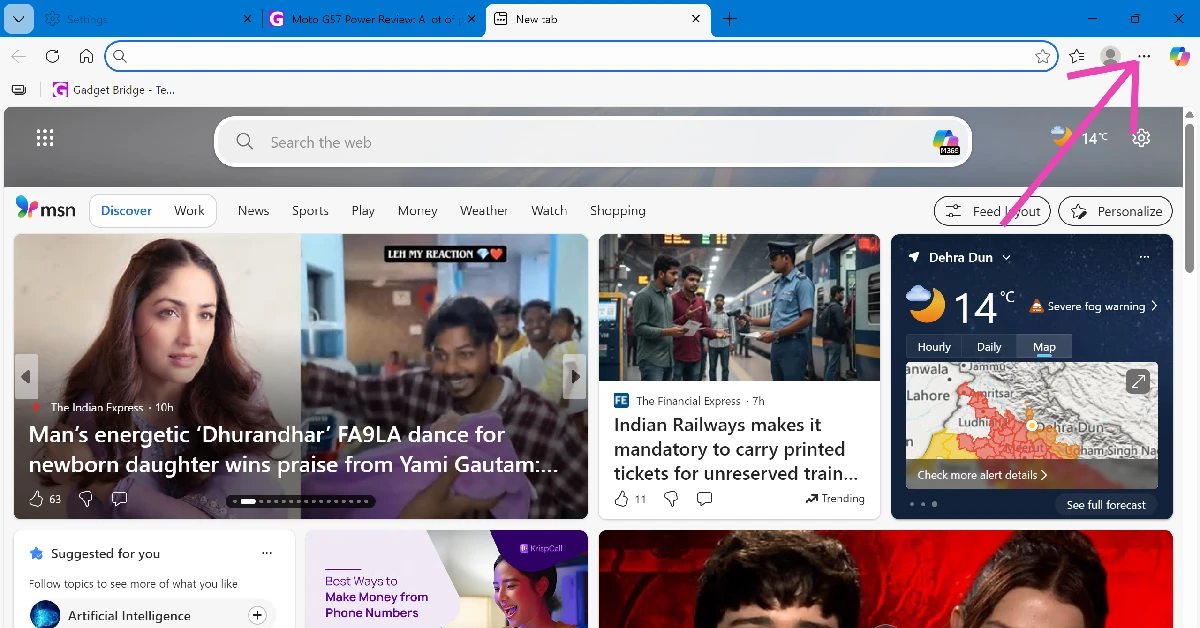
Step 1: Launch Microsoft Edge on your PC and hit the ellipses in the top right corner of the screen.
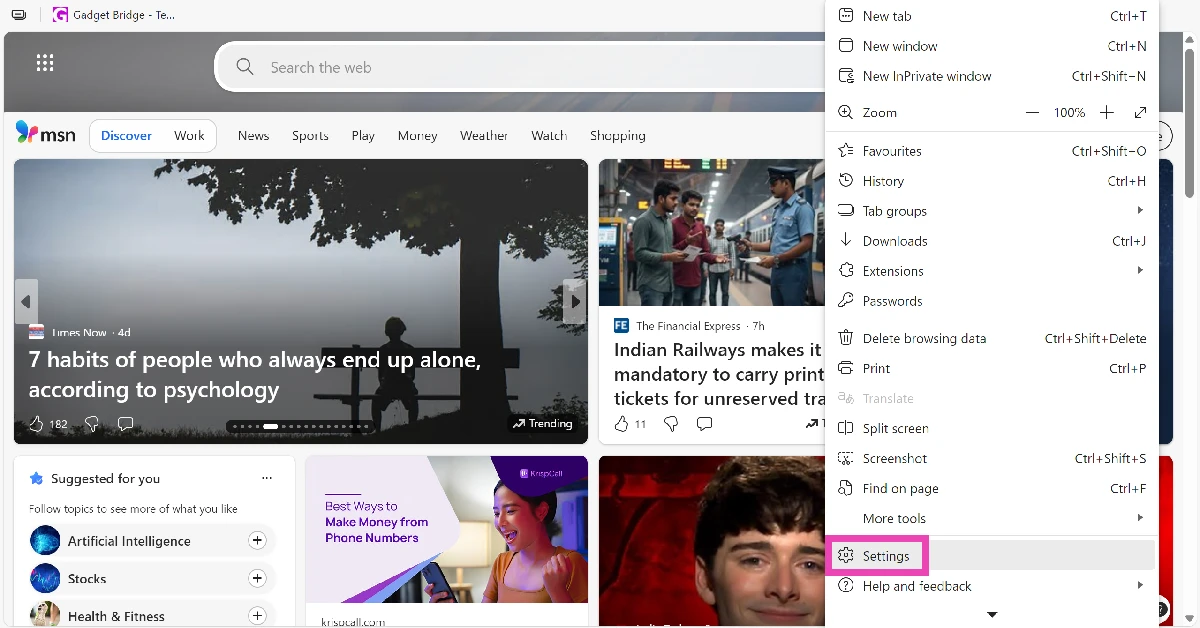
Step 2: Go to Settings.
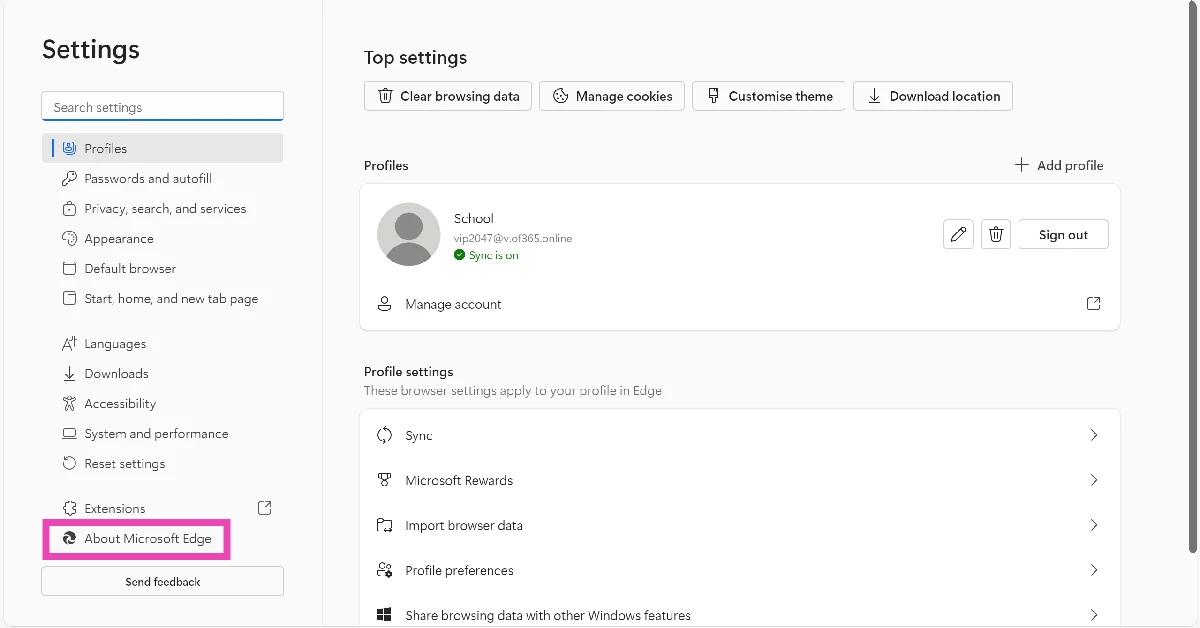
Step 3: Select About Microsoft Edge from the side panel.
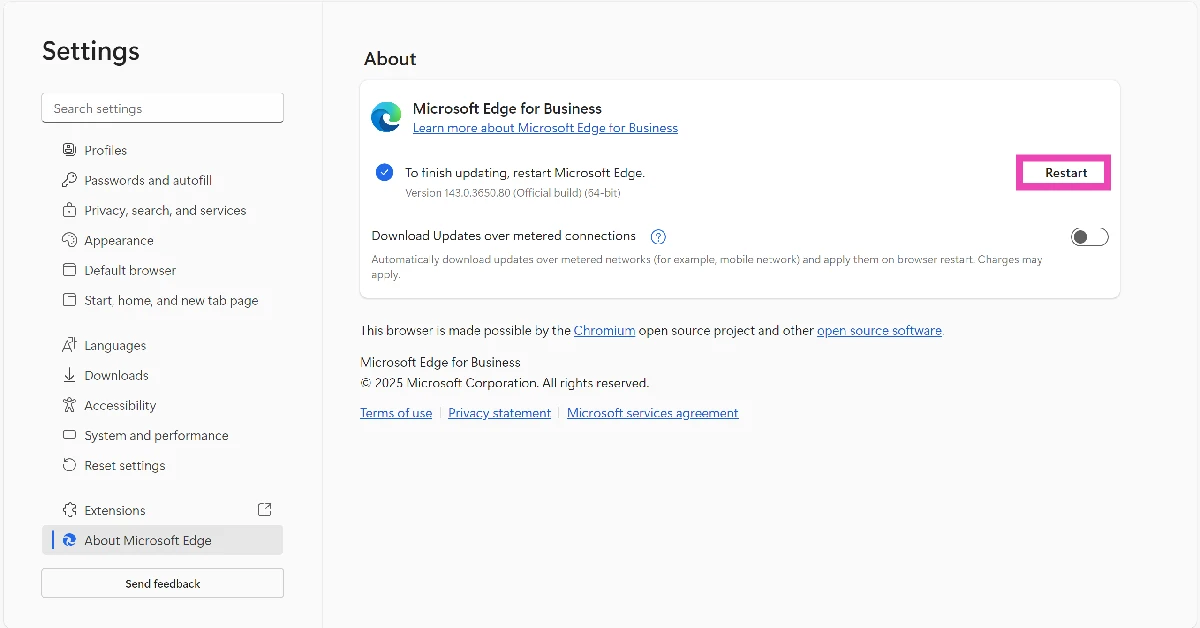
Step 4: The latest update will be downloaded automatically. Restart Edge to finish the update.
Enable Text to Speech (TTS)
Read Aloud relies on Microsoft’s Text to Speech (TTS) engine to work appropriately. Here’s how you can make sure it is enabled.
Step 1: Go to Settings and select Accessibility from the side menu.
Step 2: Click on Narrator.
Step 3: Scroll down and select a voice for the narrator.
Restart Windows Audio
Step 1: Launch the Run box by pressing Windows + R.
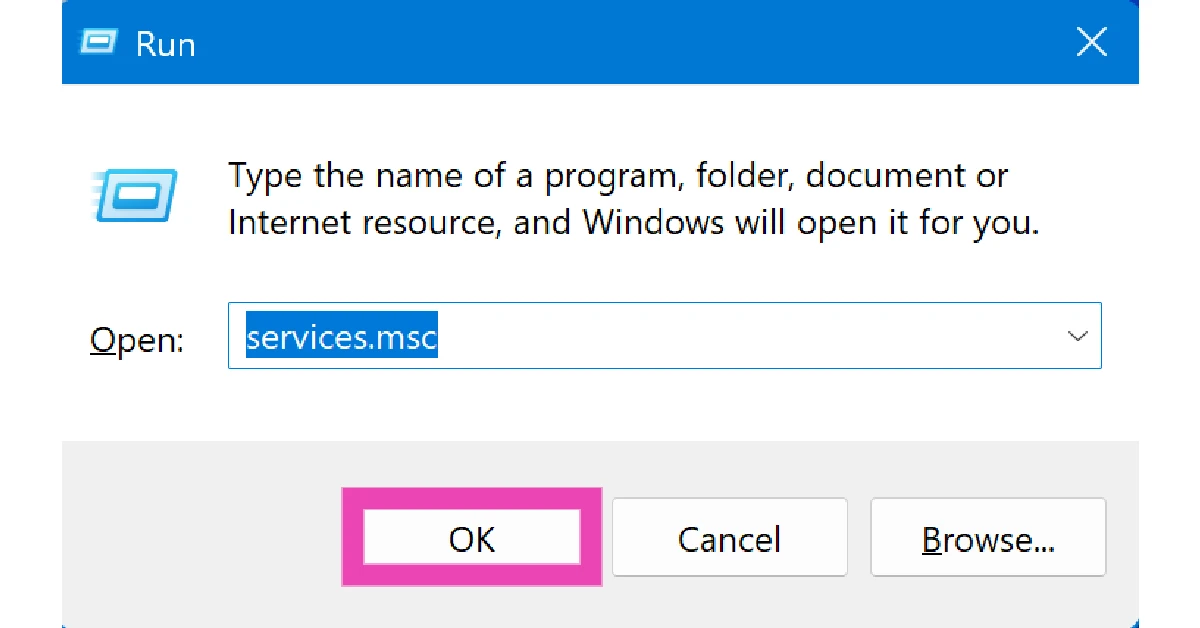
Step 2: Type services.msc and hit Enter.
Step 3: Scroll down to Windows Audio and right-click the entry.
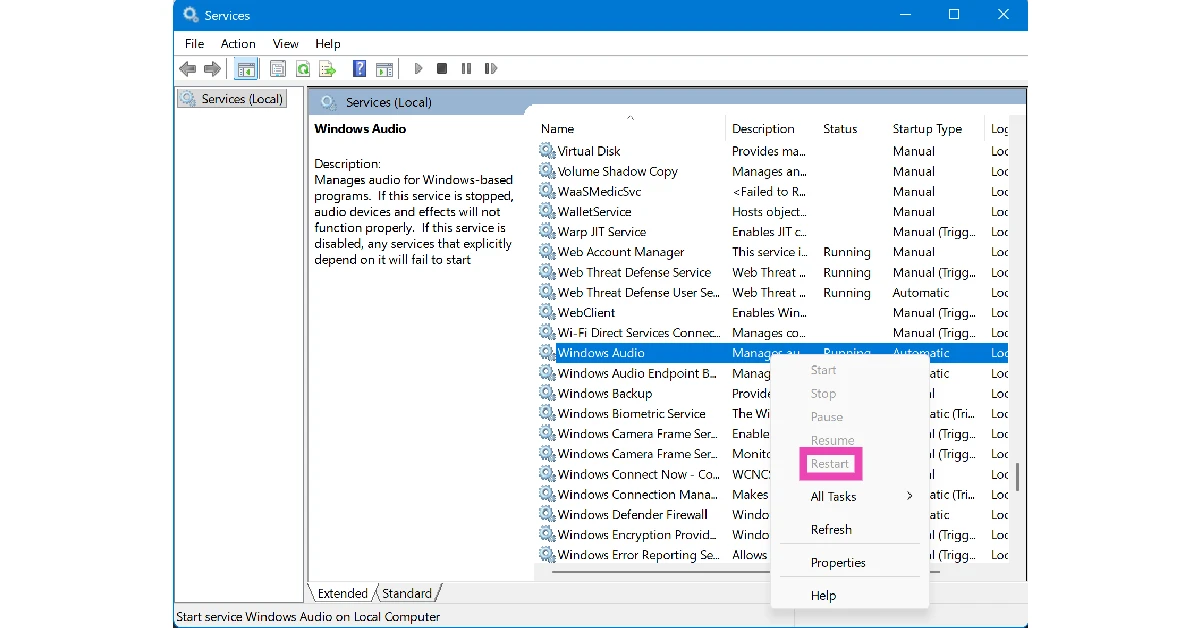
Step 4: Select Restart.
Step 5: Repeat this process for Remote Procedure Call and Windows Audio Endpoint Builder.
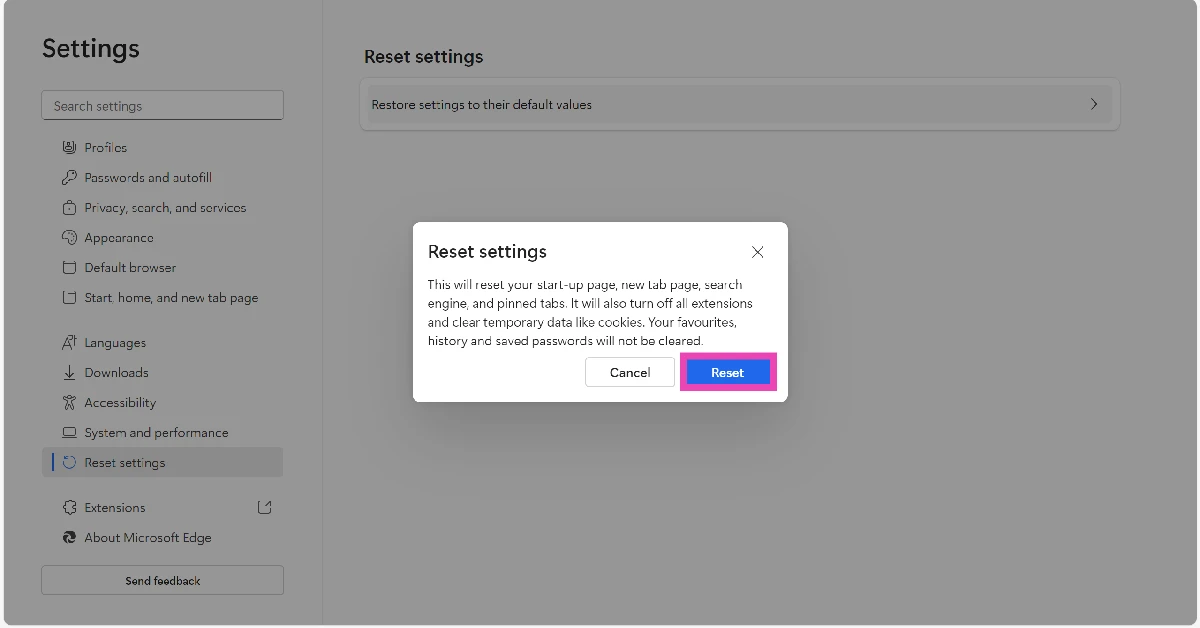
Reset Microsoft Edge’s settings
Step 1: Launch Microsoft Edge on your PC and hit the ellipses in the top right corner of the screen.
Step 2: Go to Settings.
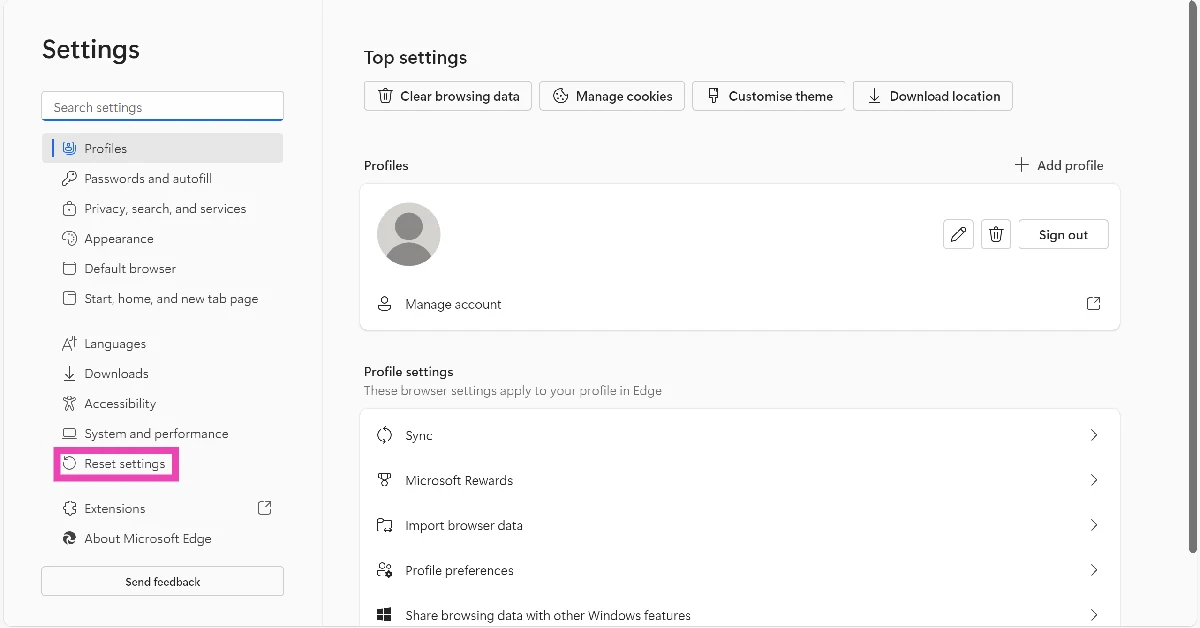
Step 3: Select Reset Settings from the side menu.
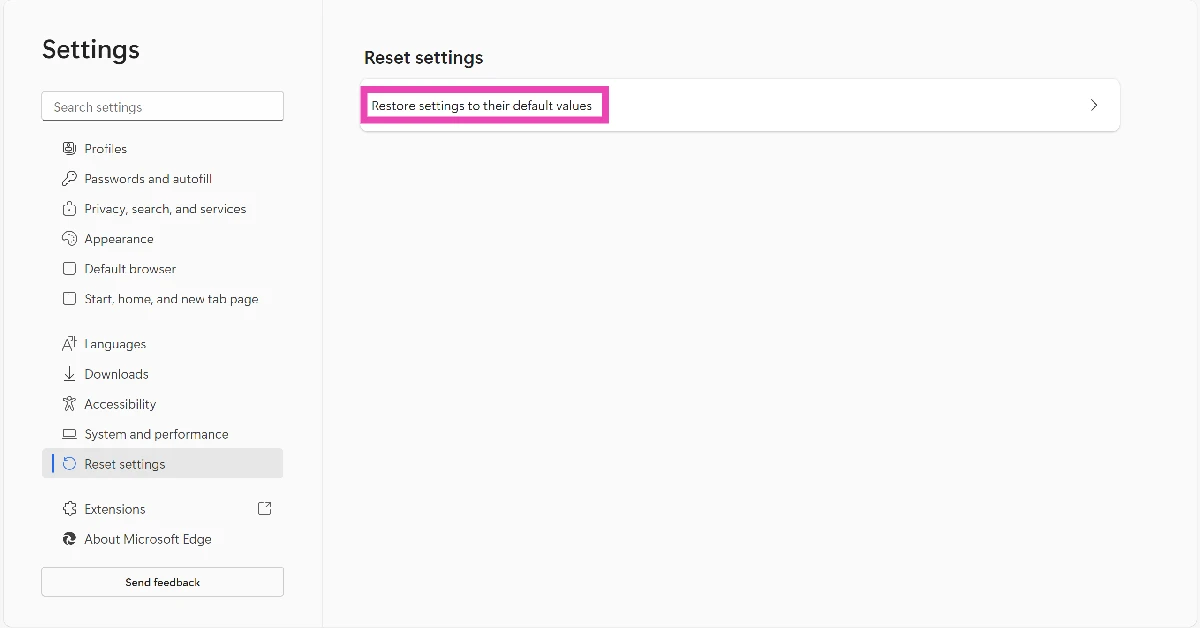
Step 4: Click on Reset settings to their default values.
Step 5: Hit Reset.
Frequently Asked Questions (FAQs)
What is Read Aloud?
Read Aloud is a Microsoft Edge tool that reads the content on the screen. This includes web pages, documents, and other items.
How do I use Read Aloud on my PC?
Open a web page in the Edge browser, right-click anywhere on the screen, and go to More Tools>Read Aloud. Alternatively, press Ctrl + Shift + U on your keyboard to run this feature.
Do I need an internet connection to use Read Aloud?
Read Aloud is available in online and offline modes. However, some voices require access to the internet.
How do I change Read Aloud’s voice?
Press Ctrl + Shift + U to launch Read Aloud. Click on Voice Options and select a voice from the list.
Is Read Aloud available on mobile?
Yes, Read Aloud is available on the Microsoft Edge apps for iOS and Android.
Read Also: Google announced Pixel upgrade Program for India, allowing users to upgrade to new Pixel every year
Final Thoughts
If these fixes weren’t of any help, we recommend deleting and reinstalling Microsoft Edge on your PC. Want to get rid of Microsoft Edge entirely? Check out this article. If you have any questions regarding Read Aloud, let us know in the comments!


