


Key Takeaways
- Check the video description for music credits or links to the source, as creators often list the songs they use.
- Install the AHA Music browser extension to identify songs playing in YouTube videos by analyzing the audio.
- Utilize the 'Circle to Search' feature on Android phones by long-pressing the navigation bar and tapping the musical note icon while the video plays.
The production quality of even the most basic YouTube videos has grown significantly in the last few years. Creators are very particular about the soundtrack they use for their videos and the manner in which it is edited to draw out the desired response. Since most music is copyrighted, creators rely on royalty-free resources to get access to music that won’t get their videos copystriked. If you come across a catchy song in a video, it can be tricky to identify it right away. So here are the top 4 ways to identify songs in YouTube videos.
Read Also: Can’t view comments on YouTube Shorts? Try these 5 fixes (2024)
In This Article
Before you begin
The standard song identification techniques work for YouTube videos as well. These include asking your phone’s voice assistant (Siri, Bixby, or Google Assistant) to listen to a part of the song and ID it or going the third-party route by using apps like SoundHound and Shazam. If you can make out the lyrics to the song, you can Google them to find the song title and artist.
If these methods don’t work, you can always seek the help of other viewers in the comments. If that leads to a dead end, try contacting the creator for help. You can also perform a search for the video on Reddit and see if anyone else found the answer to the query before you.
Check the video description
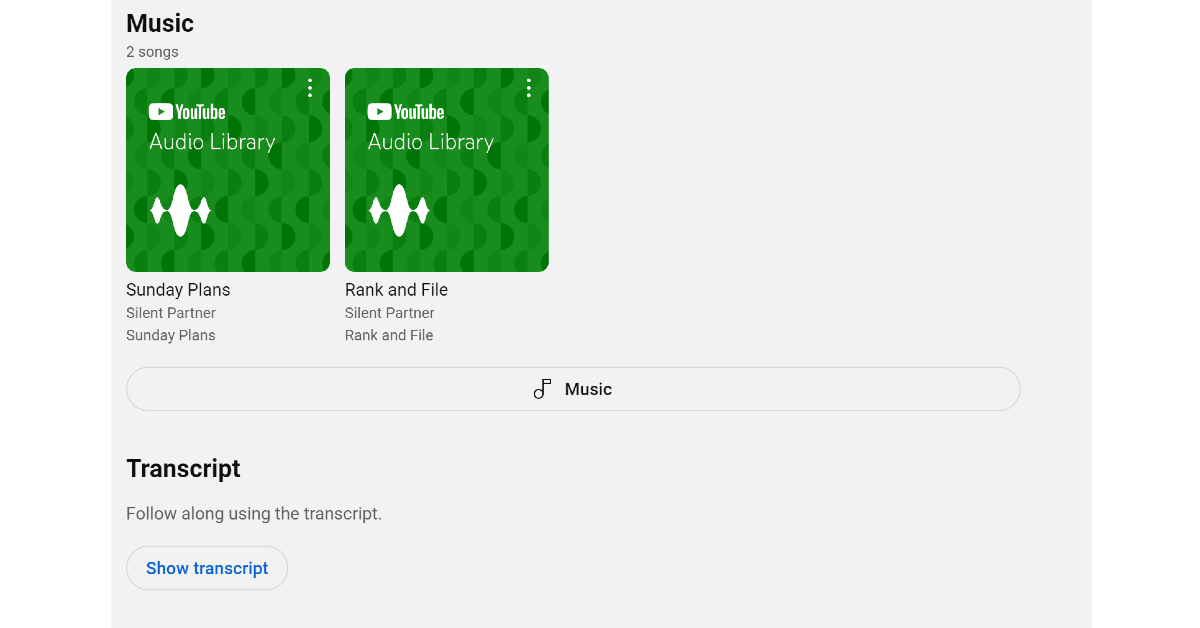
The easiest way to find the song played in the background of the YouTube video is by checking the video description. The description is where creators often post the credits to the music they use in the video. If the music is copyrighted, the description may contain a link to its source. You can also find the royalty-free music from YouTube Audio Libray used in the video by checking its description. The ‘music’ section is typically at the end of the video description.
Use the AHA Music extension
Step 1: Install the AHA Music extension from the Chrome Web Store.
Step 2: Play the YouTube video which contains the song you want to identify.
Step 3: Hit the puzzle icon next to the address bar and click on the AHA Music extension.
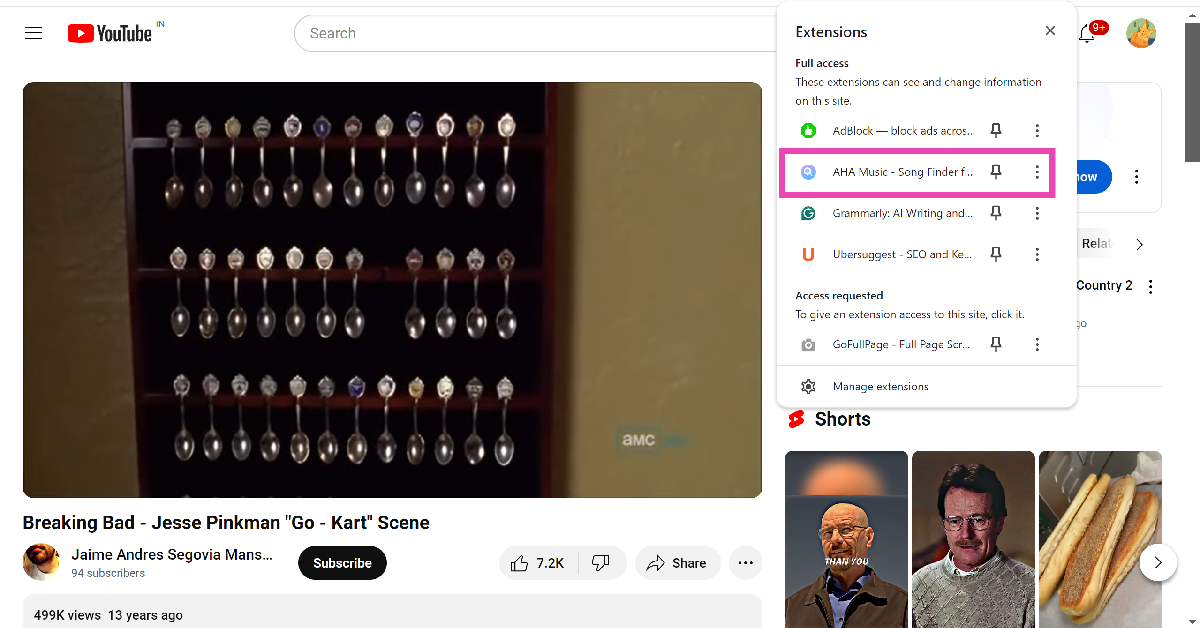
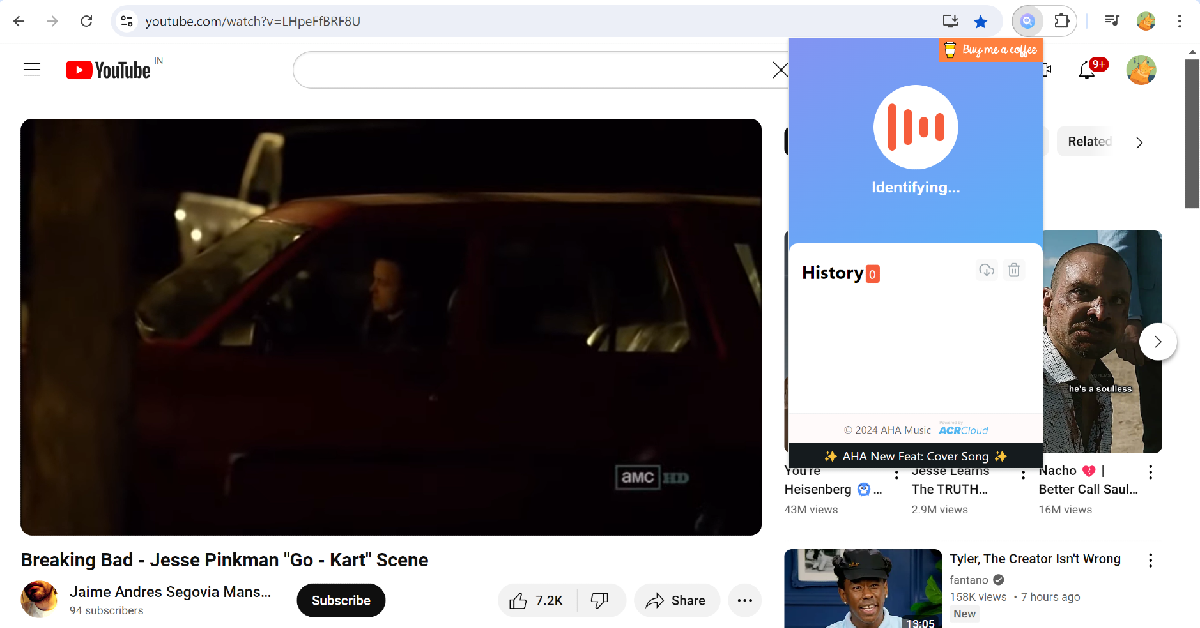
Step 4: Browse to the part of the video with the song in the background. AHA Music will take some time to identify the song.
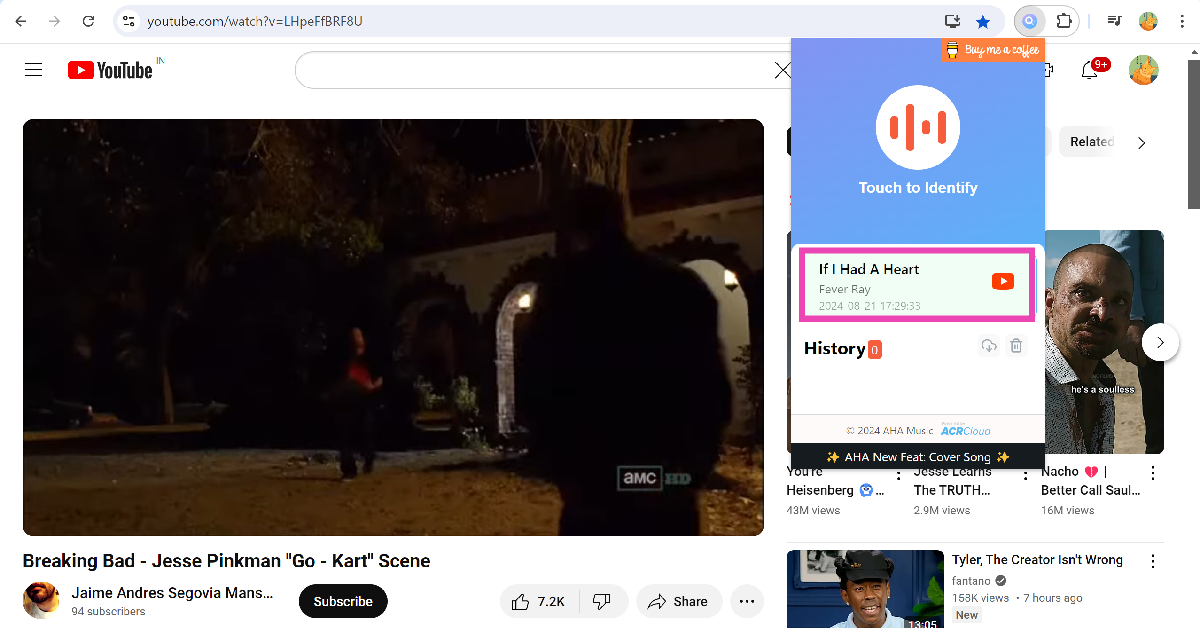
Step 5: Once the song has been identified, its title and artist will appear in the extension’s box. Click on the song to view its streaming options.
Identify the song using Google Assistant
If you can’t find the name of the song in the video description, use a third-party app like Shazam and SoundHound to identify it. You can even use Google Assistant for this task.
Step 1: Say “Hey Google, which song is this?”
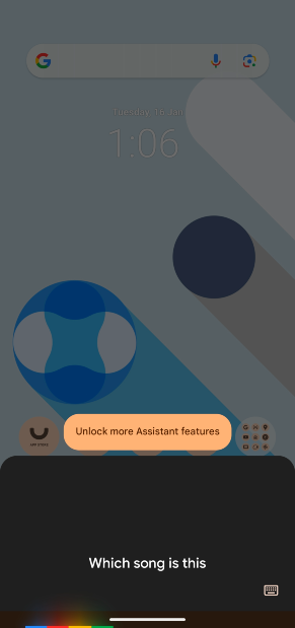
Step 2: Play the part of the YouTube video where the song is used.

Step 3: Google will produce the likely matches.

You can also use this feature by going to the Google app and selecting ‘Identify Song By Listening’.
Identify the song using Circle to Search
Step 1: Launch the YouTube app on your phone and play a video.
Step 2: Long-press the navigation bar/home button at the bottom of the screen.
Step 3: Hit the musical note icon.
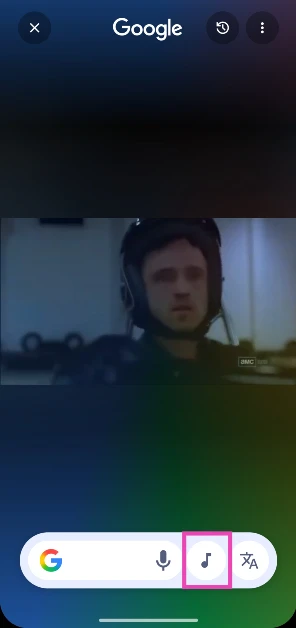
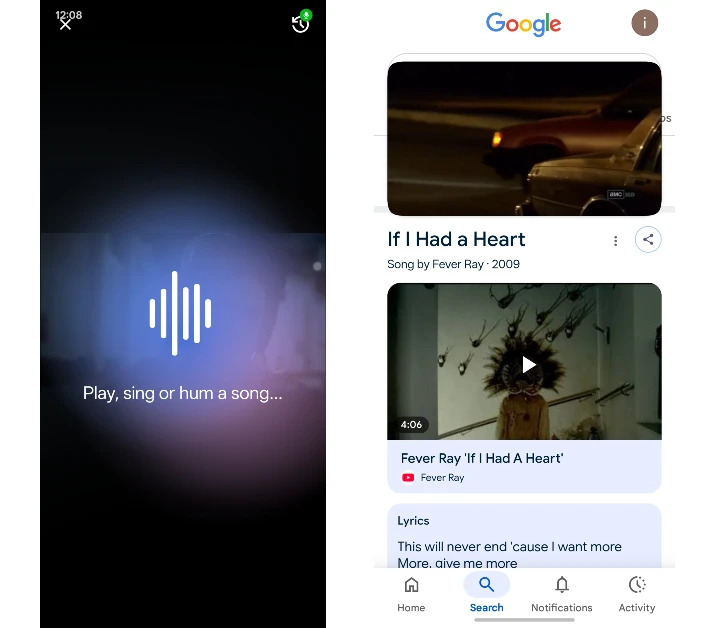
Step 4: The name of the song will appear on the screen in a few seconds.
Frequently Asked Questions (FAQs)
How do I identify songs in YouTube videos?
Check the video description or use services like AHA Music, Google Assistant, Shazam, and SoundHound to identify the song in the background of a music video.
How do I find song names using Google to Search?
While the song is playing on your phone, long-press the navigation bar/home button at the bottom of the screen, and hit the musical note icon. The song name will appear on the screen.
Where can I find royalty-free songs to use as the background music for my YouTube videos?
YouTube Audio Library is the best source of royalty-free songs for your YouTube videos. You can also use resources like Storyblocks, Free Music Archive, and Audiojungle for royalty-free music.
How do I get the transcript of a YouTube video?
Go to the YouTube video, click the description box, scroll down and hit 'Show Transcript'.
Which is the best website to find song lyrics?
Genius, Musixmatch, and AZLyrics are the best websites to find song lyrics.
Read Also: Best fast chargers for smartphones in India (2024)
Conclusion
These are the top 4 ways to identify songs in YouTube videos. Generally, creators give credit to the artists they use for their background score. If that’s not the case, these three methods will come in very handy. If you know any tricks to identify songs from videos, let us know in the comments!


