




Key Takeaways
- A 'broken' screen refers to any faulty behavior, unresponsiveness, quirk, or glitch caused by the PC or laptop’s display, not necessarily physical damage.
- Common reasons for a faulty laptop screen include outdated video drivers, faulty sensors, dead pixels, poor connectors, and damage due to impact.
- Simple troubleshooting steps include restarting the laptop, inspecting and cleaning the lid sensor, updating video card drivers, and checking screen connectors.
Faulty displays are the bane of productivity. Even a few dead pixels can cause you to make adjustments in your daily workflow. Not to mention, they can be very distracting. A small crack on your laptop’s screen can ruin the viewing experience. While there’s not much you can do in case of hardware damage, you can fix some technical faults at home by yourself. Today, we bring you the top 10 ways to fix a broken laptop screen at home.
Read Also: Dyson Purifier Hot+Cool Gen1 With Intelligent Sensor Launched In India
In This Article
What does a ‘broken’ screen mean?
A ‘broken’ screen doesn’t necessarily mean it is physically damaged, although the term does cover that condition. It refers to any faulty behaviour, unresponsiveness, quirk, or glitch caused by the PC or laptop’s display. Typically, it is used when the display refuses to turn on, rendering all tasks inactive. Your laptop’s screen can showcase faulty behaviour for a multitude of reasons. Here are some of the common ones.
- Outdated video drivers
- Faulty sensor
- Dead pixels
- Poor connectors
- Damage due to impact
Restart your laptop

The fastest way to fix a broken laptop screen is by restarting the device. Rebooting your laptop is the first thing you should do whenever you encounter a problem with the device. If you notice that the screen is glitching, a simple restart may put the issue to bed right away. Restarting your PC or laptop simply refreshes the system drivers and resolves minor background issues. Hit the Windows icon in the taskbar, followed by the power icon in the pop-up menu and select ‘Restart’.
Inspect the lid sensor
Your laptop’s display shuts off when you close it. It does this by using a proximity sensor. This sensor is typically located on the upper bezel of the display. If your laptop’s screen refuses to turn on, it could be because of a faulty sensor. Clean the display along with the bezels. Make sure there is no dirt or grime around the lid sensor. Once that’s done, restart your laptop and check if the screen is working.
Update the video card drivers
If your laptop is running on outdated video card drivers, its display will stop working after a while. Here’s how you can update the drivers.
Step 1: Go to Control Panel and select Device Manager.
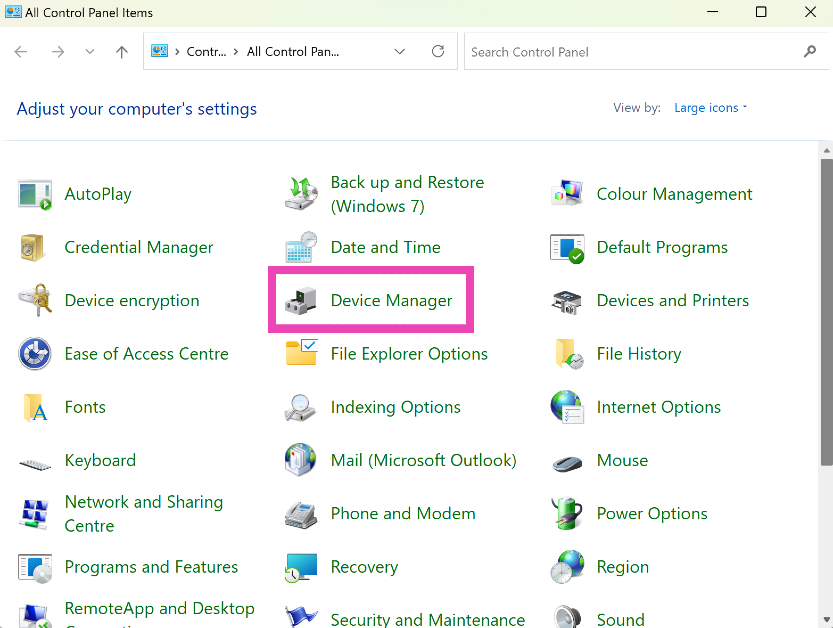
Step 2: Hit the arrow next to Display adaptors to expand the options.
Step 3: Right-click on the video driver and select Update driver. Update the driver for the Integrated Monitor as well.
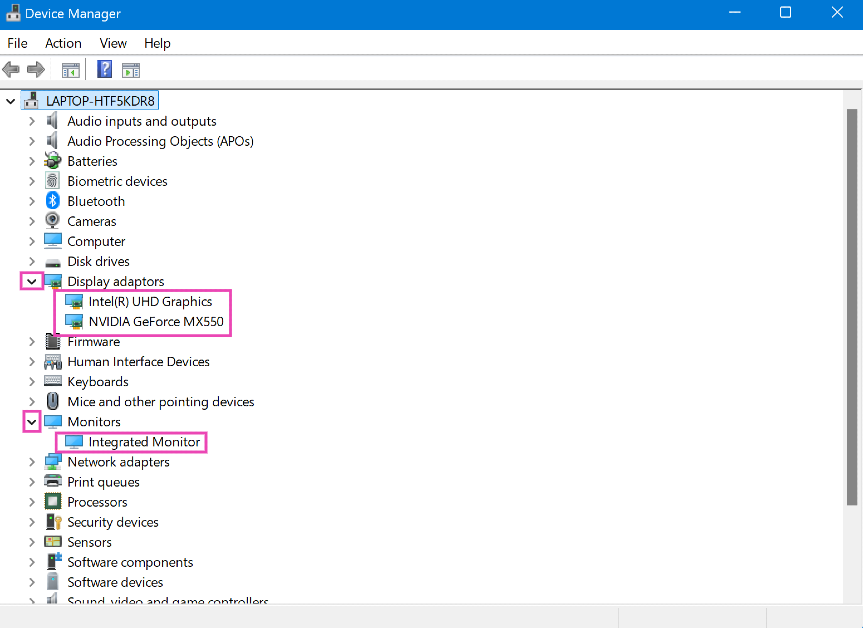
Step 4: Choose whether you want Windows to automatically search your computer for available drivers or manually select a driver from your device.
Step 5: If you choose the first option, Windows will automatically update your computer’s video drivers. If no changes are made, the drivers are updated to the latest version.
Check the screen connectors
Your laptop’s display is connected to the rest of the device through a set of cables and connectors. If the laptop suffered a harsh impact recently, one of the connectors might have dislodged. To fix this, you need to open the screen and inspect the display. Countless tutorials on YouTube show you how to remove the bezel, cover and other parts of the screen (it differs from each manufacturer). Find a tutorial for your laptop model and follow the instructions to fix the
Fix dead pixels

If a few pixels on your laptop’s display are slightly off, you can fix them with the help of an app. Use this LCD tool to run a dead pixel test on your laptop. Once dead pixels have been confirmed, use JScreenFix to fix it. This will require dragging the pixel fixer to the affected area and leaving it there undisturbed for 10 minutes.
Fix screen burn-in
This issue used to be more prevalent on old TV sets, but it may arise in some laptops, too. A ‘burn-in’ refers to screen damage caused by the visuals on the screen. In most cases, the shadow of an image keeps lingering on the display even after it has been turned off. While this cannot be completely fixed, you can reduce its effect by running a completely white video on the device. You can find many videos on YouTube to help with the issue (it differs from each manufacturer). Putting on a white wallpaper will help too.
Connect your laptop to an external monitor
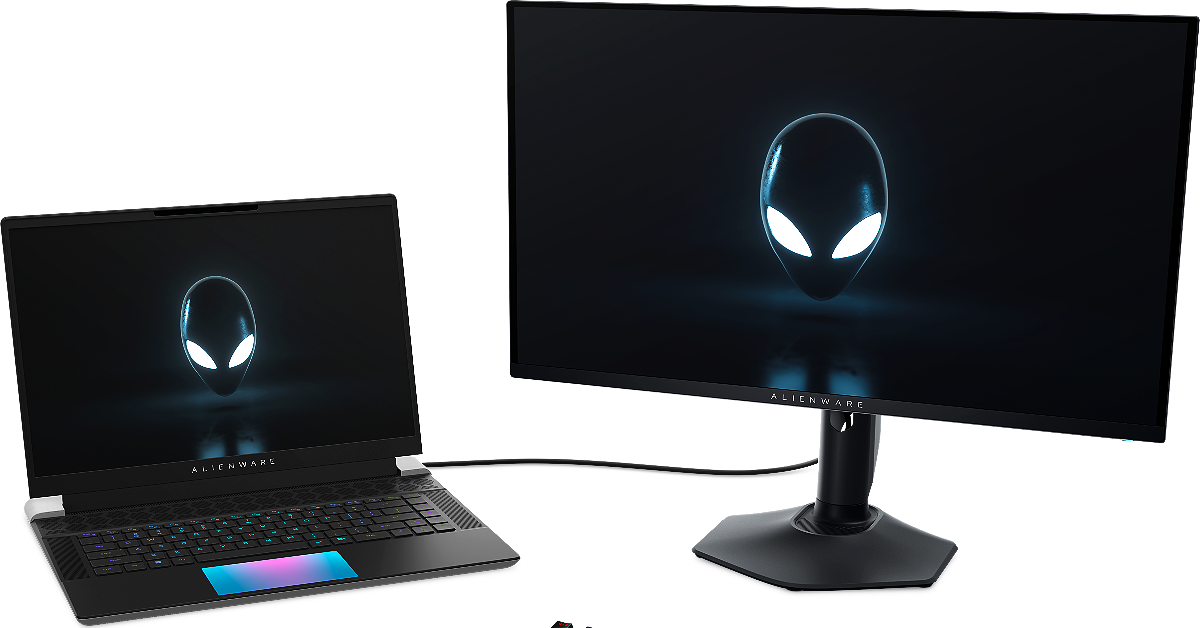
If the above-mentioned fixes do not work for you, the problem may be caused by hardware damage to the display. You can confirm this by connecting an external monitor to your laptop. If the monitor works fine, it means that the fault lies with your laptop’s hardware.
Clean the screen
Depending on the latching mechanism, dust and grime collection can hamper the functioning of your laptop’s screen. Dirt particles can find their way into deep crevices and create all sorts of unexpected issues. Give your laptop a thorough wipe to resolve this problem. Routinely cleaning the laptop with a dry microfibre cloth is highly encouraged.
Replace the screen
If you have some experience with disassembling electronic equipment, you can replace your laptop’s screen yourself. Find a screen replacement for your laptop online. Make sure you get the model number of your laptop right. Then, hop on to YouTube and look for tutorials to replace the screen of your laptop model. If you can’t find one for your exact model, look for a unit by the same brand.
Take your laptop to a service centre
Once you have confirmed that the issue is caused by faulty hardware, take your laptop to an authorised service centre for further diagnosis. If the damage wasn’t caused by an accident, it will be fixed without any cost. In case of accidental damage, you would need to pay for the replacement display unless you have an accidental damage warranty.
Frequently Asked Questions (FAQs)
How much does it cost to replace a laptop’s screen?
Depending on the model, LCD screens cost anywhere between Rs 3,000 and Rs 9,000 to replace. This cost goes significantly higher for AMOLED displays.
Are broken laptop screens worth fixing?
If your laptop has an LCD screen, you can get it repaired or replaced at an affordable price. If the cost of repair is ~50% of the price of the laptop, it is better to purchase a new device.
Can I fix my laptop screen?
If you have a replacement display on hand, you can follow YouTube tutorials to install it on your laptop.
Is it OK to use a cracked laptop screen?
It is completely okay to use cracked laptop screens as long as they are not exposed to water. Make sure you keep the display dust-free to avoid any functional issues.
How to fix a crack in a laptop?
Cracked displays can only be fixed by installing a new replacement unit.
Read Also: Truke BTG Crystal TWS Review: Hits all the right notes
Final Thoughts
These are the top 10 ways to fix a broken laptop screen. If your laptop refuses to boot, do not assume that the issue lies with the display. Plug in its charger and wait for at least 15 minutes before turning it on again. If the issue still persists, take it to an authorised service centre for further diagnosis.


