


iOS 26 brings big cosmetic upgrades to the iPhone, but there are several small but useful features that deserve your attention. The dirty lens reminder is one of those features. Like any other smartphone, your iPhone’s camera array can easily accumulate fingerprints and smudges. This results in blurry images. A quick reminder of a dirty lens helps evade this issue. So, let’s take a look at how you can enable lens cleaning hints on your iPhone.
Read Also: How to Use Your AirPods as Your iPhone’s Camera Remote
In This Article
Tips on cleaning your iPhone’s camera lens
- Use a dry, microfibre cloth to wipe smudges and fingerprints
- Use a slightly damp cloth to get rid of dirt particles
- If the grime refuses to come off, use isopropyl alcohol or alcohol wipes
- If you don’t have a microfibre cloth, use a lens cloth or a lint-free cloth to clean the lens
- Use a Q-tip dipped in isopropyl alcohol to remove the grime around the lens
- If a lens is foggy, blow warm air on it using a hair dryer
- Use lens covers to protect the cameras from physical damage
Enable camera lens cleaning hints on iOS 26
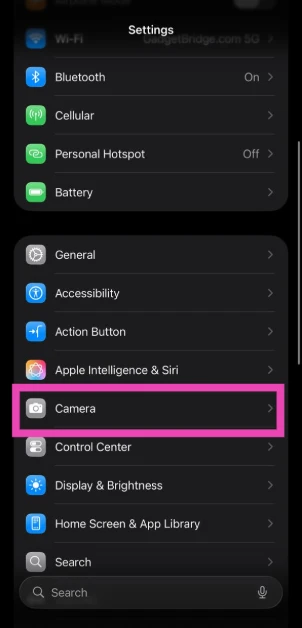
Step 1: Go to Settings.
Step 2: Tap on Camera.
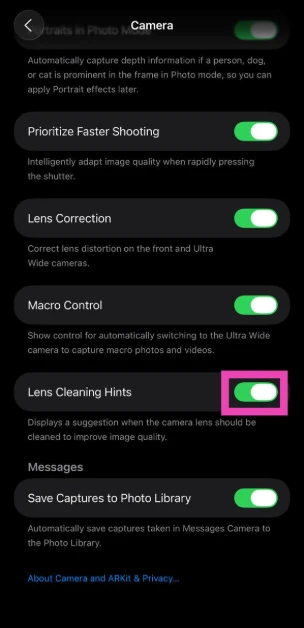
Step 3: Turn on the toggle switch next to Lens Cleaning Hints.
Frequently Asked Questions (FAQs)
How do I clean my iPhone’s camera lens?
If you notice any smudges on your iPhone’s camera lens, use a slightly damp microfibre cloth to clean it up. If you don’t have a microfibre cloth on you, a soft, lint-free cloth will do the trick too.
How do I fix my foggy iPhone camera lens?
You can use a clean, dry cloth to wipe a foggy lens. Using a small hairdryer to blow warm air on the lens works too.
Can I use alcohol wipes to clean my iPhone?
Yes, you can use 70% isopropyl alcohol wipes, 75% ethyl alcohol wipes, or regular Clorox wipes to clean your iPhone.
Why is my iPhone taking blurry pictures?
If your iPhone’s camera lens is dirty, the pictures will end up blurry. Use a clean, lint-free cloth to clean the lens and get rid of blurriness in the pictures.
How do I get lens cleaning hints on my iPhone?
Go to Settings>Camera and turn on the toggle switch next to ‘Lens Cleaning Hints’. This feature is only available on iOS 26.
Final Thoughts
If you want more natural-looking pictures from the front camera and the ultrawide rear camera, go to Settings>Camera and turn off the toggle switch next to ‘Lens Correction’. While you’re here, check out how you can fix the TrueDepth camera on your iPhone. If you have any questions, let us know in the comments!


