


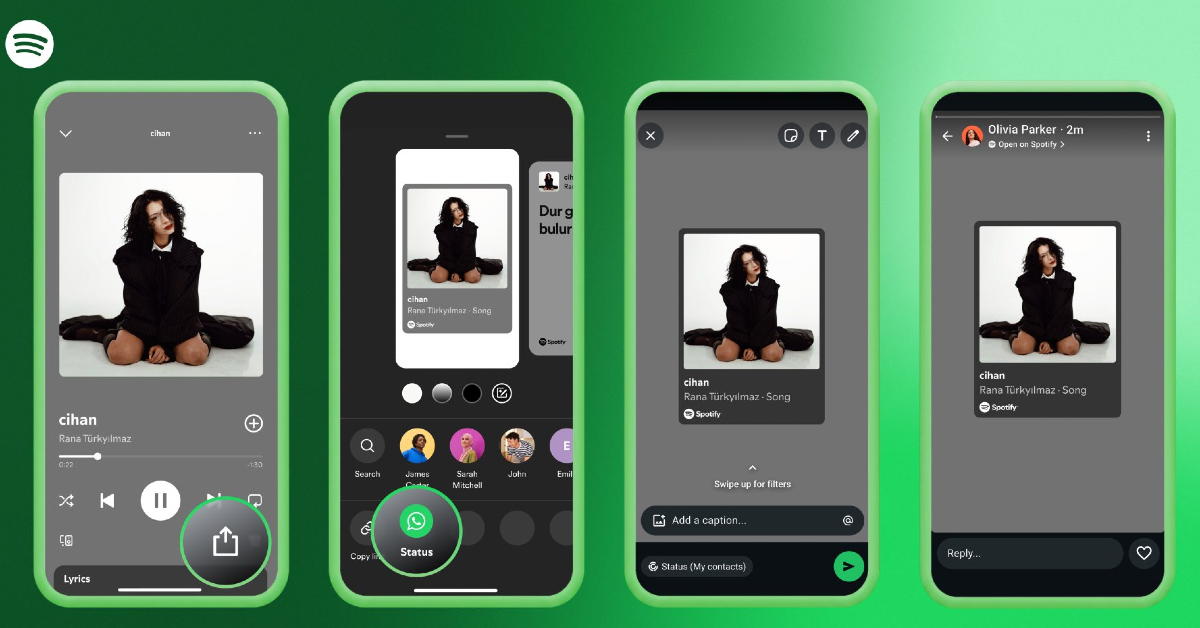

Earlier this year, Spotify and Meta made song-sharing easier by allowing users to share their favourite music directly to their Instagram Stories. This feature has now been added to WhatsApp as well. It is available to free and Premium users on Spotify. It is being rolled out in a phased manner, so not everyone will get it right away. If you’re one of the lucky ones who have, here’s how you can share songs from Spotify to your WhatsApp status.
Read Also: BoAt Valour Ring 1 with 40+ sports modes launched in India
In This Article
Song-sharing on WhatsApp
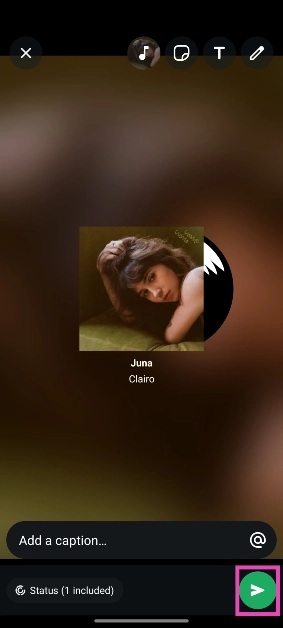
When you share a song from Spotify, WhatsApp clips a 15-second preview and displays it on your status. Users viewing your status do not need to open the song in Spotify in order to listen to the preview. You can choose the display card for the album cover before sharing the song.
WhatsApp also has its native song-sharing interface. Similar to Instagram, it uses Meta’s music library to pull songs. The native interface offers more layout options for your music status. You can choose to display the synced lyrics along with the music. This option works for users who don’t have Spotify. You also get access to music that isn’t available on Spotify.
Share a song from Spotify on your WhatsApp status
Step 1: Launch the Spotify app on your phone and go to the song you wish to share.
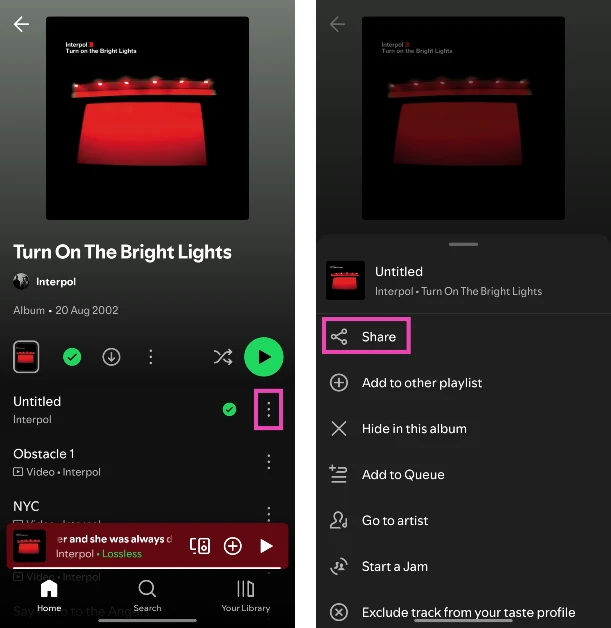
Step 2: Hit the ellipses next to the song and select Share.
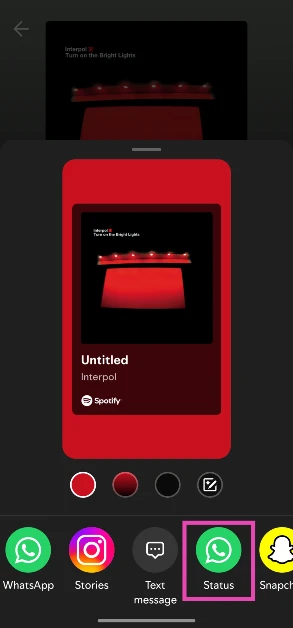
Step 3: Choose a card for the song and hit the WhatsApp Status icon at the bottom of the screen.
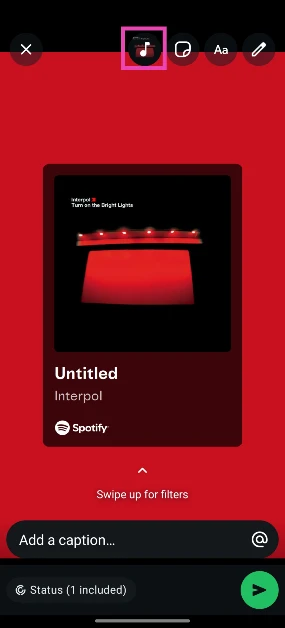
Step 4: Tap the music note icon at the top of the screen to choose which section of the song you want to post as your status.
Step 5: Use the seek bar at the bottom of the screen to land on the section you want to share. Hit Done.
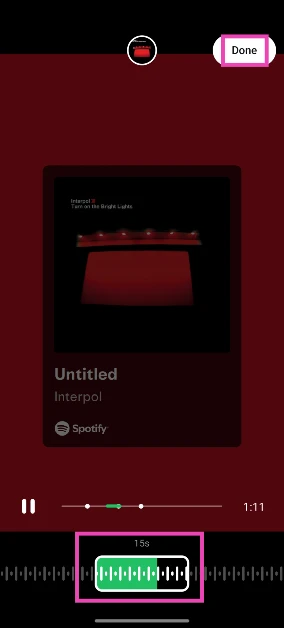
Step 6: Hit the arrow icon at the bottom of the screen to share the song.
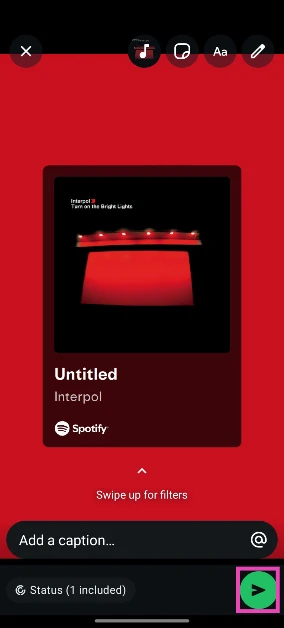
Bonus Tip: Add a song to your WhatsApp status from Meta’s music library
Step 1: Launch WhatsApp Messenger on your phone.
Step 2: Switch to the Updates tab.
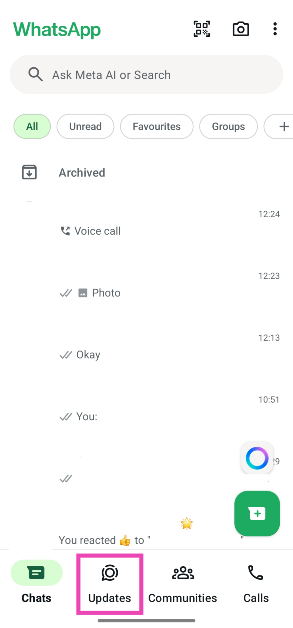
Step 3: Tap on Add status.
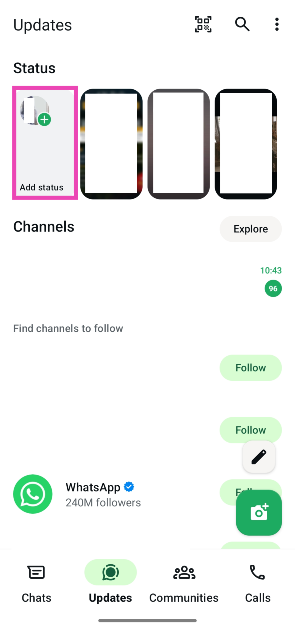
Step 4: Select Music.

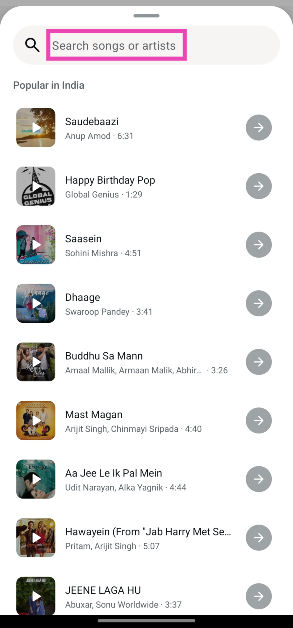
Step 5: Enter the name of a song or an artist in the search bar.
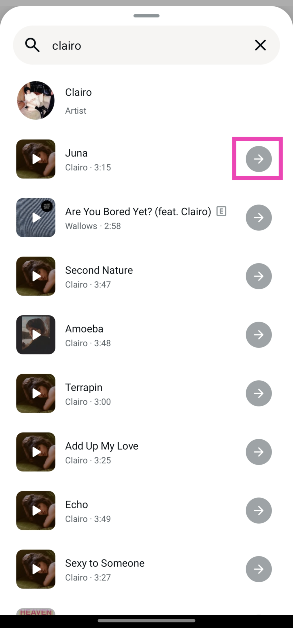
Step 6: Hit the arrow icon next to the song you want to share.
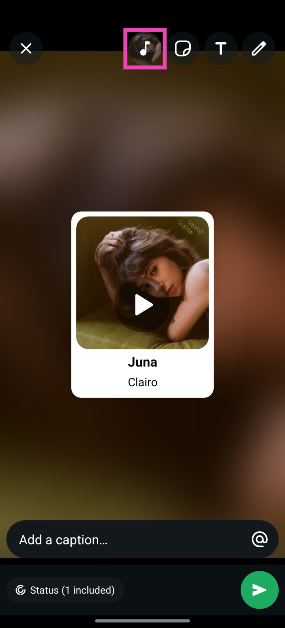
Step 7: Tap the music note icon at the top of the screen.
Step 8: Use the seek bar at the bottom of the screen to choose the segment of the song you want to post. Additionally, you can change the layout of the album artwork by tapping one of the options on the screen.
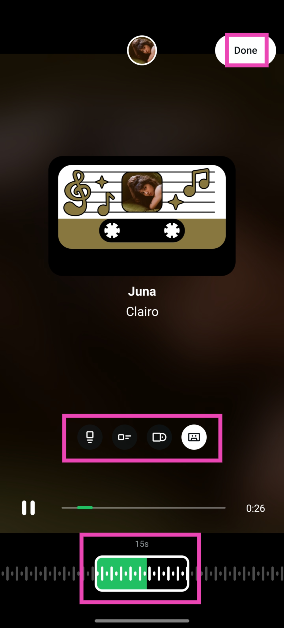
Step 9: Hit Done.
Step 10: Tap the arrow icon in the bottom right corner of the screen to post your status.
Frequently Asked Questions (FAQs)
Can I share a song from Spotify to my WhatsApp status?
Yes, Spotify now lets you share songs to your WhatsApp status. Hit the ellipses next to a song, tap the ‘Share’ button, select ‘Status’, and hit the post button.
Can I add music to my WhatsApp status without Spotify?
If you don’t want to use Spotify, you can use Meta’s music library to add a song to your WhatsApp status. Go to WhatsApp>Updates>My status>Music, enter the name of a song or an artist, hit the arrow icon next to a song, and tap the green icon to post it as your status.
How do I get the song on my WhatsApp status to display lyrics as well?
This feature is only available for songs added via Meta’s music library. When you select a song, tap its card until you reach the ‘Aa’ preview option. This preview will display the lyrics to the song.
How do I add background music to my WhatsApp status?
Select an image or video to post as your status, and hit the music note icon or select the music sticker. Search for a song and tap the arrow icon to add it to your status.
How do I post a voice status on WhatsApp?
Go to WhatsApp>Updates>Add Status>Voice, record a voice note, and hit the post button.
Read Also: Samsung to unveil new AI-connected living lineup at CES 2026
Final Thoughts
As mentioned earlier, this feature is being rolled out in a phased manner. Make sure the Spotify app on your device is updated to its latest version. While you’re here, check out how you can share a song from Spotify directly to your Instagram status. If you have any questions, let us know in the comments!


