




As PC users, we’re all guilty of putting off OS updates. Whether you’re busy with work or watching something on YouTube, the task of updating the machine often gets shelved for a later time. Even when the update has been installed, restarting the PC right away to finish the installation process is not always a viable option. Your PC sends constant reminders to make sure you don’t forget the vital final step. If you don’t like seeing these messages, you can mute them. Here are the top 3 ways to disable the ‘Restart to Update’ notification in Windows 11.
Read Also: Best of 2025: Top 10 laptops of the year
In This Article
Before you begin
Restarting your PC to finish the installation of updates is not always something you can tend to right away. If you’re bothered by the notification, you can get rid of it in three different ways. Each method serves a distinct purpose. The easiest way to go about it is by disabling the restart notification from settings. This suspends the notification for 24 hours. For a more permanent fix, there’s always the Group Policy editor.
Sometimes, the restart notification lingers even after you’ve restarted your PC. The primary reason behind this unusual behaviour is a poorly installed update or problems with its cache. Both these issues can be solved by Windows PowerShell. Let’s dive into all of the fixes.
Use device settings
Step 1: Go to Settings.
Step 2: Select Windows Update from the sidebar.
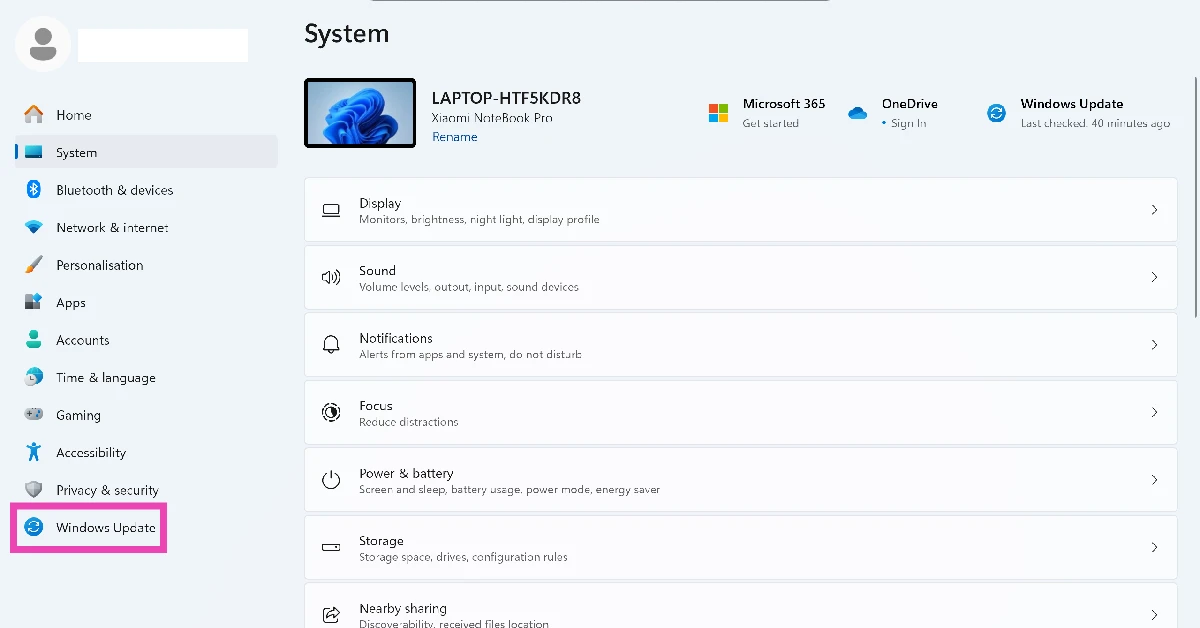
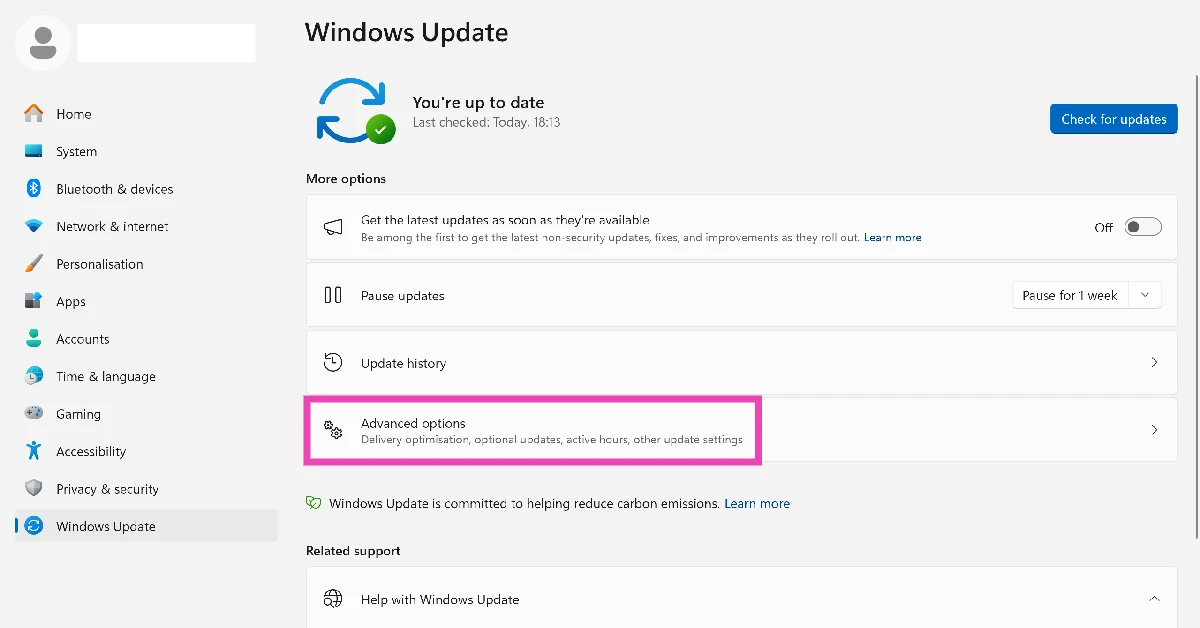
Step 3: Click on Advanced options.
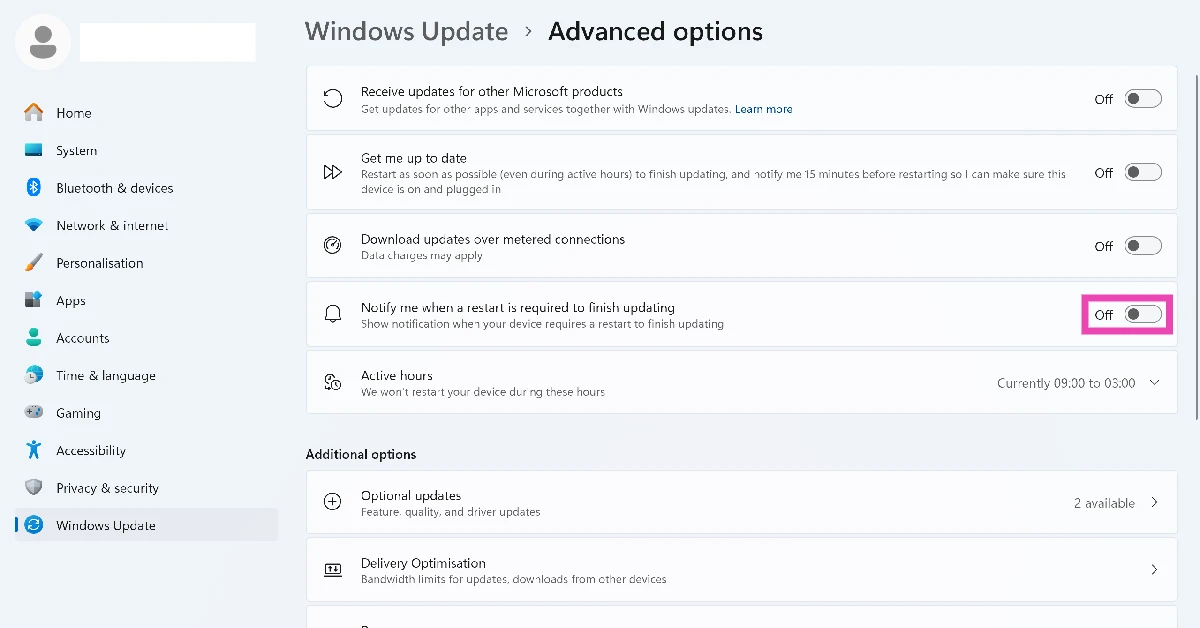
Step 4: Turn off the toggle switch next to Notify me when a restart is required to finish updating.
Use the Group Policy editor

Step 1: Launch the Run box by pressing Windows + R on your keyboard.
Step 2: Type gpedit.msc and hit Enter.
Step 3: Navigate to Computer Configuration>Administrative Templates>Windows Components>Windows Update using the sidebar.
Step 4: Select Turn off auto-restart for updates during active hours.
Step 5: Select Enabled and hit Apply and OK.
Use Powershell

This method can be used when the restart notification doesn’t go away even after restarting your PC.
Step 1: Restart your PC in Recovery Mode.
Step 2: Launch PowerShell.
Step 3: Enter the following command to check for pending update packages:
dism /online/get-packages//format:table | Select-String “Pending”
Step 4: Finally, enter the following command:
dism /Image:C:\ /Cleanup-Image /RevertPendingActions
Frequently Asked Questions (FAQs)
How do I get rid of the ‘Restart to Update’ notification on my PC?
Go to Settings>Windows Update>Advanced options and turn off the toggle switch next to ‘Notify me when a restart is required to finish updating’.
How do I update my PC?
Go to Settings>Windows Update, click on ‘Check for updates’, and select ‘Download and install’.
How do I pause updates on my PC?
Go to Settings>Windows Update>Pause updates and select the pause duration from the dropdown menu.
How do I stop my PC from auto-updating to install updates?
Go to Settings>Windows Update>Advanced options>Active hours, select ‘Manually’ next to ‘Adjust active hours’ and set the start time and end time.
What do I do if the ‘Restart to Update’ message doesn’t go away even after restarting my PC?
Restart your PC in Recovery Mode, launch PowerShell, and enter DISM /Image:C:\ /Cleanup-Image /RevertPendingActions.
Read Also: OnePlus 15R went on sale for the first time in India: Details
Final Thoughts
If your PC restarts automatically without any warning, go to Advanced Options in the Windows Update section in device settings, and set your preferred timing for auto-restarts. As of now, there is no option to completely disable this feature. If you have any questions, let us know in the comments!


