


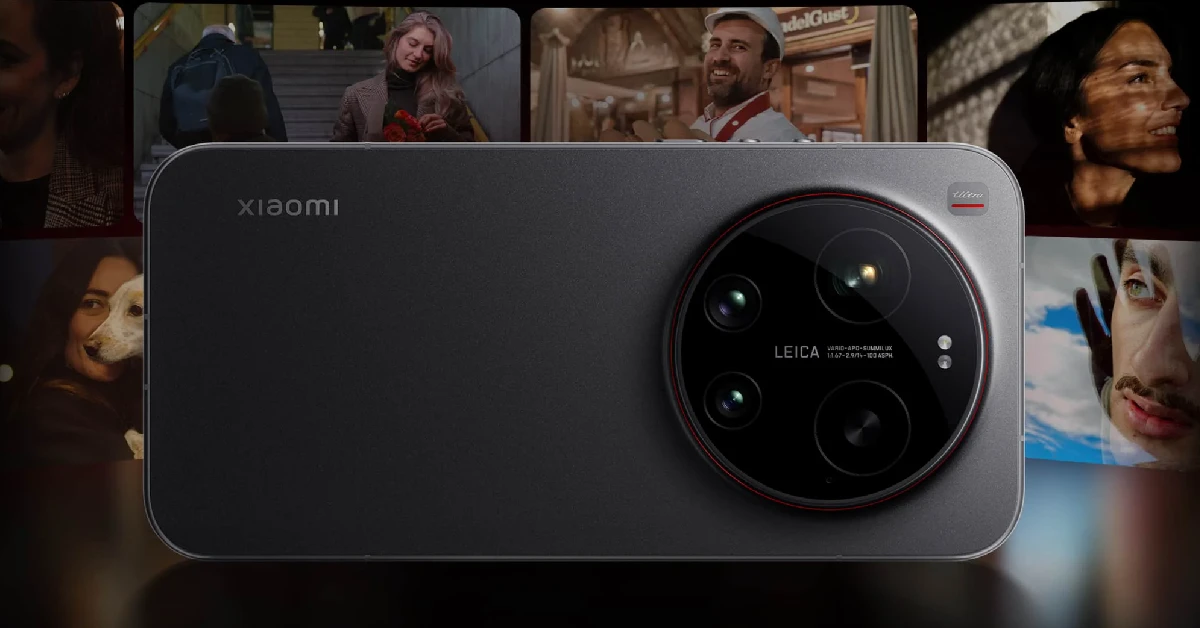

The Xiaomi 17 series has finally launched in global markets. Its lineup comprises the base model and the Ultra variant. The Xiaomi 17 Ultra is one of the most spec-loaded phones in the world right now, featuring the powerful Snapdragon 8 Elite Gen 5 chipset, a splendid 6.9-inch AMOLED display, and a stunning 50MP 1-inch primary sensor. If you just got your hands on the phone, you need the right apps to unlock its true potential. Here are the top 10 apps that you should download first on your Xiaomi 17 Ultra.
Read Also: Upcoming smartphones in March 2026
In This Article
Open Camera
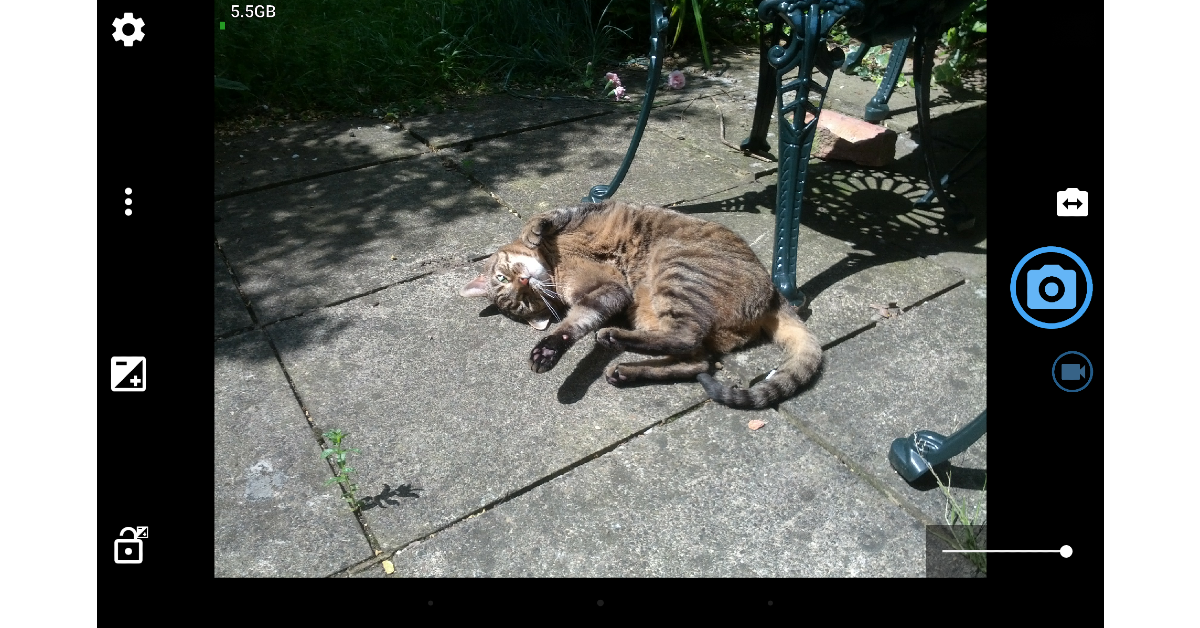
Created by Mark Harman, Open Camera is one of the finest open-source camera apps around. Its clean, ad-free interface makes niche tools and camera controls accessible to the average user. Our favourite features of this app are auto-level, scene modes, voice countdown, Bluetooth LE remote control, and voice shutter. Its handy upside-down mode is ideal for use with attachable lenses. You can manually control elements like ISO, white balance, exposure, and more while capturing pictures.
Download Open Camera from the Google Play Store
MotionCam Pro
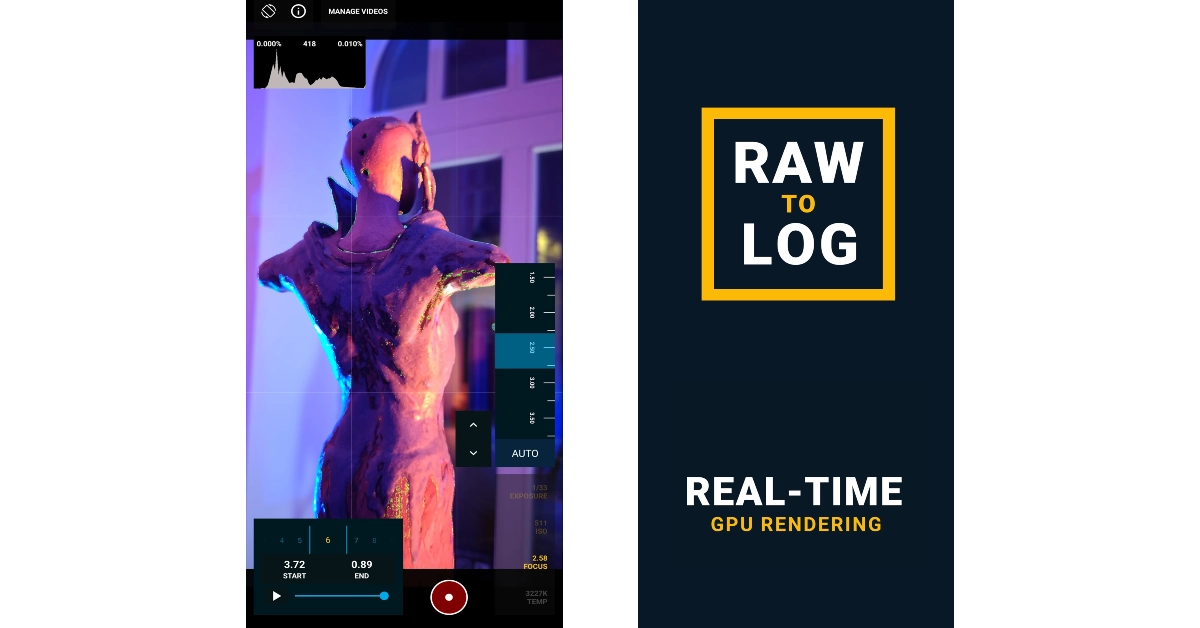
MotionCam Pro is the only paid app on this list, but it is worth its price tag. If you want to record videos in RAW format, this is the app you should go to. It bypasses your phone’s computational photography algorithms and delivers purely neutral footage captured from the main lens. The footage can then be colour-coded according to your taste with the help of a video editing app. MotionCam Pro can also convert 10-bit CinemaDNG RAW videos into HVEC, ProRes, LOG, etc, in real time.
Download MotionCam Pro from the Google Play Store
Adobe Lightroom
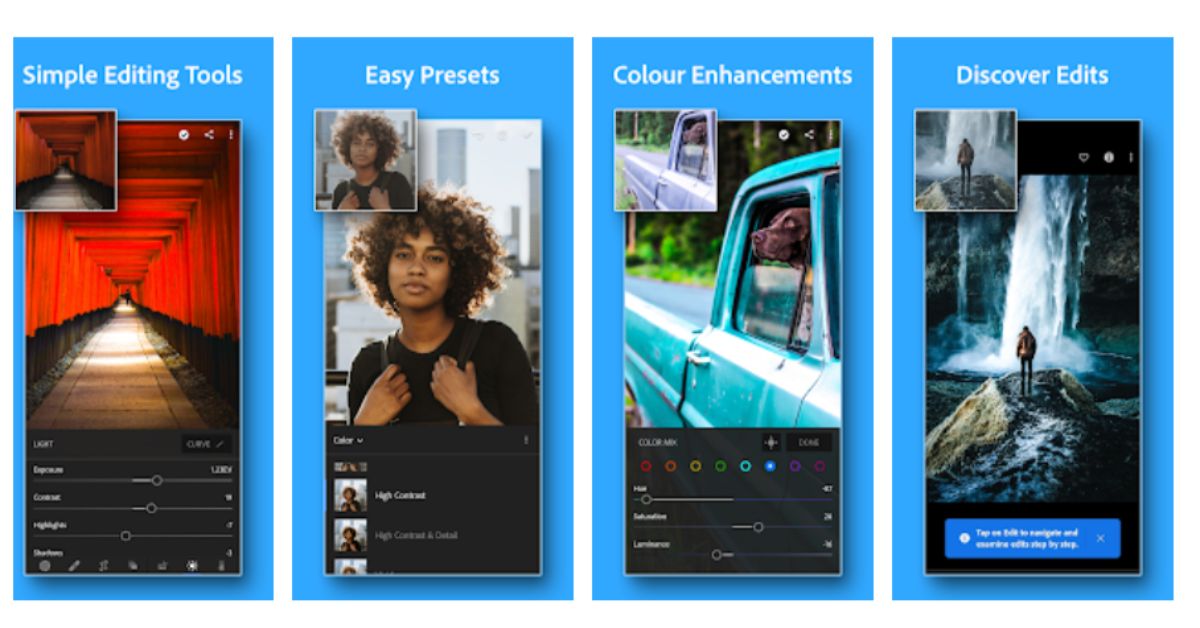
Adobe Lightroom is the one photo-editing app that can do it all. It is equipped with tools to enhance images by adjusting core attributes like exposure, highlights, shadows, and more. Users can also take control of colour grading, hue, saturation, tint, and white balance. AI features like blemish remover and object eraser come in handy to execute quick fixes. One of our favourite things about this app is that it lets you use the same filter across multiple images instantly, essentially letting you make batch edits.
Download Adobe Lightroom from the Google Play Store
Snapseed

If you’re looking for a more accessible photo-editing app, check out Google’s very own Snapseed. Its quick editing tools let you tune your pictures for social media. You can even tweak RAW images and export them as JPGs. The image tuner lets you control exposure and colour with fine precision. If your images are slightly skewed, you can fix them with the perspective tool. Additionally, you can remove unwanted objects from the images and increase their canvas with new content.
Download Snapseed from the Google Play Store
Canva
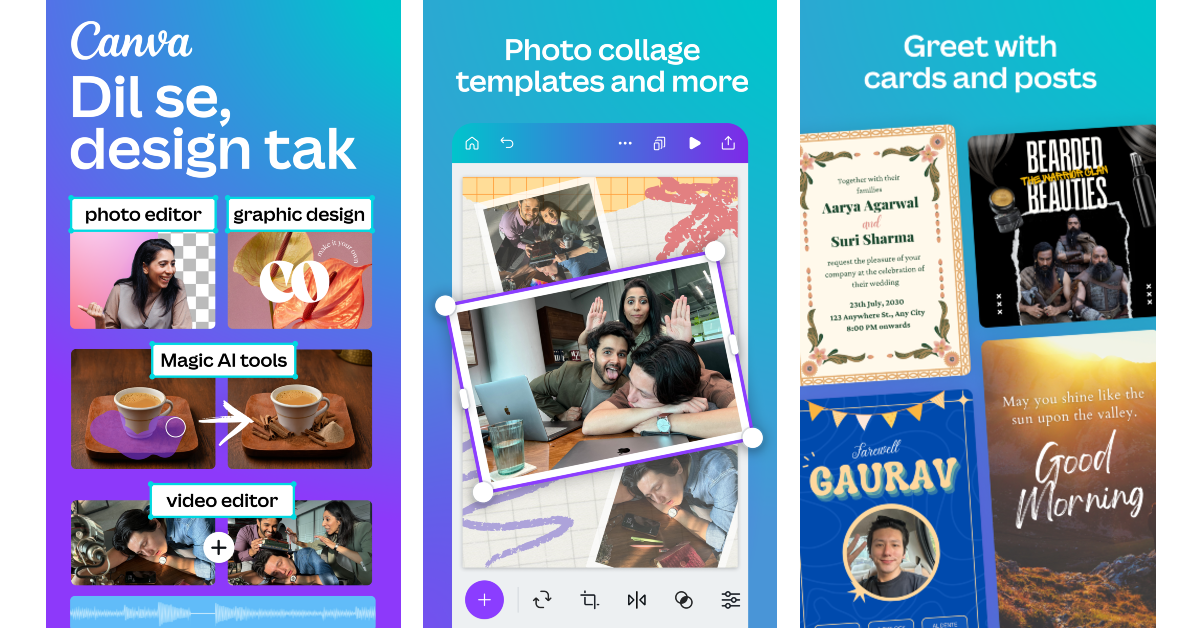
Canva is more than just your average photoeditor. It gives you the tools to embark on creative projects. You can use it to create anything from posters and flyers to CVs and invitation cards. The app’s diverse template library caters to a wide range of use cases. Its editing tools let you tune your pictures, create collages, add subtitles to your Reels, and more. The magic AI tools help you change the background of your pictures to something more fun.
Download Canva from the Google Play Store
Feedly
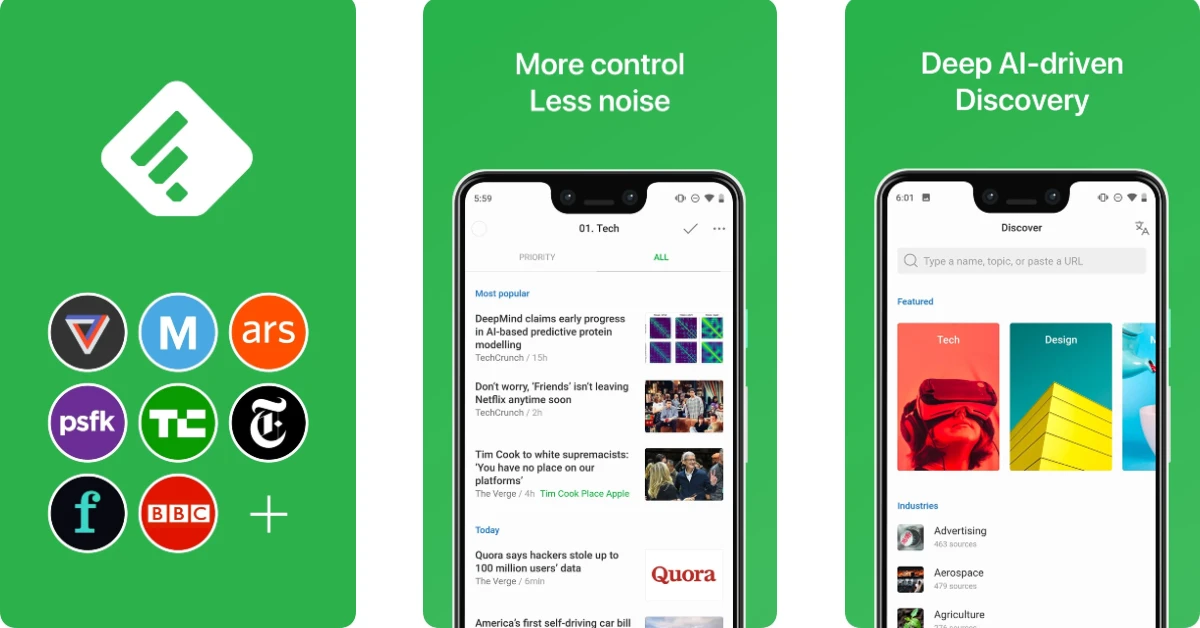
Feedly is the productive answer to endless doomscrolling. It tracks the topics that interest you across different newspapers, publications, blogs, research journals, and even apps like YouTube and Reddit. You can set your preferred sources beforehand. The aggregated news is neatly compiled and presented in a readable manner. The native reader in this app is clean and free of ads and other distractions.
Download Feedly from the Google Play Store
Quick Cursor

The Xiaomi 17 Ultra has one of the biggest displays we’ve seen on a smartphone yet. One-handed use on this 6.9-inch AMOLED panel can be quite challenging. Quick Cursor comes to the rescue in this situation by letting you access any part of the screen by summoning a cursor that can be controlled by your thumb. An inward swipe from either of the two edges brings the cursor to the screen. A simple tap selects the chosen item. The cursor becomes invisible after a short period of inactivity.
Download Quick Cursor from the Google Play Store
1Password
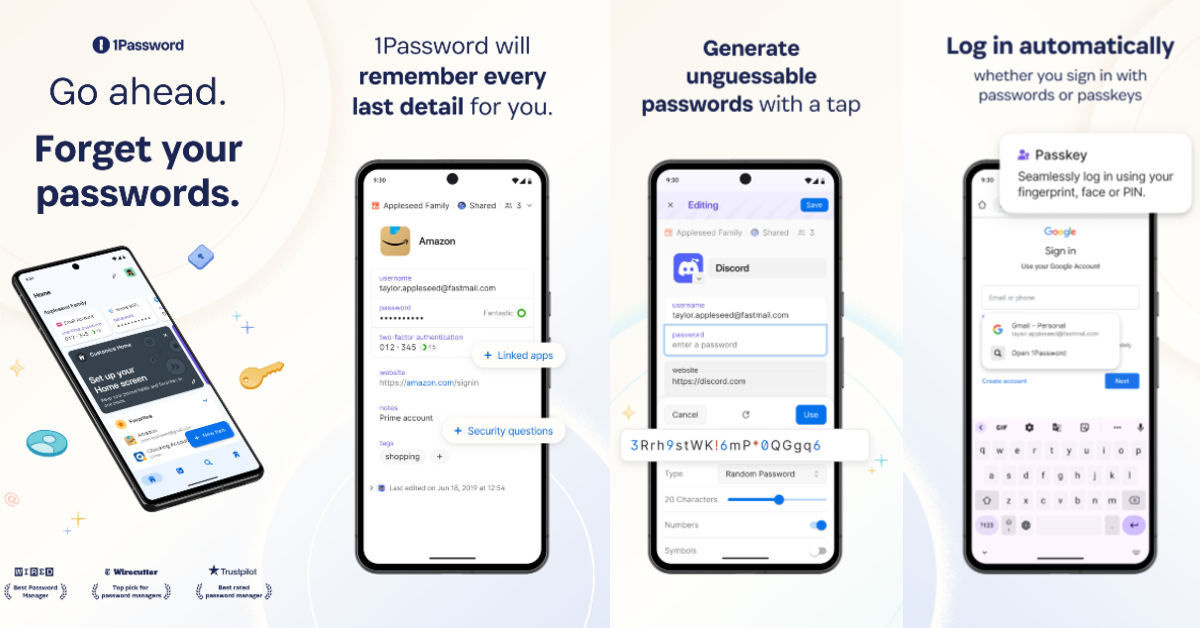
Signing into apps, websites, and other services does not have to be a tedious process. 1Password stores all your passwords and autofills them wherever necessary. Additionally, it generates strong passwords that are unguessable by most hacking software. The app also supports two-factor authentication codes. You can trust it with your credit card, bank account info, medical records, and passport as well.
Download 1Password from the Google Play Store
Brave Browser
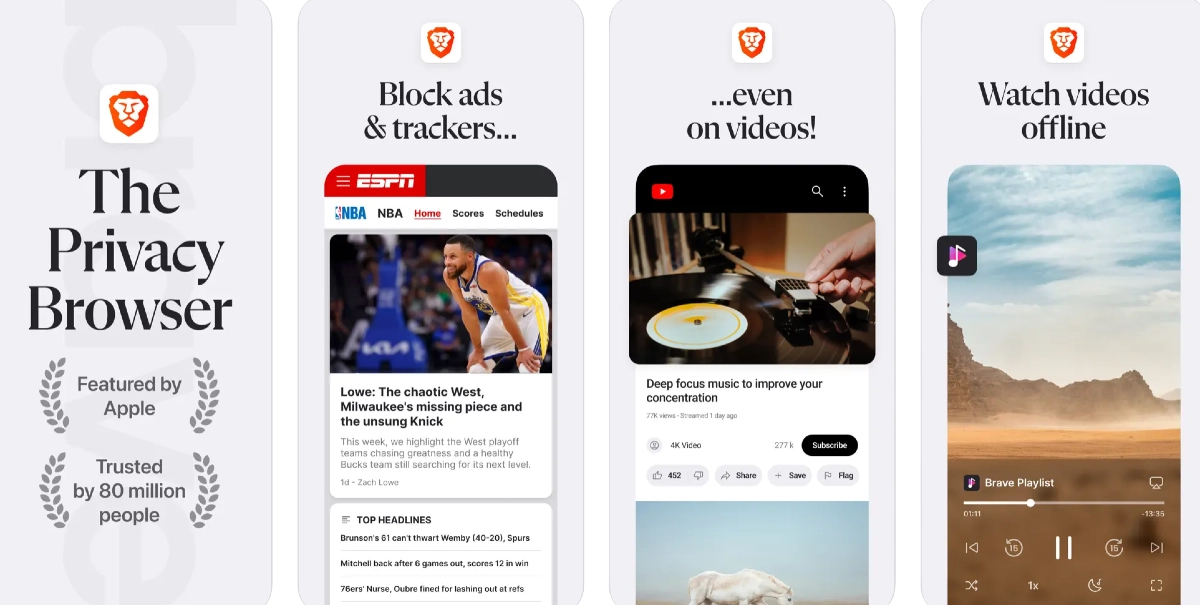
If you value privacy over everything else, Brave Browser is one of the first apps you should download on your Xiaomi 17 Ultra. This browser weeds out all the third-party tracker cookies and lets you surf the web anonymously. It enforces HTTPS certification on websites. Additionally, its native search engine does not profile the user. The ad-blocker baked into the app removes all ads, including the unskippable ones, on YouTube. The handy built-in VPN ensures further privacy.
Download Brave Browser from the Google Play Store
Local Send
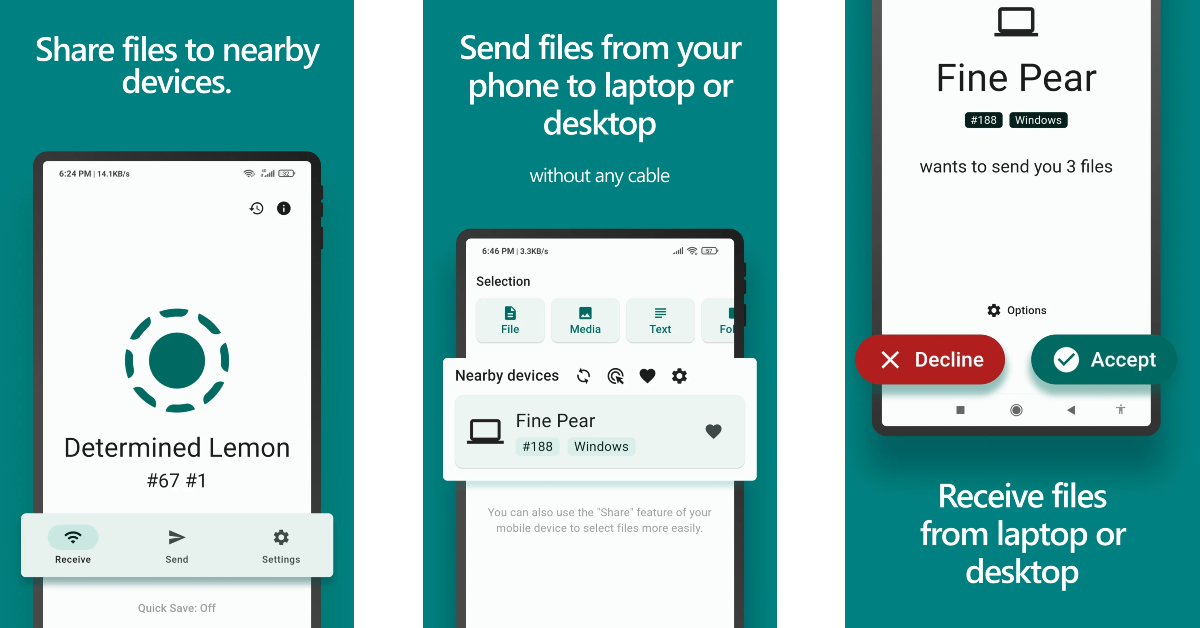
Local Send overcomes ecosystem boundaries to pave the way for a seamless file-transfer process. It relies on a local WiFi network to send and receive files. If you don’t have a home WiFi network, you can use your phone’s WiFi hotspot. Local Send does not use third-party servers as a buffer to send your selected files. The app is completely open-source.
Download Local Send from the Google Play Store
Read Also: Oppo Reno15 Pro Mini 5G Review: Portrait champ with a compact body
Final Thoughts
These are the top 10 apps you should download first on your new Xiaomi 17 Ultra. If you want more recommendations, let us know in the comments! While you’re here, take a look at the best apps for the Samsung Galaxy S26 Ultra as well.


