




Google’s Lyria 3.5 model for Gemini can generate songs within a few seconds. The best part is that you can access it for free on the Gemini app on your phone. Apart from a standard text prompt, you can feed this model pictures from your phone’s gallery to come up with personalised content. This minor but useful add-on comes in handy while creating songs for your loved ones. So, without further ado, here’s how you can generate a song using Google Gemini.
Read Also: Sennheiser MOMENTUM 5 Wireless and MOMENTUM True Wireless 5 arrive in India
In This Article
Use these tips to land on the perfect song
A good prompt is the key to unlocking an enduring song. Here are some of the things to keep in mind while coming up with one.
- While Gemini has a dedicated menu for musical genres, your prompt should reinforce the sonic nature of the track. Specify the genre and the time period you have in mind. You can even cross over different genres for interesting and unique results.
- Have a clear vision of what the song is for. Mention in the prompt whether you want the song to be danceable, sombre, or something else.
- To further bolster the sonic experience, mention some instrumental quirks that you’d like to see in the song (ex: a drum intro, a guitar solo, etc.)
- While you don’t need to enter the lyrics, you can ask Gemini to insert a few lines of your choice in the song.
Generate a song using Gemini
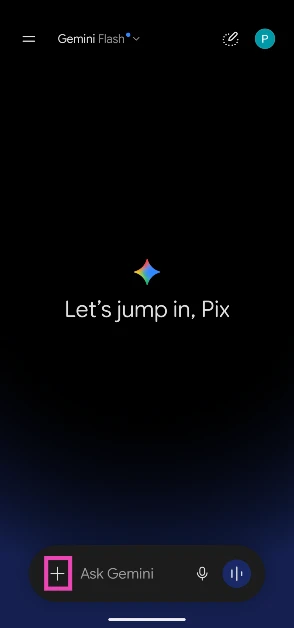
- Launch the Gemini app on your phone.
- Tap the plus icon next to the text box.

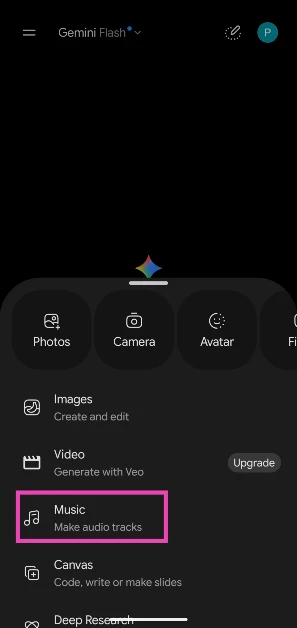
- Select Music.

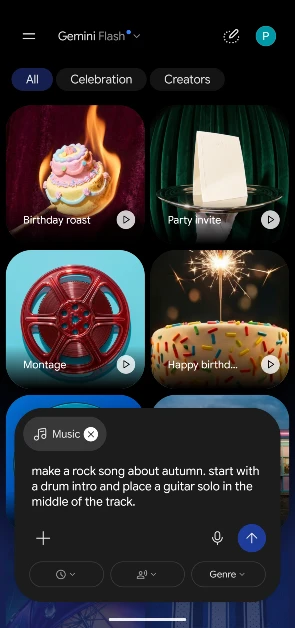
- Choose a template. You can skip this step if you want the song to be entirely reliant on your prompt.
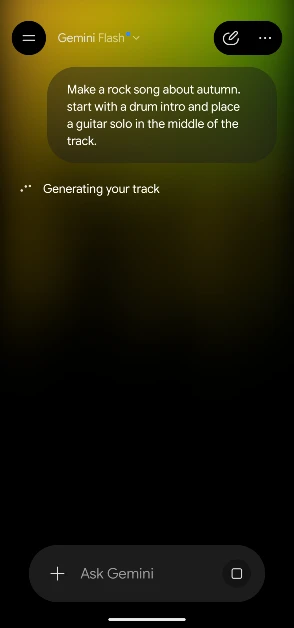
- Enter your prompt in the text box. You can tap the plus icon again and select Photos to upload an image from your phone’s gallery. Gemini will derive content from the image to use in the song.

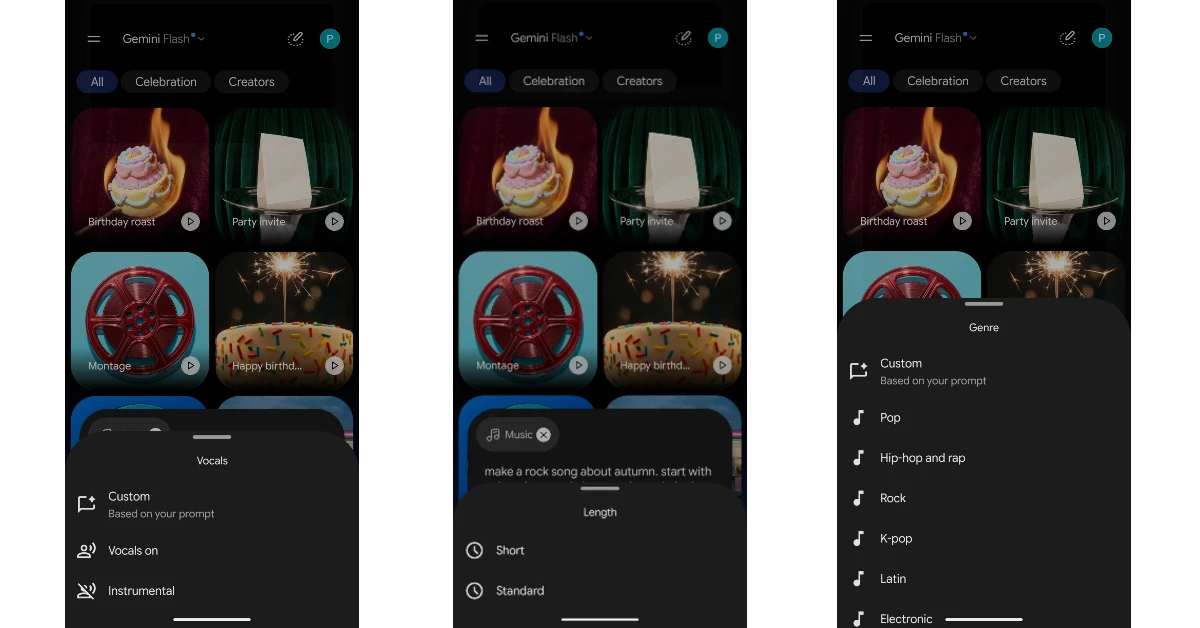
- Use the drop-down menus below the box to select the genre, duration, and vocals for the song.

- Hit Enter.
- Gemini will take a few seconds to generate the song.
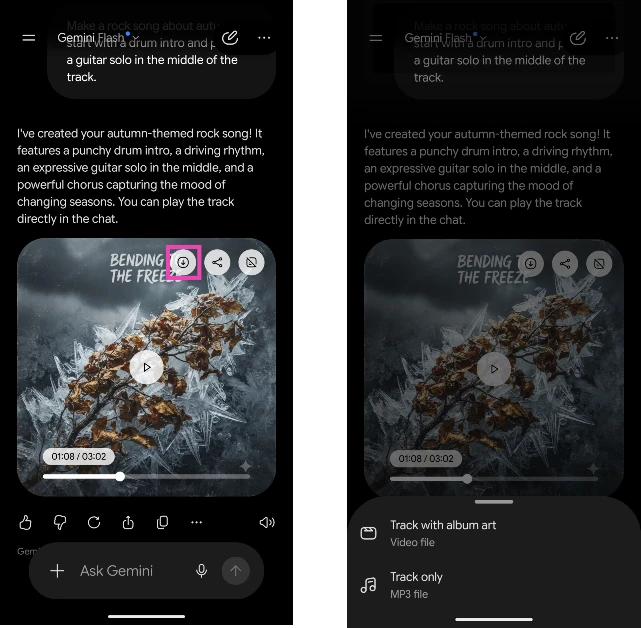
- Tap the arrow icon on the song’s thumbnail to save it on your device.

Frequently Asked Questions (FAQs)
Can Gemini make music?
Yes, the Gemini app on your phone can generate songs based on your prompts.
How do I make music using Gemini?
Go to Gemini on your phone, tap the plus icon, select ‘Music’, choose a template (optional), enter your prompt, set the duration and genre, and hit Send.
Can Gemini create long songs?
Currently, Gemini can generate songs up to 3 minutes long.
How do I find the lyrics to the song that Gemini created for me?
Once Gemini has generated your song, send a follow-up prompt requesting the lyrics.
Can Gemini make a song based on a picture?
Yes, you can upload a picture from your phone’s gallery as part of the prompt for generating a song.
Read Also: HP OmniPad 12 Review: Good enough to ditch your laptop?
Final Thoughts
All songs generated by Gemini are embedded with Google’s SynthID, which can be used to identify AI-generated content. You can upload a song to Gemini and ask it to check for its SynthID and determine whether it was created using a Google AI model.


