



Key Takeaways
- Google Pixel's native Camera app includes a Creator tab packed with useful video recording tools.
- The Speech Enhancement feature curbs unwanted background noises like wind and traffic to focus on the subject's voice.
- The Creator suite also features a Project folder, Teleprompter, Audio visualiser, and Social media grid.
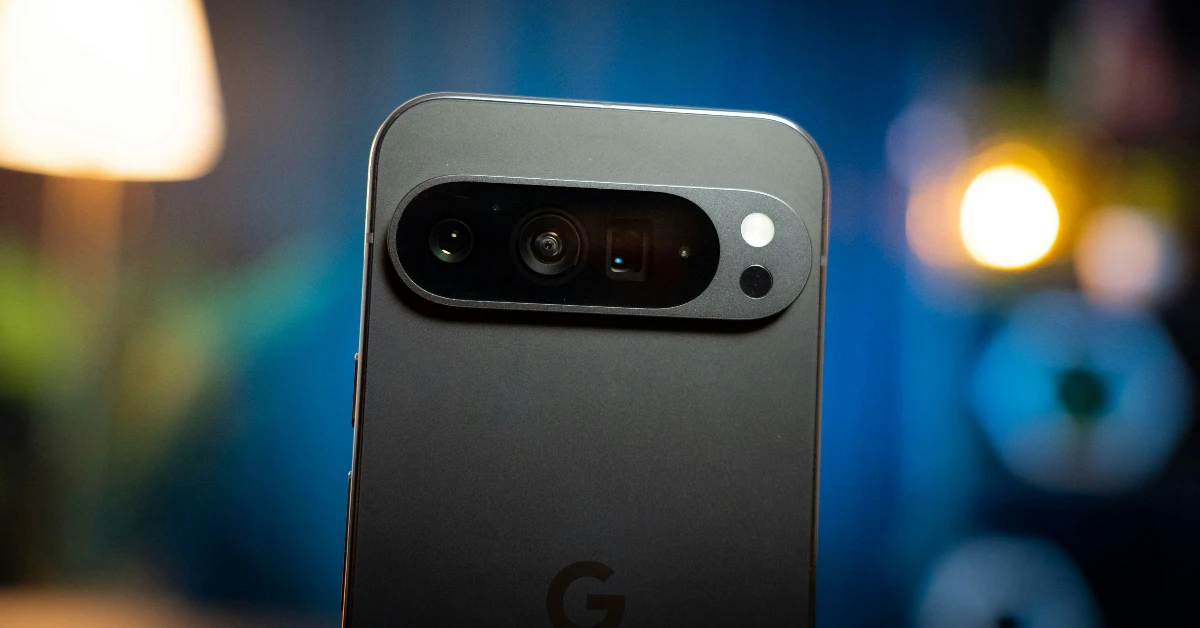
Pixels are known for their software magic. Google’s native Camera app for its smartphones is packed with useful features that most people don’t know about. The ‘Creator’ tab in the settings opens the door to a premium suite of tools that can immediately boost the quality of your video recordings. If you often worry about wind and background noises hampering the audio quality of your outdoor recordings, the speech enhancement tool in the Google Pixel is just what you need. Let’s dive right into it.
Read Also: Sennheiser MOMENTUM 5 Wireless and MOMENTUM True Wireless 5 arrive in India
In This Article
Google Pixel’s Creator Suite
Introduced on the Pixel 11 (our review here), the Creator tab in the native Camera app has a bunch of tools that a lot of content creators will find quite useful. Here’s what these tools do.
- Project folder: Creates a storyboard and stores all the clips related to a project in one place.
- Teleprompter: Shows the script on the screen.
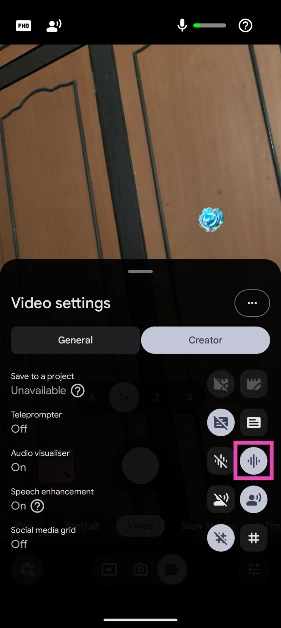
- Audio visualiser: Displays the audio level in real time while recording a video.
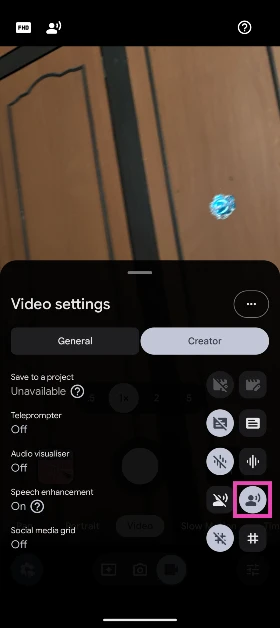
- Speech enhancement: Curbs unwanted noises (wind, traffic, crowds, etc.) and focuses on the sound coming from the subject of the video.
- Social media grid: Helps frame videos for social media platforms.
Use Speech Enhancement on Google Pixel
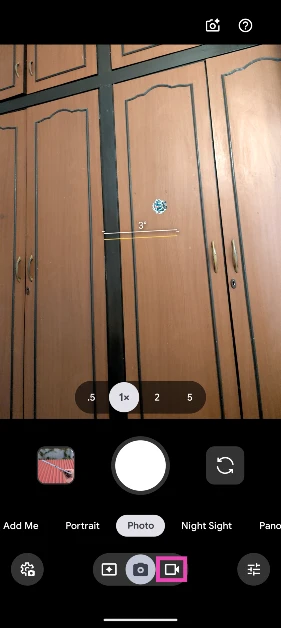
- Launch the Camera app.
- Switch to Video mode.

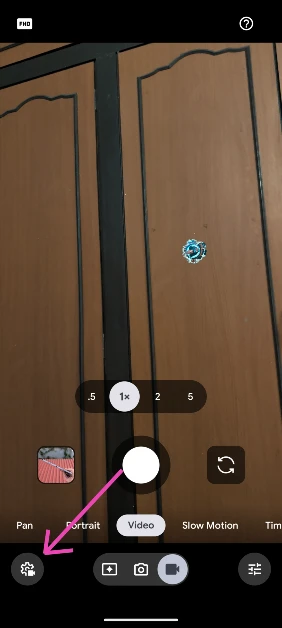
- Tap the settings icon in the bottom left corner of the screen.

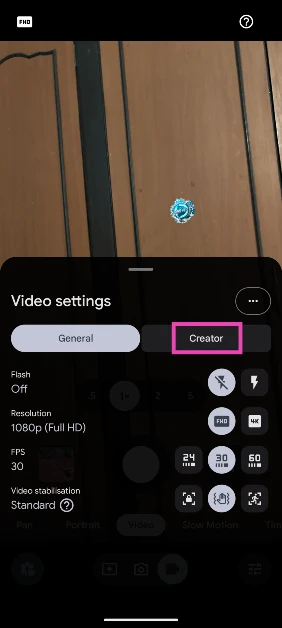
- Go to the Creator tab.
- Turn on Speech Enhancement.

Bonus Tip: Enable the Audio Visualiser
The audio visualiser in Google Pixel’s native Camera app lets you view the audio level in real time to ensure you get great sound in your videos.
- Launch the Camera app.
- Switch to Video mode.
- Tap the settings icon in the bottom left corner of the screen.
- Go to the Creator tab.
- Turn on Audio Visualiser.
Frequently Asked Questions (FAQs)
What does the Speech Enhancement feature do on Google Pixel?
The Speech Enhancement tool in Pixel’s native Camera app curbs unwanted background sounds and focuses on the subject’s speech.
Do all Google Pixel phones have speech enhancement?
No, only Google Pixel 8 and higher phones have this feature.
What is the Audio Visualiser on Google Pixel?
The Audio Visualiser in the camera app gives you a view of the audio level in real time while you’re recording a video.
How do I enable the Audio Visualiser on my Pixel?
Go to Camera>Video>Settings>Creator and hit the On button next to Audio Visualiser.
How do I enable Speech Enhancement on my Pixel?
Go to Camera>Video>Settings>Creator and hit the On button next to Speech Enhancement.
Read Also: HP OmniPad 12 Review: Good enough to ditch your laptop?
Final Thoughts
For existing videos in your Pixel’s gallery, you can use the native Audio Eraser. This editing tool scans your video for different sounds and lets you adjust them individually using sliders. Got any questions? Let us know in the comments!


