



Remembering the password to your home’s WiFi network is not as easy since you’re not used to entering it on your devices regularly. Once you pair your device to a WiFi network, it remembers the password and automatically pairs with the WiFi whenever it is in proximity. You won’t be prompted to enter the password again unless it is changed. While this works fine for the most part, you can easily forget the password and have a hard time remembering it when a guest at your house asks for it. Luckily, your Android device connected to the WiFi network remembers the password and can easily share it when required. In this article, we bring you the two simplest ways you can share your saved WiFi network and password from your Android device.
Read Also: How to use Emergency SOS via Satellite on iPhone 14?
In This Article
How to share your WiFI password using the QR Code
Step 1: Go to Settings and select ‘Connections’. In some devices, this may be called ‘Network and Internet’.

Step 2: Select ‘WiFi’ and ensure you are connected to the network you want to share.

Step 3: Tap on the gear icon next to the connected network.

Step 4: Tap on ‘QR Code’ at the bottom of the screen.

Step 5: Scan the QR Code on the phone you want to share the network with. The WiFi connection will be established without having to share the password.
How to share your password using Nearby Share
In order to use Nearby Share, you need to make sure your Bluetooth and Location services are turned on. If you haven’t enabled Nearby Share on your phone, you can do so by following these steps.
Step 1: Go to Settings.
Step 2: Scroll down and select ‘Google’.
Step 3: Select “Devices and Sharing’ and tap on ‘Nearby Share’.
Step 4: Turn the toggle bar to ‘On’.
Now that Nearby Share has been enabled, follow these simple steps to share your WiFi password.
Step 1: Go to Settings and select ‘Connections’ (or Network and Internet).
Step 2: Select ‘Wifi’ and tap on the gear icon next to the connected network.
Step 3: Tap on ‘QR Code’ and select ‘Share’.

Step 4: Tap on ‘Nearby Share’ and wait for your phone to share nearby devices. Make sure Nearby Share is enabled on the device you want to share the password with.
Step 5: When the device name pops up, tap on it to share the network details.
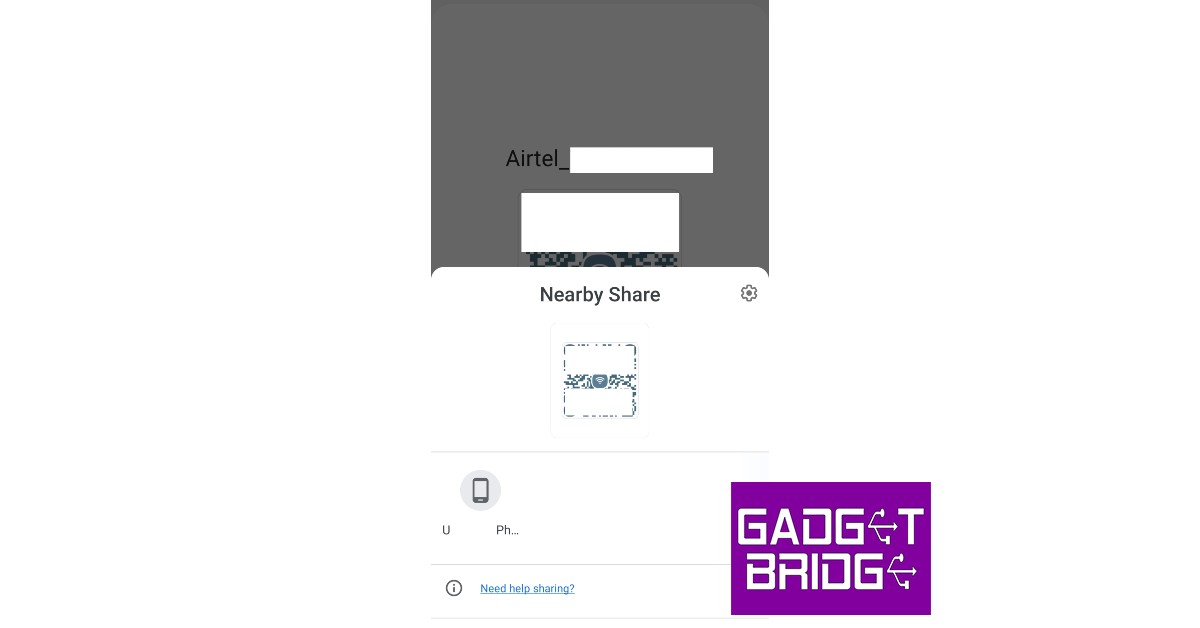
Step 6: On the receiving device, accept the file being shared with you by tapping on ‘Accept’.

The QR Code will be shared with the device. The device can now pair with your WiFi network.
Read Also: How To Follow Responsible GamStop Rules?
These are the two simplest ways you can share the saved WiFi network and password on your Android device with any other device. The best part about these methods is that you don’t need to share your actual password. Any device can connect to the WiFi network simply by scanning the QR code. This comes in handy when you’ve forgotten your WiFi password.
For the latest gadget and tech news, and gadget reviews, follow us on Twitter, Facebook and Instagram. For newest tech & gadget videos subscribe to our YouTube Channel. You can also stay up to date using the Gadget Bridge Android App. You can find the latest car and bike news here.


