


If you want to customise your smartphone, changing the ringtone is a good place to start. Before smartphones became the norm, you had to pay for custom ringtones, but now you can create a unique ringtone using any app of your choice. If you like a hook from a song or a sound bite from a movie, converting it into a ringtone is a pretty easy task. In this article, we show you how to create a custom ringtone for your Android smartphone.
Read Also: Redmi Note 11 gets cheaper in India: New pricing details
In This Article
Create a custom ringtone using a third-party app
If you want to set a song as your ringtone, you want the hook or a particular segment of the song to play whenever you receive a call. Setting the entire song as the ringtone can be quite tedious and defeats the purpose of a customised tone if you can’t even hear the desired part. Luckily, there are a ton of song editing apps on Google Play Store that will help you trim a song to an ideal length. Once you have edited a song, you can set it as your ringtone. Here’s how you can trim a song using the ‘MP3 cutter & ringtone maker’ app.
Step 1: Install the ‘MP3 cutter & ringtone maker’ app from Google Play Store.
Step 2: Open the app and select the song you want to trim.
Step 3: Use the slider to trim the song and edit the part you want to set as your ringtone.

Step 4: You can also use the fade effects and alter the volume of specific parts of the song.

Step 5: If you want to get creative, you can even merge multiple songs together to create a unique ringtone.

Step 6: Once you’ve edited the song, save it on your device. You can also set the song as your ringtone directly from the app.
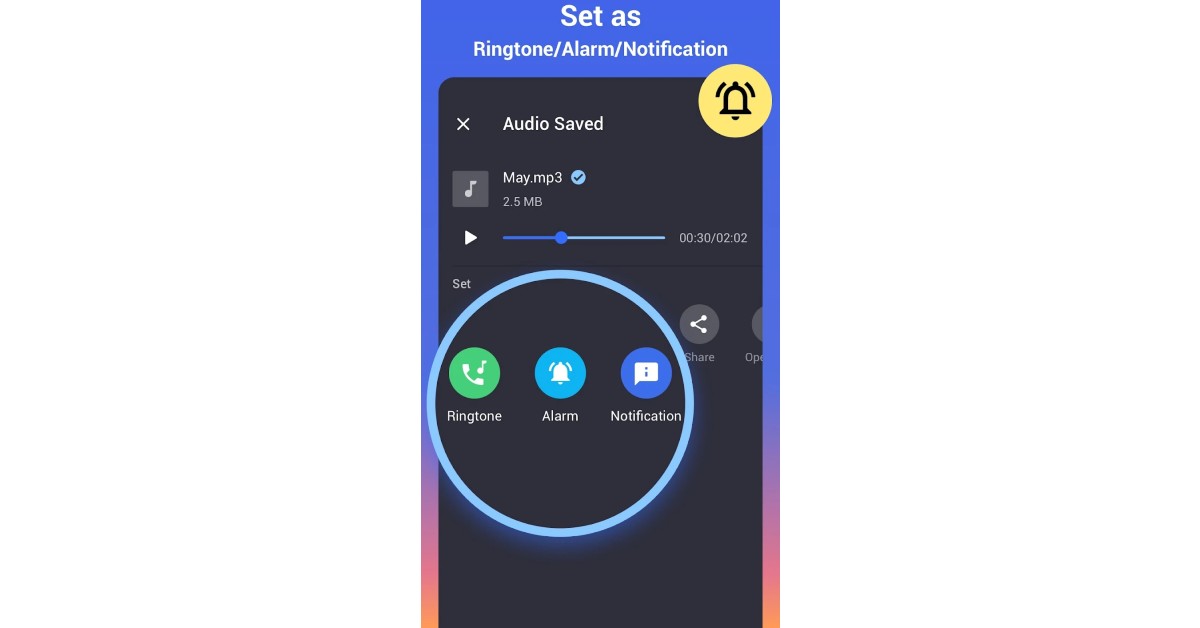
Set a song as your ringtone on Android
Once you’ve trimmed a song down, you can set it as your ringtone from your phone’s settings. Here’s how.
Step 1: Go to Settings and select ‘Sounds and vibration.’

Step 2: Select Ringtone and tap on the plus icon at the top right corner of the screen.

Step 3: Select the song from your phone’s storage.
Step 4: Tap on ‘Done.’

Read Also: Vivo Y02 with 5,000mAh battery likely to launch in India soon
Conclusion
This is how you can create a custom ringtone for your Android smartphone. If you do not want to use a third-party app to edit a song on your phone, you can achieve the same result by using Audacity on your PC. Once you’ve figured out how to trim a song to an ideal length, you can use it to set custom notification sounds and personalised ringtones for different contacts as well.
For the latest gadget and tech news, and gadget reviews, follow us on Twitter, Facebook and Instagram. For newest tech & gadget videos subscribe to our YouTube Channel. You can also stay up to date using the Gadget Bridge Android App. You can find the latest car and bike news here.


