



One of the benefits of having a Prime subscription is that it allows access to Amazon Music. You don’t need to pay any additional amount to listen to millions of artists on the platform. However, if you’re thinking of cancelling your Prime subscription, you might need to look for another music streaming service as well. Spotify, being one of the biggest music streaming platforms in the world, is one of the better alternatives. If you’re worried you’ll lose all your playlists in the process, we’ve got a trick that won’t let that happen. Here is how you can transfer your Amazon Music Playlists from Amazon Music to Spotify.
Read Also: YouTube wants content creators to disclose AI-generated videos on the platform
In This Article
Which transfer service is the best for you?
There are a bunch of third-party tools you can use to transfer your playlists from one streaming platform to another. Free Your Music, Soundiiz, Tune My Music, and Song Shift are some of the best ones around. However, some services (like Free Your Music) may prompt you to download their app if you want to go through with the transfer process.
If you’re not willing to download any app on your device, Tune My Music is the service for you. This service is recommended by Amazon Music for web devices. For iOS devices, Amazon recommends Song Shift. Its mobile web page is fast and smooth, and gets the job done easily. If you’re on Android, Free Your Music has an efficient app on the Google Play Store for all playlist transferring purposes. So check out how you can transfer playlists between any two platforms using this service!
Update: Spotify has partnered with Tune My Music to make playlist imports easier. While this feature is natively baked into the app, you will need to use TMM’s web interface for the task. More details below.
Use the native method
Step 1: Launch the Spotify app on your phone.
Step 2: Go to Your Library.
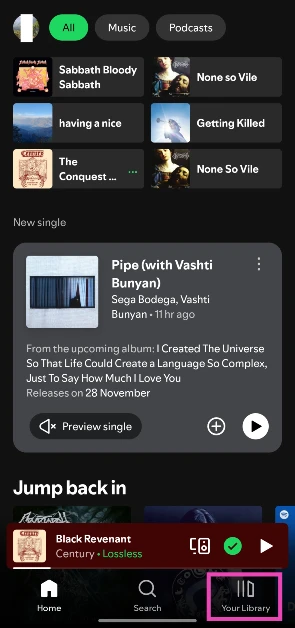
Step 3: Scroll to the bottom of the page. Use the scroll icon on the right to get there quickly.
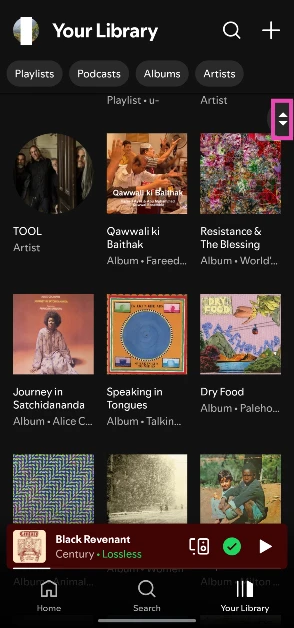
Step 4: Tap on Import your music.
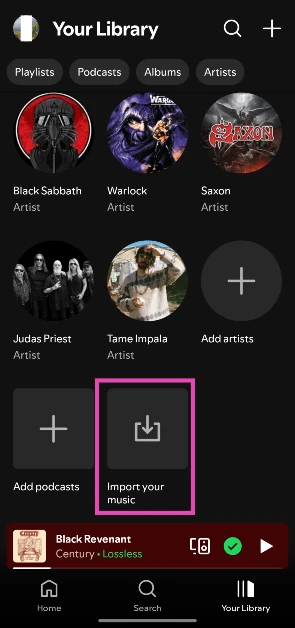
Step 5: Tap on Get Started. You will be redirected to TuneMyMusic.
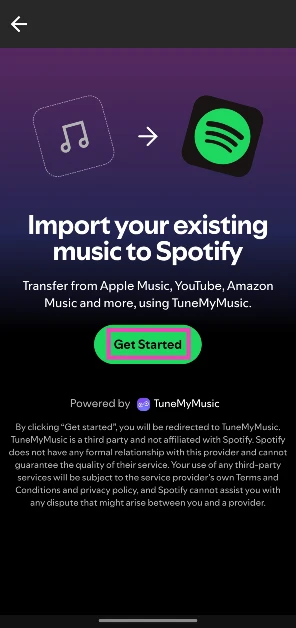
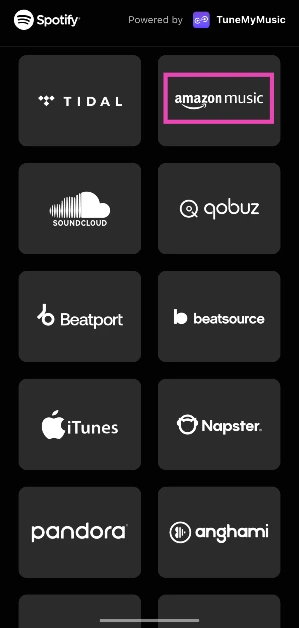
Step 6: Select Amazon Music.
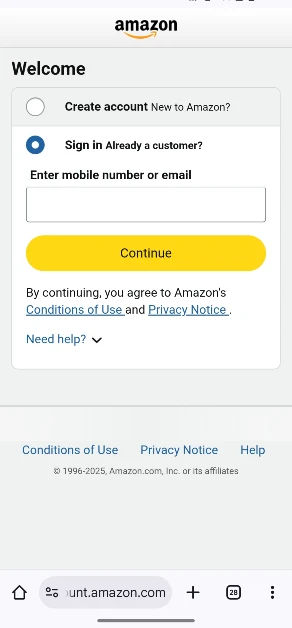
Step 7: Sign in to your Amazon account.
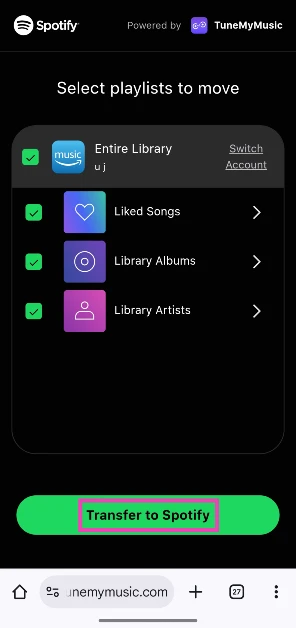
Step 8: Select the playlists you wish to import and tap on Transfer to Spotify.
Step 9: Once the transfer has finished, tap on Open your Library in Spotify.

Transfer Amazon Music Playlist to Spotify
Step 1: Go to https://www.tunemymusic.com.
Step 2: Click on Let’s Start.
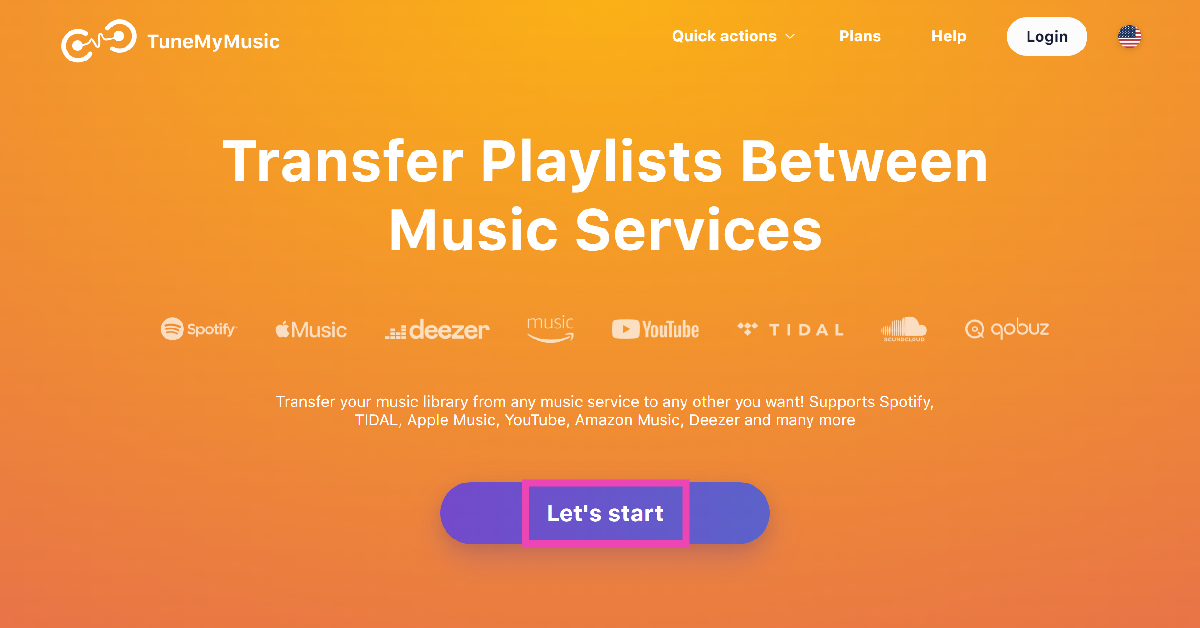
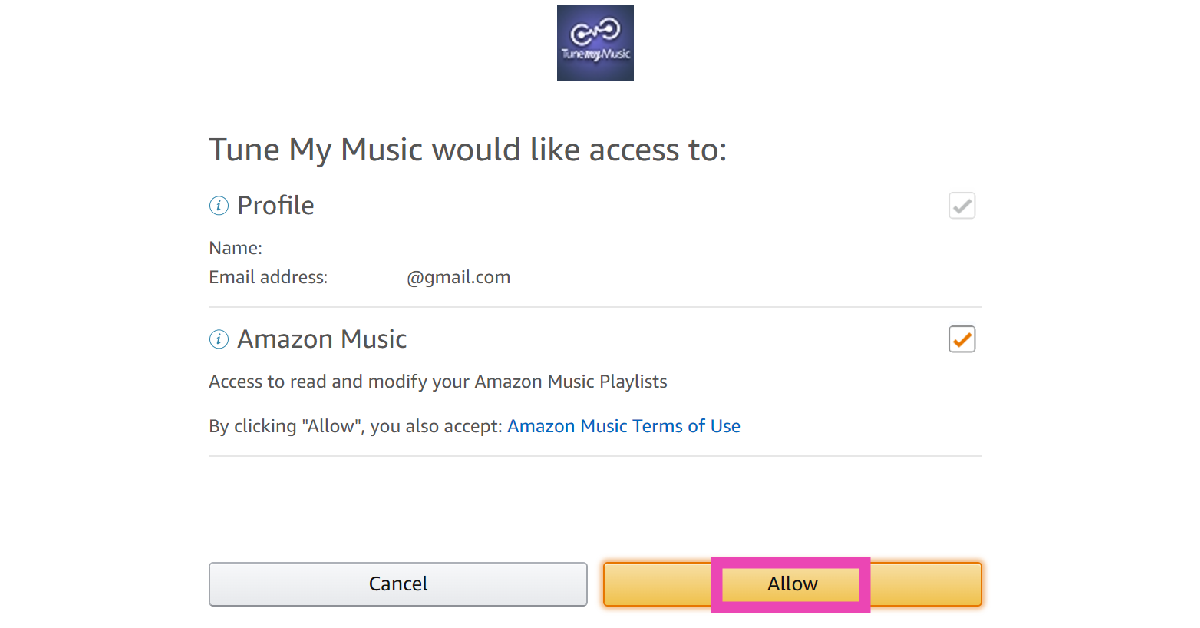
Step 3: Select Amazon Music as the source platform and allow Tune My Music to access your profile.
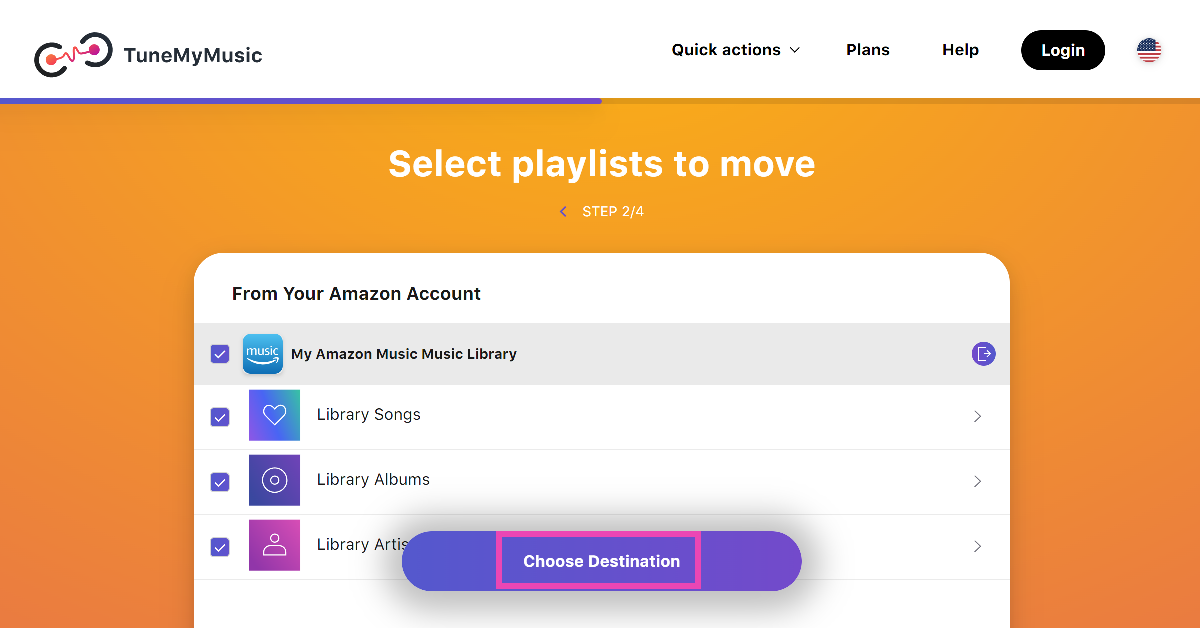
Step 4: Select the playlists you wish to move and hit Choose Destination.
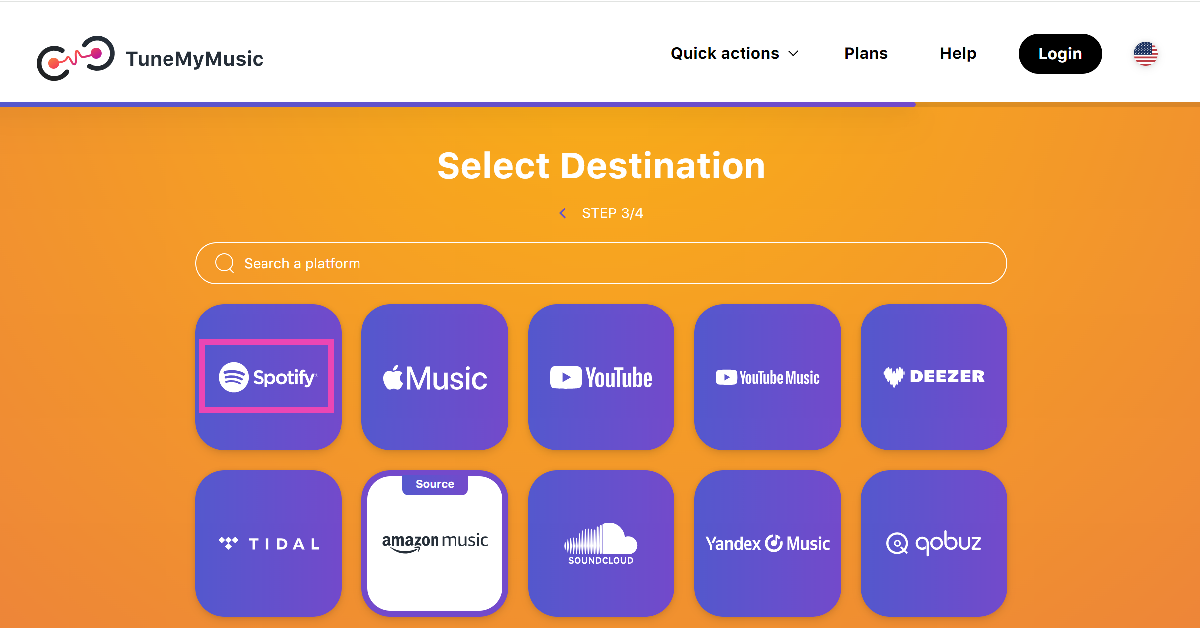
Step 5: Select Spotify as the destination and allow Tune My Music to access your profile.
Step 6: Hit Start Transfer.
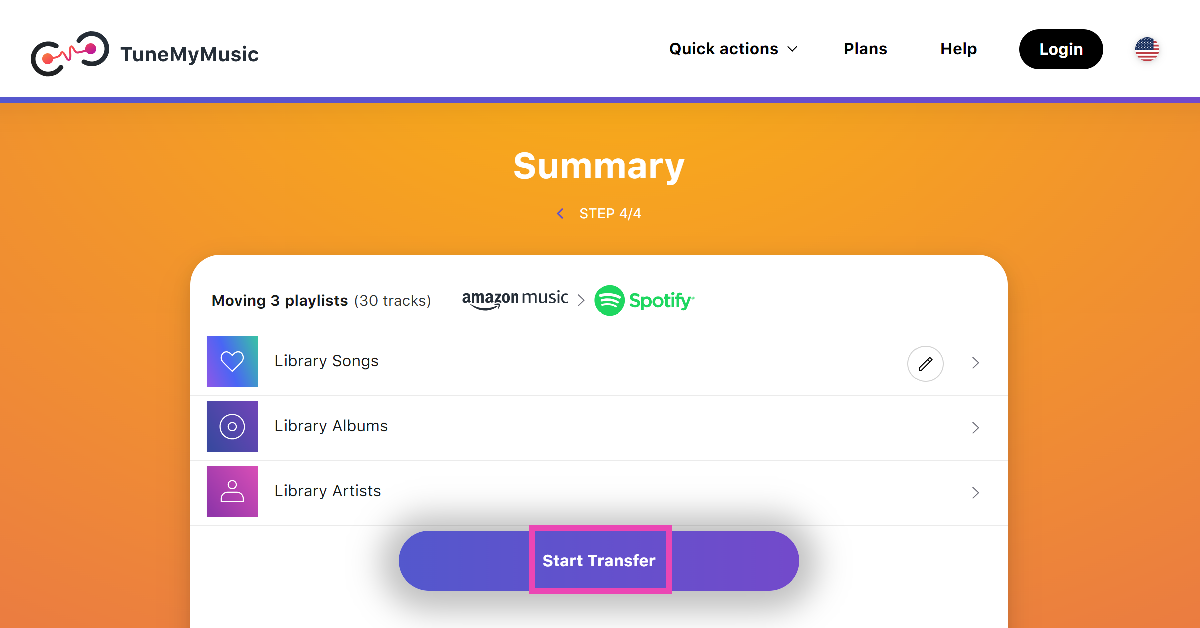
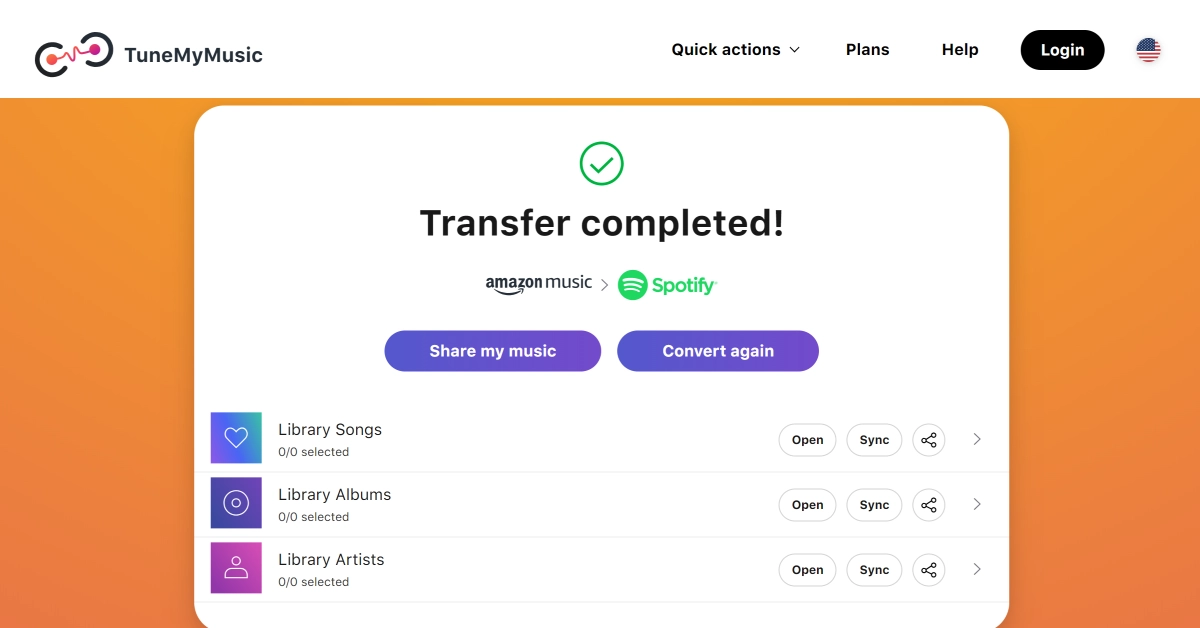
Step 7: TNM will begin the transfer. Within a few seconds, your Amazon Music playlists will be transferred to Spotify.
Transfer your Spotify playlists to Amazon Music
Step 1: Go to https://www.tunemymusic.com/.
Step 2: Click on Let’s Start.
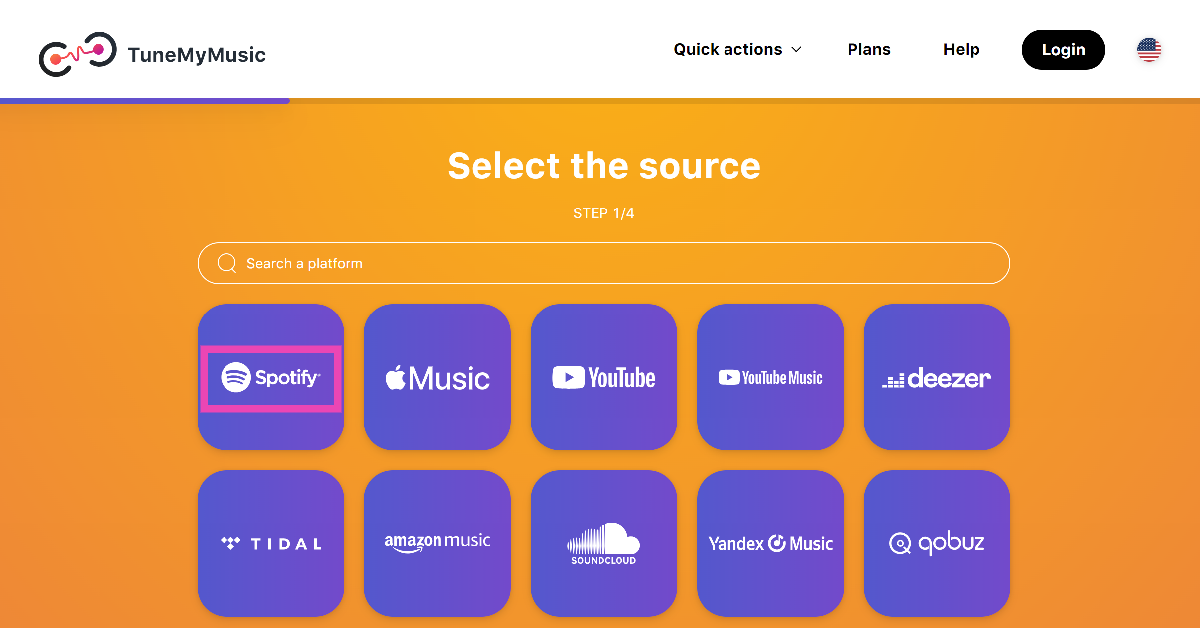
Step 3: On the following page, select Spotify as the source platform.
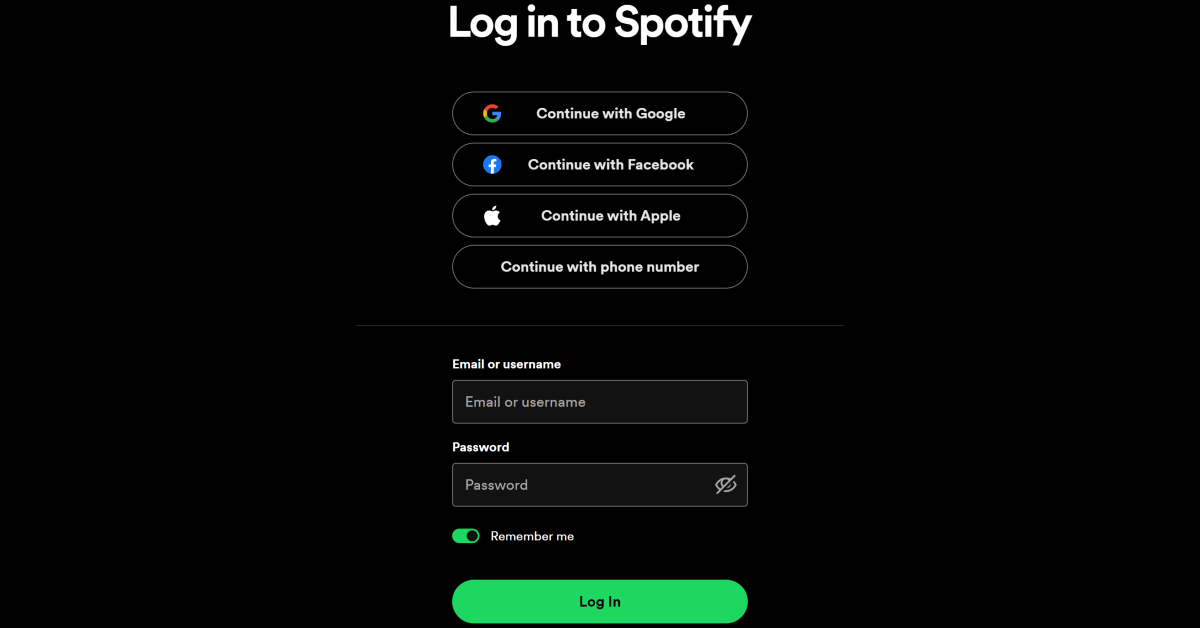
Step 4: Log into your Spotify account.
Step 5: If you want to transfer a particular playlist, paste its link in the box. If you want to transfer multiple playlists, click on Load from Spotify account.
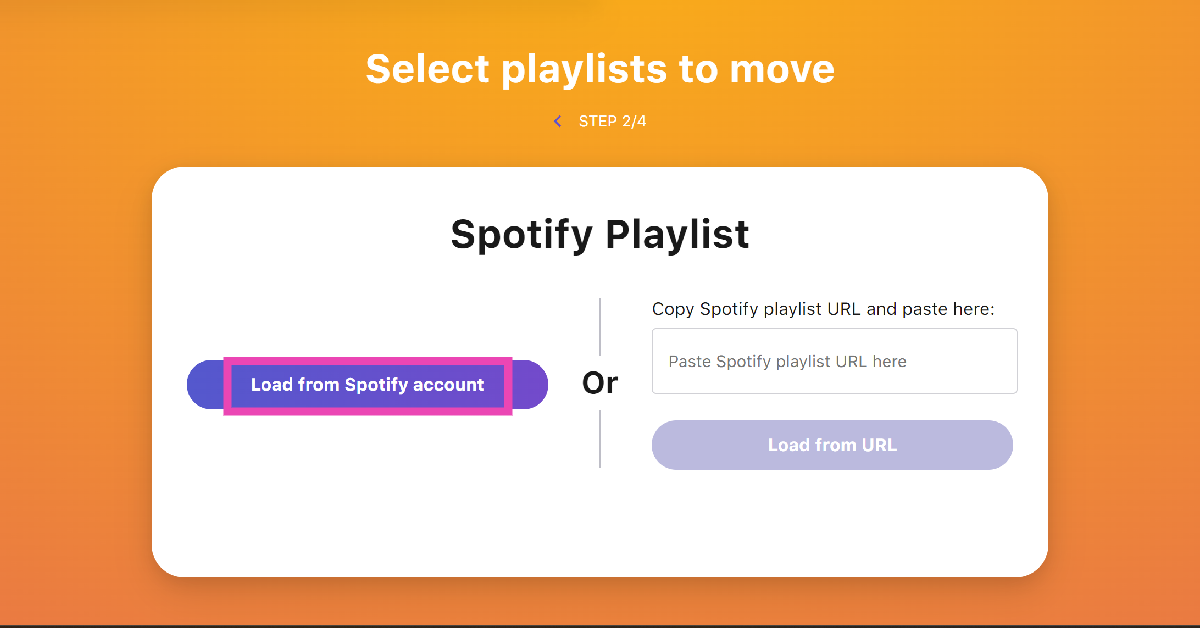
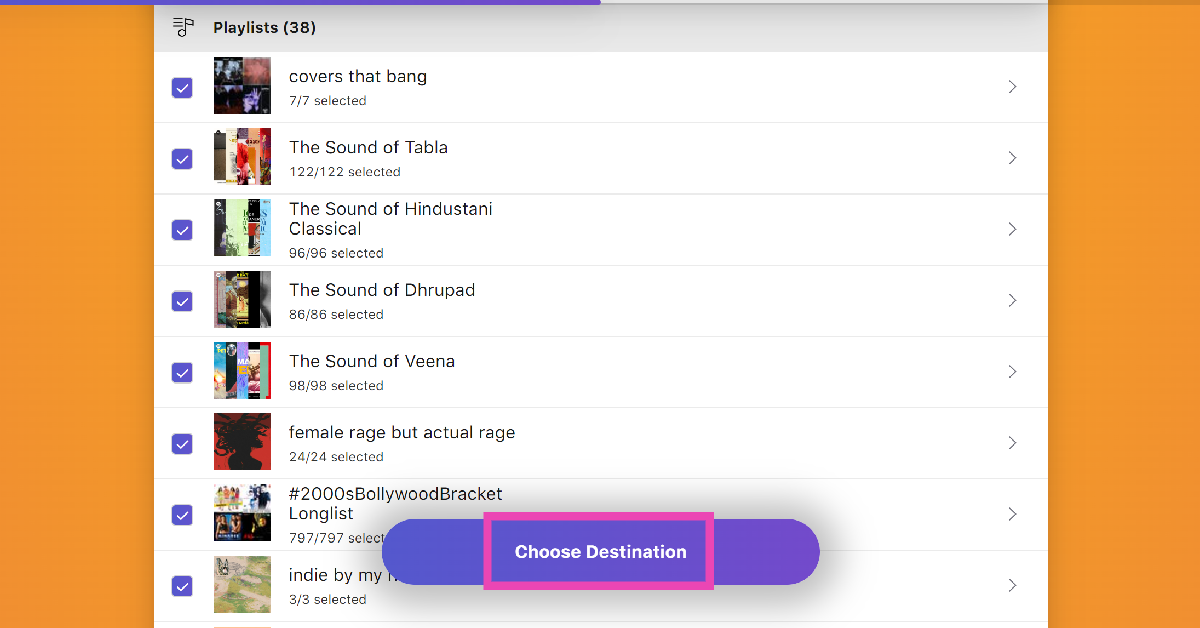
Step 6: Select the playlists you want to transfer and hit Choose Destination.
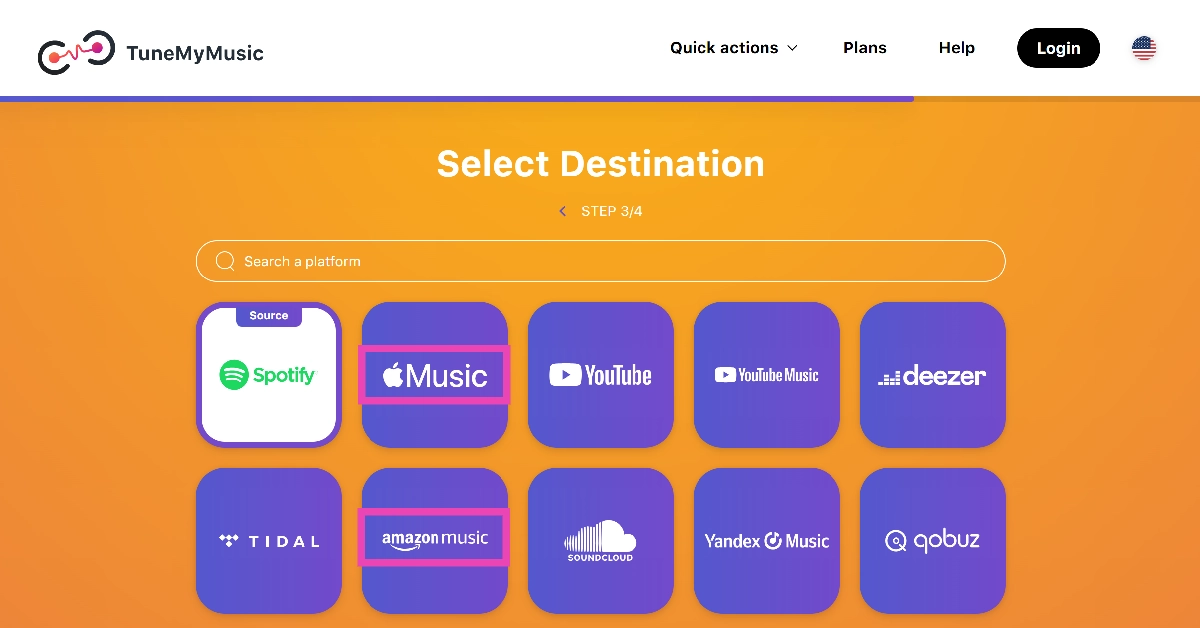
Step 7: Set Amazon Music as the destination.
Step 8: Log into your Amazon Music account.
Step 9: Allow TuneMyMusic to access your Amazon Music account.
Step 10: Hit Start Transfer.
Frequently Asked Questions (FAQs)
How do I transfer my Amazon Music playlist to Spotify?
Third-party services like Tune My Music can transfer your playlists between different streaming platforms. You can use it to move your Amazon Music playlists to Spotify.
How much does a Spotify subscription cost?
An individual Spotify Premium subscription costs Rs 119 per month. The Family plan, which accommodates 6 people, costs Rs 179 per month. The Duo plan for 3 people is priced at Rs 149 per month.
How much does an Amazon Music subscription cost?
Amazon Music comes bundled with a Prime subscription. A Prime subscription costs Rs 299 per month.
Read Also: How to create and design your WhatsApp avatar? (2024)
Conclusion
This is how you can transfer your Amazon Music playlists to Spotify and vice versa. If you’re on mobile, Tune My Music’s website will work just fine on the web browser app. You can also download the Free Your Music app from the Google Play Store for a more efficient transfer process.


