


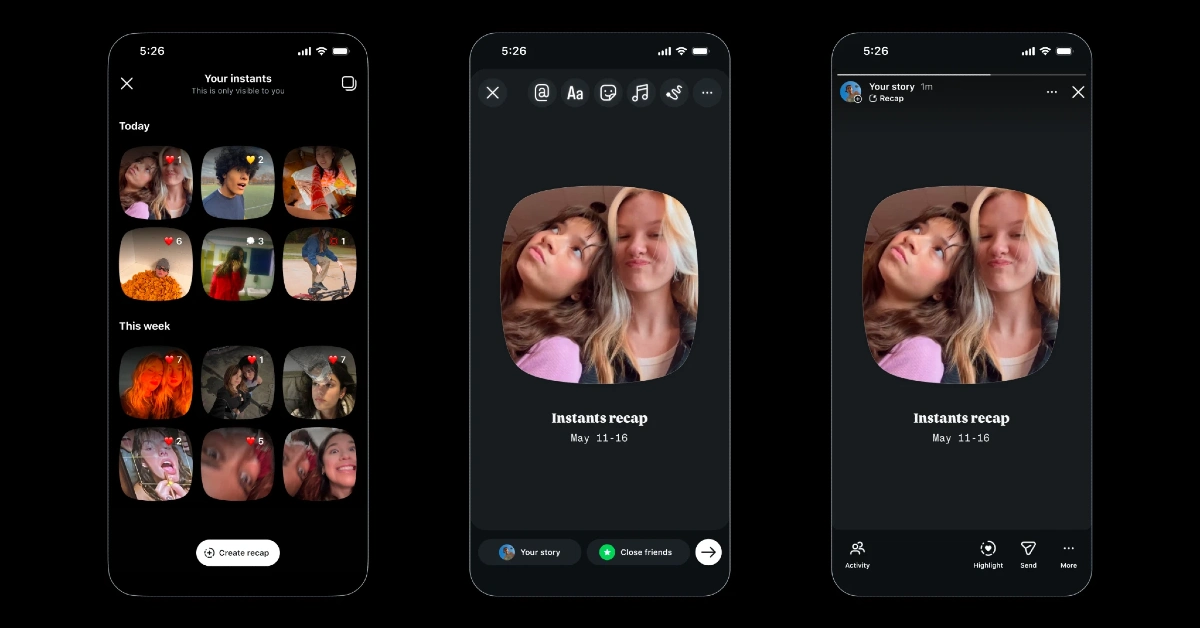
Instagram’s new photo-sharing feature, Instants, has everyone in a frenzy. Built around ephemerality, it lets you take snapshots that disappear as soon as they are viewed by your audience. The images are shared as soon as you tap the shutter icon. This has not gone down well with some users, as they want the option to preview the images before sharing them. If you’re in the same camp and don’t want to see the feature in your DMs, you can get it out of your sight. Here’s how you can hide Instants in your Instagram DMs.
Read Also: The Advantages of a 2-way intercom headset communication system for Modern Teams
In This Article
Instants Explained
Instants make it easy to share spontaneous and casual snapshots with your friends on Instagram. An Instant vanishes once it is viewed. Instagram does not let you see who viewed your snapshot. It does let you choose between two audience groups: mutual followers or close friends. You need to enter the caption before taking the picture. This is because the Instant gets shared as soon as you hit the shutter button. There is an undo button in place, in case you want to recall an image.
If you want to post an Instant, you need to go through the ones that your friends have shared before getting to the camera. The pending Instants appear in the form of a stack at the bottom of the DMs page. You can react with an image before moving to the next one. If you’re not a fan of the feature and don’t want to see the image stack in your DMs, a simple right-swipe can hide it temporarily. If you want to hide it forever, follow the steps mentioned below.
Hide Instagram Instants
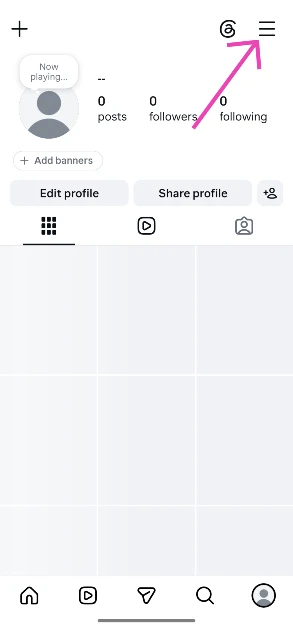
- Launch the Instagram app on your phone and go to your profile.
- Hit the hamburger menu icon in the top right corner of the screen.

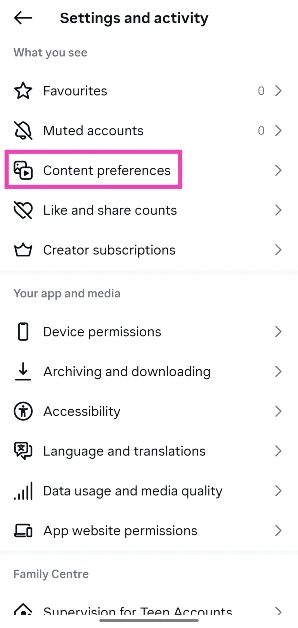
- Tap on Content preferences.

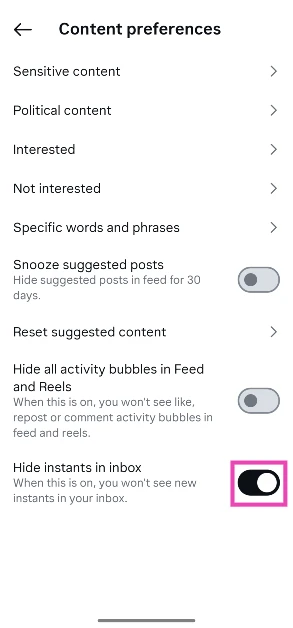
- Turn on the toggle switch next to Hide instants in inbox.
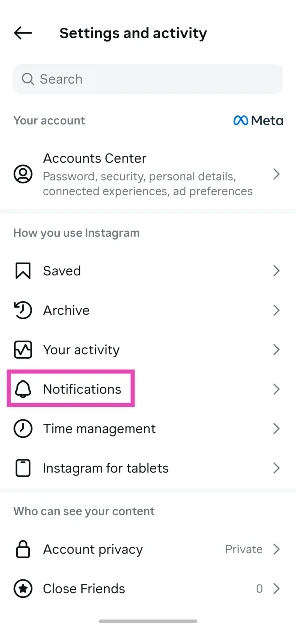
Tired of seeing Instants in your phone’s notification shade? Here’s how you can disable them
- Launch the Instagram app on your phone and go to your profile.
- Tap the hamburger menu icon in the top right corner of the screen.
- Select Notifications.

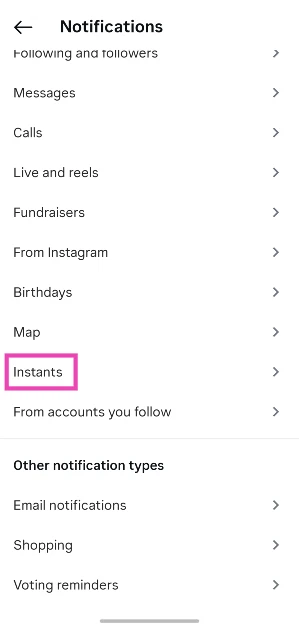
- Scroll down and tap on Instants.

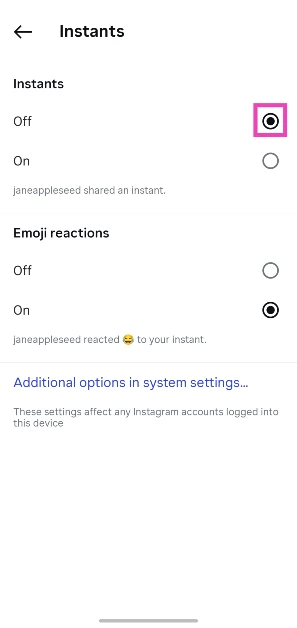
- Select Off under Instants.

- If you don’t want to receive notifications about others reacting to your Instant, select Off under Emoji reactions.
Accidentally shared an image as an Instant? There’s one handbrake you can pull
A lot of Instagram users are understandably upset about their Instants reaching their audience without any preview. As soon as you hit the shutter button, the camera takes a picture, and the image gets sent to your audience (mutual followers or close friends, depending on what you’ve chosen). Thankfully, as soon as you take a picture, an ‘Undo’ button appears at the bottom of the screen. You can recall the picture by tapping this button.
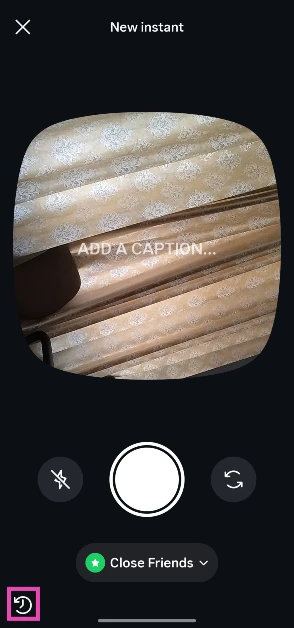
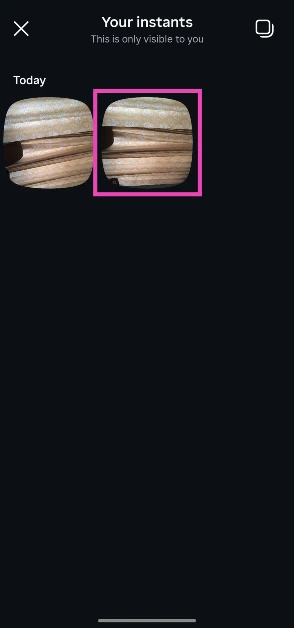
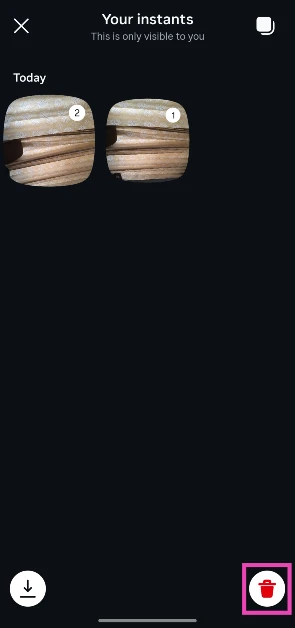
The Undo button goes away when you move to another page. You can still recall the image by visiting your Instant archives. Here’s how.
- Go to your Instagram DMs and tap the Instants icon.
- Tap the archives icon in the bottom left corner of the screen.

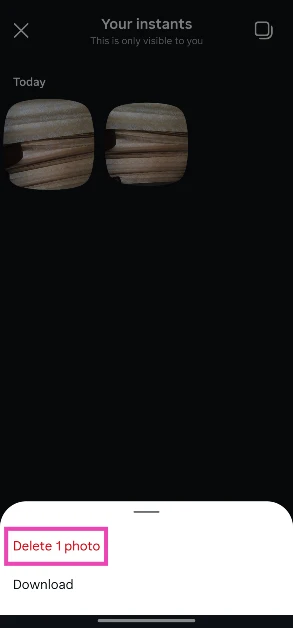
- Long-press an Instant.
- Hit Delete 1 photo.
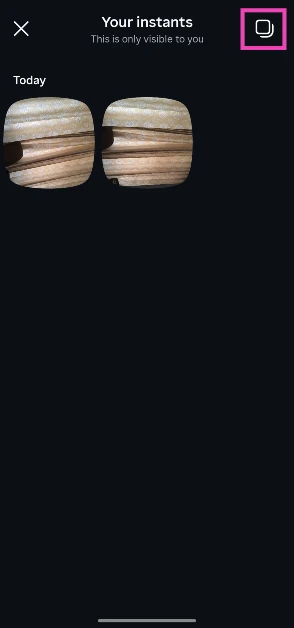
- To delete multiple images, tap the icon in the top right corner of the screen.
- Select the images you want to delete.

- Hit the bin icon in the bottom left corner of the screen.
Frequently Asked Questions (FAQs)
Who can see Instants?
Your Instants can only be viewed by your close friends or mutual followers. You can choose the audience before posting a snapshot.
How do I post an Instant on Instagram?
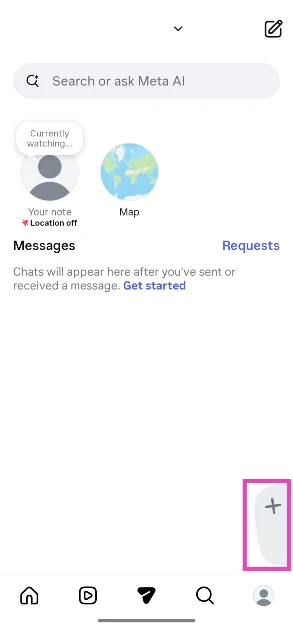
Go to your Instagram inbox, hit the plus icon at the bottom of the screen, choose your audience, and click a picture. The picture instantly gets delivered to the Instants stack in your friends’ DMs tab.
Can I delete an Instant?
You can hit the Undo button to take back an Instant immediately. You can also go to the archive to delete previous Instants.
How do I disable Instants on Instagram?
While you can’t fully disable Instants, you can hide them by going to ‘Content preferences’ in settings and turning on the toggle switch next to ‘Hide instants in inbox’.
Can you see who viewed your Instants on Instagram?
No, Instagram does not let you see who viewed your Instants.
Read Also: Alexa for Shopping replaces Rufus AI on Amazon
Final Thoughts
Instagram has also launched a standalone Instants app to make photo-sharing more seamless. Instead of going through the pending stack of Instants in your DMs to get to the camera, you can use it directly from this app. The app is currently available in selected countries only.


