


Key Takeaways
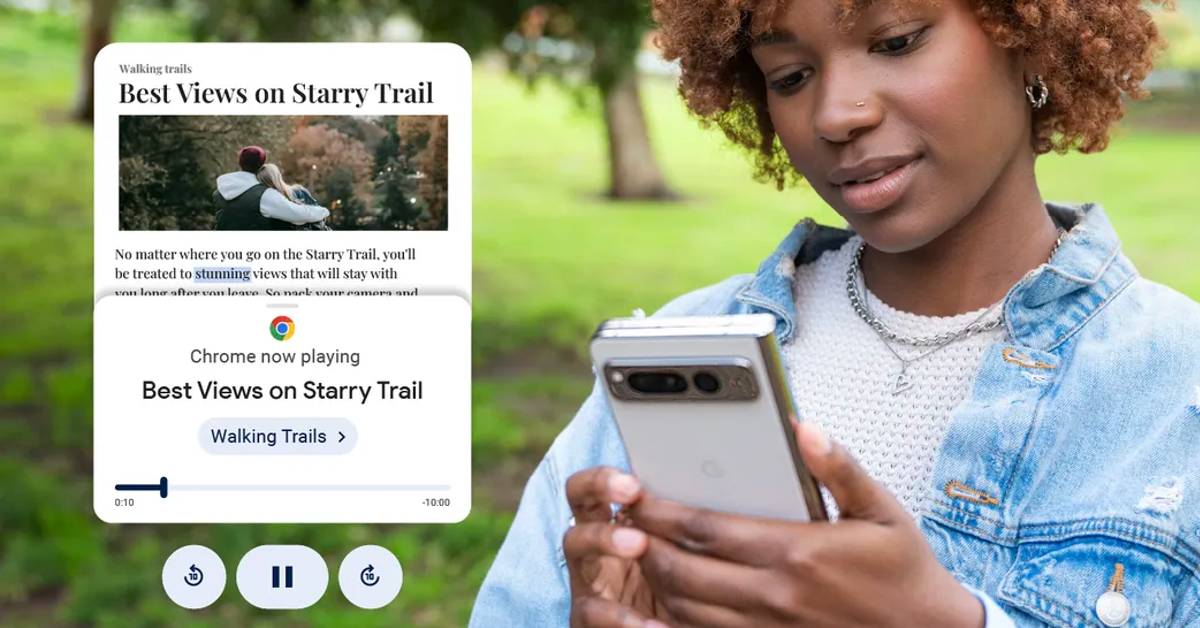
- Google Chrome on Android now includes a new page reader feature that allows users to listen to web pages and articles aloud without needing an additional app.
- The Chrome page reader differs from the Reading Mode app as it does not remove ads or open the article on a new page; it directly reads the content aloud with an option to change the voice.
- Users can activate the 'Listen to this page' feature in Chrome by opening a web page, tapping the ellipses, and selecting the option, with controls for voice and speed available in the audio player.
The imminent launch of Android 15 has not stopped Google from adding new features to the current iteration of the OS. Circle to Search, which made its debut on the Samsung Galaxy S24 series earlier this year, is now being rolled out to more Android devices with a new option to identify the song playing on the device. Google Chrome also gets a new feature in the form of a page reader. This feature is similar to Reading Mode, but its integration in Chrome makes it easier to access. Here’s how you can listen to web pages and articles on your Android smartphone.
Read Also: Top 10 smartphones with 12GB RAM or more (September 2024)
In This Article
How is the new article reader different from Reading Mode?
The Reading Mode app for Android brings a clean, homogenous reading experience to the mobile platform. It can be triggered on any app using a handy shortcut. Reading Mode clears the ads from the screen and gives the user the option to change the background colour, text size, and text font. There is an option to listen to the article as well.
The new page reader function on Chrome does not require installing an additional app. It does not open the article on a new page devoid of ads. Instead, it simply reads the article aloud and allows the user to go hands-free. The audio player has an option to change the reading voice. This option is not present in the Reading Mode app.
Listen to web pages on Google Chrome
Step 1: Launch Google Chrome on your Android smartphone and open a web page.
Step 2: Hit the ellipses at the top right corner of the screen.

Step 3: Select Listen to this page.
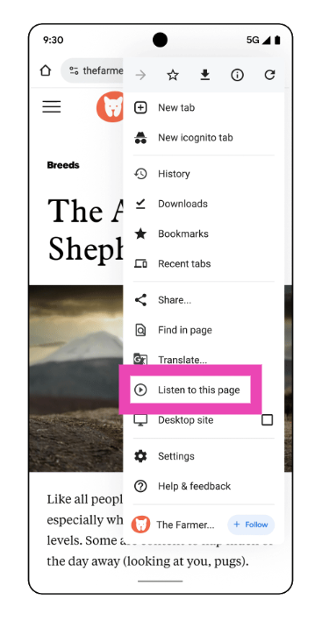
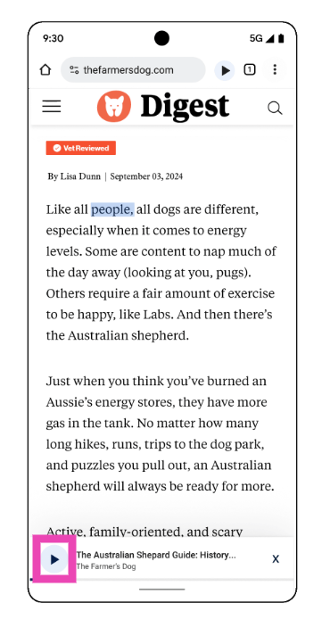
Step 4: Hit Play.
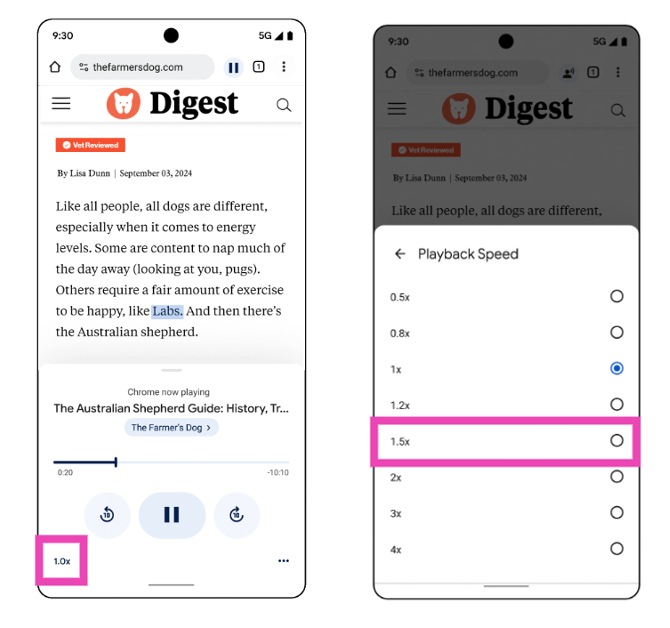
Step 5: To change the voice, tap the ellipses at the bottom right corner of the audio player and select Voice. Make a selection from the list.
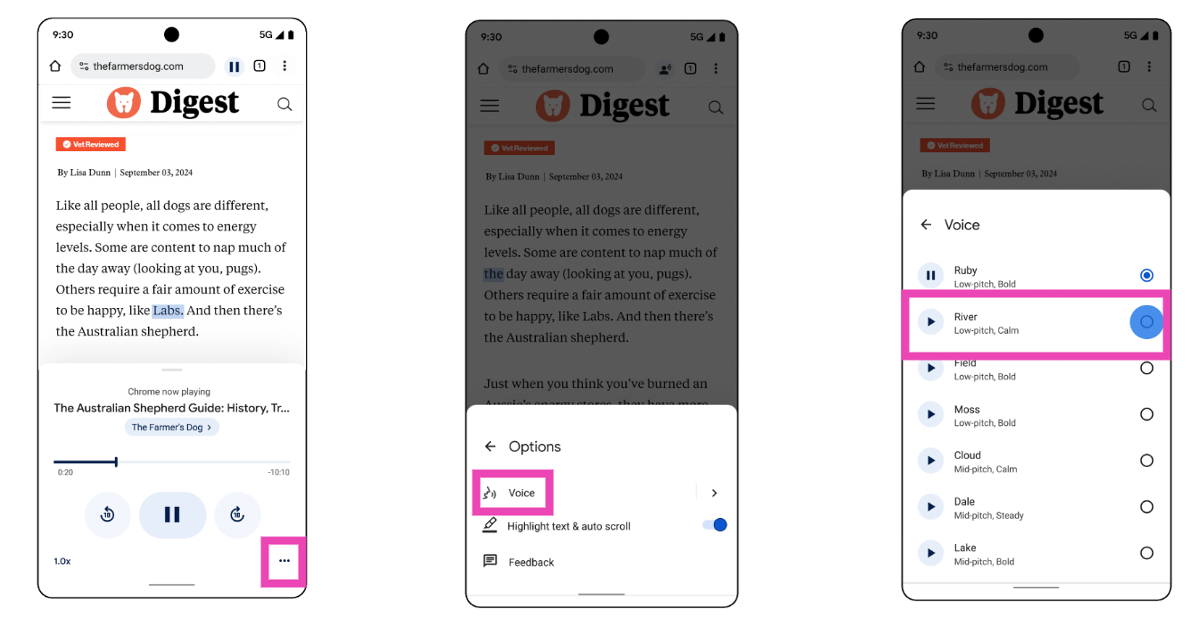
Step 6: To change the speed, tap on 1.0x at the bottom left corner of the audio player and select your preferred speed.
Listen to web pages on your OnePlus smartphone
Step 1: Launch your preferred web browser on your OnePlus smartphone and go to the web page you want to listen to.
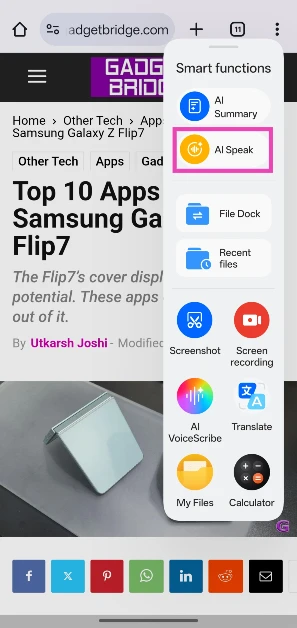
Step 2: Swipe from the edge of the screen to reveal the Smart Sidebar.
Step 3: Tap on AI Speak.
Step 4: OnePlus AI will scan the page and analyse the text.
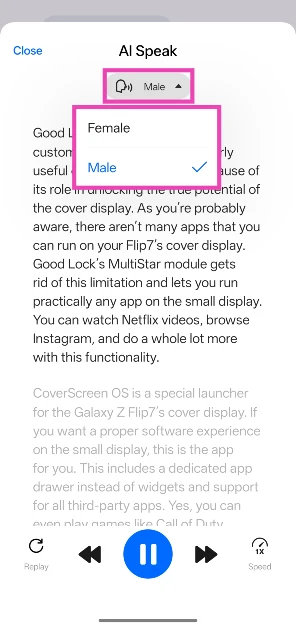
Step 5: Tap on Male to select another voice.
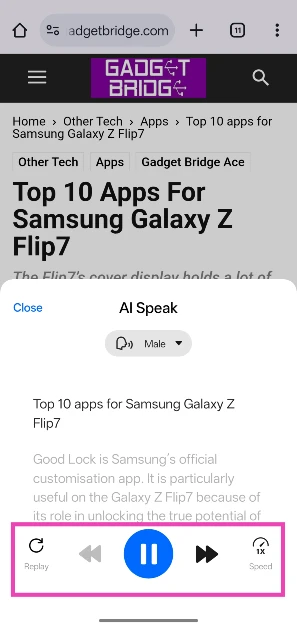
Step 6: Use the controls at the bottom of the page to skip forward, increase the speed, and pause the playback.
Using Reading Mode
Step 1: Install the Reading Mode app from the Google Play Store.
Step 2: Launch the app. You will be redirected to Accessibility settings on your phone.
Step 3: Tap on Reading mode.
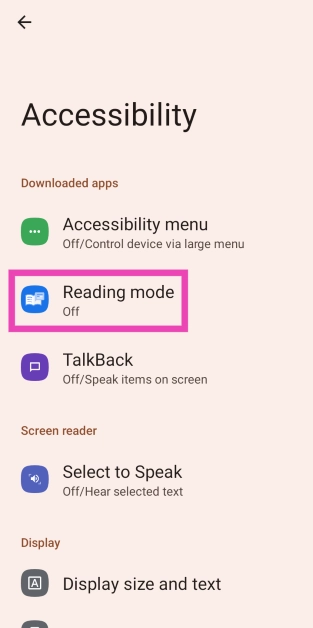
Step 4: Turn on the toggle switch for its shortcut.
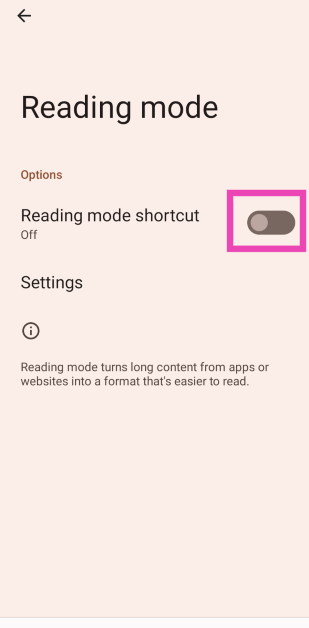
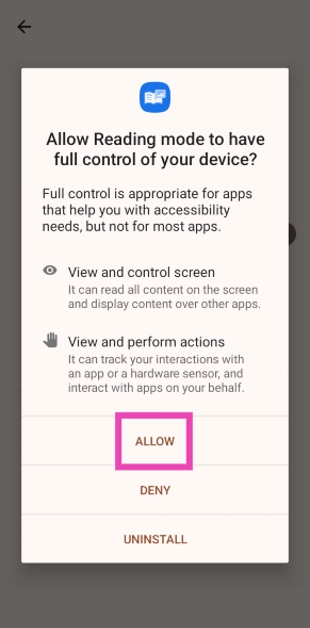
Step 5: Allow the app the necessary permissions.
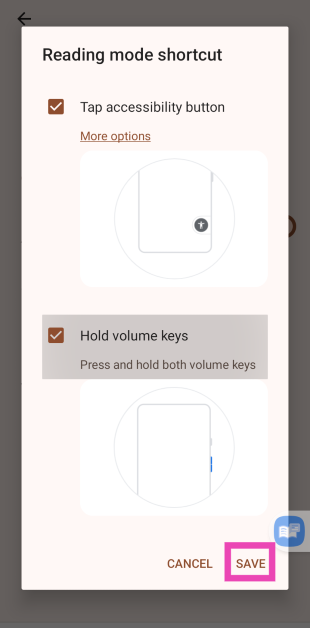
Step 6: Customise the reading mode shortcut in a way that suits you. You can trigger reading mode by long-pressing both volume keys or adding an accessibility icon to the screen. You can activate reading mode by using Google Assistant as well.
Step 7: Load a webpage in Google Chrome. Launch the reading mode by using one of the actions mentioned above.
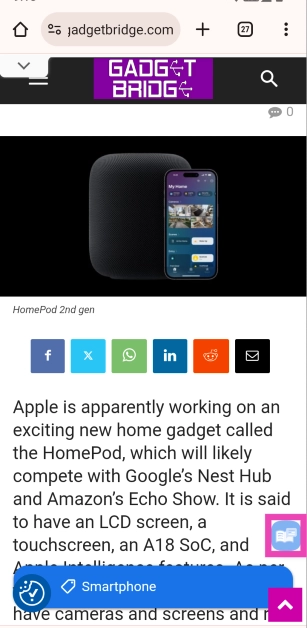
Step 8: The text from the webpage will open on a new page, without the website’s layout and devoid of all the ads.

Step 9: Hit the play button at the bottom of the screen to read the text aloud.
Frequently Asked Questions (FAQs)
How do I listen to an article or web page on Android?
Open the web page or article in Chrome, tap the ellipses, select ‘Listen to this page’, and hit ‘Play’.
How do I change the reading voice in Google Chrome’s web page reader?
Tap the ellipses at the bottom right corner of the player, tap on ‘Voice’, and select a reading voice from the list.
How do I listen to an article using Reading Mode on Android?
Install the Reading Mode app on your Android phone and turn on its shortcut from Accessibility Settings. Open a web page in Chrome and hit the shortcut in the bottom right corner of the screen. Hit the Play button once the article opens up in Reading Mode.
How do I listen to a web page on my OnePlus phone?
Go to the web page, swipe from the edge of the display to access the Smart Sidebar, and hit AI Speak.
Can I listen to web pages on my Samsung phone?
The Samsung Browser on premium Galaxy devices has a 'Read Aloud' function that lets you listen to web pages.
Read Also: LG Gram 16 Pro introduced with Intel Core Ultra processor (Series 2) processors
Conclusion
This is how you can listen to an article or web page on an Android phone. You can use this trick to listen to recipes from online cookbooks and websites while working in the kitchen. It can also come in handy if you want to listen to the trending news stories while commuting to work. If you have any questions, let us know in the comments!


