


Google Chrome’s latest update has made accessing PDFs easier. Previously, you could open a PDF in the browser without the help of any extension or experimental feature. The native PDF viewer now offers annotations as well. This does not require downloading the PDF. Similarly, you can save the PDFs to Google Drive directly from Chrome without downloading them to your PC first. If you don’t know how to go about this task, this tutorial will help.
Read Also: Taxi Boss Codes (February 2026)
In This Article
What’s new in Chrome?
Google Chrome’s new feature drop brings 3 new tools that can help you maximise your productivity.
Split View: This feature allows you to open two tabs side by side and work on them together. Simply right-click on a tab and select ‘New split view with current tab’ to use it. Alternatively, you can add its shortcut next to the address bar by going to Menu>More tools>Customise Chrome>Toolbar and turning on the toggle switch next to ‘Open in split view’.
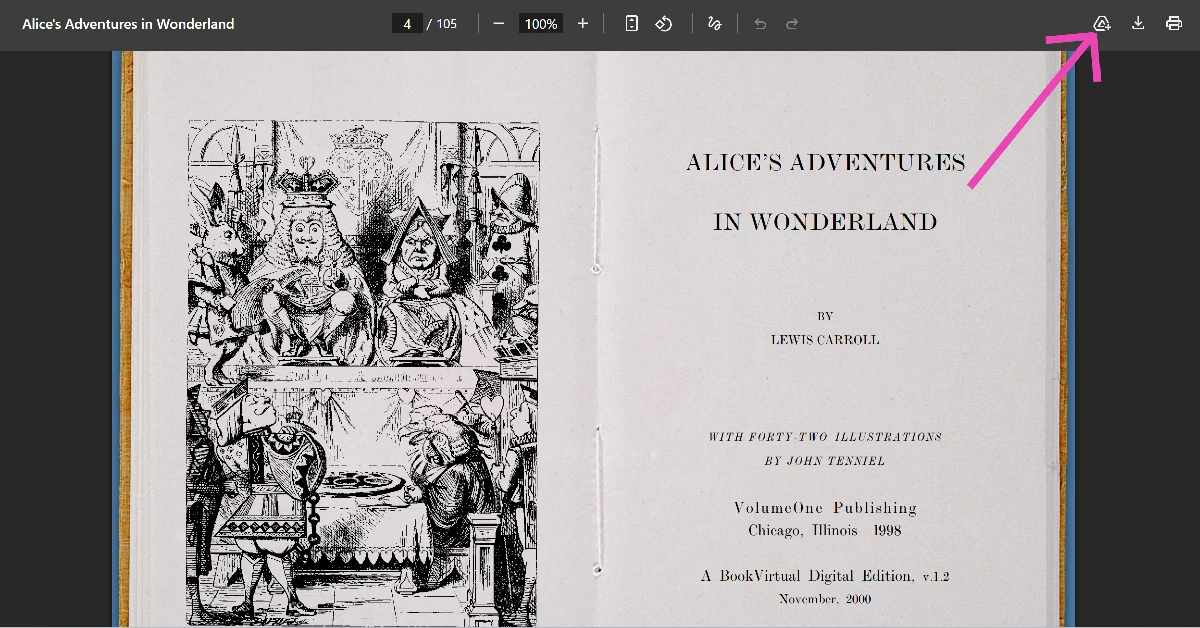
Save PDF to Drive: With the new update, saving a PDF to Google Drive does not require downloading it to your device first. This task can be accomplished by clicking the Drive icon with the plus sign next to it. The PDFs are saved in the ‘Saved from Chrome’ folder in Drive.
Annotate PDFs: If you quickly want to add some extra details to a PDF, you don’t need to download its file anymore. Chrome lets you add digital signatures, comments, and other remarks directly from its native PDF viewer.
Save a PDF directly to Google Drive from Chrome
- Open the PDF in Google Chrome.
- Click the Drive+ icon in the top menu.

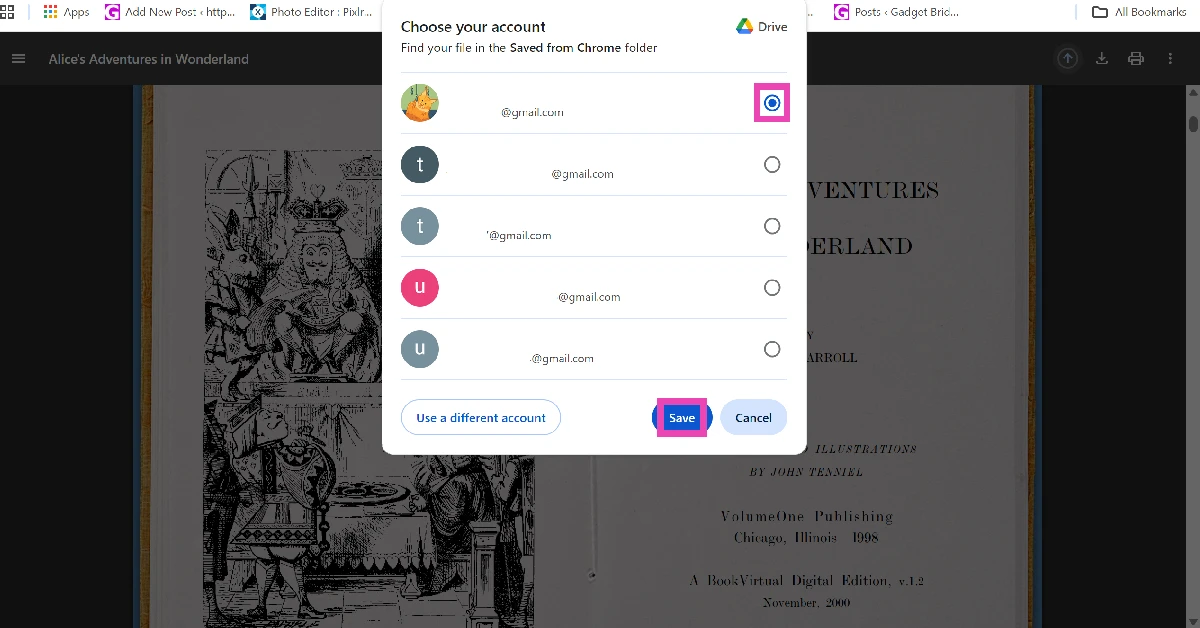
- Select a Google account.
- Hit Save.
- To view the file, go to the Saved from Chrome folder in Google Drive.
Frequently Asked Questions (FAQs)
Do I need to download an extension to view a PDF in Chrome?
No, Google Chrome does not require an extension to open PDFs. Simply right-click any PDF and select Open with>Google Chrome to view it in the web browser.
Can I annotate PDFs in Chrome?
You can annotate PDFs in Chrome without downloading them to your device.
How do I save a PDF to Drive directly from Chrome?
Open the PDF, hit the Drive icon with the plus sign next to it, select your Google account, and hit ‘Save’.
How do I open 2 Chrome tabs in split view?
Right-click the tab you wish to merge with the current tab and select ‘New split view with current tab’.
How do I get vertical tabs on Chrome?
Launch Chrome Beta/Canary on your PC, enter chrome://flags/ in the address bar, search for Vertical Tabs, and select ‘Enabled’ from the drop-down menu. Restart the web browser, right-click the tab bar, and select ‘Move tabs to the side’.
Read Also: Apple Pay likely to launch in India in mid-2026; company waiting for regulatory approval
Final Thoughts
Once a PDF is saved to Google Drive, you can move it from the ‘Saved from Chrome’ to any other folder. While you’re here, check out how you can get vertical tabs in Chrome. If you have any questions, let us know in the comments!


