



The tedious process of transferring bookmarks and saved passwords keeps a lot of people from changing their web browser. The good news is that the process isn’t as complicated and time-consuming as you think. If you’re thinking of switching to Edge, you can import your bookmarks to the browser within seconds. Here’s how you can transfer your Google Chrome bookmarks to Microsoft Edge.
Read Also: What is Awesome Intelligence? Everything you need to know
In This Article
What can you transfer from Chrome to Edge?
Microsoft Edge allows you to import the following items from Google Chrome:
- Favourites or bookmarks
- Saved passwords
- Personal info
- Payment info
- Browsing history
- Settings
- Open tabs
- Extensions
Transfer your bookmarks from Google Chrome to Microsoft Edge
Step 1: Launch the Microsoft Edge browser on your PC.
Step 2: Click the ellipses in the top-right corner of the screen.
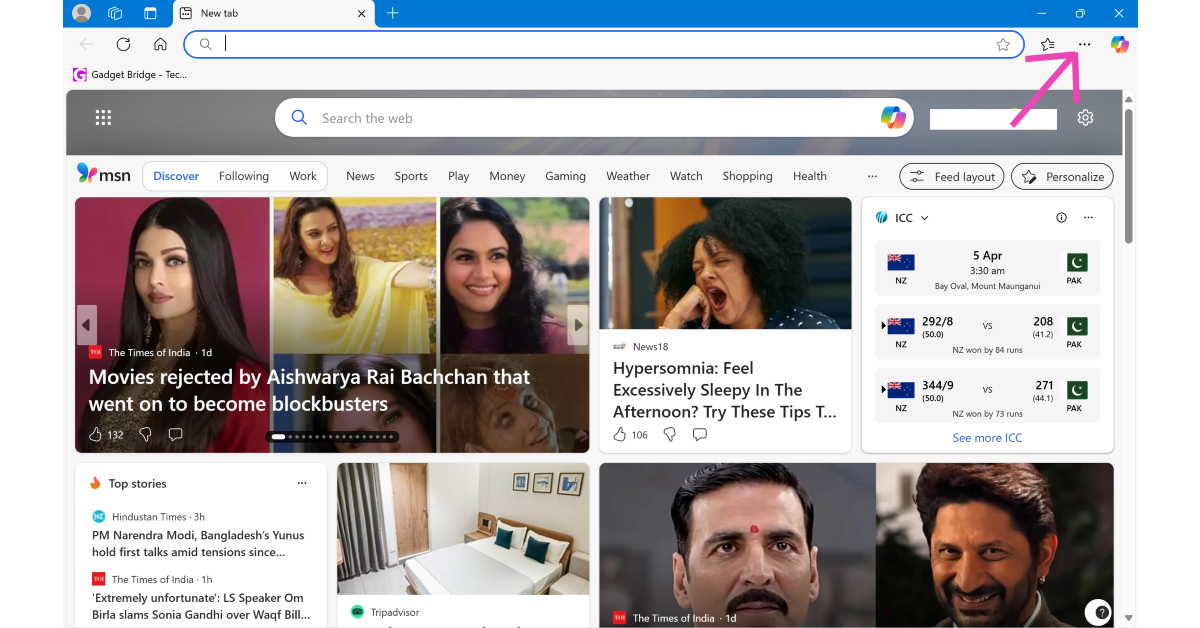
Step 3: Go to Favourites.
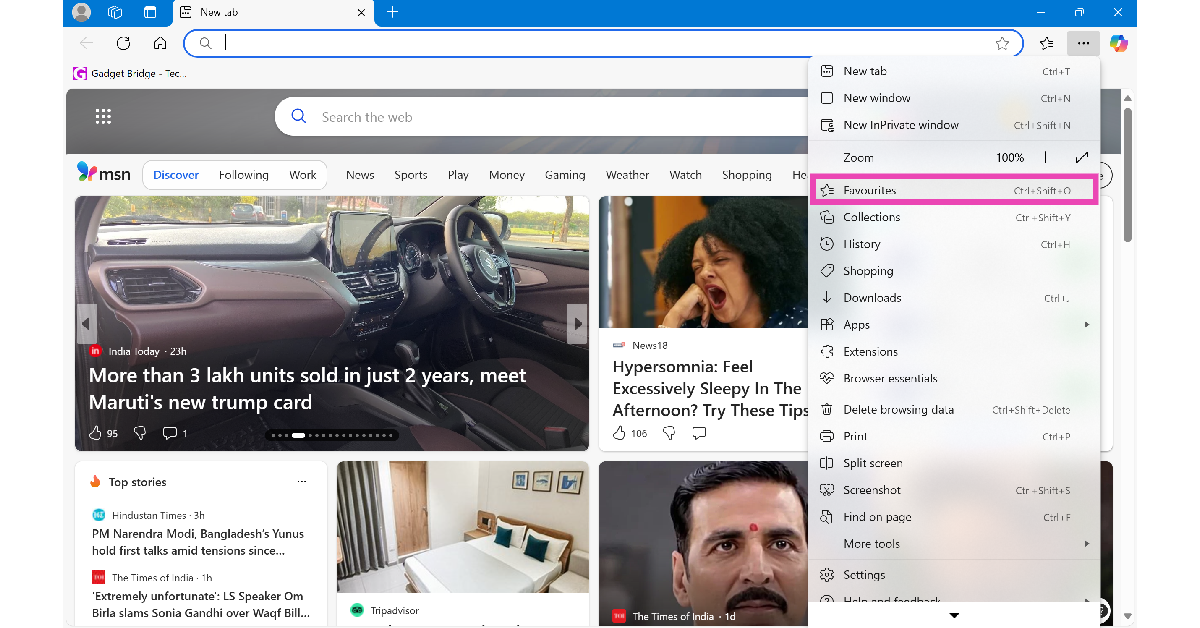
Step 4: Hit the ellipses in the Favourites menu.
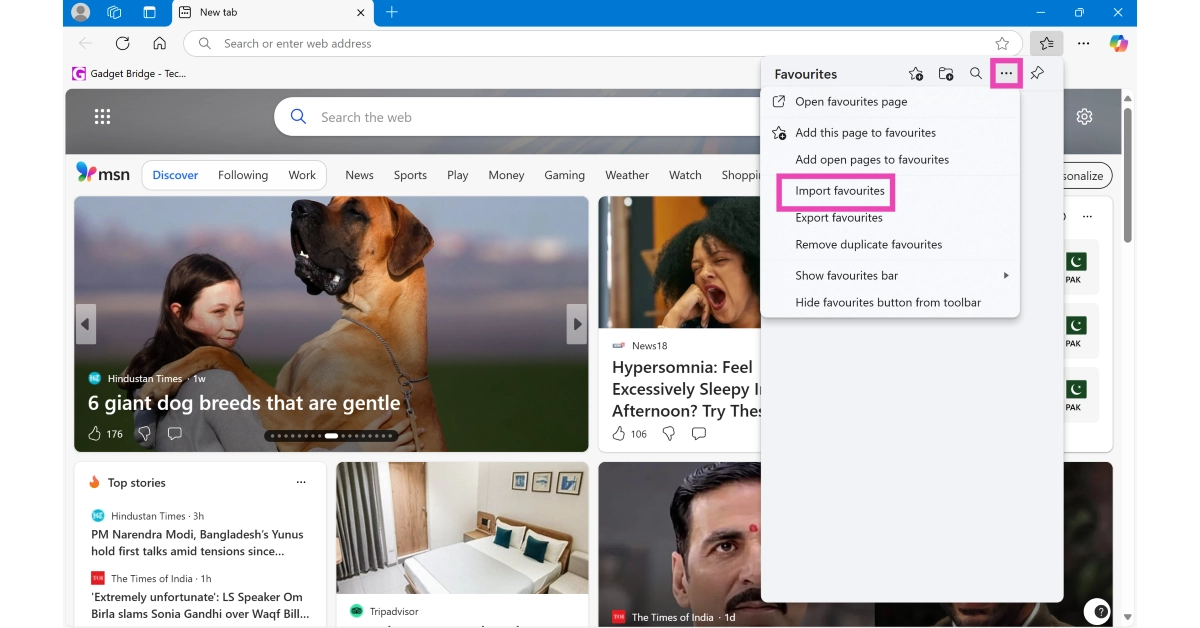
Step 5: Click on Import Favourites.
Step 6: Hit the Import button next to Import data from Google Chrome.
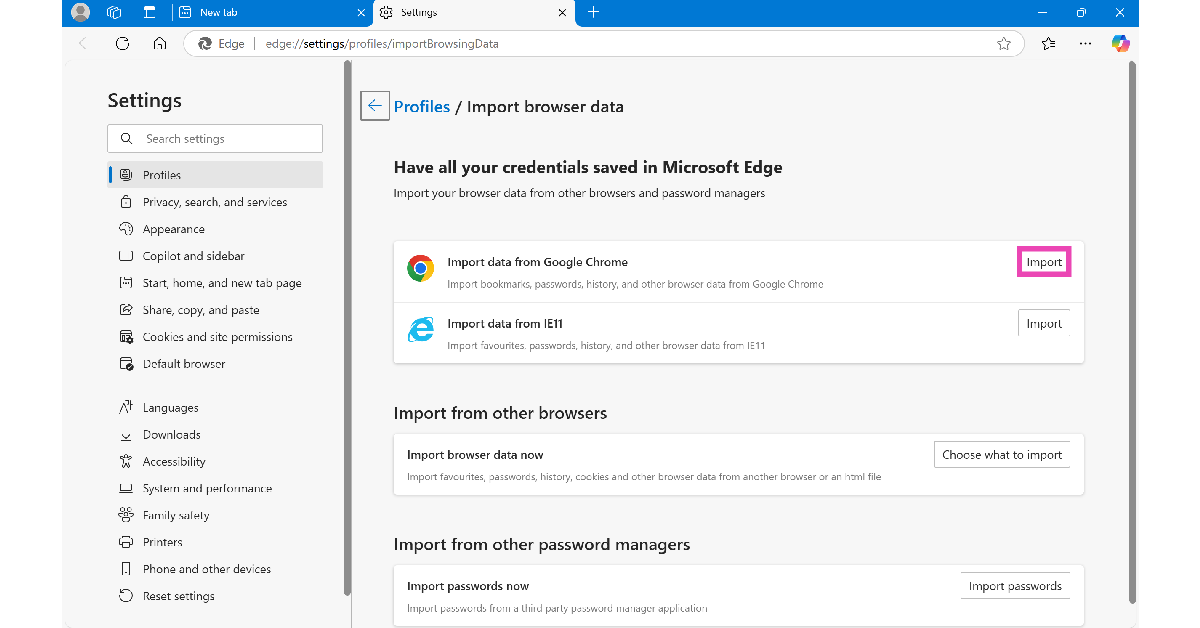
Step 7: Select your Google Chrome profile and choose the data you want to import. In this case, select Favourites or bookmarks.
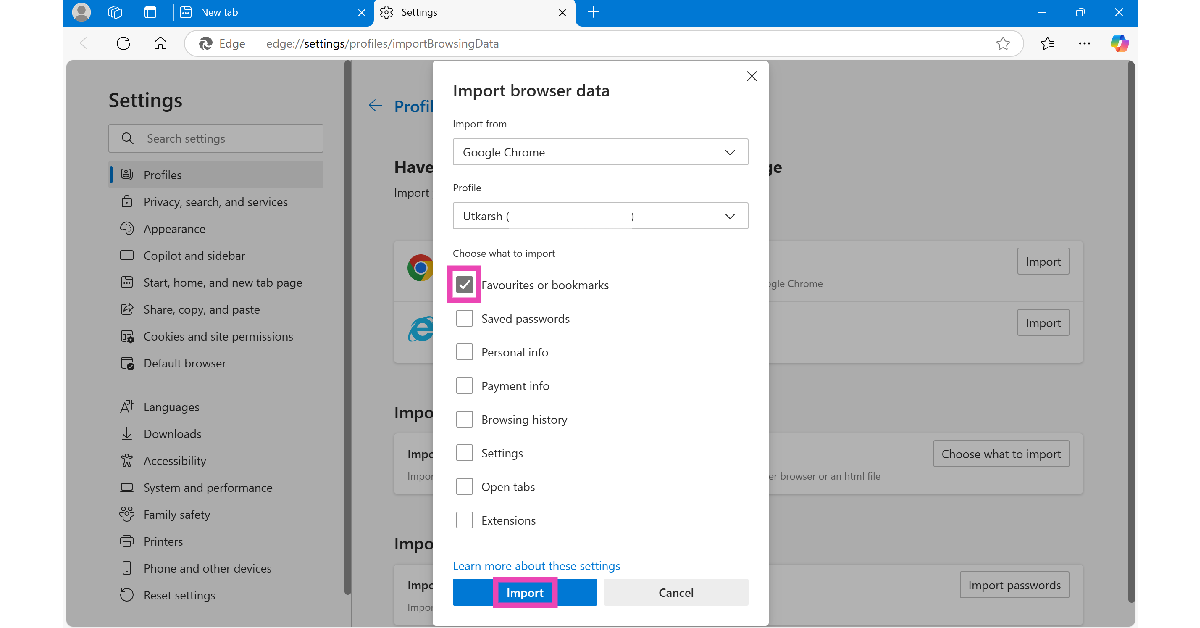
Step 8: Hit Import.
Step 9: Click on Done once your Chrome bookmarks have been imported to Edge.
Frequently Asked Questions (FAQs)
Can you transfer bookmarks from one phone to another?
When you sign into Chrome, your bookmarks get saved to your Google Account. Signing into Chrome on another device using your Google Account gives you access to all of your bookmarks.
How do I get my bookmarks on another device?
You can get your bookmarks on another device by simply signing into Chrome using your Google Account.
Can I export all my Chrome bookmarks and passwords?
You can export your Chrome bookmarks and passwords to another browser (like Edge or Firefox) or download them on your device.
How do I transfer my Google Chrome bookmarks to Microsoft Edge?
Launch Microsoft Edge on your PC, click the ellipses, go to ‘Favourites’, hit the ellipses again, and select ‘Import Favourites’. Hit the Import button next to Google Chrome, select the box next to ‘Favourites or bookmarks’ and hit ‘Import’.
How do I transfer my Edge bookmarks to Chrome?
Go to Chrome settings, click on ‘Import bookmarks and settings’, select Microsoft Internet Explorer from the dropdown menu, hit the checkbox next to ‘Bookmarks/Favourites’, and click on ‘Import’.
Read Also: Apple TV+ is now offered in India as a Prime Video add-on
Final Thoughts
This is how you can transfer your bookmarks from Google Chrome to Microsoft Edge. If you want to transfer them the opposite way, go to Chrome Settings>Import bookmarks and settings, select Microsoft Internet Explorer, hit the checkbox next to Bookmarks, and click on Import. If you have any questions, let us know in the comments!


