


Your iPhone’s LED flash is bright enough to illuminate any dark areas in case you don’t have a torchlight on you. Apple has made it really convenient to quickly turn on the flash without even needing to unlock your phone. If used moderately, your iPhone’s flashlight doesn’t consume too much battery. However, if you’re going out for a hike, bringing a torch is ideal. In this article, we show you how to turn on the flashlight on your iPhone without unlocking it.
Read Also: Samsung Galaxy Book 3 Series: Price in India, availability details and launch offers revealed
In This Article
Use Siri
Need to locate your iPhone in the dark? Simply ask Siri to turn on your iPhone’s flashlight. This is the only way you can turn on the flashlight on your iPhone without even touching it. All you need to do is say, “Hey Siri, turn on the flashlight”. The voice assistant will turn on the flash instantly. Conversely, to turn off the flashlight, simply say “Hey Siri, turn off the flashlight.
Turn on the flashlight from the lock screen
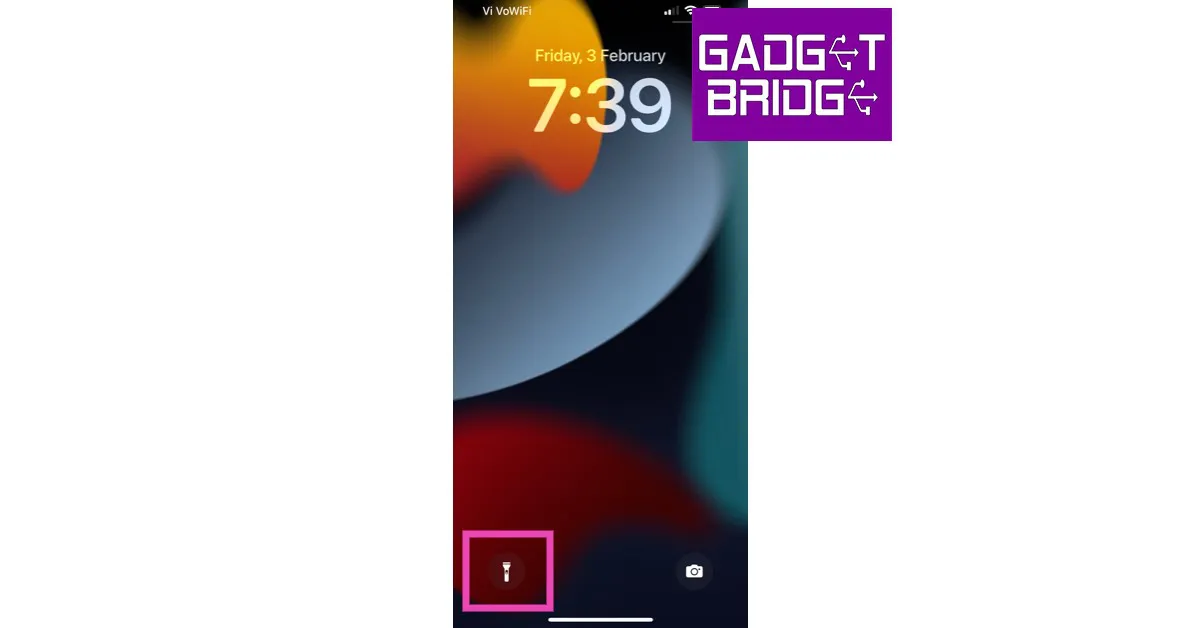
You don’t need to unlock your iPhone to turn on the flashlight. All you need to do is tap on the screen to wake it and then tap on the flashlight icon to turn it on. Tap the icon again to turn it off. If ‘Raise to Wake’ is activated on your iPhone, you wouldn’t even need to touch the screen to wake it. Simply pick up your iPhone and tap on the flashlight icon on the lock screen.
Use a Vocal Shortcut
Step 1: Go to Settings and select Accessibility.
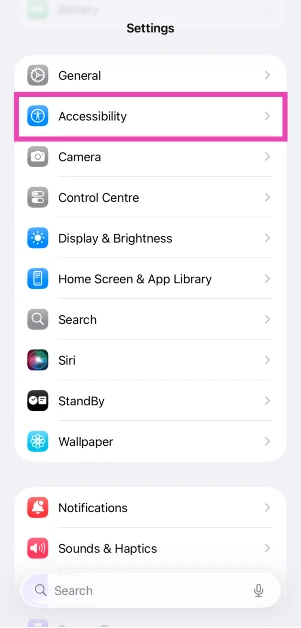
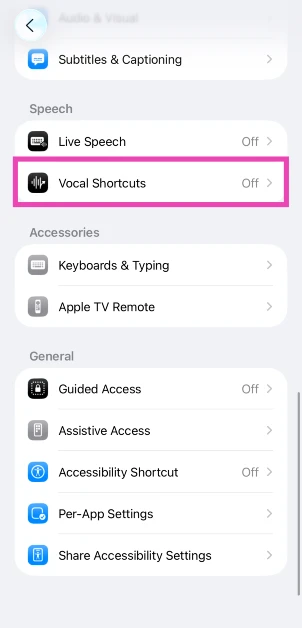
Step 2: Tap on Vocal Shortcuts.
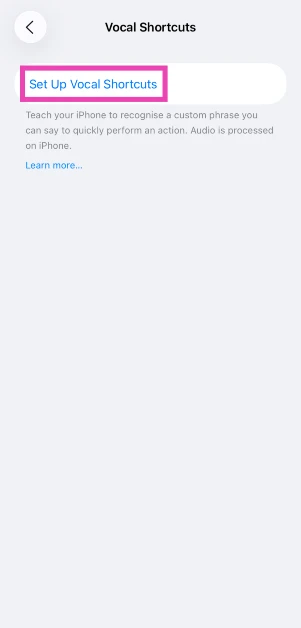
Step 3: Tap on Set Up Vocal Shortcuts.
Step 4: Hit Continue.
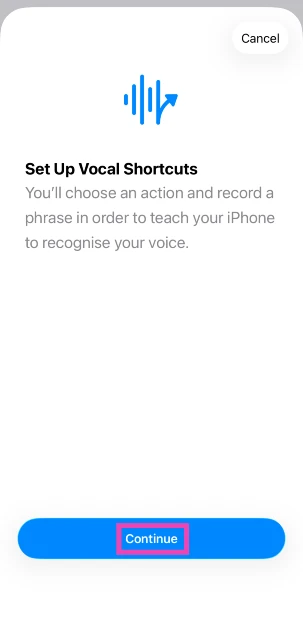
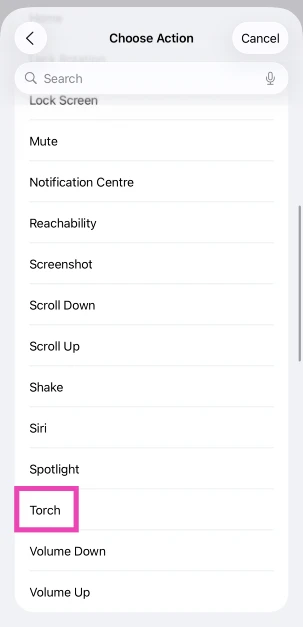
Step 5: Scroll down and select Torch.
Step 6: Enter a command name.
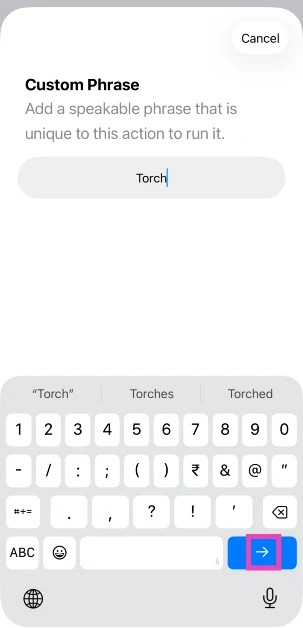
Step 7: Say the command name 3 times.
Step 8: Hit Continue.
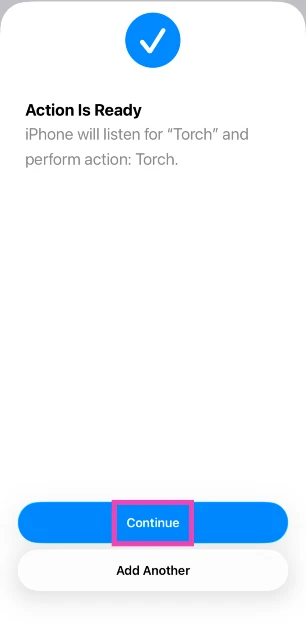
Step 9: Say the vocal command to trigger the flashlight.
Turn on the flashlight by tapping the iPhone’s back
One of the most convenient and quick ways to turn on the flashlight on your iPhone is by tapping the smartphone’s back. Here’s how you can enable this feature.
Step 1: First, you’ll need to create a Shortcut to toggle the flashlight. Launch the Shortcuts app on your iPhone and tap on My Shortcuts.
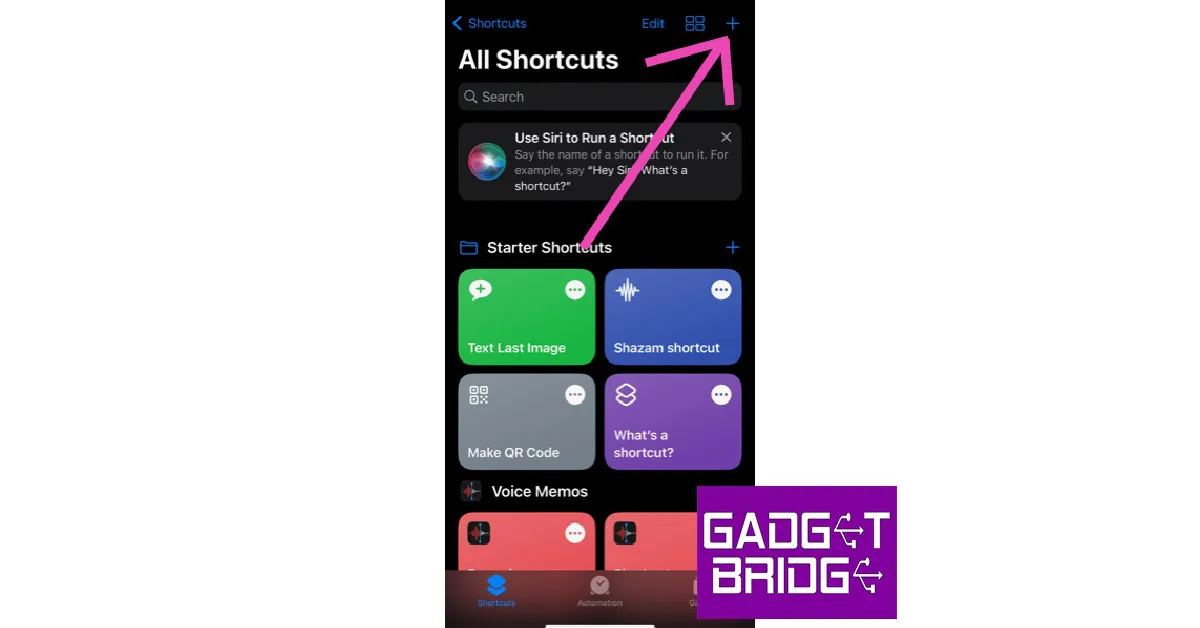
Step 2: Tap the plus sign at the top right corner of the screen and select Add Action.
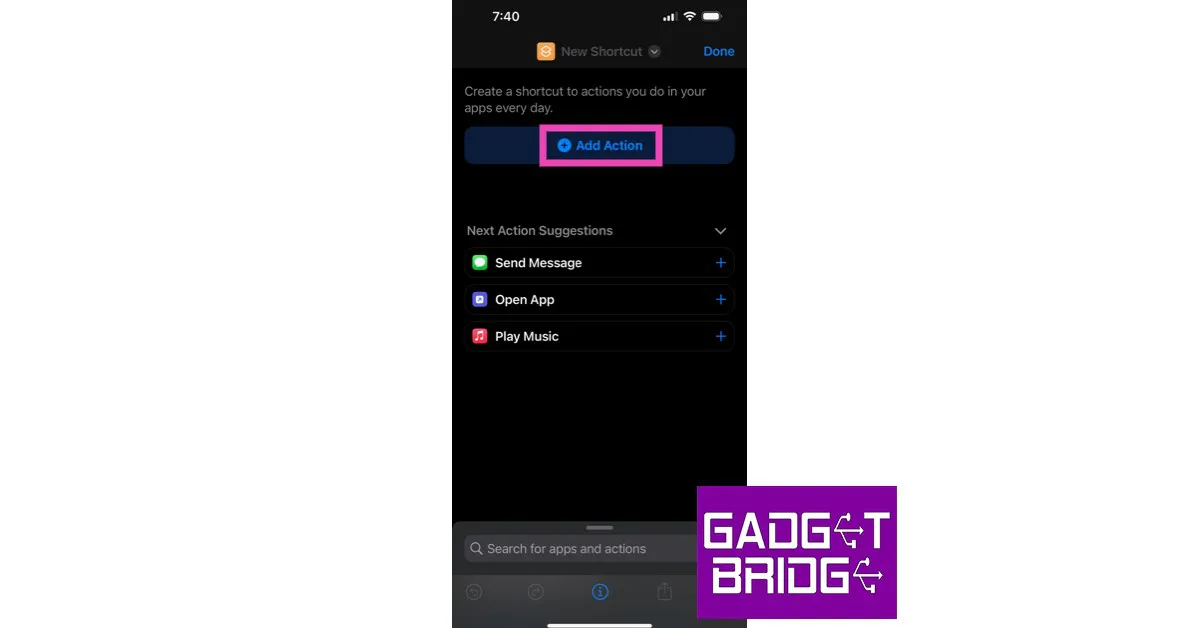
Step 3: Type flashlight in the search bar and select the Set Flashlight icon.
Step 4: Tap on Turn and select Toggle from the pop-up box.
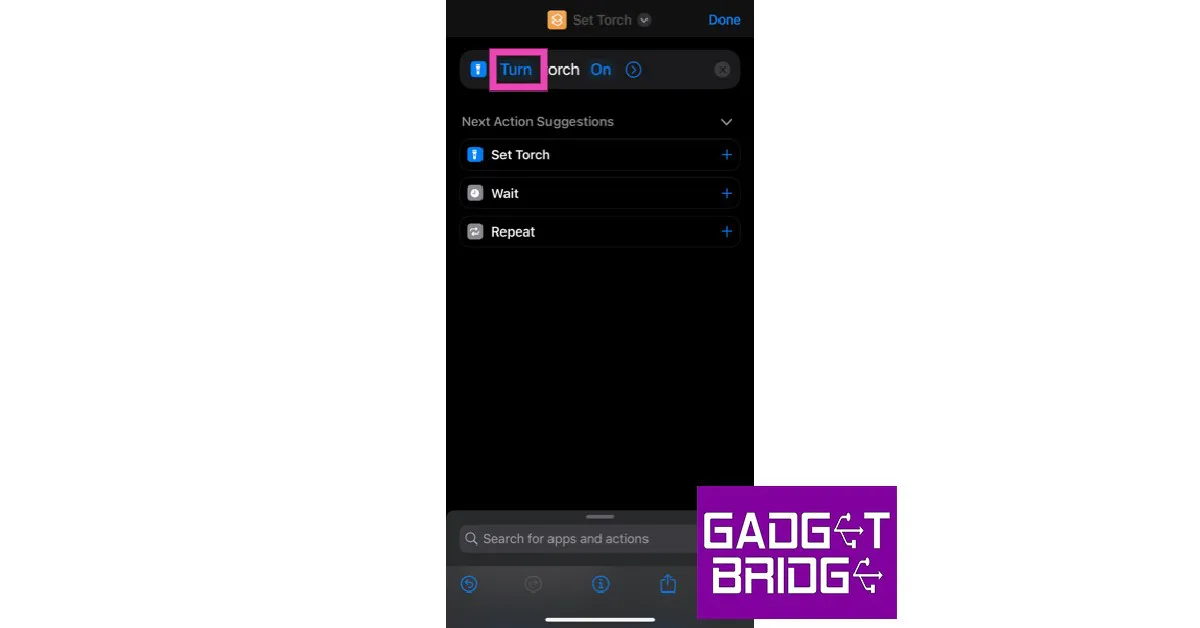
Step 5: Tap Next on the top right corner of the screen. Give a title to the Shortcut.
Step 6: Tap on Done.
Now, you need to link this Shortcut to the back tap. Here’s how you can do that.
Step 7: Go to Settings and select Accessibility.

Step 8: Select Touch and then select Back Tap.

Step 9: Choose a tap gesture to activate the flashlight. Ideally, you should select double-tap if you want to turn on the flashlight quickly.
Step 10: Once you choose a tap gesture, select the Flashlight Shortcut you just created to link it to the back tap.
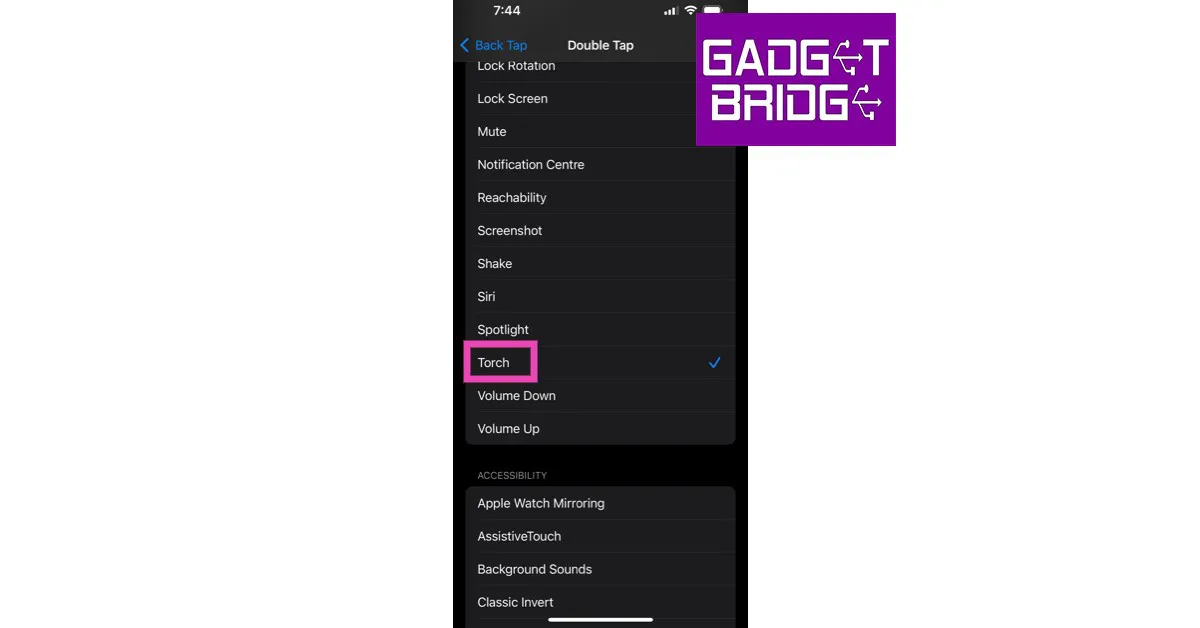
Now you can easily turn the flashlight on and off with a simple double back tap.
Don’t see the flashlight icon on the Control Centre?
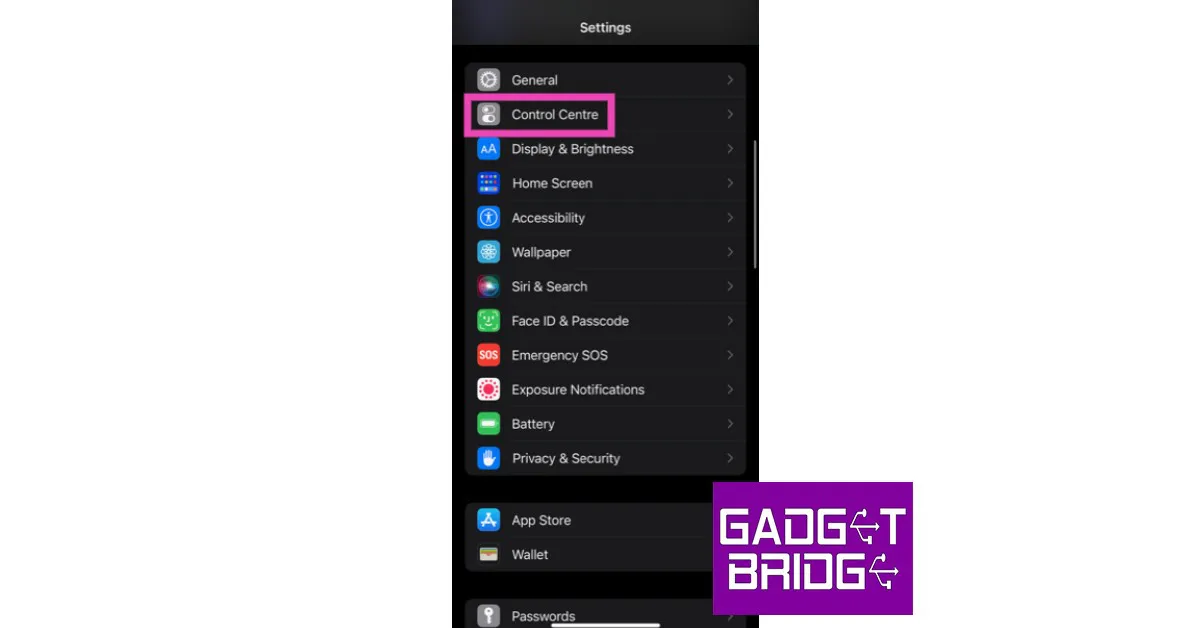
If your iPhone is already unlocked and you want to turn the flashlight on, you can find it in the Control Centre. All you need to do is swipe down from the status bar and select the flashlight icon. If you do not find the flashlight icon in the Control Centre, you can add it there by following these steps.
Step 1: Go to Settings and select Control Centre.
Step 2: Tap the green plus symbol next to Flashlight.
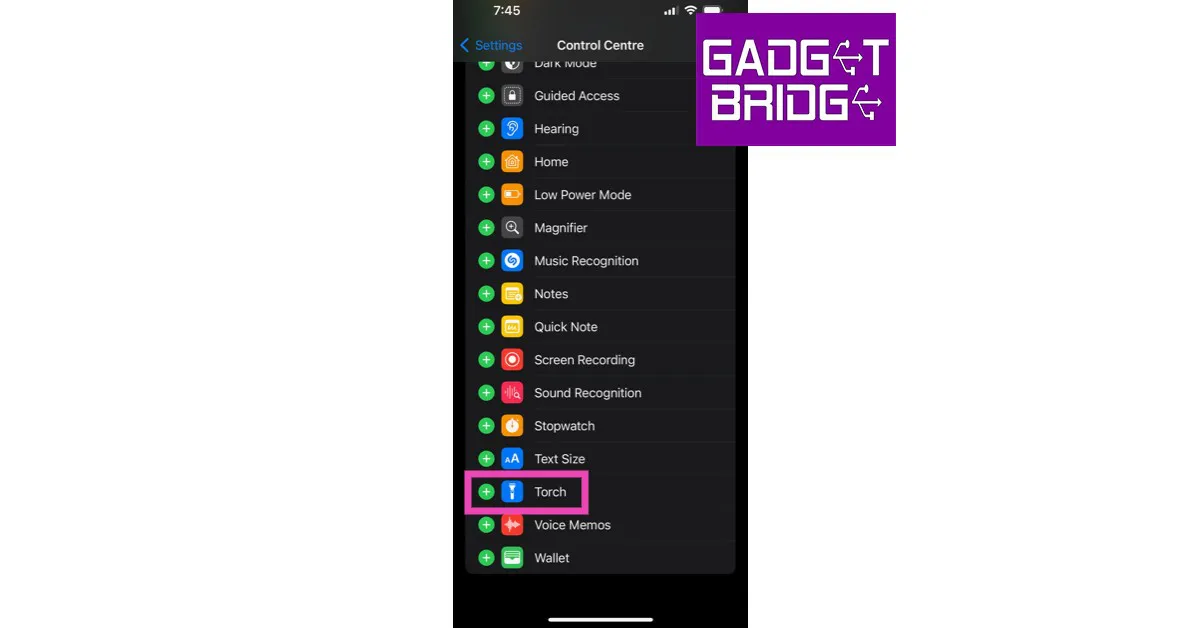
The flashlight icon will be added to the Control Centre.
Read Also: Oppo Reno 8T 5G India launch today: Expected specifications and pricing
Final Thoughts
These are three quick ways you can turn on the flashlight on your iPhone without unlocking it. Android allows users to program the side key to turn on the flash while the smartphone is locked. However, Apple hasn’t implemented this feature yet. Bored of using the same old flashlight? Check out these flashlight apps for your phone.


