Samsung’s Galaxy AI influences a lot of key aspects of the new Galaxy S24 Series. From generative photo editing to live translating phone calls, Samsung’s suite of AI features can accomplish a range of tasks effortlessly. Galaxy AI has breathed new life into multiple native Samsung apps, including the keyboard. With just a couple of touches, you can now translate your messages, change your writing style, and even perform a basic grammar and spell check. Here’s how you can use Galaxy AI on the Samsung Keyboard.Read Also:Nothing Phone 2a confirmed to launch on March 5, India launch to happen the same day
Galaxy AI for Samsung Keyboard takes inspiration from Microsoft’s SwiftKey Keyboard
Microsoft SwiftKey was one of the first onscreen keyboard apps to incorporate AI features into its platform. Back in April 2023, the tech giant integrated Bing AI into its mobile keyboard app. This allowed users to make basic internet searches, interact with Bing AI, and change the tone of their texts. Here’s an article explaining these features.Samsung’s native keyboard app derives a lot of inspiration from Microsoft’s Keyboard. Using Galaxy AI, users can change the tone of their texts, translate them into another language, and even fix the grammatical and spelling errors in their messages. Unlike SwiftKey, the AI features on Samsung Keyboard are much more accessible to use. They can be found simply by tapping the Galaxy AI button on the keyboard. If you don’t want anything to do with AI, Samsung gives you the option to turn off these features from device settings.
Turn on Galaxy AI features for the Samsung Keyboard
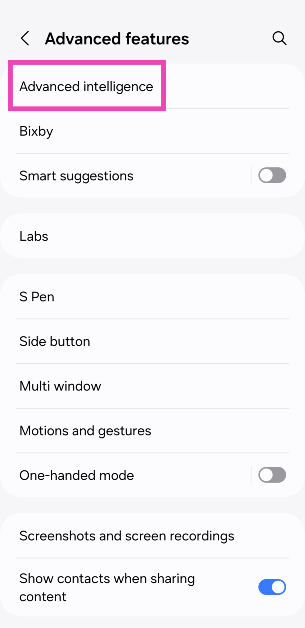
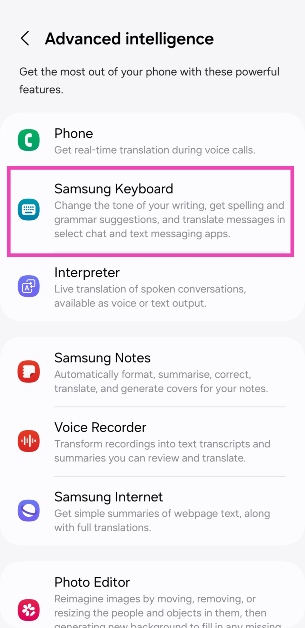
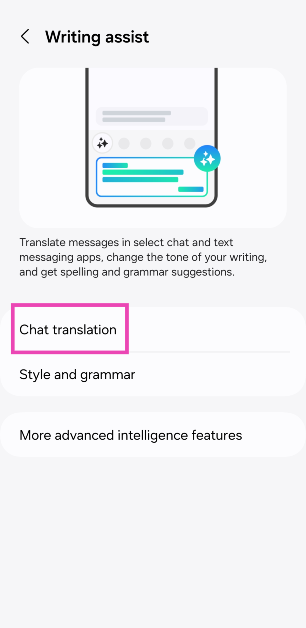
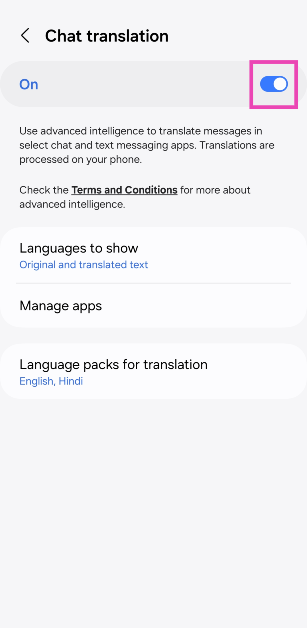
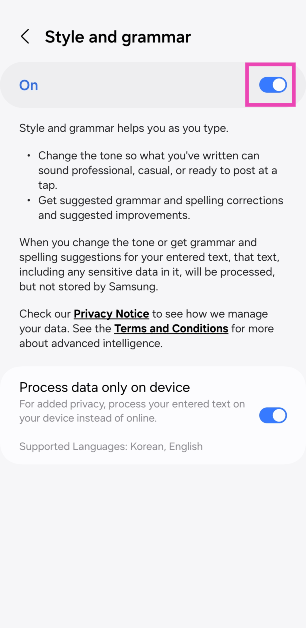
Step 1: Go to Settings and select Advanced features.Step 2: Tap on Advanced intelligence.Step 3: Select Samsung Keyboard.Step 4: Tap on Chat translation.Step 5: Turn on the toggle switch.Step 6: Tap on Language packs for translation and select the languages you want to use.Step 7: Go back and select Style and grammar.Step 8: Turn on the toggle switch.
Use Galaxy AI to translate messages
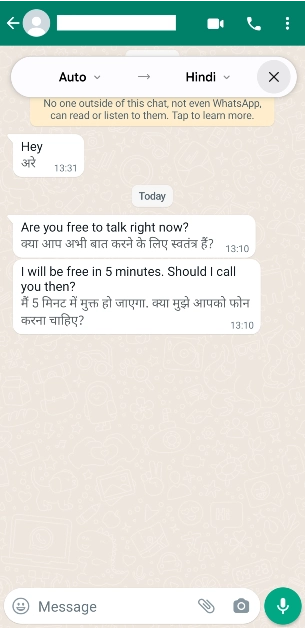
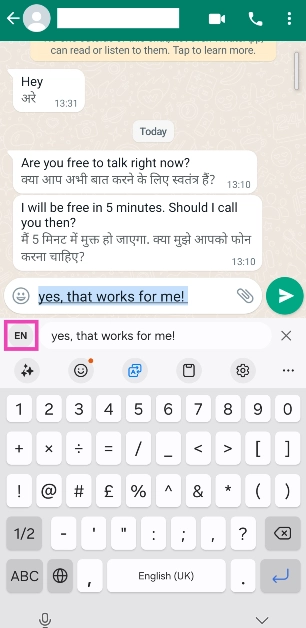
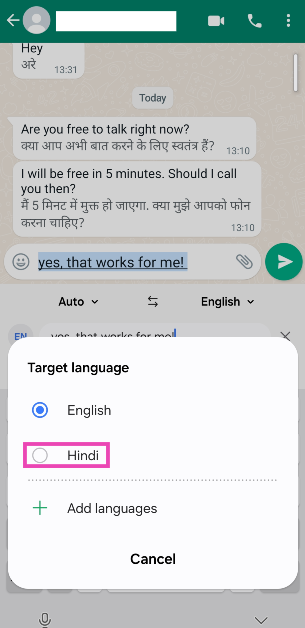
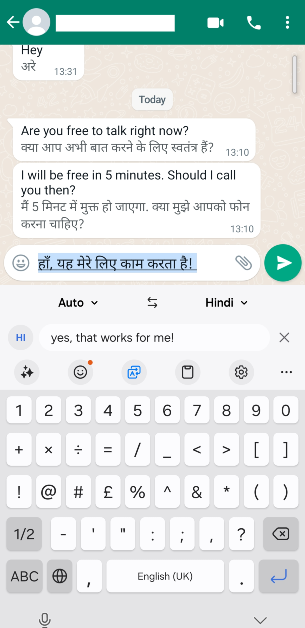
Step 1: Tap the message box on any messaging app to trigger the Samsung Keyboard.Step 2: Hit the Galaxy AI button on the keyboard.Step 3: Tap on Chat translation.Step 4: Tap on the target language and select your desired language from the list of options.Step 5: The messages in the chat will be translated to your desired language.Step 6: To send an auto-translated message, tap the message box and enter your message. Hit the language icon.Step 7: Tap on the target language to change it.Step 8: Select a language from the list.Step 9: The message will be translated into your desired language. Hit the Send button.
Change your writing style using Galaxy AI on the Samsung Keyboard
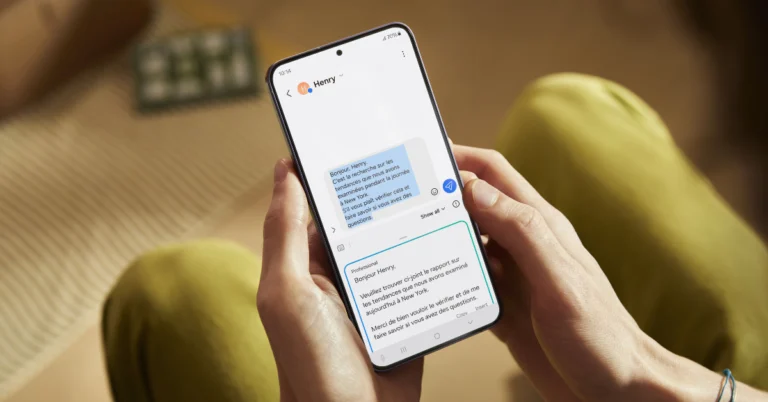
Step 1: Launch a messaging app and hit the text box to trigger the Samsung Keyboard.Step 2: Type the message you want to send.Step 3: Hit the Galaxy AI button on the keyboard.Step 4: Tap on Writing Style.Step 5: Galaxy AI will change your text and suggest different styles. These include Professional, Casual, Social, Polite, and Emojify.Step 6: Tap on Insert next to the text you wish to send and hit the Send button.
Fix grammar and spelling errors in your texts using Galaxy AI
Step 1: Launch a messaging app and hit the text box to trigger the Samsung Keyboard.Step 2: Type the message you want to send.Step 3: Hit the Galaxy AI button on the keyboard.Step 4: Tap on Spelling and grammar.Step 5: Galaxy AI will fix the grammar and perform a basic spell check on your text.Step 6: Tap on Insert to substitute the original text with the corrected version and hit Enter.
Frequently Asked Questions (FAQs)
Which phones will get Galaxy AI?
Samsung’s Galaxy AI is currently available on the Galaxy S24 Series. The tech outfit will roll out the AI suite for the Galaxy S23 Series (including S23 FE) and 2023’s Galaxy Z Series next.
How much does Samsung’s Galaxy AI cost?
Galaxy AI is free to use until the end of 2025. Samsung plans on introducing a subscription model for its AI suite of features after that.
This is how you can use Galaxy AI features on the Samsung Keyboard. To keep your privacy intact, you can select the ‘Process data only on device’ option in the ‘Style and grammar’ options. This ensures that all AI computing while processing your texts takes place on your device without being exported to an online server. Check out this article to learn how to use Galaxy AI to summarise web pages, notes, and voice notes.
Samsung’s new Galaxy AI suite of features on the recently launched Galaxy S24 Series has been nothing short of a revelation. The AI tech has been integrated nicely into the software. It is super accessible to the average user without being shoehorned into places where it doesn’t belong. Previously, we talked about the new Generative Photo Editing and Summarisation features of Galaxy AI. Now, let’s take a quick look at how you can live translate your phone calls using Galaxy AI on the Samsung Galaxy S24 Series.Read Also:Infinix Hot40i India launch date, specs announced
Galaxy AI can live translate your phone calls in a seamless manner
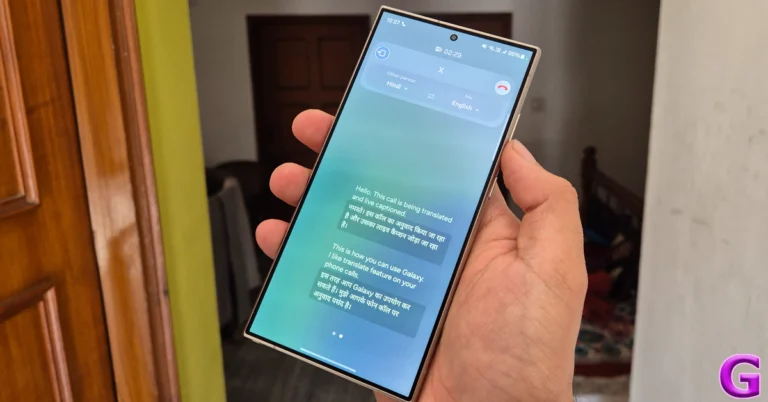
Talking to someone on the phone and having their speech translated in real-time without any human mediation sounds like something right out of a sci-fi book. Samsung’s Galaxy AI carries out this task seamlessly, without so much as a hiccup. Sure, some minor errors are bound to creep in (as is the case with every other translator tool), but it doesn’t dampen the experience in any way.One of the better aspects of Galaxy AI’s translation features is that they don’t require an internet connection. All the computing processes take place on your device. Of course, you will need to download the appropriate language pack first. At the time of writing this article, Galaxy AI supports 15 languages, including Hindi, English, Chinese, Thai, French, and more.
Turn on Live Translate on your Samsung Galaxy S24
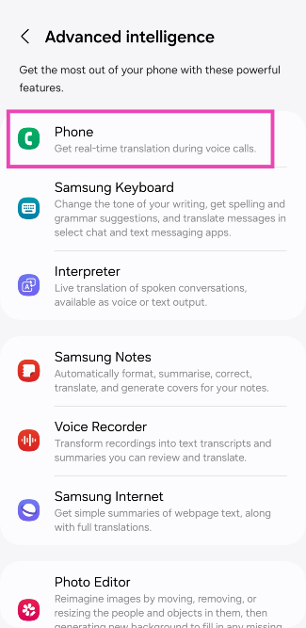
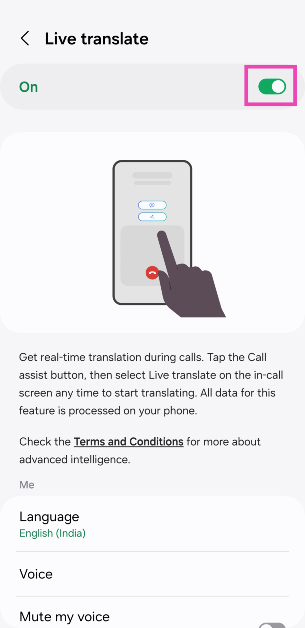
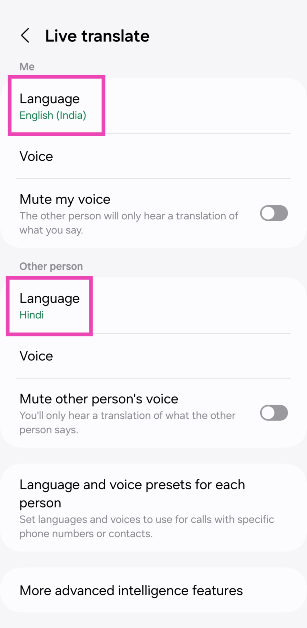
Step 1: Go to Settings and select Advanced features.Step 2: Tap on Advanced intelligence.Step 3: Select Phone.Step 4: Turn on the toggle switch for Live Translate.Step 5: Select your language in the ‘Me’ section and the caller’s language in the ‘Other person’ section. You can also choose to mute the caller’s voice so you only hear the translation and vice-versa.Step 6: If you want to set different languages for different contacts, tap on Language and voice presets for each person and make your selections.
Use Live Translate on your Samsung Galaxy S24
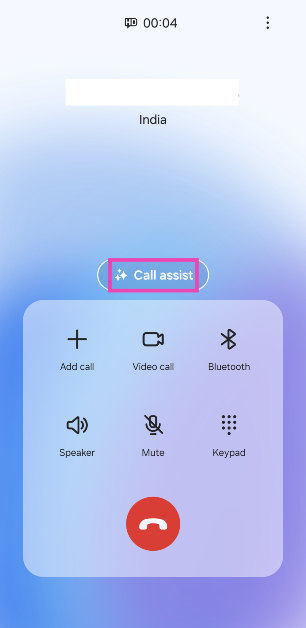
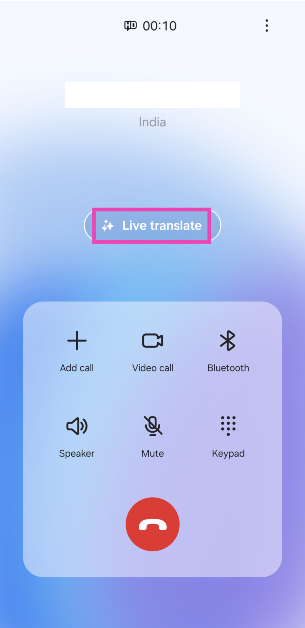
Step 1: Make a cellular call using your Samsung Galaxy S24.Step 2: Tap on Call assist.Step 3: Select Live translate.Step 4: As soon as you hit Live translate, the caller will get a pre-recorded message letting them know that the call is being translated and live captioned. Anything you say will be live-translated and relayed to the caller, and vice-versa. You can change the languages from the top of the screen as well.
Frequently Asked Questions (FAQs)
How do I live translate my phone calls using Galaxy AI?
Go to Settings>Advanced features>Advanced intelligence>Phone and turn on the toggle switch for Live translate. Scroll down and select the target languages for you and the caller. Now, make a call and hit Call assist>Live translate.
Is Galaxy AI’s Live Translate feature free to use?
Live translate, along with other Galaxy AI features, is free to use until the end of 2025. Samsung will likely include a subscription model for Galaxy AI after that.
Which Samsung smartphones support Galaxy AI?
Galaxy AI made its debut on the Samsung Galaxy S24 Series. The tech giant will roll out its AI features for the Galaxy S23 Series (including S23 FE) and 2023’s Galaxy Z Series soon.Read Also:How to use Galaxy AI to translate spoken conversations?
Conclusion
This is how you can live translate your phone calls using Galaxy AI on the Samsung Galaxy S24 Series. You can also screen your calls using Bixby’s ‘text call’ feature on your Samsung Galaxy smartphone. Here’s an article explaining how you can set it up. To learn how to edit your pictures using Galaxy AI, read this article.
Infinix Hot40i is confirmed to launch in India on February 16.
The smartphone will go on sale via Flipkart in the country.
The phone will come with a 5,000mAh battery.
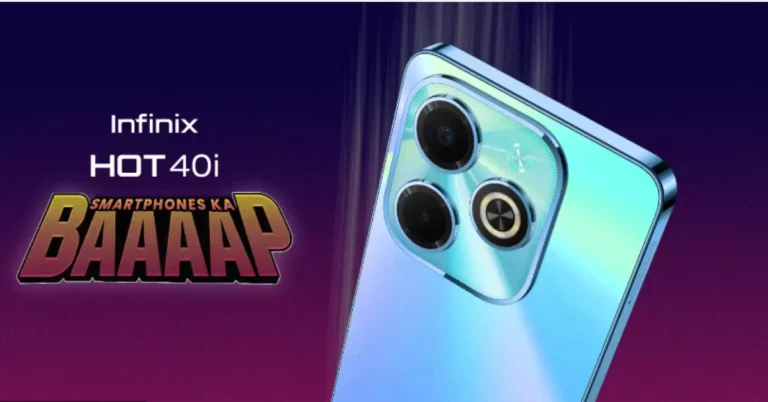
Infinix is all set to launch a new smartphone in the Indian market. The company is coming to the country with its brand new product- Infinix Hot40i. The launch is scheduled to take place on February 16. Ahead of the official announcement the company has also listed the phone on Flipkart to tease its availability. In addition to this Infinix has also revealed the key details of the upcoming smartphone. Check out the details below.Infinix Hot40i is going to launch in India on February 16, the company has confirmed. Alongside confirming the exact launch date the firm has also disclosed the availability and key features of the upcoming device. A dedicated microsite on its website and Flipkart has been created before the official announcement.The device will be on sale on February 16 at 12:00 PM IST, according to the listing. It will undoubtedly make its debut in the sub-Rs 10,000 range.It is claimed to include 256GB of storage and 16GB of RAM (8GB of virtual memory, and 8GB of RAM on board). Additionally, a dedicated microSD card slot on the phone will support microSD cards up to 2TB.Also Read:How to use Samsung Galaxy S24’s AI tech to summarise web pages, notes, and voice notes?Infinix has also disclosed that the Hot40i will come equipped with two rear cameras and an LED flash. Additionally, the upcoming phone will also include a 32-megapixel selfie camera. The device is said to house a 5,000mAh battery with 18W Type C fast charge and a reverse charging feature.Before coming to India Infinix launched Hot40i alongside other models in the International market in December of last year. It is expected that the specification of the forthcoming device will be similar to that of the global variant. It will feature a 6.56-inch HD+ LCD with an adaptive refresh rate of 60Hz to 90Hz. The display will come with a peak brightness of 480 nits. It could also be driven by Unisoc T606 SoC with up to 256GB of inbuilt storage and up to 8GB of RAM. A microSD card can be used to increase the storage capacity to 1TB.Also Read:Nothing Phone 2a confirmed to launch on March 5, India launch to happen the same dayThe dual rear camera setup is likely to feature an AI-powered sensor. The 32-megapixel selfie camera is already confirmed to come on the device. Along with a 5,000mAh battery, the smartphone may equip a side-mounted fingerprint sensor.
Garena Free Fire is a battle royale game with regular awards and tournaments to keep players interested. If you play Garena Free Fire, you should be aware of the redeem codes that are released on a daily basis. However, because the battle royale game is banned in India, players from other countries can use the Free Fire Redeem codes daily. If you’re unfamiliar with the Garena Free Fire redeem codes or don’t know how to get them, we’ve put together a step-by-step guide to help you redeem them. Check out Garena Free Fire Redeem Codes for 14 February 2024.The Free Fire redeem codes are a great way to get free stuff. These are 12-digit codes that contain alphabets and numbers, as well as an expiration date and time. Because the Garena FF redeem codes cannot be used more than once, you should hurry to the redemption page to claim your free reward before someone else does. To get a free reward, all you have to do is go to reward.ff.garena.com/en, which is the official redemption page. Also, keep an eye on this space for daily updates on Garena Free Fire redemption codes and rewards.Also Read: Sennheiser Accentum Plus wireless headphones with Hybrid Adaptive Noise Cancellation launched
Garena Free Fire Redeem Codes Today 14 February 2024
Horse racing is an ancient sport that has been around for a very long time. It started in old times and is now popular all over the world. This sport is about more than just fast horse racing; it involves smart planning and a unique bond between the horse and its rider. Today, with more technology being used every day, horse racing is beginning to change. New devices and tools are making it easier to train horses, allowing fans to watch races and place bets on their favorite horses from anywhere. These advancements are blending traditional horse racing with new, exciting changes.
The Digital Transformation of Horse Racing
Horse racing is changing a lot because of technology, especially in how people bet on races. Now, thanks to platforms like 1xbe offers betting on horse race, fans don’t have to go to the race track to place a bet; they can do it online from anywhere in the world. This change is significant because it makes betting easier and allows more people to join in on the fun. Additionally, there are now mobile apps for horse racing that let fans see updates about races, choose their bets, and learn lots of details about the races right from their hands. The shift to online betting and the availability of these apps make the betting process simpler and more exciting for fans, giving them the feeling of being part of the action even if they’re not physically on the track.
Data Analytics and Machine Learning in Horse Racing
Data analytics and machine learning are changing the game in horse racing, making it easier to guess who will win and helping horses get ready to perform their best by looking at a lot of information, like how the track is or the weather, and even how a horse has done before or how healthy it is, these tools can predict which horse might win. This helps people who are betting to choose smarter and also helps trainers and horse owners make better plans to help their horses do well. Machine learning, a kind of smart computer program, helps spot details that people might miss, giving everyone a deeper understanding of what might affect a race. This isn’t just about making better bets; it’s also about taking care of the horses, making sure they’re healthy and trained just right for them.
Wearable Technology for Horses
Wearable technology for horses includes things like sensors, GPS, and health monitors. These gadgets help us know how a horse is feeling and how well it’s doing by checking its heart rate, how warm it is, and how it moves. This information is super helpful for people who take care of and train horses. For example, GPS can track how far and fast a horse runs, helping trainers make better workout plans. If a horse starts feeling sick or shows signs of not being okay, these devices let the caretakers know right away so they can help the horse. There are many stories where this technology has helped horses run better in races and stay healthy. One story is about a place where horses are trained, and they use these gadgets to make their training even better. This helped the horses do better in races and not get hurt as much. Another time, a device found out a horse was getting really sick, which could have stopped it from racing ever again, but because they found out early, they were able to treat the horse, and it got back to racing.
Virtual Reality and Augmented Reality in Fan Experience
Image: World Wide Web
Virtual Reality (VR) and Augmented Reality (AR) are changing how people watch horse racing, making it feel like you’re right there on the track. With VR, you can wear a headset and feel like you’re standing next to the track or even riding a horse in the race. It makes watching the races more exciting because you can see everything up close, just like you’re really there. AR makes things even better by putting extra information about the race right on your phone or computer screen while you’re watching. It can tell you more about the horses, the people riding them, and the track. There are also VR games about horse racing where you can pretend to be in a race, take care of your own stable of horses, or train them.
Blockchain and Betting Security
Blockchain technology is like a super smart notebook that keeps track of horse racing bets in a way that’s safe and clear so that everyone can trust it. This notebook is special because once something is written in it, nobody can change it or make it disappear. That’s really important for making sure bets on horse races are fair, and nobody cheats. With blockchain, every bet is written down carefully so that the people who win get their money correctly. It’s also great because it stops people from trying to trick the system since everyone can check the bets to make sure they’re right.
The Role of Social Media and Streaming Services
Social media and streaming services have made horse racing more popular and brought fans worldwide closer together. Now, people can use websites like Facebook or Twitter to talk about the races, share who they think will win, and celebrate when their favorite horse crosses the finish line first. This helps fans feel like they’re part of a big group, no matter where they live. Also, with streaming services, anyone with a phone or computer can watch horse races live without needing a TV. This means that even races happening far away can have fans from different places watching.
The Future of Horse Racing Events
Horse racing events are about to change a lot because of new technology. Now, people can use drones to see the races from the sky, allowing everyone to see every part of the race like never before. There’s also talk about using artificial intelligence, or AI, to help train horses and even make decisions during a race, which could make races safer and more fair. Soon, we might even see jockeys who are controlled by AI, making decisions in a flash by looking at a lot of data. And for fans who can’t be at the race, virtual reality might let them feel like they’re right there in the middle of the action, no matter where they are. It’s a big step into a new time for horse racing, making it easier for everyone to enjoy and safer for those participating.
If you like to travel, the new Samsung Galaxy S24 has just the feature for you! As a part of its new Galaxy AI suite of features, Samsung Galaxy S24 lets you translate spoken conversations in real time. At the time of writing this article, this feature supports 15 languages including English, Hindi, French, Chinese, Italian, and more. All the computing required to carry out the translation takes place on the device itself. Here’s how you can use the Galaxy AI Interpreter tool to translate spoken conversations.Read Also:Nothing Phone 2a confirmed to launch on March 5, India launch to happen the same day
Before you begin
As we mentioned earlier, the computing required to translate spoken conversations takes place on your device. This means you don’t need to be connected to the Internet to use the Interpreter tool on your Galaxy device. If you’re travelling overseas and don’t want to splurge on an expensive mobile data plan, this feature will still work on your device.Before you begin, you need to download the language packs for the source and target languages. This does require an internet connection. An average language pack is around 200-400MB in size. Make sure you are connected to the WiFi or you will end up spending the bulk of your mobile data plan.You can also change the voice of the speaker for the Interpreter tool. As of now, there are 2 voice styles on offer – one male and one female. You can also select the pace at which the speaker voices the translated text. You can also flip the panel showing the translated text upside down, making it easier for the other person to view it.
Translate spoken conversations using Galaxy AI
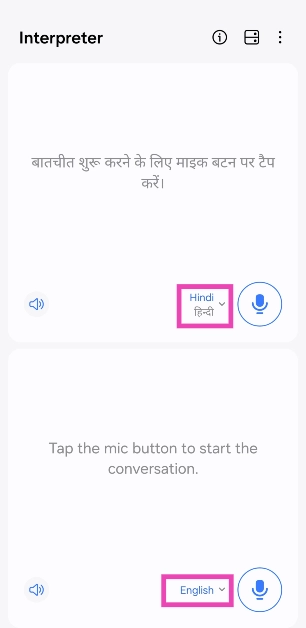
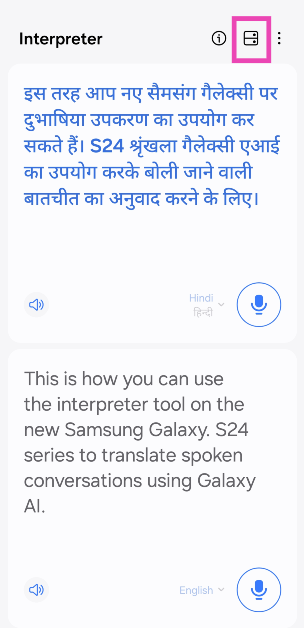
Step 1: Go to Settings and select Advanced features.Step 2: Tap on Advanced intelligence.Step 3: Tap on Interpreter.Step 4: Tap on Language packs for translation.Step 5: Download your desired languages. There are 15 languages to choose from.Step 6: Go back to the home page and swipe down from the status bar to access the Quick Settings Menu.Step 7: Tap on Interpreter.Step 8: Select the source language on the bottom panel and the target language on the top panel.Step 9: Hit the microphone button in the bottom panel and start speaking.Step 10: Once you stop speaking, Galaxy AI will translate your speech into the target language.Step 11: Hit the layout icon at the top of the screen to flip the top panel. This makes it easier for the other person to read the translated text.
Frequently Asked Questions (FAQs)
Where can I find the Interpreter tool in the Samsung Galaxy S24 Series smartphones?
Swipe down from the status bar and tap on the ‘Interpreter’ tile in the Quick Settings Menu.
Does Galaxy AI require an internet connection to translate spoken conversations?
No, you can translate spoken conversations using Galaxy AI without access to the internet. However, you will need to download the language packs first.
This is how you can use Galaxy AI on the new Samsung Galaxy S24 Series to translate spoken conversations. All the computing required to translate spoken conversations takes place on your Galaxy device. This means you don’t need to be connected to the internet to use the Interpreter tool. Read this article to learn how you can use the generative photo editing feature on the new Galaxy S24 smartphones.
Samsung’s newest Galaxy S24 Series feels like a landmark device for AI tech. While there have been a few AI features on Pixel smartphones over the years, Samsung’s Galaxy AI on the S24 Series breathes new life into several different native apps. While some of these features may cater to a niche audience, it doesn’t make them any less cool. One of our favourite uses of Galaxy AI is in Samsung’s web browser. With just a couple of taps, you can summarise the article you’re reading and translate it into any language you like. Here’s how you can use Samsung Galaxy S24’s AI tech to summarise web pages, notes, and voice notes.Read Also:Nothing Phone 2a confirmed to launch on March 5, India launch to happen the same day
Samsung Galaxy AI: The Real Deal?
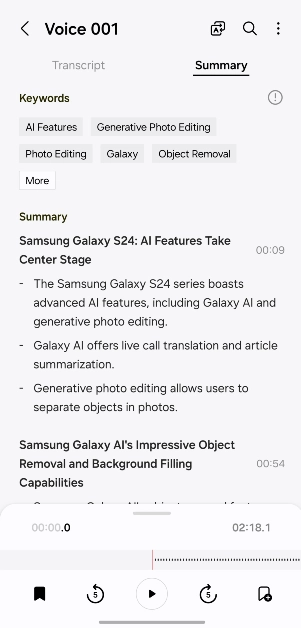
The new Galaxy S24 Series is all about its AI features. While it carries forward its exceptional performance (owing to the Snapdragon 8 Gen 3 SoC) and a powerful set of cameras, the integrated AI tech is where it breaks new ground and sets itself apart from the Galaxy S Series of the past. We’ve talked about the generative photo editing features of the Galaxy AI, so let’s turn our focus to its summarization features.Like the newer Pixel smartphones, Samsung’s native voice recorder app can now transcribe the voice notes for you. If there are multiple speakers on the voice recording, they will be classified accordingly. Galaxy AI does its best to ensure there are no redundancies and grammatical errors in the transcribed text. However, if the speech isn’t overtly clear, a few errors will manage to creep in. Thankfully, these errors are easy to ignore. Galaxy AI summarises the transcribed text for you and formats it in a manner that is easy to read. It generates keywords related to topics that it deems important. Tapping on a keyword takes you to the part where it is mentioned in the text.Another cool Galaxy AI feature is web page summarisation. If you don’t have enough time to read a lengthy article, you can hit the AI icon and generate a summary of the webpage. The browser app gives you the option to generate a detailed summary as well. You can translate this summary into any language you like.
Use Galaxy AI to summarise web pages
Step 1: Go to Settings and select Advanced features.Step 2: Tap on Advanced intelligence.Step 3: Select Samsung Internet.Step 4: Tap on Summarise.Step 5: Turn on the toggle switch.Step 6: Launch the native Samsung browser on your smartphone.Step 7: Open a web page.Step 8: Hit the Galaxy AI icon at the bottom of the screen.Step 9: Tap on Summarise.Step 10: Galaxy AI will create a brief summary of the text on the web page.Step 11: To get a detailed summary, hit the options icon at the top right corner of the summary box.Step 12: Tap on Detailed and hit Done.
Use Galaxy AI to summarise a note
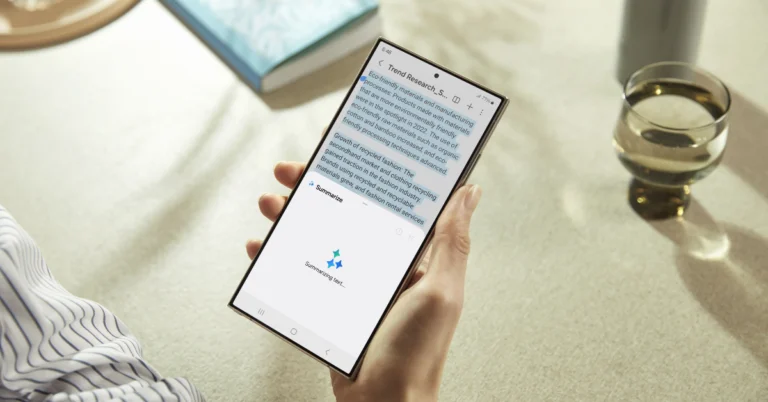
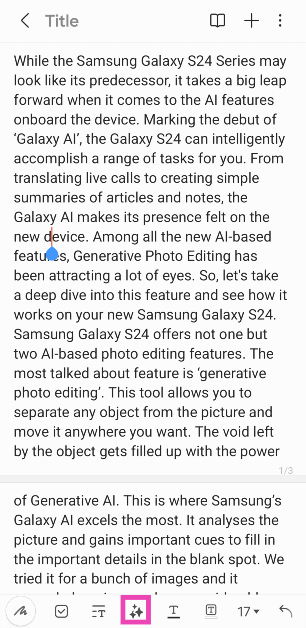
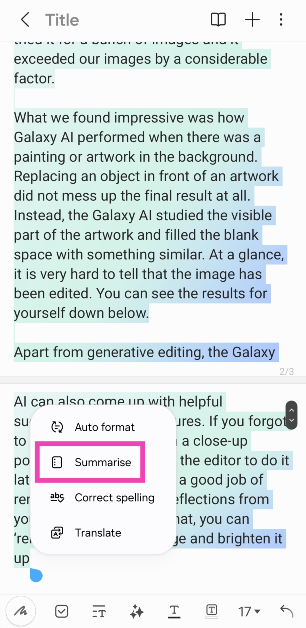
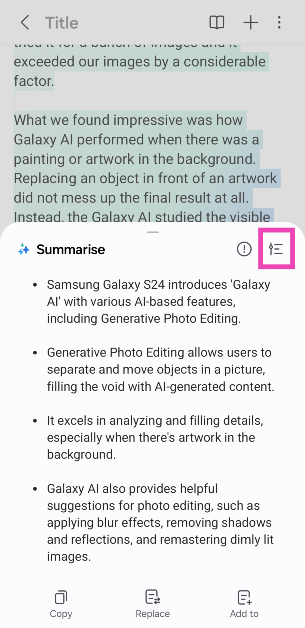
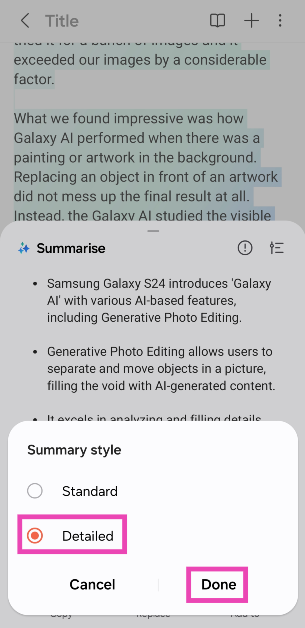
Step 1: Launch the Notes app on your Samsung Galaxy smartphone.Step 2: Select the note you wish to summarise.Step 3: Hit the Galaxy AI icon at the bottom of the screen.Step 4: Tap on Summarise. You can also use Galaxy AI to auto-format, spell-check, and translate the text. There is a word limit for the summarisation feature.Step 5: Galaxy AI will generate a summary of the text.Step 6: To create a detailed summary, hit the options icon.Step 7: Tap on Detailed and hit Done.
Use Galaxy AI to transcribe and summarise a voice note
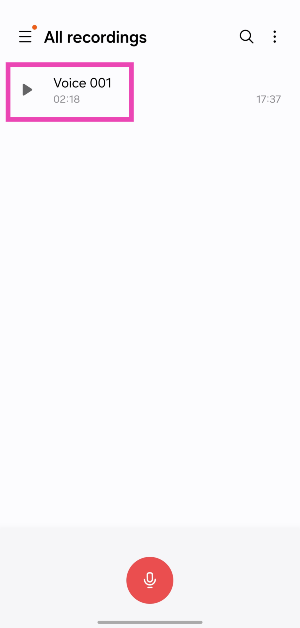
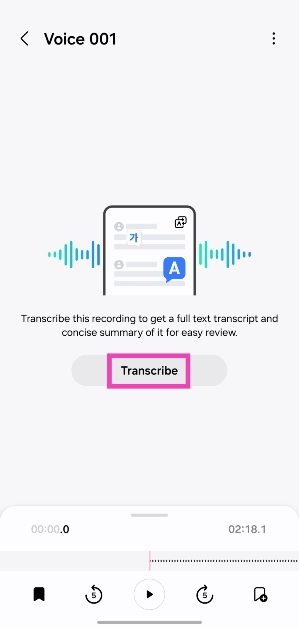
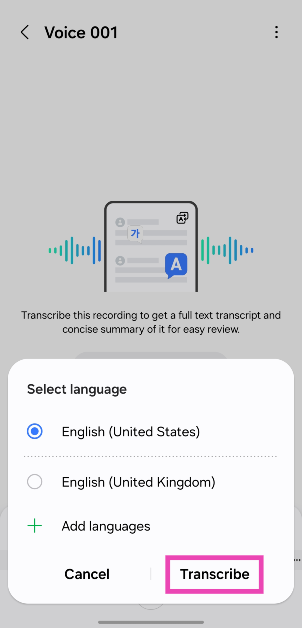
Step 1: Go to the native Samsung voice recorder app and select a voice note.Step 2: Hit the Transcribe button.Step 3: Select the language and hit Transcribe. You may need to download a language pack for this.Step 4: Once the recording has been transcribed, switch to the Summary tab.Step 4: This is where you will find the formatted summary along with the relevant keywords. Tap on a keyword to view the content associated with it.
Frequently Asked Questions (FAQs)
Which phones will get the Galaxy AI?
Samsung Galaxy is currently available on the latest Galaxy S24 Series. The tech outfit will also bring its AI features to the Galaxy S23 Series (including S23 FE) and 2023’s Z Series in a future update.
Is Galaxy AI free to use?
According to Samsung, all Galaxy AI features will be free to use until the end of 2025. After that, the company may introduce a subscription model for the service.
How do I summarise a news article using Galaxy AI?
This is how you can use Galaxy AI on the Samsung Galaxy S24 Series to summarise web pages, notes, and voice notes. You can also use it to auto-format, spell-check, and translate the summarised text. The native Notes app lets you generate attractive covers for your notes as well. Read this article to learn how to use AI photo-editing features on your new Galaxy S24 smartphone.
The India launch is also confirmed to take place on the same day.
Finally, Nothing has officially revealed the launch date of Nothing Phone 2a. The upcoming phone is set to arrive next month. This is going to be the company’s third smartphone and an affordable toned-down variant of Nothing Phone 2 that launched last year. The device is likely to feature a dual rear camera setup. It is expected to be powered by MediaTek Dimensity 7200 SoC.Nothing Phone 2a launch is scheduled to take place on March 5. The phone is anticipated to be released as a less expensive variant of the Nothing Phone 2, which debuted the previous year. The company took to Twitter to make the announcement where it also shared a short video. As per the announcement the Nothing Phone 2a will launch at 11:30 GMT (5:30 pm IST). Note that the India launch will also take place on the same day. The company’s X account for India and Flipkart have officially confirmed the March 5 event.
Fresh. Eyes.
The official Phone (2a) launch event is happening on 5 March 2024, 11:30 GMT. pic.twitter.com/eE6hPjXOeB
As we mentioned earlier, Nothing has also shared a short video on its X account. However, it has not revealed much about Phone 2a it shows two white dots resembling eyes blinking with a black background.Also Read: Poco X6 5G 12GB RAM with 256GB storage variant goes on sale in IndiaJust before the official announcement, Nothing Phone 2a was spotted listed on the TUV certification website with model number A142. The listing suggests, that the Nothing Phone 2a will come with a 45W charging speed. It will also get USB Power Delivery (PD) standard support, which means that the Nothing Phone 2a should be able to be charged using any USB PD-compliant charger. Earlier the upcoming handset also appeared listed on the Bureau of Indian Standards(BIS) site.As per a leak, the Phone 2a is likely to come in Black and White colour options and in two different configurations: 8GB of RAM with 128GB storage and 12GB RAM with 256GB of storage. The phone’s price is speculated below EUR 400 (approx Rs 36,800).In addition to this, it is speculated to feature a 6.7-inch AMOLED display manufactured by BOE and Visionox under the product number rm692h5. The screen is expected to have 1,084 x 2,412 pixels of resolution. The display may also support a refresh rate of 120Hz. The phone is slated to be powered by a MediaTek Dimensity 7200 chipset.Also Read:Samsung Galaxy S23 FE gets a price cut: Here is how much it costs nowMoreover, the mobile is rumoured to come with a dual rear camera setup that may include a 50-megapixel Samsung S5KNG9 1/1.5-inch main sensor and the 50-megapixel Samsung S5KJN1 1/2.76-inch ultrawide lens. The phone is anticipated to feature a 32-megapixel Sony IMX615 sensor on the front.
While the Samsung Galaxy S24 Series may look like its predecessor, it takes a big leap forward when it comes to the AI features onboard the device. Marking the debut of ‘Galaxy AI’, the Galaxy S24 can intelligently accomplish a range of tasks for you. From translating live calls to creating simple summaries of articles and notes, the Galaxy AI makes its presence felt on the new device. Among all the new AI-based features, Generative Photo Editing has been attracting a lot of eyes. So, let’s take a deep dive into this AI photo-editing feature and see how it works on your new Samsung Galaxy S24.Read Also:Top 10 4K TVs in the USA (2024)
Here are the new Galaxy AI photo-editing features on the Samsung Galaxy S24 Series
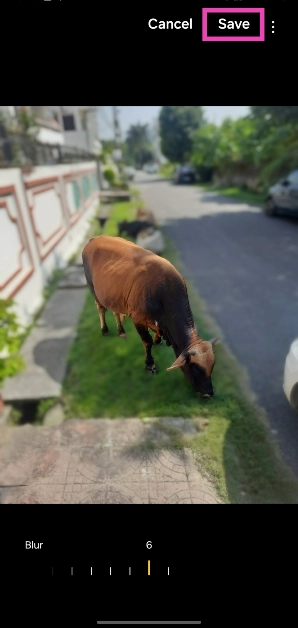
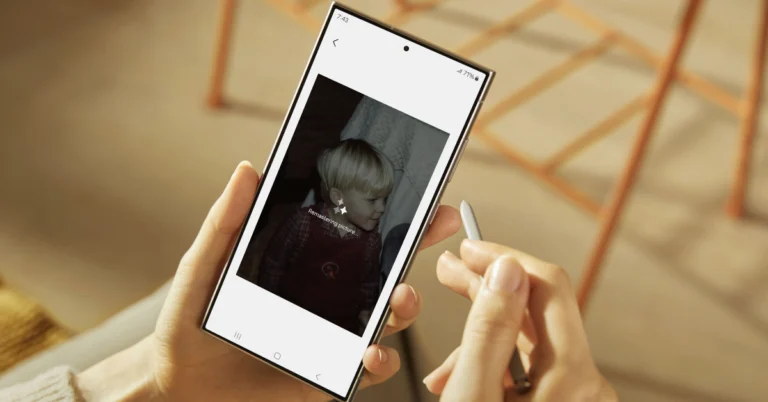
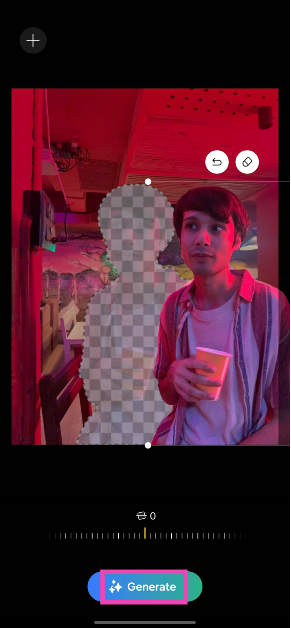
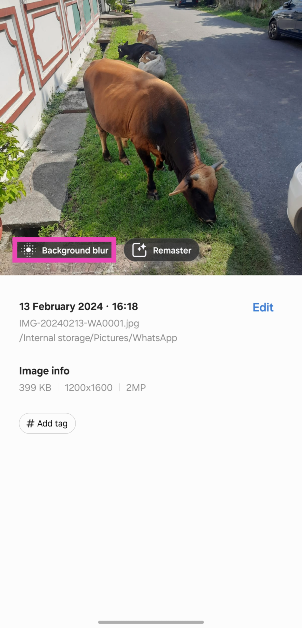
Samsung Galaxy S24 offers not one but two AI-based photo editing features. The most talked about feature is ‘generative photo editing’. This tool allows you to separate any object from the picture and move it anywhere you want. The void left by the object gets filled up with the power of Generative AI. This is where Samsung’s Galaxy AI excels the most. It analyses the picture and gains important cues to fill in the important details in the blank spot. We tried it for a bunch of images and it exceeded our expectations by a considerable factor.What we found impressive was how Galaxy AI performed when there was a painting or artwork in the background. Shifting an object in front of an artwork did not mess up the final result at all. Instead, Galaxy AI studied the visible part of the artwork and filled the blank space with something similar. Other objects in the background were filled in accordingly. Here’s one example.Apart from generative editing, the Galaxy AI can also come up with helpful suggestions for your pictures. If you forgot to apply the blur effect on a close-up portrait shot, you can use the editor to do it later. It also does a good job of removing shadows and reflections from your pictures. On top of that, you can ‘remaster’ a dimly lit image and brighten it up.
Use Generative AI on the Samsung Galaxy S24 Series to edit your pictures
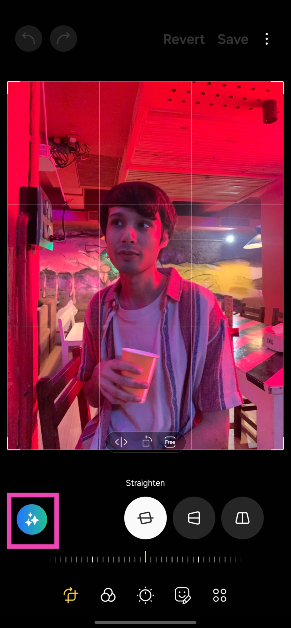
Step 1: Launch the Gallery app on your smartphone and open the image you want to edit.Step 2: Hit the pencil icon at the bottom of the screen to launch the photo editor.Step 3: Tap the blue icon with stars on the left side of the screen to access Galaxy AI.Step 4:Long press the object you wish to move or delete from the picture. You can also draw something around the object to select it.Step 5: Once the object has been selected, you can resize it by dragging its corners. To shift the object, long press it and move it around.Step 6: Hit Generate. Galaxy AI will take a few seconds to fill in the blank spots created by shifting or removing the object.Step 7: Once the new image has been rendered, hit Done.Step 8: Hit Save as copy at the top right corner of the screen.
Use Galaxy AI for editing suggestions
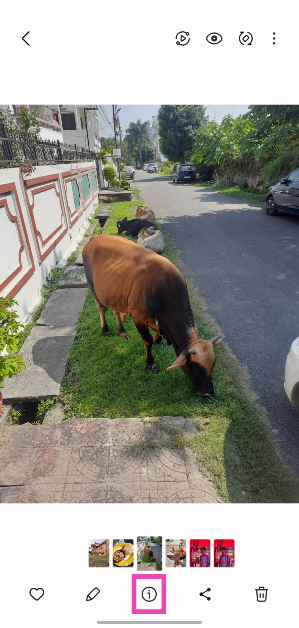
Galaxy AI can also come up with helpful editing suggestions to spruce up your pictures. For every picture you choose, it will come up with relevant suggestions. If you select a close-up picture, the editor will help you add the appropriate amount of blur to the background. Images with distracting shadows and reflections can also be fixed using this tool. Here’s how.Step 1: Select a picture from the Gallery app on your phone.Step 2: Hit the ‘i’ icon at the bottom of the screen.Step 3: Galaxy AI will come up with the relevant editing suggestions for the picture.Step 4: Tap on a suggestion to apply the changes.Step 5: Hit Save and select Save as a copy (if you want to keep the original).
Frequently Asked Questions (FAQs)
Is Galaxy AI free to use on the Samsung Galaxy S24 Series?
Samsung’s Galaxy AI features will be provided for free until the end of 2025 on supported devices. The tech giant plans on introducing a subscription model for its AI services after that.
Can I use Galaxy AI’s generative editing feature on any picture?
Yes, Galaxy AI’s generative editing feature works on all images, even the ones that haven’t been shot using your Samsung Galaxy smartphone.
Where can I find the Galaxy AI editing feature on my smartphone?
If your smartphone supports Galaxy AI, open the picture you wish to edit, tap the pencil icon at the bottom of the screen, and then hit the blue icon with the stars to access the generative editing feature.Read Also:Dreame U10 Vacuum Cleaner Review: Basic Dust Buster
Conclusion
This is how you can use the AI photo-editing features on your Samsung Galaxy S24 Series smartphone. The ‘Generative photo editing’ editing feature requires an internet connection to work as its computing process does not take place on your device. However, remastering a picture using Galaxy AI does not require the internet. Go to Settings>Advanced features>Advanced intelligence and turn on the toggle switch for ‘Process data only on device’ to disable online processing.
Samsung Galaxy S23 FE has received a price cut of Rs 5,000.
Along with the price revision, the company also offers additional bank offers on the device.
Samsung Galaxy S23 FE, which debuted in India last October, is now available at a lower price. The device has currently received a price cut. The handset is currently available in two different configurations and both models are discounted in the country. The details of the price reduction and other details for the smartphone are listed below.Samsung has dropped the price of Galaxy S23 FE in India by Rs 5,000. After the price cut the 8GB RAM with 256GB storage is selling at Rs 54,990. On the other hand, the 8GB RAM with 256GB storage will be available at a reduced price of Rs 59,990. Along with the price cut, Samsung is also providing additional discount offers on the purchase of smartphones. The HDFC Credit or Debit card customers will get a discount of Rs 10,000 on the purchase of Samsung Galaxy S23 FE which will bring down the price of both variants to Rs 44,990 and Rs 49,990 respectively.Also Read:Samsung Galaxy S23 FE now available in new exclusive colour options
Samsung Galaxy S23 FE specifications
Samsung Galaxy S23 FE features a 6.4-inch FHD+ Dynamic AMOLED display with 2340 x 1080 pixels resolution. The screen supports a variable refresh rate of 60 to 120Hz. The front panel is protected with Corning Gorilla Glass 5. The device is powered by a Samsung Exynos 2200 4nm processor with Samsung Xclipse 920 GPU. The phone runs on Android 13 with One UI 5 out of the box.For photography and videography, the handset features a triple rear camera set-up that includes a 50-megapixel main camera with f/1.8 aperture and OIS, a 12-megapixel ultra-wide-angle sensor, and an 8-megapixel telephoto lens with OIS and 3X Optical Zoom. For selfies, there will be a 10-megapixel front-facing camera.Also Read:Samsung Galaxy S23 FE Review: The flagship killer of the year?In terms of connectivity, there is 5G SA/NSA, 4G VoLTE, Wi-Fi 6E, Bluetooth 5.3, GPS + GLONASS, NFC, and a USB 3.1 port for charging. The S23 FE also includes an in-display fingerprint sensor for biometrics. The handset packs a 4500mAh battery with 25W wired fast charging and support for wireless charging, and wireless power share.It comes with an IP68 rating for water resistance and the stereo speakers on the phone support Dolby Atmos.


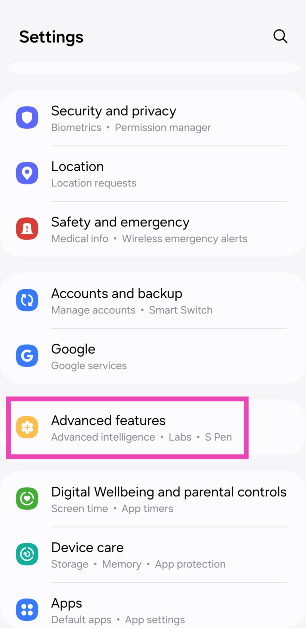 Step 2: Tap on Advanced intelligence.
 Step 3: Select Samsung Keyboard.
 Step 4: Tap on Chat translation.
 Step 5: Turn on the toggle switch.
 Step 6: Tap on Language packs for translation and select the languages you want to use.
Step 7: Go back and select Style and grammar.
Step 6: Tap on Language packs for translation and select the languages you want to use.
Step 7: Go back and select Style and grammar.
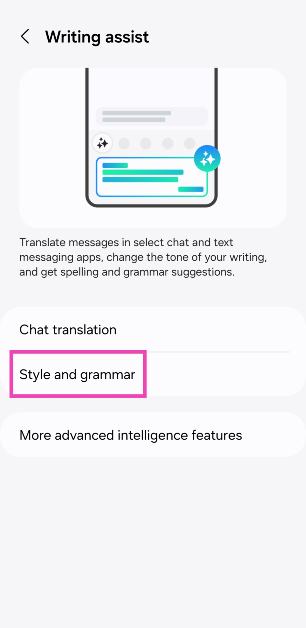 Step 8: Turn on the toggle switch.
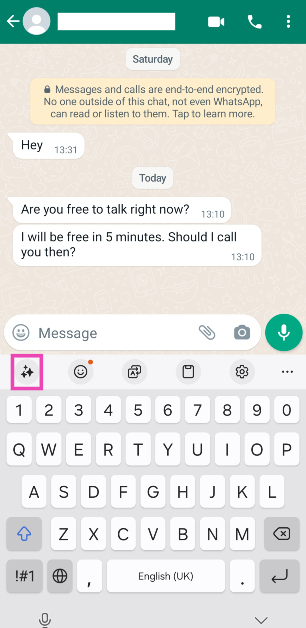 Step 3: Tap on Chat translation.
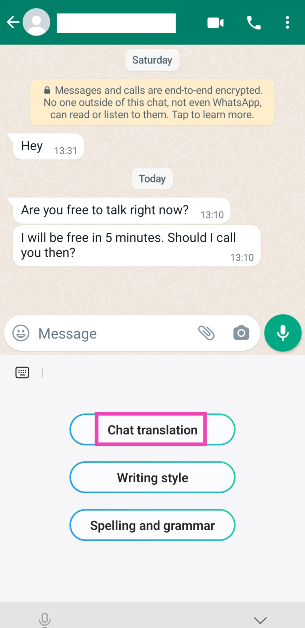 Step 4: Tap on the target language and select your desired language from the list of options.
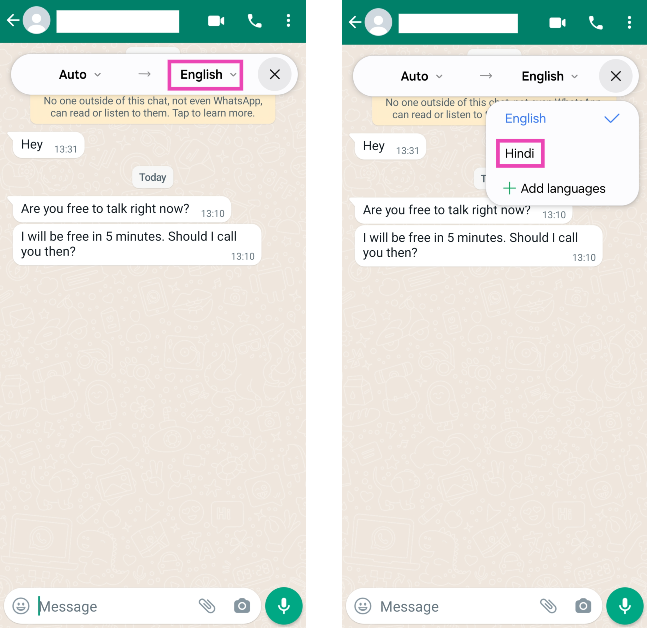 Step 5: The messages in the chat will be translated to your desired language.
 Step 6: To send an auto-translated message, tap the message box and enter your message. Hit the language icon.
 Step 7: Tap on the target language to change it.
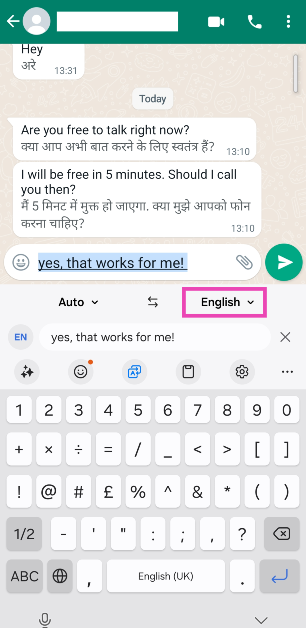 Step 8: Select a language from the list.
 Step 9: The message will be translated into your desired language. Hit the Send button.
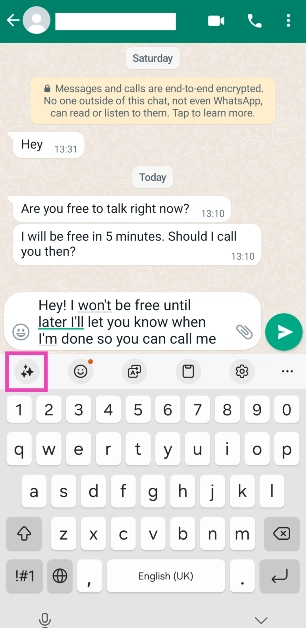 Step 4: Tap on Writing Style.
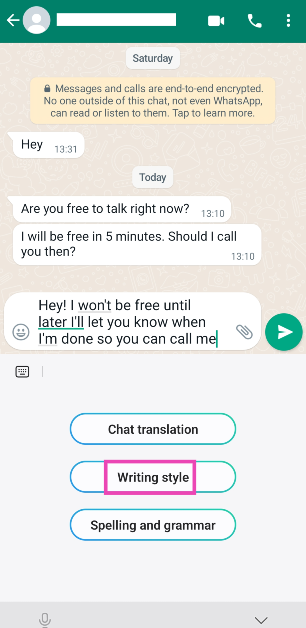 Step 5: Galaxy AI will change your text and suggest different styles. These include Professional, Casual, Social, Polite, and Emojify.
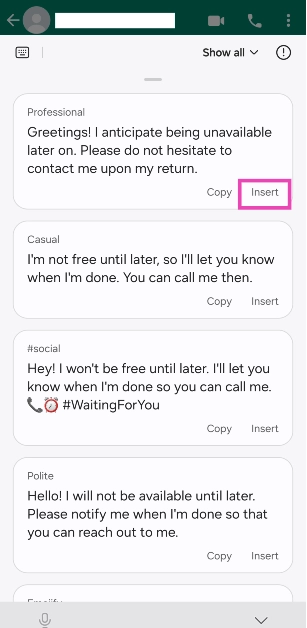 Step 6: Tap on Insert next to the text you wish to send and hit the Send button.
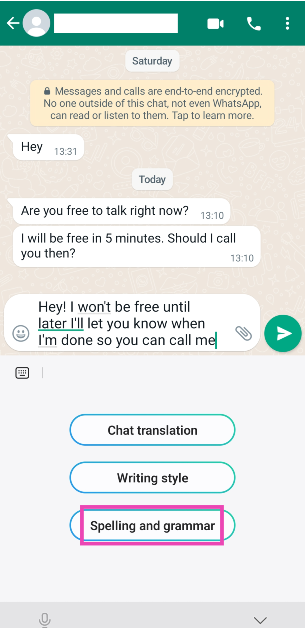 Step 5: Galaxy AI will fix the grammar and perform a basic spell check on your text.
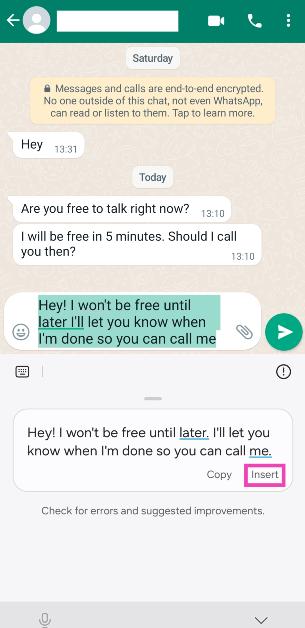 Step 6: Tap on Insert to substitute the original text with the corrected version and hit Enter.
 Step 4:
 Step 5:
  Step 6:
 Step 3:
 Step 4: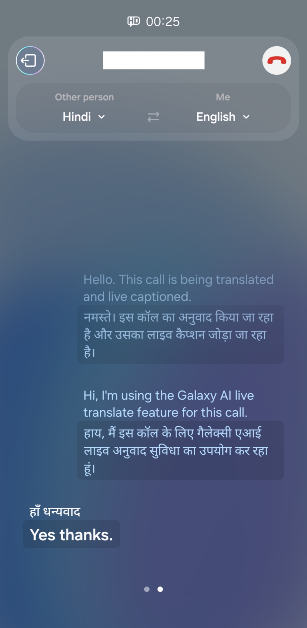



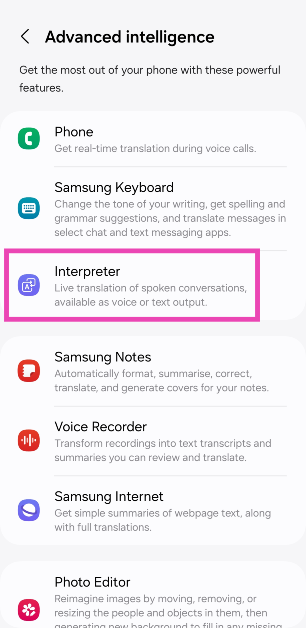 Step 4:
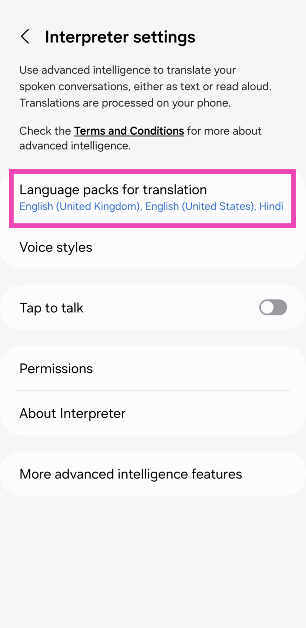 Step 5:
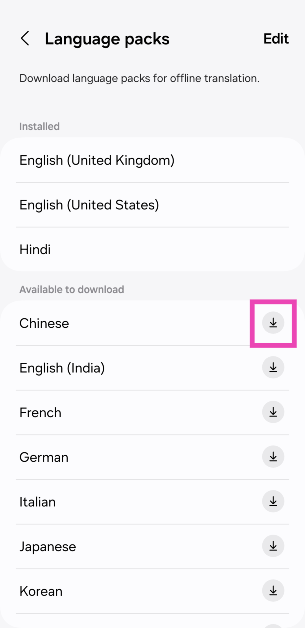 Step 6:
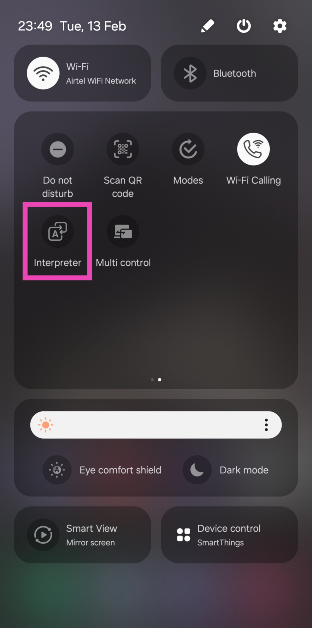 Step 8:
 Step 9:
 Step 11: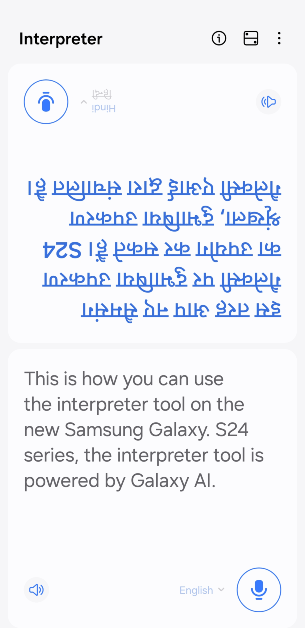
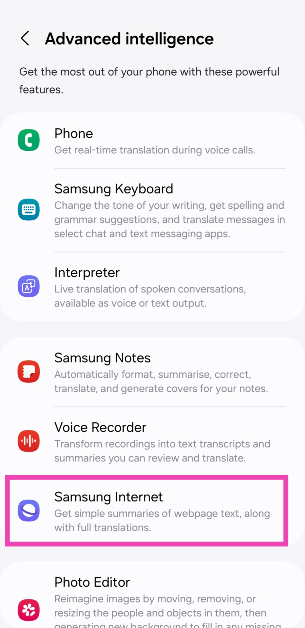 Step 4:
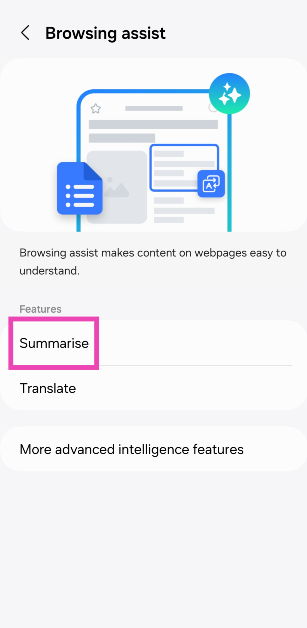 Step 5:
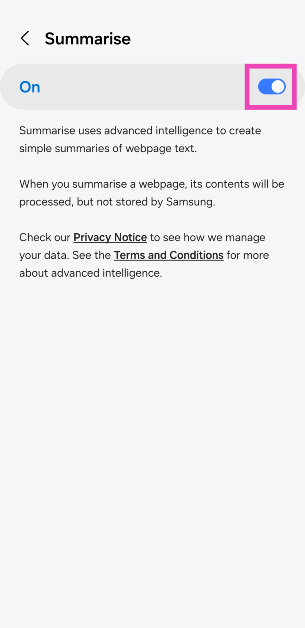 Step 6:
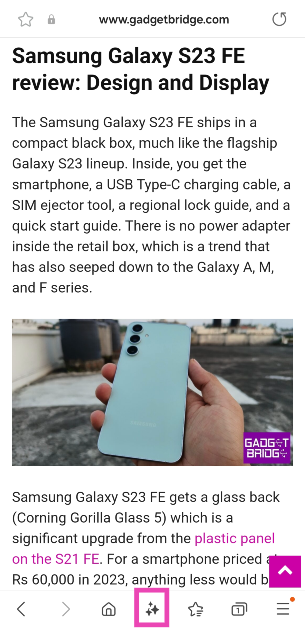 Step 9:
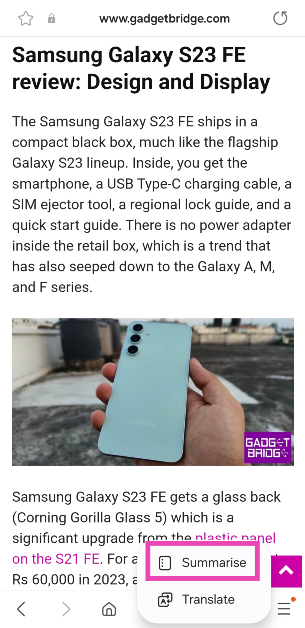 Step 10:
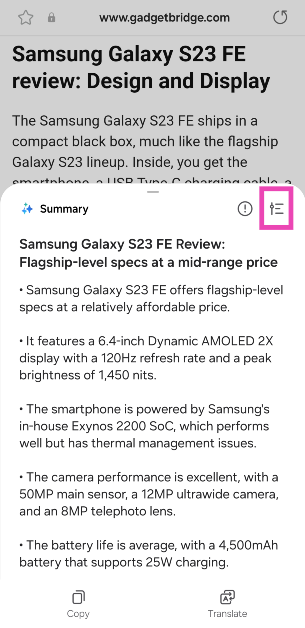 Step 11:
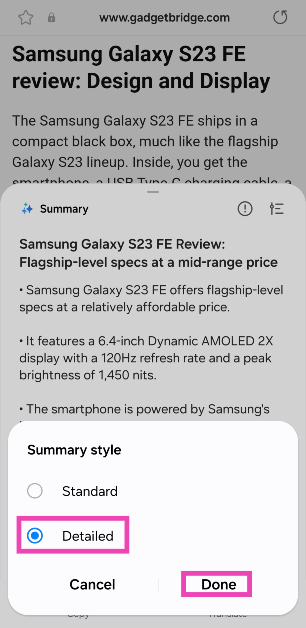 Step 12: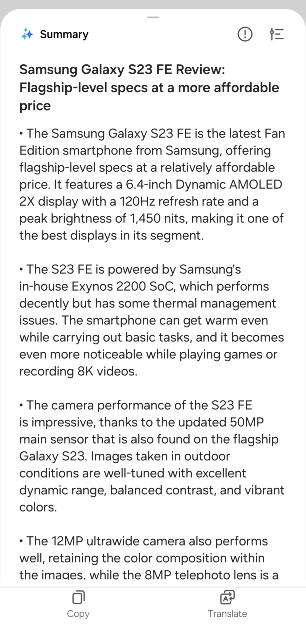
 Step 4:
 Step 5:
 Step 6:
 Step 7: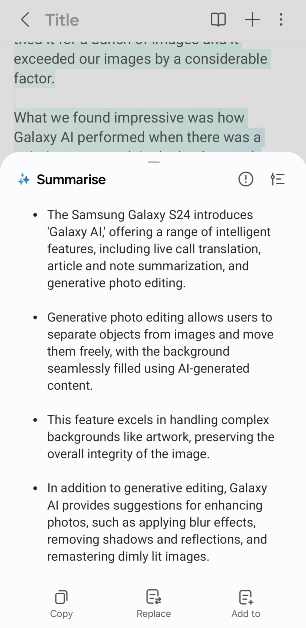
 Step 2:
 Step 3:
 Step 4: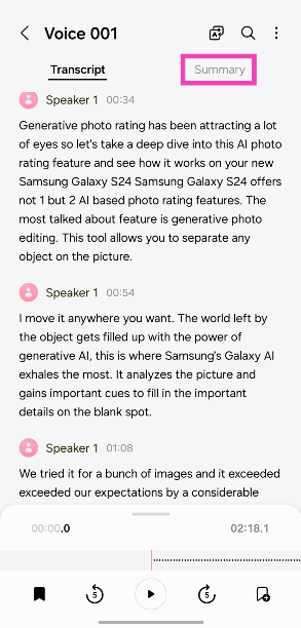


 Step 3:
 Step 4: Long press
 Step 6:
 Step 7:
 Step 8: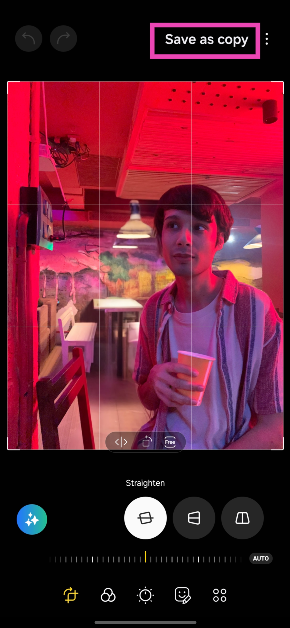
 Step 3:
 Step 4:
 Step 5: