- Poco X6 and Poco X6 Pro will succeed Poco X5 and Poco X5 Pro, respectively.
- The smartphones will be powered by MediaTek Dimensity 8300 Ultra SoC.
- The Poco X6 Pro is rumoured to be a rebranded variant of the Redmi K70E.
Poco X6 Series India launch confirmed, key specs teased

Key Highlights
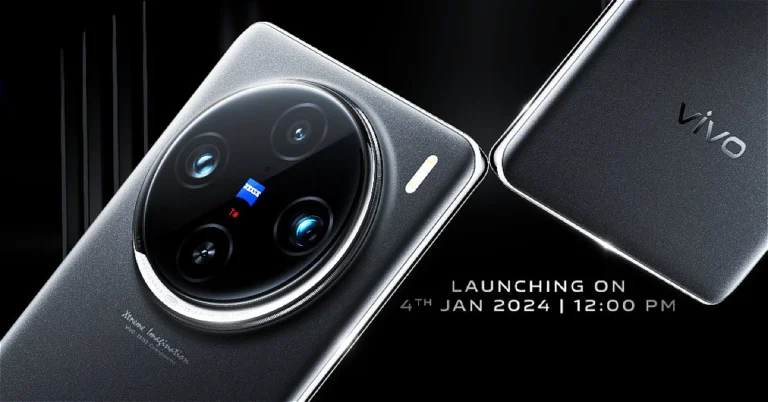
Vivo X100 Series confirmed to launch in India on January 4: Expected price and tech specs
Key Highlights
- The Vivo X100 and Vivo X100 Pro are powered by the same MediaTek Dimensity 9300 SoC.
- They feature a triple rear camera setup with Zeiss optics.
- The devices are said to come in steroid Black, Startrail Blue, and Sunset colour options.
Vivo X100 Series specifications
Both the Vivo X100 and the Vivo X100 Pro feature a 6.78-inch AMOLED 8T LTPO curved display with a 120Hz refresh rate and 3000 nits of peak brightness. The devices run on OriginOS 4 with Android 14 and are powered by a MediaTek Dimensity 9300 SoC with a Vivo V3 chip. Both come with a triple-camera setup powered by Zeiss optics. Also Read: Garena Free Fire Redeem Codes Today 28 December 2023: Here is how to claim them The Vivo X100 Pro includes a 50-megapixel Sony IMX989 1-inch type sensor with OIS (100x digital zoom), a 50-megapixel ultra-wide-angle sensor, and a 50-megapixel Zeiss APO super-telephoto lens with OIS (4.3x optical zoom and 100x digital zoom). On the other hand, the vanilla model includes a Sony IMX920 VCS bionic 50-megapixel primary sensor with OIS, a 50-megapixel ultra-wide-angle lens, and a 64-megapixel Zeiss super-telephoto lens (100x clear zoom). Both smartphones come with a 32-megapixel selfie camera. The pro model comes with the latest V3 imaging chip while the vanilla model settles for the previous-gen V3 chip.Vivo X100 and X100 Pro price in India (expected)
The Vivo X100 was launched globally at a starting price of HK$5,998, which converts to Rs 63,917 for the 12GB RAM with 256GB storage. On the other hand, the price of the X100 Pro with 16GB of RAM and 512GB of storage is set at HK$7,998, which is around Rs 85,224.Top 8 Ways to Update an App on Android
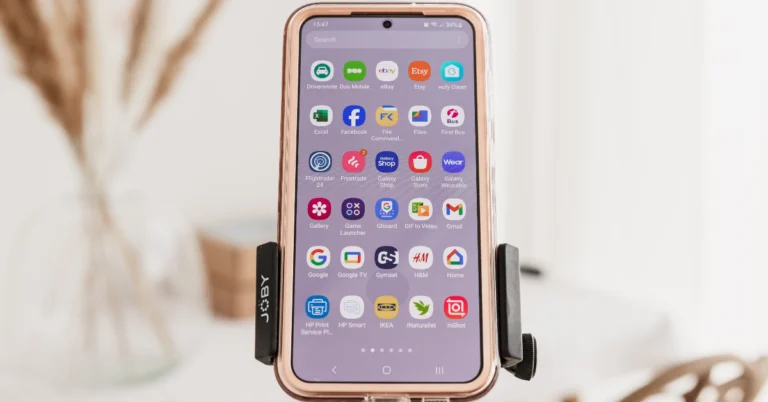
Updating an app on your smartphone is a pretty straightforward process, but there are multiple ways to go about it. Using the Google Play Store to download the latest version of your favourite apps is the most trusted of them all. But what if a particular update hasn’t been rolled out for your device yet? Or what if the Google Play Store unexpectedly stops working? Well, you can go the other route and not rely on Android’s native app marketplace for the job. Today, we bring you the top 8 ways to update an app on Android with or without the Google Play Store.
Read Also: Best 5 Ways To Fix ‘No Device Drivers Were Found’ While Installing Windows 10 or 11

 Step 3: Select Manage apps and device.
Step 4: Tap on Updates available.
Step 5: Hit Update all.
Step 3: Select Manage apps and device.
Step 4: Tap on Updates available.
Step 5: Hit Update all.
 Step 3: Go to Settings.
Step 4: Tap on Network preferences.
Step 3: Go to Settings.
Step 4: Tap on Network preferences.
 Step 5: Select Auto-update apps.
Step 6: Tap on Over Wi-Fi only. You can also choose to update apps over mobile internet, but this option isn’t recommended since it ends up using a lot of mobile data.
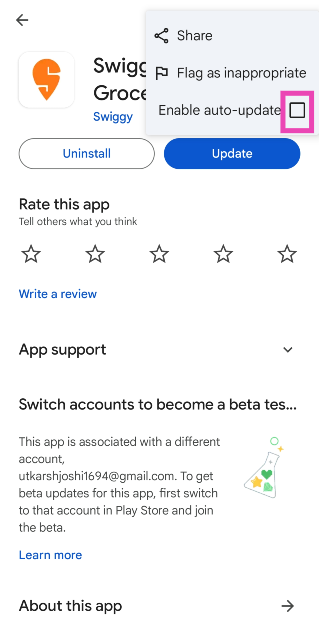
Step 4: Tap the checkbox for Enable auto-update.
Read Also: How to view Dropbox File Activity and Event Logs
Step 3: Tap on Updates.
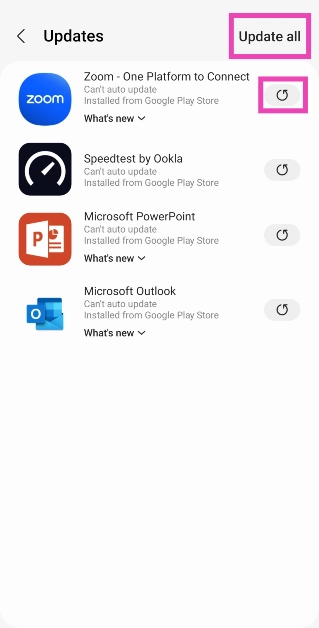
Step 4: Tap the refresh icon next to an app to update it or select Update all at the top right corner of the screen.
Step 5: Select Auto-update apps.
Step 6: Tap on Over Wi-Fi only. You can also choose to update apps over mobile internet, but this option isn’t recommended since it ends up using a lot of mobile data.
Step 4: Tap the checkbox for Enable auto-update.
Read Also: How to view Dropbox File Activity and Event Logs
Step 3: Tap on Updates.
Step 4: Tap the refresh icon next to an app to update it or select Update all at the top right corner of the screen.
 Step 3: Tap on Updates available.
 Step 4: Hit Update next to the app you want to update.
 Step 3: Tap on Updates.
Step 4: Hit Update all.
Step 3: Tap on Updates.
Step 4: Hit Update all.

 Step 3: Search for the app you want to update.
Step 4: Download the latest version of the app from the list.
Step 3: Search for the app you want to update.
Step 4: Download the latest version of the app from the list.
 Step 5: Open the APK file and allow third-party downloads from unknown sources.
 Step 6: Install the updated app on your Android phone.
Why you should keep the apps on your phone updated
The apps on your phone are not immune to bugs and unexpected crashes. The good news is that app developers are constantly rolling out updates to patch these issues on time. As soon as users report a particular bug, it sets the wheels rolling and developers turn their attention to the issue at hand. Within a few days, the bug-free update is published for users to download. This is why updating the app is one of the first steps you should take to fix its erratic behaviour. Routine updates also elevate the security of the apps. This is particularly true for web browsers, instant messengers, and financial apps. Malicious entities are always on the prowl, looking for security flaws to pounce upon your data. Keeping your apps updated is one way to keep these entities at bay. Finally, app updates are also used to roll out new features and functionalities. Can’t find a feature that everyone is using on Facebook or WhatsApp? You’re probably using an older version of the app. Install the updated version to stay on top of all the new features.Manually update an Android app using Google Play Store
Step 1: Go to the Google Play Store on your Android device. Step 2: Hit the Search bar and enter the name of the app you want to update. Step 3: Go to the app’s page. Step 4: Hit Update.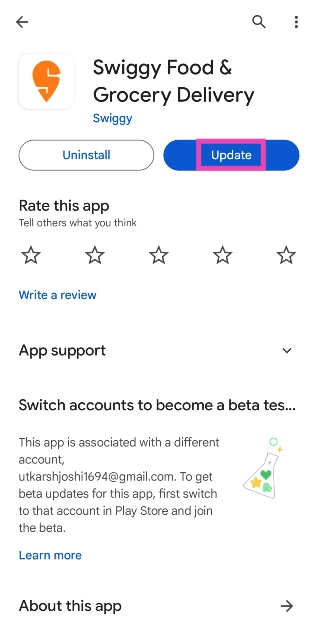
Manually update all Android apps using Google Play Store
Step 1: Launch the Google Play Store on your Android phone. Step 2: Tap your profile picture at the top right corner of the screen.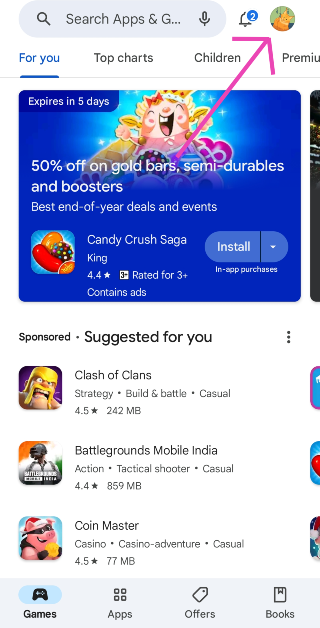 Step 3: Select Manage apps and device.
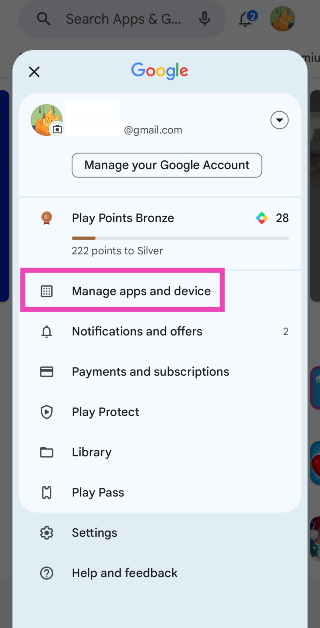 Step 4: Tap on Updates available.
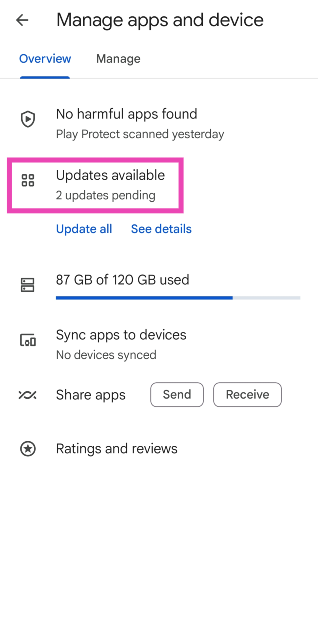 Step 5: Hit Update all.

Automatically update all apps on your Android device
Step 1: Launch the Google Play Store on your Android phone. Step 2: Tap your profile picture at the top right corner of the screen.
Step 3: Go to Settings.
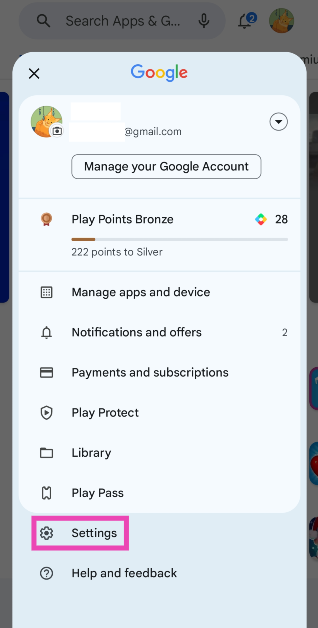 Step 4: Tap on Network preferences.
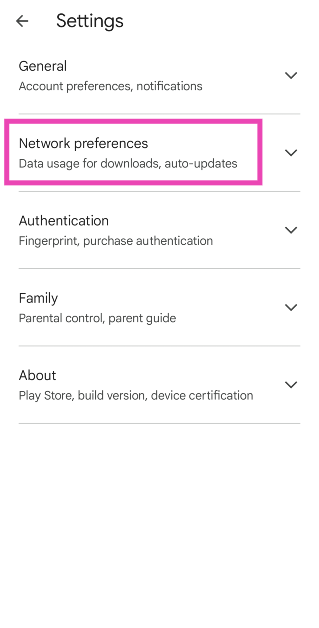 Step 5: Select Auto-update apps.
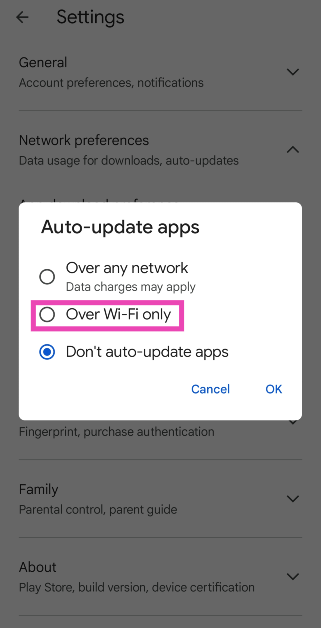
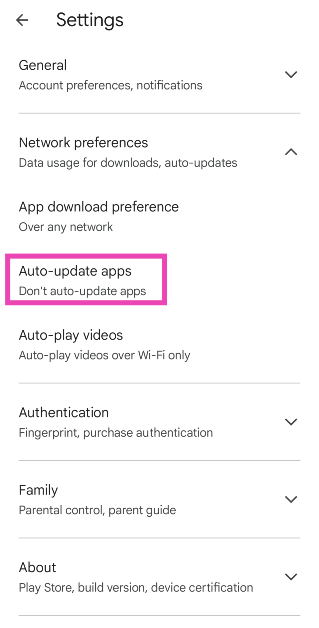 Step 6: Tap on Over Wi-Fi only. You can also choose to update apps over mobile internet, but this option isn’t recommended since it ends up using a lot of mobile data.
Turn on auto-updates for a particular app
Step 1: Launch the Google Play Store on your Android device. Step 2: Hit the Search bar and enter the name of the app for which you want to turn on auto-updates. Step 3: Open the app’s page and hit the ellipses at the top right corner of the screen.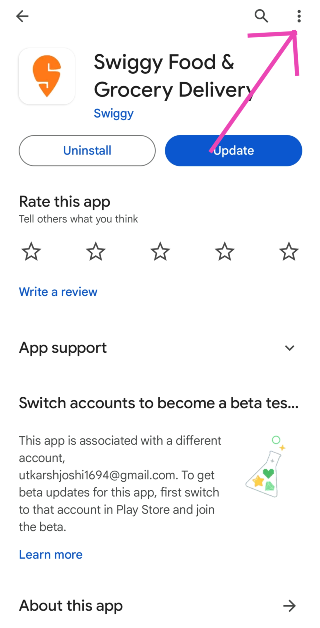 Step 4: Tap the checkbox for Enable auto-update.
 Read Also: How to view Dropbox File Activity and Event Logs
Update Android apps without using Google Play Store (Galaxy Store)
If you own a Samsung phone, here’s how you can update any app using the Galaxy Store. Step 1: Launch the Galaxy Store on your Samsung device. Step 2: Switch to the Menu tab.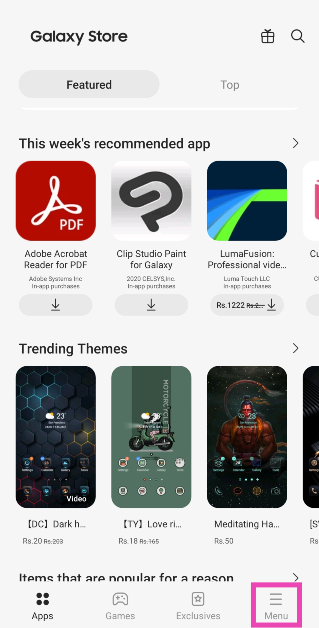 Step 3: Tap on Updates.
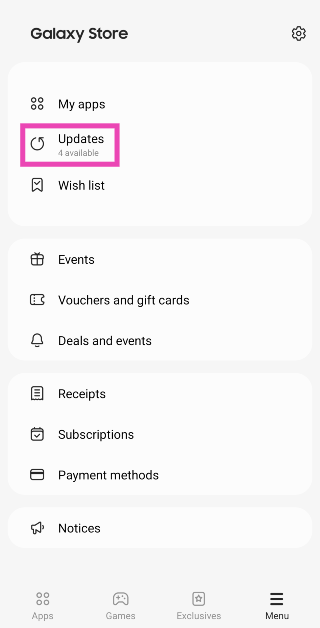 Step 4: Tap the refresh icon next to an app to update it or select Update all at the top right corner of the screen.
Update Android apps without using Google Play Store (V-Appstore)
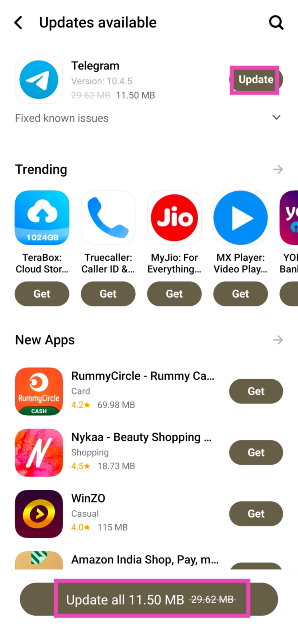
Vivo and iQOO users can update any app on their devices using the V-Appstore. Here’s how. Step 1: Launch the V-Appstore on your Vivo/iQOO phone. Step 2: Switch to the Manage tab. Step 3: Tap on Updates available.
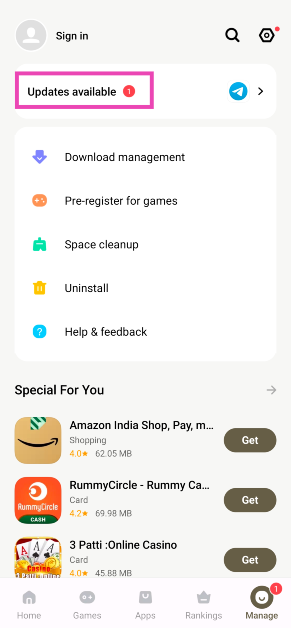 Step 4: Hit Update next to the app you want to update.
Update Android apps without using Google Play Store (Xiaomi Get Apps)
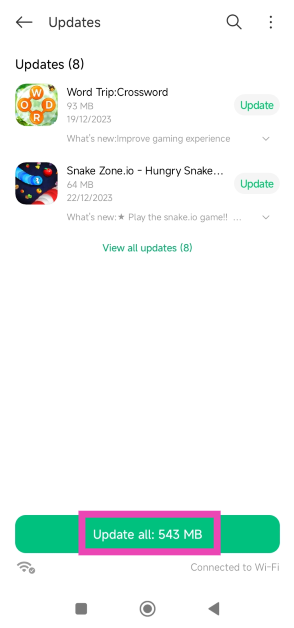
Here’s how Xiaomi, Redmi, and Poco users can update the apps on their phones using the Get Apps marketplace. Step 1: Go to the Get Apps marketplace on your Xiaomi/Redmi/Poco device. Step 2: Switch to the Me tab.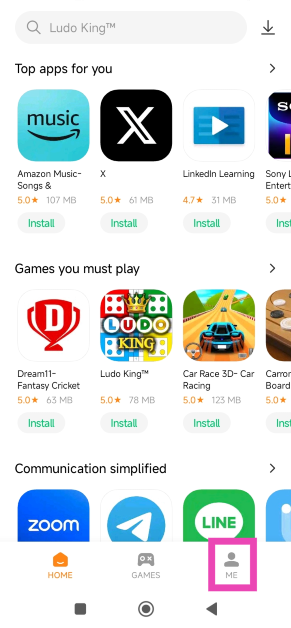 Step 3: Tap on Updates.
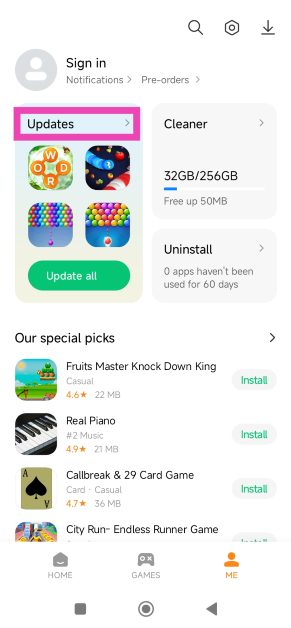 Step 4: Hit Update all.
Update Android apps without using Google Play Store (Third-party marketplace)
If you use a stock Android phone that doesn’t come with its app store, you can use a third-place marketplace as an alternative to the Google Play Store to update an app. Here’s how. Step 1: Open the web browser app on your Android smartphone. Step 2: Go to a trusted third-party app marketplace like APKMirror, Softonic, or F-Droid.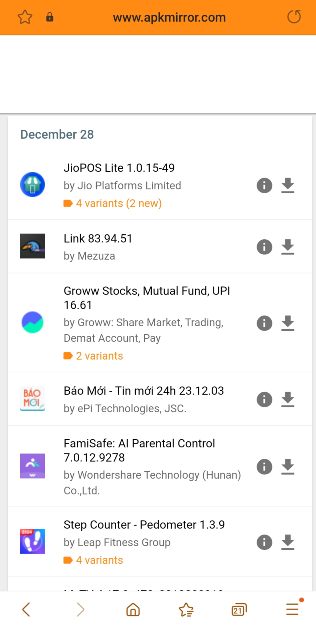 Step 3: Search for the app you want to update.
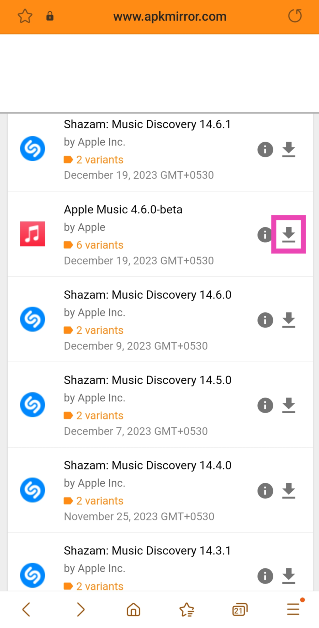 Step 4: Download the latest version of the app from the list.
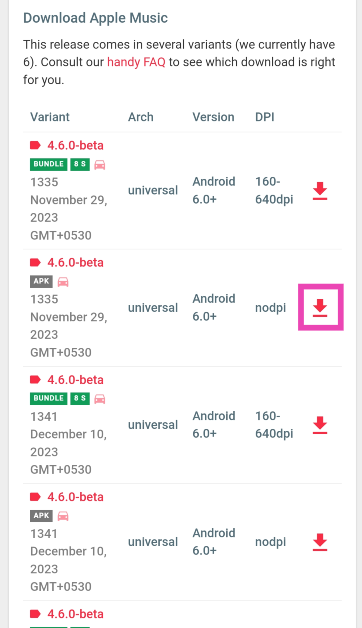 Step 5: Open the APK file and allow third-party downloads from unknown sources.
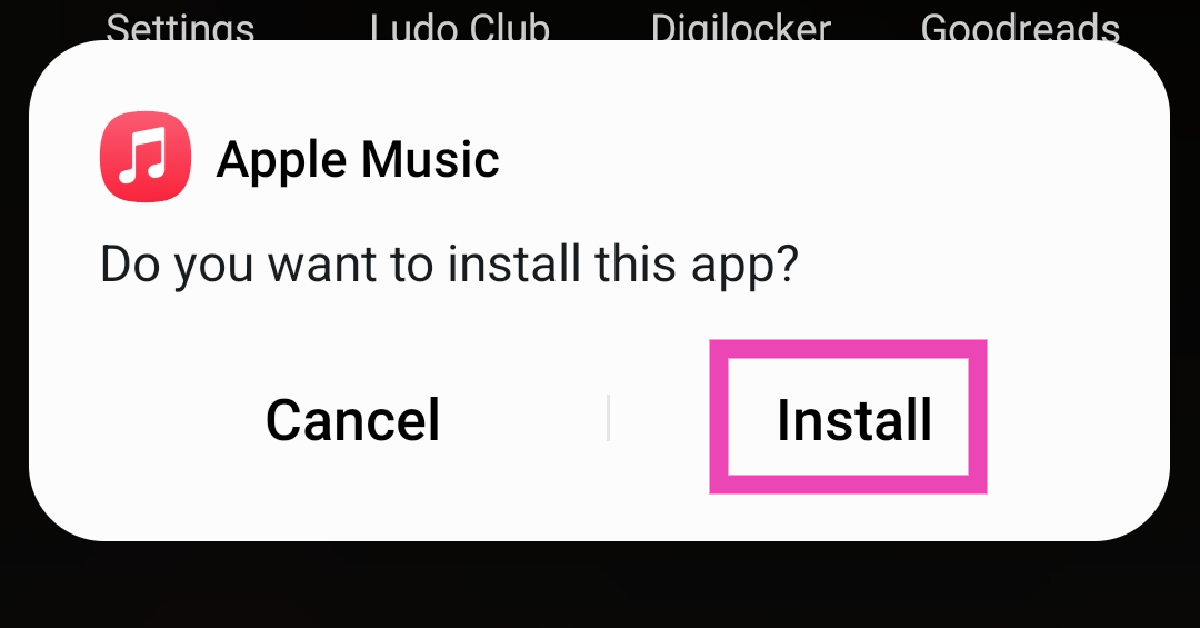 Step 6: Install the updated app on your Android phone.
Frequently Asked Questions (FAQs)
How do I enable auto-updates for just one app on my phone?
To turn on automatic updates for a single app, open its page on the Google Play Store, tap the ellipses at the top right corner of the screen, and select the checkbox for ‘Enable auto-update’.Is there a way to update the apps on my phone without using the Google Play Store?
You can update apps on your device using the smartphone manufacturer’s native app store. If you don’t have that option, use a third-party marketplace like APKMirror to download the latest update of the app.How do I update the Google Play Store?
To update the Google Play Store, tap your profile picture at the top right corner of the screen, go to Settings, scroll down and select Update Play Store. Read Also: Top 6 places to find good and funny profile picturesConclusion
These are the top 8 ways to update an app on your Android smartphone. Updating a single app using mobile data should not be a problem, but if you plan on updating all the apps at once, it is recommended that you connect to a WiFi network. App updates can eat up a significant amount of data, carrying out this process on a mobile internet connection risks losing all your allotted data.Garena Free Fire Redeem Codes Today 28 December 2023: Here is how to claim them

Garena Free Fire is a battle royale game with regular awards and tournaments to keep players interested. If you play Garena Free Fire, you should be aware of the redeem codes that are released on a daily basis. However, because the battle royale game is banned in India, players from other countries can use the Free Fire Redeem codes daily. If you’re unfamiliar with the Garena Free Fire redeem codes or don’t know how to get them, we’ve put together a step-by-step guide to help you redeem them. Check out Garena Free Fire Redeem Codes for 28 December 2023.
The Free Fire redeem codes are a great way to get free stuff. These are 12-digit codes that contain alphabets and numbers, as well as an expiration date and time. Because the Garena FF redeem codes cannot be used more than once, you should hurry to the redemption page to claim your free reward before someone else does. To get a free reward, all you have to do is go to reward.ff.garena.com/en, which is the official redemption page. Also, keep an eye on this space for daily updates on Garena Free Fire redemption codes and rewards.
Garena Free Fire Redeem Codes Today 28 December 2023
FF11NJN5YS3E ZZZ76NT3PDSH FF10617KGUF9 NPYFATT3HGSQ XZJZE25WEFJJ MHM5D8ZQZP22 FFCMCPSJ99S3 FFCMCPSEN5MX 6KWMFJVMQQYG MCPW2D2WKWF2 HNC95435FAGJ MCPW2D1U3XA3 BR43FMAPYEZ ZFFCMCPSGC9XZ EYH2W3XK8UPG UVX9PYZV54AC MCPW3D28VZD6 V427K98RUCHZ FFCMCPSUYUY7EHow to Get Free Fire Redeem Codes for Garena on 28 December 2023?
- Visit the Garena Free Fire game’s official website at reward.ff.garena.com.
- Use your Facebook, Google, VK, Apple ID, Huawei ID, or Twitter account to log in.
- You’ll be taken to a valid redemption code (s)
- Copy and paste the 12-digit redemption code into the text box.
- On the screen, a dialogue box will appear.
- ‘Ok’ should be selected.
10 Ways to Fix ‘AirPods Pro Microphone Not Working’
If you own a pair of AirPods, you don’t need a fancy microphone to attend online meetings or even record a podcast. The microphone on your AirPods is capable of recording high-quality audio, thereby saving you the cost of buying pricey gear. Things may come to a halt when the AirPods mic starts malfunctioning out of the blue. If you’re currently facing a similar issue, you’ve come to the right place for solutions. Here are the top 10 easy ways to fix the ‘AirPods Pro Microphone not working’ issue.
Read Also: Best 5 games That You Can Enjoy with Friends On PC And Mobile
If your AirPods are low on charge, their performance might take a hit. This is usually when minor discrepancies start arising on the microphone. Place the AirPods in their case to charge them. If there’s no battery left in the case, connect it to a charger. Once the AirPods have been fully charged, their performance will be restored.
If you don’t clean your AirPods Pro and their charging case often, it may lead to dust and grime settling on it. If enough dust settles around the microphone, the quality of the recorded audio can take a massive hit. Grab a microfibre cloth and gently wipe the area around the microphone to restore its functioning. The microphones on your AirPods Pro are located at the bottom of the stems. Once you’re done, clean the charging case as well.
If your AirPods were recently exposed to water, it is possible that they may have suffered some damage. While AirPods are sweat-resistant, prolonged exposure to water has the potential to damage them. The wireless earbuds are not designed for showering or swimming. If you accidentally dipped the earbuds in water, use a clean cloth to dry them. Do not use a blow dryer to get rid of the water droplets. Let the earbuds air dry.
Step 1: Go to Settings and select Bluetooth.
Step 2: Hit the i symbol next to your AirPods Pro.
Step 3: Turn on the toggle switch for Automatic Ear Detection.
Step 1: Go to Settings and select Bluetooth.
Step 2: Hit the i icon next to your connected AirPods.
Step 3: If the Noise Cancellation setting is selected, tap the Off tile next to it.
Use this when the microphone on one of the earbuds is not working.
Step 1: Go to Settings and tap on Bluetooth.
Step 2: Hit the i symbol next to your AirPods Pro.
Step 3: Scroll down and select Microphone.
Step 4: Select Automatically Switch AirPods.
Read Also: Top 4 Ways to Detect AI-Generated Fake Audio and Voice Recordings
Step 1: Place the AirPods Pro in their charging case.
Step 2: Go to Settings and select Bluetooth.
Step 3: Tap the i symbol next to your AirPods Pro.
Step 4: Scroll down and select Forget This Device.
Step 5: Confirm your selection in the popup box.
Step 6: Open the lid of your AirPods Pro charging case.
Step 7: Press and hold the connect button on the case.
Step 8: Hit Connect on your iPhone.
If the fixes mentioned so far don’t work out for you, the problem may lie with your iPhone. Sometimes a background glitch can cause weird malfunctions on your device. This can lead to the suspension of certain functions. To fix this issue, give your iPhone a quick restart. Press and hold the side button with a volume key to access the power menu. Swipe the power slider to the right to turn off your iPhone. Wait for a few seconds and use the side key to turn on your iPhone.
If your AirPods’ firmware is outdated, it may start glitching unexpectedly. Apple routinely pushes out firmware updates for its TWS devices to get rid of any faults and bugs. These updates are installed automatically on the device. To check your AirPods’ firmware version, go to Settings>Bluetooth and tap the i icon next to the TWS. Tap on version to check the firmware details. Go to Apple’s official website to make sure that the firmware version of your AirPods matches the latest update pushed out by the company.
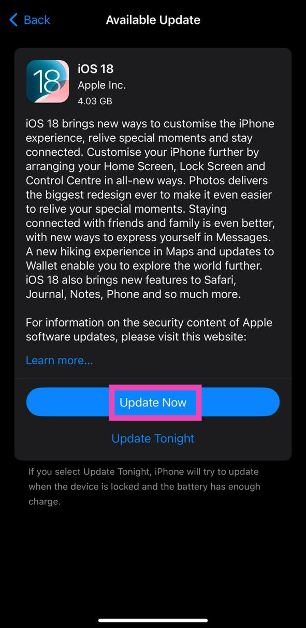
 Step 3: Tap on Software Update.
 Step 4: Hit Update Now.

What’s causing your AirPods Pro microphone to malfunction?
Before you get started on the repair process, it is a good idea to determine what’s causing the problem at hand. Typically, your AirPods’ microphone starts getting muffled when the earbuds are running out of charge. This is something that you should always check when your AirPods are giving you any trouble. If your AirPods have optimum charge, there could be other reasons causing the microphone to malfunction. The prime suspects are dust and grime. This would be more common for users who frequently use their AirPods outdoors. Other than that, it could be regular connection issues causing this problem. The fixes mentioned below cover all the bases.Charge your AirPods
 If your AirPods are low on charge, their performance might take a hit. This is usually when minor discrepancies start arising on the microphone. Place the AirPods in their case to charge them. If there’s no battery left in the case, connect it to a charger. Once the AirPods have been fully charged, their performance will be restored.
Clean the microphone on your AirPods Pro
 If you don’t clean your AirPods Pro and their charging case often, it may lead to dust and grime settling on it. If enough dust settles around the microphone, the quality of the recorded audio can take a massive hit. Grab a microfibre cloth and gently wipe the area around the microphone to restore its functioning. The microphones on your AirPods Pro are located at the bottom of the stems. Once you’re done, clean the charging case as well.
Check for water damage
 If your AirPods were recently exposed to water, it is possible that they may have suffered some damage. While AirPods are sweat-resistant, prolonged exposure to water has the potential to damage them. The wireless earbuds are not designed for showering or swimming. If you accidentally dipped the earbuds in water, use a clean cloth to dry them. Do not use a blow dryer to get rid of the water droplets. Let the earbuds air dry.
Turn on Automatic Ear Detection
 Step 1: Go to Settings and select Bluetooth.
Step 2: Hit the i symbol next to your AirPods Pro.
Step 3: Turn on the toggle switch for Automatic Ear Detection.
Step 1: Go to Settings and select Bluetooth.
Step 2: Hit the i symbol next to your AirPods Pro.
Step 3: Turn on the toggle switch for Automatic Ear Detection.
Turn off Noise Cancellation
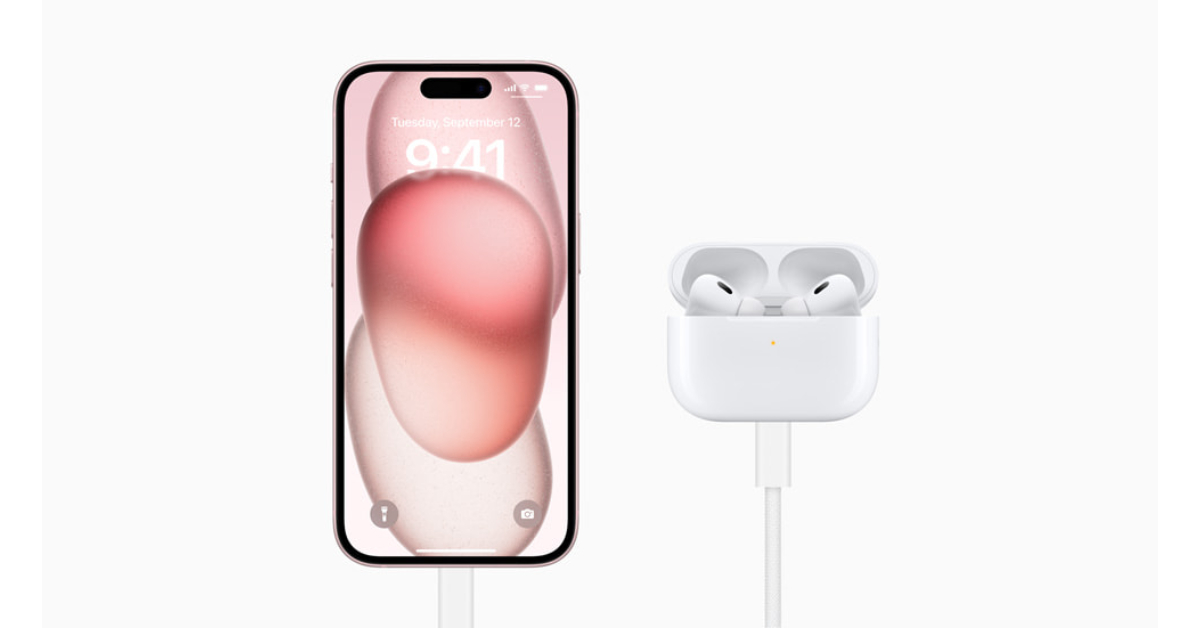 Step 1: Go to Settings and select Bluetooth.
Step 2: Hit the i icon next to your connected AirPods.
Step 3: If the Noise Cancellation setting is selected, tap the Off tile next to it.
Step 1: Go to Settings and select Bluetooth.
Step 2: Hit the i icon next to your connected AirPods.
Step 3: If the Noise Cancellation setting is selected, tap the Off tile next to it.
Fix the Microphone Settings
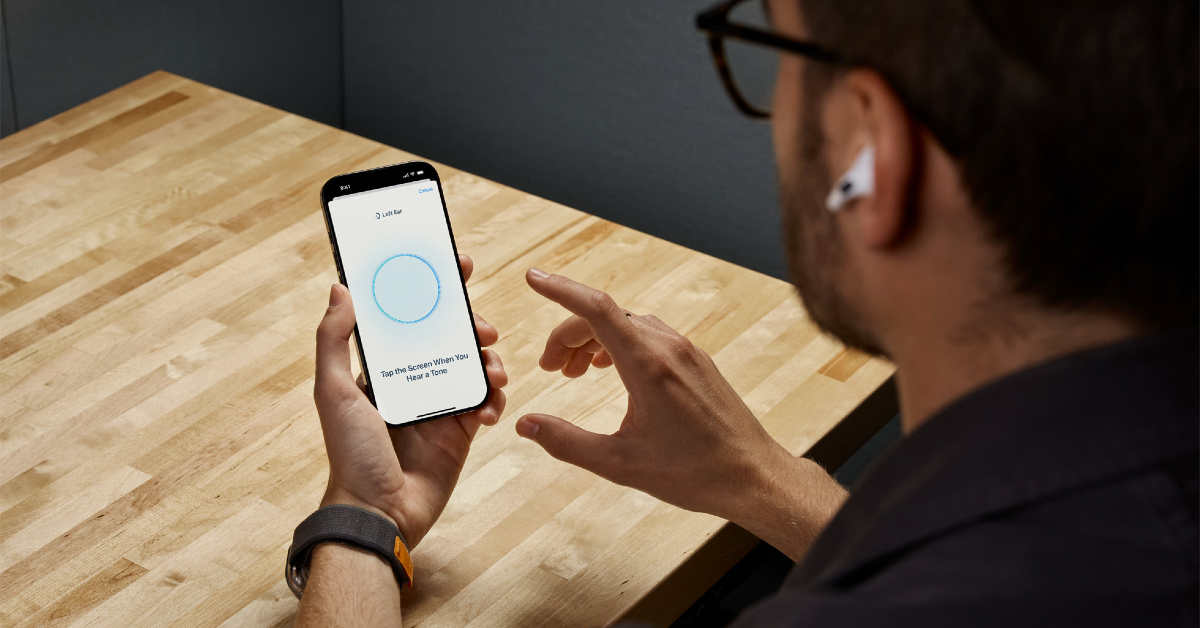 Use this when the microphone on one of the earbuds is not working.
Step 1: Go to Settings and tap on Bluetooth.
Step 2: Hit the i symbol next to your AirPods Pro.
Step 3: Scroll down and select Microphone.
Step 4: Select Automatically Switch AirPods.
Read Also: Top 4 Ways to Detect AI-Generated Fake Audio and Voice Recordings
Use this when the microphone on one of the earbuds is not working.
Step 1: Go to Settings and tap on Bluetooth.
Step 2: Hit the i symbol next to your AirPods Pro.
Step 3: Scroll down and select Microphone.
Step 4: Select Automatically Switch AirPods.
Read Also: Top 4 Ways to Detect AI-Generated Fake Audio and Voice Recordings
Unpair your AirPods Pro and connect them again
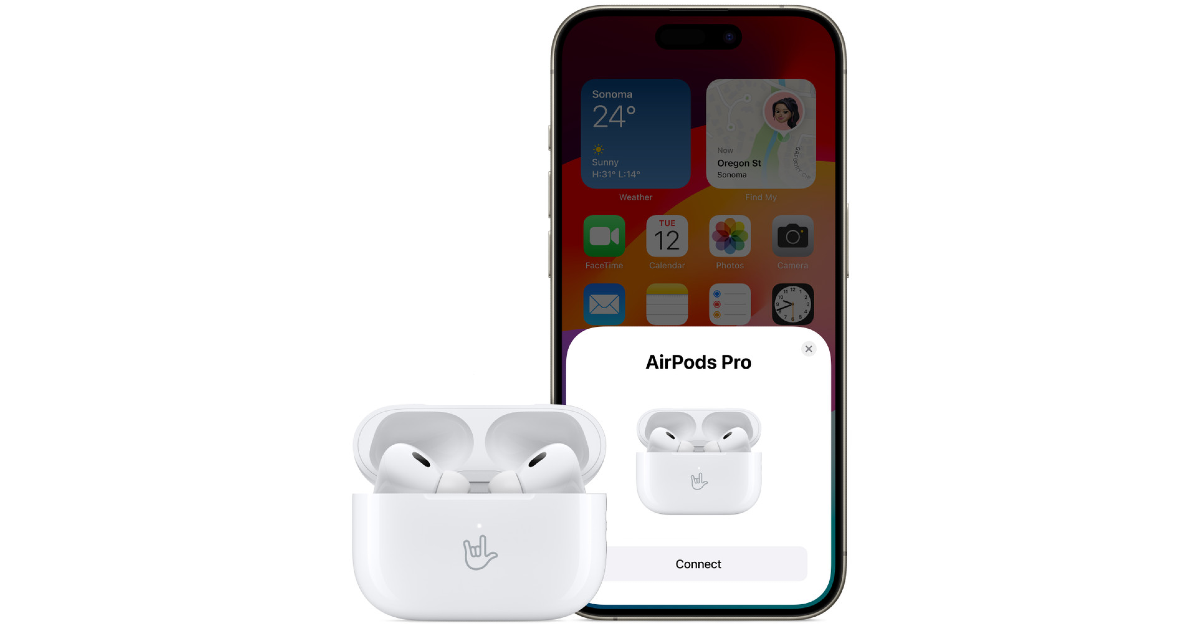 Step 1: Place the AirPods Pro in their charging case.
Step 2: Go to Settings and select Bluetooth.
Step 3: Tap the i symbol next to your AirPods Pro.
Step 4: Scroll down and select Forget This Device.
Step 5: Confirm your selection in the popup box.
Step 6: Open the lid of your AirPods Pro charging case.
Step 7: Press and hold the connect button on the case.
Step 8: Hit Connect on your iPhone.
Step 1: Place the AirPods Pro in their charging case.
Step 2: Go to Settings and select Bluetooth.
Step 3: Tap the i symbol next to your AirPods Pro.
Step 4: Scroll down and select Forget This Device.
Step 5: Confirm your selection in the popup box.
Step 6: Open the lid of your AirPods Pro charging case.
Step 7: Press and hold the connect button on the case.
Step 8: Hit Connect on your iPhone.
Restart your iPhone
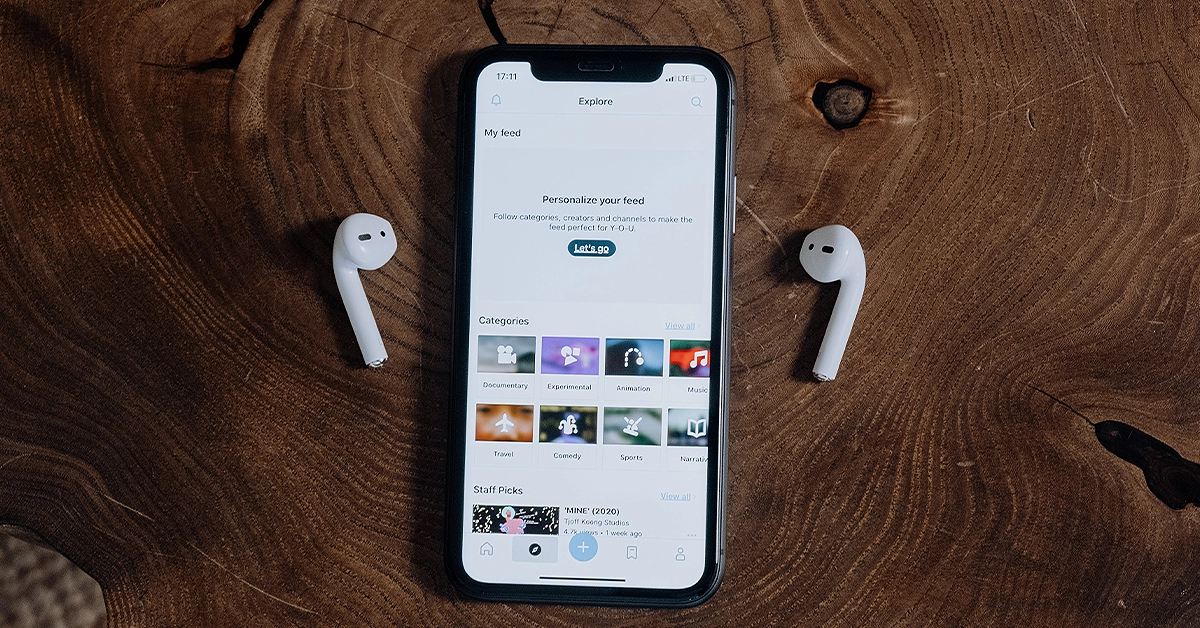 If the fixes mentioned so far don’t work out for you, the problem may lie with your iPhone. Sometimes a background glitch can cause weird malfunctions on your device. This can lead to the suspension of certain functions. To fix this issue, give your iPhone a quick restart. Press and hold the side button with a volume key to access the power menu. Swipe the power slider to the right to turn off your iPhone. Wait for a few seconds and use the side key to turn on your iPhone.
Check firmware version
 If your AirPods’ firmware is outdated, it may start glitching unexpectedly. Apple routinely pushes out firmware updates for its TWS devices to get rid of any faults and bugs. These updates are installed automatically on the device. To check your AirPods’ firmware version, go to Settings>Bluetooth and tap the i icon next to the TWS. Tap on version to check the firmware details. Go to Apple’s official website to make sure that the firmware version of your AirPods matches the latest update pushed out by the company.
Update your iPhone
Software-related issues on your iPhone can keep it from using the AirPods correctly. Update your iPhone’s software to the latest version to resolve this problem. Here’s how. Step 1: Connect your iPhone to a WiFi network and plug in its charger. Step 2: Go to Settings and tap on General.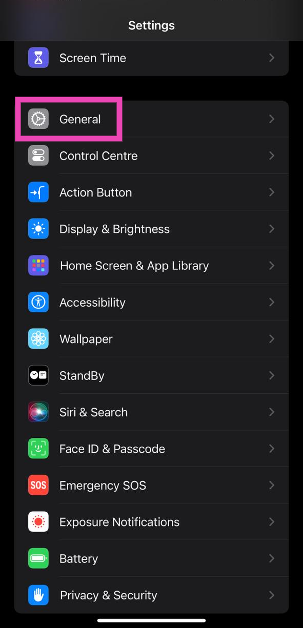 Step 3: Tap on Software Update.
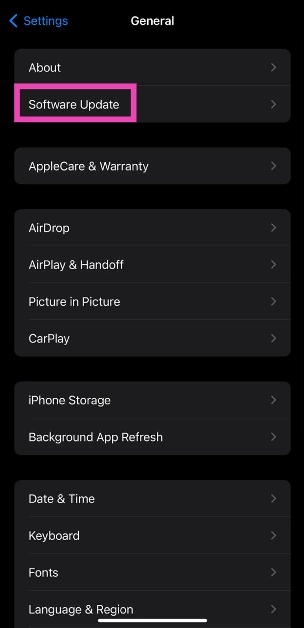 Step 4: Hit Update Now.
Frequently Asked Questions (FAQs)
Where is the microphone on my AirPods Pro?
The microphones on your AirPods Pro are positioned at the bottom of either earbud.How do I check the microphone of my AirPods Pro?
If you’re unsure whether the microphone of your AirPods Pro is working or not, simply open the voice memos app and record a sample audio. Play the recording to check if the microphone is working as intended.How do I fix the microphone on my AirPods?
If the microphone on your AirPods isn’t working as intended, clean them to remove the settled dust and grime. Make sure they are adequately charged. If you’re unable to get them to work at all, unpair and re-pair them to your iPhone.Why can’t callers hear me on my AirPods?
If callers are unable to hear your voice when your iPhone is connected to your AirPods, it is possible that one of the microphones on the earbuds may be at fault. Go to Settings>Bluetooth>AirPods>Microphone and select Automatically Switch AirPods.What is the cost of the AirPods Pro in India?
The 2nd-generation AirPods Pro cost Rs 24,900 in India. Read Also: How to Insert Google Slides into Google DocsConclusion
These are the top 10 ways to fix the ‘AirPods Pro microphone not working’ issue. If these methods don’t work for you, try contacting Apple Support. If you still have Apple Care coverage for your AirPods, you will be able to get them fixed for free. The Apple Care+ package for AirPods costs an additional Rs 2,900.Here is when the Apple Vision Pro Mixed Reality Headset is expected to arrive in Stores
Key Highlights
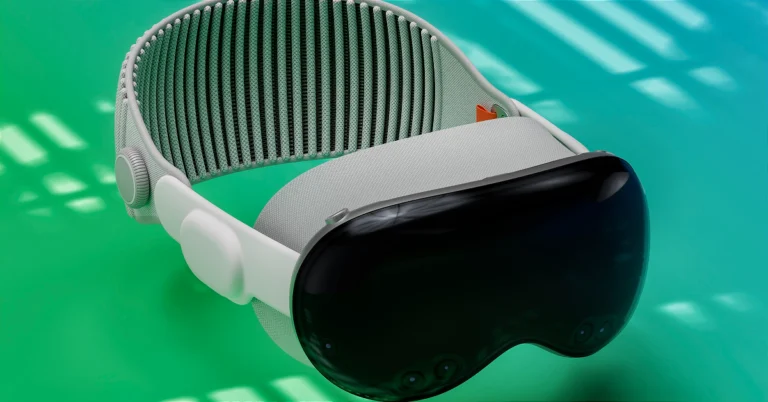
 According to the researcher Apple Vision Pro is currently in mass production and is expected to begin mass shipments in the first week of January 2024. The AR headset is likely to be released at the end of January or early February 2024.
Ming-Chi Kuo in its research notes said, “If users’ response to Vision Pro is better than expected, it will help strengthen the market consensus that “Vision Pro is the next consumer electronics star product” and related supply chain stock prices.”
Also Read: Apple challenges International Trade Commission’s ruling to ban Watch Series 9 and Watch Ultra 2 Sales in the US
Recently Bloomberg reported that Apple is increasing the production of its spatial computer at Chinese assembly plants. In addition to this, it has also started preparing its staff at retail locations in the US. It is also assisting developers in creating apps for VisionOS. For those who are unaware, VisionOS is the operating system on which the AR headset runs.
According to the researcher Apple Vision Pro is currently in mass production and is expected to begin mass shipments in the first week of January 2024. The AR headset is likely to be released at the end of January or early February 2024.
Ming-Chi Kuo in its research notes said, “If users’ response to Vision Pro is better than expected, it will help strengthen the market consensus that “Vision Pro is the next consumer electronics star product” and related supply chain stock prices.”
Also Read: Apple challenges International Trade Commission’s ruling to ban Watch Series 9 and Watch Ultra 2 Sales in the US
Recently Bloomberg reported that Apple is increasing the production of its spatial computer at Chinese assembly plants. In addition to this, it has also started preparing its staff at retail locations in the US. It is also assisting developers in creating apps for VisionOS. For those who are unaware, VisionOS is the operating system on which the AR headset runs.
- Apple Vision Pro Mixed Reality Headset was launched at WWDC 2023.
- It is the company’s first Mixed Reality Headset.
- The device was introduced at $3,499 (approx. Rs 2,88,700).
 According to the researcher Apple Vision Pro is currently in mass production and is expected to begin mass shipments in the first week of January 2024. The AR headset is likely to be released at the end of January or early February 2024.
Ming-Chi Kuo in its research notes said, “If users’ response to Vision Pro is better than expected, it will help strengthen the market consensus that “Vision Pro is the next consumer electronics star product” and related supply chain stock prices.”
Also Read: Apple challenges International Trade Commission’s ruling to ban Watch Series 9 and Watch Ultra 2 Sales in the US
Recently Bloomberg reported that Apple is increasing the production of its spatial computer at Chinese assembly plants. In addition to this, it has also started preparing its staff at retail locations in the US. It is also assisting developers in creating apps for VisionOS. For those who are unaware, VisionOS is the operating system on which the AR headset runs.
According to the researcher Apple Vision Pro is currently in mass production and is expected to begin mass shipments in the first week of January 2024. The AR headset is likely to be released at the end of January or early February 2024.
Ming-Chi Kuo in its research notes said, “If users’ response to Vision Pro is better than expected, it will help strengthen the market consensus that “Vision Pro is the next consumer electronics star product” and related supply chain stock prices.”
Also Read: Apple challenges International Trade Commission’s ruling to ban Watch Series 9 and Watch Ultra 2 Sales in the US
Recently Bloomberg reported that Apple is increasing the production of its spatial computer at Chinese assembly plants. In addition to this, it has also started preparing its staff at retail locations in the US. It is also assisting developers in creating apps for VisionOS. For those who are unaware, VisionOS is the operating system on which the AR headset runs. Apple challenges International Trade Commission’s ruling to ban Watch Series 9 and Watch Ultra 2 Sales in the US

Key Highlights
 The decision was made after the International Trade Commission (ITC) ruled in October that specific Apple Watch models violated a medical technology company named Masimo’s blood oxygen saturation technology patent.
Masimo has charged Apple with copying its pulse oximetry technology, hiring away its staff, and then integrating it into the Apple Watch.
The U.S. International Trade Commission (ITC) prohibits the company from importing and selling Apple Watches equipped with blood-oxygen level reading technology.
In its filing, Apple claimed that it would cause irreparable harm if the devices were taken off the shelves while the case was pending.
Also Read: Smart ways to earn from YouTube, a guide for creators and Artists: New Features unlocked
The document states that the Exclusion Order Enforcement Branch of the U.S. Customs and Border Protection will decide whether to approve updated Watch models.
According to an Apple representative, the business vehemently disagrees with the ITC’s ruling. According to a statement given to Reuters the company said, “We strongly disagree with the USITC decision and resulting exclusion order, and are taking all measures to return Apple Watch Series 9 and Apple Watch Ultra 2 to customers in the U.S. as soon as possible.”
The decision was made after the International Trade Commission (ITC) ruled in October that specific Apple Watch models violated a medical technology company named Masimo’s blood oxygen saturation technology patent.
Masimo has charged Apple with copying its pulse oximetry technology, hiring away its staff, and then integrating it into the Apple Watch.
The U.S. International Trade Commission (ITC) prohibits the company from importing and selling Apple Watches equipped with blood-oxygen level reading technology.
In its filing, Apple claimed that it would cause irreparable harm if the devices were taken off the shelves while the case was pending.
Also Read: Smart ways to earn from YouTube, a guide for creators and Artists: New Features unlocked
The document states that the Exclusion Order Enforcement Branch of the U.S. Customs and Border Protection will decide whether to approve updated Watch models.
According to an Apple representative, the business vehemently disagrees with the ITC’s ruling. According to a statement given to Reuters the company said, “We strongly disagree with the USITC decision and resulting exclusion order, and are taking all measures to return Apple Watch Series 9 and Apple Watch Ultra 2 to customers in the U.S. as soon as possible.”
- Apple Watch 9 and Ultra 2 were launched in September 2023.
- It has been found that Apple stole the patents on blood oxygen saturation technology held by health tech company Masimo, leading to the ban of Apple Watch Series 9 and Watch Ultra 2 models.
- After careful consideration, U.S. Trade Representative Katherine Tai came to a decision not to revoke the ban.
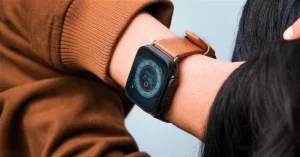 The decision was made after the International Trade Commission (ITC) ruled in October that specific Apple Watch models violated a medical technology company named Masimo’s blood oxygen saturation technology patent.
Masimo has charged Apple with copying its pulse oximetry technology, hiring away its staff, and then integrating it into the Apple Watch.
The U.S. International Trade Commission (ITC) prohibits the company from importing and selling Apple Watches equipped with blood-oxygen level reading technology.
In its filing, Apple claimed that it would cause irreparable harm if the devices were taken off the shelves while the case was pending.
Also Read: Smart ways to earn from YouTube, a guide for creators and Artists: New Features unlocked
The document states that the Exclusion Order Enforcement Branch of the U.S. Customs and Border Protection will decide whether to approve updated Watch models.
According to an Apple representative, the business vehemently disagrees with the ITC’s ruling. According to a statement given to Reuters the company said, “We strongly disagree with the USITC decision and resulting exclusion order, and are taking all measures to return Apple Watch Series 9 and Apple Watch Ultra 2 to customers in the U.S. as soon as possible.”
The decision was made after the International Trade Commission (ITC) ruled in October that specific Apple Watch models violated a medical technology company named Masimo’s blood oxygen saturation technology patent.
Masimo has charged Apple with copying its pulse oximetry technology, hiring away its staff, and then integrating it into the Apple Watch.
The U.S. International Trade Commission (ITC) prohibits the company from importing and selling Apple Watches equipped with blood-oxygen level reading technology.
In its filing, Apple claimed that it would cause irreparable harm if the devices were taken off the shelves while the case was pending.
Also Read: Smart ways to earn from YouTube, a guide for creators and Artists: New Features unlocked
The document states that the Exclusion Order Enforcement Branch of the U.S. Customs and Border Protection will decide whether to approve updated Watch models.
According to an Apple representative, the business vehemently disagrees with the ITC’s ruling. According to a statement given to Reuters the company said, “We strongly disagree with the USITC decision and resulting exclusion order, and are taking all measures to return Apple Watch Series 9 and Apple Watch Ultra 2 to customers in the U.S. as soon as possible.” Smart ways to earn from YouTube, a guide for creators and Artists: New Features unlocked

Key Highlights
- YouTube has launched BrandConnect and Podcasts for Indian creators.
- It will help brands execute their branded content campaigns more seamlessly.
- It will also simplify for creators, top brands, and leading agencies to partner, create, promote, and measure sponsored creator content.
Best of 2023: Top 8 midrange smartphones of the year
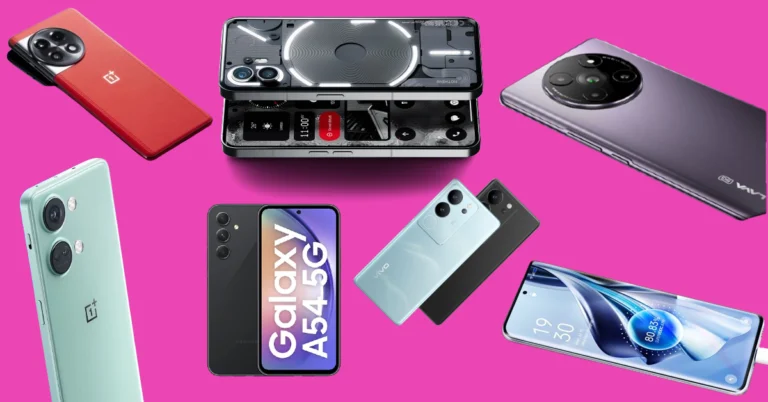
It is no news that flagship smartphones are getting more expensive with every passing year. As a result, more users are buying in the midrange segment, which has quite a few offerings that can be deemed ‘flagship killers’ in their own right. This is a diverse segment with something in it for gamers, camera enthusiasts, and even casual users who just want a premium-looking smartphone with decent specs. So, let’s take a look at our top 8 picks for the best midrange smartphones released in 2023.
Read Also: How to Install and Play SNES Emulator on your iPhone: Complete Walkthrough
Key Specs
Nothing’s sophomore smartphone offering carries forward the design philosophy of its predecessor while making some interesting design tweaks to the iconic Glyph lighting pattern. It also features last year’s flagship chipset, the Snapdragon 8+ Gen 1 under its hood, making it a much more powerful phone than its previous version. These upgrades come at a cost, though. While the Nothing Phone (1) was launched at Rs 32,999 in India, the Phone (2) was priced at Rs 44,999 at launch. Currently, the phone retails at Rs 39,999, which is a pretty solid deal. Check out how the Phone (2) performed in our review.
Key Specs
Priced similarly to the Nothing Phone (2), the ‘flagship killer’ OnePlus 11R is one of the best midrange smartphones of 2023. This smartphone also features the powerful Snapdragon 8+ Gen 1 SoC, a 120Hz curved AMOLED display, and a glass back panel. What we like about the OnePlus 11R is that it has the exact same design as the flagship OnePlus 11. The round rear camera module of the smartphone sports a 50MP primary shooter, an 8MP ultrawide lens, and a 2MP macro sensor. With 100W fast charging onboard, the 11R can be fully charged in just 25 minutes. Read more about the device in our OnePlus 11R review.
Key Specs
Vivo’s camera-centric midrange offering always delivers a rock-solid performance. This year’s V29 Pro was no different. The beautiful rear camera panel of the smartphone features a 50MP primary shooter, an 8MP ultrawide lens, and a very useful 12MP telephoto lens instead of the dodgy macro sensors we’re used to seeing in this segment. Vivo has paid a lot of attention to the aesthetics of this smartphone. We enjoyed the ‘snowy mountain peaks’ effect on the glass back panel of the V29 Pro. More details on our Vivo V29 Pro review.
Key Specs
Samsung’s 2023 mid-ranger, the Galaxy A54, floored us with its camera performance back when we reviewed it. The 50MP primary camera produced brilliant, colour-rich images with a great level of detail. We were particularly impressed by the manner in which the smartphone exposed the sky in different lighting conditions. The photo-processing prowess of this smartphone is one of the best in its class. One UI delivers a solid performance on this smartphone, with Samsung DeX being the only feature that has been held back. Overall, a very solid 2023 midrange smartphone that you should definitely look into.
Read Also: How to use your iPad as a second monitor or display? Top 3 Ways
 Key Specs
Launched at Rs 34,000, the OnePlus Nord 3 is currently available for Rs 30,000 on the official OnePlus website. The smartphone features a 120Hz Fluid AMOLED display, MediaTek Dimensity 9000 SoC, a 50MP primary shooter, 80W fast wired charging support, a tri-state alert slider, and more. The glass back on the Nord 3 has a matte texture which feels very premium. This is a pretty solid mid-ranger for watching content and performing everyday tasks. The 50MP primary camera takes incredible shots which you can check out in our review of the device. The phone falls a little short on the gaming aspect, but if that isn’t one of your priorities, the Nord 3 is an easy suggestion from us.
Key Specs
The base variant in the Oppo Reno 10 series was one of the best midrange smartphones to be released in 2023. What sets it apart from its peers is the 32MP telephoto lens. Most smartphones in this price category stick to the nonsensical macro lens as the third shooter, so it is nice to see Oppo make the smart choice. Other than the telephoto lens, the Reno 10 also sports a 64MP primary wide sensor and an 8MP ultrawide lens. The glass back and curved AMOLED display elevate the in-hand feel of the device and bump its ‘premium’ factor. Check out our full review of the Oppo Reno 10 to know more about its camera and chipset performance.
Key Specs
The Realme 11 Pro+ is one of the few midrange smartphones that is available with 1TB internal storage. On top of that, it supports 100W wired charging, which is unheard of in this price bracket. The smartphone has a pseudo leather finish on the back panel and a unique dial arrangement for the rear cameras. Talking about the camera specs, the Realme 11 Pro+ features a 200MP primary shooter, an 8MP ultrawide lens, and a 2MP macro sensor. Powering the device is the MediaTek Dimensity 7050 SoC.
Key Specs
The made-in-India Lava Agni 2 was one of our favourite midrange smartphones in 2023. Available for Rs 20,000 on Amazon, the Agni 2 is a solid deal. Powered by the MediaTek Dimensity 7050 SoC, the smartphone can expertly handle everyday tasks without breaking a sweat. The giant camera cutout on the back panel houses a 50MP primary shooter, an 8MP ultrawide lens, a 2MP macro lens, and another 2MP depth sensor. Up front, the smartphone gets a 16MP selfie camera housed in a punch-hole cutout on the display. The under-display finger scanner and 66W fast charging support are also nice additions to the smartphone.
Read Also: iQOO 12 5G Review: Oozes personality and power
Nothing Phone 2
Price: Rs 39,999 on Flipkart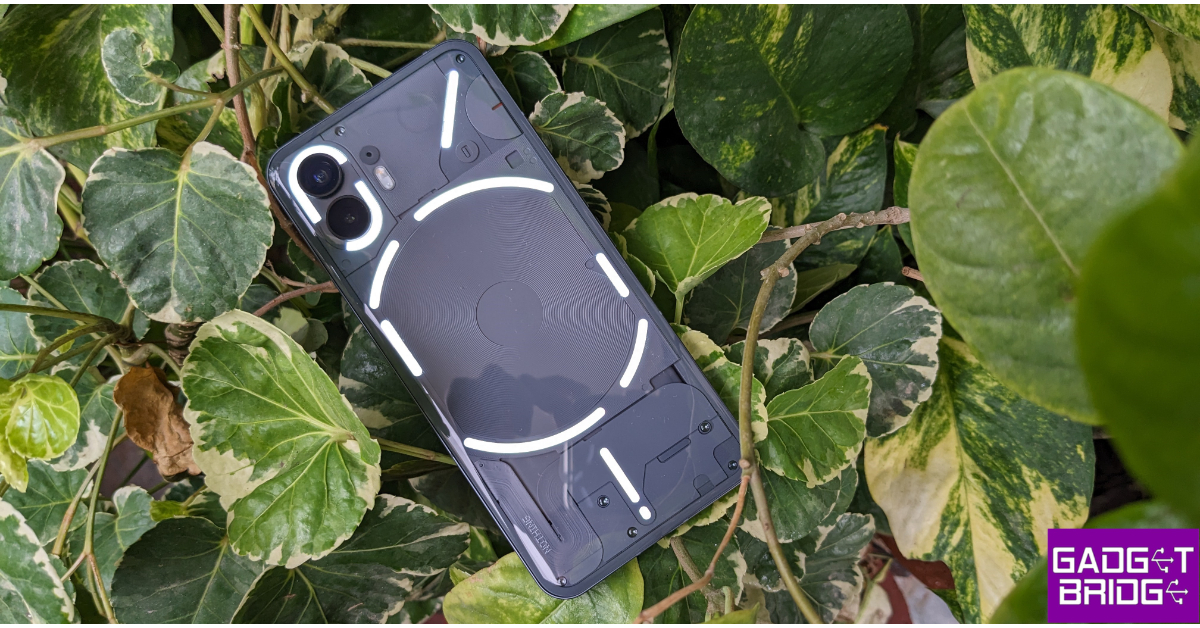 Key Specs
| Display | 6.7-inch LTPO OLED |
| Chipset | Snapdragon 8+ Gen 1 |
| RAM | 8GB, 12GB |
| Storage | 128GB, 256GB, 512GB |
| Battery | 4,700 mAh |
OnePlus 11R
Price: Rs 39,999 on OnePlus.in Key Specs
| Display | 6.74-inch Fluid AMOLED |
| Chipset | Snapdragon 8+ Gen 1 |
| RAM | 8GB, 16GB, 18GB |
| Storage | 128GB, 256GB, 512GB |
| Battery | 5,000 mAh |
Vivo V29 Pro
Price: Rs 39,999 on Vivo.com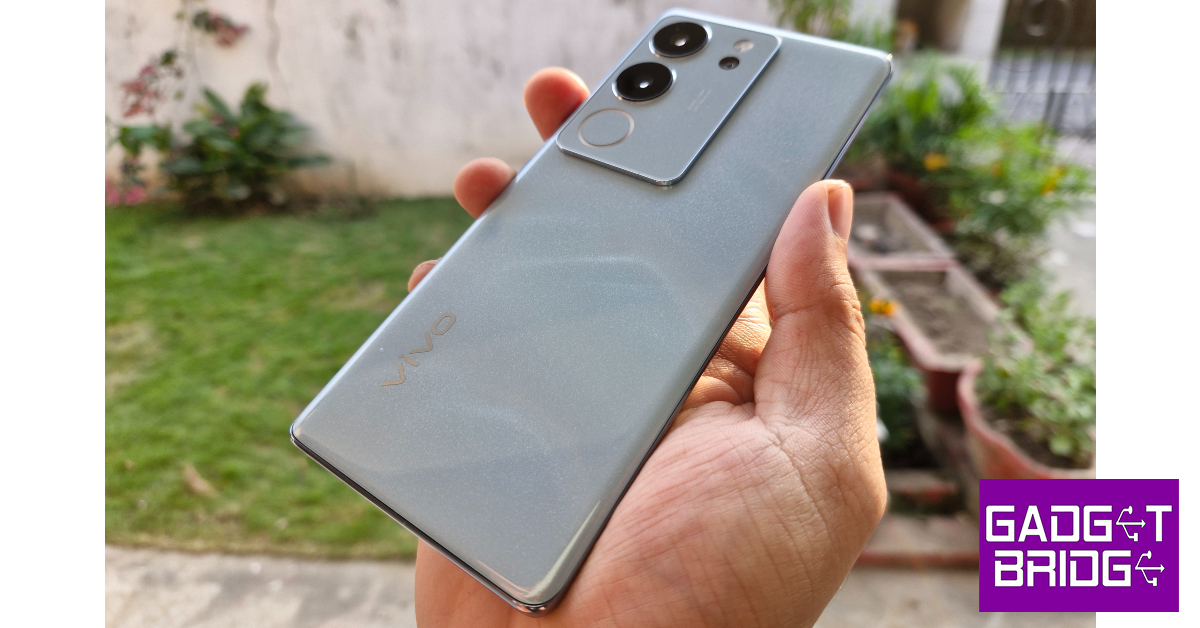 Key Specs
| Display | 6.78-inch AMOLED |
| Chipset | MediaTek Dimensity 8200 |
| RAM | 8GB, 12GB |
| Storage | 256GB |
| Battery | 4,600 mAh |
Samsung Galaxy A54
Price: Rs 36,999 on Samsung.com Key Specs
| Display | 6.4-inch Super AMOLED |
| Chipset | Exynos 1380 |
| RAM | 8GB |
| Storage | 128GB, 256GB |
| Battery | 5,000 mAh |
OnePlus Nord 3
Price: Rs 29,999 on OnePlus.in Key Specs
| Display | 6.74-inch Fluid AMOLED |
| Chipset | MediaTek Dimensity 9000 |
| RAM | 8GB, 16GB |
| Storage | 128GB, 256GB |
| Battery | 5,000 mAh |
Oppo Reno 10
Price: Rs 32,999 on Oppo.com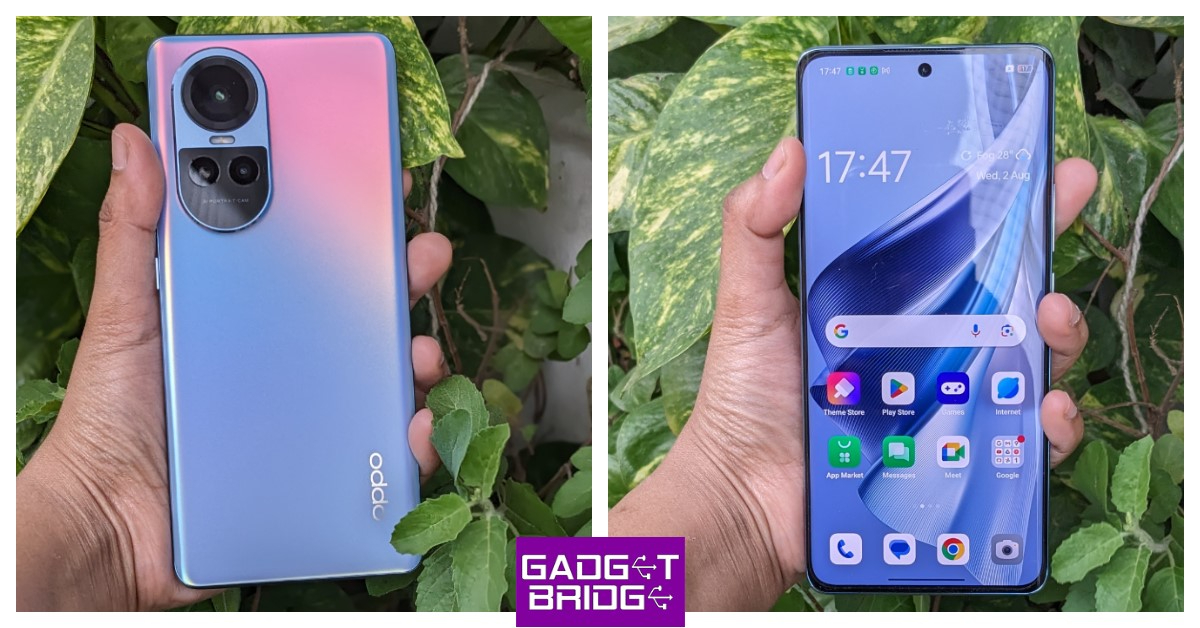 Key Specs
| Display | 6.7-inch AMOLED |
| Chipset | MediaTek Dimensity 7050 |
| RAM | 8GB |
| Storage | 128GB, 256GB |
| Battery | 5,000 mAh |
Realme 11 Pro+
Price: Rs 29,999 on Realme.com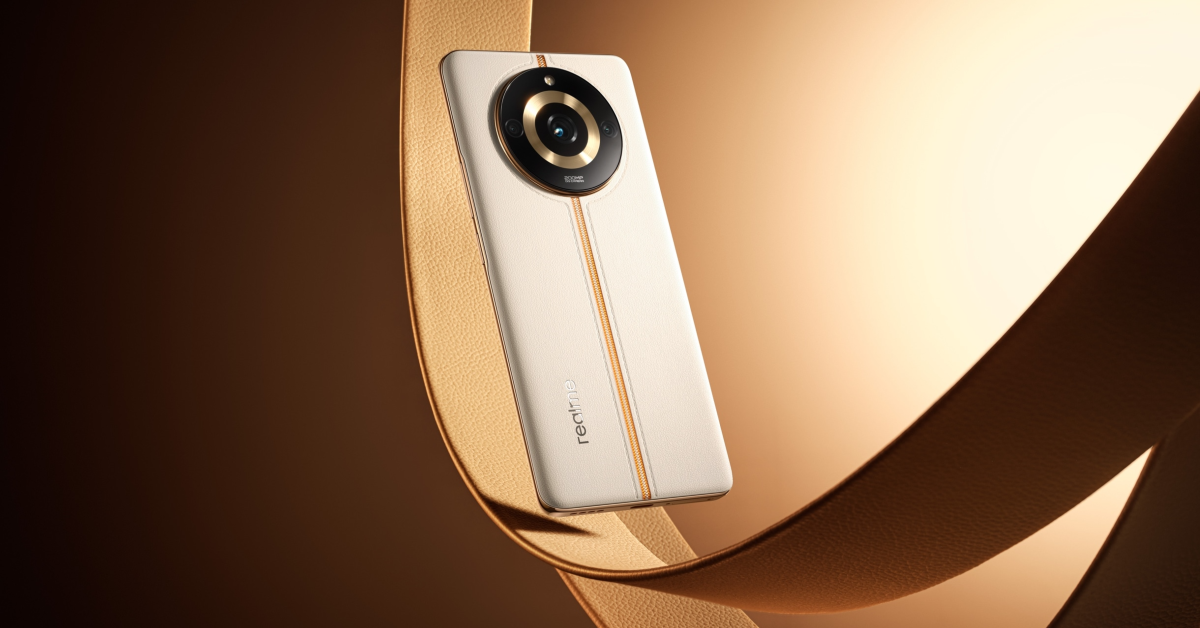 Key Specs
| Display | 6.7-inch AMOLED |
| Chipset | MediaTek Dimensity 7050 |
| RAM | 8GB |
| Storage | 256GB, 512GB, 1TB |
| Battery | 5,000 mAh |
Lava Agni 2
Price: Rs 19,999 on Amazon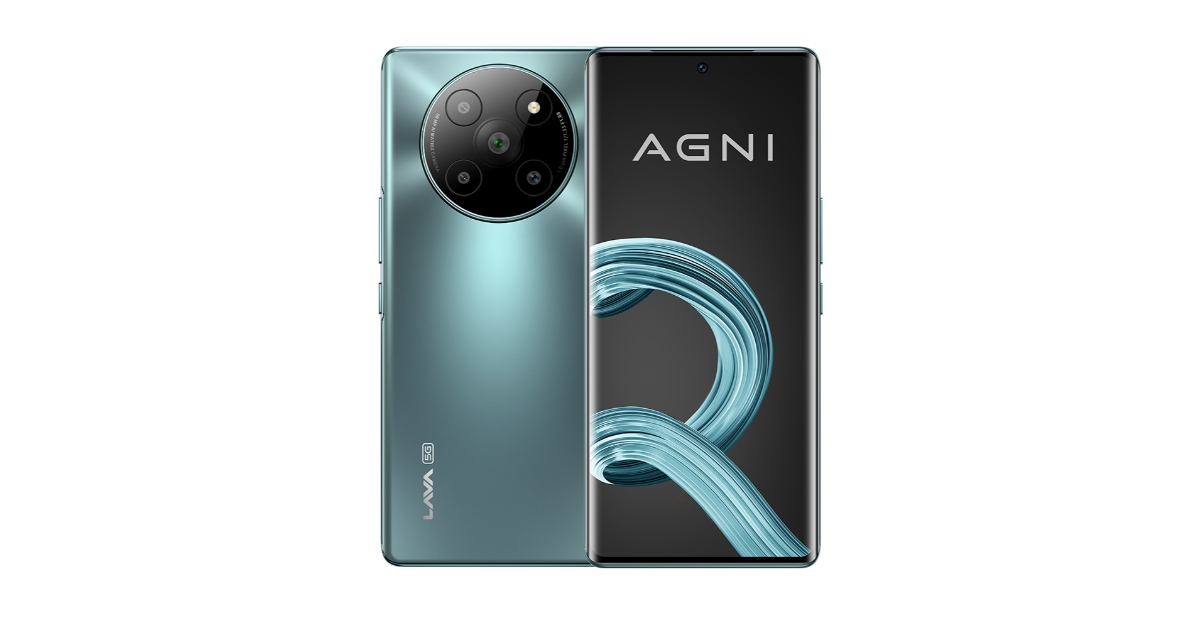 Key Specs
| Display | 6.78-inch AMOLED |
| Chipset | MediaTek Dimensity 7050 |
| RAM | 8GB |
| Storage | 256GB |
| Battery | 4,700 mAh |
Conclusion
These are our top 8 picks for the best mid-range smartphones of 2023. Make sure you check out the review of each smartphone for a more detailed analysis. Think we missed a smartphone that deserves a spot on this list? Give it a shoutout in the comments! And while you’re here, check out the nominations for the Gadget Bridge Awards 2023.Top 5 Easy Ways to Reset or Recover Your Apple ID Password (2024)

If your iPhone got lost or stolen, one of the first things you should do is track its location. If that doesn’t help you recover your device, you should consider resetting your Apple ID password. Your Apple ID links you to all of Apple’s services. If someone breaks into your iPhone, they will be able to access your personal data using your Apple ID. You may also need to reset the password if you have forgotten it and need to log into another device. So, here are the top 5 easy ways to reset and recover your Apple ID password.
Read Also: Top 2 ways to delete OTPs automatically on your Android phone?
 Step 3: Enter the email address or phone number linked to your Apple ID.
 Step 4: Enter the CAPTCHA and hit Continue.
Step 5: Confirm your registered phone number.
Step 6: Launch your iPhone and tap Allow.
Step 4: Enter the CAPTCHA and hit Continue.
Step 5: Confirm your registered phone number.
Step 6: Launch your iPhone and tap Allow.
 Step 7: Follow the onscreen instructions to change your password.
 Step 3: You can choose to reset your Apple ID on your new Apple device, on someone else’s iOS device, or on an iOS device at an Apple Store. Click Continue on the appropriate option.
Step 4: Scroll down and select ‘Can’t use any of these options?’ if you don’t have access to your iPhone or any other Apple device.
Step 5: Hit Continue Anyway.
Step 6: To verify your identity, send a code to the number registered to your Apple ID.
Step 3: You can choose to reset your Apple ID on your new Apple device, on someone else’s iOS device, or on an iOS device at an Apple Store. Click Continue on the appropriate option.
Step 4: Scroll down and select ‘Can’t use any of these options?’ if you don’t have access to your iPhone or any other Apple device.
Step 5: Hit Continue Anyway.
Step 6: To verify your identity, send a code to the number registered to your Apple ID.
 Step 7: Enter the code that was sent to your phone number.
 Step 8: Now, send a code to your registered email address.
 Step 9: Enter the code that was sent to your email address.
 Apple will evaluate your request and contact you within 24 hours. If your request is accepted, you will be able to change your Apple ID password.
Read Also: How to add a watermark to your pictures on Android and iOS? Top 3 Ways
Apple will evaluate your request and contact you within 24 hours. If your request is accepted, you will be able to change your Apple ID password.
Read Also: How to add a watermark to your pictures on Android and iOS? Top 3 Ways
 Step 3: Select ‘A Different Apple ID’.
Step 4: Enter your Apple ID and follow the onscreen instructions to change your password.
Step 3: Select ‘A Different Apple ID’.
Step 4: Enter your Apple ID and follow the onscreen instructions to change your password.
 Step 1: Hit the Apple icon at the top right corner of the screen.
Step 2: Click on System Settings.
Step 3: Click on your Apple ID.
Step 4: Select Sign-In and Security.
Step 5: Hit Change Password. Follow the onscreen instructions.
Step 1: Hit the Apple icon at the top right corner of the screen.
Step 2: Click on System Settings.
Step 3: Click on your Apple ID.
Step 4: Select Sign-In and Security.
Step 5: Hit Change Password. Follow the onscreen instructions.
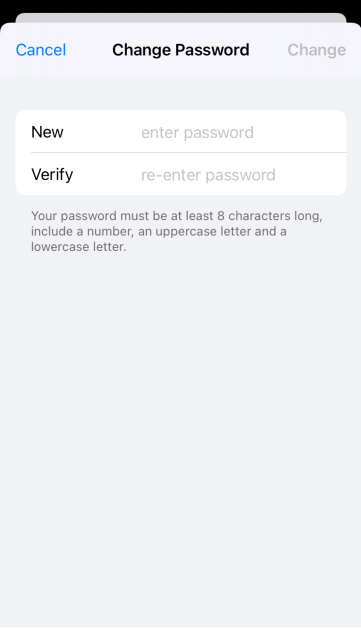
 Step 4: Select Change Password.
 Step 5: Enter your Passcode.
Step 6: Enter your old password followed by the new password that you want to create for your Apple ID.
Step 5: Enter your Passcode.
Step 6: Enter your old password followed by the new password that you want to create for your Apple ID.
Which method is the best for you?
There are several ways to go about resetting your Apple ID password. Depending on your situation, you may be able to complete the process right away or may have to wait 24 hours. Each method caters to a particular situation. If you have your iPhone with you, the process to wipe your old Apple ID password and set a new one won’t take more than a few minutes. However, things get a little complicated when your iPhone is lost or stolen. If you use multiple Apple devices, then you don’t have anything to worry about. Apple recognises your trusted devices and makes it easy to change your password. If your iPhone is the only Apple device you use, then you may have to take the help of a friend. Apple’s Support app, lets you change your Apple ID password on a friend’s iPhone. If that isn’t an option, you can either visit the Apple Store to borrow an iPhone or contact Apple for further information. Your request for resetting the password will be evaluated within 24 hours.Use Apple’s iForgot page
The easiest way to reset your Apple ID password is by using Apple’s iForgot page. Here’s how you can go about it. Step 1: Go to iforgot.apple.com. Step 2: Click on Reset Password.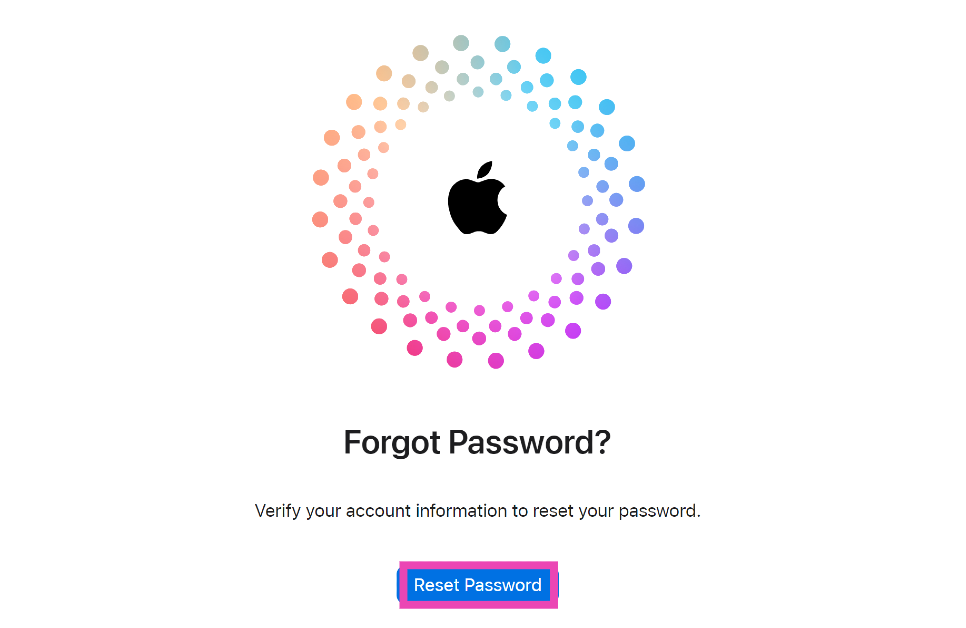 Step 3: Enter the email address or phone number linked to your Apple ID.
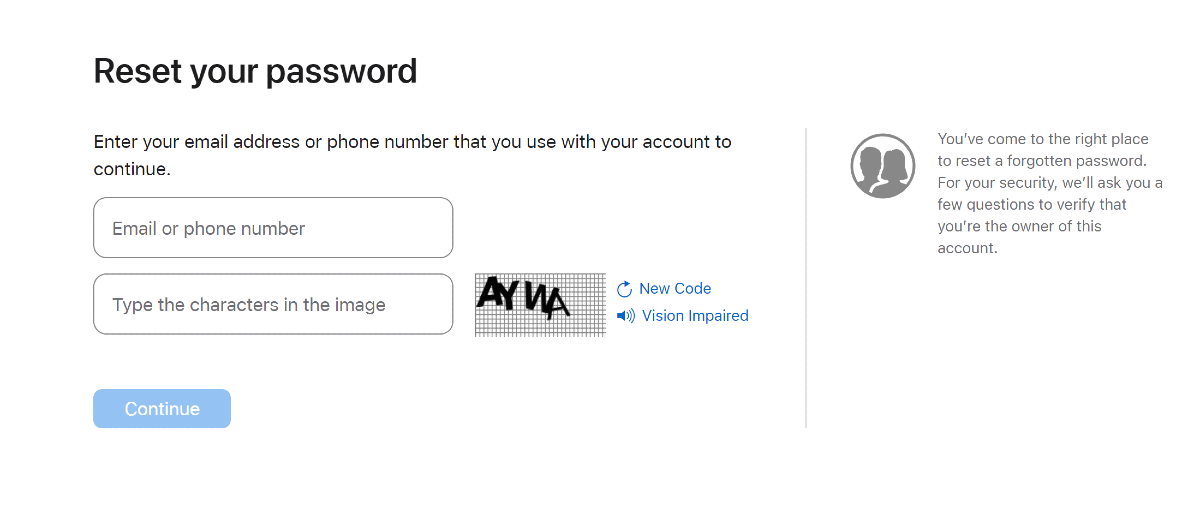 Step 4: Enter the CAPTCHA and hit Continue.
Step 5: Confirm your registered phone number.
Step 6: Launch your iPhone and tap Allow.
Step 4: Enter the CAPTCHA and hit Continue.
Step 5: Confirm your registered phone number.
Step 6: Launch your iPhone and tap Allow.
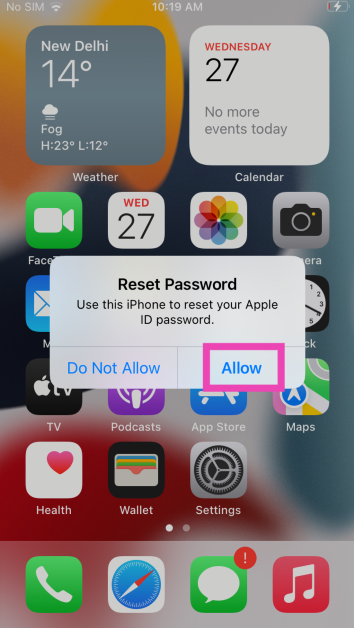 Step 7: Follow the onscreen instructions to change your password.
Change your Apple ID password if you don’t have access to your iPhone
Step 1: Go to Apple’s iForgot page and follow steps 1 to 5 in the method mentioned above. Step 2: Click on Don’t have access to your iPhone?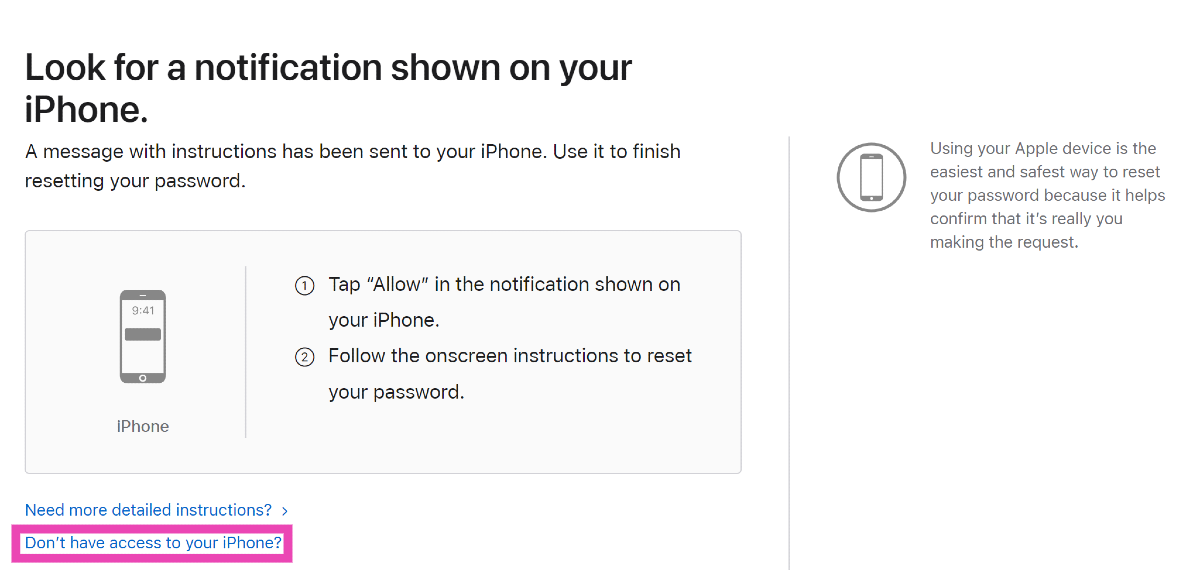 Step 3: You can choose to reset your Apple ID on your new Apple device, on someone else’s iOS device, or on an iOS device at an Apple Store. Click Continue on the appropriate option.
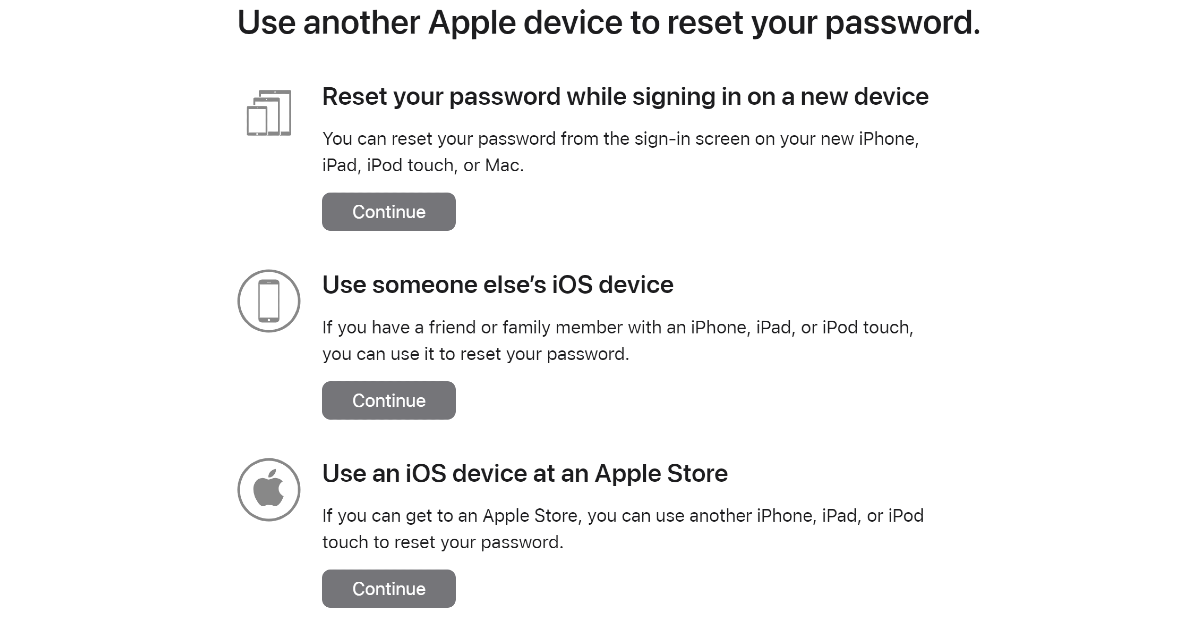 Step 4: Scroll down and select ‘Can’t use any of these options?’ if you don’t have access to your iPhone or any other Apple device.
Step 5: Hit Continue Anyway.
Step 4: Scroll down and select ‘Can’t use any of these options?’ if you don’t have access to your iPhone or any other Apple device.
Step 5: Hit Continue Anyway.
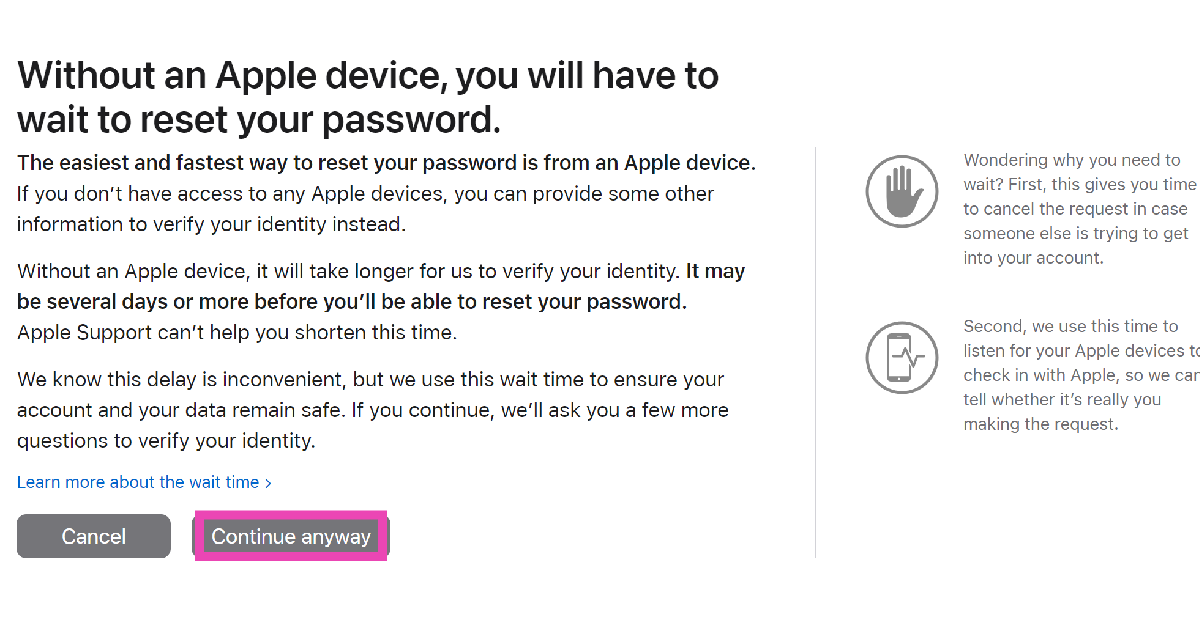 Step 6: To verify your identity, send a code to the number registered to your Apple ID.
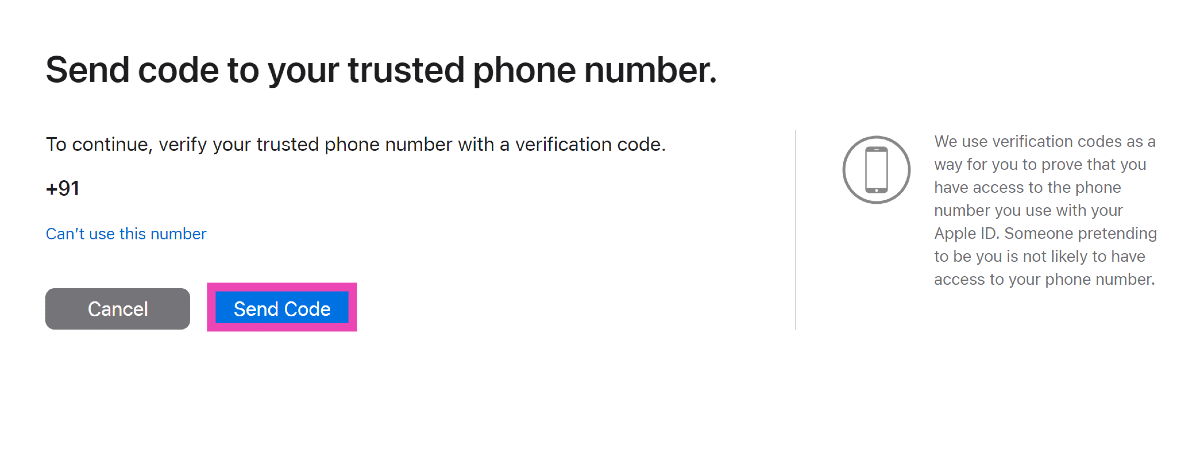 Step 7: Enter the code that was sent to your phone number.
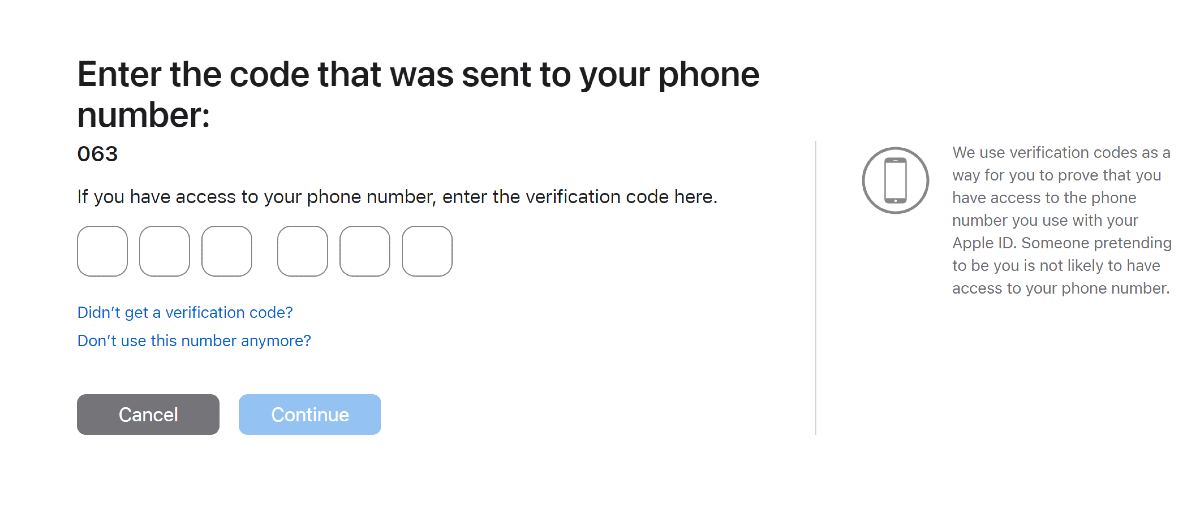 Step 8: Now, send a code to your registered email address.
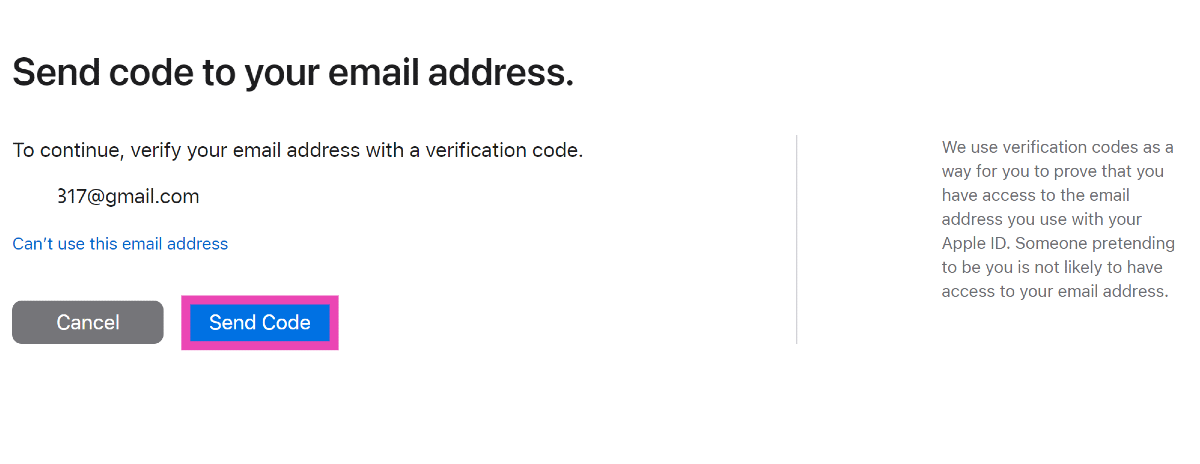 Step 9: Enter the code that was sent to your email address.
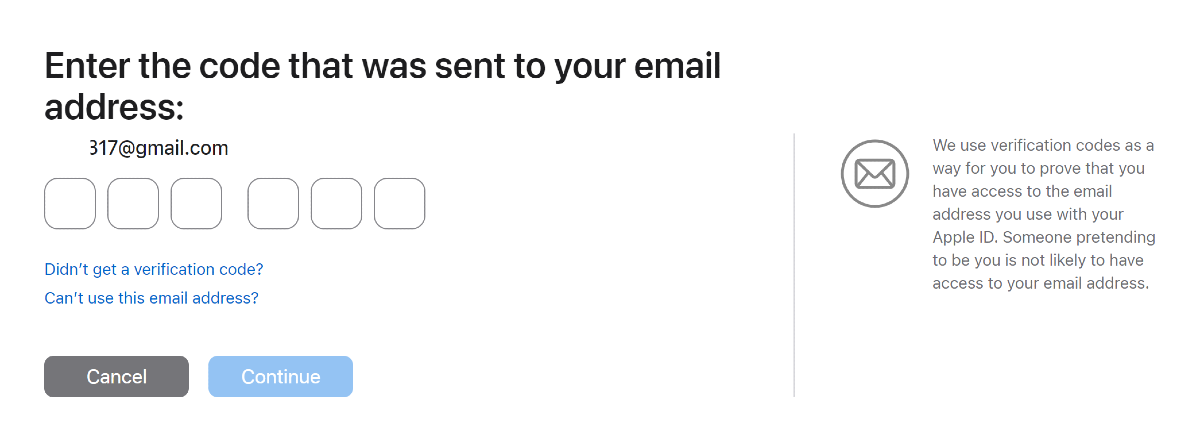 Apple will evaluate your request and contact you within 24 hours. If your request is accepted, you will be able to change your Apple ID password.
Read Also: How to add a watermark to your pictures on Android and iOS? Top 3 Ways
Apple will evaluate your request and contact you within 24 hours. If your request is accepted, you will be able to change your Apple ID password.
Read Also: How to add a watermark to your pictures on Android and iOS? Top 3 Ways
Use the Apple Support app
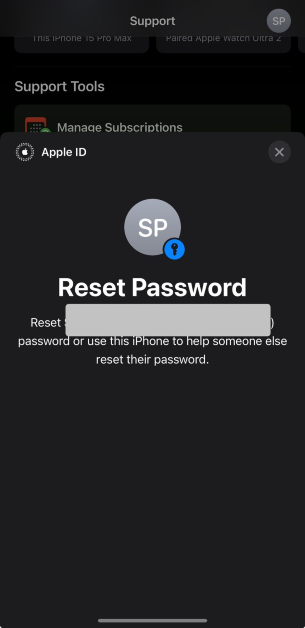
If you don’t have access to your iPhone, you can use the Apple Support app on your friend’s iPhone to reset your Apple ID password. Here’s how. Step 1: Download and install the Apple Support app on your friend’s iPhone. Step 2: Scroll down to Support Tools and tap on Reset Password.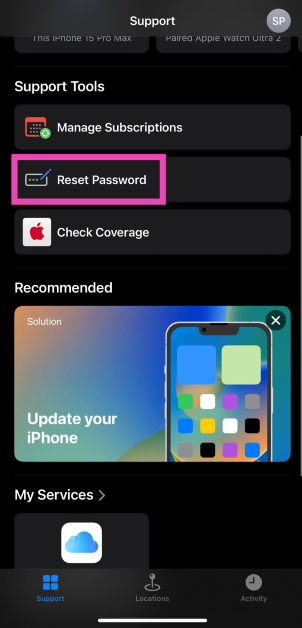 Step 3: Select ‘A Different Apple ID’.
Step 4: Enter your Apple ID and follow the onscreen instructions to change your password.
Step 3: Select ‘A Different Apple ID’.
Step 4: Enter your Apple ID and follow the onscreen instructions to change your password.
Reset your Apple ID password on a Mac
 Step 1: Hit the Apple icon at the top right corner of the screen.
Step 2: Click on System Settings.
Step 3: Click on your Apple ID.
Step 4: Select Sign-In and Security.
Step 5: Hit Change Password. Follow the onscreen instructions.
Step 1: Hit the Apple icon at the top right corner of the screen.
Step 2: Click on System Settings.
Step 3: Click on your Apple ID.
Step 4: Select Sign-In and Security.
Step 5: Hit Change Password. Follow the onscreen instructions.
Change your Apple ID password on your iPhone
Step 1: Go to Settings on your iPhone. Step 2: Tap on your name at the top of the screen. Step 3: Hit Password & Security.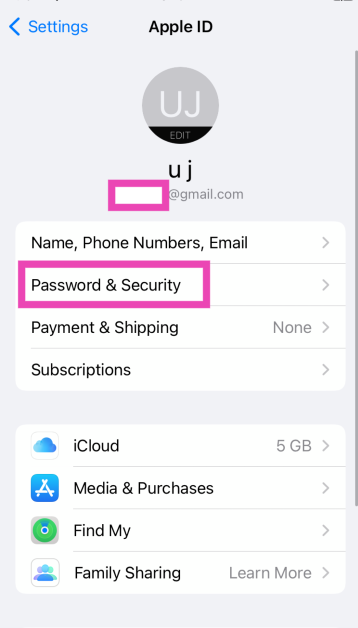 Step 4: Select Change Password.
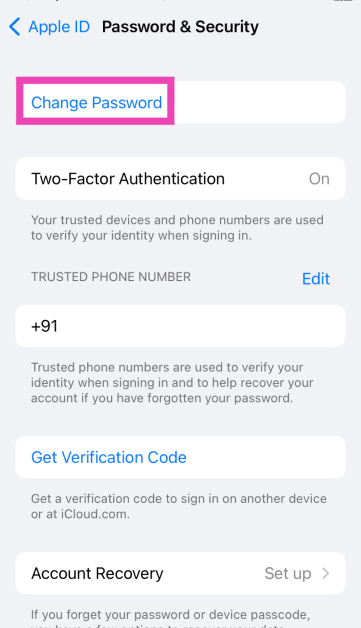 Step 5: Enter your Passcode.
Step 6: Enter your old password followed by the new password that you want to create for your Apple ID.
Step 5: Enter your Passcode.
Step 6: Enter your old password followed by the new password that you want to create for your Apple ID.