In This Article
Android 16’s lock screen customisations explained
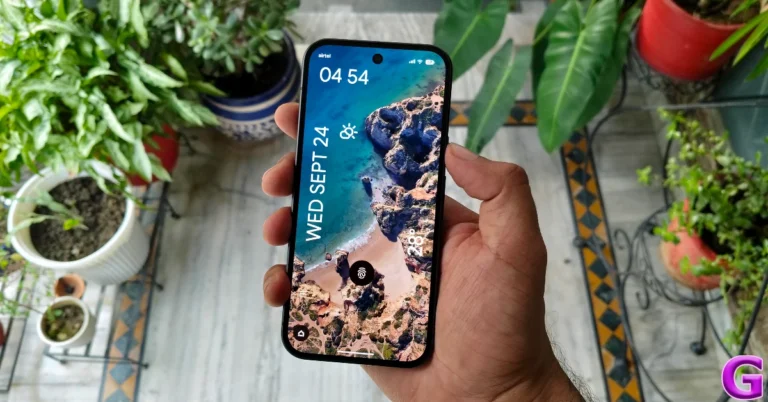
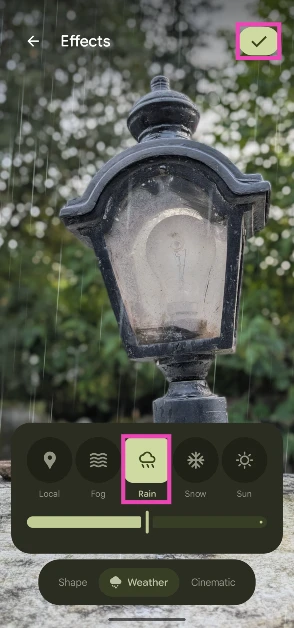
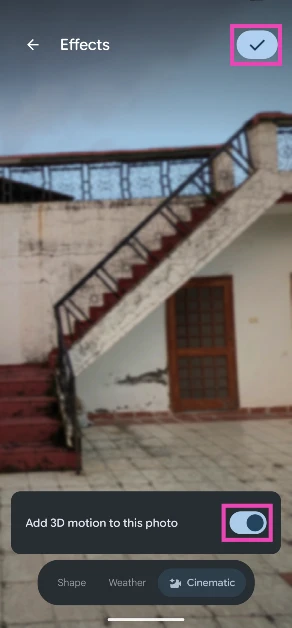
On Android 16, Google has taken heavy inspiration from its peers. The Shape effect is something straight out of a OnePlus or Oppo device. It lets you create a cutout of the subject in an image and use it as the lock screen wallpaper. The space around the cutout is filled with matching colours. Android 16 presents you with a good range of shapes and colours to choose from. The Weather effect is inspired by Samsung’s One UI OS. It lets you add 4 effects to the lock screen wallpaper – Fog, Rain, Snow, and Sun. You can change the intensity of an effect. If you don’t want to stick to just one effect, you can set it to change based on your local weather. If it’s raining in your area, you will see a drizzle appear on the lock screen. The 3D motion effect uses your phone’s gyroscope to move your lock screen wallpaper when you move the device. It intelligently recognises any tilt or movement and swiftly transitions the wallpaper accordingly.Add the weather effect to the Android 16 lock screen
Step 1: Go to Settings and select Wallpaper & style.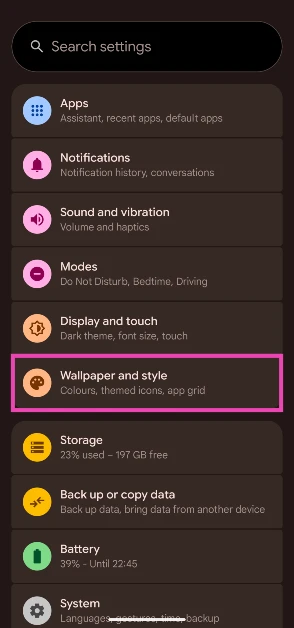 Step 2: Tap on Live effects.
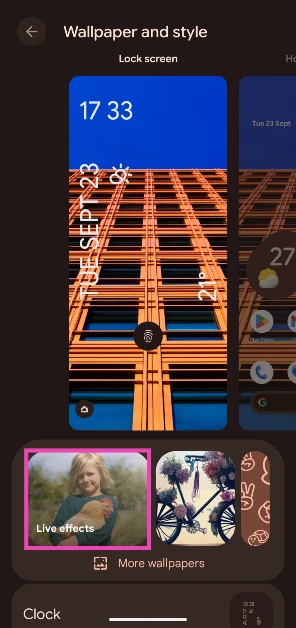 Step 3: Select Choose a photo and pick an image from your phone’s gallery.
Step 4: Tap the Effects icon.
Step 3: Select Choose a photo and pick an image from your phone’s gallery.
Step 4: Tap the Effects icon.
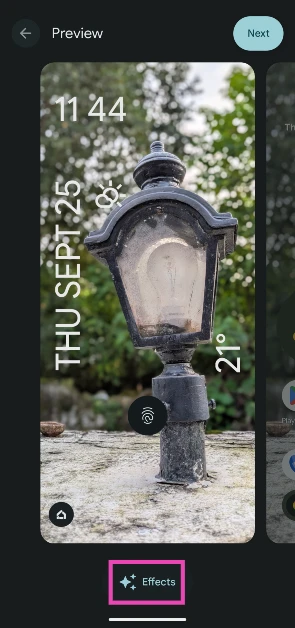 Step 5: Switch to the Weather tab.
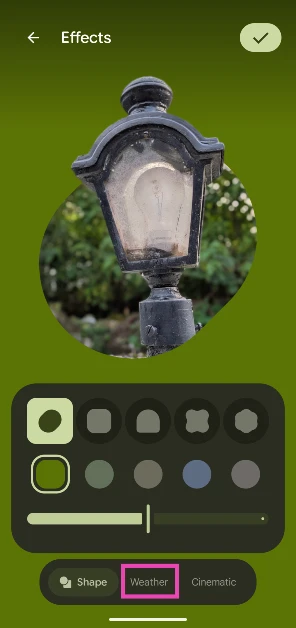 Step 6: Choose a weather effect from the list. Select Local if you want an effect that’s representative of your local weather.
Add the shape effect to the Android 16 lock screen
Step 1: Go to Settings and select Wallpaper & style.
Step 2: Tap the Effects icon.
Step 3: Switch to the Shapes tab.
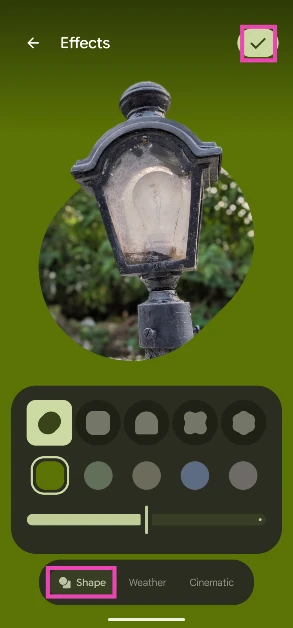 Step 4: Select a shape and colour from the list.
Step 5: Use the slider at the bottom of the screen to change the intensity of the colour.
Step 6: Hit the tick icon at the top right corner of the screen when you’re done.
Step 4: Select a shape and colour from the list.
Step 5: Use the slider at the bottom of the screen to change the intensity of the colour.
Step 6: Hit the tick icon at the top right corner of the screen when you’re done.
Add the 3D motion effect to the Android 16 lock screen
Step 1: Go to Settings and select Wallpaper & style.
Step 2: Tap on Live effects.
Step 3: Tap the Effects icon.
Step 4: Switch to the Cinematic tab.
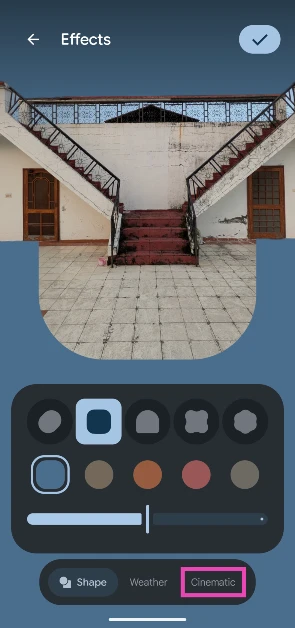 Step 5: Turn on the toggle switch next to Add 3D motion to this photo and hit the tick icon.
 Also Read:


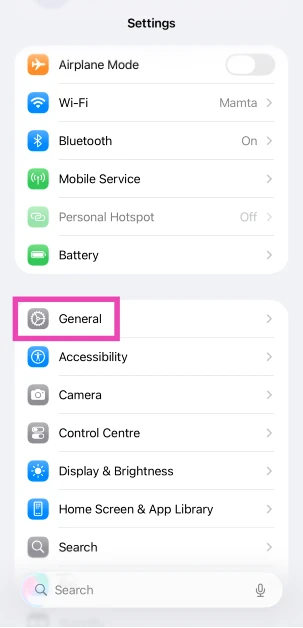 Step 3:
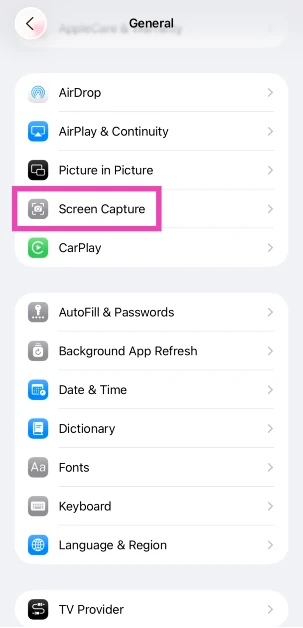 Step 4: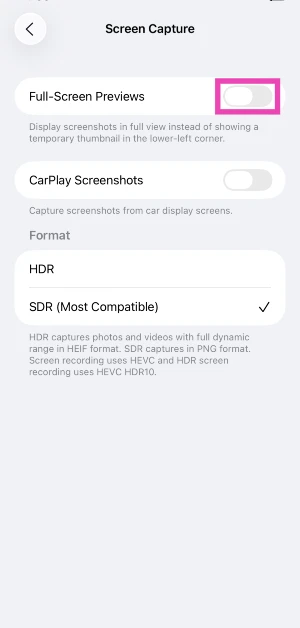

 Step 1: Launch

 Step 1: Launch
 Also Read:
 Also Read:
 Step 3:
 Step 2:
 Step 3:
 Step 4:
 Step 2:
 Step 3:
 Step 4: