In This Article
What’s causing this issue?
Before we dive into the fixes, let’s take a look at what could be causing this issue on your device. Here are some of the usual suspects.- Corrupted cache.
- Insufficient storage capacity.
- Incompatible device.
- Outdated device OS.
- Outdated app version.
- Faulty internet connection.
- Netflix’s servers are down.
- The licence holder hasn’t made the content available for download.
- You have reached the download limit for the title.
- You have reached the download limit for your Netflix plan.
Force-stop and restart Netflix
- Go to Settings.
- Tap on Apps.

- Select App management.

- Scroll down and select Netflix.

- Hit Force stop.
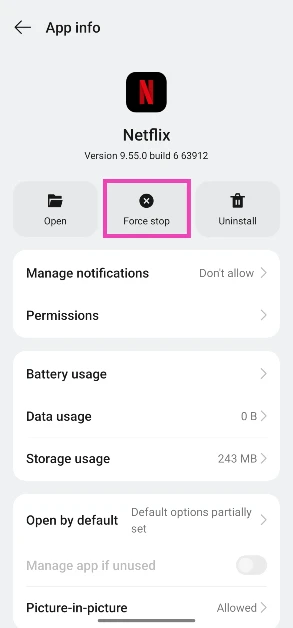
- Go to the app drawer and relaunch Netflix.
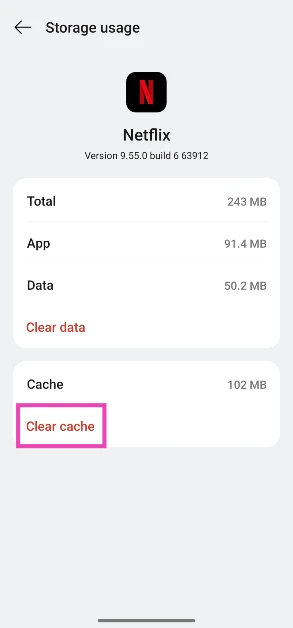
Clear the app cache
- Go to Settings.
- Tap on Apps.
- Select App management.
- Scroll down and select Netflix.
- Tap on Storage.

- Hit Clear cache.
Check the storage capacity
If your phone’s internal storage is fully occupied, Netflix won’t be able to download your desired titles. You can check the internal storage capacity of your phone by going to Settings>Storage. Alternatively, you can go to the Netflix app, navigate to app settings, and scroll down to view how much free storage is available on your device.Is the title available to download?
 Some Netflix titles are not available for offline viewing. The decision to make a title available for download lies with the production studio that owns the content. This also applies to Netflix Originals that are made in partnership with another studio.
Have you reached the download limit for the title?
 Some license operators have a limit on how many times their titles can be downloaded by a user on Netflix. This limit can be anywhere from 2 to 20 downloads per year. Downloading a title on multiple devices using the same account counts as multiple downloads.
Check if you have reached your Netflix plan’s download limit
 If you have reached your maximum download limit, you won’t be able to save more titles for offline viewing. Ad-supported plans allow 15 monthly downloads per device for 2 total devices. This limit resets at the end of each month. You can switch to a more premium plan to increase the monthly limit.
Check if your device is compatible with Netflix downloads
 Netflix does not support downloads on Smart TVs, MacBooks, and Windows PCs/laptops. Here is the list of supported devices:
- Android phone or tablet
- iPhone or iPad
- Amazon Fire tablet
- Google Chromebook (with Google Play Store installed)
Update the app version
Older versions of the Netflix app may not support downloads. You can update the app by going to the Google Play Store/App Store, searching for Netflix, and hitting the Update button on the official app page.Update your phone/tablet
Older OS versions may not allow Netflix to download content on your device. If you’re using Android 10 or an older OS, allow Netflix to use your device’s storage.- Go to Settings and select Software update.

- Tap on Download and install.

- Select Install now.


















 Read Also: