In This Article
Which method should you use?
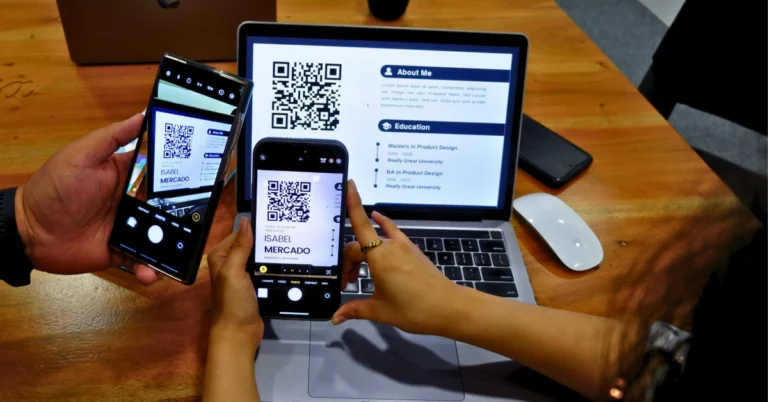
There are a plethora of options you can use to scan codes on your PC, but before you begin, you need to figure out which method suits the task at hand. There are two ways you can scan a code: Manually from the camera: This method is used when you need to scan a physical QR code. You will need to seek the help of the Camera app on your PC. From an image: If the QR code is saved in the form of an image on your PC, there are a bunch of ways you can scan it. The latter situation leaves the door open for a bunch of scanning methods. If you come across a QR Code while browsing the internet on Google Chrome, the quickest way to scan it is by using the Google Lens plugin on the browser. If the image is saved on your PC’s local storage, you can seek the help of the (native) Snipping Tool, Photo Scan app, or an online code scanning tool.Use the native Camera app to scan QR Codes on your Windows PC
Step 1: Launch the Camera app on your PC. Step 2: Click the barcode icon below the shutter button.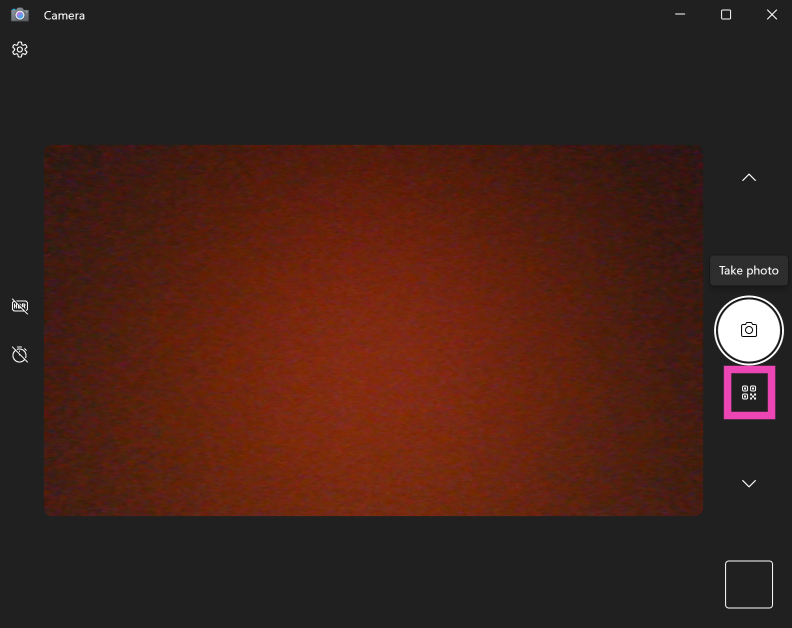 Step 3: Move the QR Code in front of the camera.
Step 4: Your Windows PC will scan the code.
Follow these steps if you don’t see the barcode icon on the camera interface.
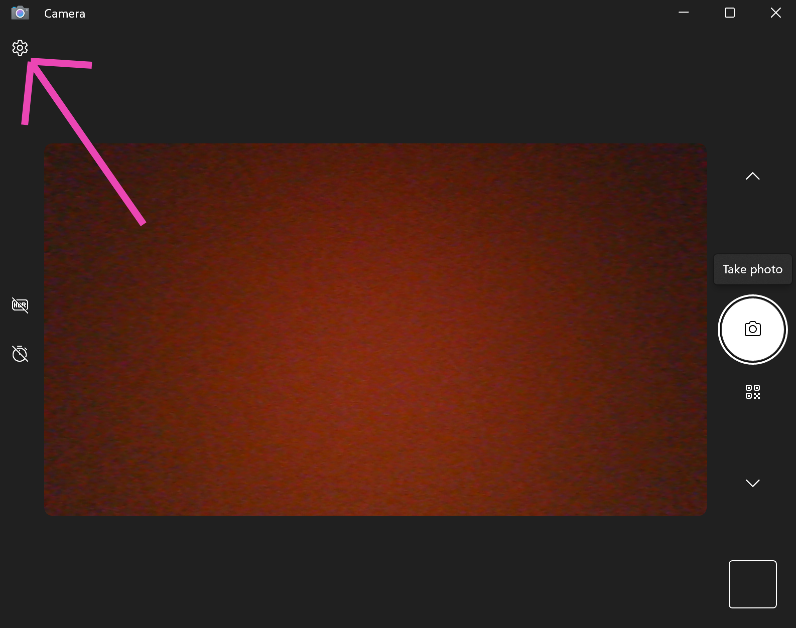
Step 1: Hit the gear icon in the top right corner of the screen.
Step 3: Move the QR Code in front of the camera.
Step 4: Your Windows PC will scan the code.
Follow these steps if you don’t see the barcode icon on the camera interface.
Step 1: Hit the gear icon in the top right corner of the screen.
 Step 2: Expand the option for Related settings.
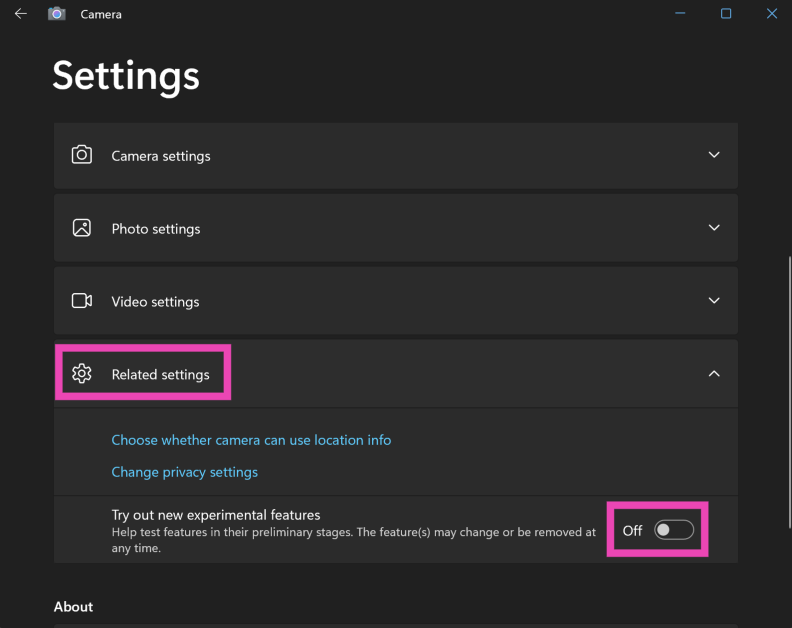 Step 3: Turn on the toggle switch next to Try out new experimental features.
Use the Snipping Tool app to scan a QR Code
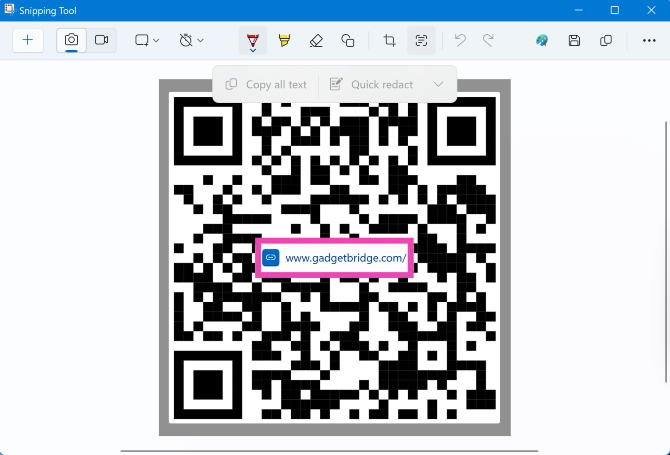
Step 1: Launch the Snipping Tool app on your PC.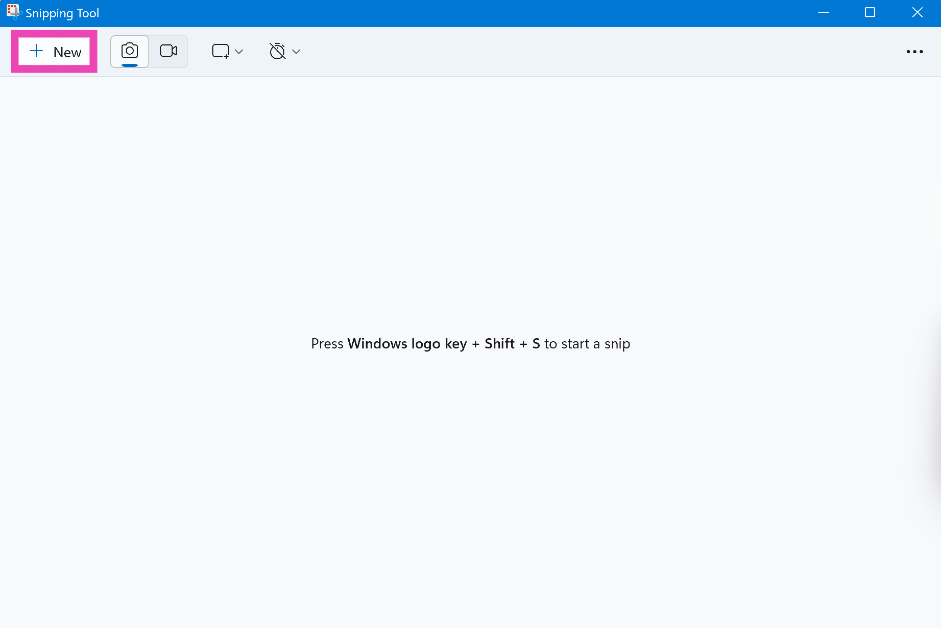 Step 2: Click on New and take a screenshot of the QR code or hit the ellipses and upload the image from your PC’s local storage.
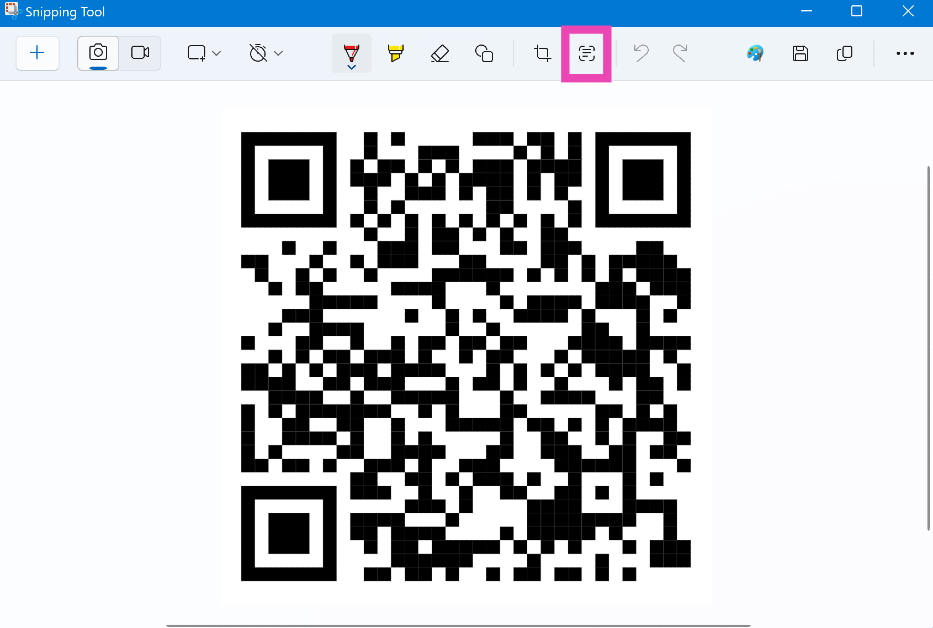 Step 3: Click the Text action icon in the top menu to scan the QR Code.
Use Google Lens to scan QR Codes
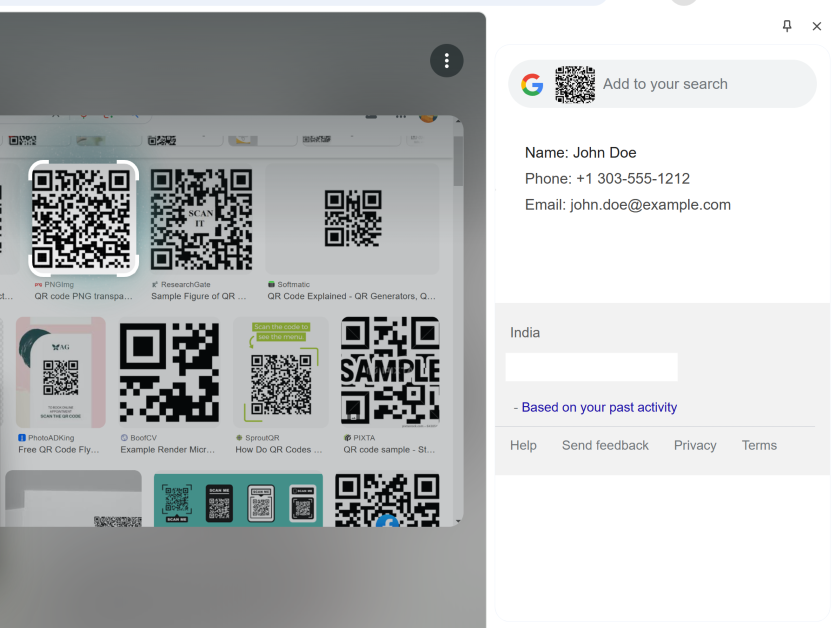
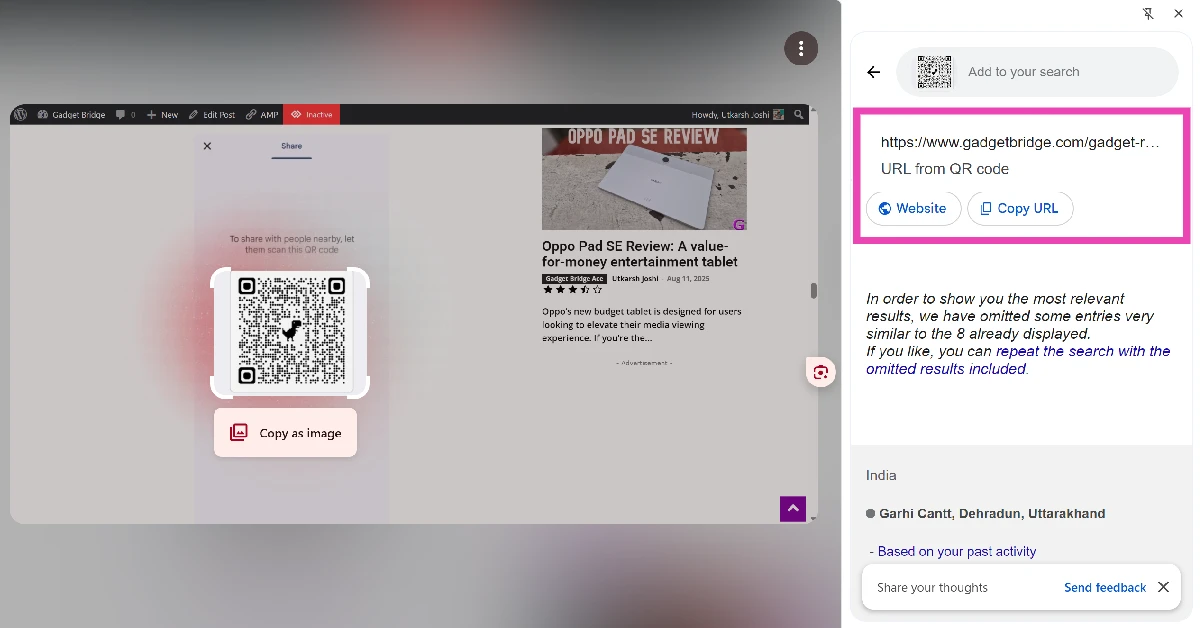
This method can be deployed if you come across a QR code on the internet. The only catch is that it is only available on Google Chrome. Step 1: Right-click on the image of the QR Code. Step 2: Click on Search with Google Lens.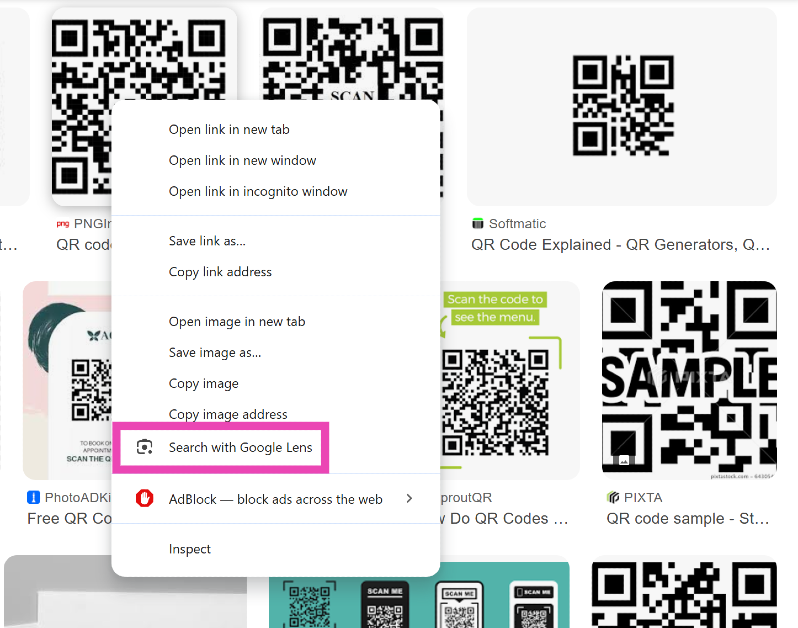 Step 3: The link will pop up in the sidebar.
Add the Google Lens shortcut to Chrome’s menu bar
Step 1: Launch Google Chrome on your PC and click the ellipses at the top right corner of the screen.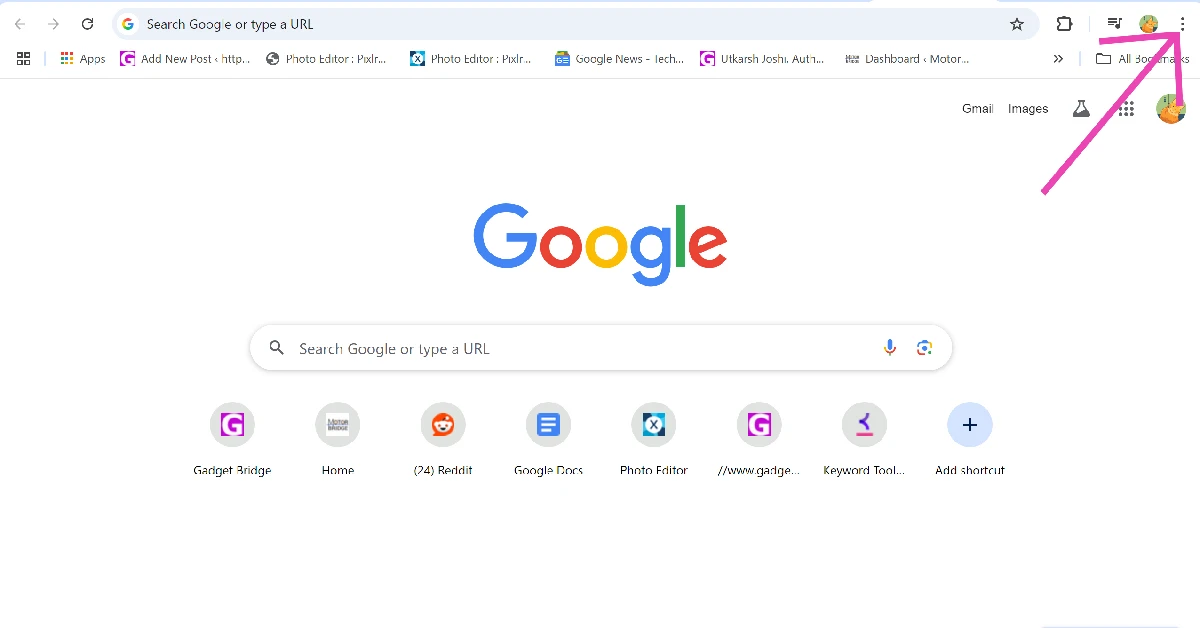 Step 2: Go to More Tools and select Customize Chrome.
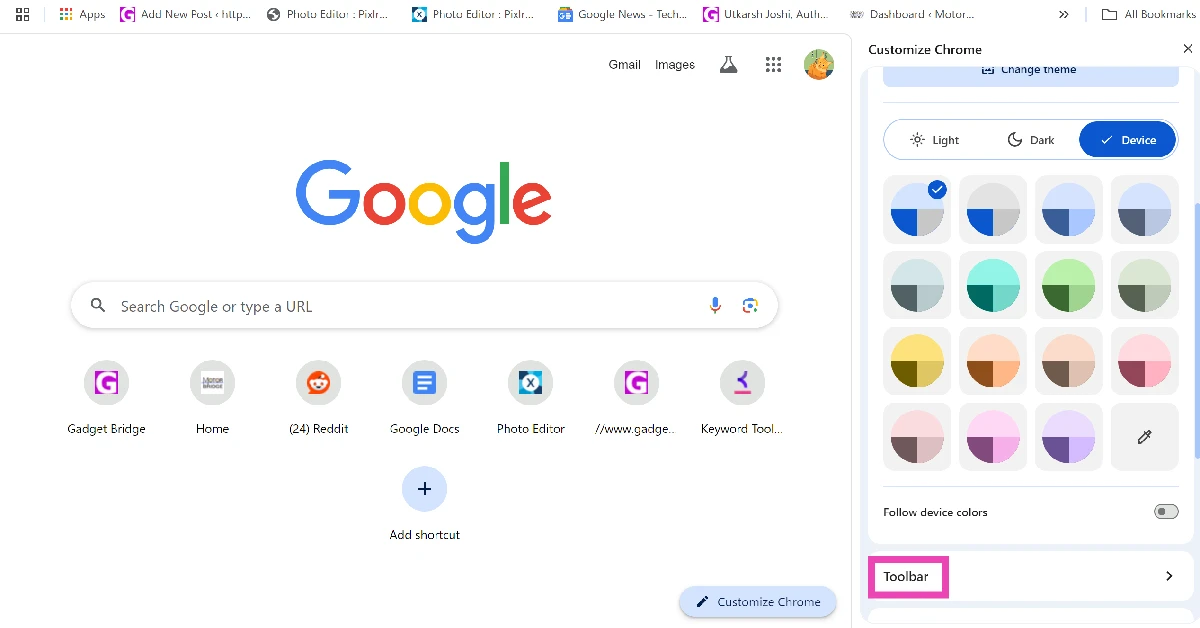
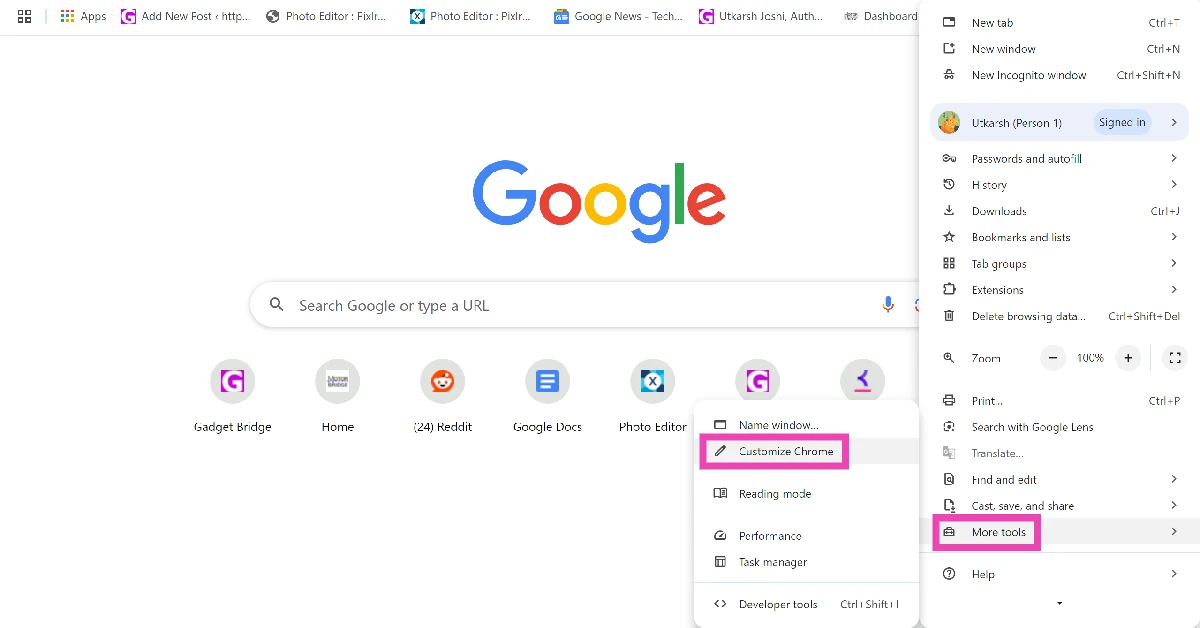 Step 3: Scroll down and click on Toolbar.
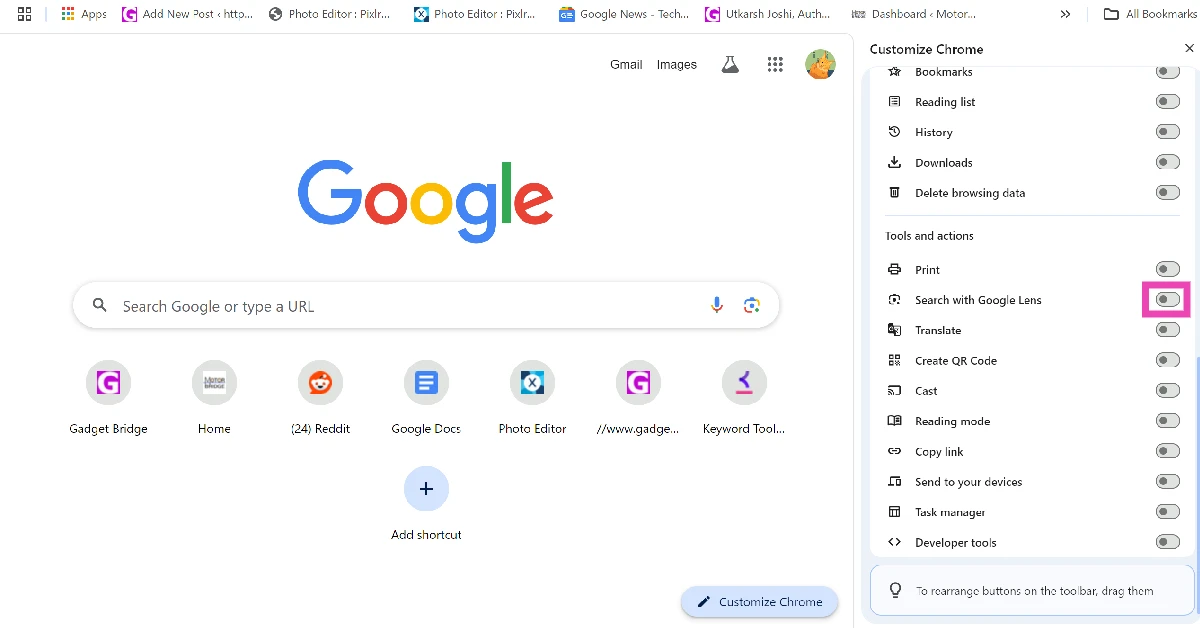
 Step 4: Turn on the toggle switch next to Search with Google Lens.
 Step 5: Go the web page containing the QR code.
Step 6: Click the Google Lens icon next to the address bar.
Step 5: Go the web page containing the QR code.
Step 6: Click the Google Lens icon next to the address bar.
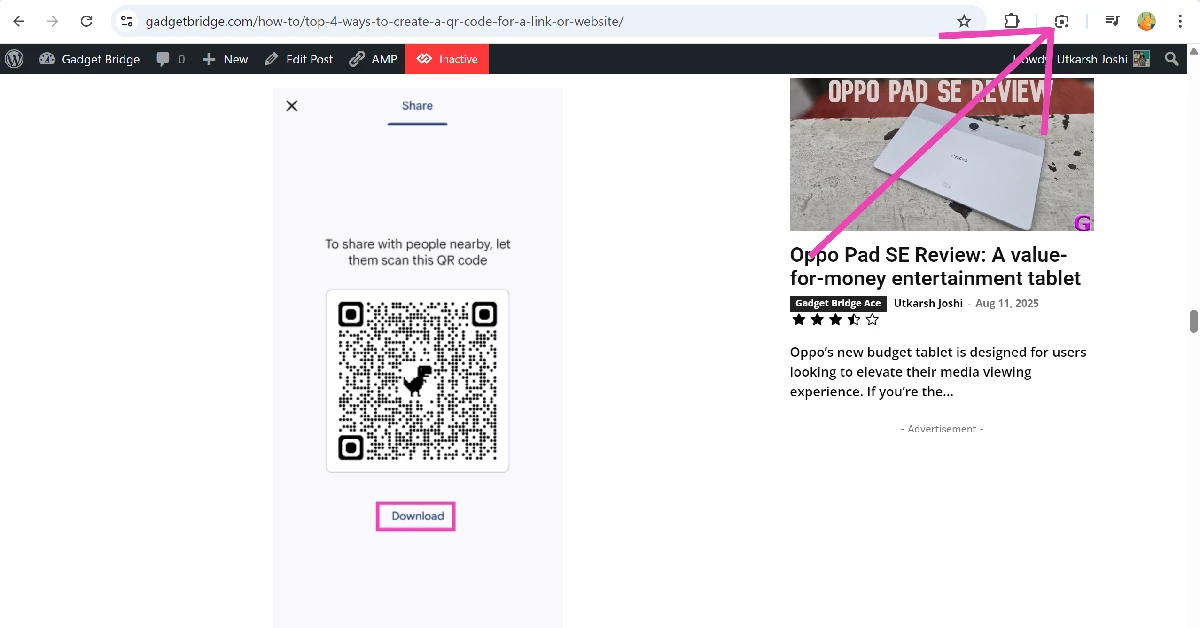 Step 7: Use the cursor to select the QR code.
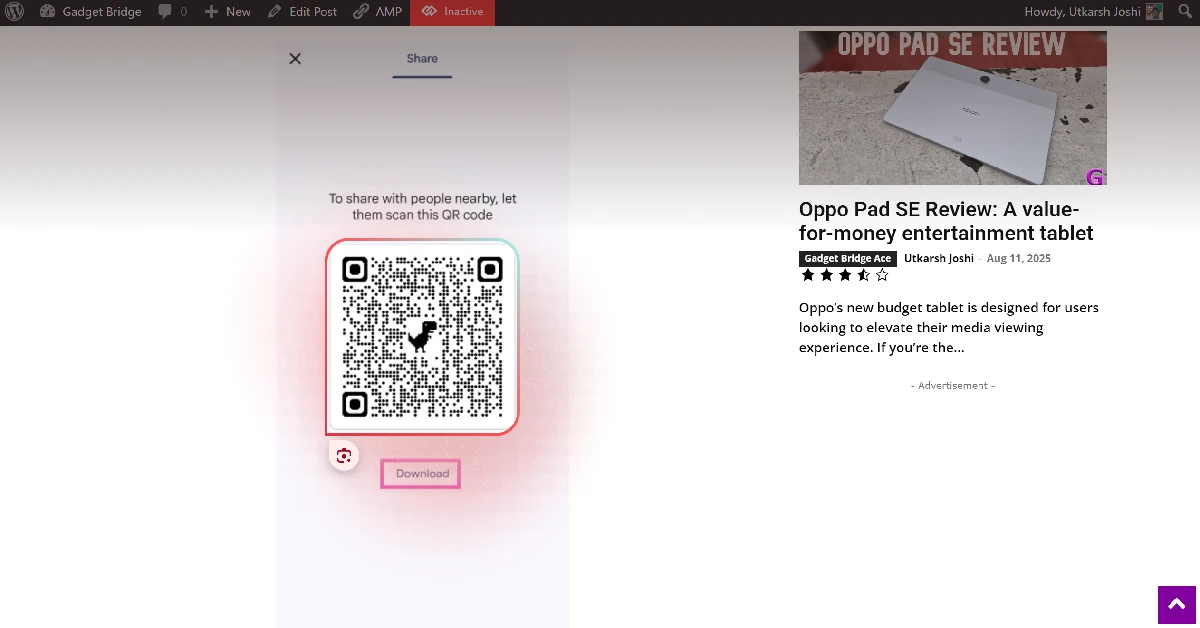 Step 8: The data encoded in the QR code will be displayed in the sidebar.
Use the Photo Scan app to scan QR Codes
Step 1: Install the Photo Scan app on your device from the Microsoft Store. Step 2: Switch to the code scanner tab.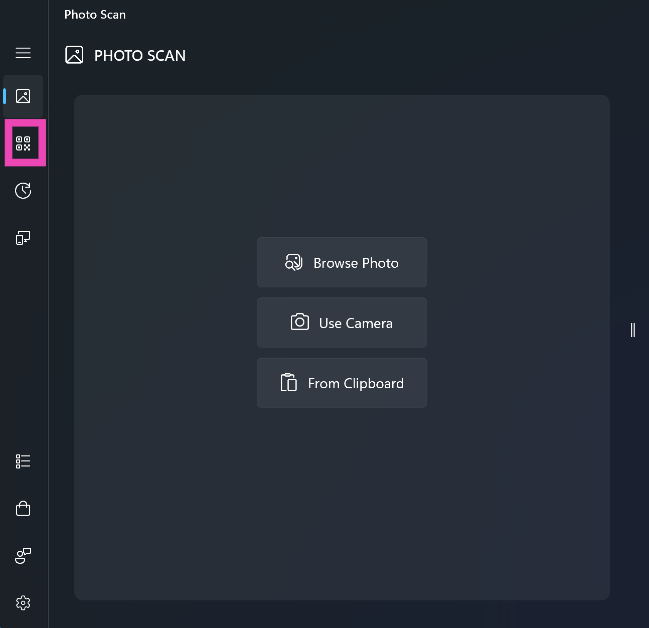 Step 3: Hit Browse Photo and upload the image of the QR Code from your PC’s local storage. You can also use the camera or copy the QR Code from your device’s clipboard.
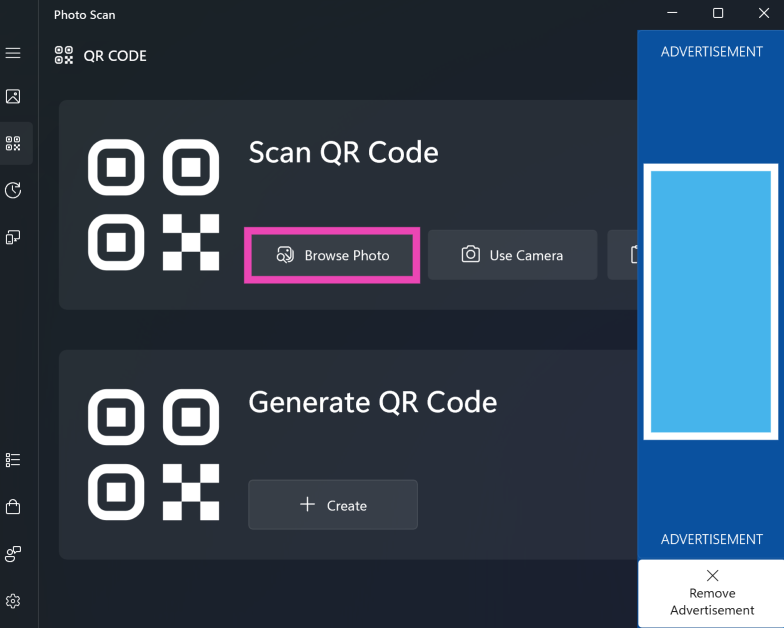 Step 4: The app will scan the QR Code and display the link in the Results section.
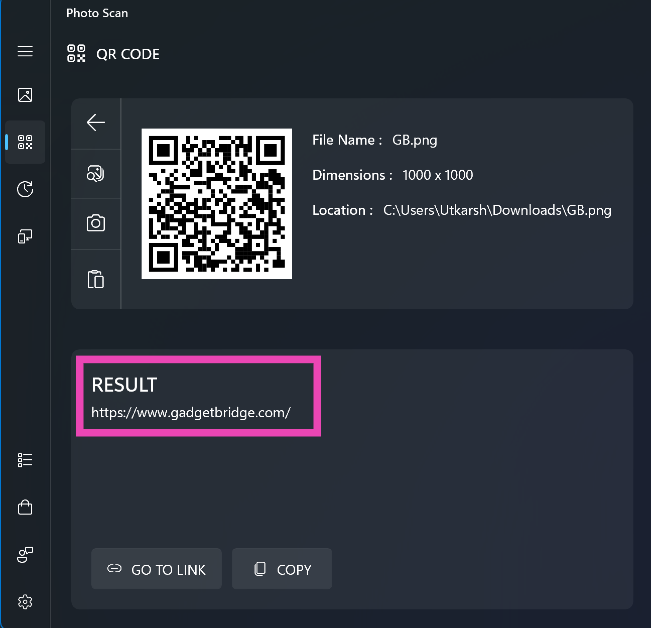
Use a third-party online tool to scan QR Codes on your Windows PC
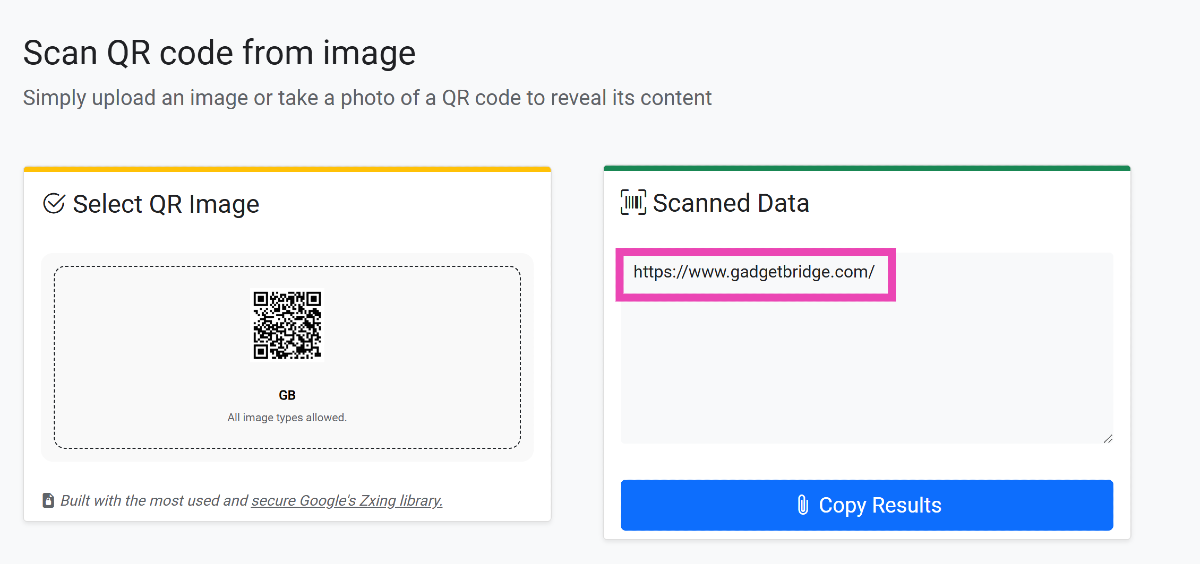
Step 1: Go to the QR Code Scanner website. Step 2: Upload the image of the QR Code you wish to scan.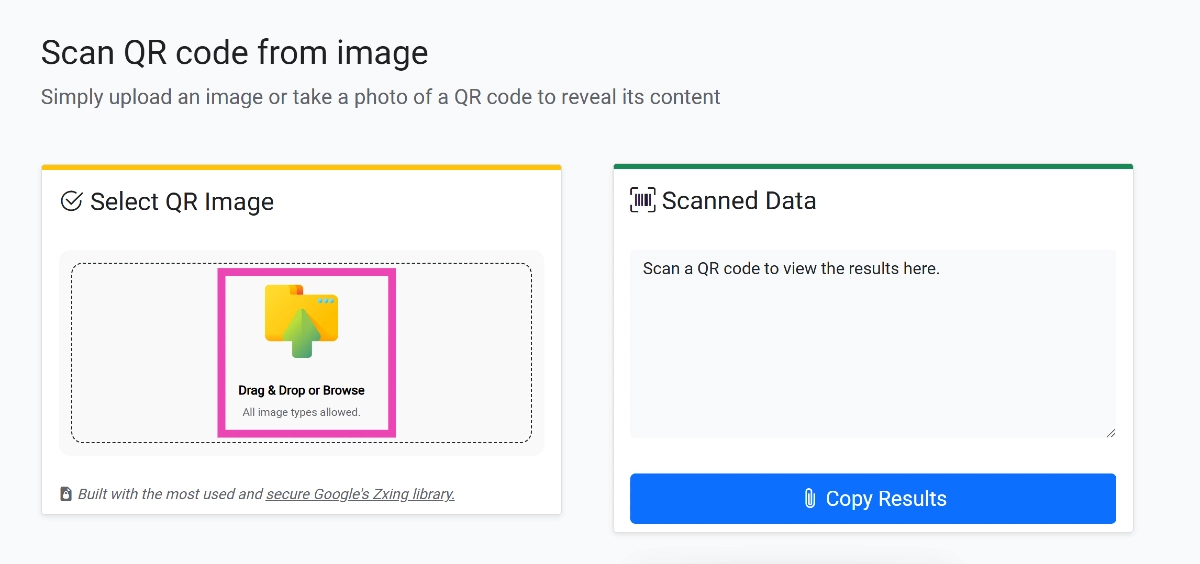 Step 3: The results will appear in the Scanned Data box. You can copy the result to your clipboard by clicking the button below the box.




 Step 2:
 Step 4:
 Step 2: Launch
  Step 4: Disable
  Step 5: Reinstall
 Step 3:
 Step 4:
 Step 9:
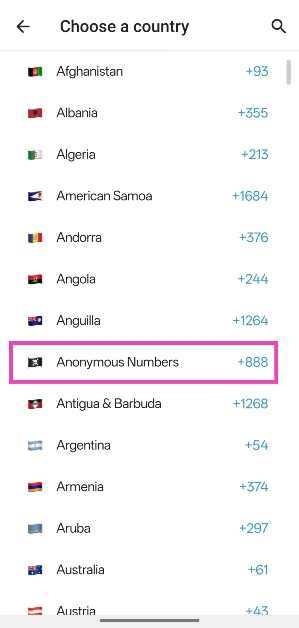 Step 10:
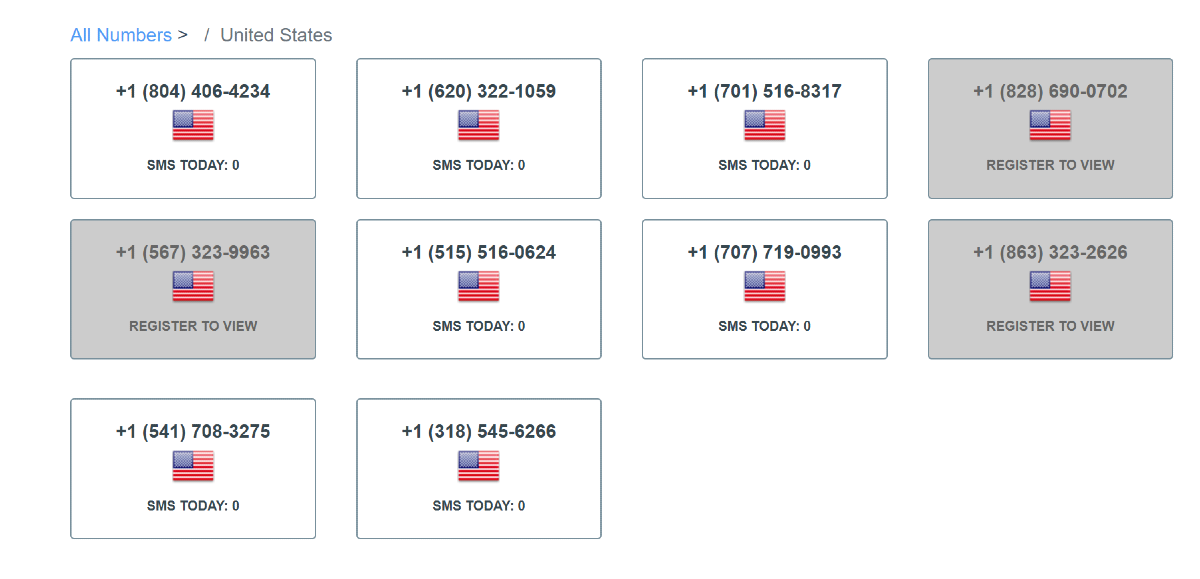 Step 2:
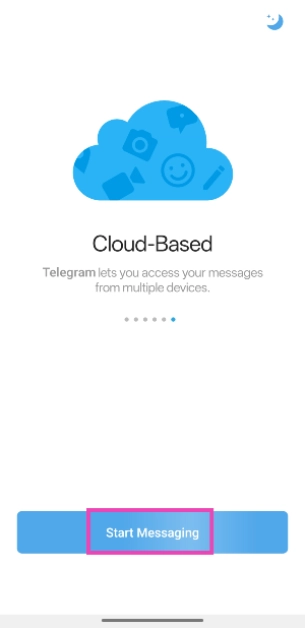 Step 3:




 Step 2:
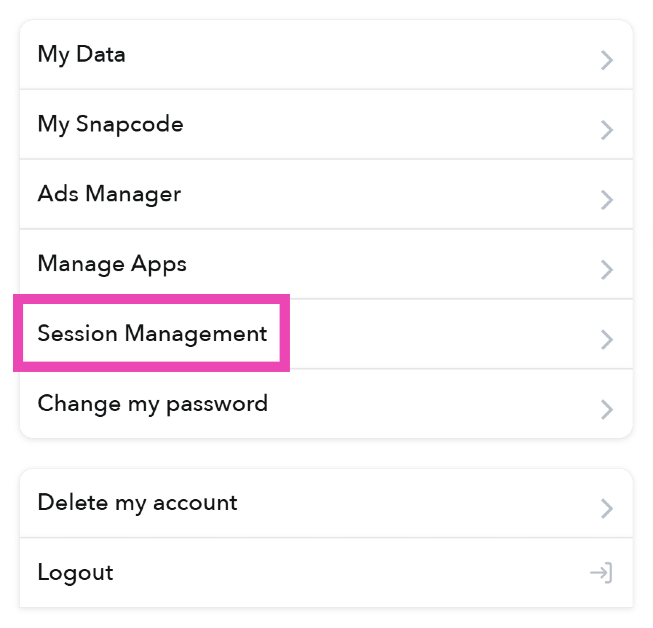 Step 3:
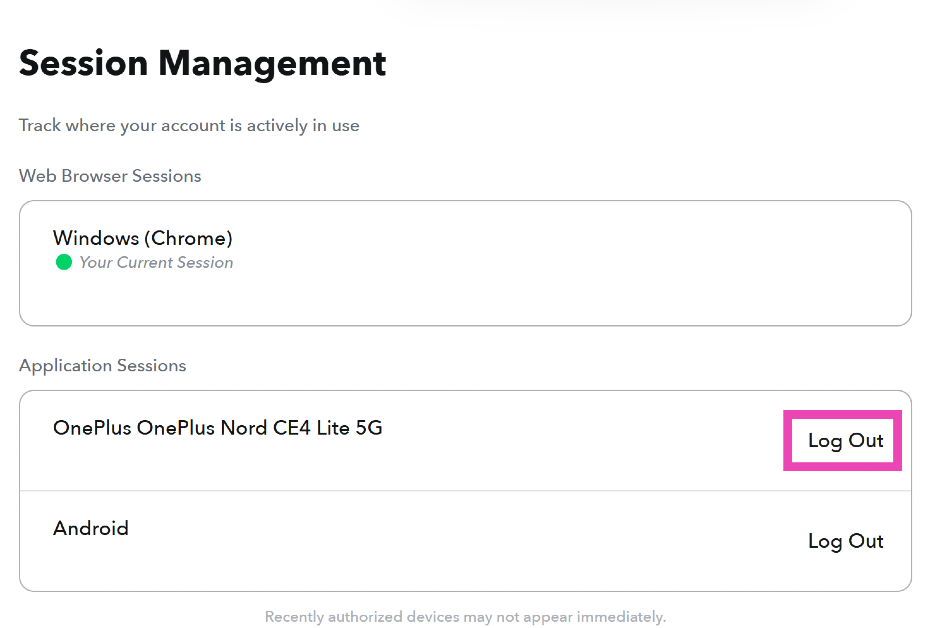 Step 4: Confirm
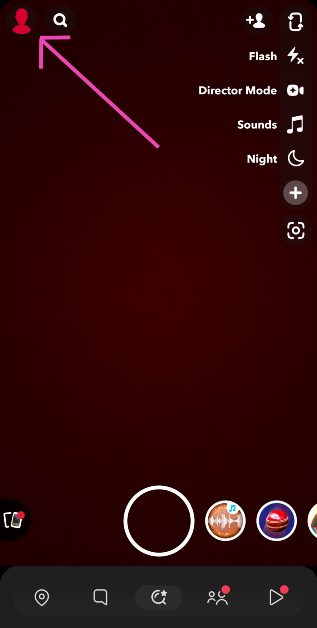 Step 3:
  Step 4:
 Step 5:
 Step 6: Confirm






 Step 3:
 Step 4:
 Step 5: