



When you hit the power button on your PC or laptop, you want it to boot up immediately. However, this process can take a bit longer if you have several apps installed on the device. This is because some apps are set to launch on startup by default. Opening multiple apps extends the boot time of your PC. Here is how you can disable startup apps and programs on your Windows 11 PC or laptop.
Read Also: CMF Buds 2a, CMF Buds 2, and CMF Buds 2 Plus TWS earphones arrived in India
In This Article
Which programs should you allow to launch upon startup?
While a lightning-quick boot time is always ideal, disabling every startup app can be counterproductive. The time you save on booting up the PC will inadvertently get wasted in manually launching the essential apps. Your antivirus software is one such essential app. If you want it to guard your PC at all times, you need to run it as soon as you boot the machine. Instead of launching it manually every time, it is a good idea to let it run automatically upon startup.
On your work PC, you may want certain apps to load as soon as you fire up the device. Instead of wasting time getting things started, having apps like Google Chrome, Microsoft Teams, and Slack up and running as soon as you start your PC is a good idea.
Use device settings
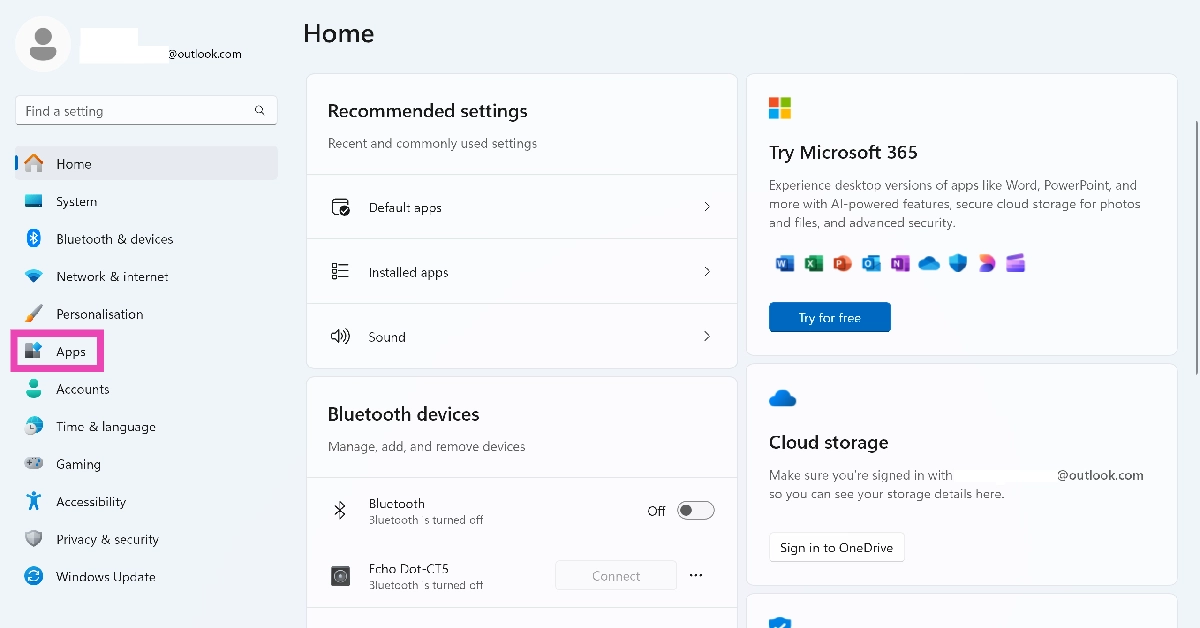
Step 1: Go to Settings and select Apps from the sidebar.
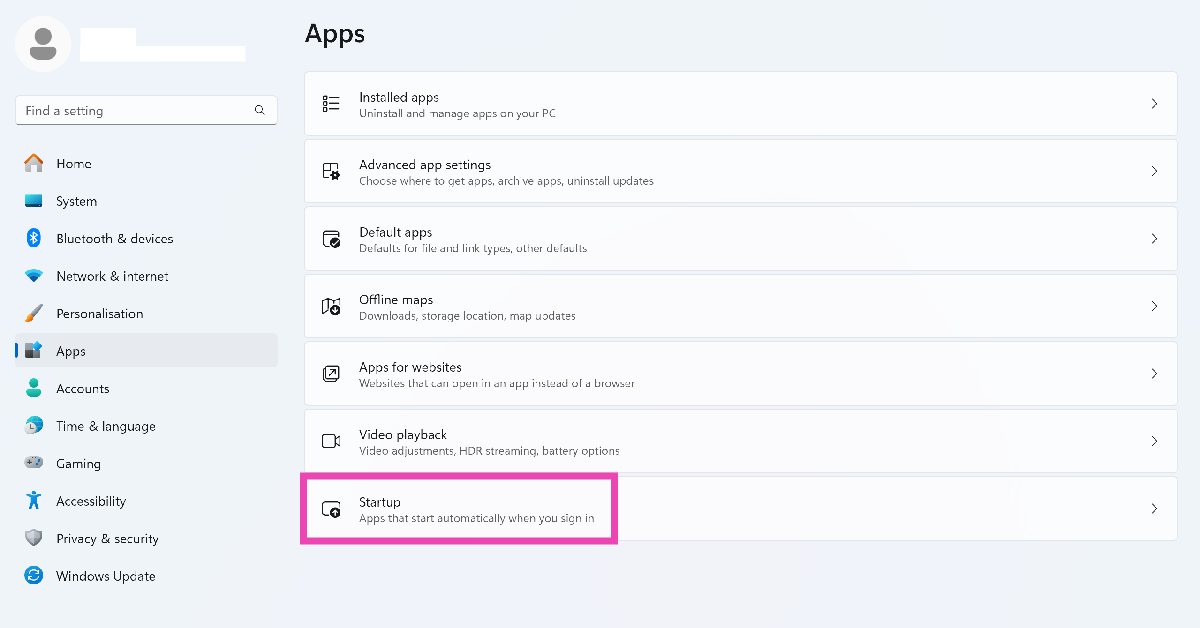
Step 2: Click on Startup.
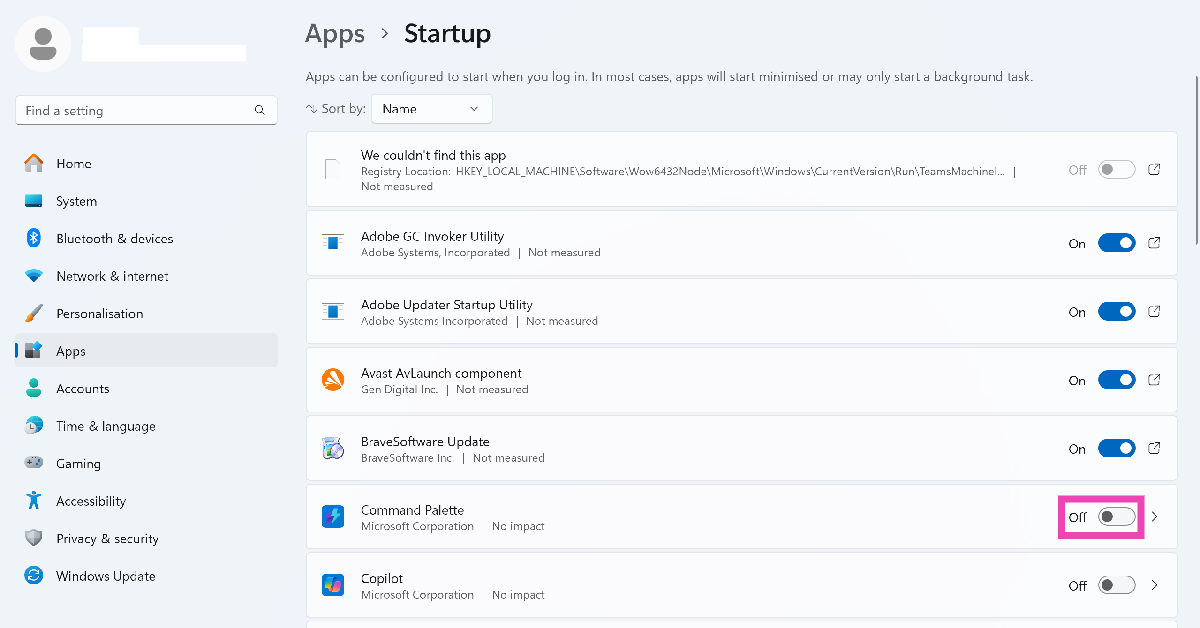
Step 3: Turn off the toggle switch next to the startup app you want to disable.
Use the MSConfig app
Step 1: Press Windows + R to launch the Run box.
Step 2: Type msconfig and hit Enter.
Step 3: Go to the General tab and uncheck the box next to Load startup items.
Step 4: Hit Apply and hit OK.
Step 5: Restart your PC.
Use the Task Manager
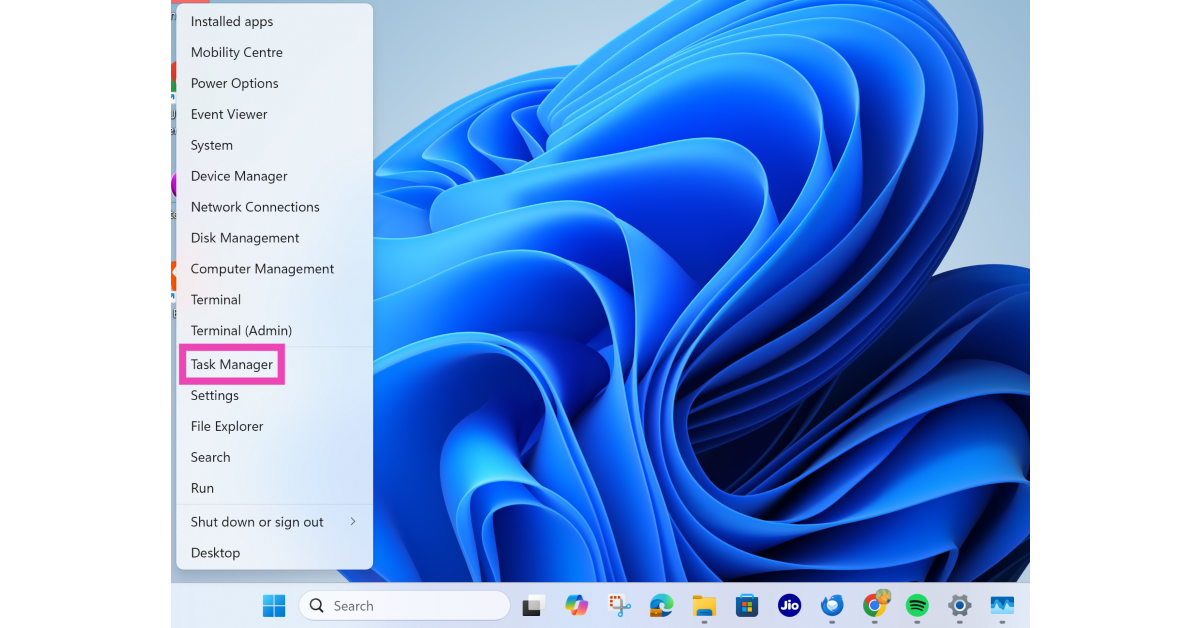
Step 1: Right-click the Windows icon on the taskbar and select Task Manager.
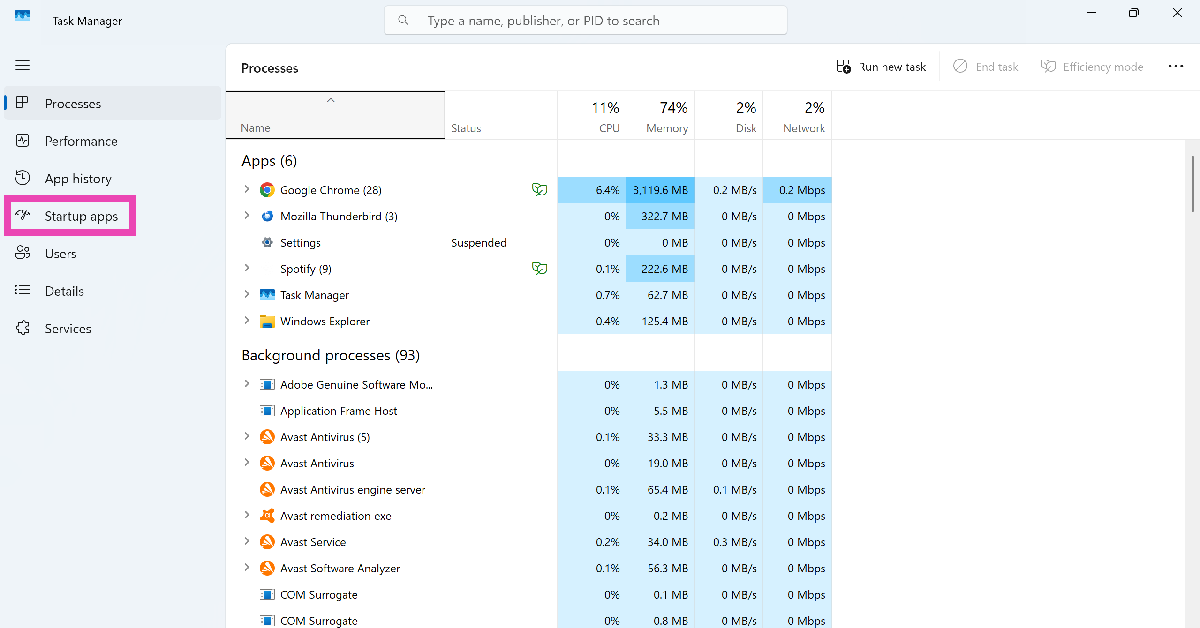
Step 2: Switch to the Startup apps tab.
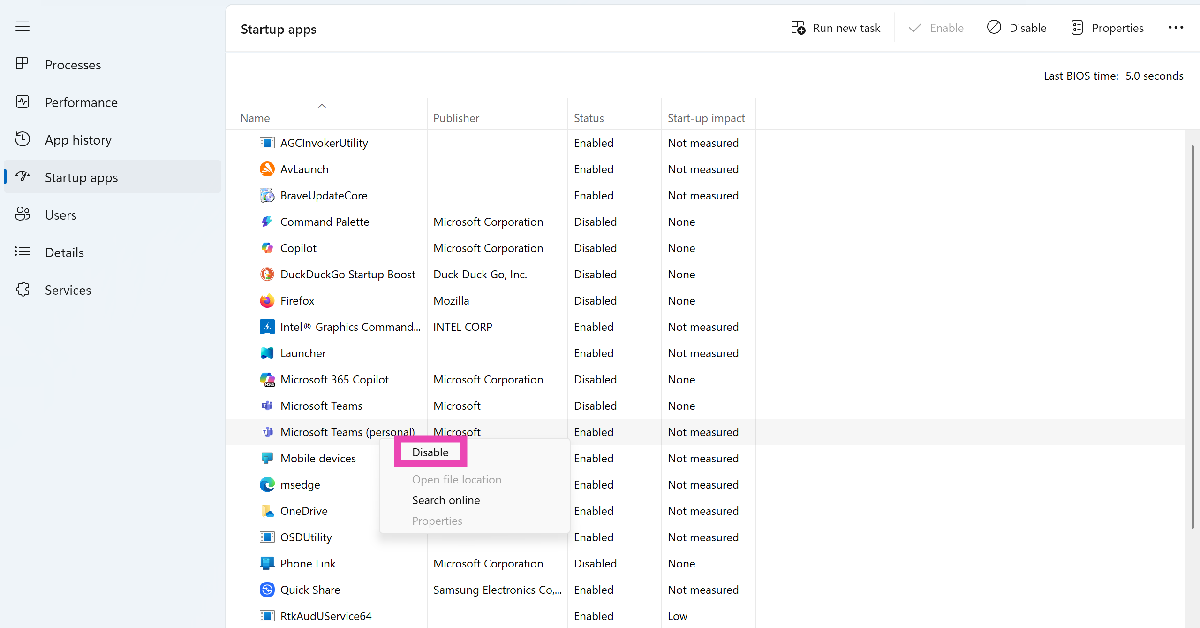
Step 3: Right-click an app and click on Disable.
Use in-app settings
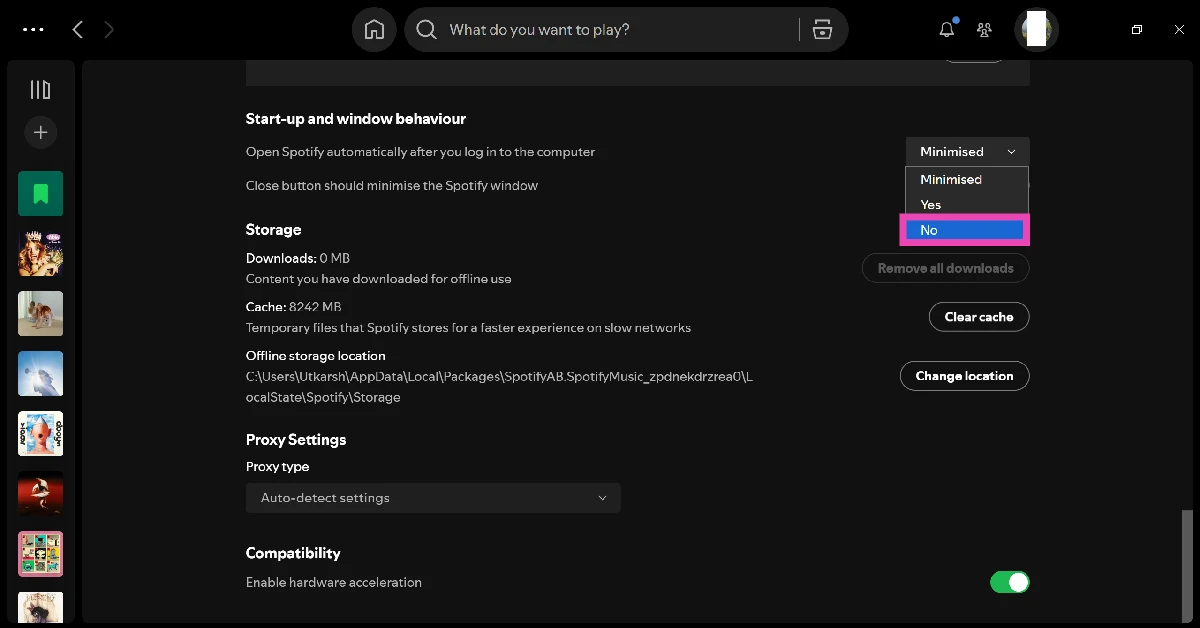
Step 1: Launch the app that you wish to disable from launching at startup.
Step 2: Go to the app’s settings.
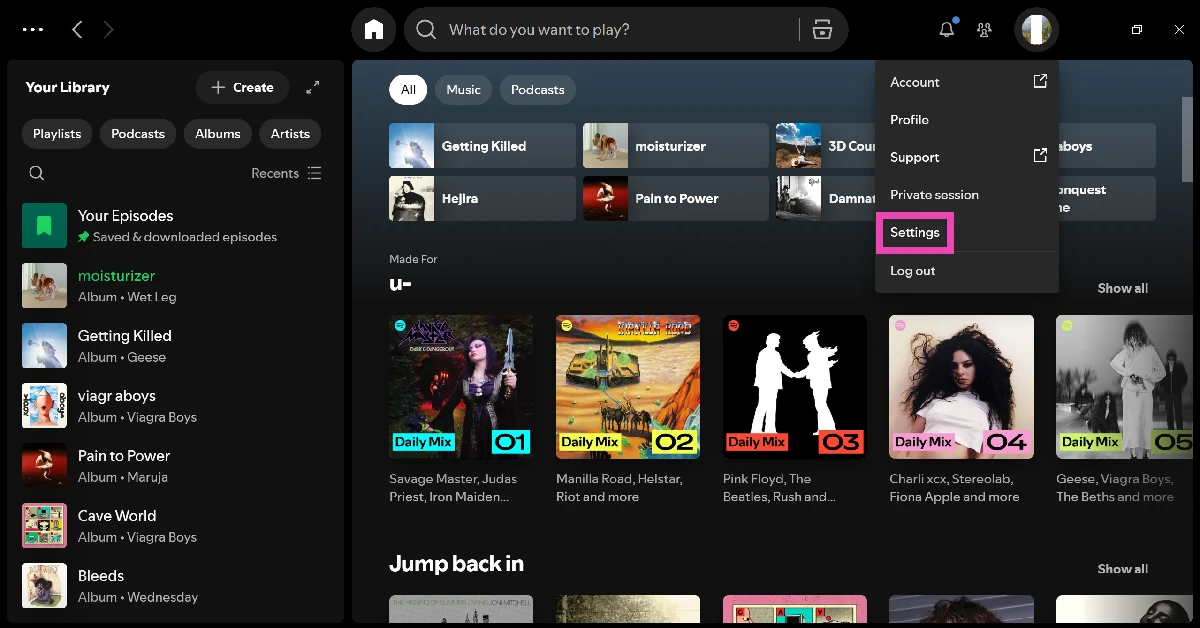
Step 3: Find the startup section and select the Disable/No option.
Use the Task Scheduler
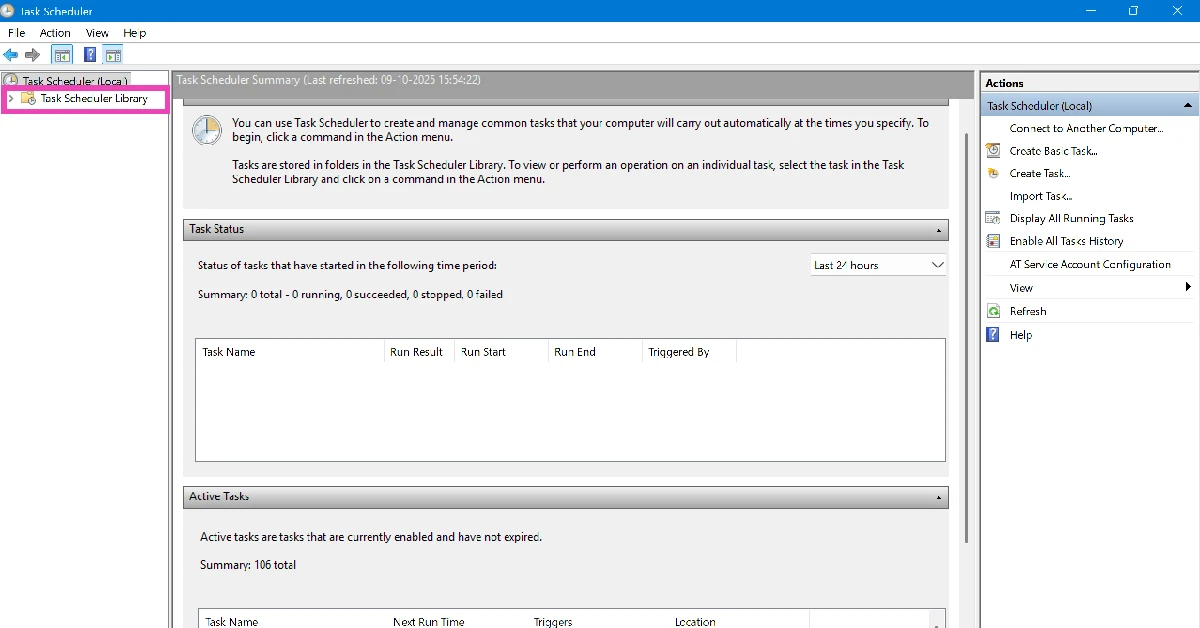
Step 1: Launch Task Scheduler on your PC.
Step 2: Go to the Task Scheduler Library.
Step 3: Select a program from the list.
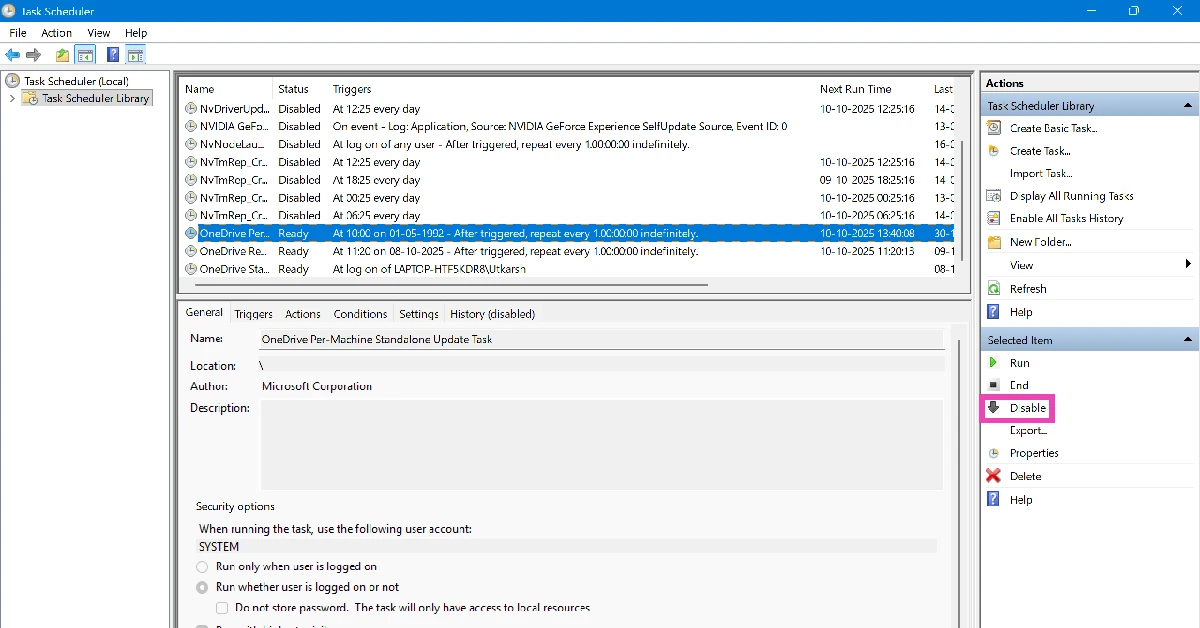
Step 4: Hit Disable.
Frequently Asked Questions (FAQs)
How do I turn off applications on startup in Windows 11?
Go to Settings>Apps>Startup and turn off the toggle switch next to the app you don’t want to launch on startup.
How do I disable all startup apps in Windows 11?
Press Windows + R, type msconfig, and hit Enter. Go to the General tab and uncheck the box next to ‘Load startup items’.
How do I change the default apps on Windows 11?
Go to Settings>Apps>Default apps, choose an app, and select which file types you want it to open by default.
How do I remove preinstalled apps on Windows 11?
Go to Settings>Apps>Installed apps, click the ellipses next to the app you want to remove, and click on ‘Uninstall’.
How do I remove an app from the Start menu on Windows 11?
Right-click an app in the Start menu and click on ‘Unpin’ to remove it.
Read Also: Weather app not showing the correct location? Here are 4 fixes
Final Thoughts
These are the 5 ways you can disable startup apps and programs on your Windows 11 PC or laptop. While you’re here, check out how you can enable file previews on your PC or laptop. If you have any other questions, let us know in the comments!


