

In This Article
Here’s why you should use QR codes to share files
The option to share files using QR codes is a game-changer for Quick Share. Here’s why we prefer it. Seamless process: While using a QR code to share files, you don’t need to manually add the destination device. This means the receiver does not have to change their phone’s visibility settings, as the onus lies on them to scan the QR code. Share with multiple devices: Once the QR code has been created, multiple devices can scan it to receive the files. This saves the user a lot of time. Instead of manually scanning for devices, the recipients can quickly scan the code to access the files. Security: When you create a QR code for a file, you are aware of the devices that scan it. This eliminates the possibility of accidentally sending the file to an unknown device.Send or receive a file using a QR code on Quick Share
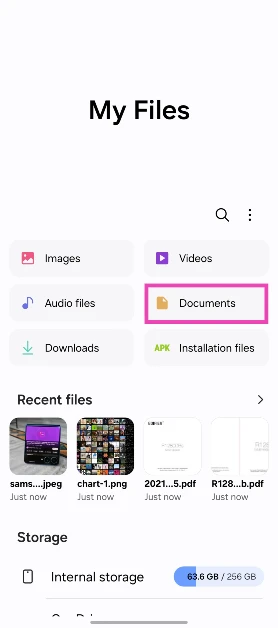
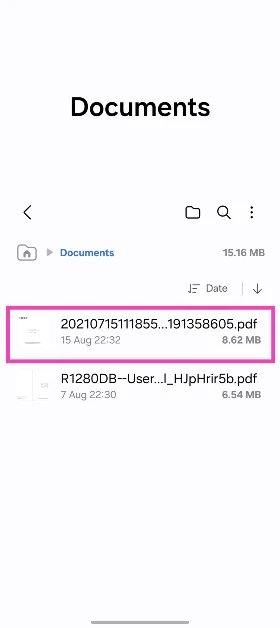
Step 1: Open the file you wish to share. Step 2: Hit the Share icon at the bottom of the screen.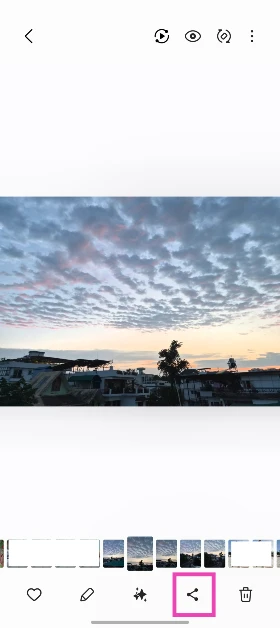 Step 3: Select Quick Share.
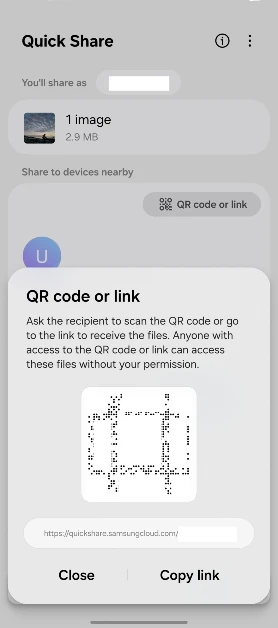
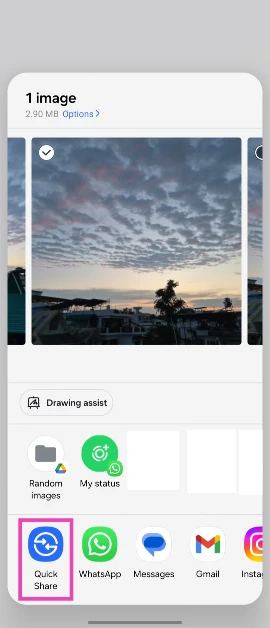 Step 4: Tap the Use QR code option in the ‘Send to nearby devices’ panel.
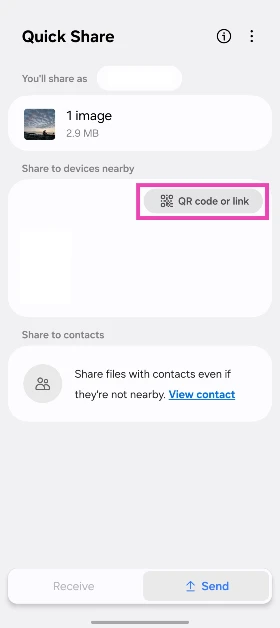 Step 5: A QR code will pop up on your phone. Scan this code using the destination device. This QR code can be scanned by multiple devices.
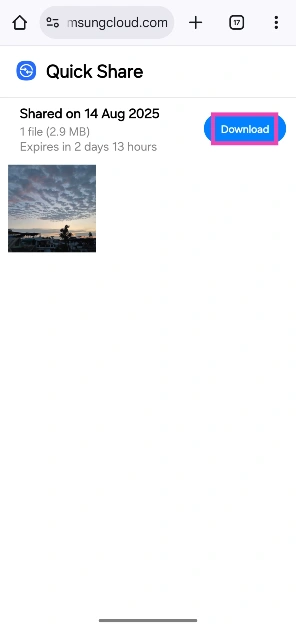
 Step 6: Once the QR code is scanned, the destination device will open a ‘quickshare.google’ link. Hit Download to transfer the file using Quick Share.
 Step 3:
 Step 4:
 Step 5:



 Also Read:



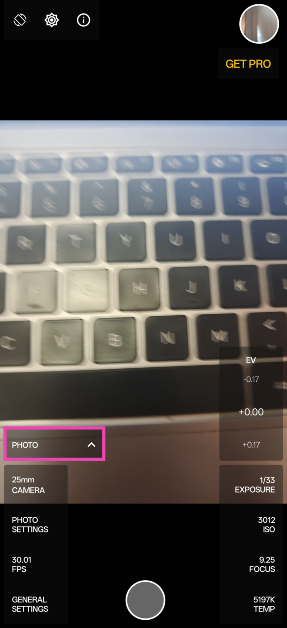 Step 3:
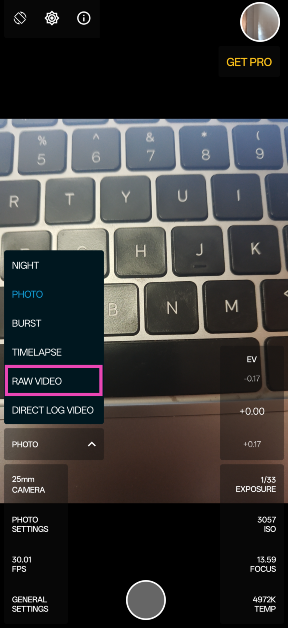 Step 4:
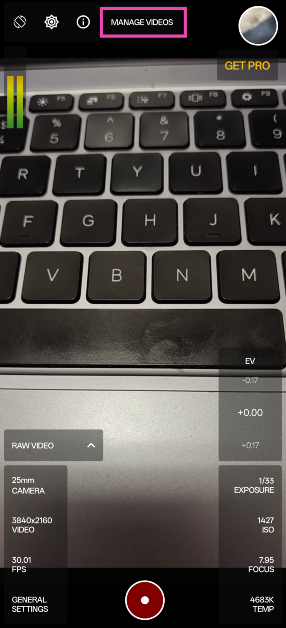 Step 7:
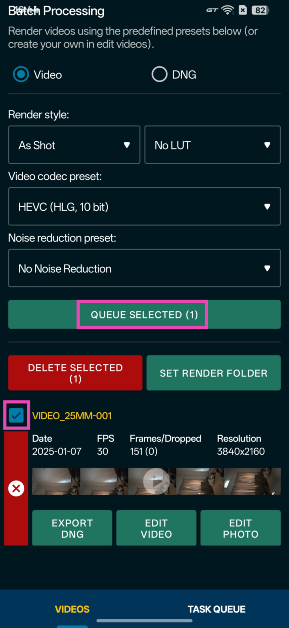 Step 8:
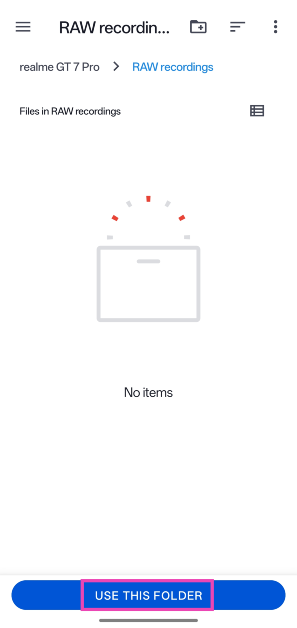 Step 9:
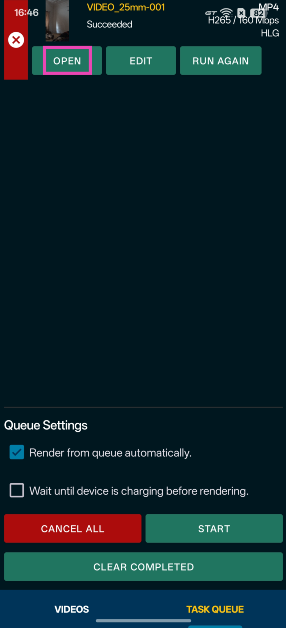 Step 10:






 Step 1:
 Step 1:
 Also Read: