



Key Takeaways
- There are three primary methods to activate full-screen mode in Google Chrome: using Chrome settings (ellipses > full-screen icon), a keyboard shortcut (Fn + F11 or Ctrl + Command + F on Mac), or the 'Full Screen for Chrome' extension.
- Going full-screen does not enlarge text; for readability issues, users should utilize Chrome's zoom function (ellipses > zoom icon).
- It is possible to configure Google Chrome to automatically open in full-screen mode every time by modifying the shortcut properties to include the '--start-fullscreen' command.
Google Chrome offers a way to maximise productivity and get rid of distractions. If multiple tabs and background applications are getting in the way of work, you can maximise a single tab to occupy the entire screen. The process is intuitive and seamless. We highly recommend this for tasks like writing essays, editing documents, reading articles and ebooks, and more. So, without further ado, here are the top 4 ways to activate or enable full-screen mode in Google Chrome.
Read Also: 7 Ways to Fix iPhone Personal Hotspot That’s Not Working (2024)
In This Article
Before you begin
Going full-screen in Chrome gets rid of the tabs and the address bar at the top and the taskbar at the bottom of the screen. The current web page occupies the entire screen. This is ideal for reading long articles without battling the urge to switch to another tab. If you’re watching a video, the size of the video player will remain intact but the web page will enlarge to fit the entire screen. If you simply want to maximise the video player, use the Shift + F keyboard shortcut.
You should also know that going full-screen does not enlarge the text on the webpage. If you’re having difficulty reading the words on the screen, you would be better off using the zoom function in Chrome. To access it, click the ellipses at the top right corner of the screen and hit the plus icon in the ‘Zoom’ category.
Use Chrome settings to go full-screen
Step 1: Launch Google Chrome on your PC.
Step 2: Click the ellipses at the top right corner of the screen.
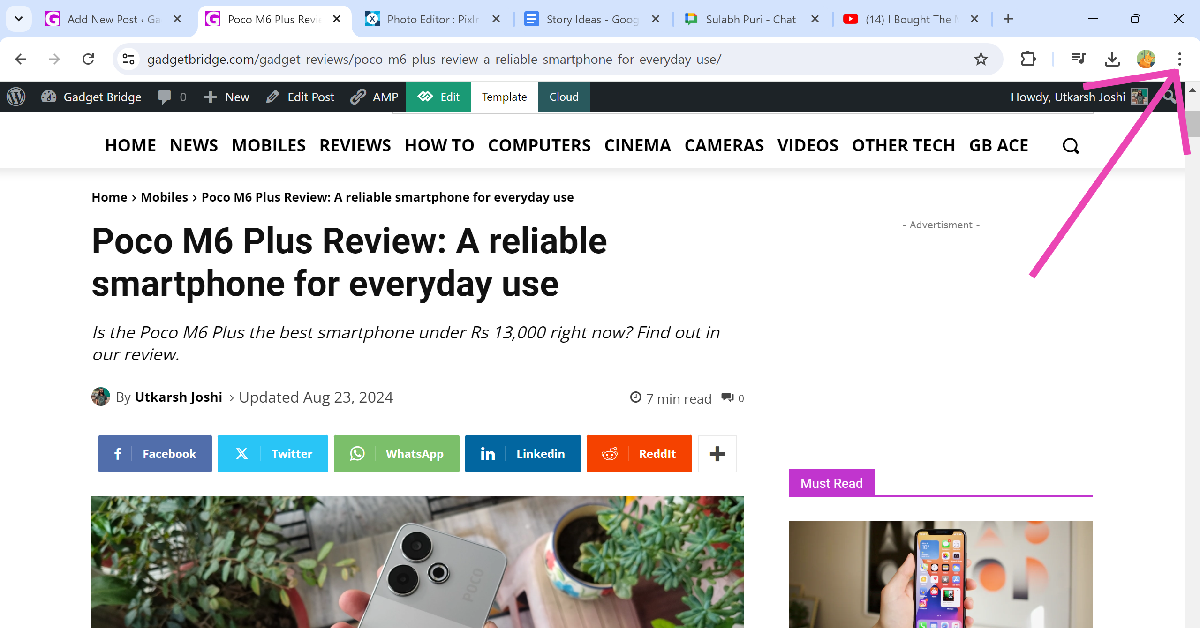
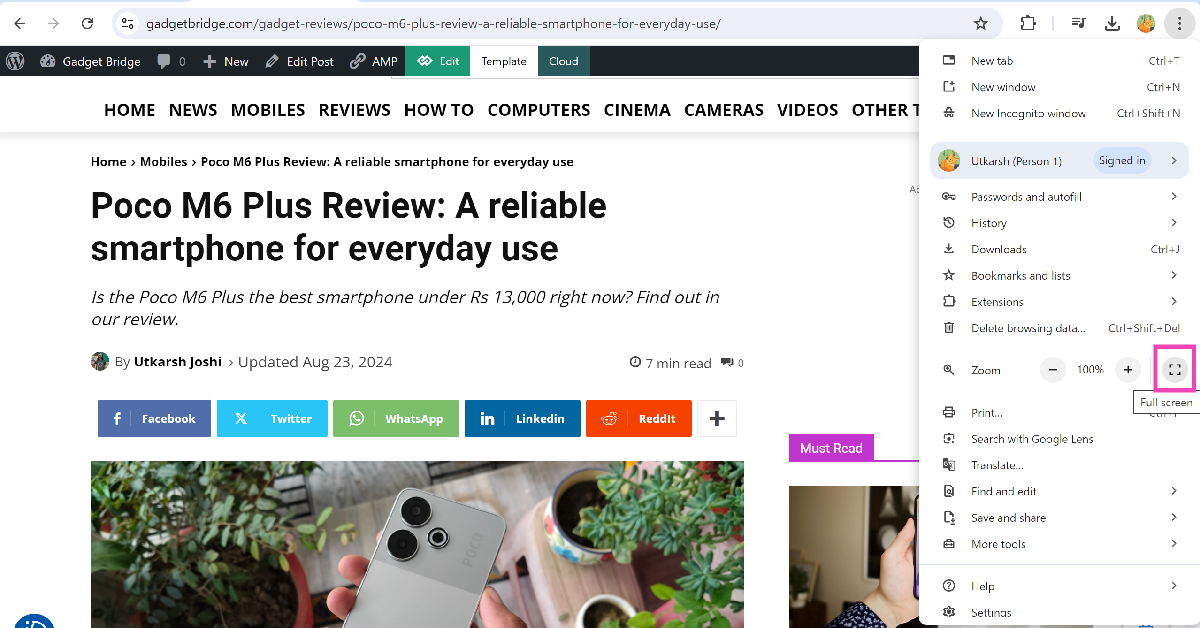
Step 3: Hit the full-screen icon next to the zoom option.
Use the keyboard shortcut to go full screen
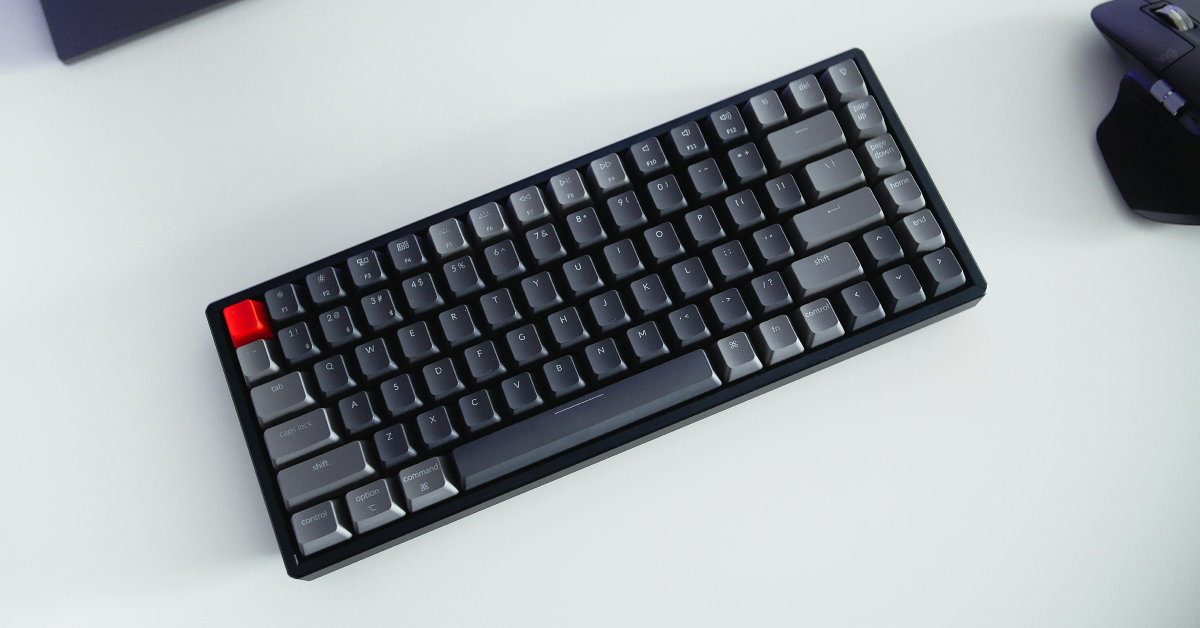
If you don’t want to use your mouse or trackpad to go full-screen on Google Chrome, there is a handy keyboard shortcut that you can use. Simply press Fn + F11 on your keyboard and the Chrome browser will occupy the entire screen. If you wanna go back to the normal view, press the shortcut again.
Use the ‘Full Screen for Chrome’ extension
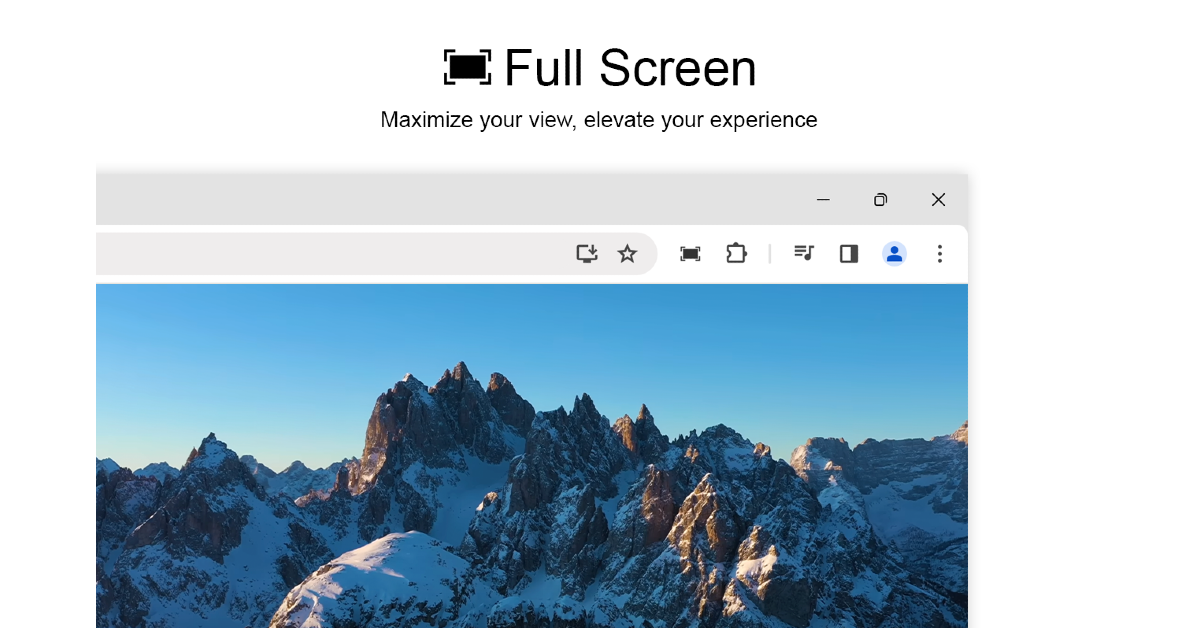
If you can’t find the native full-screen option on Chrome, use the ‘Full Screen for Chrome’ extension instead. Use this link to install the extension from the Chrome Web Store. Once installed, click on the puzzle icon next to the address bar and select the extension. With just one click, you will go full-screen on Google Chrome. You can also right-click anywhere on the screen and select ‘Page go to full screen’. To go back to the normal view, move the cursor to the top of the screen and click the cross icon. You can also right-click anywhere on the screen and select ‘Exit full screen’.
Automatically open Google Chrome in full screen every time
Step 1: Right-click Google Chrome’s shortcut on the desktop.
Step 2: Click on Properties and go to the Shortcut tab.
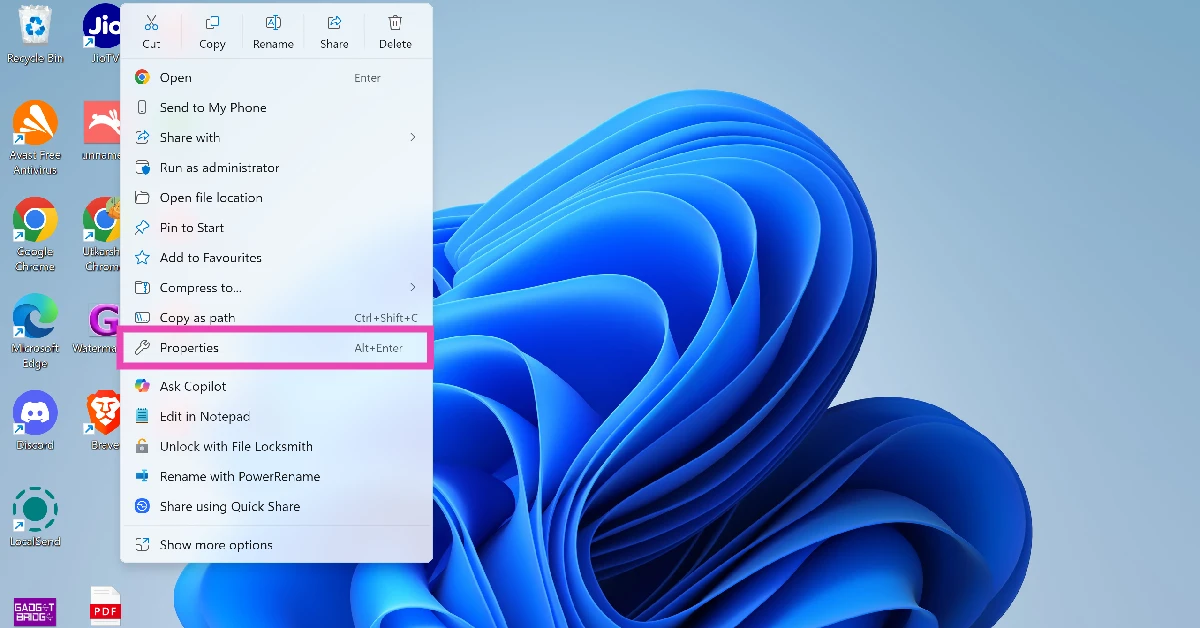
Step 3: In the Target field, add –start-fullscreen at the end of the address.
Step 4: Click Apply and OK.
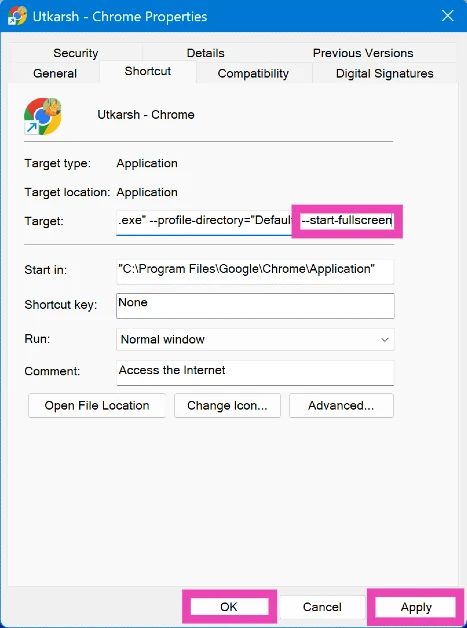
Step 5: Restart your PC.
Step 6: Launch Chrome. It will automatically open in full-screen mode.
Frequently Asked Questions (FAQs)
How do I activate full-screen mode on Google Chrome?
Click the ellipses at the top right corner of the screen and hit the enlarge icon next to the zoom option to go full-screen on Chrome.
Is there a keyboard shortcut to go full-screen on Chrome?
Press Fn + F11 to enable full-screen mode on Google Chrome. Move the cursor to the top of the screen and click the cross icon to go back to normal view.
Is there an extension to use Google Chrome in full-screen mode?
The ‘Full Screen for Chrome’ extension is a handy tool you can use when the native full-screen option isn’t working on the browser.
How do I automatically open Chrome in full screen?
Right-click Chrome's desktop shortcut, go to Properties>Shortcut, and add '--start-fullscreen' at the end of the Target field. Hit Apply and OK.
How do I zoom in on a page in Chrome?
Click the ellipses in the top right corner of the screen and hit the plus button to zoom in on a webpage.
Read Also: Poco M6 Plus Review: A reliable smartphone for everyday use
Conclusion
These are the top 4 ways to activate or enable full-screen mode in Google Chrome. If you’re on a Mac, use the Ctrl + Command + F keyboard shortcut to make the web browser fit the size of the screen. You may also want to check out how to go full-screen in Windows 11. If you have any questions related to Chrome, let us know in the comments!


