



Key Takeaways
- Google Chrome allows users to customize the toolbar by adding features like Reading Mode, Google Lens, and Google Password Manager.
- To customize the toolbar, launch Chrome, click the ellipses, navigate to 'More Tools' > 'Customize Chrome' > 'Toolbar', and toggle on desired functions.
- Google Chrome also enables users to create custom AI themes by accessing 'Settings' > 'Create Themes with AI' and selecting subject, style, mood, and color.
Google has been adding new customisation features to Chrome since last year. The new feature drop for the web browser lets users customise the toolbar. You can now add tools like Reading Mode, Google Lens, and Google Password Manager to the toolbar at the top. This makes it easy to access certain functions which would usually require navigating through browser settings. Here’s how you can add your favourite tools and functions to Google Chrome’s toolbar.
Read Also: 14 ways to fix the ‘apps not updating’ issue on iPhone
In This Article
Which tools can be added to the Google Chrome toolbar?
Here is a complete list of tools and functions that can be added to the toolbar on Google Chrome. The web browser does not impose a limit on how many tools you can to the toolbar.
Navigation
- Home
- Forward (turned on by default)
- New Incognito window
Your Chrome
- Google Password Manager
- Payment methods
- Addresses and more
- Bookmarks
- Reading list
- History
- Delete browsing data
Tools and actions
- Search with Google Lens
- Translate
- Create QR Code
- Reading mode
- Copy link
- Send to your devices
- Task manager
- Developer tools
Customize the Google Chrome toolbar
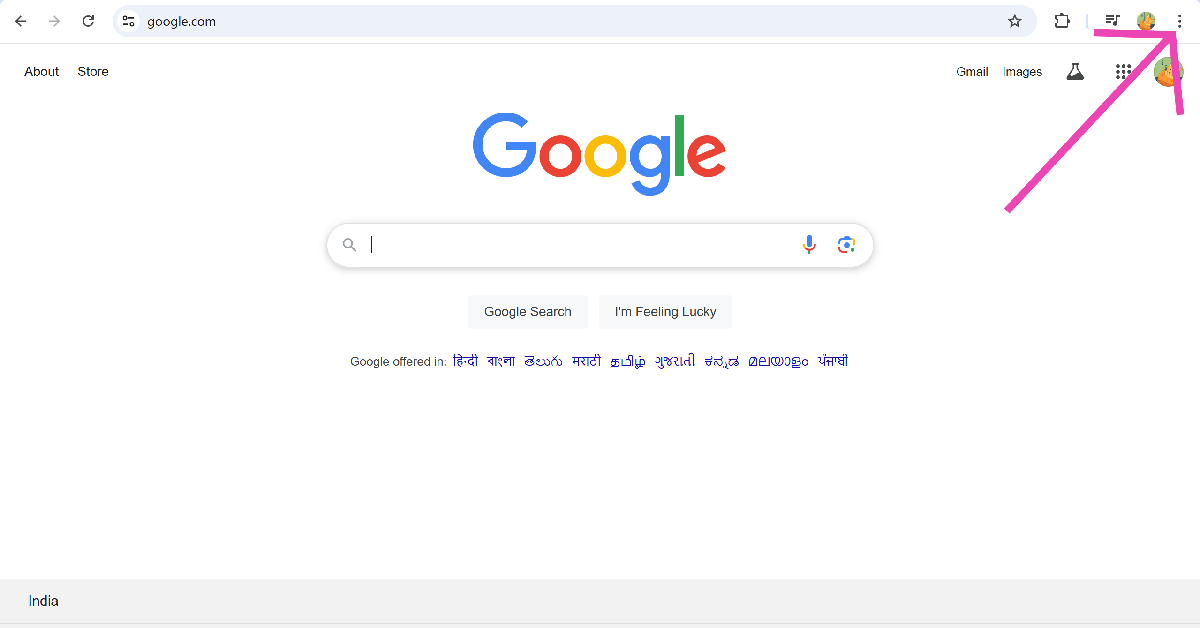
Step 1: Launch Google Chrome on your PC and hit the ellipses in the top-right corner of the screen.
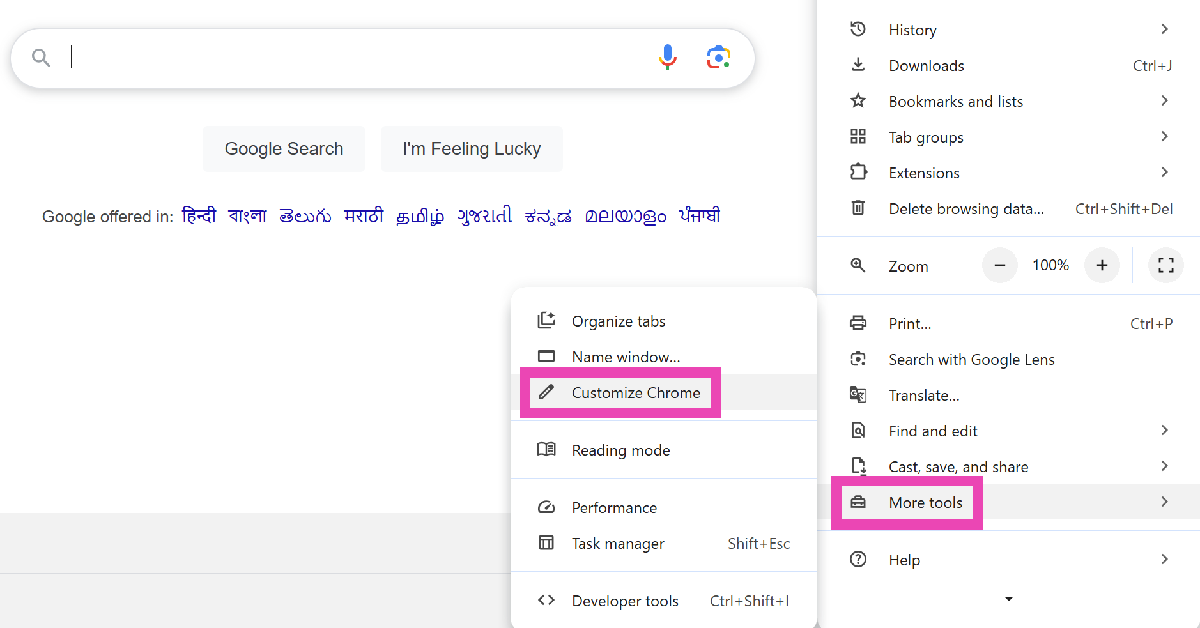
Step 2: Move the cursor to More Tools and select Customize Chrome.
Step 3: Click on Toolbar.
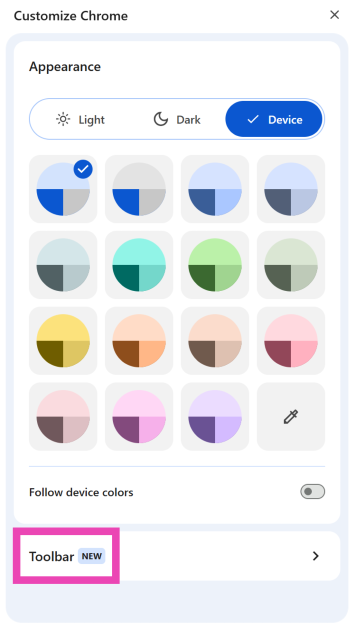
Step 4: Turn on the toggle switch next to the function you want to add to the toolbar.
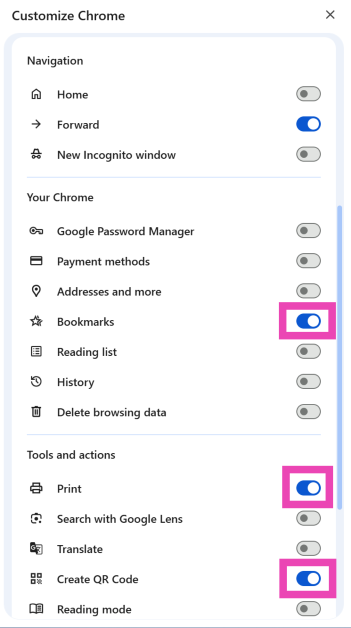
Step 5: The icons for the new functions will be sandwiched between the extensions icon and your profile picture in the top right corner of the screen.
Bonus Tip: Create a custom AI theme for Google Chrome
Note: This feature is available to users in the USA only.
Step 1: Launch Google Chrome on your PC.
Step 2: Hit the ellipses in the top-right corner of the screen and select Settings.
Step 3: Turn on Create Themes with AI.
Step 4: Open a new tab and click on Customise Chrome at the bottom right corner of the screen.
Step 5: Click on Change theme.
Step 6: Select Create with AI.
Step 7: Select a subject from the list. Additionally, choose the style, mood, and colour.
Step 8: Hit Create.
Step 9: Google Chrome will generate multiple results based on your choices. Select a theme to apply it to the new tab page.
Frequently Asked Questions (FAQs)
How do I get the toolbar back in Google Chrome?
Google Chrome hides the toolbar when you go full screen. Press and hold the Escape key on your keyboard to exit full screen and get the toolbar back. Alternatively, you can press Fn + F11 to exit fullscreen.
How do I unhide the menu bar on Google Chrome?
Press Ctrl + Shift + B to hide or unhide the menu bar on Google Chrome.
How do I customise the toolbar on Google Chrome?
Click the ellipses, go to More Tools>Customize Chrome and click on Toolbar to make changes to it.
How do I add the Translate button on Google Chrome’s toolbar?
Click the ellipses, go to More Tools>Customize Chrome>Toolbar, and turn on the toggle switch next to Translate.
How do I get a closed tab back on Google Chrome?
To reopen a tab that you closed accidentally, press Ctrl + Shift + T.
Read Also: Google Sheets can now analyse and visualise user data, thanks to Gemini AI
Final Thoughts
This is how you can add more tools to the Google toolbar. As we mentioned earlier, there is no limit to the number of tools you can add to the toolbar. The web browser also lets you create custom themes using AI. If you have any questions, let us know in the comments!


