


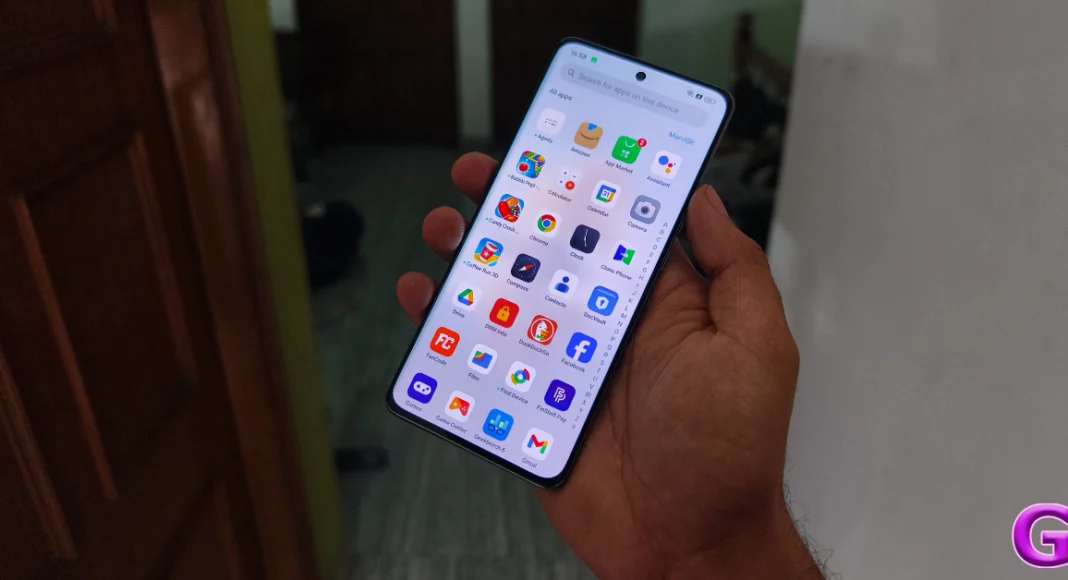

Earlier this week, Oppo showcased its new suite of AI features at the Reno12 Series launch event. These AI features are available on older Oppo smartphones like the Reno11 Series, Find N2 Flip, Find N3 Series, and Find X7 Series as well. One of the features that caught our eye was the AI Summary tool, which not only summarises web pages but also any piece of text on any page on the device. So, let’s take a look at how you can use the AI Summary feature on your Oppo smartphone.
Read Also: Where to watch the Spain vs England UEFA Euro 2024 final online?
In This Article
Before you begin
Oppo smartphones use Google’s Gemini LLM family to carry out AI tasks. Almost all of the AI computation takes place on external servers. This means that you need to be connected to the Internet while using tools like AI Eraser, AI Best Face, AI Summary, and more.
The AI Summary tool on Oppo smartphones is not restricted to the web browser and Notes app. You can access this tool anytime there is text on the screen. It is nestled in the Smart Sidebar.
You can also choose to convert the text into speech without installing a TTS engine on your device. While on-device computation is always preferable, having AI handle the task makes the process much simpler for casual users.
Use the Reading Assistant
Step 1: Go to the webpage or any piece of text you want to summarise.
Step 2: Swipe on the Smart Sidebar on the right side of the screen to reveal the options.
Step 3: Tap on AI Summary.
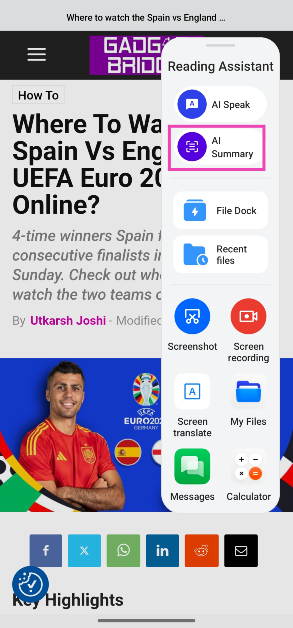
Step 4: Oppo AI will scan the screen for text and summarise it in a popup page.
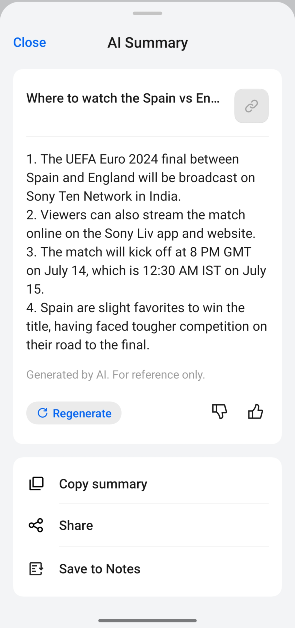
Step 5: You can choose to save the summary in the Notes app, copy it to the clipboard, or share it with your friends.
Step 6: If you want Oppo AI to read the article to you, swipe on the Smart Sidebar and select AI speak.
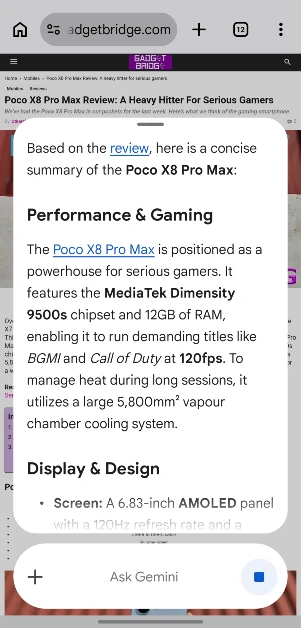
Use Gemini Assistant
Step 1: Go to the webpage you want to summarise.
Step 2: Long-press the side button to trigger the Gemini Assistant.
Step 3: Tap on Summarise page.
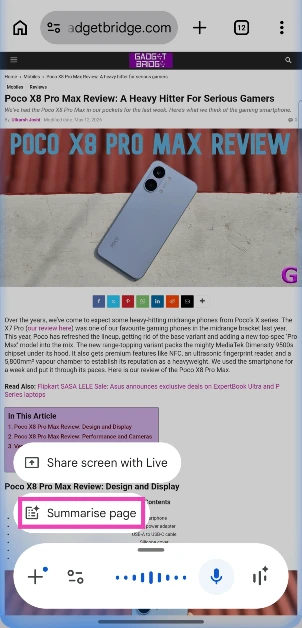
Step 4: Gemini will create a summary and display it in a pop-up panel within seconds.
Frequently Asked Questions (FAQs)
Does the AI Summary feature on Oppo phones require the internet to work?
Oppo AI requires access to external servers for computation. You need access to the internet to use Oppo AI features on your device.
How do I use AI Summary on an Oppo smartphone?
Go to the page with the text you want to summarise, swipe on the Smart Sidebar, and select ‘AI Summary’.
How do I summarise a page using Gemini?
Go to the page, long-press the side button, and tap on ‘Summarise page’ to generate a shot summary.
Can I summarise a PDF using Gemini?
You can summarise a PDF by launching the Gemini app, tapping the plus icon, selecting ‘Files’, uploading the PDF, and prompting the chatbot to summarise it.
Which old Oppo smartphones will get AI features?
Oppo AI is currently available on the new Reno12 Series, Reno11 Series, Find N2 Flip, Find N3 Series, and Find X7 Series.
Read Also: How to Enable Glanceable Directions on Google Maps
Conclusion
This is how you can use the AI Summary feature on your Oppo smartphone. Read this article to learn how to use the AI Eraser tool on your Oppo device. If you have any other questions, let us know in the comments!


