



Key Takeaways
- Instagram DMs have been enhanced with features like message scheduling, making them more appealing to users.
- Previously, scheduling messages required third-party services, which posed risks such as data sharing and security vulnerabilities.
- To schedule a message on Instagram, users can long-press the send button after typing their message, then set the desired delivery date and time.
Instagram started out as a photo-sharing platform but quickly embraced other forms of media. Today, Instagram Reels are an essential part of pop culture and one of the more popular forms of bite-sized content on the internet. Apart from photo-sharing and content consumption, people use Instagram as an instant messenger because of one key reason – it does not require sharing your phone number with other users. The platform routinely adds more features to DMs, making them more attractive to users. One of the more recent additions is the option to schedule messages. So, let’s take a look at how you can schedule messages on Instagram.
Read Also: What is Bypass Charging? How to enable it on iQOO 13?
In This Article
Should you use third-party services for scheduling messages on Instagram?
Before Instagram added the option for scheduling texts on the platform, third-party services were the only way you could go about the tasks. There is a plethora of Instagram dashboard apps that allow users to schedule texts and manage their accounts. However, these apps and services have one catch – they come at the risk of sharing your account data with a third party.
When you sign up for a third-party service to manage your Instagram, you run the risk of having your data accessed by other parties. This is more so the case when you’re not paying for the service. Most of the dashboard apps are not reliable and sell your data to advertisers. Additionally, they often lack the appropriate security tools, which leaves their servers open to malicious attacks.
Now that Instagram has a native tool to schedule messages, you no longer need to rely on third-party apps to do the job. The native tool is easy to use and does the job just fine.
Schedule messages on Instagram
Step 1: Launch the Instagram app on your phone and swipe left on the home page to access your DMs.
Step 2: Tap on a conversation to open it.
Step 3: Tap the text box at the bottom of the screen and type your message.
Step 4: Long-press the Send button.
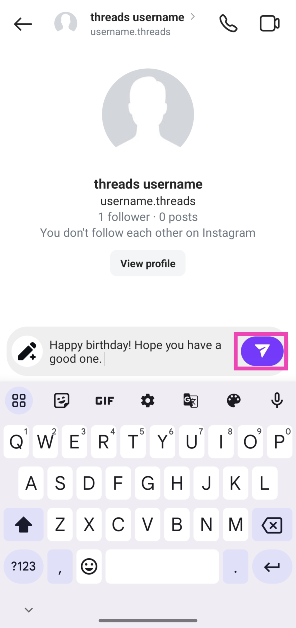
Step 5: Set the delivery date and time by swiping up and down on the digits.
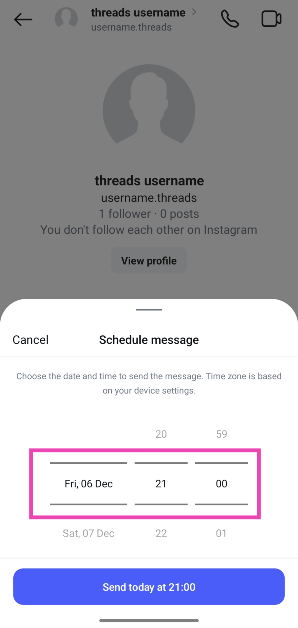
Step 6: Tap on Send on [Scheduled Date and Time].
![Step 6: Tap on Send on [Scheduled Date and Time]. How to schedule messages on Instagram?](https://www.gadgetbridge.com/wp-content/uploads/2024/12/scms3.webp)
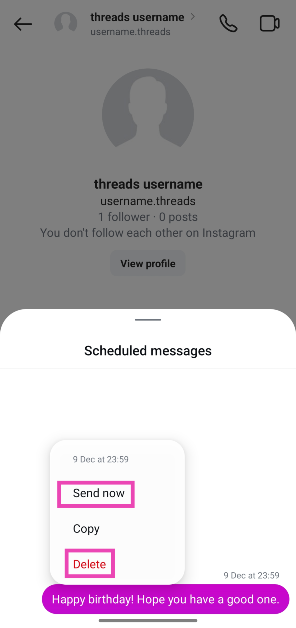
Step 7: To view the scheduled message, tap the ‘1 scheduled message’ indicator right above the text box.
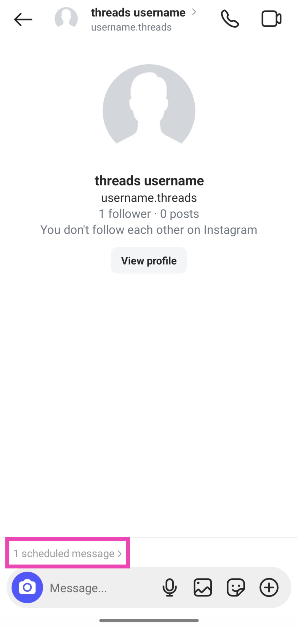
Step 8: Long-press the message to send it immediately or delete it.
Bonus Tip: Schedule a text message using Google Messages
Step 1: Launch the Google Messages app on your phone.
Step 2: Select a contact.
Step 3: Type the message.
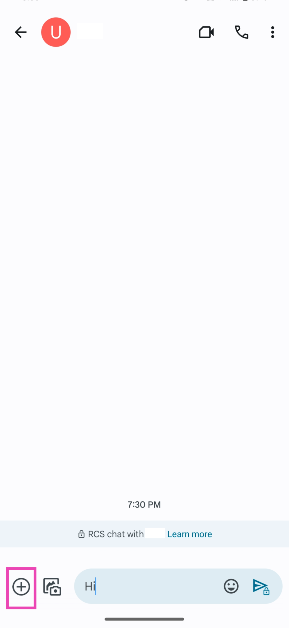
Step 4: Hit the plus icon at the bottom left corner of the screen.
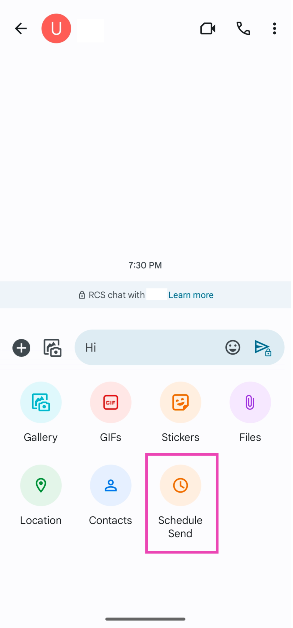
Step 5: Tap on Schedule Send.
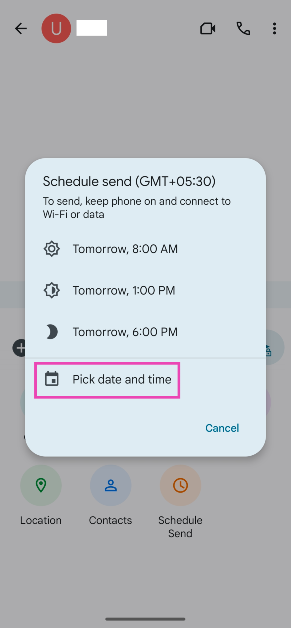
Step 6: Tap on Pick date and time.
Step 7: Select a date and hit Next.
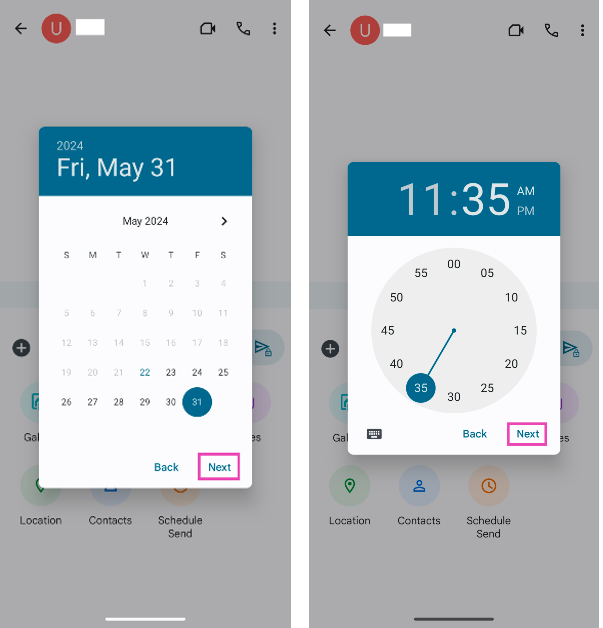
Step 8: Select the time of delivery and hit Next.
Step 9: Finally, hit Save.
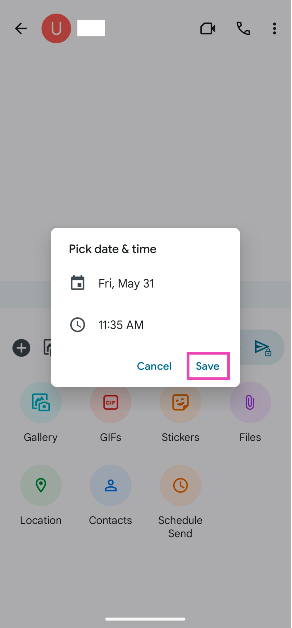
The text will be scheduled and sent on the selected date and time.
Frequently Asked Questions (FAQs)
Can I schedule messages on Instagram?
Yes, Instagram allows you to schedule messages on the platform. Type a message and long-press the send button to set its delivery date & time.
How to put a timer on an Instagram message?
While you cannot set a timer on Instagram messages, you can send disappearing texts in Vanish Mode. To enable Vanish Mode, swipe up from the bottom of the chat.
Why don’t I have the schedule option on Instagram?
Instagram may not have rolled out scheduled messages in your region yet. Furthermore, this feature may not be available on older versions of the app.
Where can I see my scheduled messages on Instagram?
Go to the conversation in which you scheduled a message. Tap the ‘1 scheduled message’ indicator above the text box. You will be able to view the message.
How do I delete scheduled messages on Instagram?
Open the conversation with the scheduled message and tap the indicator above the text box to view it. Long-press the scheduled message and hit ‘Delete’.
Read Also: Tecno Phantom V Fold 2, Phantom V Flip 2, most affordable foldable phones launched in India
Final Thoughts
This is how you can schedule messages on Instagram. You can schedule multiple messages in a single conversation. There is no way to edit your scheduled message. If you want to make changes, you will need to delete the message and schedule it again. While you’re here, check out how you can control who messages you on Instagram. If you have any other questions, let us know in the comments!


