


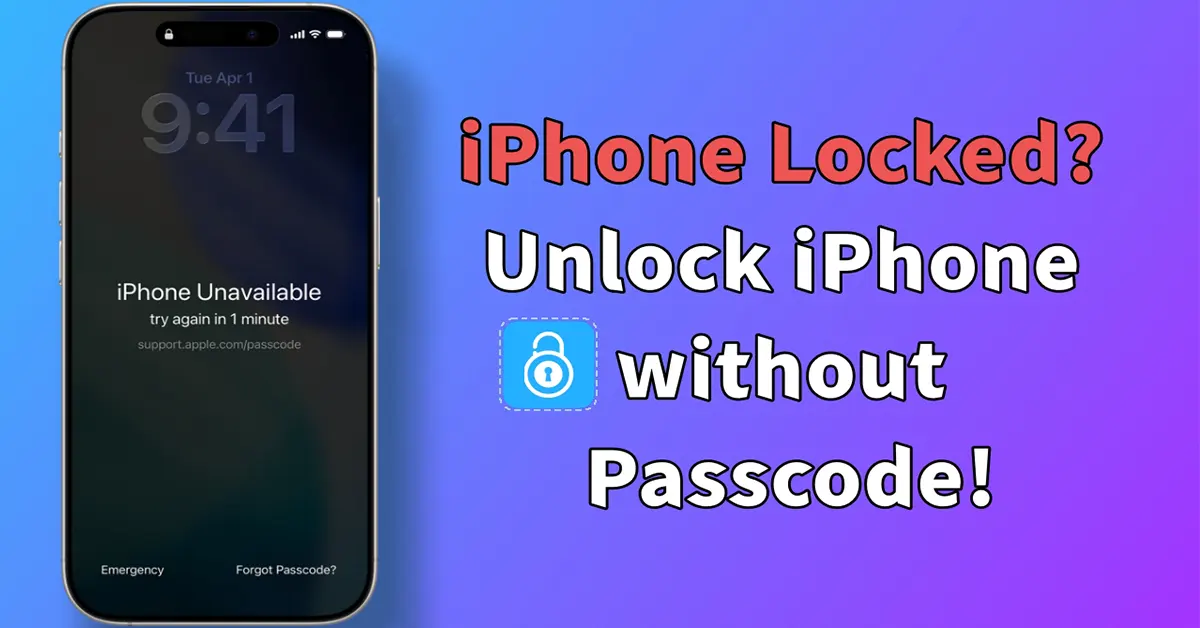
Forgot your iPhone passcode? No worries. This is one of the most common problems faced by many smartphone users. Whether you changed a passcode recently or cannot remember it for a long time, you can regain access on your own. “iPhone Unavailable” or “Security Lockout” doesn’t mean a permanent lock. With an official solution provided by Apple or using a professional iPhone unlocker, you can easily bypass the obstacle. Wondering how? Now take a close look at this post.
In This Article
Solution 1: 72-Hour Passcode Reset No Data Loss
If you recently changed your passcode, Apple offers a temporary workaround. Within a 72-hour period, you can use your previous passcode to access your iPhone.
Prerequisites:
- The iPhone must be running iOS 17/iPadOS 17 or newer.
- The passcode must have been changed within the last 72 hours.
- You remember your old passcode.
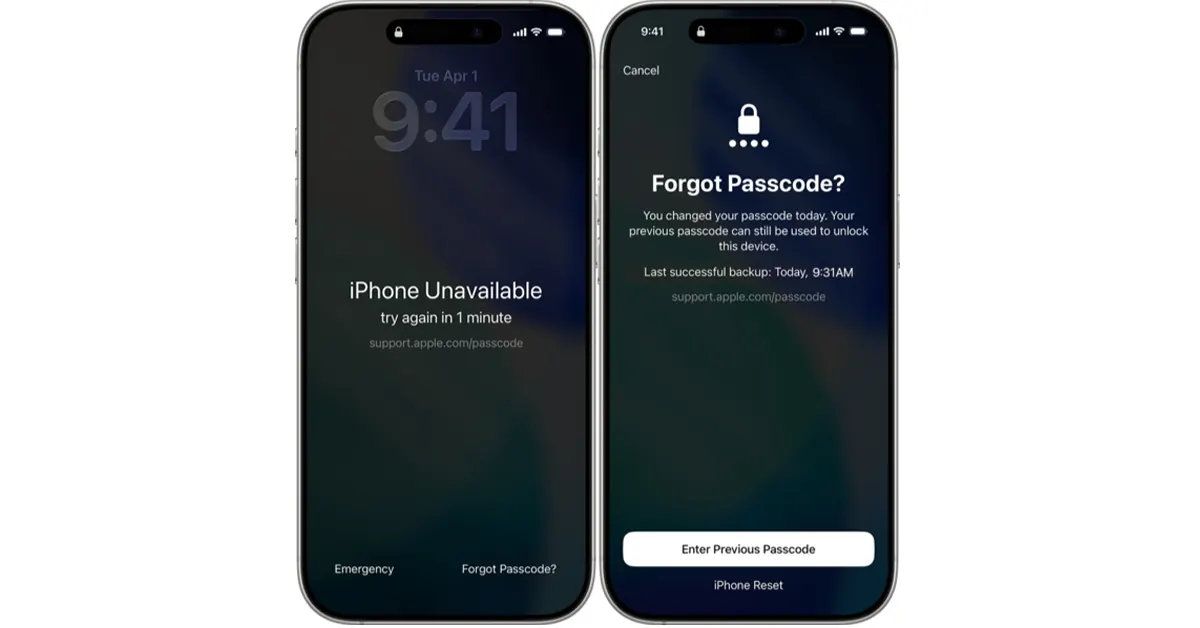
Step 1. Enter any incorrect passcode on the lock screen multiple times until the “iPhone Unavailable” screen appears.
Step 2. At the bottom of your screen, tap the “Forgot Passcode?” option, followed by “Enter Previous Passcode“.
Step 3. Type in your old passcode to access your iPhone temporarily and then set a new passcode.
Solution 2: “Erase iPhone” without a computer
If your new passcode has been set after 72 hours, you can still erase your iPhone from the lock screen, without a computer. However, this can restore your device to factory defaults and remove all data.
Prerequisites:
- Your iPhone is running iOS 15.2 or newer.
- An active Wi-Fi or cellular connection on your iPhone.
- “Find My” feature previously enabled.
- You know your Apple ID password.
Step 1. Keep typing the wrong passcode until the “Security Lockout” or “iPhone Unavailable” shows up.
Step 2. Tap “Erase iPhone” or “Forgot Passcode?” option at the bottom.
Step 3. Confirm device erasure and enter your Apple ID password to sign out of your Apple account.
Step 4. Tap Erase iPhone to delete all data and settings from your device.
Solution 3: Fast Unlock with TunesKit iPhone Unlocker
Not everyone is lucky enough to directly unlock an iPhone with the on-screen lock. If you cannot meet the prerequisites, another dedicated iPhone unlocking software called TunesKit iPhone Unlocker is your best bet. As a reliable toolbox designed specifically for various lockout emergencies, it removes 4-digit & 6-digit passcodes, Face ID, and Touch ID with incredible ease on your iPhone, iPad or iPod touch. Better yet, it enables you to unlock Apple ID, MDM, iCloud activation lock, Screen Time passcode and more at your disposal.
Prerequisites:
- A Mac or Windows PC.
- A compatible USB/lightning cable.
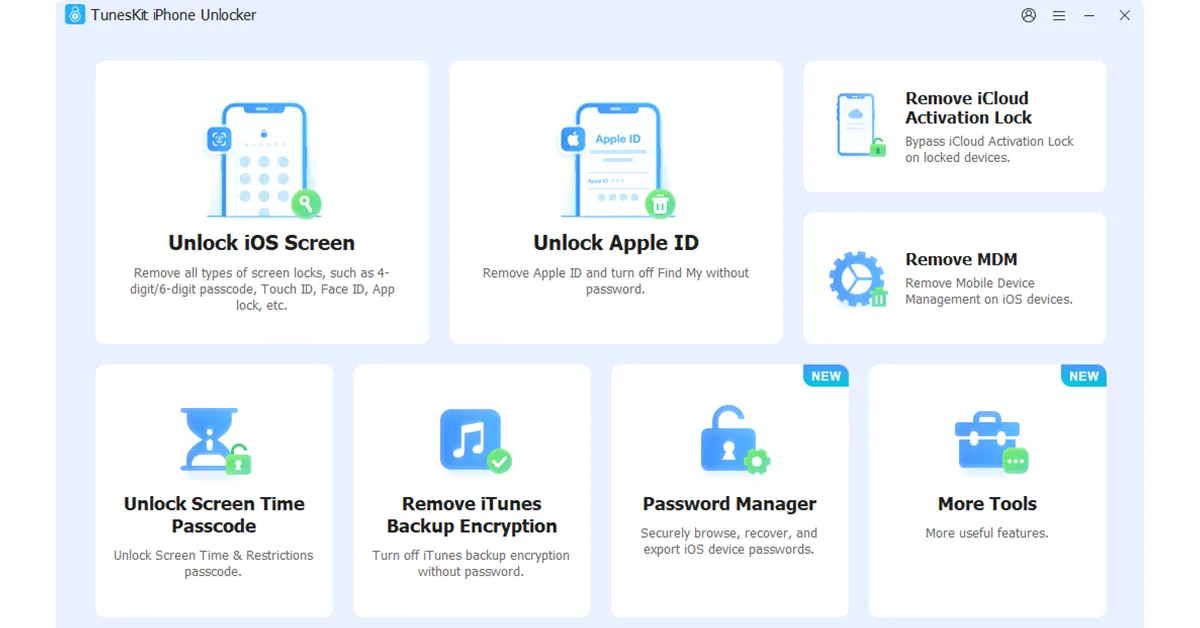
Step 1: Launch TunesKit iPhone Unlocker on your computer. Navigate to “Unlock iOS Screen” in its main interface, then connect your locked iPhone, and proceed with the Start button.
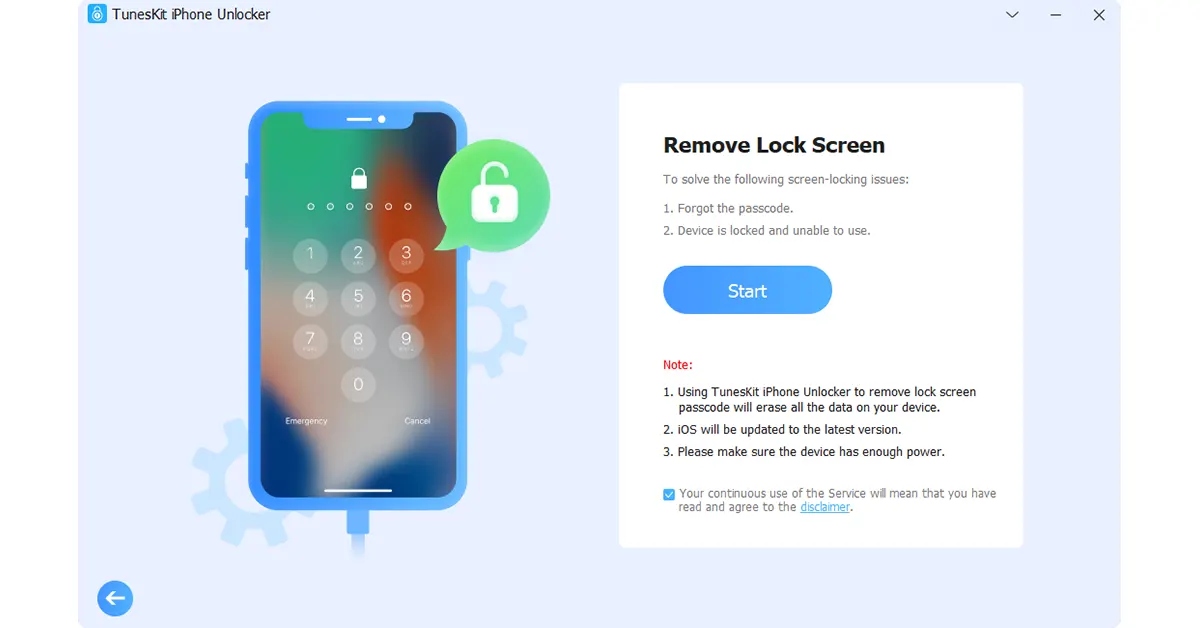
Step 2: Put your connected iPhone into DFU or Recovery Mode following the on-screen instructions in the program.
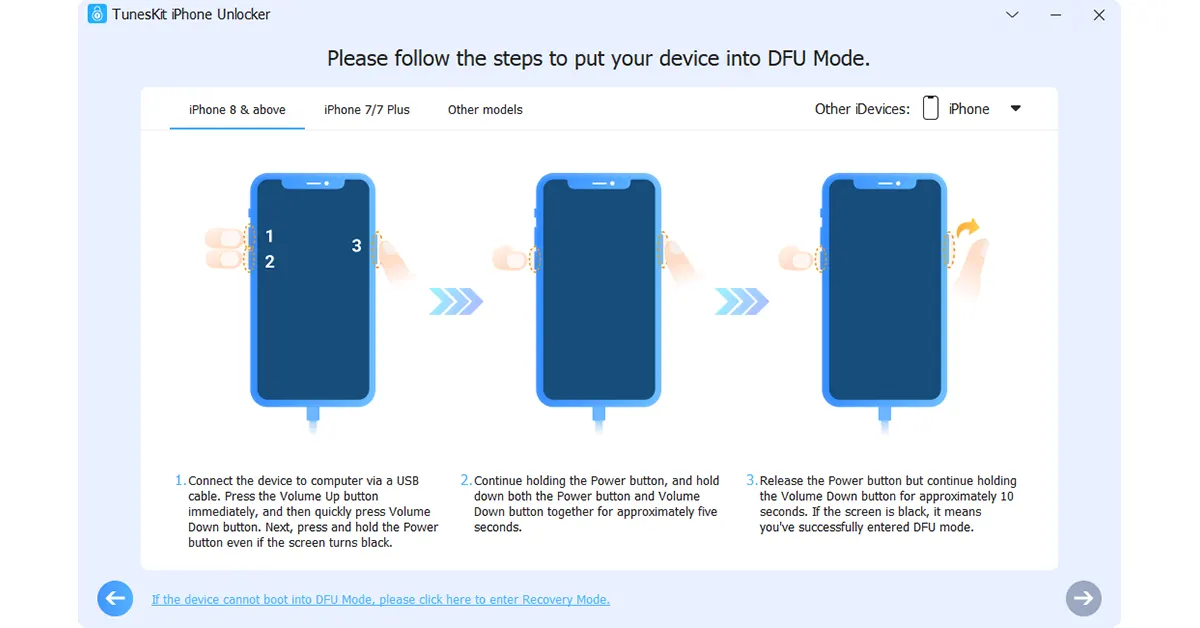
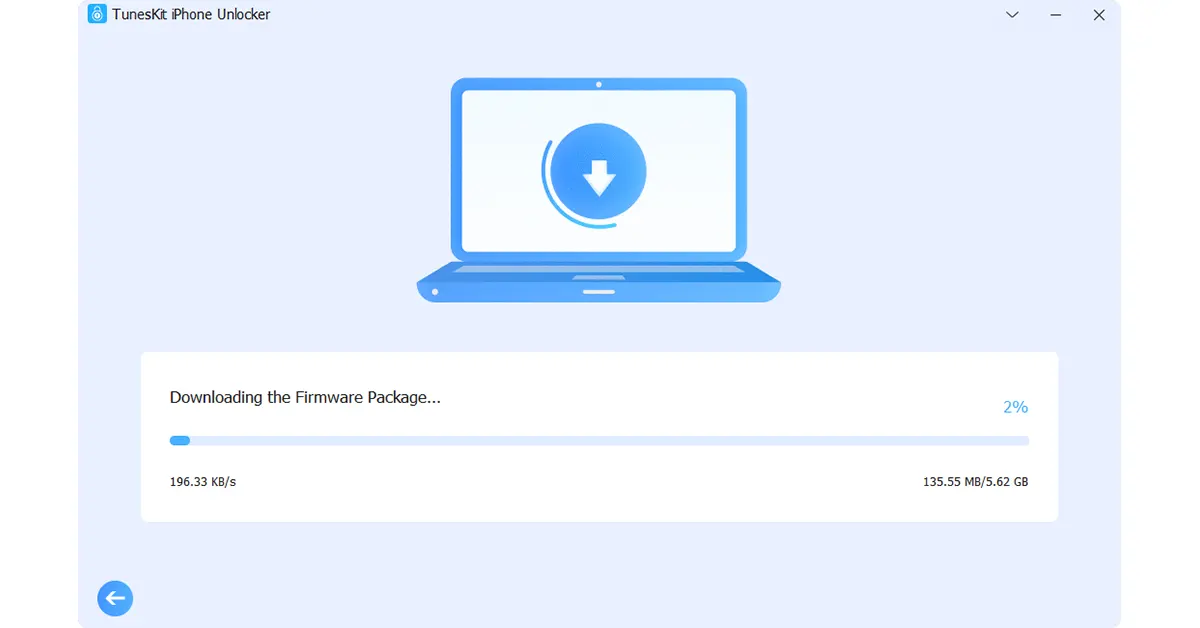
Step 3: TunesKit iPhone Unlocker will detect your device and show related device information. Confirm them and then click the Download button to get the firmware package.
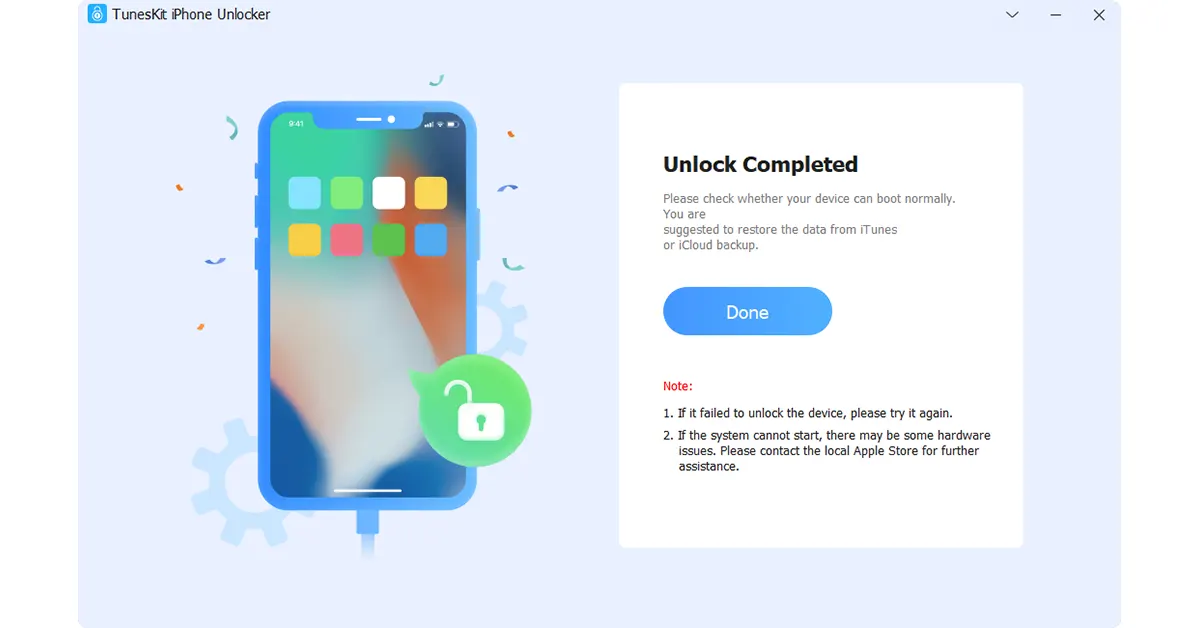
Step 4: Once downloaded, you can click the Unlock button to remove the screen passcode and get into your iPhone easily.
Solution 4: Remote Erase via iCloud “Find My”
If you do not have your iPhone in your hands, or the screen is unresponsive, you can use iCloud “Find My” to remove the passcode from the screen lock remotely.
Prerequisites:
- “Find My” feature was previously enabled on your locked iPhone.
- The locked iPhone connects to Wi-Fi or cellular.
- You remember the Apple ID and associated password.
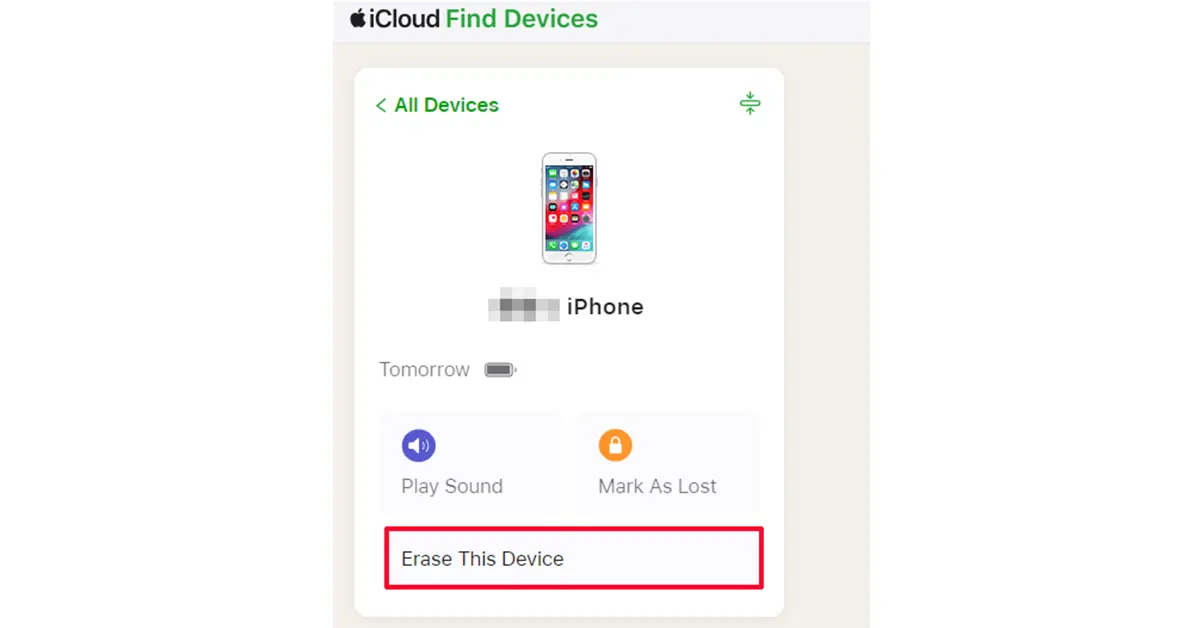
Step 1. Navigate to icloud.com/find and sign in to your account.
Step 2. Select your locked iPhone from the All Devices dropdown list.
Step 3: Click “Erase This Device” to permanently wipe the passcode.
Solution 5: Restore iPhone via iTunes or Finder
iTunes or Finder is another Apple’s official solution to help restore your locked iPhone and get rid of the screen passcode.
Prerequisites:
- A Mac or Windows PC with iTunes installed (or Finder on newer Macs).
- A compatible USB/lightning cable.
- Apple account information if Find My iPhone is enabled.
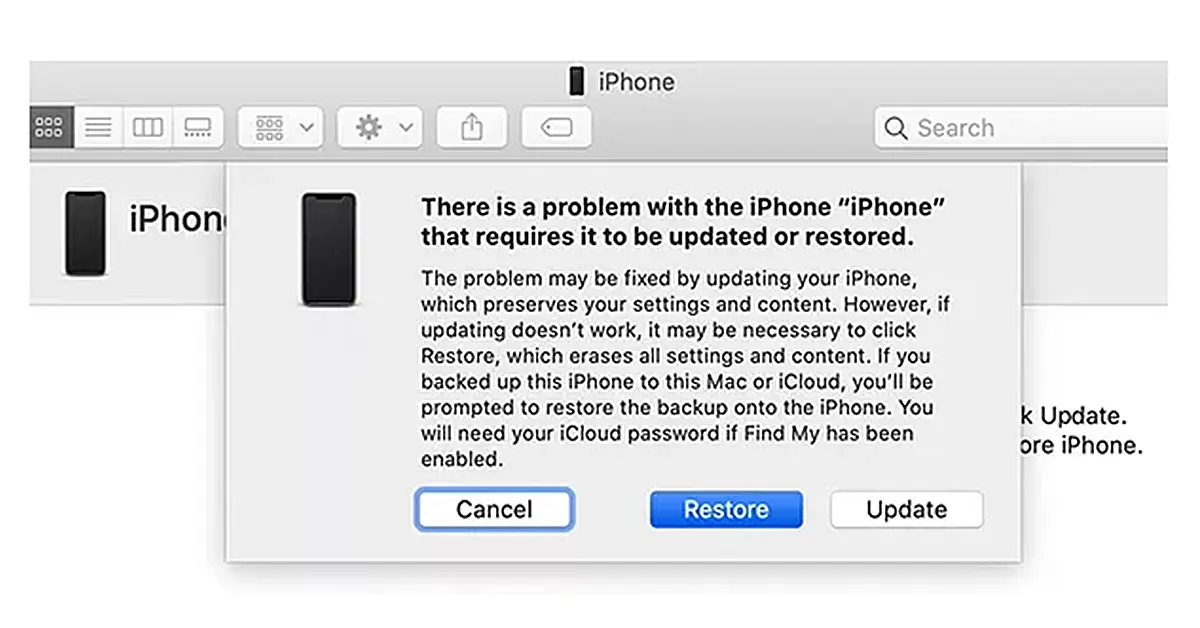
Step 1. Connect your locked iPhone to your computer using your cable.
Step 2. Get into recovery mode. (For iPhone 8 or later: quickly press and release Volume Up, then press and release Volume Down, lastly hold the Side button).
Step 3. Open iTunes or Finder, click the “Restore” button in the pop-up warning to wipe the iPhone and remove the passcode.
Frequently Asked Questions (FAQs)
Q1: How to unlock an iPhone without a passcode without losing data?
A: The 72-hour Passcode Reset is the only method to bypass the screen lock without erasing data. However, it requires a previously old passcode. If you unlock your iPhone through a device reset, ensure that you have a recent backup to recover data from.
Q2: How to unlock iPhone if you forgot Apple ID and password?
A: If you forgot both your screen passcode and your Apple ID password, official routes will leave you stuck. In this case, TunesKit iPhone Unlocker is required, as it can bypass the screen lock and help remove the linked Apple ID from the device so you can start fresh.
Q3: Can you unlock an iPhone locked to the owner after a factory reset?
A: A factory reset can remove a screen passcode, but it will usually trigger the iCloud Activation Lock if the previous owner did not sign out. Fortunately, TunesKit iPhone Unlocker can specifically bypass iCloud Activation Lock without the previous owner (for personal legal use only).
Final Thoughts
Being locked out of an iPhone can be stressful, but it’s actually a completely solvable issue. Depending on your situation, you can find an official solution provided by Apple as long as certain conditions are met. However, if you want a more straightforward approach to unlock an iPhone without a passcode, TunesKit iPhone Unlocker can be an ideal choice. Whatever method you ultimately choose from this article, remember to back up your data regularly to avoid accidentally losing important information.


