

- Angry Birds: Showdown is one of the first titles up for testing.
- Playables on YouTube are accessible to a small section of Paid users.
- YouTube Playables is still under Beta testing phase until March 28, 2024.
Playables on YouTube now available for Premium users

Key highlights
Garena Free Fire Redeem Codes Today 27 November 2023: Here is how to claim them

Garena Free Fire is a battle royale game with regular awards and tournaments to keep players interested. If you play Garena Free Fire, you should be aware of the redeem codes that are released on a daily basis. However, because the battle royale game is banned in India, players from other countries can use the Free Fire Redeem codes daily. If you’re unfamiliar with the Garena Free Fire redeem codes or don’t know how to get them, we’ve put together a step-by-step guide to help you redeem them. Check out Garena Free Fire Redeem Codes for 27 November 2023.
The Free Fire redeem codes are a great way to get free stuff. These are 12-digit codes that contain alphabets and numbers, as well as an expiration date and time. Because the Garena FF redeem codes cannot be used more than once, you should hurry to the redemption page to claim your free reward before someone else does. To get a free reward, all you have to do is go to reward.ff.garena.com/en, which is the official redemption page. Also, keep an eye on this space for daily updates on Garena Free Fire redemption codes and rewards.
Garena Free Fire Redeem Codes Today 27 November 2023
HFNSJ6W74Z48 2FG94YCW9VMV FFDBGQWPNHJX V44ZZ5YY7CBS FFAC2YXE6RF2 FFCMCPSBN9CU FFBBCVQZ4MWA VDE324BHY67J 98U7Y65TGBNH VCF432WER4CC NVB777NMJ90O CZX432WER4DF BCVGTY65R4ER BCV543ASD43ED MNJ900OLIK89 XDR542FR54VG HHNAT6VKQ9R7 TDK4JWN6RD6 XFW4Z6Q882WY ASF654RTY78U 123NHY78IKM8 OPL098IKMJ76 VZC544ERT56G 4TPQRDQJHVP4 WD2ATK3ZEA55 E2F86ZREMK49How to Get Free Fire Redeem Codes for Garena on 27 November 2023?
- Visit the Garena Free Fire game’s official website at reward.ff.garena.com.
- Use your Facebook, Google, VK, Apple ID, Huawei ID, or Twitter account to log in.
- You’ll be taken to a valid redemption code (s)
- Copy and paste the 12-digit redemption code into the text box.
- On the screen, a dialogue box will appear.
- ‘Ok’ should be selected.
Top 6 ways to download a video from X (formerly Twitter)

Twitter may have started off as a micro-blogging website, but it has coalesced into a social media giant that hosts all kinds of content across different formats. Now known as X, the platform is a hotbed for viral videos and original creators who exclusively post on there. If you’re an X user, you must have come across a video that you wanted to share with your friends who aren’t on the platform. Sending a link might not always work since X frequently asks users to create an account to access the content. To fix this conundrum, check out these 6 quick methods to download a video from X/Twitter.
Read Also: Best 3 ways to get free Minecoins on Minecraft?
 Step 4: Select Download video.
 The video will be saved to your device.

 Step 4: Click on Copy Link.
 Step 5: Go back to the third-party tool and paste the link into the ‘Tweet URL’ box.
Step 6: Click on Load Videos.
Step 5: Go back to the third-party tool and paste the link into the ‘Tweet URL’ box.
Step 6: Click on Load Videos.
 Step 7: Select the resolution you want for the video.
 The video will be downloaded to your device.

 Step 4: Select Copy Link.
 Step 5: Launch the Download Twitter Videos – GIF app. The link you copied from Twitter will automatically get posted in the Your Link box. If not, post it manually.
Step 6: Select your preferred resolution and hit Download.
Step 5: Launch the Download Twitter Videos – GIF app. The link you copied from Twitter will automatically get posted in the Your Link box. If not, post it manually.
Step 6: Select your preferred resolution and hit Download.
 Step 4: Hit Download.
 Step 5: Select your preferred resolution and hit Download again.

What kind of tool do you need to download videos from X/Twitter?
If you are a Twitter Blue/X Premium subscriber, you can natively download videos from the app itself. You don’t need a third-party app or online tool to do the job for you. However, there is one small catch that you need to know about. X/Twitter users who publish videos on the platform can decide whether other users can download their videos. If they have turned off this functionality, even Blue/Premium subscribers will not be able to save their videos. This will bring you back to relying upon third-party tools. You should also know that the native download feature is not yet available for PCs. When it comes to using third-party apps to download X/Twitter videos, we recommend the Seal Downloader. This app is accessible to the average user and gets the job done in a few simple steps. Unlike other third-party apps, Seal Downloader does not have any annoying popups or redirects. Its layout is integrated with some ads, but the overall design is quite clean. You also get the option to choose the video resolution. Apart from X/Twitter, this app works for every major social media platform.Download videos from X (formerly Twitter) using the app itself
The option to natively download videos on Twitter is exclusive to Blue subscribers only. However, not all videos on the platform may be available for download. Video publishers get to decide whether other users on the app can download the video to their devices. Step 1: Launch the X app on your smartphone and select the video you want to download. Step 2: Make sure the video is in full screen. Step 3: Hit the ellipses at the top-right corner of the screen. Step 4: Select Download video.
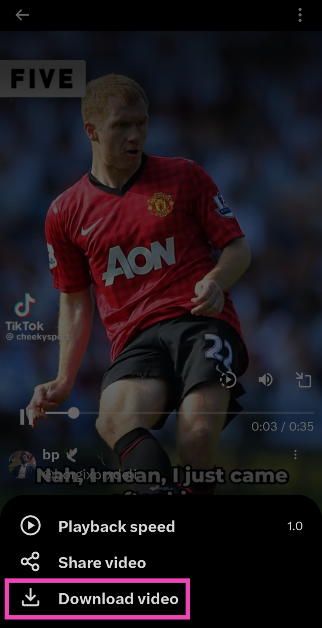 The video will be saved to your device.
Another way to download a video from the X app itself
There is another way to download a video from X without playing it in fullscreen. While there is nothing wrong with this method, sometimes users may not want to play videos especially if they’re out in public and don’t have their headphones on them. Luckily, X allows you to save a video without playing it. Here’s how. Step 1: Launch the X app on your phone and load the post containing the video. Step 2: Long-press the video until a set of options pop up on the screen. Step 3 Hit Download video.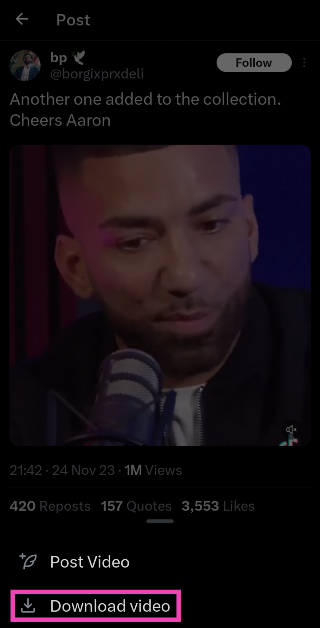
Use a third-party tool
Since there is no way to natively download Twitter videos on a PC (even for Twitter Blue subscribers), you will need to take the help of a third-party tool. Here’s how you can go about it using the Twitter Vid tool. Step 1: On your PC, go to https://twittervid.com/. Step 2: Open Twitter in another tab and go to the video you want to download. Step 3: Hit the Share icon at the bottom of the post.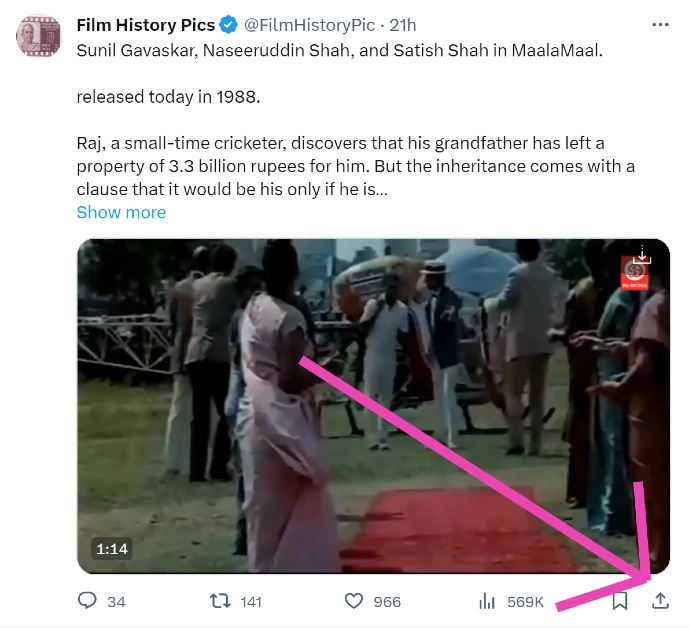 Step 4: Click on Copy Link.
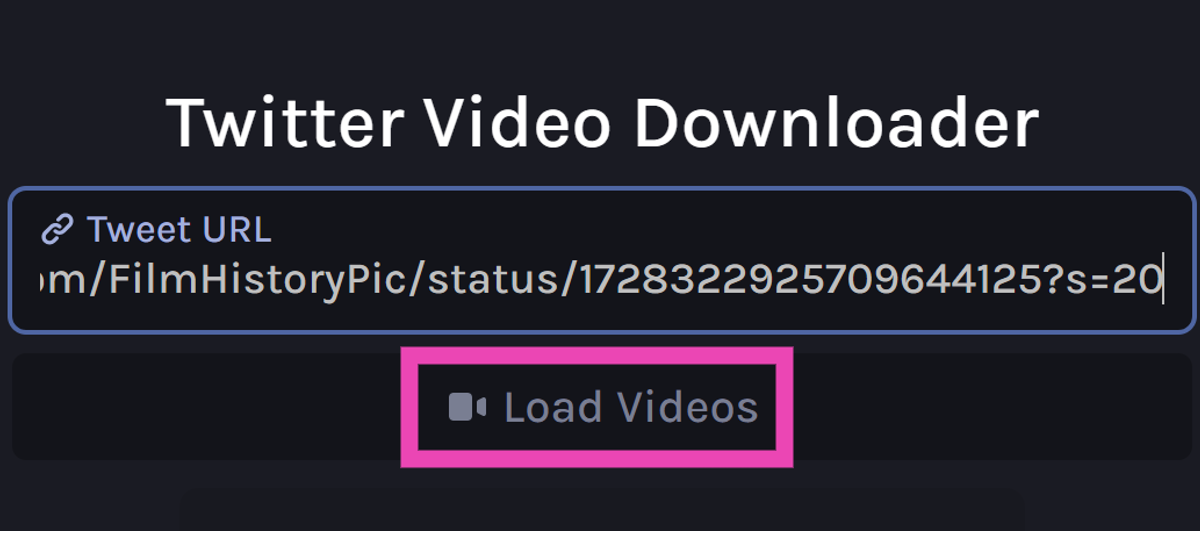
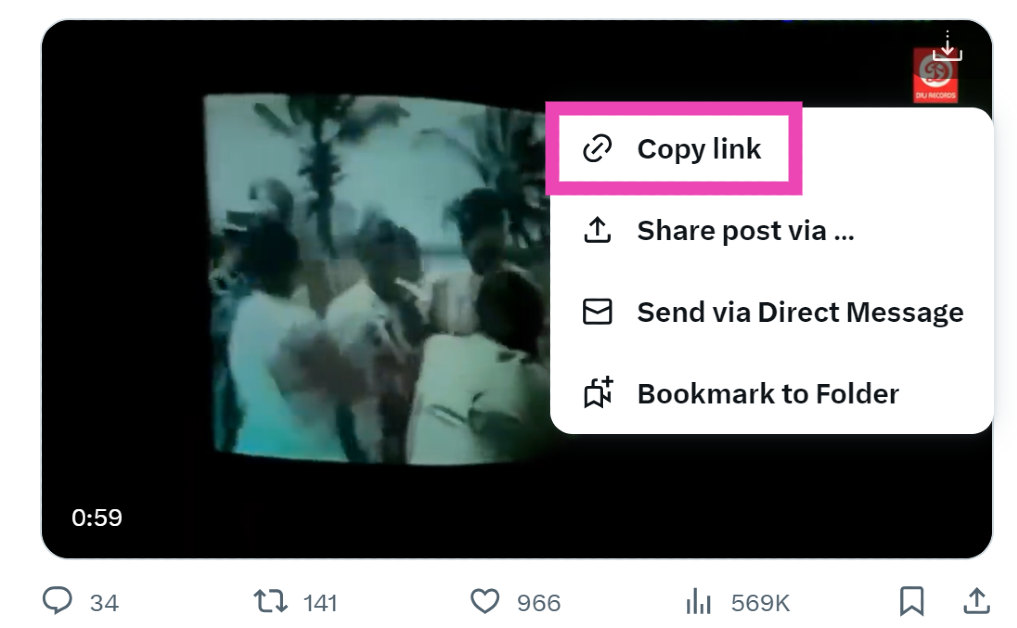 Step 5: Go back to the third-party tool and paste the link into the ‘Tweet URL’ box.
Step 6: Click on Load Videos.
Step 5: Go back to the third-party tool and paste the link into the ‘Tweet URL’ box.
Step 6: Click on Load Videos.
 Step 7: Select the resolution you want for the video.
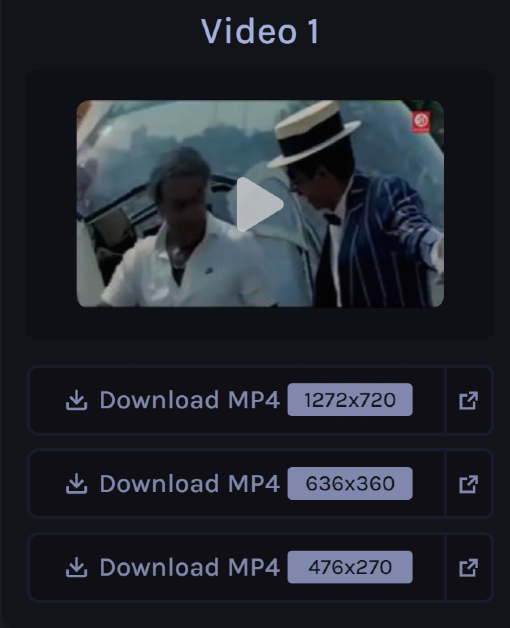 The video will be downloaded to your device.
Use a Chrome Extension to download videos from X
If you regularly download Twitter videos on your PC, switching to a third-party tool every single time can be rather laborious. A Chrome extension would be more suited for you. Twitter Vid (the third-party tool we mentioned earlier also has a very handy extension that you can use to download any video on the micro-blogging platform. Step 1: On your PC, go to https://twittervid.com/. Step 2: Click on Chrome Extension at the top of the screen. This will redirect you to the Chrome Webstore. Step 3: Select Add to Chrome. Step 4: Hit the Download icon at the top right corner of any video to save it on your device.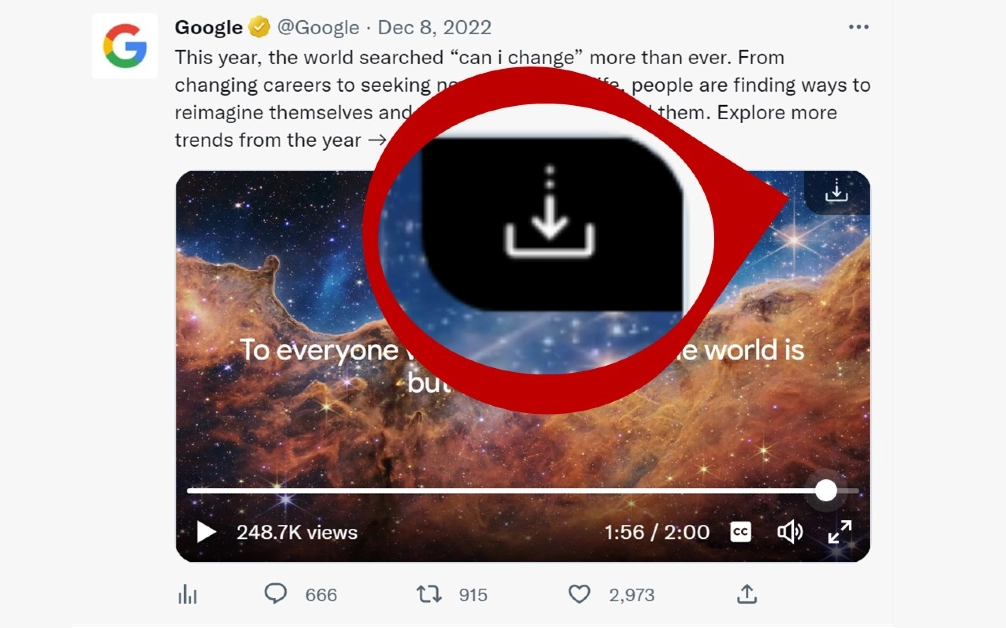
Use Download Twitter Videos – GIF app
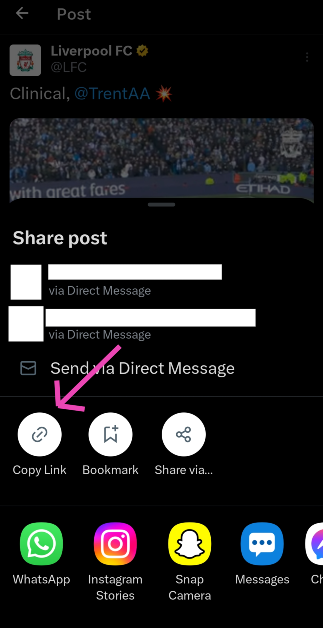
Twitter users who aren’t Blue subscribers can download videos from the social media platform on their smartphones using a third-party app. Simply follow these steps. Step 1: Download and install the Download Twitter Videos – GIF app on your phone. Step 2: Launch Twitter and load the post containing the video you want to download. Step 3: Hit the Share icon at the bottom of the post.
 Step 4: Select Copy Link.
 Step 5: Launch the Download Twitter Videos – GIF app. The link you copied from Twitter will automatically get posted in the Your Link box. If not, post it manually.
Step 6: Select your preferred resolution and hit Download.
Step 5: Launch the Download Twitter Videos – GIF app. The link you copied from Twitter will automatically get posted in the Your Link box. If not, post it manually.
Step 6: Select your preferred resolution and hit Download.
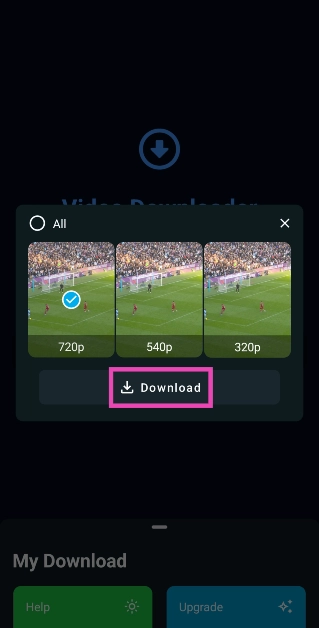
Use the Seal Downloader app
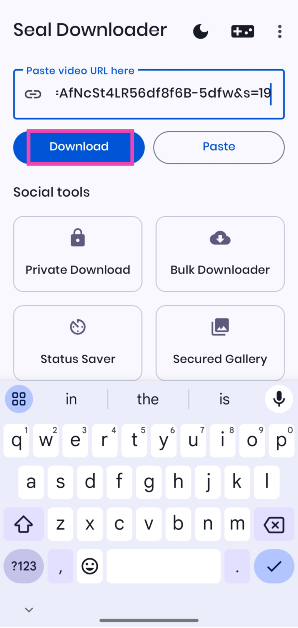
Step 1: Download the Seal Downloader app from the Google Play Store. Step 2: Go to the Twitter post with the video and copy its link. Step 3: Launch the Seal Downloader on your phone and paste the video link in the box.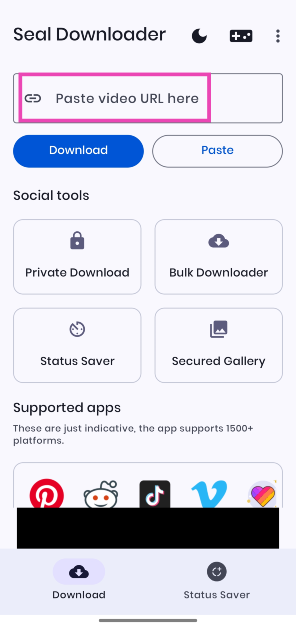 Step 4: Hit Download.
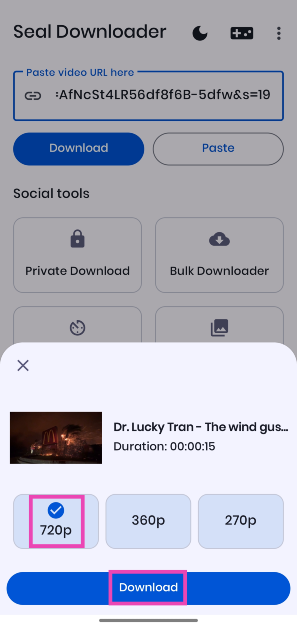
 Step 5: Select your preferred resolution and hit Download again.
Frequently Asked Questions (FAQs)
Why am I unable to download a video on X even after subscribing to Twitter Blue?
Even if you are subscribed to Twitter Blue, you won’t be able to download all the videos on the platform. While uploading a video, X users get to decide whether it can be downloaded by other users on the app.What is the video time and file size limit for Twitter Blue subscribers?
Twitter Blue or X Premium can upload videos up to 3 hours long. The maximum file size allowed is 8GB.How much does a Twitter Blue or X Premium subscription cost?
In India, a basic monthly subscription to X costs Rs 243.75 while the premium tier subscription costs Rs 650. A Premium+ subscription costs Rs 1,300 per month.Does X/Twitter let you download videos?
Only Premium subscribers can download videos natively on X/Twitter. Regular users have to rely on third-party apps and extensions for the task.How do I download X/Twitter videos on my phone?
Install the Seal Downloader app on your phone from the Google Play Store. Paste the video link in the text box and hit ‘Download’. Select a resolution and hit ‘Download’ again. Read Also: Price reveal: Samsung Galaxy A05 will be available in India at this pricingConclusion
These are the top 6 ways to download a video from X (formerly Twitter). While looking for third-party tools online, always avoid the ones that ask for your Twitter login credentials. These websites are typically operated by hackers and scam artists. You don’t need to provide your password to any website in order to download a video from X.Garena Free Fire Redeem Codes Today 26 November 2023: Here is how to claim them

Garena Free Fire is a battle royale game with regular awards and tournaments to keep players interested. If you play Garena Free Fire, you should be aware of the redeem codes that are released on a daily basis. However, because the battle royale game is banned in India, players from other countries can use the Free Fire Redeem codes daily. If you’re unfamiliar with the Garena Free Fire redeem codes or don’t know how to get them, we’ve put together a step-by-step guide to help you redeem them. Check out Garena Free Fire Redeem Codes for 26 November 2023.
The Free Fire redeem codes are a great way to get free stuff. These are 12-digit codes that contain alphabets and numbers, as well as an expiration date and time. Because the Garena FF redeem codes cannot be used more than once, you should hurry to the redemption page to claim your free reward before someone else does. To get a free reward, all you have to do is go to reward.ff.garena.com/en, which is the official redemption page. Also, keep an eye on this space for daily updates on Garena Free Fire redemption codes and rewards.
Garena Free Fire Redeem Codes Today 26 November 2023
- 8F3QZKNTLWBZ
- WEYVGQC3CT8Q
- GCNVA2PDRGRZ
- MHM5D8ZQZP22
- 3IBBMSL7AK8G
- 4ST1ZTBE2RP9
- J3ZKQ57Z2P2P
- FF7MUY4ME6SC
- X99TK56XDJ4X
- B3G7A22TWDR7X
- Visit the Garena Free Fire game’s official website at reward.ff.garena.com.
- Use your Facebook, Google, VK, Apple ID, Huawei ID, or Twitter account to log in.
- You’ll be taken to a valid redemption code (s)
- Copy and paste the 12-digit redemption code into the text box.
- On the screen, a dialogue box will appear.
- ‘Ok’ should be selected.
4 Easy Ways To Create a Word Cloud in Microsoft Word
While reviewing a document, you may want to check the frequency of certain words to eliminate any redundancies. This is a very common concern for speechwriters and even regular folks who are about to deliver a presentation. One of the best ways to check whether your speech has any overly recurring words is by generating a word cloud for the text. The best part is that you don’t need to download any additional software for this. Most people don’t know this, but Microsoft Word has an entire library of plug-ins that can help you with all sorts of editing and graphic-designing tasks. So today, we bring you 4 easy ways to create a Word Cloud in Microsoft Word.
Read Also: Price reveal: Samsung Galaxy A05 will be available in India at this pricing
 Step 4: Search for Word Cloud and hit Enter.
Step 5: Select the Pro Word Cloud add-in.
Step 4: Search for Word Cloud and hit Enter.
Step 5: Select the Pro Word Cloud add-in.
 Step 6: Select the font, colours, layout, and case in the Word Cloud panel.
Step 7: Highlight the part of the document for which you want to create the word cloud.
Step 8: Hit Create Word Cloud.
Step 9: Right-click the image to copy it to the clipboard. You can now paste it into the document. You can also choose to save the image to your PC.
Step 6: Select the font, colours, layout, and case in the Word Cloud panel.
Step 7: Highlight the part of the document for which you want to create the word cloud.
Step 8: Hit Create Word Cloud.
Step 9: Right-click the image to copy it to the clipboard. You can now paste it into the document. You can also choose to save the image to your PC.
 Step 3: Hit Create word cloud.
Step 4: Once the word cloud has been created, hit the Save button under the image to download it on your device.
Step 3: Hit Create word cloud.
Step 4: Once the word cloud has been created, hit the Save button under the image to download it on your device.
 Step 3: Paste the text in the box and choose the font and background colour from the Options panel.
 Step 4: Scroll down to view the word cloud.
Step 3: Click on Browse and upload the Word document.
Step 4: Right-click on the word cloud image to save it.
Step 4: Scroll down to view the word cloud.
Step 3: Click on Browse and upload the Word document.
Step 4: Right-click on the word cloud image to save it.
Why should you create a Word Cloud for your Microsoft Word document?
Eye-catching images that portray an analysis of the text instantly make your Word document more engaging. Including a word cloud for the text is a great way to let the reader know what they are getting into. Since it is a summation of all the significant words used in the document, a word cloud reflects the ideas, concepts, and themes that your work touches upon. The idea is simple, the size of the word is directly proportional to its frequency in the document. You want the biggest word in the cloud to reflect the main theme of the document. This word is typically placed in the centre of the cloud and catches the attention of the reader immediately.Here are some tips you should keep in mind before creating a Word Cloud
The key to creating a Word Cloud that gets the point across effectively is its readability. The clustered words should follow a colour coding scheme that makes them stand apart from each other. This ensures that the reader spends enough time on each word and doesn’t just glance at them before moving on. The background colour of the image should always complement the cluster of words. Choose the font for the words very wisely. A flowery and intricate font is more suitable for designing greeting cards and wallpapers, but if the Word Cloud is an addendum to your text document, you need something easier to read.Create a Word Cloud in Microsoft Word
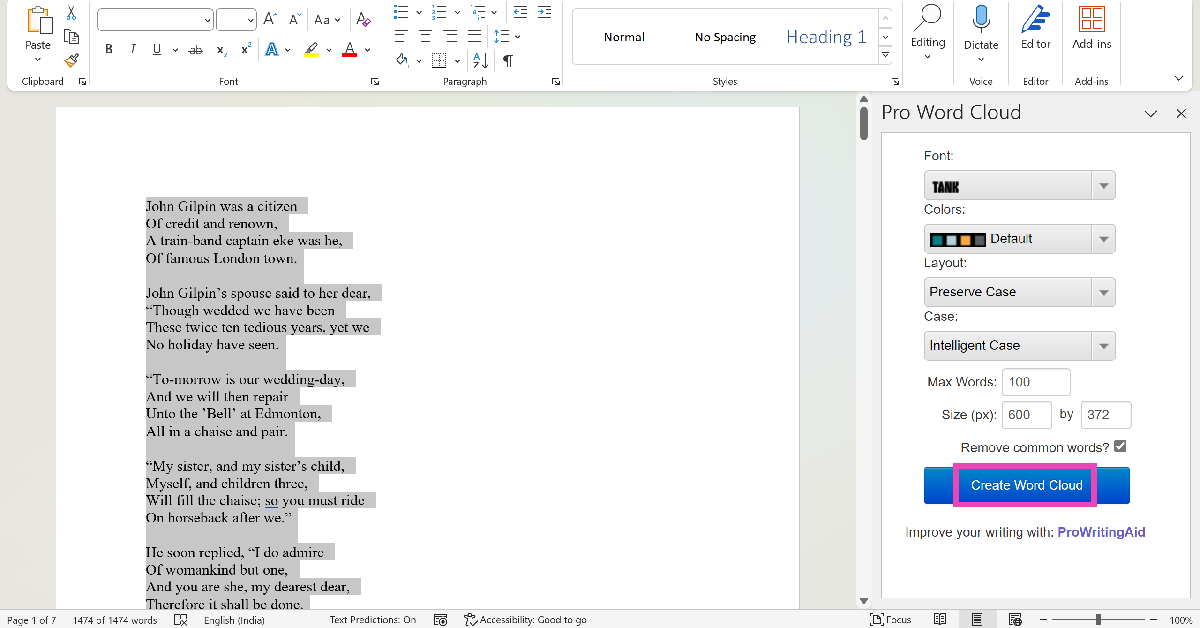
Step 1: Open the Microsoft Word document for which you want to create a Word cloud. Step 2: In the Home tab, select Add-ins. Step 3: Click on Get Add-ins.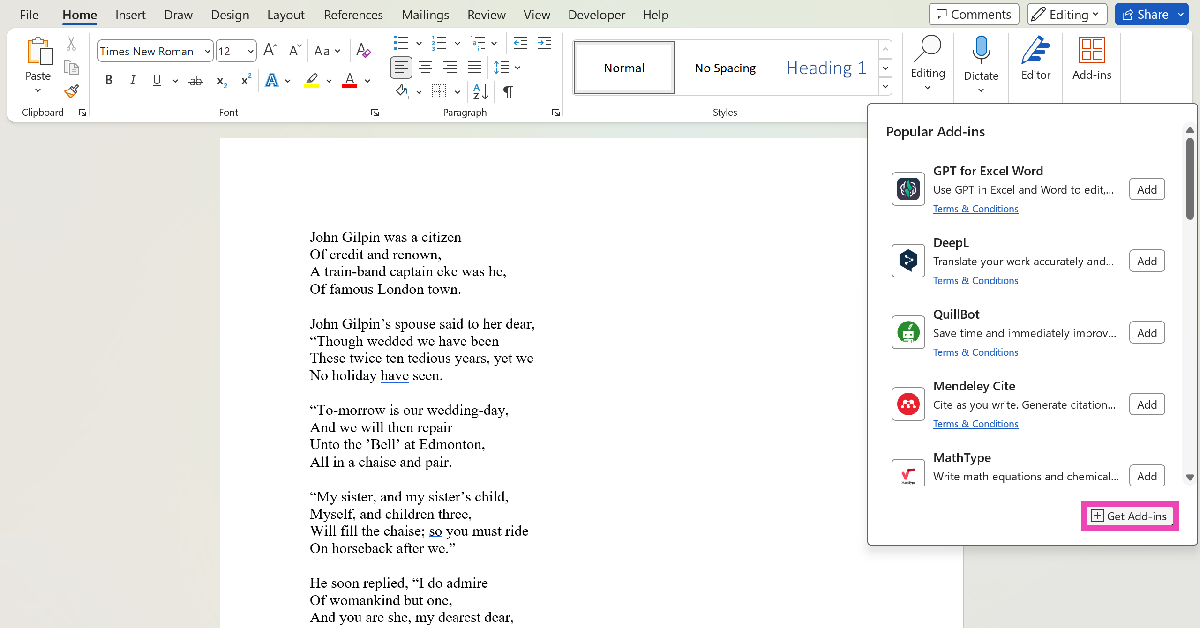 Step 4: Search for Word Cloud and hit Enter.
Step 5: Select the Pro Word Cloud add-in.
Step 4: Search for Word Cloud and hit Enter.
Step 5: Select the Pro Word Cloud add-in.
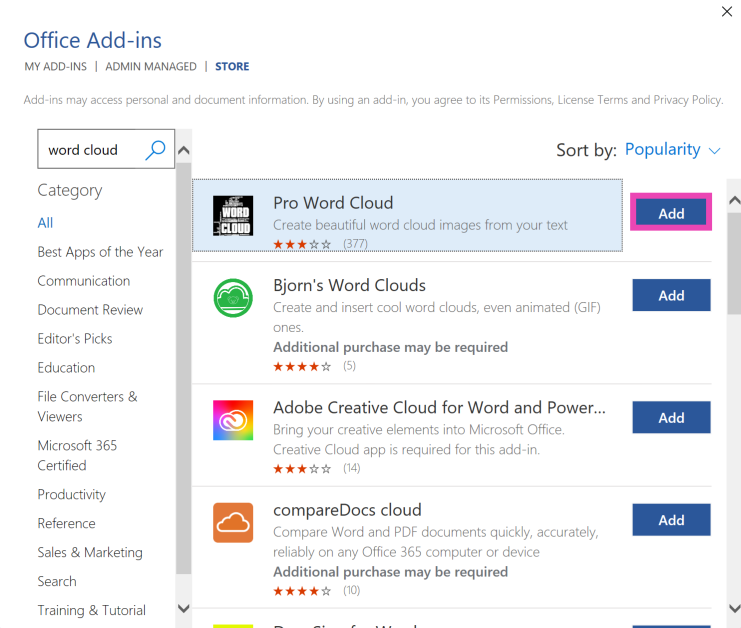 Step 6: Select the font, colours, layout, and case in the Word Cloud panel.
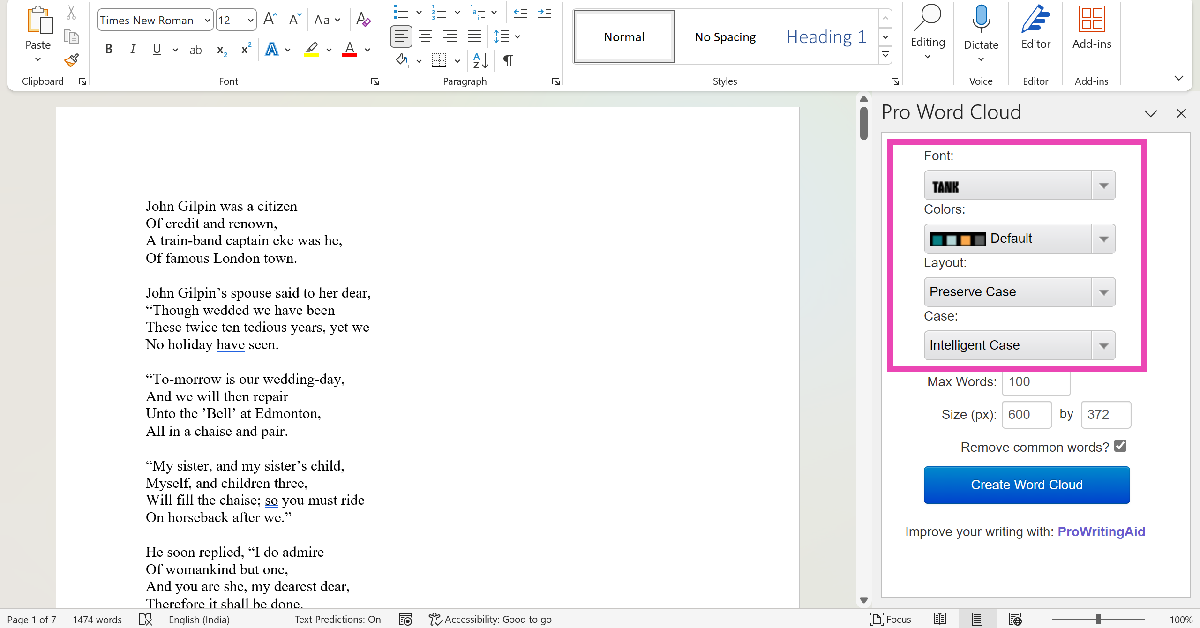 Step 7: Highlight the part of the document for which you want to create the word cloud.
Step 8: Hit Create Word Cloud.
Step 7: Highlight the part of the document for which you want to create the word cloud.
Step 8: Hit Create Word Cloud.
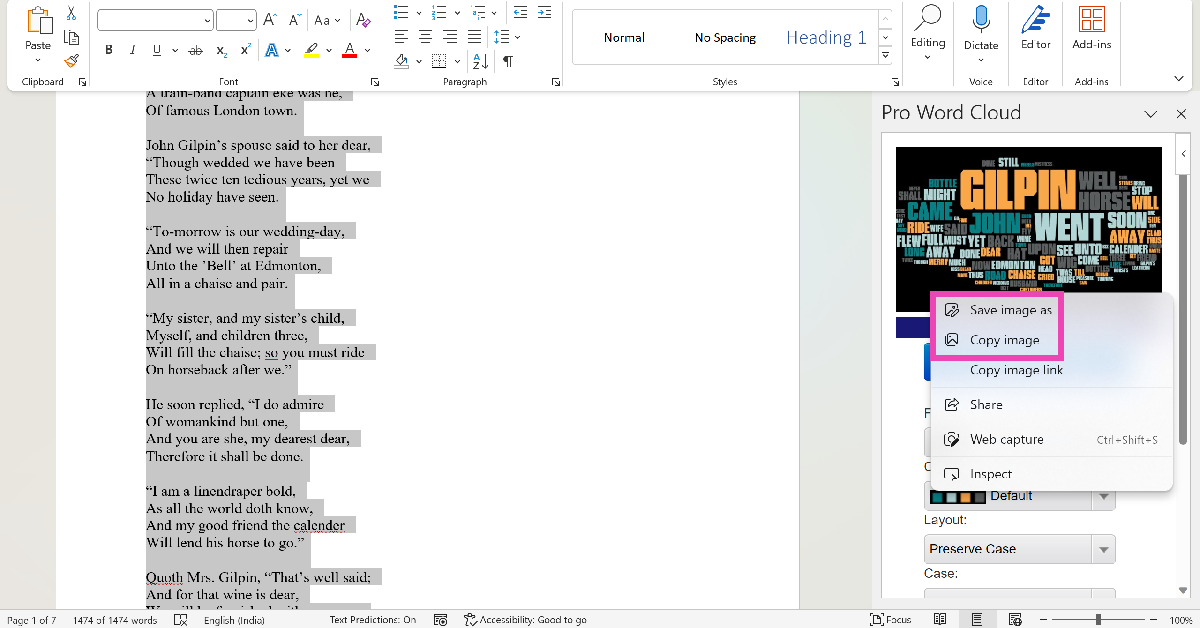
 Step 9: Right-click the image to copy it to the clipboard. You can now paste it into the document. You can also choose to save the image to your PC.
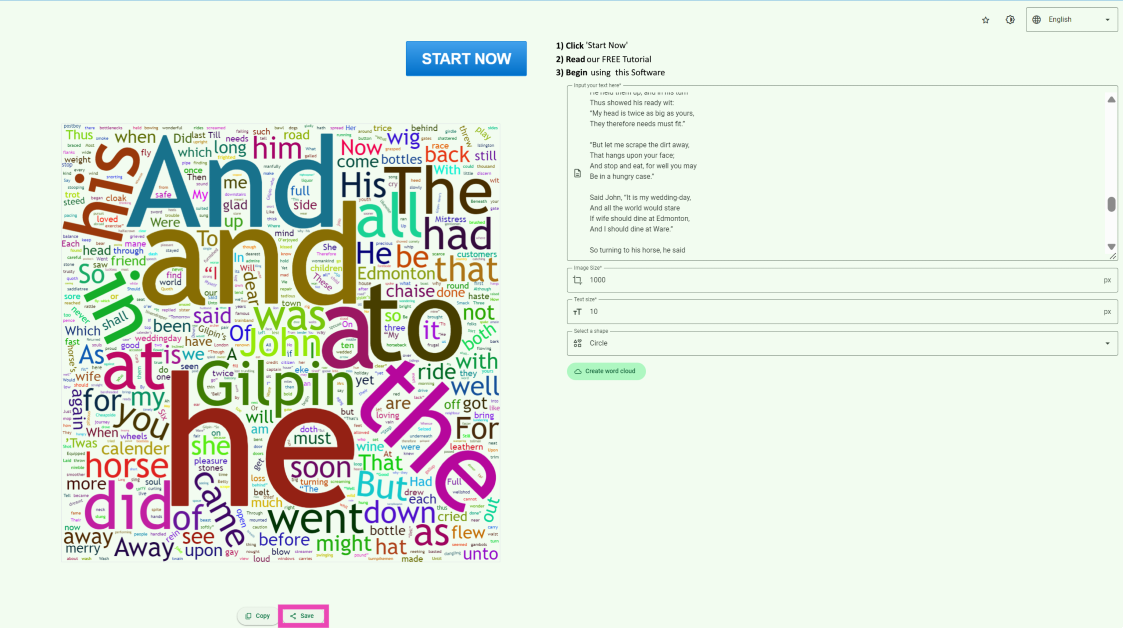
Use the Word Cloud Generator app
Step 1: Download the Word Cloud Generator app from the Microsoft Store. Step 2: Paste your text in the word box and select the image size, text size, and shape.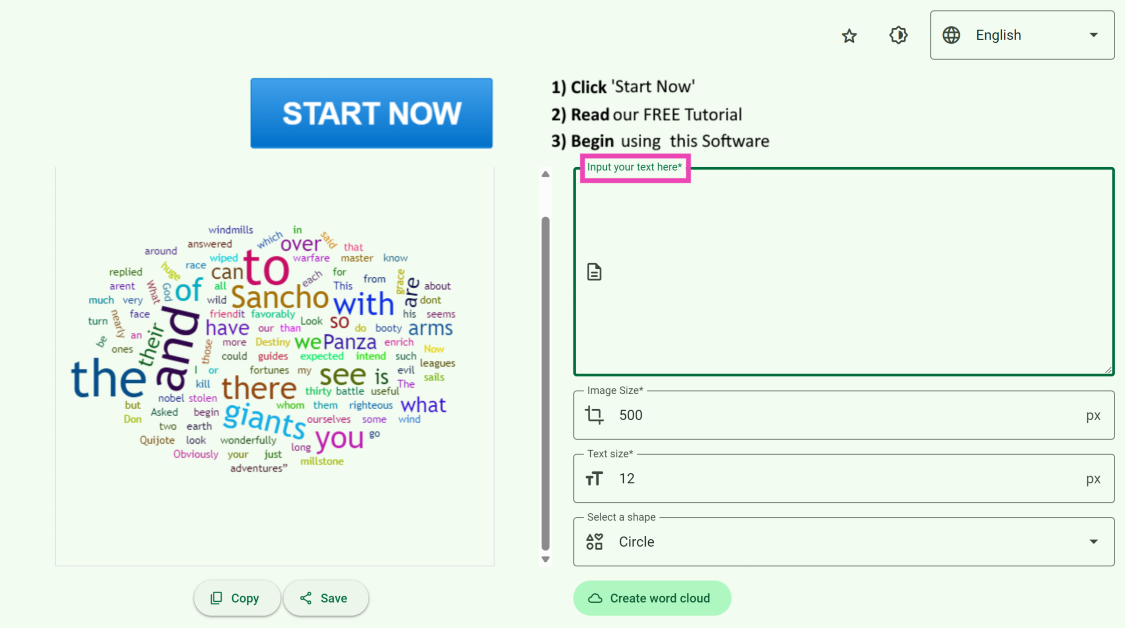 Step 3: Hit Create word cloud.
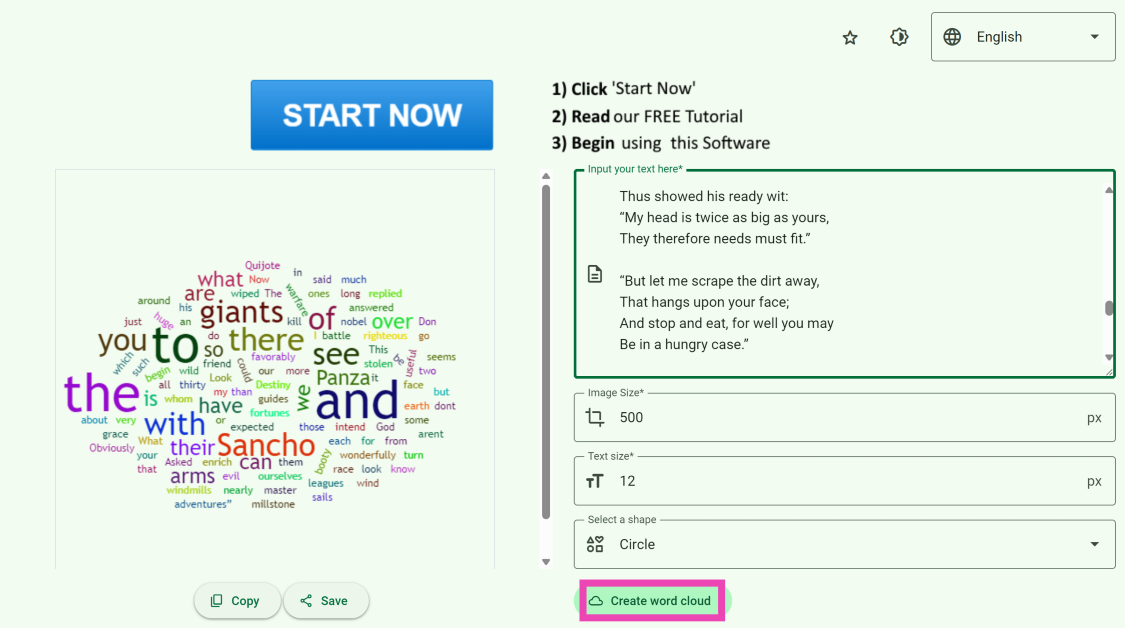 Step 4: Once the word cloud has been created, hit the Save button under the image to download it on your device.
Use a third-party tool (Free Word Cloud Generator)
Step 1: Go to https://www.freewordcloudgenerator.com/. Step 2: Click on Free Word Cloud Generator at the top of the screen. Step 3: Paste the text in the box and choose the font and background colour from the Options panel.
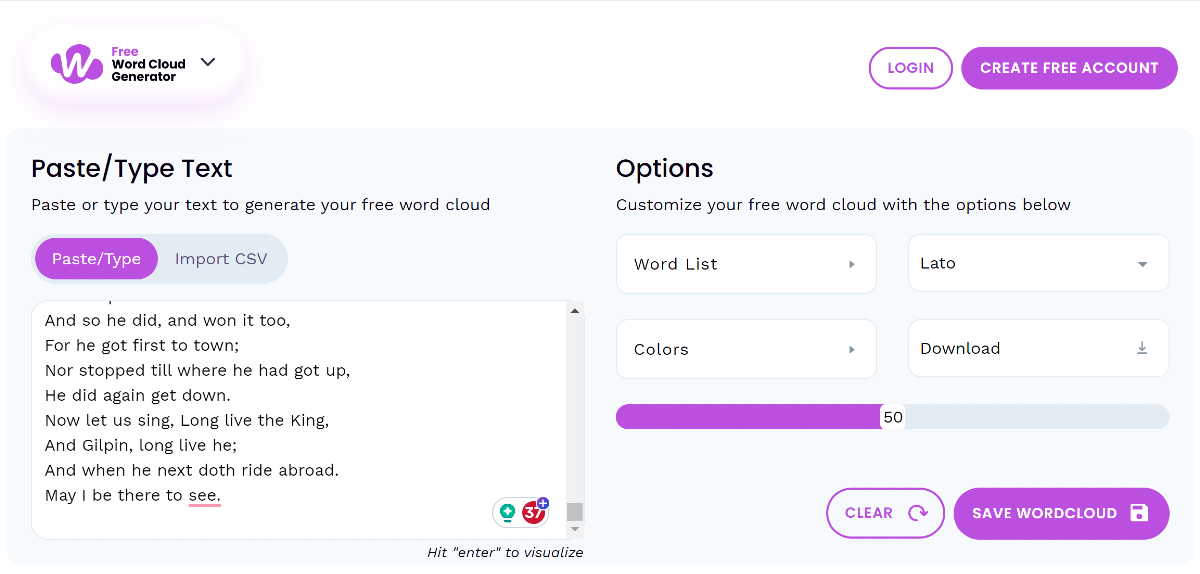 Step 4: Scroll down to view the word cloud.

Use WordClouds.com
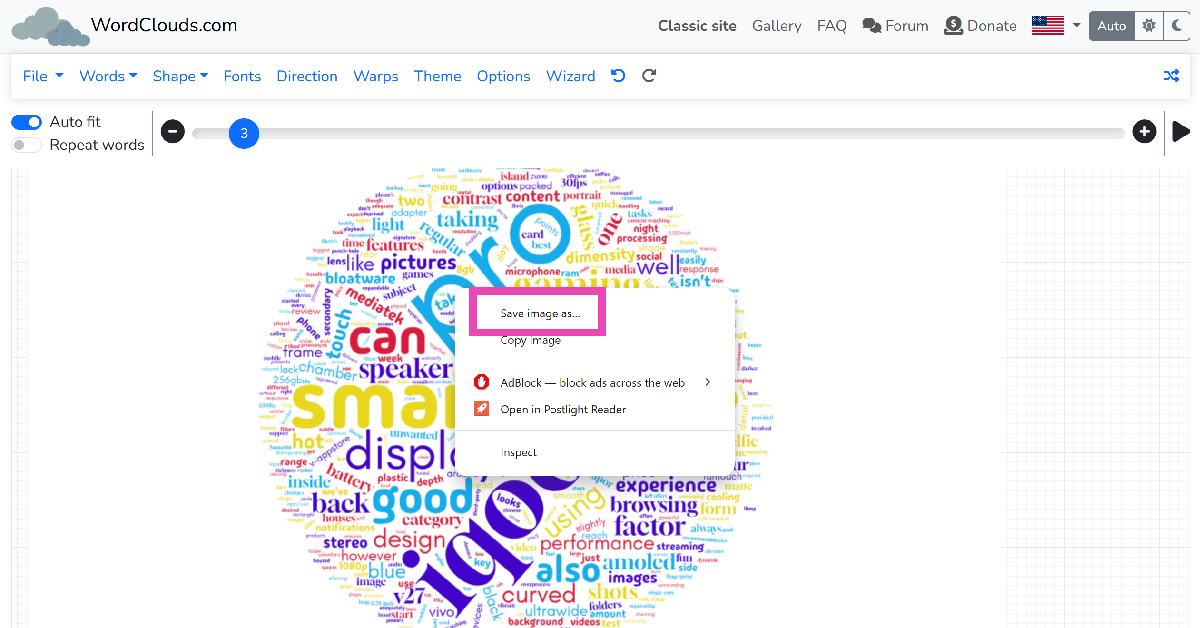
Step 1: Go to https://www.wordclouds.com/. Step 2: Click on Words and select Extract words from Office document. You can also choose to paste text from the clipboard.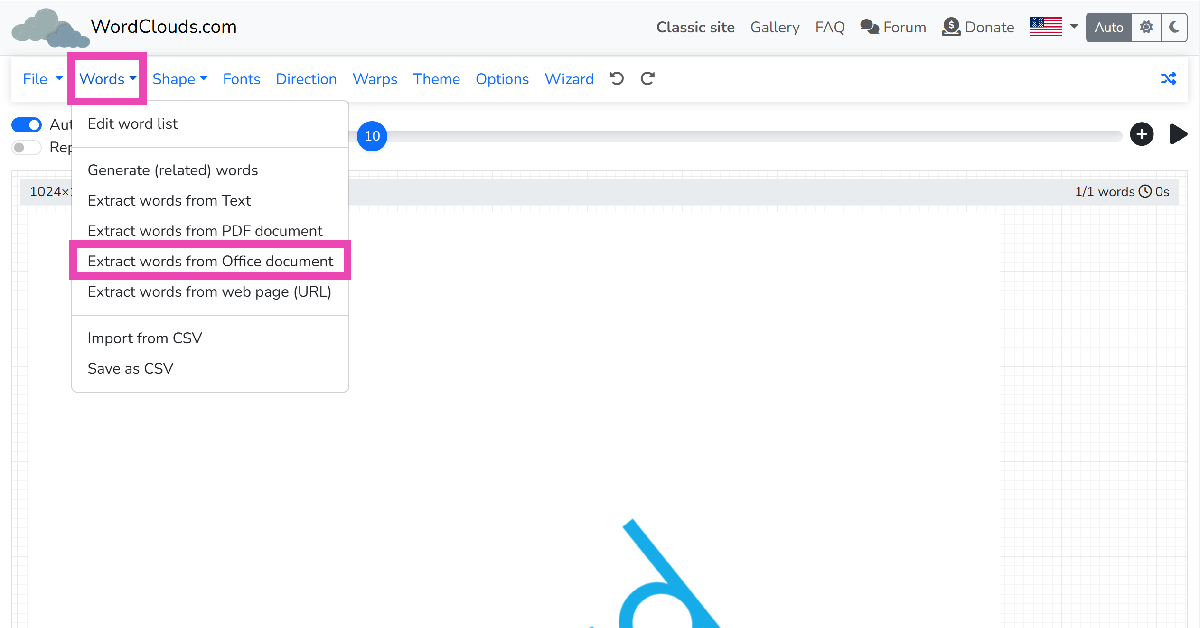 Step 3: Click on Browse and upload the Word document.
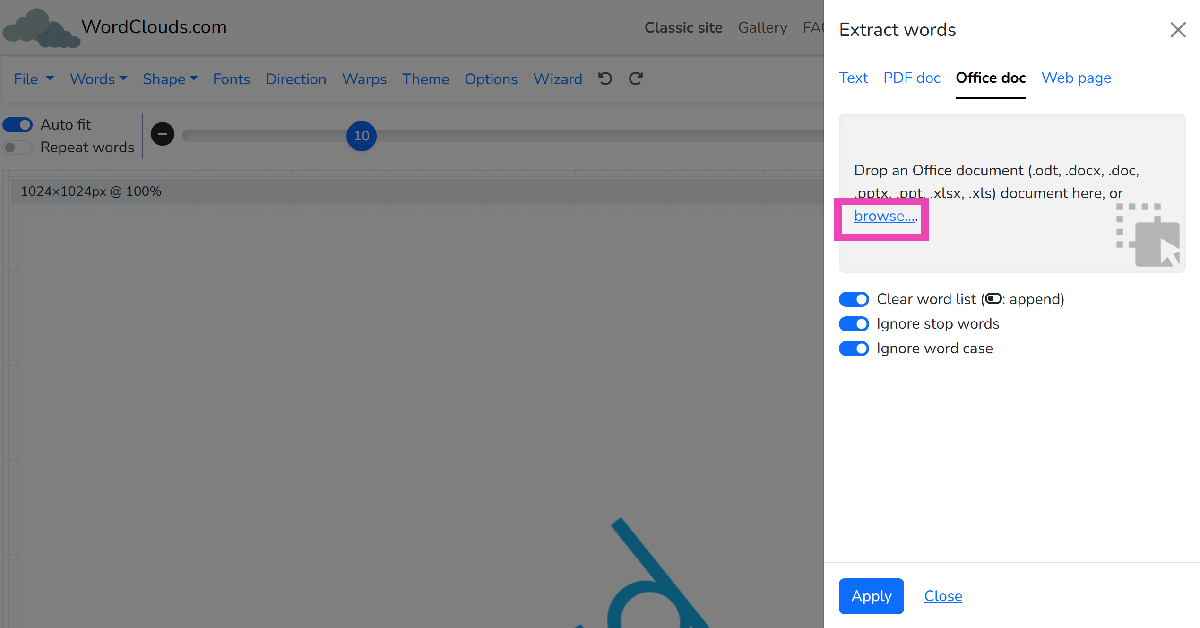 Step 4: Right-click on the word cloud image to save it.
Frequently Asked Questions (FAQs)
Is there a way to generate a word cloud for the text in a Microsoft Word document?
Click on Add-ins in the Home tab and select the Pro Word Cloud tool. Highlight the text in the document and hit Create Word Cloud.How do I create a word cloud online?
Use the Free Word Cloud generator to create a Word Cloud image for any text online. All you need to do is paste the text in the box, select the colours and font, and scroll down to view the image.How do I create a word cloud on my phone?
This Word Cloud app for Android can generate stunning graphical images for any text you enter. The best part is that you can select the shape and background for the word cloud images as well.Is there an app to create a word cloud?
The Word Cloud Generator app for Windows can be downloaded from the Microsoft Store to create attention-grabbing word cloud images on your PC.What is the best word cloud generator?
Wordart, WordClouds, TagCrows, and AhaSlides are some of the best word cloud generators around. Read Also: 45% of serious gamers in India are earning above 6 lakh per annum: ReportConclusion
This is how you can create a word cloud in Microsoft Word. To make sure the word cloud is an appropriate representation of the text, make sure you remove common words like ‘a’, ‘an’, ‘the’, and more. Most Word add-ins and third-party tools should have this filter. If you don’t like the MS Word plug-in, check out the different tools online. These tools are specially designed for more creative tasks like creating greeting cards, posters, flyers, and more.Best 4 Ways to Detect AI-Generated Deepfake Videos
AI tools and services have been all the rage on the Internet recently. You can use AI to remove the noise from your audio recordings, create beautiful edits of the images in your phone, write essays, find new recipes, and do a whole lot of other tasks. On the flip side, malicious entities employ AI tools to create fake videos in order to spread disinformation or harass people. In this article, we bring you the best 4 ways to detect AI-generated deepfake videos on the Internet.
Read Also: 45% of serious gamers in India are earning above 6 lakh per annum: Report
The vast majority of deepfake videos involve superimposing someone’s face on another person. This makes your task easier since you only need to focus on the face to catch any inconsistencies or glitches. Poorly produced deepfake videos can be spotted with ease, as the subject’s lip movement does not align with what they are saying. Other videos may require you to focus more carefully to catch any weird twitches, facial movements, incorrect face shadows, and other cues. One big tell of a deepfake video is that the lighting on the subject’s face is inconsistent with the rest of their body.
If you frequently watch videos on YouTube, you must be familiar with duplicitous advertisements that employ deepfake videos of popular talk shows to sell you a counterfeit product. The scam artists that produce such videos replicate the background of the TV show or podcast on the advertisement and superimpose the face of the host on the person talking into the microphone. The easiest way to detect these AI-generated deepfake videos is by paying attention to the voice of the speaker. If it doesn’t match the speaker’s actual voice, then you are most likely watching a fake video. If the voice is a perfect match but the audio is choppy, it is most likely edited.
If you feel what’s going on in the video is out of character for the person, always check the source of the video. Deepfake videos find virality very quickly and it can be tough to find out where they originated from. If the source of the video is a random account with no credentials or proximity to the subject, the video could be a deepfake. Your next action should be to search for the video on the Internet and check if any major news outlet has verified its legitimacy.
This method may not work all the time, but you should know about it nevertheless. Since most deepfake videos involve superimposing things on existing footage, a simple reverse image search should bring up the source of the original video. Take as many screenshots of the video as you can and perform a reverse image search on Google to find its source. Read this article to learn other methods for reverse-searching a video.
Pay close attention to the facial movements
 The vast majority of deepfake videos involve superimposing someone’s face on another person. This makes your task easier since you only need to focus on the face to catch any inconsistencies or glitches. Poorly produced deepfake videos can be spotted with ease, as the subject’s lip movement does not align with what they are saying. Other videos may require you to focus more carefully to catch any weird twitches, facial movements, incorrect face shadows, and other cues. One big tell of a deepfake video is that the lighting on the subject’s face is inconsistent with the rest of their body.
Look out for weird cuts and choppy audio
 If you frequently watch videos on YouTube, you must be familiar with duplicitous advertisements that employ deepfake videos of popular talk shows to sell you a counterfeit product. The scam artists that produce such videos replicate the background of the TV show or podcast on the advertisement and superimpose the face of the host on the person talking into the microphone. The easiest way to detect these AI-generated deepfake videos is by paying attention to the voice of the speaker. If it doesn’t match the speaker’s actual voice, then you are most likely watching a fake video. If the voice is a perfect match but the audio is choppy, it is most likely edited.
Check the source
 If you feel what’s going on in the video is out of character for the person, always check the source of the video. Deepfake videos find virality very quickly and it can be tough to find out where they originated from. If the source of the video is a random account with no credentials or proximity to the subject, the video could be a deepfake. Your next action should be to search for the video on the Internet and check if any major news outlet has verified its legitimacy.
Perform a reverse image search
 This method may not work all the time, but you should know about it nevertheless. Since most deepfake videos involve superimposing things on existing footage, a simple reverse image search should bring up the source of the original video. Take as many screenshots of the video as you can and perform a reverse image search on Google to find its source. Read this article to learn other methods for reverse-searching a video.
Frequently Asked Questions (FAQs)
How do I find out that a video is deepfake?
Look out for any weird facial movements, fallacies in lip movement, inconsistent lighting, and flawed audio. If the video you are watching shows any of these signs, it is likely that it is a deepfake.How do I find the source of a video?
Take several screenshots of different frames in the video and then reverse image search them on Google to find the source of the video.Is it illegal to make deepfake videos?
Making deepfake videos can attract legal action if they are disseminated for the purpose of harassment, inciting violence or hate, defamation, and other illegal activities. Read Also: Top 3 ways to contact Apple Support to get help for Apple devicesConclusion
These are the 4 best ways to detect AI-generated deepfake videos on the Internet. If you’re a Twitter user, always look out for Community Notes under videos that seem to be deepfakes. Once you verify that a video is deepfake, it is a good idea to leave a comment letting other users know as well.How to check who viewed your Instagram Highlights (2023)
Instagram Highlights are a great way to archive the Stories that you post on the app. Since the Stories disappear from your profile after 24 hours, Instagram came up with the option of Highlights that lets you preserve your favourite moments. Like Stories, Highlights also has a view counter. In this article, we show you how to check who viewed your Instagram Highlights on your smartphone or PC in 2023.
Read Also: How to download Instagram Reels without using a third-party app?
Step 2: Tap on a Highlight.
 Step 3: Swipe up on the screen or tap on Activity at the bottom left corner of the screen.
This is where you can see the names of everyone who has viewed your Instagram Highlight.
Step 3: Click on a Highlight.
Step 3: Swipe up on the screen or tap on Activity at the bottom left corner of the screen.
This is where you can see the names of everyone who has viewed your Instagram Highlight.
Step 3: Click on a Highlight.
 Step 4: Click on the view counter at the bottom left corner of the screen.
In the following popup box, you will be able to see who viewed your Instagram Highlight.
Step 4: Click on the view counter at the bottom left corner of the screen.
In the following popup box, you will be able to see who viewed your Instagram Highlight.

Check who viewed your Instagram Highlights on your smartphone
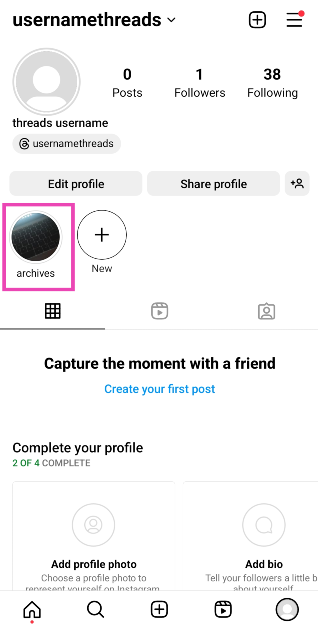
Step 1: Launch the Instagram app on your phone and tap on your profile picture at the bottom right corner of the screen.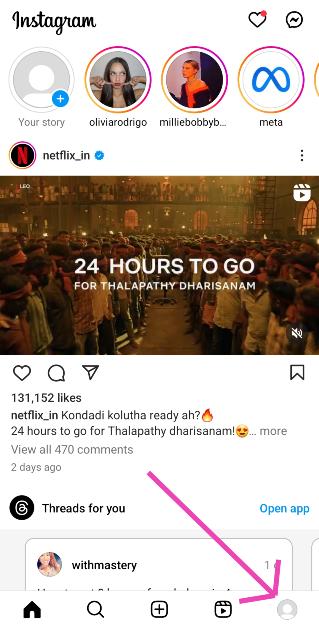 Step 2: Tap on a Highlight.
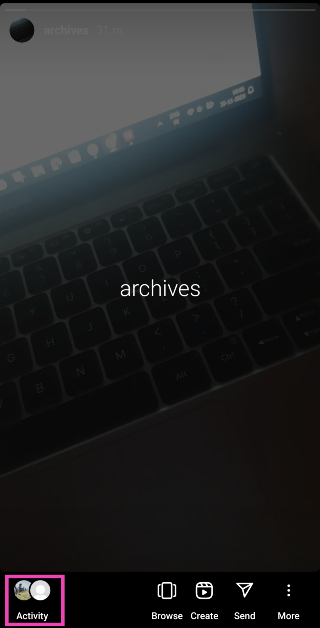
 Step 3: Swipe up on the screen or tap on Activity at the bottom left corner of the screen.
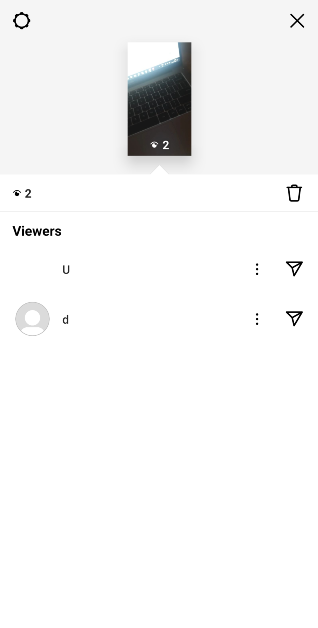
 This is where you can see the names of everyone who has viewed your Instagram Highlight.
Check who viewed your Instagram Highlights on a PC
Step 1: Go to the official Instagram website and log in using the proper credentials. Step 2: In the side menu, click on Profile.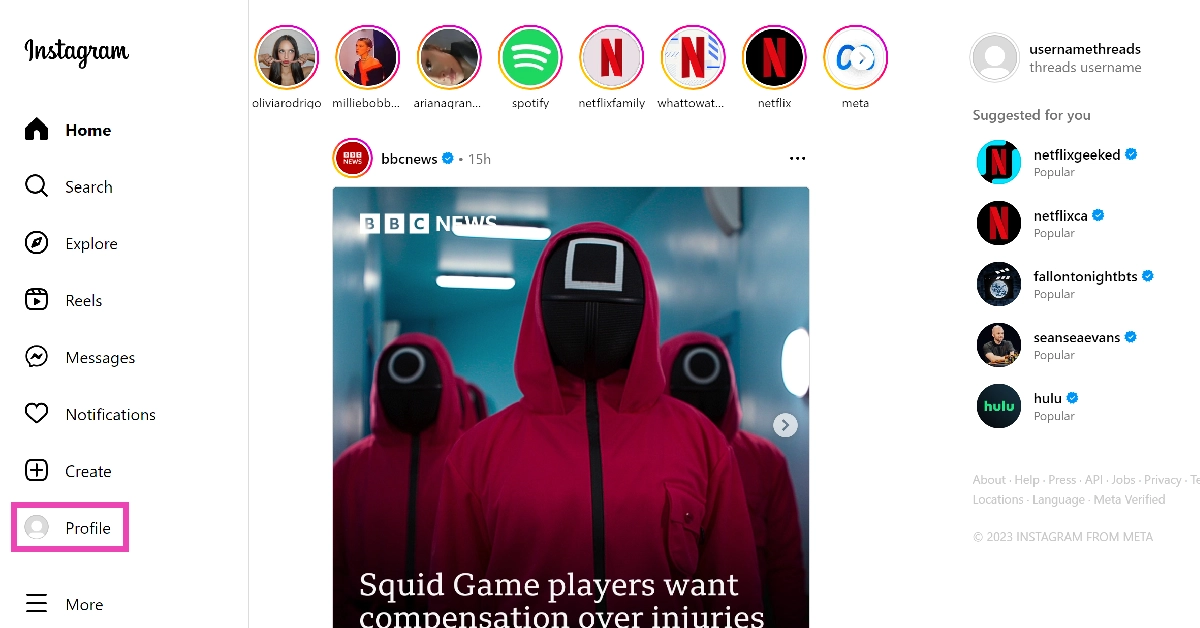 Step 3: Click on a Highlight.
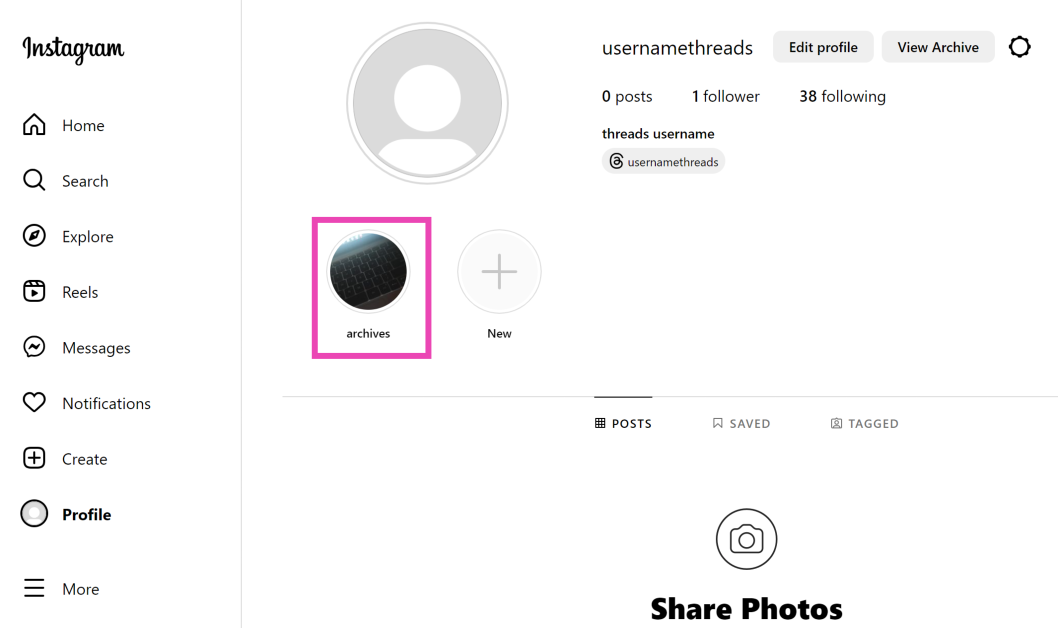 Step 4: Click on the view counter at the bottom left corner of the screen.
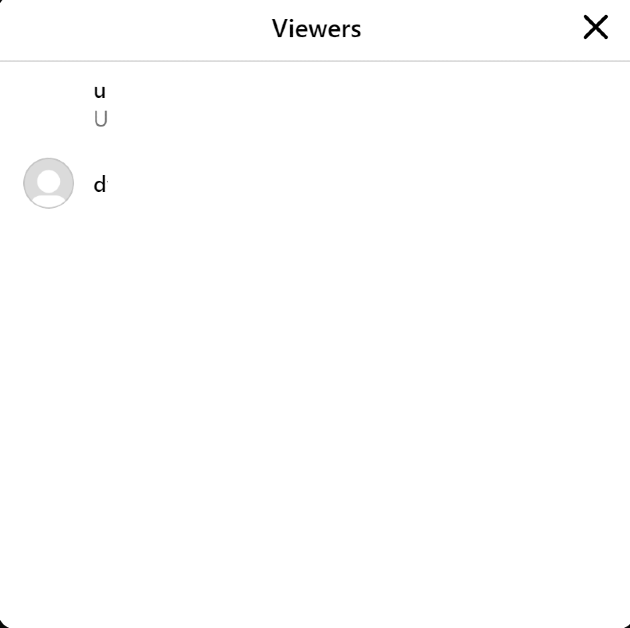
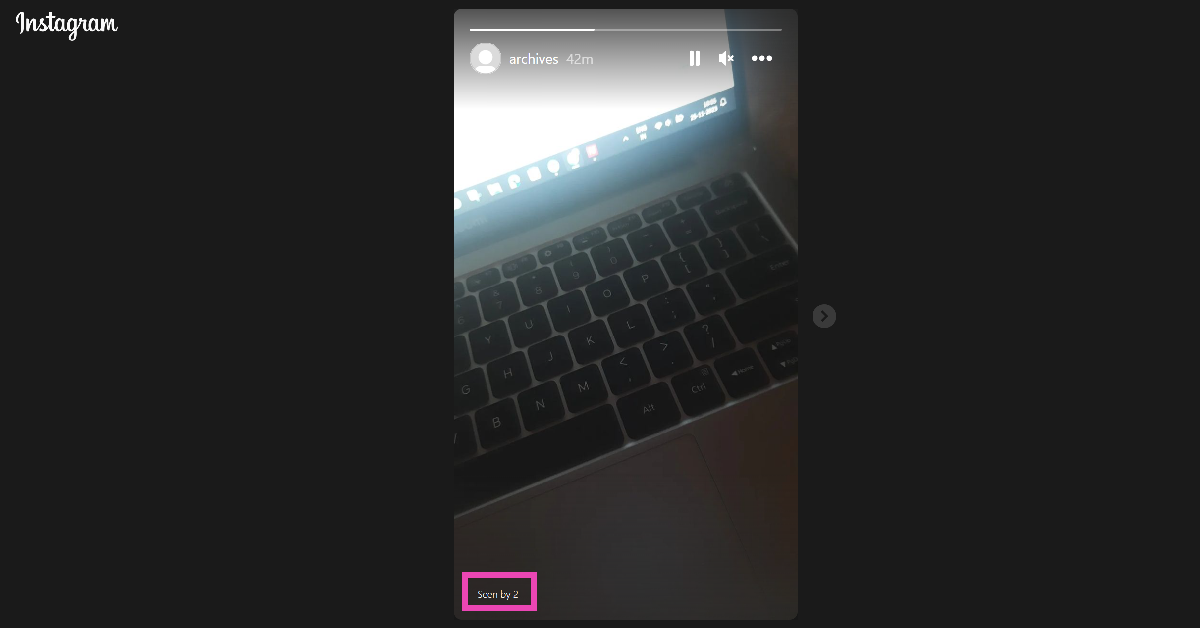 In the following popup box, you will be able to see who viewed your Instagram Highlight.
Frequently Asked Questions (FAQs)
Why did the views on my Instagram Highlight disappear?
Your Instagram Highlights display the view count for the last two days only. This means you will only be able to check who has viewed the Highlight within the last 48 hours.Can I see how many times a Story or Highlight was viewed by one person?
No. The view count on your Stories and Highlights only shows who viewed your post, not how many times they viewed it.How do I keep a person from viewing my Highlight again?
If you want to hide a Highlight from someone, simply tap the ellipses next to their name in the viewers’ list and select Hide your story. Read Also: How to remove a friend on Snapchat without them knowing?Conclusion
This is how you can check who viewed your Instagram Highlights on a smartphone or PC in 2023. Since Highlights don’t display a cumulative count, the only way you can keep a record of all the people who viewed the post is by taking screenshots of the view count every 48 hours. There is no way to view someone’s Story or Highlight without being seen.Garena Free Fire Redeem Codes Today 25 November 2023: Here is how to claim them

Garena Free Fire is a battle royale game with regular awards and tournaments to keep players interested. If you play Garena Free Fire, you should be aware of the redeem codes that are released on a daily basis. However, because the battle royale game is banned in India, players from other countries can use the Free Fire Redeem codes daily. If you’re unfamiliar with the Garena Free Fire redeem codes or don’t know how to get them, we’ve put together a step-by-step guide to help you redeem them. Check out Garena Free Fire Redeem Codes for 25 November 2023.
The Free Fire redeem codes are a great way to get free stuff. These are 12-digit codes that contain alphabets and numbers, as well as an expiration date and time. Because the Garena FF redeem codes cannot be used more than once, you should hurry to the redemption page to claim your free reward before someone else does. To get a free reward, all you have to do is go to reward.ff.garena.com/en, which is the official redemption page. Also, keep an eye on this space for daily updates on Garena Free Fire redemption codes and rewards.
Garena Free Fire Redeem Codes Today 25 November 2023
6U5WSRTBMGDS QERTG56YUPKH OP8HVMNGRDAE ZFIXDVTSLSC GHTARTYUOI76 DINDNOFNJDND6H GGHHENKOPT56 JGFHFGHBGYG341 AWTULLOIVG6H MKHGVRAW34RTHow to Get Free Fire Redeem Codes for Garena on 25 November 2023?
- Visit the Garena Free Fire game’s official website at reward.ff.garena.com.
- Use your Facebook, Google, VK, Apple ID, Huawei ID, or Twitter account to log in.
- You’ll be taken to a valid redemption code (s)
- Copy and paste the 12-digit redemption code into the text box.
- On the screen, a dialogue box will appear.
- ‘Ok’ should be selected.
Best 3 ways to get free Minecoins on Minecraft?

Minecraft is one of the most popular games on the Internet, played by people across all age groups. Minecraft is best enjoyed by using in-game items like skin packs, character packs, ammo, and more. Purchasing these objects requires spending Minecraft’s in-game currency called Minecoins. As you can guess already, you need to spend real money to get Minecoins. If you don’t want to loosen your wallet, here are the best 3 ways to get free Minecoins on Minecraft.
Read Also: How to remove a friend on Snapchat without them knowing?
As the name suggests, Google Opinion Rewards credits your account with a small reward every time you share your opinion on a particular subject. Once you install the app, you are given one survey a week. These surveys may be based on your recent travel history. Once you share your opinion and complete the survey, the app pays out Play Store credits. These Play Store credits can be used to purchase Minecoins. The only catch is that it may take some time to accumulate enough credits to buy a Minecoin bundle.
If you play Minecraft on an Xbox or PC, you need to check out Microsoft Rewards. Sign into your Microsoft account and visit your Rewards Dashboard to view the activities you can do to accumulate more points. These activities typically include searching the web with Bing on Microsoft Edge, using the search box on your Windows 10/11 PC or laptop, using Cortana, and more. Once you collect enough points, you can exchange them for an Xbox gift card. Xbox gift cards can then be used to buy Minecoin bundles.
Use Google Opinion Rewards
 As the name suggests, Google Opinion Rewards credits your account with a small reward every time you share your opinion on a particular subject. Once you install the app, you are given one survey a week. These surveys may be based on your recent travel history. Once you share your opinion and complete the survey, the app pays out Play Store credits. These Play Store credits can be used to purchase Minecoins. The only catch is that it may take some time to accumulate enough credits to buy a Minecoin bundle.
Take online surveys
Since the credits earned via Google Opinion Rewards are quite minimal, it is better to take as many online surveys as you can in order to accumulate credits at a faster rate. Some services pay out with gift cards that can be used to purchase Minecoins on Minecraft. Pawns.app, Swagbucks, and LifePoints are some of the best services that you can use to get free credits and gift cards.Use Microsoft Rewards
 If you play Minecraft on an Xbox or PC, you need to check out Microsoft Rewards. Sign into your Microsoft account and visit your Rewards Dashboard to view the activities you can do to accumulate more points. These activities typically include searching the web with Bing on Microsoft Edge, using the search box on your Windows 10/11 PC or laptop, using Cortana, and more. Once you collect enough points, you can exchange them for an Xbox gift card. Xbox gift cards can then be used to buy Minecoin bundles.
Frequently Asked Questions (FAQs)
What is the cheapest Minecoin gift card I can buy online?
On Amazon, the cheapest Minecoin gift card costs Rs 1,000 and gets you 1,720 Minecoins.How do I buy Minecoins on Minecraft?
To buy Minecoins on Minecraft, go to the Marketplace, click the plus icon next to the Minecoin counter, and select one of the bundle packages. Make the payment using one of the accepted modes. Once the payment is successful, the Minecoins will be credited to your account.Is there a way to get free Minecoins on Minecraft?
The best way to get free Minecoins on Minecraft is by using Google Opinion Rewards and Microsoft Rewards. The former pays out free Play Store credits that can be used to buy Minecoins while you can exchange the points gained by the latter to get a free Xbox gift card. Read Also: HP Pavilion Plus 14 2023 laptop review: Your go-to laptopConclusion
These are the top 3 ways to get free Minecoins on Minecraft. Since free Minecoins are highly sought after online, malicious entities and scam artists are always on the prowl to trick people. A good rule of thumb is to not give out your personal information to any service or vendor that claims to provide free Minecoins. Using third-party Minecraft mods is also very risky and can get your account banned permanently.Price reveal: Samsung Galaxy A05 will be available in India at this pricing
Key Highlights
Also Read: 45% of serious gamers in India are earning above 6 lakh per annum: Report
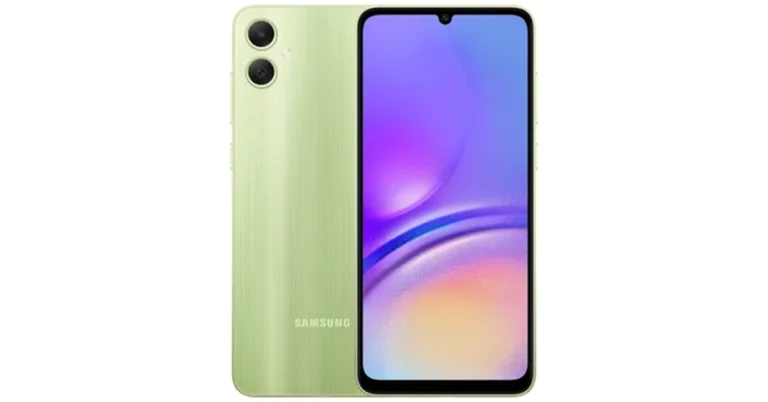
- Samsung Galaxy A05 is powered by MediaTek Helio G85 SoC.
- The smartphone packs a 5,000mAh battery with 25W wired fast charging.
- It is available in three colour options.
Samsung Galaxy A05 price in India, availability details
As we mentioned earlier Samsung is yet to announce the availability and pricing of Samsung Galaxy A05 price in India. But just before it was listed on Samsung India’s website the smartphone got listed on Croma’s website. The price of the phone is set at Rs 12,499 for the 4GB RAM with 64GB storage option. There is another 6GB RAM with a 128GB storage option priced at Rs 14,999. The handset is available in three colour options of Black, Light Green, and Silver.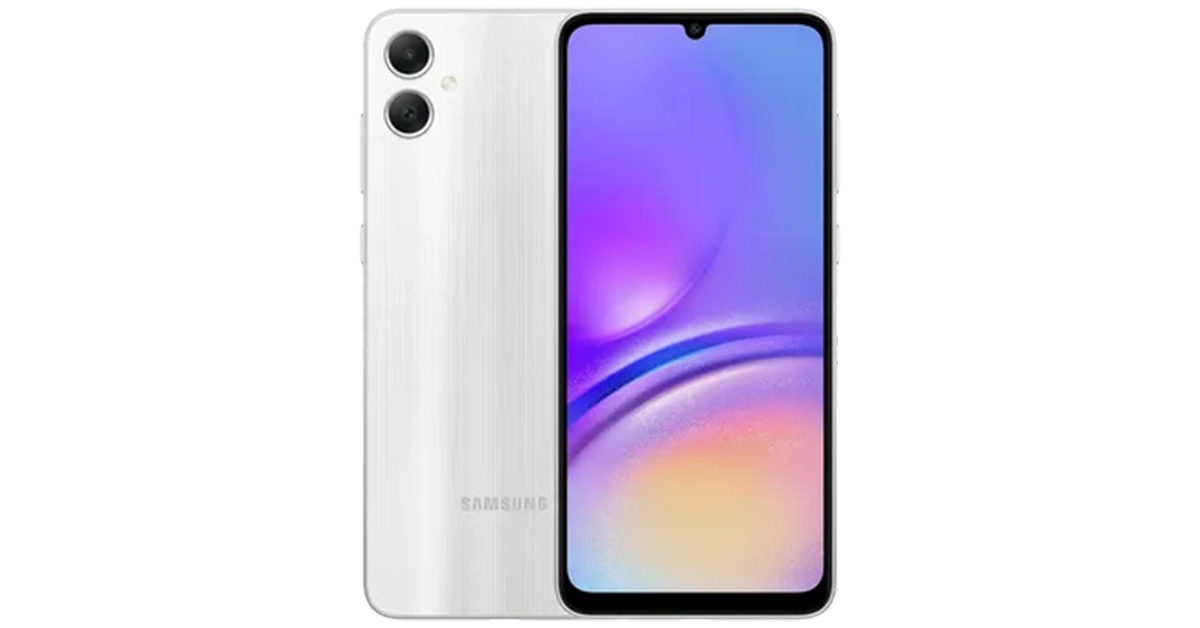 Also Read: 45% of serious gamers in India are earning above 6 lakh per annum: Report