In This Article
About Android profiles
As we mentioned earlier, Android profiles work in a similar manner to user accounts on Windows PCs. Every user can customise the wallpaper, home screen, app layout, and other aesthetic aspects of their profile. The device settings can be customised for a specific profile as well. You can log into a profile using your Google account, although this step isn’t mandatory. However, a Google account is necessary if you want to download apps using the Play Store or back up your data on Drive. All user profiles on an Android device can share a SIM for calling and messaging purposes. If you’re on a tablet, you can create a restricted profile for someone else. This allows you to control what content they see on the device. Similarly, you can create a dedicated kids account on the device. If you’re looking for something more temporary, Android devices offer a Guest profile by default. You can switch to this profile in case someone needs your phone to make a call and you don’t want to give them access to your personal data.Create and set up multiple user profiles on Android
Step 1: Go to Settings and select Users & accounts.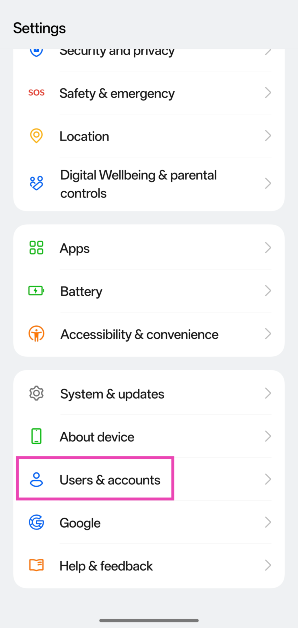 Step 2: Tap on Multiple users and turn on its toggle switch.
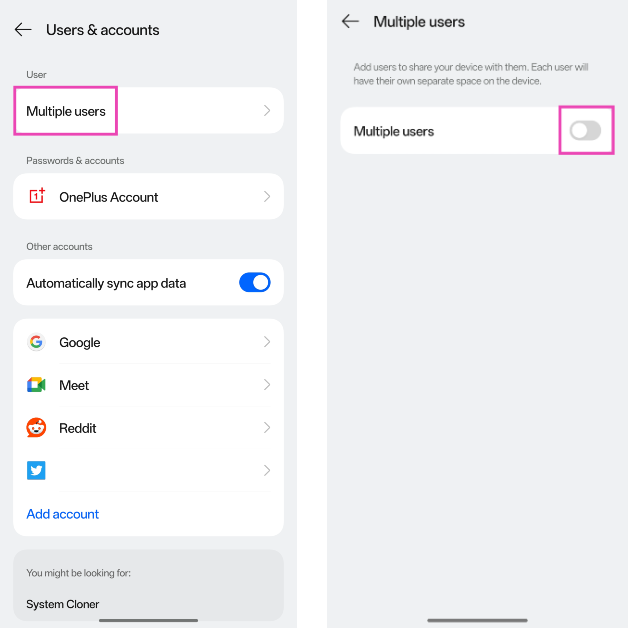 Step 3: Tap on Add user.
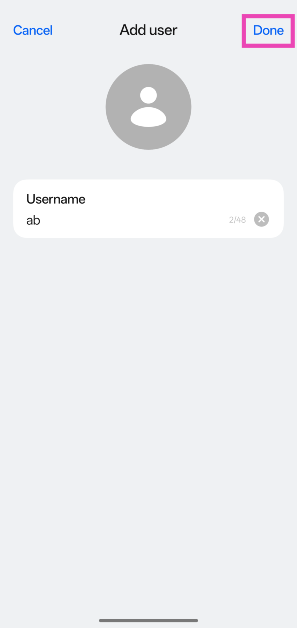
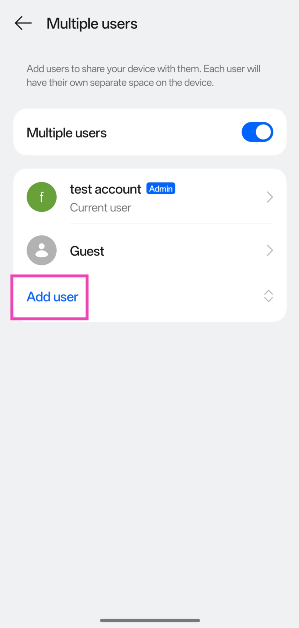 Step 4: Enter a username and hit Done.
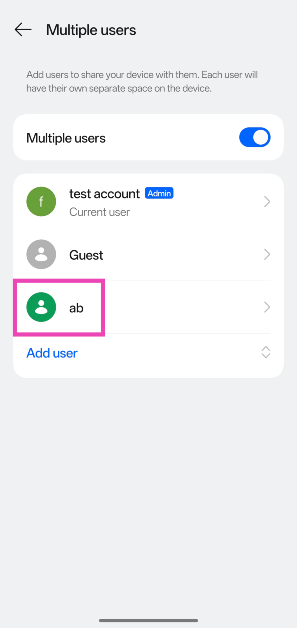
 Step 5: Once the account has been created, select it.
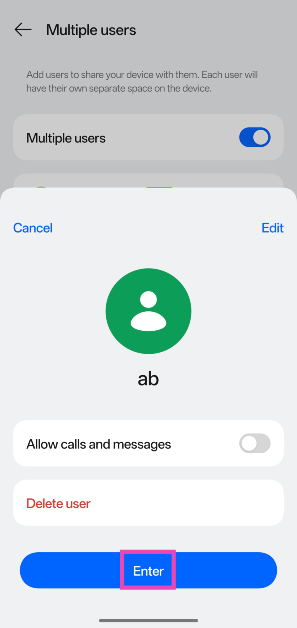
 Step 6: Hit Enter.
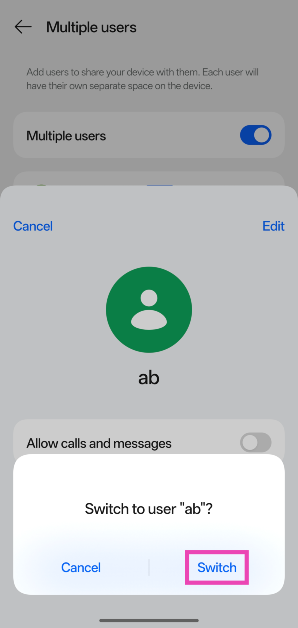
 Step 7: Tap Switch in the popup box.
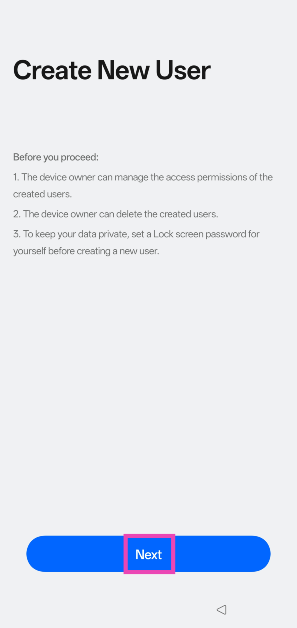
 Step 8: Hit Next to initiate the process of setting up the account.
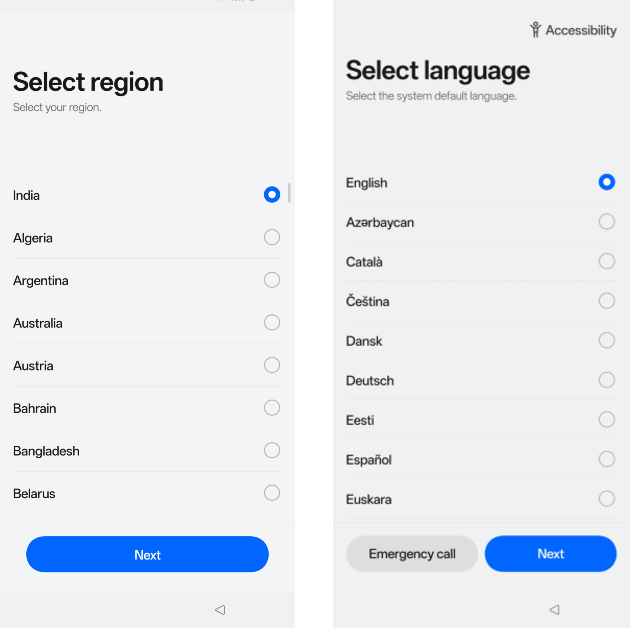
 Step 9: Select the language and region.
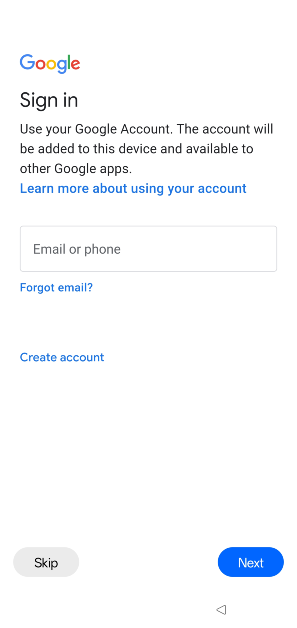
 Step 10: Sign in with your Google account. While this step isn’t mandatory, you will need a Google account to download apps from the Play Store and create a data backup.
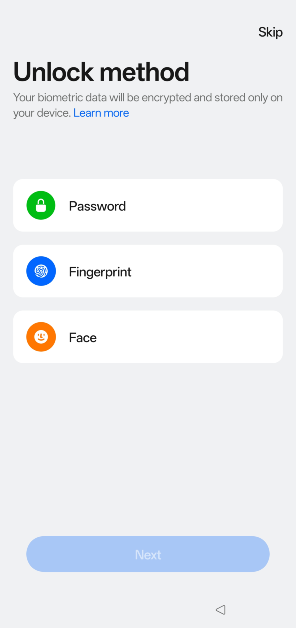
 Step 11: Choose a screen lock type and default search engine.
Switch to a different user profile on Android
Step 1: Swipe down from the status bar and tap your profile picture in the Quick Settings Menu. Step 2: Tap the profile you wish to use.Delete a user profile on Android
Step 1: Go to Settings and select Users & accounts.
Step 2: Tap on Multiple users.
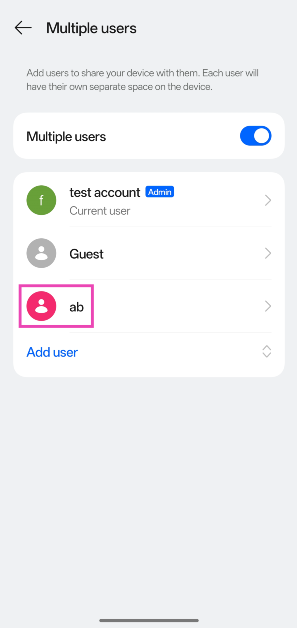
Step 3: Select the profile you wish to delete.
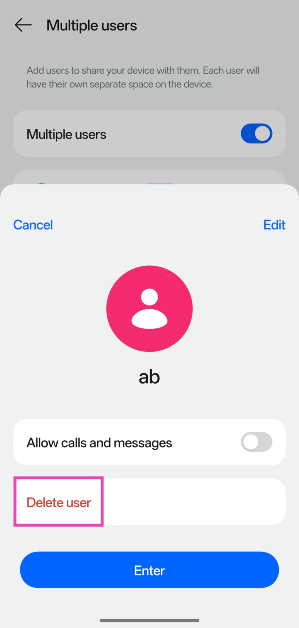
 Step 4: Hit Delete user and confirm your decision in the popup box.
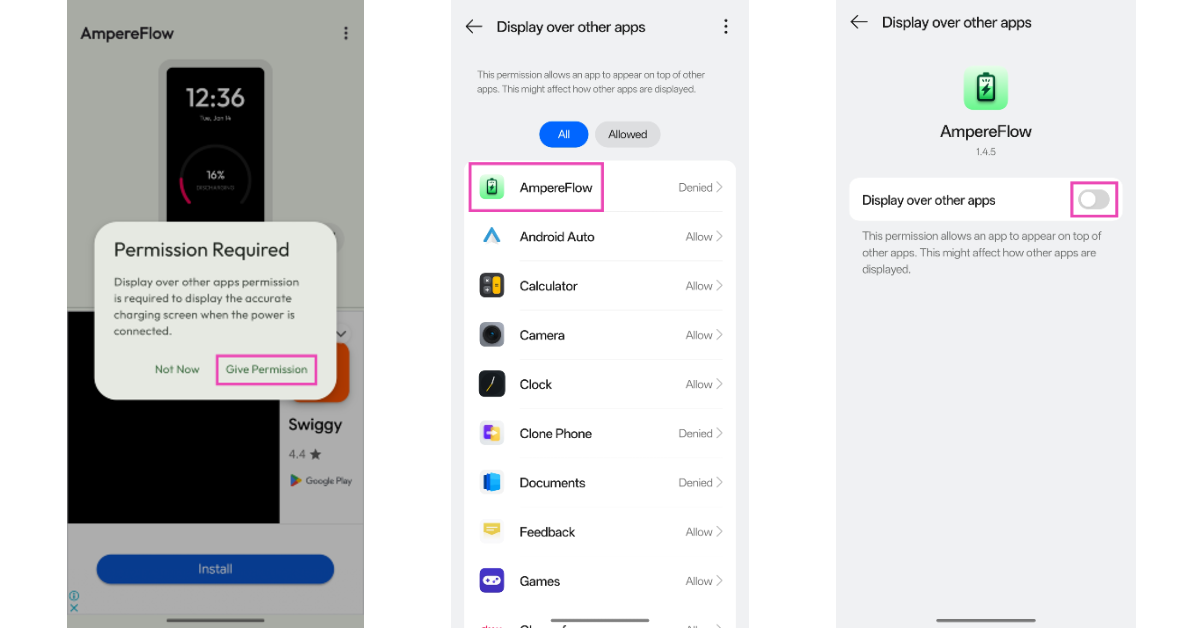
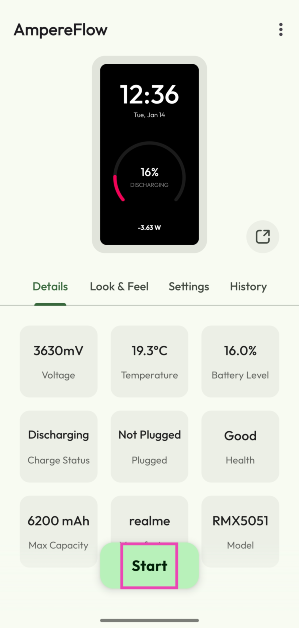 Step 3: Give AmpereFlow permission to display over other apps.
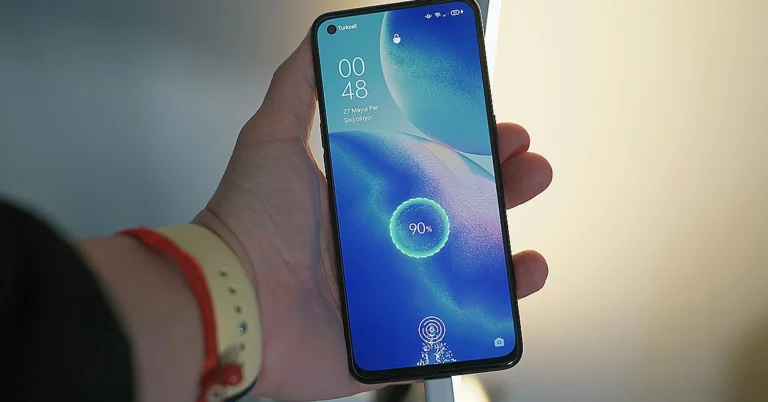
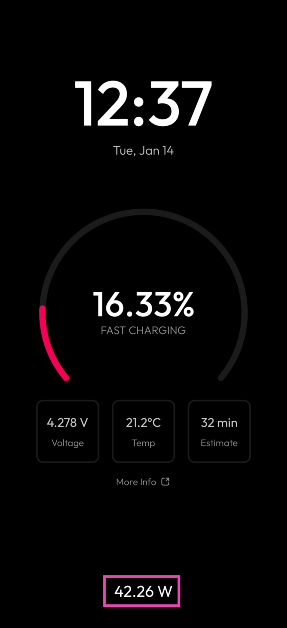
 Step 4: Plug in the charger and lock your phone. The charging speed will be displayed at the bottom of the screen.
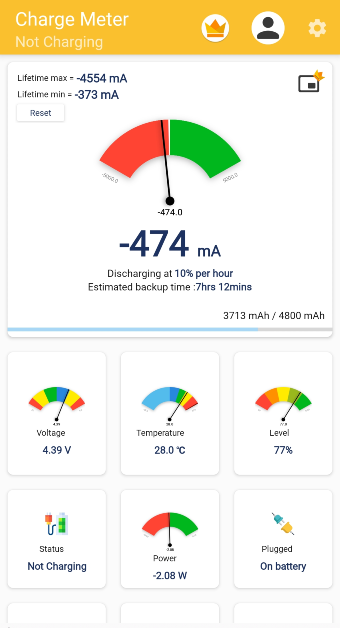 Step 2: Launch
 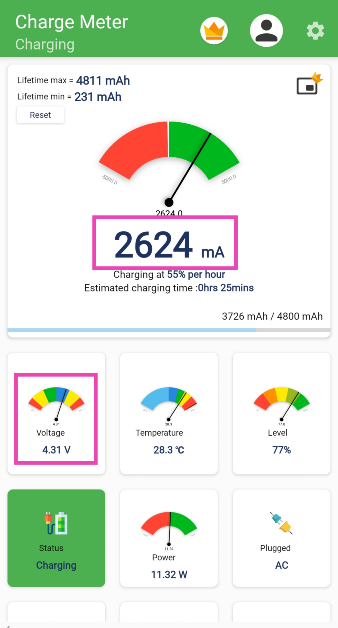 Step 5: Divide
 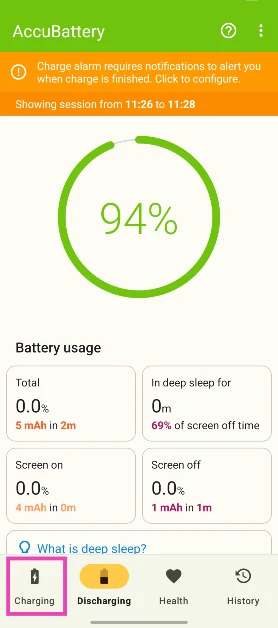 Step 3: Scroll down to the Charge status box.
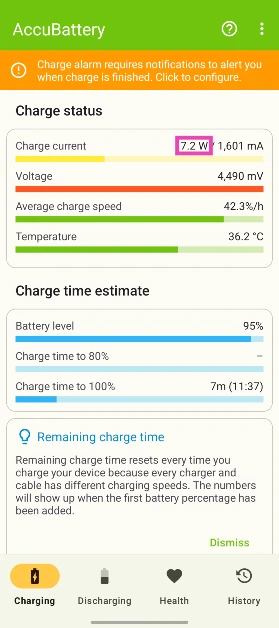 Step 4: The charging speed will be mentioned next to Charge current.
 Also Read:



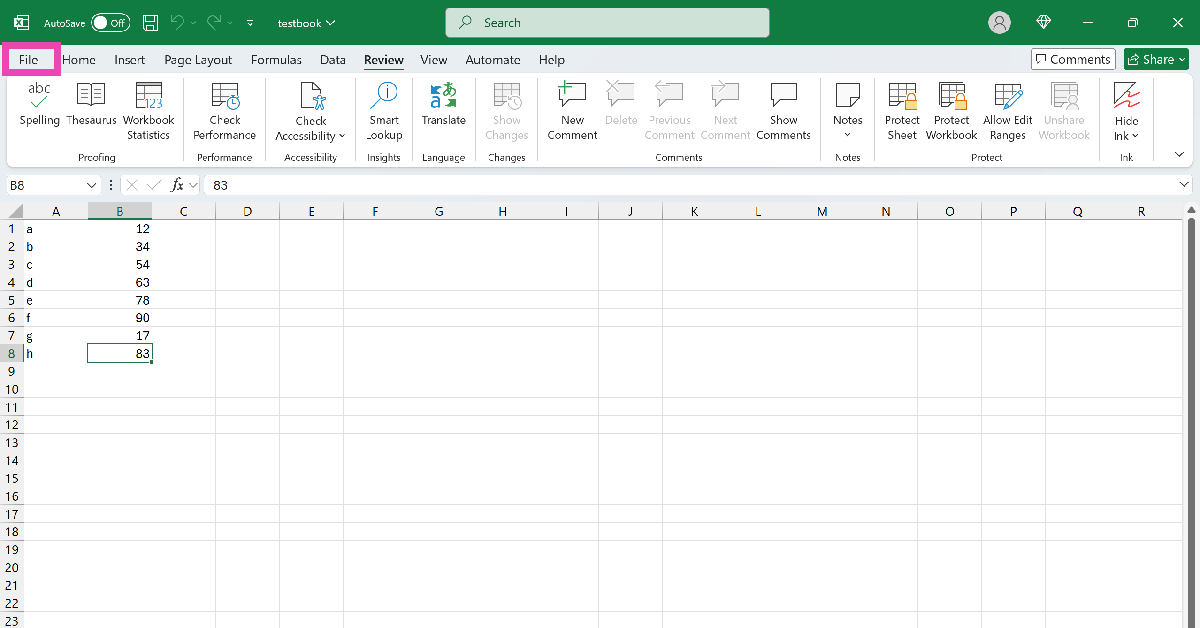 Step 3:
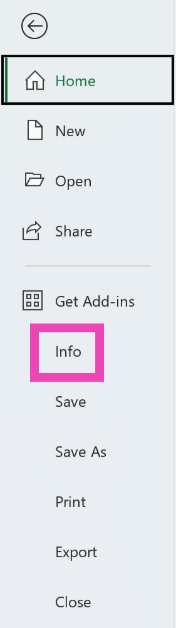 Step 4:
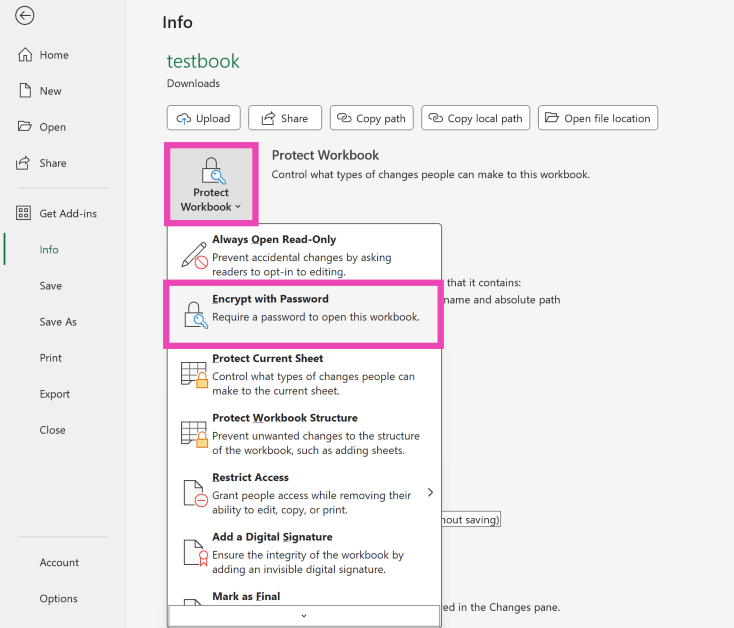 Step 5:
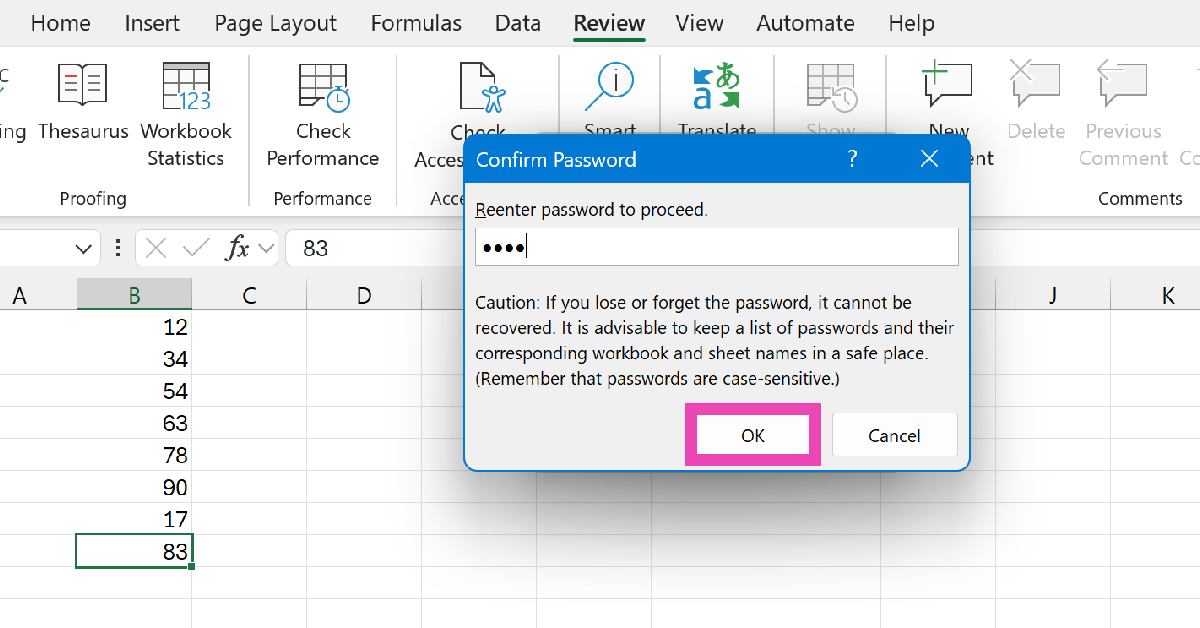
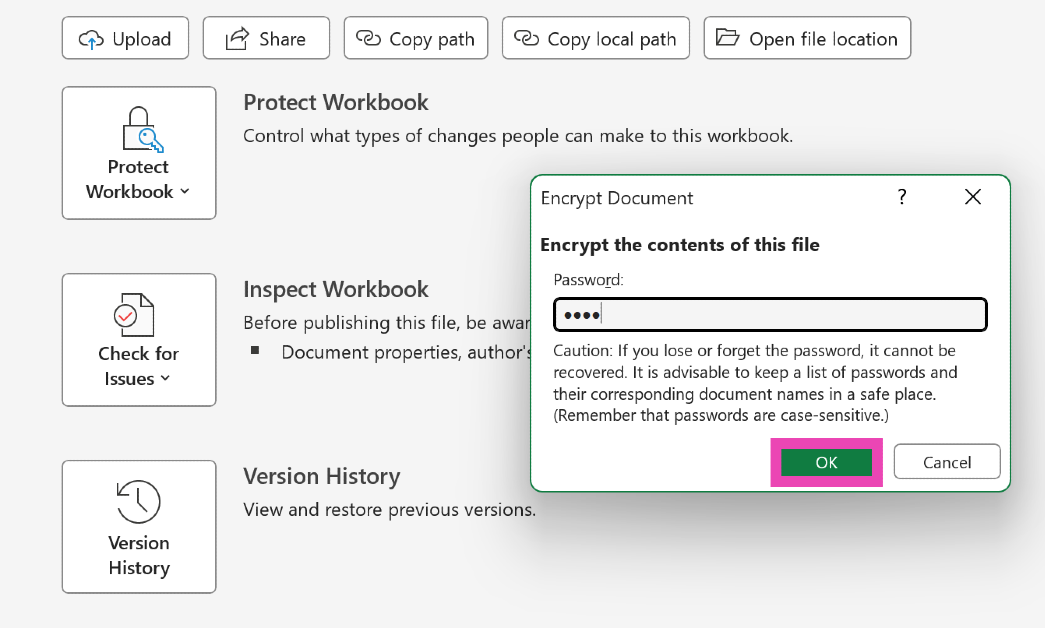 Step 6: Re-enter
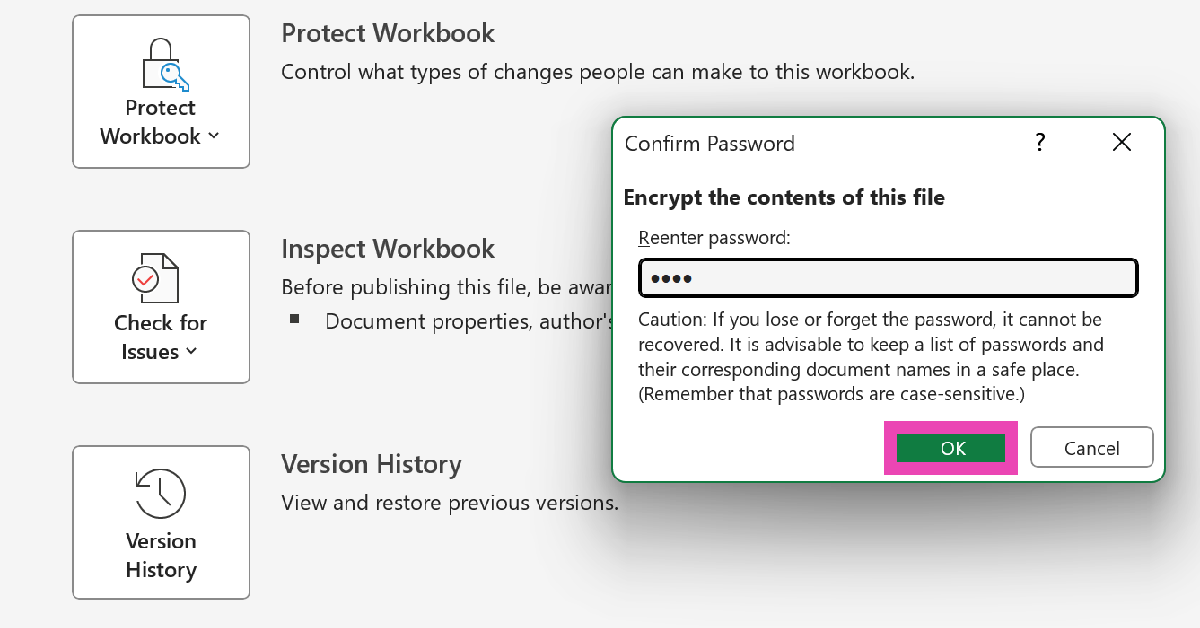 Step 7: Close
 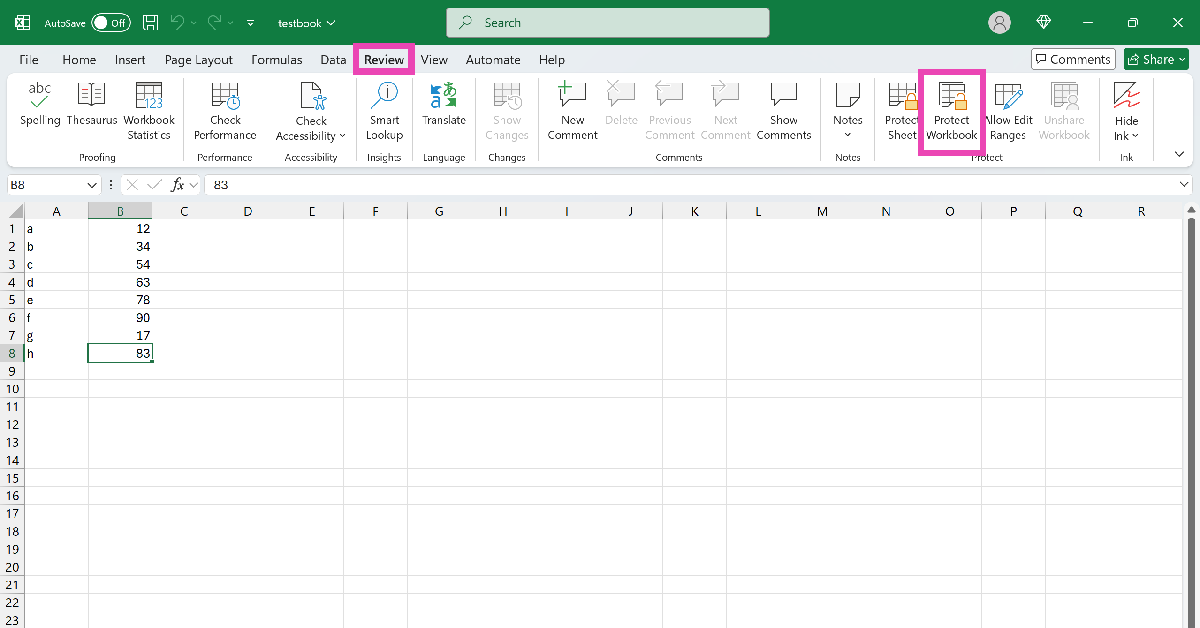 Step 3:
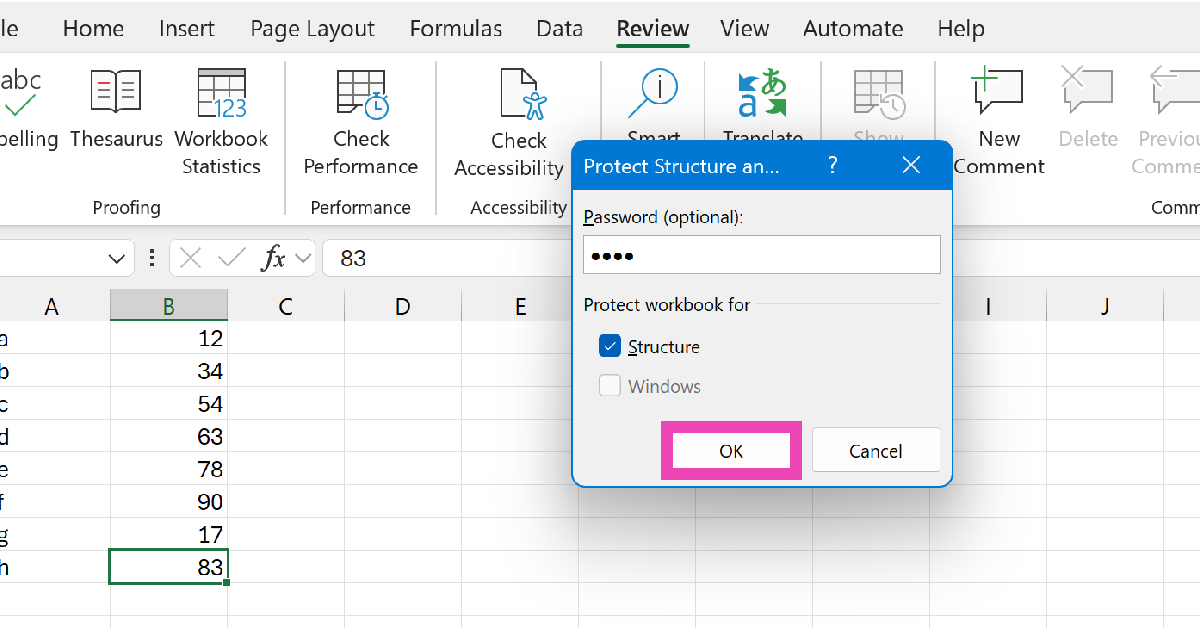 Step 4:
 Step 5:







 Step 4:
 Step 6:
 Step 7:
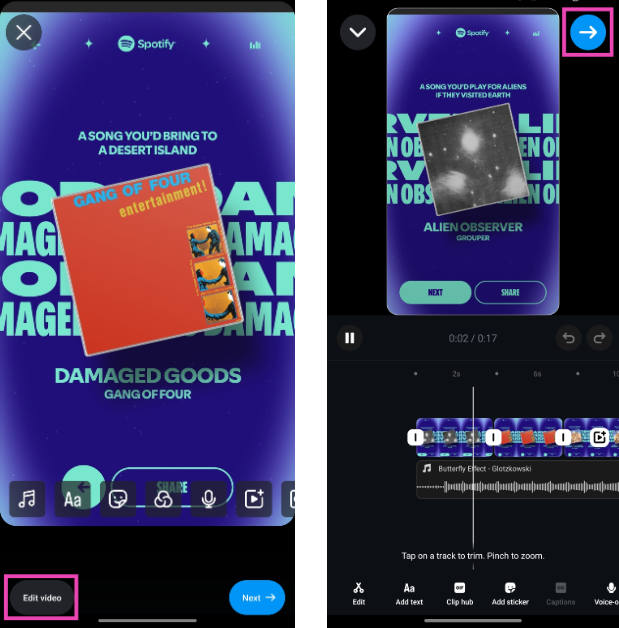 Step 8: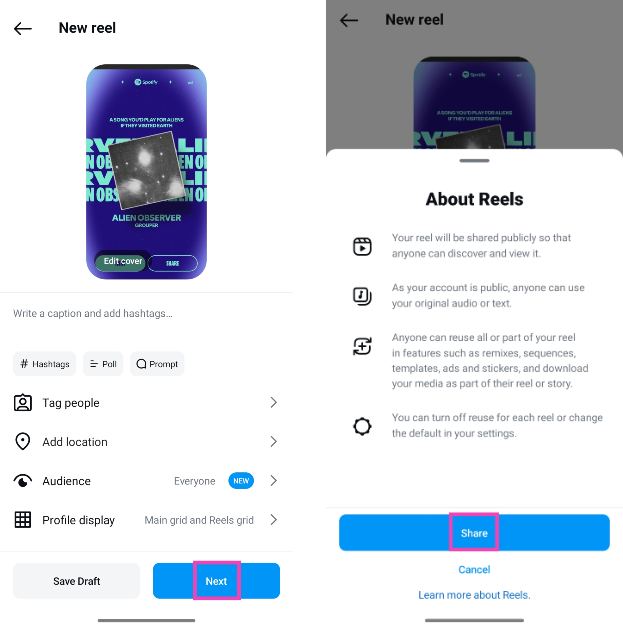
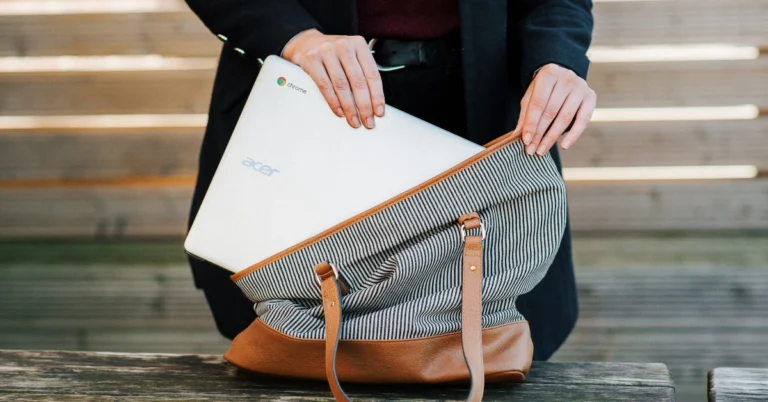
 Step 1:
 Step 1:
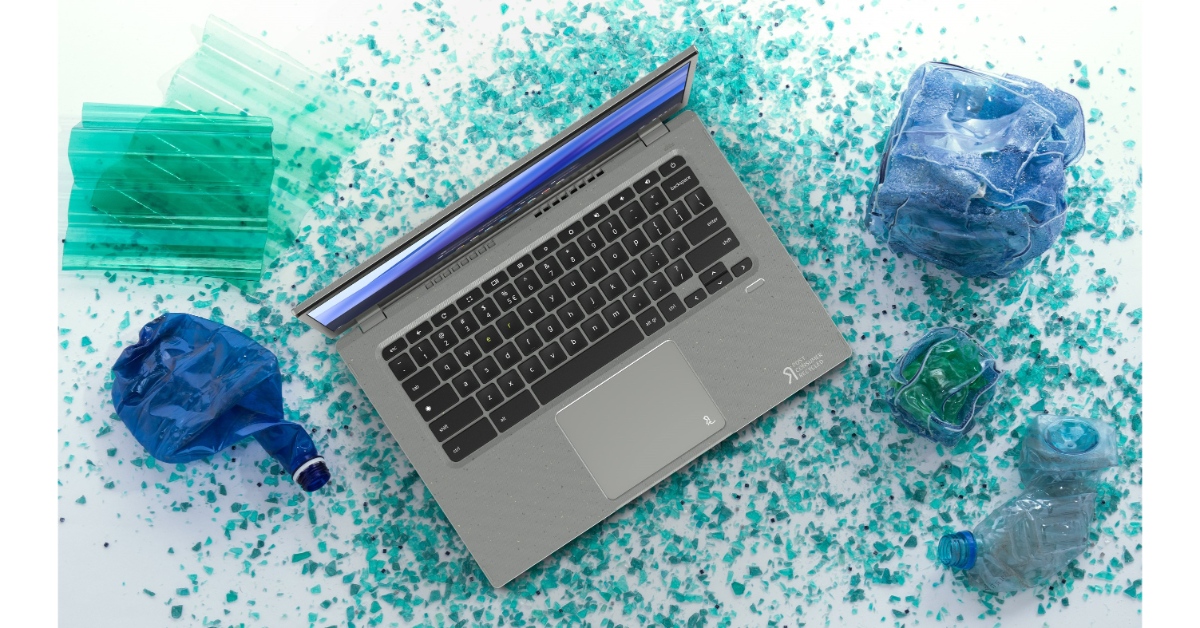 Step 1:
 Step 1: Press the launcher key on the keyboard or click the circle icon in the bottom left corner of the screen.
Step 2: Select Explore in the Apps section.
Step 3: Switch to the What’s new tab.
Step 4: Browse the panel on the right to go through the list of new features that have been made available on the update.
Step 1: Press the launcher key on the keyboard or click the circle icon in the bottom left corner of the screen.
Step 2: Select Explore in the Apps section.
Step 3: Switch to the What’s new tab.
Step 4: Browse the panel on the right to go through the list of new features that have been made available on the update.