


WhatsApp’s payment portal is gradually gaining popularity in India. Facing tough competition from the likes of PayTM and Google Pay, Meta has introduced the option to recharge your phone using the instant messaging app’s payment portal. The process is pretty simple and doesn’t take more than a couple of minutes. Here is a step-by-step tutorial on how to recharge your mobile phone using WhatsApp.
Read Also: HyperX Pulsefire Saga Gaming Mouse Review: A Modular Delight On A Budget
In This Article
Before you begin
Here are some things you need to keep in mind before recharging your phone via WhatsApp.
- Your bank account must be linked to your WhatsApp account in order to make payments using UPI. This can be done via a simple text message verification.
- Once you’ve recharged your phone, you cannot cancel or reverse it.
- If your account does not have the money required for the recharge, you will receive the ‘Your transaction cannot be completed’ message.
- If the transaction fails after the money has been deducted from your account, you will get an automatic refund within 3-5 business days.
Recharge your phone using WhatsApp
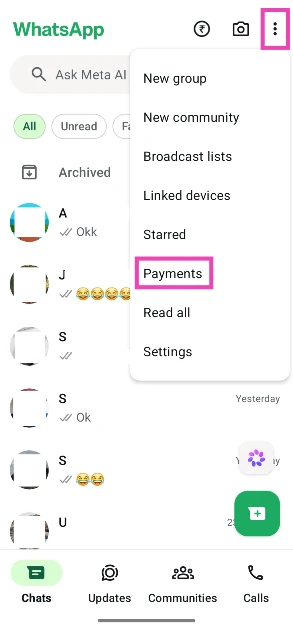
- Launch WhatsApp Messenger on your phone and hit the ellipses in the top right corner of the screen.

- Select Payments.
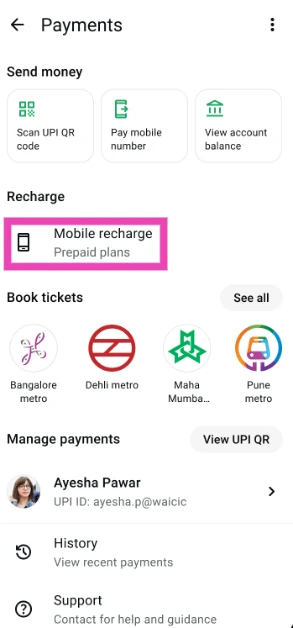
- Tap on Mobile recharge.
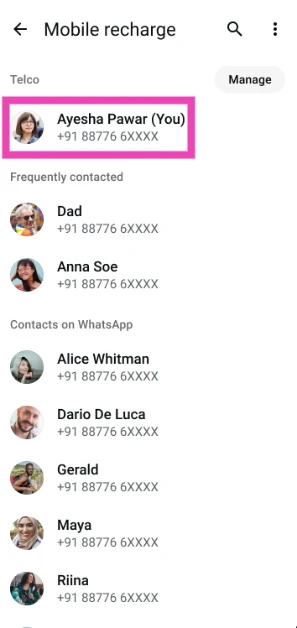
- Select your phone number. You can also recharge someone else’s phone by selecting them from your list of contacts.

- Confirm the network operator.
- Choose a prepaid plan.
- Select a payment method.
- To confirm, tap on Select payment.
- Once the payment process has been completed, you will receive a message confirming the recharge.
Frequently Asked Questions (FAQs)
How do I activate UPI payments on WhatsApp?
Launch WhatsApp, tap the three dots in the top right corner of the screen, go to Payments>Add bank account, select your bank, and verify your phone number via SMS. Once the verification process is complete, set up a PIN for the UPI gateway.
How do I send someone money on WhatsApp?
Open your conversation with a contact, hit the ₹ symbol in the text box, enter the amount followed by your UPI PIN, and hit the send button.
How do I recharge my phone using WhatsApp?
Hit the ellipses on WhatsApp’s chat tab, go to Payments, select Mobile recharge, enter your phone number, confirm your network operator, choose a subscription plan, and complete the payment using UPI.
Can I recharge someone else’s phone using WhatsApp?
Yes, you can recharge someone else’s phone using WhatsApp by entering their phone number after navigating to Payments>Mobile recharge.
What is the transaction limit on WhatsApp?
The UPI transaction limit is the same across all apps – Rs 1 lakh per day.
Read Also: Samsung could use switchable 2D/3D display technology in the upcoming S-Series phones: Report
Final Thoughts
With metro tickets and mobile recharge out of the way, Meta will add more services to WhatsApp’s payment portal in the coming months. Keep checking the Gadget Bridge home page for the latest scoops. If you have any questions, let us know in the comments!


