Have you ever wondered what it would be like if your pets could speak? Or maybe you want to see an old Renaissance painting come to life. While these tasks may have required hours of editing in the past, more recent AI tools can deliver the results within seconds. The great thing is that these apps are getting better every passing day. Today, we bring you the top 5 AI apps to make your photos sing on your iPhone.Read Also:OnePlus Watch 2 India launch date announced, pre-booking open
Avatarify: AI Face Animator
Download from the App StoreAvailable on Android and iOS platforms, Avatarify is one of the best apps to make your photos sing. It does this by processing the image through a neural network and syncing the facial movements with the rhythm of the song. You can feed the image of any celebrity or fictional character and have them say anything you like. Apart from pictures of people, Avatarify also works on images of pets and toddlers. You can also feed an artwork into the app and have it come up with stunning animations.
Revive: AI Photo Animation
Download from the App StoreWith the Revive app, you can make pictures break into a melody and create hilarious short videos. It is one of the rare AI apps that lets you create duet videos as well. Apart from songs, you can add voice to images and apply funny face filters on them. The singing videos are perfectly synced with the music. The photo generator tool in the app lets you make amazing AI avatars for yourself and your friends. If you don’t want to upload images from your phone’s photo gallery, you can use Revive’s extensive gallery of famous celebrities through the decades.
Face Dance: AI Photo Animator
Download from the App StoreAs the name suggests, Face Dance brings your still pictures to life with amazing animations that are perfectly in tune with the background music. Face Dance pays special attention to the minute facial movements, making the image move like it would in reality. The detail on the eyelid and lip movements is surreal. You can also upload old, black-and-white images on this app and rejuvenate them with an injection of colour. The AI avatar tool on the app creates amazing animated avatars using your pictures.
Ritmo Video: Make Photos Sing
Download from the App StoreEnding this list is the ‘Ritmo Video: Make Photos Sing’ app for iPhone. Apart from making still images sing, Ritmo also lets you expand your images using AI. If you have a close-up image which you would like to see against a wider background, upload it on Ritmo and let AI do the magic. The results are surprisingly accurate and the app does a good job of extracting the key details from the image and applying them to the wider background. You can also use this app to produce 3D cartoon videos using your images.
Face Swing: AI Photo Animator
Download from the App StoreThe Face Swing app for iPhone has hundreds of animations in its library that you can use to make your photos sing. You will find hundreds of trending songs on the app. If you don’t want to use your images, you can choose from the portraits of popular celebrities and historical figures from the app itself. The audio library on Face Swing gets updated every day, so you don’t have to worry about missing any of the new trends.Read Also:iPhone 16 Series: Everything we know so far
Conclusion
These are the top 5 AI apps to make your photos sing on your iPhone. These apps are great to play a prank on your friends and kill some time. Check out this list of Android apps that can carry out the same task. If we missed out on an app that you like to use, let us know in the comments!
iQoo Neo 9 Pro will be available for purchase via Amazon in India.
The smartphone is confirmed to come with a Snapdragon 8 Gen 2 SoC.
It will feature a dual-tone rear panel.
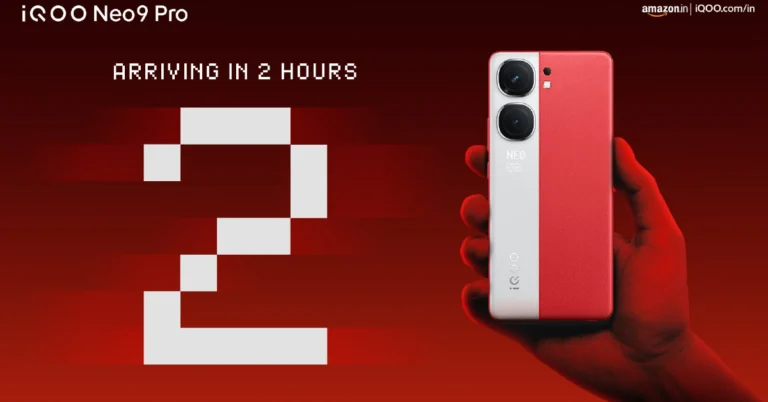
Vivo’s sub-brand iQoo is all prepped up to launch a brand new smartphone in India today. iQoo Neo 9 Pro will make its way to the Indian market after it made its debut in China in December last year. The device is confirmed to be powered by a Qualcomm Snapdragon 8 Gen 2 SoC. The handset will come with a dual-tone rear panel. The firm has not officially disclosed but ahead of the official release, the price of the upcoming phone surfaced on the web. The company will also be hosting a livestream of the launch event checkout details below on how to watch iQoo Neo 9 Pro launch.
How to watch live stream of the iQoo Neo 9 Pro launch
iQoo Neo 9 Pro is going to launch in India today. The launch event will kick off at noon. Fans and interested people can watch the event live on the company’s official YouTube channel and social media platforms. We have embedded the watch link below for your convenience.
iQoo Neo 9 Pro price in India expected
The company has not officially revealed the price of the iQoo Neo 9 Pro but according to a tipster the device is likely to launch at Rs 34,999 for the 8GB RAM with 256GB storage. The tipster shared a screenshot of the product page which also mentions a bank offer of Rs 3,000. The upcoming smartphone is also tipped to come in a 12GB RAM with 256GB storage option which is expected to be priced around Rs 40,000.Also Read:OnePlus Watch 2 India launch date announced, pre-booking open
iQoo No 9 Pro specs and features expected
According to the company, the Qualcomm Snapdragon 8 Gen 2 SoC has been used for the iQoo Neo 9 Pro in India instead of the MediaTek Dimensity chipset used for the Chinese variant. Yes, under the hood of the Neo 9 Pro in China is a MediaTek Dimensity 9300 SoC. It is likely to come with a 6.78-inch LTPO AMOLED display with a 144Hz refresh rate. The display will offer 3,000 nits of peak brightness. It is expected to house a 5,160mAh battery with 120W wired fast charging support.Neo 9 Pro will be featuring a dual-tone rear panel. The back of the phone is confirmed to sport a leather finish in shades of grey and vibrant red. In addition, there is a dual camera on the back panel which is expected to include a 50-megapixel IMX920 primary sensor with OIS and an 8-megapixel ultra-wide lens.As per the official listing, the device will come in two colour options of Conqueror Black with a shiny finish and Fiery Red with a dual-tone faux leather finish.
Garena Free Fire is a battle royale game with regular awards and tournaments to keep players interested. If you play Garena Free Fire, you should be aware of the redeem codes that are released on a daily basis. However, because the battle royale game is banned in India, players from other countries can use the Free Fire Redeem codes daily. If you’re unfamiliar with the Garena Free Fire redeem codes or don’t know how to get them, we’ve put together a step-by-step guide to help you redeem them. Check out Garena Free Fire Redeem Codes for 22 February 2024.The Free Fire redeem codes are a great way to get free stuff. These are 12-digit codes that contain alphabets and numbers, as well as an expiration date and time. Because the Garena FF redeem codes cannot be used more than once, you should hurry to the redemption page to claim your free reward before someone else does. To get a free reward, all you have to do is go to reward.ff.garena.com/en, which is the official redemption page. Also, keep an eye on this space for daily updates on Garena Free Fire redemption codes and rewards.Also Read: Sennheiser Accentum Plus wireless headphones with Hybrid Adaptive Noise Cancellation launched
Garena Free Fire Redeem Codes Today 22 February 2024
The company has revealed the design of the upcoming smartwatch.
The device is now also available for pre-booking.
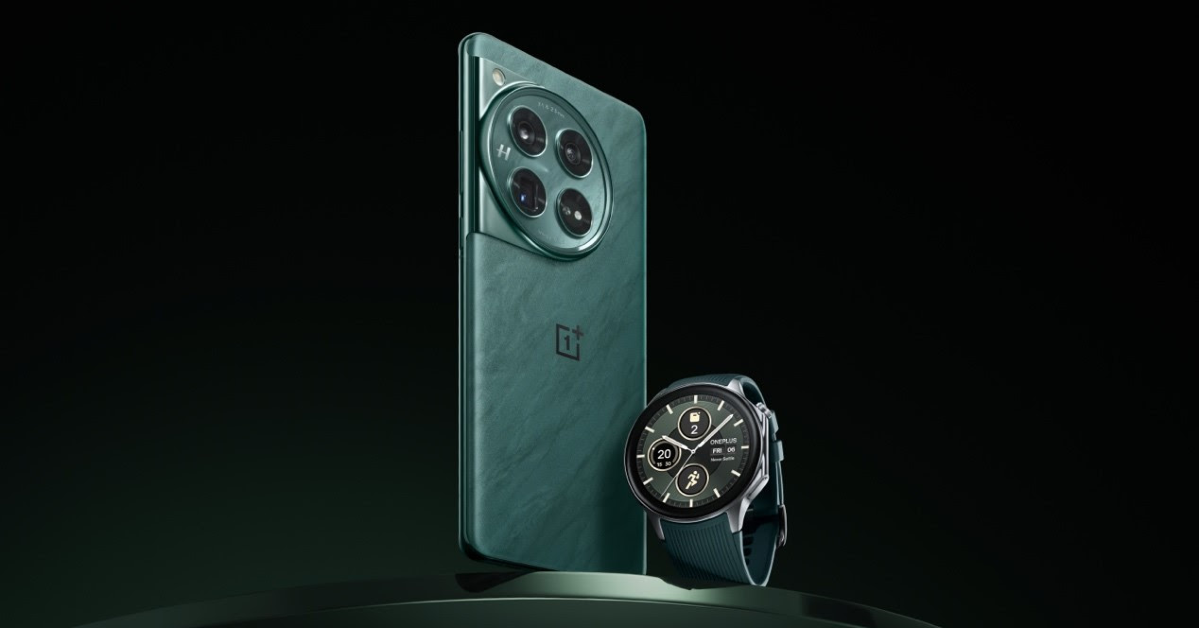
OnePlus is all set to launch a new smartwatch in the Indian market. The company has confirmed to introduce the OnePlus Watch 2 in the Indian market next week. To recall, the device is a successor of the OnePlus Watch which was launched around three years ago. Since then the company has not yet introduced any new smartwatch or tracker. The company has revealed the design and battery life details of the upcoming watch the Pre-booking has also opened. Check out the OnePlus Watch 2 pre-reserve details.OnePlus Watch 2 is set to launch in India on February 26. The smart wearable will make its debut at the Mobile World Congress (MWC) in Barcelona at 4:00 pm CET (8:30 pm IST).Kinder Liu, the COO and President of OnePlus said, “After a three-year hiatus and a reflective pause following the OnePlus Watch 1, the Watch 2 re-emerged, and we are more confident than ever about this product. This confidence is not unfounded, it’s built on a foundation of substantial advancements in our technological ecosystem and capabilities. Watch 2 indicates our determination to transform from “Flagship Killer” to “Ecosystem builder”. It will provide you with experience that’s not just improved, but transformed.”OnePlus did disclose some information regarding its design and battery life, but not key specifications. OnePlus Watch 2 is said to deliver up to 100-hour battery life in Smart Mode.The smartwatch will come with a stainless-steel chassis and a sapphire crystal watch face that offers both timeless elegance and resilience against the trials of daily life. The OnePlus Watch 2 draws inspiration from the distinctive K-shaped curves of the OnePlus 12 series, the OnePlus Watch 2 features a round watch face which mirrors the camera design of the series. The device is said to be made available in two colour options Black Steel and Radiant Steel.Also Read:iPhone 16 Pro and iPhone 16 Pro Max colour options tipped, likely to arrive by the second half of 2024“With its avant-garde features and exceptional design, the OnePlus Watch 2 is more than just a comeback—it’s a revolution in the smartwatch market. OnePlus is not just returning; it’s redefining what a flagship smartwatch can be,” the company said.Also Read:Samsung’s Bixby gets Galaxy AI support, will enable voice-enabled AI capabilitiesThe pre-booking window for the OnePlus Watch 2 is also open now. The users will be able to purchase a pre-reserve pass at just INR 99 exclusively on OnePlus.in. The pass guarantees a discount of Rs 1000 on the purchase of the OnePlus Watch 2 along with a free OnePlus Bullets Wireless Z2 ANC.
The base variants of the iPhone 16 Series will be powered by the Apple A17 Pro chipset from last year’s Pro models.
The new Pro models are expected to get bigger displays and a new ‘Capture’ button.
Expect the new iPhone lineup to demand a small premium.
It has only been half a year since the launch of the iPhone 15 Series, but the Internet is already abuzz with rumours about the new iPhone 16. As is tradition, Apple will reveal its latest flagship smartphone at its annual fall event in September. Leading up to the launch, more rumours are expected to surface online. If you’ve been holding out on upgrading from your older iPhone, you may want to see what Apple has in store for you this year. Here is everything we know about the upcoming iPhone 16 Series.Read Also:How to Make a Minecraft Potion of Weakness? Best Ways (2024)
iPhone 16 and iPhone 16 Plus
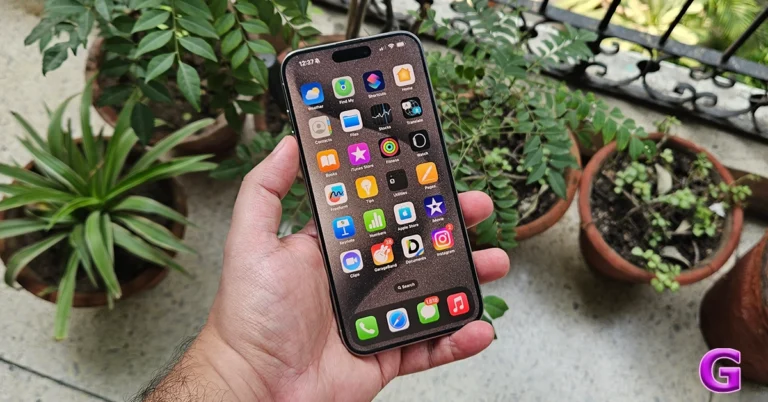
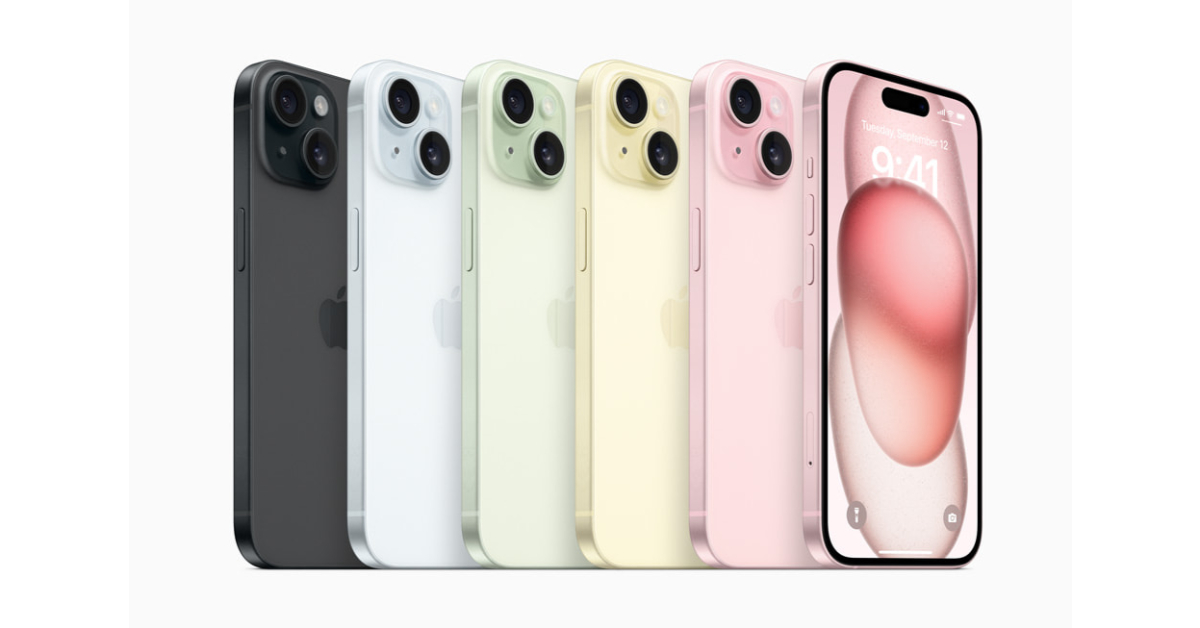
iPhone 15Apple’s strategy since 2022 has been to introduce premium features of the ‘Pro’ iPhone models to the base variants in the following year. The iPhone 14 and 14 Plus carried forward the A15 Bionic processor from the iPhone 13 Series while the Pro Models were equipped with the updated A16 Bionic chipset. In 2023, the base variants of the iPhone 15 Series were finally updated with the A16 Bionic chipset while the Pro models were powered by the latest Apple A17 Pro. The camera upgrades and Dynamic Island also took a year to arrive on the base models.Following this pattern, the iPhone 16 and 16 Plus will inherit the new Apple A17 Pro chipset from the Pro models in the iPhone 15 Series. They will also receive the Grade 5 Titanium frame and the ‘Action’ button. The mute switch will finally be replaced by the Action button which can customised to carry out a range of actions. You can read about it here. Rumours also suggest that Apple will finally upgrade the refresh rate of the base model displays to 120Hz.Leaked renders suggest that Apple may also go back to the vertical layout pattern for the rear cameras, which will now be packed inside a smaller two-step panel. This panel will likely be pill-shaped to accommodate the vertical layout. If this is the case, the LED flash will be placed outside the new panel.
iPhone 16 Pro and iPhone 16 Pro Max
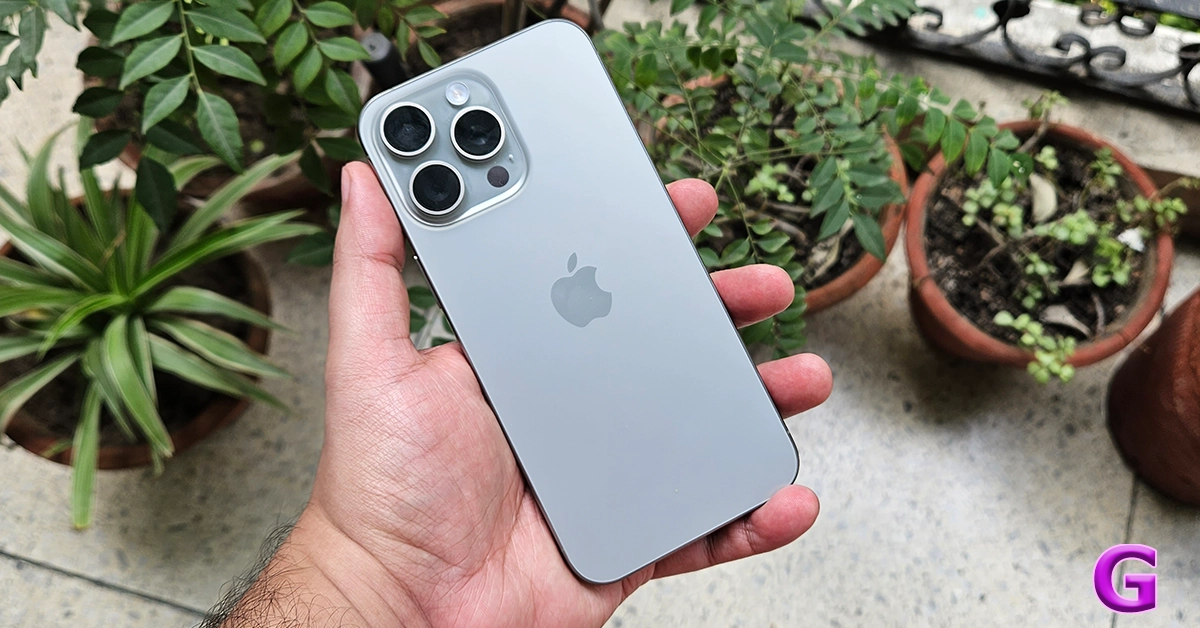
iPhone 15 ProLast year’s Pro models (our review here) saw Apple switch to a Grade 5 Titanium frame. The new frame rocked a new ‘Action’ button. This year, the iPhone 16 Pro models are rumoured to get a new ‘Capture’ button which will lie on the lower end of the left side of the frame. To accommodate this change, the mmWave 5G cutout will be moved to the right edge of the frame, alongside the volume rocker. The Capture button will act as a traditional shutter button to click pictures. It may have different pressure levels for focus adjustment.The iPhone 16 Pro models are set to get bigger this year. The iPhone 16 Pro will have a 6.27-inch display while the iPhone 16 Pro Max will feature a 6.85-inch panel. The current Pro models have 6.1-inch and 6.7-inch displays respectively. The larger displays will allow for a bigger battery inside both the Pro models. With Samsung introducing an anti-reflective display on the latest Galaxy S24 Ultra (our review here), Apple could also bring the technology to its upcoming iPhone 16 Pro Models.The Apple A18 Pro chipset will make its debut in the new Pro models of the upcoming iPhone series. Apple is expected to equip the two smartphones with WiFi 7 tech which provides 2.4x faster speeds than the outgoing WiFi 6. Not much is known about the camera specs of the upcoming iPhone Pro models, but we wouldn’t be surprised if the camera module remains unchanged. Some rumours suggest that the telephoto lens on the iPhone 16 Pro will support 5x zoom, which is a feature that is limited to the Pro Max model on the iPhone 15 Series. More details are expected to emerge as we get closer to launch.Read Also:How to use Truecaller on your PC? (2024)
Final thoughts: Colours and Pricing
Apple usually plays it safe with colour options for the iPhone and isn’t known to experiment a lot. We don’t expect any outrageous colour schemes for the 2024 iPhone 16 series. However, the Cupertino tech giant may introduce two new colours for the Pro models of its flagship smartphone – Desert Titanium (Deep Yellow) and Titanium Gray.Apple has kept a tight lid on the pricing of the iPhone 16 so far. No leaks have emerged about what the new iPhones may cost. However, if previous trends are to be believed, all four iPhone models will demand a small premium over the outgoing models. This means the base iPhone 16 model will finally cross the $800 barrier while the iPhone 16 Pro will cost upwards of $1,000.
Items and Ingredients needed to make a Potion of Weakness on Minecraft
Crafting Table: Requires 4 Wood Planks
Brewing Stand: Requires 1 Blaze Rod and 3 Cobblestone Blocks
Water Bottle: Can be made with Glass Blocks
Fermented Spider Eye: Harvest sugar and brown mushrooms. Kill spiders for spider eyes. Use the three ingredients to make a Fermented Spider Eye.
Blaze Powder: Add 1 Blaze Rod to the crafting bench to get 2 Blaze Powders.
Make a Potion of Weakness on Minecraft (1:30)
Step 1: Open the Brewing Stand.Image courtesy: DigMinecraftStep 2: Add the Blaze Powder to the box on the left. This activates the Brewing Stand.Step 3: Place a Water Bottle in one of the boxes at the bottom of the Brewing Stand. You can make up to 3 potions at once by placing 3 Water Bottles.Step 4: Pick the Fermented Spider Eye from the inventory and place it in the topmost box on the Brewing Stand.Step 5:Wait for the brewing to finish. When it is done, the potion will appear in one of the bottom boxes.
Make a Potion of Weakness on Minecraft that lasts longer (3:00)
Step 1: Place Redstone in the top box of the Brewing Stand.Step 2: Add the Potion of Weakness to the bottom box. Your new, longer-lasting (3:00) Potion will be ready.
Make a Splash Potion of Weakness on Minecraft
Step 1: Place the Potion of Weakness in the bottom box of the Brewing Stand.Step 2: Add Gunpowder to the top box.Step 3: Wait for the process to complete. Your Potion will be ready.
Make a Lingering Potion of Weakness on Minecraft
Step 1: Place Dragon’s Breath in the top box of the Brewing Stand.Step 2: Add a Splash Potion to the bottom box.After the process is over, the Lingering Potion will be ready.
Frequently Asked Questions (FAQs)
What does a Potion of Weakness do?
Using a Potion of Weakness on yourself reduces your attack damage by 4x for 1 minute and 30 seconds. However, you can use it to create a splash potion of weakness to use on others.
How do I make a Potion of Weakness on Minecraft?
Open the Brewing Stand and add the Blaze Powder to the left box. Place a Water Bottle in the bottom box and a Fermented Spider Eye in the topmost box to create the potion.
How do I make a Potion of Weakness that lasts for 3 minutes?
On the Brewing Stand, add the Redstone in the top box and the regular potion in the bottom box to make a potion that lasts for 3 minutes.Read Also:How to use Truecaller on your PC? (2024)
Conclusion
This is how you can make a Potion of Weakness on Minecraft. You can deploy this potion by simply tapping and holding it on your phone. PC players right-click and hold the potion to use it. If you have any questions related to brewing this potion, let us know in the comments!
iPhone 16 Pro and iPhone 16 Pro Max images leaked suggesting two new colour options.
The phones are said to be available in Grey and Gold options.
Pricing and design details of the iPhone 16 line have also been tipped before.
Recently we came across iPhone 16 renders which suggested a revamped camera setup. Now more images have surfaced on the web regarding colour options for the iPhone 16 Pro and iPhone 16 Pro Max. The alleged devices are seen in leaked renders with new grey and gold finishes. The new iPhone series is expected to arrive by the second half of 2024.Based on information provided by a tipster via X, Apple might launch two new colorways for iPhone 16 Pro and iPhone 16 Pro Max in the second half of 2024. The gold colourway is unavailable for Apple’s current line of iPhone 15 Pro models. But as per the leaked renders the upcoming Pro model might be offered in a new Cement Gray and Desert Yellow finishes.The current iPhones are available in four colour options- Black Titanium, Blue Titanium, Natural, and White Titanium. As per the tipster the new colour options will be called Titanium Grey and Desert Titanium.While sharing the renders he said, “Based on the information I was able to find, the new colours of the iPhone 16 Pro could be Desert Yellow (Desert Titanium) similar to the gold of the iPhone 14 Pro but deeper and heavier Cement Gray (Titanium Gray) a shade of space gray similar to that used on iPhone 6. Other possible colours are also discussed, however they seem to be less plausible and I preferred to avoid reporting them. Do not take this information as 100% accurate or real, it is just a rumour”Some days ago iPhone 15 Series renders appeared on the web suggesting a redesigned rear camera layout. It is claimed to feature a vertical rear camera module. To support the claim the tipster also posted an image of the alleged iPhone 16 camera module featuring a pill-shaped dual rear camera setup.The iPhone 16 lineup is also tipped to include five models- iPhone 16 SE, iPhone 16 Plus SE, iPhone 16, iPhone 16 Pro, and iPhone 16 Pro Max.Also Read:Samsung’s Bixby gets Galaxy AI support, will enable voice-enabled AI capabilitiesSimilar to iPhone X the renders depict a single pill-shaped rear camera module with a flash for the iPhone 16 SE and iPhone 16 Plus SE. Whereas the iPhone 16 camera module has a dual rear camera setup. The iPhone 16 Pro and iPhone 16 Pro Max, on the other hand, can be seen featuring a triple rear camera setup similar to that of the Samsung Galaxy S24 and S24 Plus.Also Read:Nothing Phone 2a confirmed to be powered by MediaTek Dimensity 7200 SoC, renders leakedPricing of iPhone 16 has also been tipped before. The iPhone 16 SE 128GB model is likely to retail at $699. Whereas the iPhone 6 SE Plus may cost $799 for the 256GB variant. The 256GB version of the vanilla iPhone 16 may retail for $699.The 256GB models of the iPhone 16 Pro and iPhone 16 Pro Max are rumoured to be priced at $999 and $1099 respectively.
Truecaller started out as a Caller ID app for identifying unknown callers. Over the years, the app has not only introduced helpful spam filters but also evolved to become a well-rounded dialer and texting app. The messages in your Truecaller inbox are filtered from spam, leading to a clean, clutter-free texting experience. The app recently introduced a new feature which allows you to access your Truecaller inbox on your PC. Interested? Here is how you can use Truecaller on your PC.Read Also:Samsung’s Bixby gets Galaxy AI support, will enable voice-enabled AI capabilities
What’s new on Truecaller?
Keeping up with major instant messaging apps like WhatsApp and Telegram, Truecaller has launched a web portal which allows users to link their accounts to their PCs. Once the devices have been linked, users can access their text messages from their PC’s web browser without needing to pick up and unlock their phones. The messages displayed on your PC’s web browser are filtered from spam and blocked contacts. The process is simple and isn’t different from apps like WhatsApp and Telegram.Since device linking is still a beta feature, it is not available for all Truecaller users yet. Currently, it is available for beta testers of the app. Once the feature has been officially launched, it will be rolled out to larger audiences in a phased manner. In the meantime, you can use Google Messages to access your text messages on your PC. You can read about it here.
Link your device to Truecaller Web to start texting on a PC
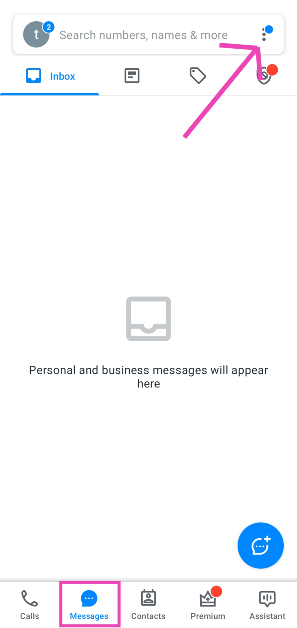
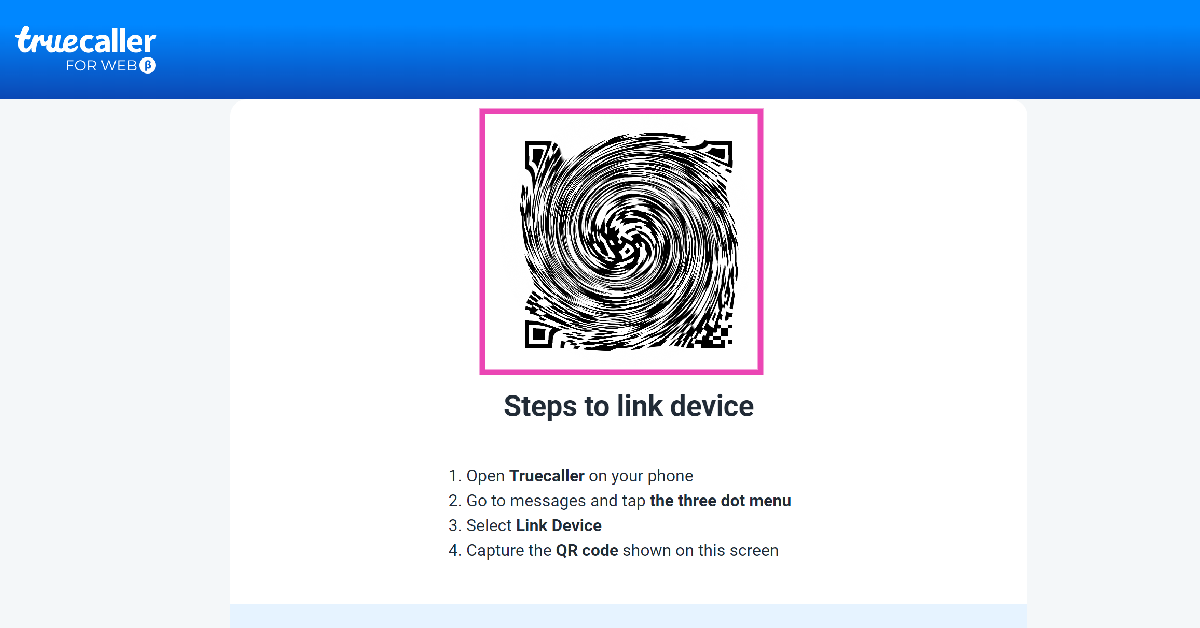
Step 1:Launch the Truecaller app on your smartphone.Step 2: Switch to the Messages tab and hit the ellipses (three dots) at the top right corner of the screen.Step 3: Tap on Link Device.Step 4: On your PC, go to https://web.truecaller.com/linkdevice.Step 5: Scan the QR Code on your PC using your phone.Step 6: Your device will be linked to Truecaller’s web portal. All your messages will appear on your PC.
Frequently Asked Questions (FAQs)
How do I link my Truecaller account to my PC?
Launch the Truecaller app on your phone and go to Messages>Ellipses>Link Device. Then, go to https://web.truecaller.com/linkdevice on your PC and scan the QR code using your phone.
How do I access Google Messages on my PC?
Launch the Google Messages app on your phone, tap your profile picture, and select ‘Device Pairing’. On your PC, go to https://messages.google.com/web/ and log in using your Google Account. Match the emojis on the two devices to link them.
Can I send messages using Truecaller?
Settings Truecaller as your default messaging app allows you to send text messages from your phone. You can now link your Truecaller account to your PC and start sending texts from there as well.Read Also:Top 7 Ways to Fix Horizontal Lines on a Computer Screen (2024)
Conclusion
This is how you can link your Truecaller account to your PC. Since this feature is being rolled out in a phased manner, you may not be able to see it on your device yet. Make sure the Truecaller app on your device is updated in order to receive the feature in time. If you have any queries regarding this feature, let us know in the comments!
This will enable users to operate some of its features using simple voice commands.
South Korean electronics giant Samsung during the launch of Galaxy S24 Series unveiled Galaxy AI, a range of AI-powered capabilities like Call Assist, Interpreter mode, Transcript Assist, and more. In a new development, the company has announced that it has merged its AI capabilities with its built-in virtual assistant Bixby. This will quickly activate Galaxy AI features on the devices for hands-free operations through simple voice commands.Samsung stated in a statement released through a blog post, “In a world increasingly supported by artificial intelligence, Samsung is taking steps to enable easy and seamless AI usability in Galaxy users’ day-to-day lives with its voice assistant Bixby.”With the integration of Galaxy AI to Bixby, users will be able to quickly activate Bixby’s voice activation capabilities just by speaking. This will immediately quickly bring up and activate Galaxy AI features hands-free. So there is no need to search through your device to find the feature of your choice.As per Samsung using Bixby it will be easier to use Galaxy’s intuitive voice-oriented features, like Live Translate. Users will also be able to explore features such as real-time translation, spelling correction, and creation of web page summaries and automated note covers.Also Read:Alienware 32 4K QD-OLED (AW3225QF) and Alienware 27 360Hz QD-OLED (AW2725DF) gaming monitors launched in India“Let’s take Interpreter as an example. Next time you find yourself in conversation with someone who speaks another language, no longer do you need to take a moment to find and click into the Interpreter feature – simply say, “Hi Bixby, turn on Interpreter,” and you’re off.”Also Read:Nothing Phone 2a confirmed to be powered by MediaTek Dimensity 7200 SoC, renders leakedYou won’t have to slow down to access the feature you require. With just a single voice command, you may take advantage of these new possibilities, which include increased productivity along with barrier-free communication.As per the company, Bixby activation of Galaxy AI will be applied to all supporting languages: Chinese, English (US, UK, and India), French, German, Italian, Korean, Portuguese (Brazil), Spanish (Spain) and Spanish (Latin America).
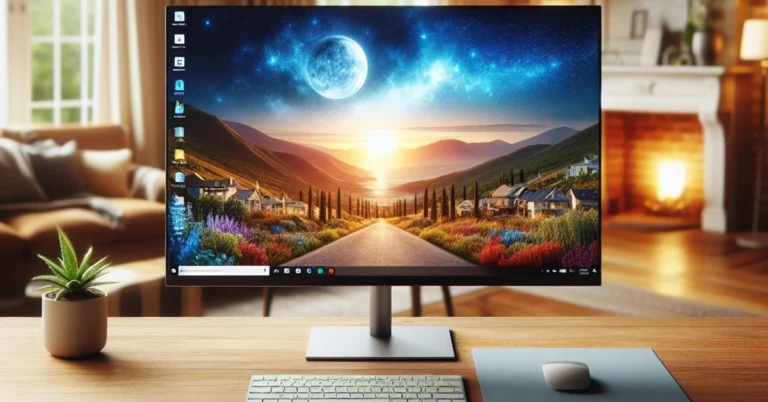
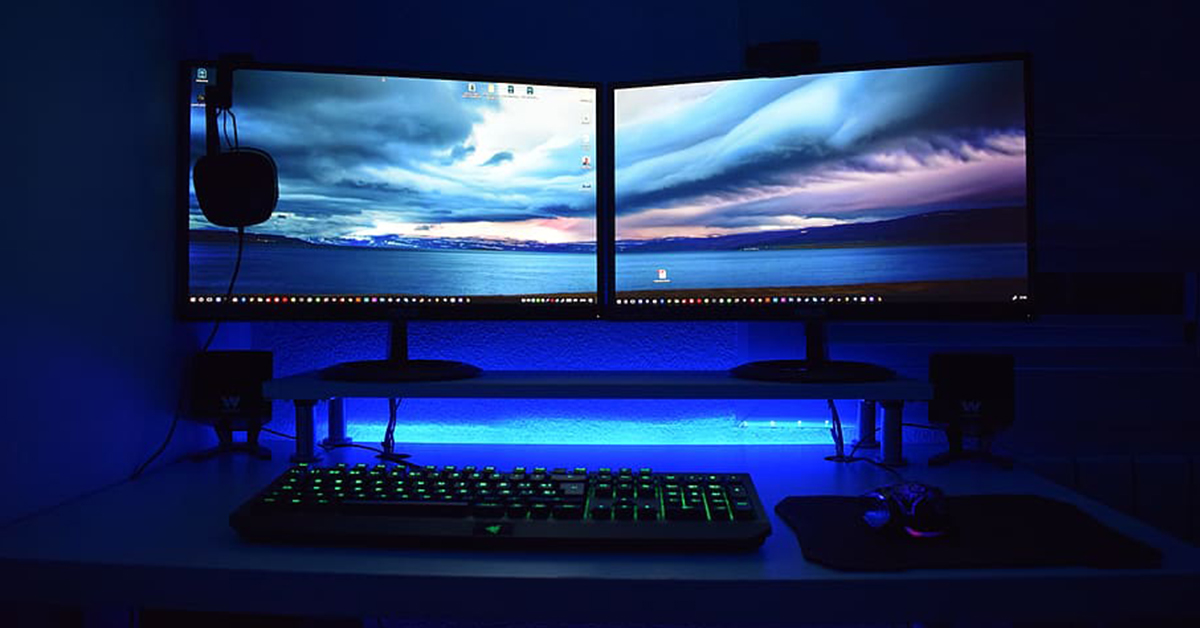
Random glitches on your PC’s monitor can initially seem scary, but they are rather easy to fix. The main part of the resolution process is to determine the cause of the issue. Once the problem has been diagnosed, the fixes are relatively easy. If your computer screen mysteriously starts showing horizontal lines, try these 11 easy fixes.Read Also:Samsung Galaxy S24 Ultra Review: The most powerful Android just got smarter
Why is my computer screen showing horizontal lines?
This malfunction could be caused by one of the reasons mentioned below.
Overheating: If you have been gaming on your PC for a while, causing it to overheat, it may cause some mysterious horizontal lines to appear on the display. This is a temporary problem which goes away as soon as your PC cools down.
Connection issues: Nine times out of ten, the horizontal lines appearing on your computer screen are caused by connection issues. Faulty cables and loosely fitted wired connections can create all sorts of problems on your PC’s display.
Screen resolution and refresh rate: Your monitor may support multiple resolutions and refresh rates, but if the PC’s video card does not support them, some malfunctions are bound to occur.
Hardware issues: Are you using an old monitor for your PC? The hardware of any PC component deteriorates over time. If you suspect that is the case, it may be time to get a new monitor.
Restart your computer
If the horizontal lines on your computer screen are originating due to a software glitch, a simple restart will fix the issue. Hit the Windows icon on the taskbar followed by the power button. Select ‘Restart’ from the list of options in the power menu. A quick restart resolves the background glitches and reboots the drivers as well. If this doesn’t work, move on to the other fixes in the list.
Check if your monitor is at fault
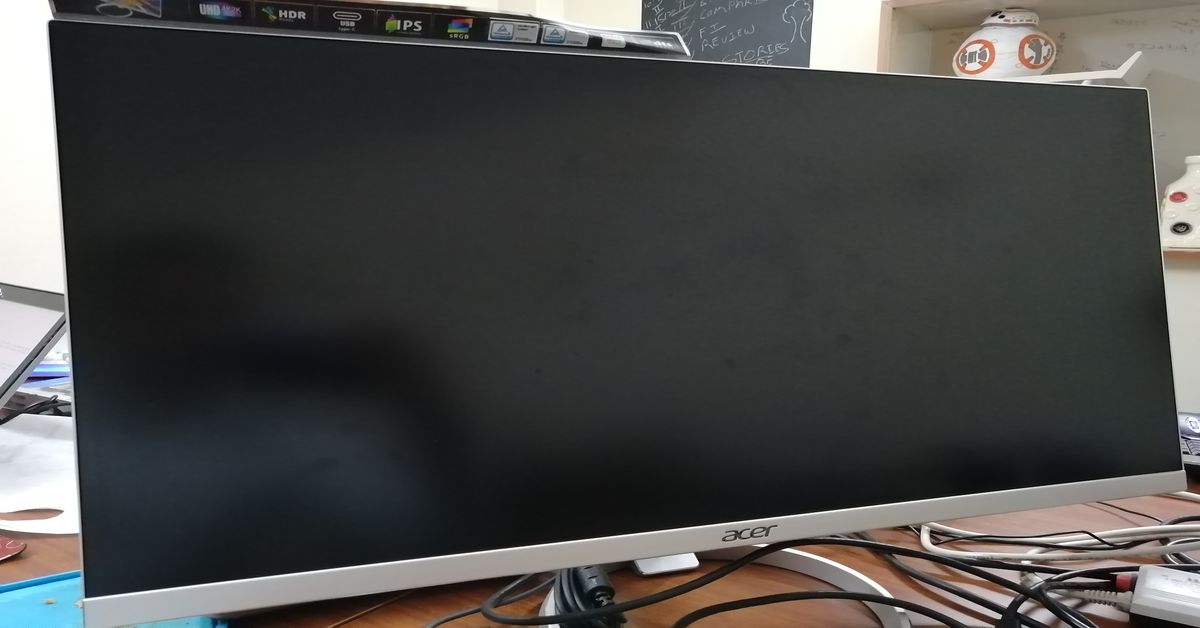
If restarting your PC didn’t help, your next course of action should be to check the monitor for any hardware issues. Press the power switch on the monitor and look out for any flickering lines. This is a tell-tale sign of a damaged monitor. Replace the monitor with a different unit. If the horizontal lines do not appear on the screen, your original monitor is surely at fault.
Check the cables
A faulty connection can sometimes cause your monitor to malfunction. Check its cables for any damage and make sure they are properly connected to the PC. This includes the video cable and the ribbon cables. A loose connection can cause flickering and mysterious horizontal lines to appear on the screen. If you have a new set of cables lying around, use them for your monitor.
Update the graphics card driver
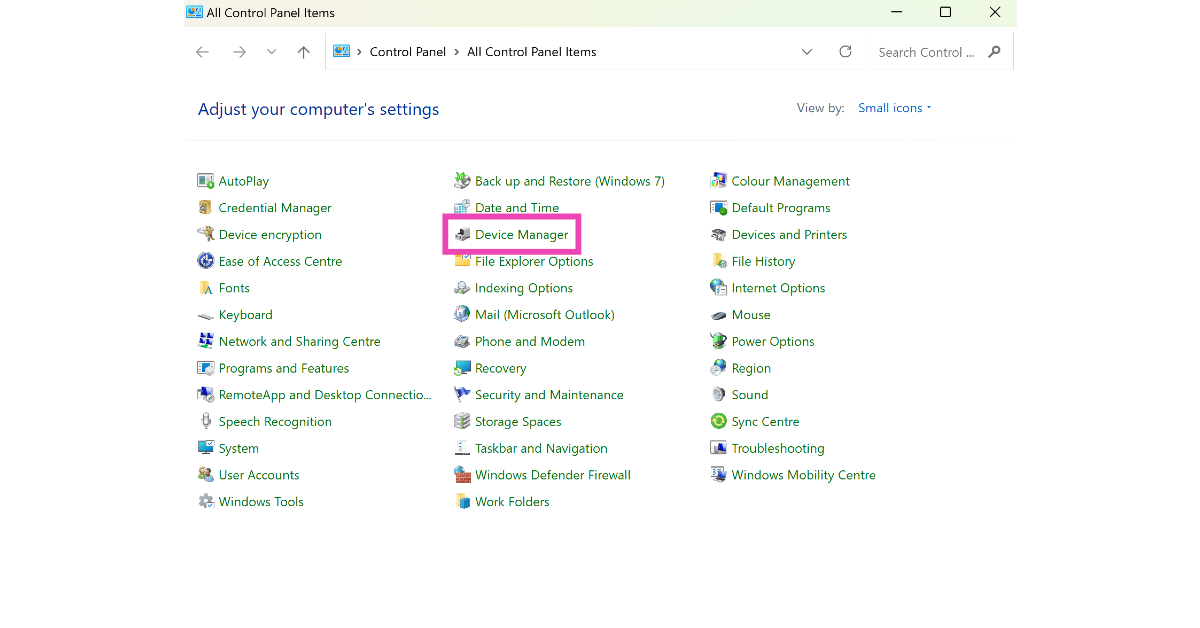
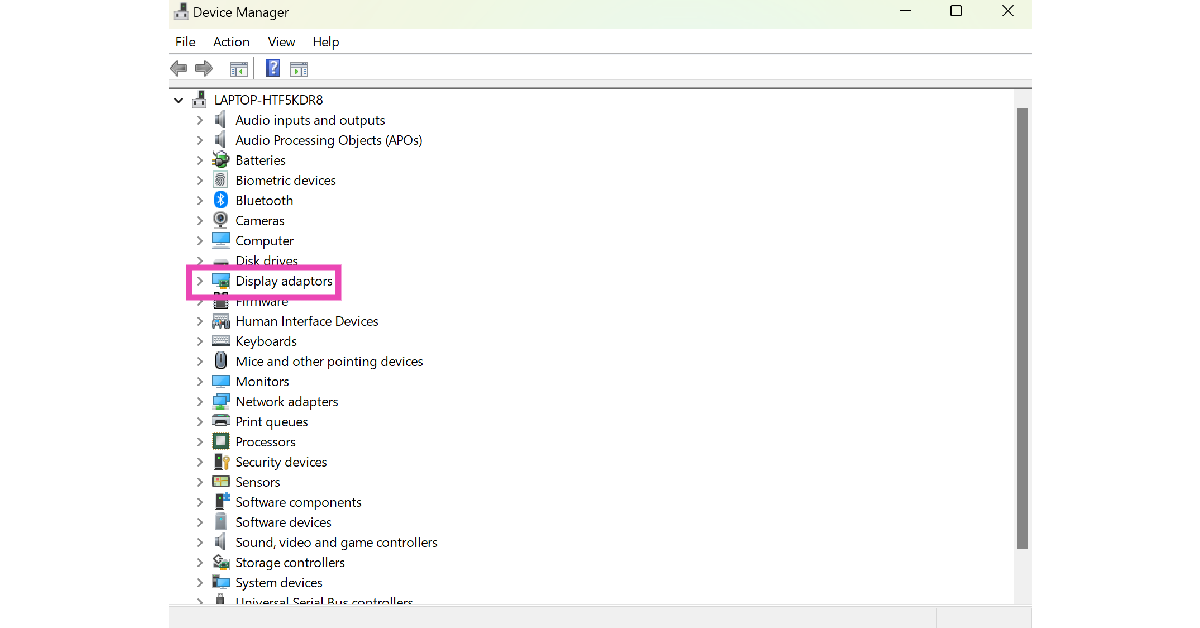
Step 1: Go to Control Panel and select Device Manager.Step 2: Click on Display Adapters.Step 3: Right-click on the graphics card driver and select Update driver.
Roll back the display driver
If the problem arose after updating the display driver, roll it back to the previous version. Here’s how.
Step 1: Go to the Control Panel and select Device Manager.
Step 2: Click on Display adaptors.
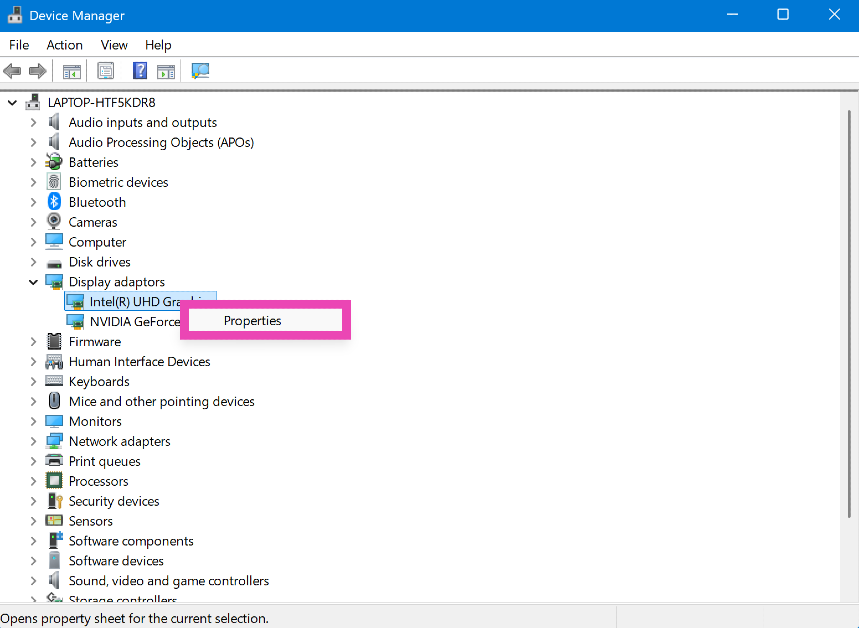
Step 3: Right-click the display driver and select Properties.
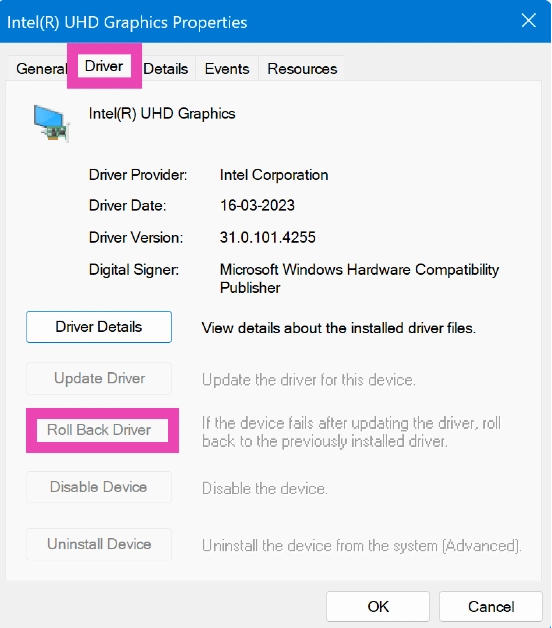
Step 4: Go to the Driver tab and select Roll Back Driver.
Change the screen resolution
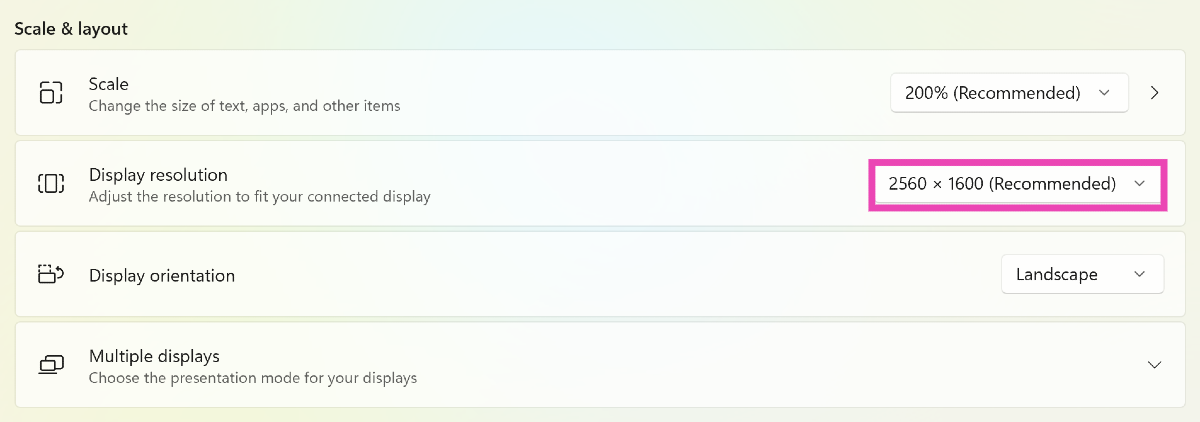
If your monitor’s screen resolution doesn’t match its size, it may lead to horizontal lines appearing on the display. Here’s how you can change the screen resolution.Step 1: Go to Settings and select System.Step 2: Select Display.Step 3: Click on the dropdown menu for display resolution.Step 4: Select a fitting resolution from the list.
Fix the refresh rate of the monitor
If your monitor’s refresh rate isn’t in sync with the video card, it can cause some unexpected errors. Here’s how you can change it.Step 1: Go to Settings and select System.Step 2: Select Display.Step 3: Click on Advanced display.Step 4: Click on the dropdown menu for the refresh rate.Step 5: Choose an appropriate refresh rate.
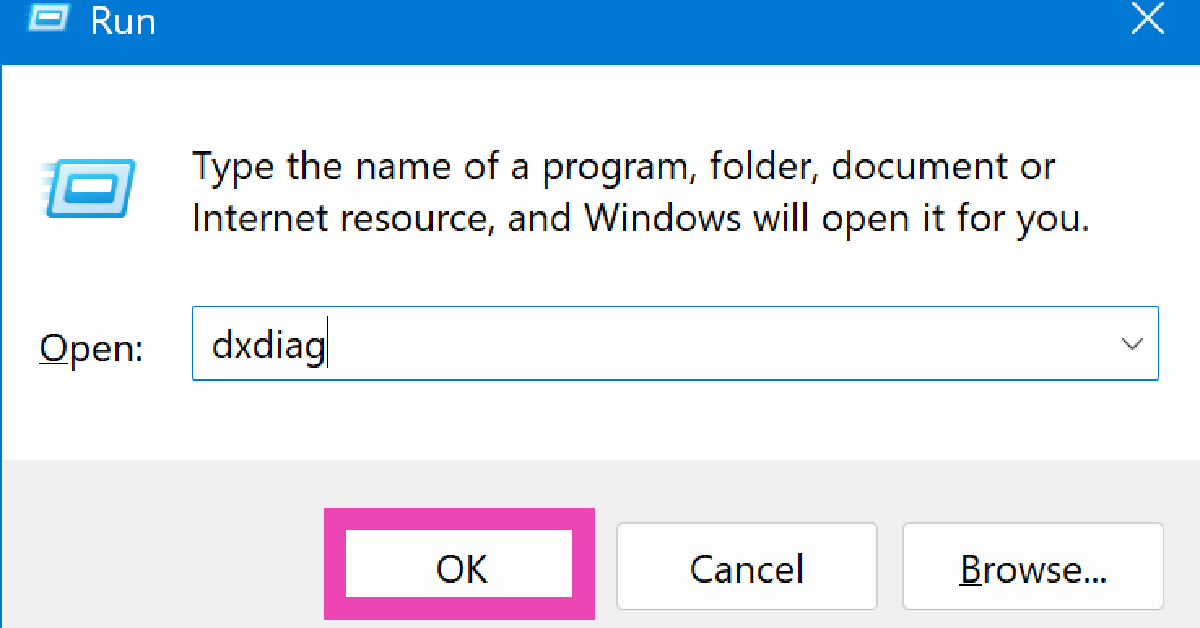
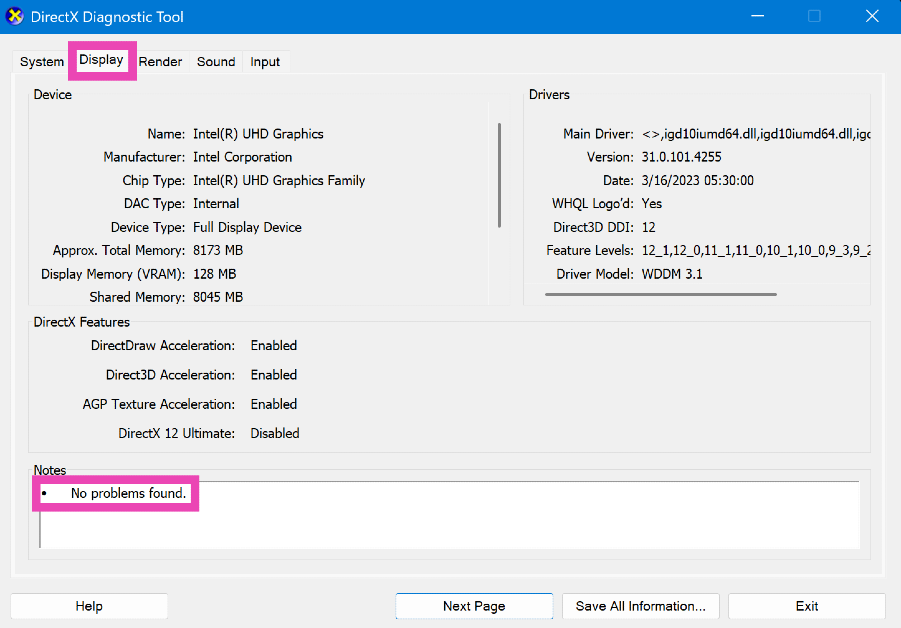
Run a diagnostic test (DirectX)
Step 1: Press Windows + R to launch the Run command box.
Step 2: Type dxdiag and hit Enter.
Step 3: Switch to the Display tab to find out what’s causing the vertical lines on your monitor.
Use your laptop on a hard surface
If you’re facing this issue on a laptop, make sure you’re using it on a hard surface. Surfaces like beds and blankets can cover the air vents and cause the device to overheat. This overheating often results in screen flickering and horizontal lines on the display. Move your laptop to a table and let it cool down before you resume using it.
Remove magnets and other electronic devices
If there are magnets and electronic devices near your PC’s monitor, remove them to fix the horizontal lines. These objects are known to cause interference. If they’re present near your PC’s monitor, they can induce horizontal lines on it. Eliminate any source of interference to fix this issue.
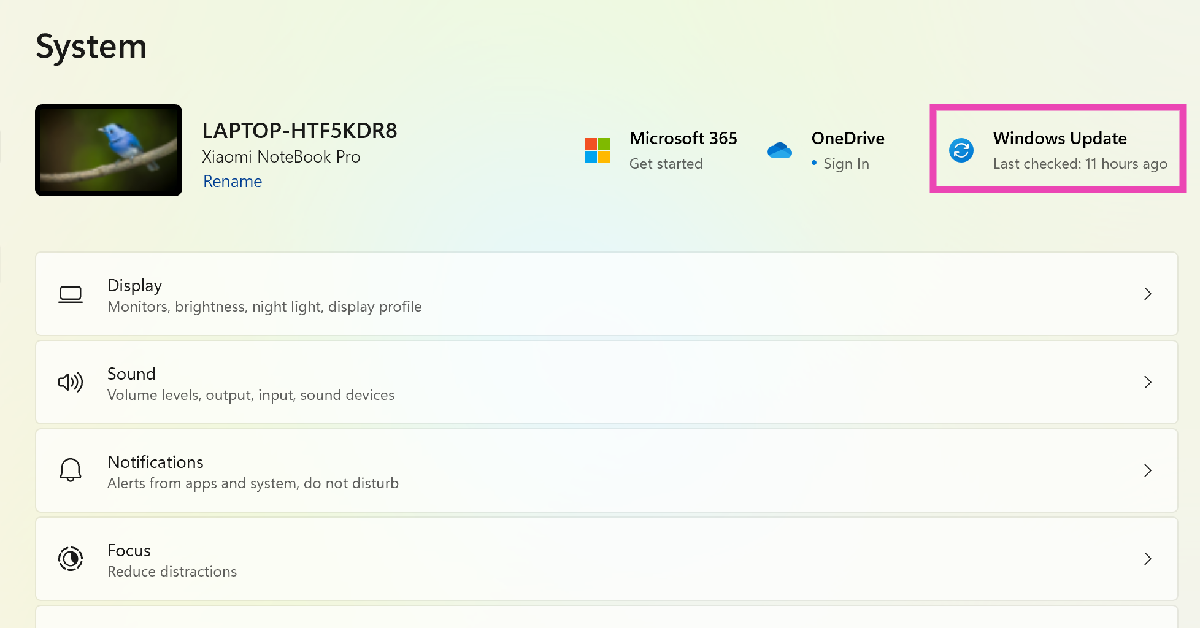
Update your PC’s OS
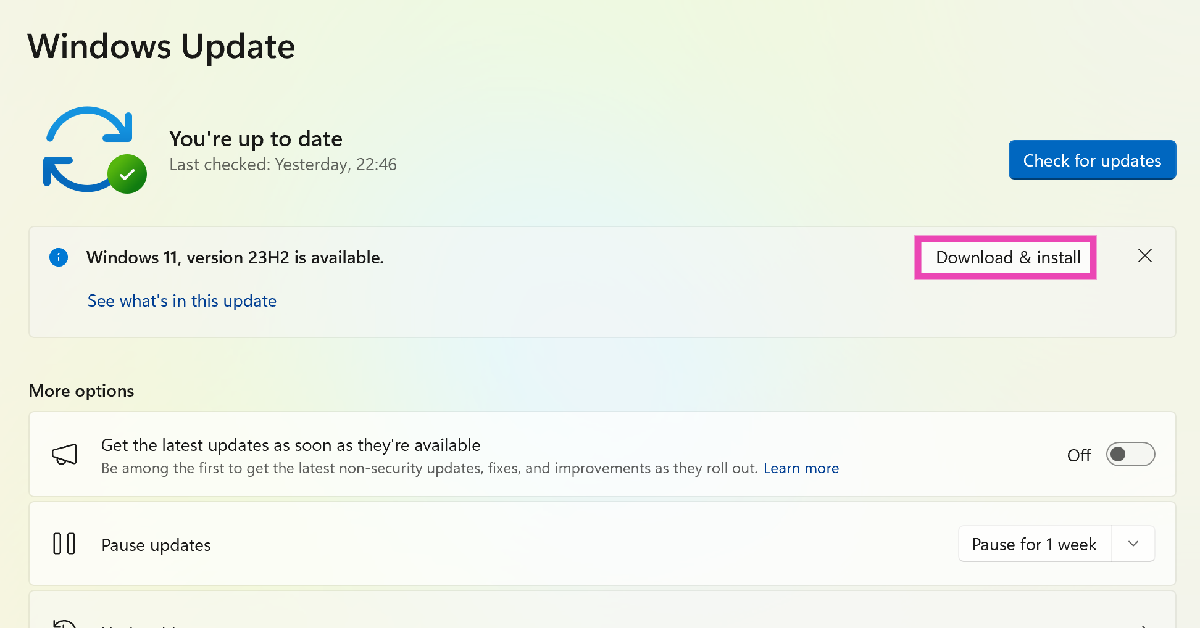
Developers are quick to fix the bug-related issues on your PC by pushing a new OS update. Here’s how you can update the OS.Step 1: Go to Settings and select System.Step 2: Click on Windows Update.Step 3: Select the Download and install option next to a pending update. If you don’t see a pending update, click on Check for updates.
Frequently Asked Questions (FAQs)
Why am I seeing horizontal lines on my computer screen?
Your computer screen may show horizontal lines when the monitor starts overheating or if its screen resolution and refresh rate are not set appropriately. An outdated graphics card driver can also cause this to happen.
How do I fix the horizontal lines on my computer screen?
You can fix the horizontal lines by securing the monitor connection, removing interference, updating the drivers, selecting the appropriate refresh rate and resolution, and updating the PC to the latest Windows version.
How do I update my PC’s graphics card driver?
Go to Settings>Device Manager>Display Adapters and right-click on the graphics card driver. Select ‘Update driver’ from the list of options. Follow the onscreen instructions to update the driver.
How do I roll back my PC’s graphics card driver to a previous version?
Go to Settings>Device Manager>Display Adapters and right-click the graphics card driver. Select Properties>Drivers and click on ‘Roll back driver’.
How do I change my laptop or computer’s refresh rate?
This is how you can fix the horizontal lines appearing on your computer or laptop’s screen. If the issue is caused by overheating, turn off your PC and let it cool down. If the issue persists after trying the fixes mentioned in the list, take your PC to an authorised service centre for further diagnosis.



 Available on Android and iOS platforms, Avatarify is one of the best apps to make your photos sing. It does this by processing the image through a neural network and syncing the facial movements with the rhythm of the song. You can feed the image of any celebrity or fictional character and have them say anything you like. Apart from pictures of people, Avatarify also works on images of pets and toddlers. You can also feed an artwork into the app and have it come up with stunning animations.
 With the Revive app, you can make pictures break into a melody and create hilarious short videos. It is one of the rare AI apps that lets you create duet videos as well. Apart from songs, you can add voice to images and apply funny face filters on them. The singing videos are perfectly synced with the music. The photo generator tool in the app lets you make amazing AI avatars for yourself and your friends. If you don’t want to upload images from your phone’s photo gallery, you can use Revive’s extensive gallery of famous celebrities through the decades.
 As the name suggests, Face Dance brings your still pictures to life with amazing animations that are perfectly in tune with the background music. Face Dance pays special attention to the minute facial movements, making the image move like it would in reality. The detail on the eyelid and lip movements is surreal. You can also upload old, black-and-white images on this app and rejuvenate them with an injection of colour. The AI avatar tool on the app creates amazing animated avatars using your pictures.
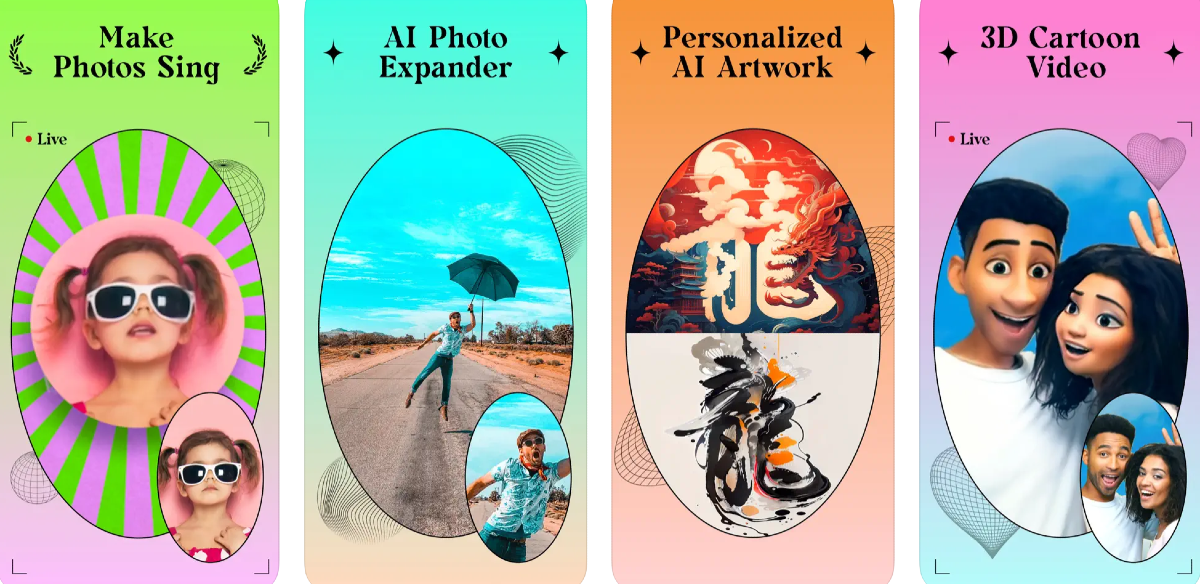 Ending this list is the ‘Ritmo Video: Make Photos Sing’ app for iPhone. Apart from making still images sing, Ritmo also lets you expand your images using AI. If you have a close-up image which you would like to see against a wider background, upload it on Ritmo and let AI do the magic. The results are surprisingly accurate and the app does a good job of extracting the key details from the image and applying them to the wider background. You can also use this app to produce 3D cartoon videos using your images.
 The Face Swing app for iPhone has hundreds of animations in its library that you can use to make your photos sing. You will find hundreds of trending songs on the app. If you don’t want to use your images, you can choose from the portraits of popular celebrities and historical figures from the app itself. The audio library on Face Swing gets updated every day, so you don’t have to worry about missing any of the new trends.
Read Also: iPhone 16 Series: Everything we know so far
The Face Swing app for iPhone has hundreds of animations in its library that you can use to make your photos sing. You will find hundreds of trending songs on the app. If you don’t want to use your images, you can choose from the portraits of popular celebrities and historical figures from the app itself. The audio library on Face Swing gets updated every day, so you don’t have to worry about missing any of the new trends.
Read Also: iPhone 16 Series: Everything we know so far




 Step 3:
 Step 4:
  Step 5: Wait


 Step 3:
 Step 6: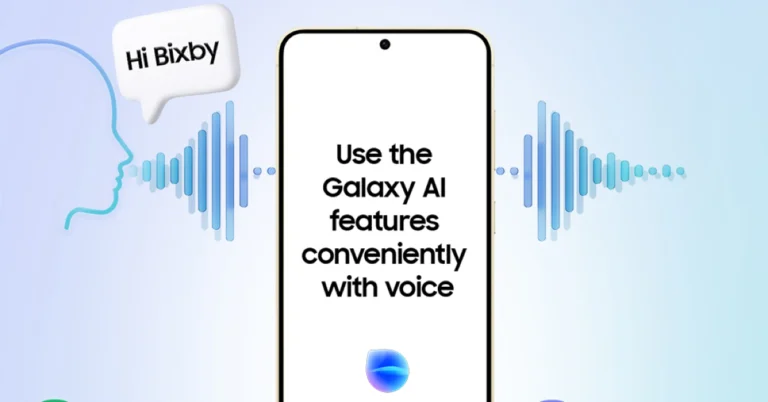
 Step 2:
 Step 3: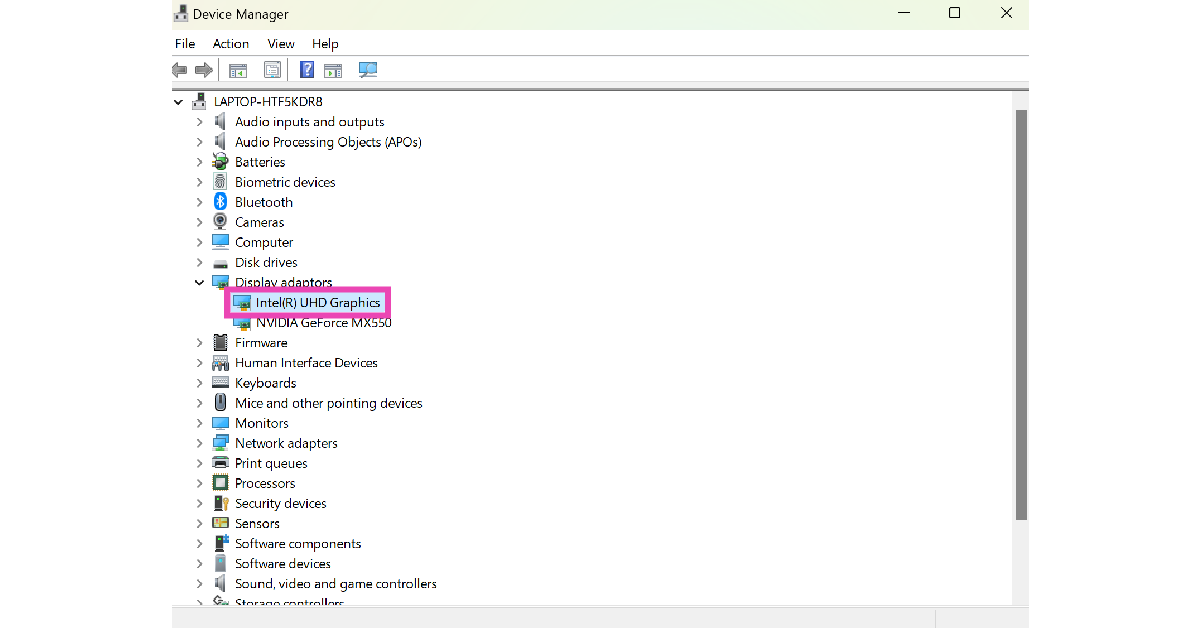
 Step 4: Go to the Driver tab and select Roll Back Driver.
 Step 3:
 Step 4: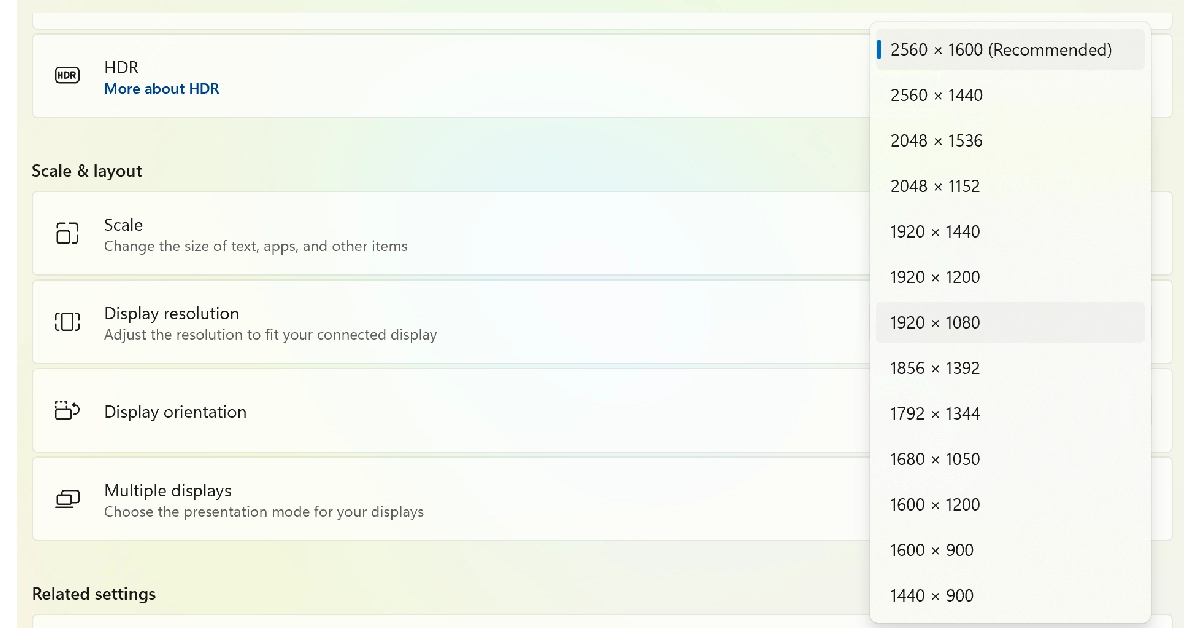
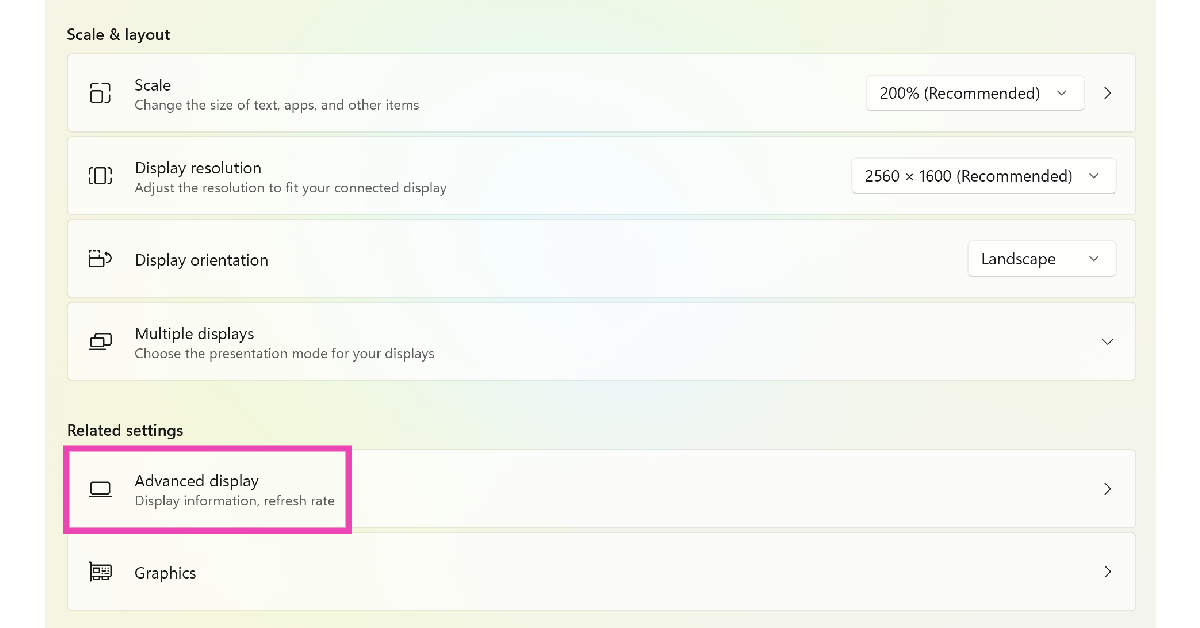 Step 4:
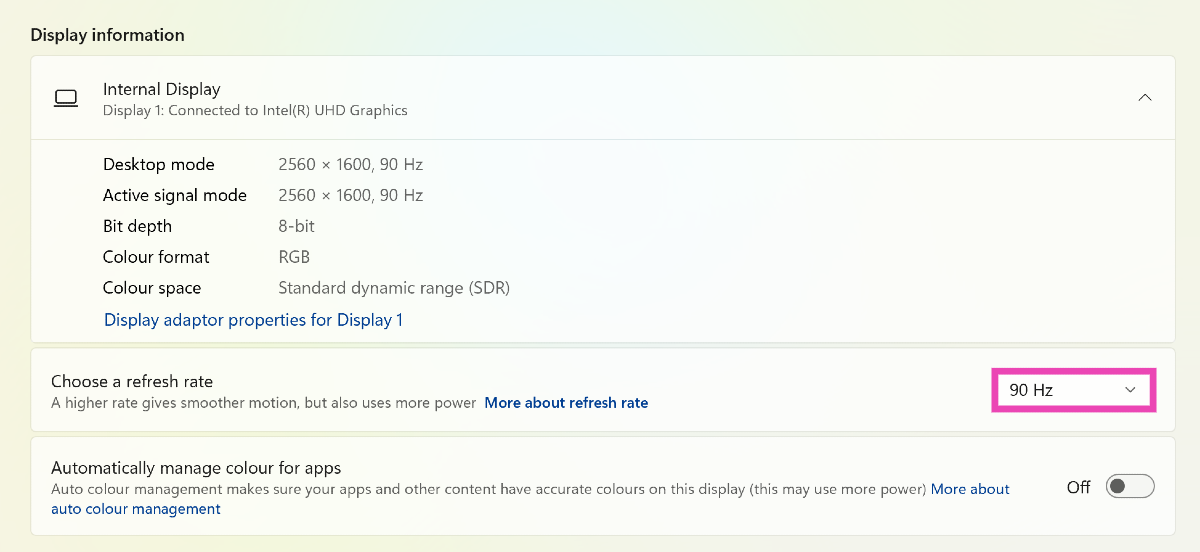 Step 5: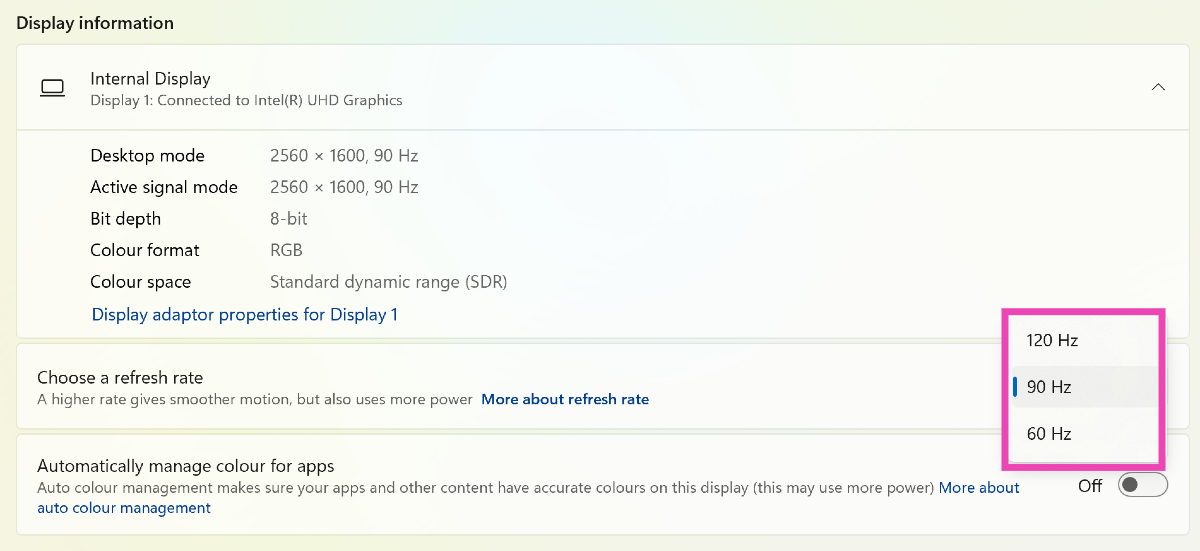
 Step 3: Switch to the Display tab to find out what’s causing the vertical lines on your monitor.
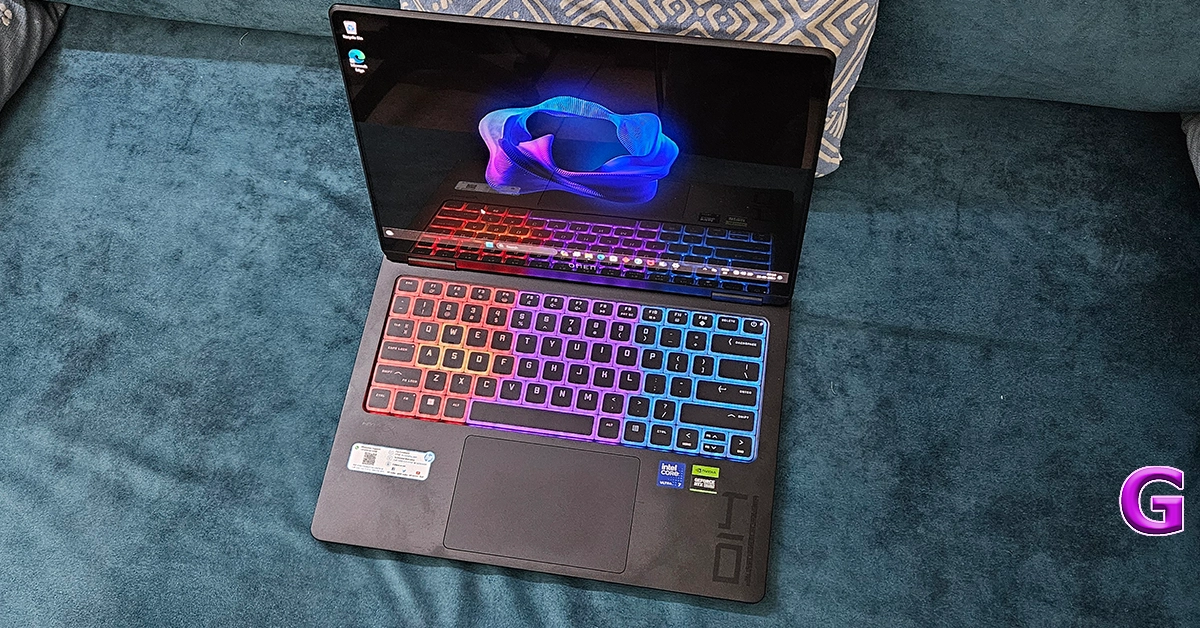 If you’re facing this issue on a laptop, make sure you’re using it on a hard surface. Surfaces like beds and blankets can cover the air vents and cause the device to overheat. This overheating often results in screen flickering and horizontal lines on the display. Move your laptop to a table and let it cool down before you resume using it.
 If there are magnets and electronic devices near your PC’s monitor, remove them to fix the horizontal lines. These objects are known to cause interference. If they’re present near your PC’s monitor, they can induce horizontal lines on it. Eliminate any source of interference to fix this issue.
 Step 3: