Best 3 Ways to Download and Install Netflix on MacBook

Netflix’s tremendous success over the years is not only a result of the diverse range of content it offers but also its availability across platforms and regions. You can log into multiple devices using your Netflix account and even enjoy watching content on the go with the streaming giant’s mobile apps. One strange exclusion to this list is Apple’s MacBook range. While you can watch Netflix on your MacBook, you are limited to the web version of the platform. If you’re hell-bent on getting the app, here are the best 2 ways to download and install Netflix on your MacBook.  Read Also: Top 5 Easy Methods to Set a Blank Status On WhatsApp

Installing Netflix on MacBook: What are your options?

If you’re reading this article, you’ve probably realised that there is no official way to download the Netflix app for MacBook. The reason behind this bizarre decision remains a mystery. Many people believe that this is due to the streaming giant’s direct rivalry with Apple TV. Earlier, Netflix killed support for AirPlay, lending more credence to this theory. Netflix still maintains this was done due to ‘technical limitations’. There are still some interesting caveats that you can take advantage of to get Netflix on your Apple laptop. If you own a MacBook that runs macOS Big Sur 11.2.3 or earlier, you can sideload the iOS version of Netflix from the App Store. The only catch is that this method may not work for long, since the app developers are constantly phasing out old versions of apps. Intel-based MacBook users also have the option of installing Netflix from the Microsoft Store after installing the Windows OS using Boot Camp Assistant. But this method may seem excessive to folks who don’t want to install an entire OS just for one app. If you’re looking for simple and routine methods to install Netflix on your MacBook, keep reading along.

Install the Netflix web app using Google Chrome

Install the Netflix web app using Google Chrome Since you can’t install the official Netflix app on your MacBook, your next best option is to create an app icon for its website on your laptop’s home screen. Clicking on this shortcut will take you to the website. Here’s how you can do it. Step 1: Launch the Chrome browser on your MacBook and go to the official Netflix website. Step 2: Hit the ellipses at the top right corner of the screen. Step 3: Take your cursor to More Tools and select Create Shortcut. Step 4: Give the web app a name and hit Create. Step 5: Go back to the home screen. You will find the icon for the web app on the dock.

Install the Netflix web app using Microsoft Edge

Install the Netflix web app using Microsoft Edge Step 1: Launch Microsoft Edge on your MacBook and go to the official Netflix website. Step 2: Click on the ellipses at the top right corner of the screen. Step 3: Move the cursor to Apps and click on Install This Site as an App. Step 4: Give the web app a name and click on Create. The web app can accessed from the dock on the home screen.

Use PlayCover to run Netflix on your MacBook

Use PlayCover to run Netflix on your MacBook PlayCover is a brilliant open-source app to run iOS apps and games on your MacBook. Here’s how you can use it to install Netflix. Step 1: Download PlayCover from GitHub. Step 2: Move the downloaded file to the Applications folder and install it on your MacBook. Step 3: Download the decrypted IPA version of Netflix using ARM Converter or Decrypt. Step 4: Launch PlayCover and click on Import IPA. Step 5: Select the file you just downloaded. Step 6: PlayCover will install Netflix on your MacBook.

Frequently Asked Questions (FAQs)

Is there a way to download and install Netflix on my MacBook?

While there is no official way to download the Netflix app on a MacBook, you can install a web app (a home screen shortcut to the website) for the OTT using Google Chrome and Microsoft Edge.

Can I install the iOS version of the Netflix app on my MacBook?

MacBooks running macOS Big Sur 11.2.3 or older can install the iOS Netflix app from the App Store. You can also use PlayCover to install the smartphone app for Netflix on your laptop.

Can I use AirPlay to watch Netflix on my MacBook?

Earlier this year, Netflix pulled its support for AirPlay. This means you cannot use it to mirror the Netflix content from your iPhone or iPad to your TV. Read Also: How to access Google Messages on other devices using your Google Account

Conclusion

These are the top 3 ways to download and install the Netflix app on your MacBook. Since there is virtually no difference between Netflix’s website and computer app, you won’t be missing out on anything by creating its web app on your Mac. If you are familiar with any other methods of running Netflix on your MacBook, let us know in the comments!

Amazon’s Year-End offers on OnePlus, Samsung and more smartphone: Price starts at Rs 11000

A lot of smartphones are going to be released in India with the upcoming New Year, but first, Amazon has numerous deals for its customers to take advantage of. It is currently offering great deals and offers on smartphones across various brands like Apple, Samsung, Xiaomi, iQoo OnePlus, and more. Many handsets are currently listed at a reduced price. We have already shared a listicle of discounted smartphones that are available between Rs 25,000 and 50,000 price point. Now we have made a list of discounted smartphones priced between Rs 11000 and Rs 20000.

Samsung Galaxy M13 5G- Rs 11,990

Samsung Galaxy M13 5G- Rs 11,990   The Samsung Galaxy M13 5G has a 6.5-inch HD+ display with a refresh rate of 90Hz, Gorilla Glass 3 protection and a 400 nit brightness. The device runs on One UI 4 based on Android 12.0 and is powered by a MediaTek Dimensity 700 SoC. The Samsung Galaxy M13 5G has a dual rear camera arrangement with a 50-megapixel primary sensor and a 2-megapixel secondary sensor for pictures and videos. For taking selfies and making video calls, there is a 5-megapixel front camera. The smartphone has a 5,000mAh battery that can be charged at 15W.  

Samsung Galaxy M14 5G- Rs 12,490

Samsung Galaxy M14 5G review: Brilliant in the budget segment The Samsung Galaxy M14 5G is shipped with One UI 5 based on top of Android 13 out of the box. Under the hood, there is an Exynos 1330 octa-core SoC paired with Mali G68 GPU for graphics. The phone will come in two different configurations: 4GB RAM with 128GB storage and 6GB RAM with a 128GB storage model. The features a 6.6-inch Full HD+ PLS LCD display with 2408 x 1080 pixels of resolution.  Samsung Galaxy M14 5G sports a triple rear camera setup that includes a 50-megapixel main sensor with an f/1.8 aperture. It also consists of a 2-megapixel depth sensor and a 2-megapixel macro sensor. For taking selfies and video calls the handset comes with a 13-megapixel front-facing camera. The smartphone houses a 6000mAh battery with 25W fast charging support.  

Redmi 12 5G- Rs 13,499

Redmi 12 5G The Redmi 12 5G  has a 6.79-inch full-HD+ display. Under its hood, there is a Qualcomm Snapdragon 4 Gen 2 chipset with up to 8GB of RAM and 256GB of onboard storage. It operates on MIUI 14 with Android 13 out of the box. The mobile phone sports a dual rear camera setup consisting of a 50-megapixel primary and a 2-megapixel macro lens. It also sports an 8-megapixel selfies sensor. Moreover, the 5G phone comes with a 5,000mAh battery with 18W charging support.  

Samsung Galaxy M34 5G- Rs 16,499

Samsung Galaxy M34 price in India and sale details The Samsung Galaxy M34 comes with a Full HD+ 6.5-inch display with a refresh rate of 120 Hz. The device runs OneUI 5.1, an Android 13-based operating system with Exynos 1280 SoC and a Mali-G68 MP4 GPU, up to 8GB of RAM, and 128GB of internal storage. The triple rear cameras on the Samsung Galaxy M34 include a 50-megapixel primary sensor with optical image stabilisation (OIS). A 2-megapixel macro sensor and an 8-megapixel ultra-wide angle camera are also included. A 13-megapixel sensor is located at the front of the device for selfies and video calls. A 6,000mAh battery powers the device and is said to last up to two days on a single charge. 

OnePlus Nord CE 3 Lite 5G- Rs 19,999

OnePlus Nord CE 3 Lite 5G price in India and launch offer details The OnePlus Nord CE 3 Lite 5G comes with a 6.72-inch full-HD+ LCD display with 1,080×2,400 pixels of resolution. The screen has a dynamic refresh rate of 120Hz and 240Hz touch sample rate. It has a peak brightness of 680 nits, a 91.4 percent screen-to-body ratio, a 20:9 aspect ratio, and a 391ppi pixel density. In addition to this, the screen is protected with Corning Gorilla Glass Victus. The phone runs on OxygenOS 13.1 on top of Android 13 out of the box. OnePlus Nord CE 3 Lite 5G is powered by an octa-core Snapdragon 695 SoC with Adreno 619 GPU for graphics.  For the photos and videos, the Nord CE 3 Lite 5G features a triple rear camera setup that includes a 108-megapixel Samsung HM6 sensor with an f/1.75 aperture and EIS support. It includes a 2-megapixel macro lens and another 2-megapixel depth sensor. There is a 16-megapixel front-facing camera for selfies.  The phone packs a 5,000mAh battery that supports 67W SuperVOOC fast charging.  

OnePlus 12 Series launch event to take place at Pragati Maidan, Ticket sale schedule announced

Key Highlights
  • OnePlus’s ‘Smooth Beyond Belief’ launch event will be held at Pragati Maidan on January 23.
  • The company will launch OnePlus 12 and OnePlus 12R at the event.
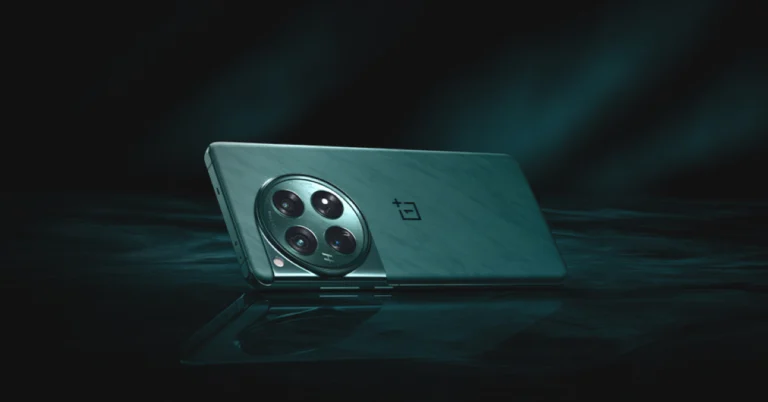
OnePlus is all geared out for its upcoming launch event in India. The company has scheduled the launch of its flagship OnePlus 12 Series in the country on January 23. At the same event, the firm also confirmed introducing the OnePlus 12R for the first time. In a new development, the company announced the ‘Smooth Beyond Belief’ launch event ticket sale schedule today. The OnePlus 12 Series will debut in India on January 23. The lineup will include two devices- the OnePlus 12 and OnePlus 12R. The company has today revealed that its upcoming launch event namely ‘Smooth Beyond Belief’ will take place at Pragati Maidan, New Delhi. As per OnePlus, this will “give its Indian community an exclusive opportunity to be among the first individuals globally, to experience the latest line of flagship products.” Besides presenting the series, tech enthusiasts will have the exclusive opportunity to experience both the OnePlus 12 and the OnePlus 12R.

How to buy tickets for the OnePlus 12 Series launch event?

OnePlus 12 Series launch event ‘Smooth Beyond Belief’ will launch on January 23 at Pragati Maidan, New Delhi. The gates will open at 5.50 PM IST. Interested ones can watch and experience the tech show live as for the first time it will be open for its fans. The community tickets for the ‘Smooth Beyond Belief’ launch event will commence on 3rd January 2024. Those willing to attend the event can get the event tickets via PayTM Insider and OnePlus.in. Moreover, RCC members can purchase the tickets at 50% off on OnePlus.in. The information is scarce but OnePlus will reveal more information regarding ticket pricing and categories later on. Also Read: LG unveiled its 2024 collection of soundbars- S95TR, SG10TY and S70TY

What to expect at the OnePlus’s ‘Smooth Beyond Belief’ launch event?

As per the company, the ‘Smooth Beyond Belief’ event will showcase the “central tenet of all OnePlus technology – fast and smooth, focusing on an ensemble of OnePlus flagship products that elevate user experience.” The attendees will be the first to experience the OnePlus 12 series at the experience zones at the venue. 

LG unveiled its 2024 collection of soundbars- S95TR, SG10TY and S70TY

Key Highlights
  • The 2024 lineup of LG soundbars comes with support for Dolby Atmos and DTS:X technology.
  • The S95TR boasts five up-firing channels.
  • It has the industry’s first centre, up-firing speaker.
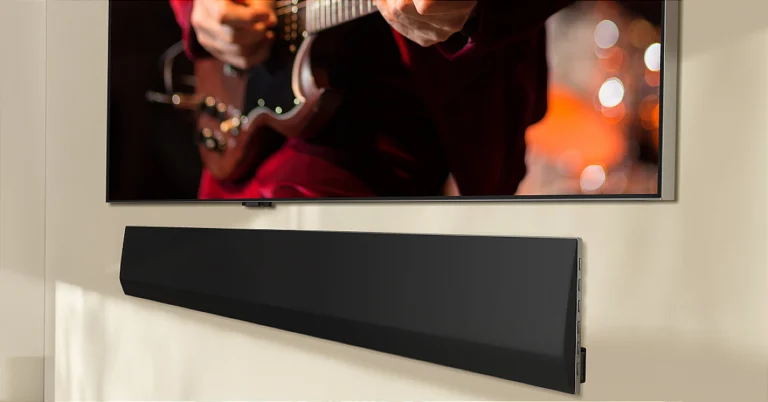
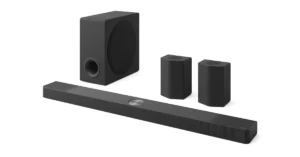
Electronics giant LG has introduced its 2024 lineup of Soundbars. The company has brought three new soundbar models: S95TR, SG10TY and S70TY. The audio devices are claimed to provide an improved theatre-like experience through immersive sound, versatile LG TV integration and enhanced features. The soundbars support Dolby Atmos, driven by the advanced technology of DTS: X. While announcing the 2024 series of LG soundbars Lee Jeong-Seok, head of LG Home Entertainment Company’s audio business said, “LG has always been committed to delivering unmatched audio-visual experiences with superior quality, all to bring a better life to our valued customers. We remain dedicated to providing immersive home entertainment experiences through LG’s premium soundbar products, ensuring our customers enjoy the very best with further enhanced surround sound optimised for LG OLED TVs and LG QNED TVs.” LG unveiled it 2024 collection of soundbars- S95TR, SG10TY and S70TY LG Soundbar S95TR is the company’s flagship model consisting of 15 channels to provide an amazing 810W of output with a surround sound experience. It has five up-firing channels, including the industry’s first centre up-firing speaker that produces 3D audio with improved clarity and a larger soundstage. The angle of the centre up-firing speaker guarantees a flawless audio-visual experience with exact elevation to the level of the TV screen. The LG Soundbar S95TR features improved tweeters for clear and precise audio in addition to a passive radiator to enhance bass tones and better overall balance between the soundbar and subwoofer. Also Read: Best Amazon year–end smartphone deals you should not miss starting at Rs 25,000 The LG soundbar SG10TY can be paired with LG’s premium OLED TVs with WOW Orchestra, WOW Interface, and WOWCAST, which enhances the viewing experience. WOWCAST allows wireless home entertainment without any visible wires between the screen and the soundbar when paired with an LG premium OLED TV and the SG10TY model. This allows users to enjoy their favourite songs on music streaming services like Tidal Connect and Spotify Connect. Additionally, LG will release the S70TY soundbar model ideal for LG QNED TVs. It has a compact design and has the industry’s first centre up-firing speaker that is claimed to provide crystal clear audio. The angled design ensures that the audio and visuals are in harmony with the level of the TV screen. The soundbar comes with a dedicated bracket that allows users to arrange the soundbar right underneath the QNED TV. With the bracket, the S70TY soundbar can be wall-mounted at different heights or locations.

Top 5 Easy Methods to Remove My AI on Snapchat

0
Earlier this year, Snapchat introduced its AI chatbot for Snapchat+ subscribers. The chatbot was later rolled out for non-subscribers as well. The overall reception to My AI has been quite lukewarm, as many Snapchat users don’t find it to be quite helpful. The allegations of accessing users’ current location, didn’t help My AI’s popularity either. The chatbot is an average tool to kill some time at best and a potential threat to your privacy at worst. Did we mention that it can view all your Snapchat Stories by default? If you’re dont with My AI, here are the top 5 ways to remove it on Snapchat. Read Also: The Impact of Digital Innovation on Japan’s Yen Currency Strength

Can My AI be permanently deleted from Snapchat?

Simply put, My AI cannot be deleted from Snapchat. At best, Snapchat+ subscribers can unpin it from the ‘Chats’ section of the app or remove their conversation with the chatbot altogether. If the ‘out of sight, out of mind’ approach doesn’t work for you, you can clear the data from your past conversations with the AI as well. Regular Snapchat users will be disappointed to know that they cannot unpin or remove My AI from the ‘Chat’ tab. The chatbot will be the first thing you see when you swipe right from the camera page. Another alarming thing about My AI is that it can view your Snapchat Story. If you’re very particular about your data, this may bother you. Luckily, My AI’s access to your story can be removed from ‘Privacy Settings’ on its profile page. You don’t need to be a Snapchat+ subscriber to do this. Non-subscribers can also clear their past conversational data with My AI. However, if you’ve @mentioned My AI in other conversations, you will need to delete them manually.

Remove My AI from your Snapchat chat feed

Remove My AI from your Snapchat chat feed If you are a Snapchat+ subscriber, here’s how you can remove the My AI bot from your chat feed. Step 1: Launch the Snapchat app on your phone and swipe right to access the chat feed. Step 2: Long press the My AI chat. Step 3: Tap on Chat Settings. Step 4: Select Clear from Chat Feed.

Remove AI from Snapchat chat feed using Settings

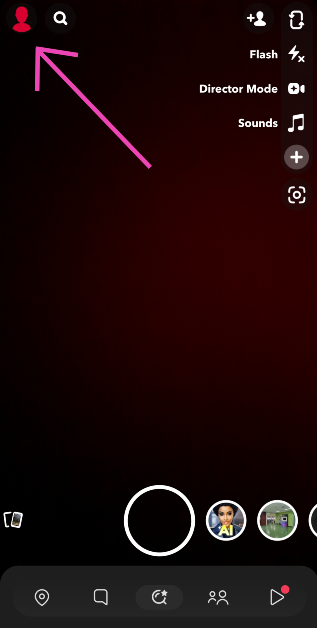
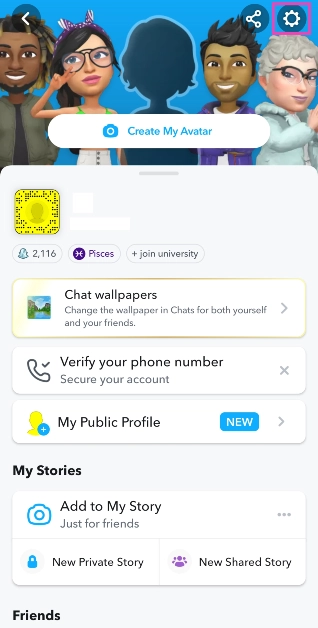
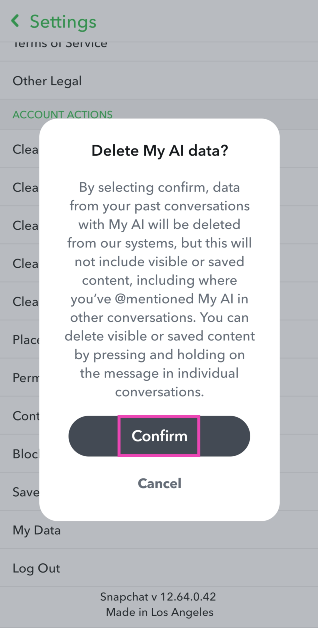
Remove AI from Snapchat chat feed using Settings Step 1: Launch the Snapchat app on your phone and tap on your Bitmoji at the top left corner of the screen. Step 2: Hit the gear icon at the top right corner of the screen to access Settings. Step 3: Scroll down and select Clear Data under Privacy Controls. Step 4: Hit Clear Conversations and tap the cross icon next to My AI. Step 5: Confirm your selection in the popup box. Read Also: Best 5 ways to fix ‘Phone Screen Turning Green’

Unpin My AI from your Chat feed

Unpin My AI from your Chat feed If you want to keep the chatbot around but don’t want it as the first conversation in your chat tab, follow these steps to unpin it. Step 1: Launch the Snapchat app on your device and tap your Bitmoji at the top left corner of the screen. Step 2: Hit the Snapchat+ banner on your profile. Step 3: Turn off the toggle switch next to My AI. The AI chatbot will be unpinned from your chat tab.

Unpin My AI using the popup menu

Unpin My AI using the popup menu Step 1: Launch the Snapchat app on your device and swipe right to access the chat page. Step 2: Long press the My AI chat. Step 3: Hit Chat Settings and select Unpin Conversation.

Not a Snapchat+ subscriber? Clear your My AI data

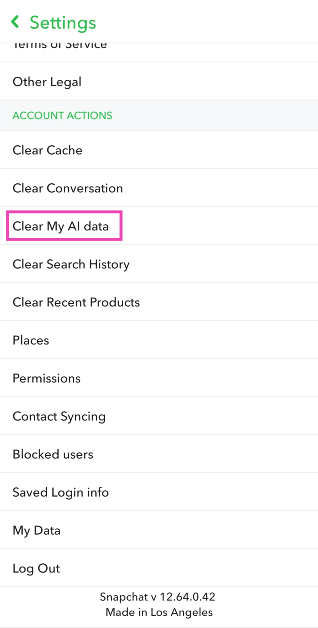
If you’re not a Snapchat+ subscriber, you can still clear the data from your past conversations with My AI. Here’s how. Step 1: Launch the Snapchat app on your phone and tap your Bitmoji at the top left corner of the screen. Step 1: Launch the Snapchat app on your phone and tap your Bitmoji at the top left corner of the screen. Step 2: Hit the gear icon at the top right corner of the screen to access Settings. Step 2: Hit the gear icon at the top right corner of the screen to access Settings. Step 3: Scroll down and select Clear My AI Data. Step 3: Scroll down and select Clear My AI Data. Step 4: Confirm your selection in the popup box. Step 4: Confirm your selection in the popup box.

Frequently Asked Questions (FAQs)

How do I remove My AI on Snapchat?

My AI cannot be permanently deleted on Snapchat. However, if you’re a Snapchat+ subscriber, you can remove it from the chat tab by long-pressing it and selecting Chat Settings>Clear from Chat Feed.

How do I remove My AI from Snapchat if I don’t have a Snapchat+ subscription?

If you’re not a Snapchat+ subscriber, you can clear your conversational data with My AI by going to Settings>Clear My AI Data.

Is Snapchat’s My AI bot a risk to my privacy?

Since it cannot be removed from your account, My AI is ever-present on your profile. Your conversations with the chatbot are retained and used to suggest personalised ads, which many see as a risk to privacy. Read Also: Comparison: iQoo 12 Vs iQoo 11

Conclusion

These are the top 5 ways to remove My AI on Snapchat. If you want to be sure that the chatbot doesn’t have access to your location, you can remove the ‘location’ permission from Snapchat altogether. Go to Settings>Apps>Snapchat and tap on the app’s permission list. If you see ‘Location’ in the list, tap on it to rescind it. Snapchat claims that the chatbot does not collect new location data. If the app doesn’t have access to your location, My AI will not be able to give you location-based results.

Top 5 Easy Methods to Set a Blank Status On WhatsApp

0
WhatsApp offers a bunch of customisation options for status updates. You can change the background colour and text font, and even add stickers, emojis, and GIFs to your updates. Oftentimes, WhatsApp users wonder whether a blank status can be uploaded to their profiles. While there is no native way to go about it, there are a couple of tricks that can help you accomplish this task. Let’s take a look at the top 5 ways to set a blank status or ‘About’ section on WhatsApp. Read Also: Comparison: iQoo 12 Vs iQoo 11

Why you should set a blank status or ‘About’ on WhatsApp

On the surface, setting a blank status update on WhatsApp may seem meaningless, but it has some very niche uses. You can use the blank status update as a page breaker for multiple statuses. If that isn’t of much use to you, you can use it to prank your friends. Posting a blank update is fairly easy and shouldn’t take much time. A blank ‘About’ section is something a lot of WhatsApp users often enquire about. Initially, the ‘About’ section used to be your WhatsApp Status before the messaging platform introduced Instagram-like Stories. Your ‘About’ is a quick way of letting people know what you’re up to. If you’re in a bad network zone and unable to receive WhatsApp messages right away, you can set an appropriate update for it. Strangely, there is no way to leave the ‘About’ section blank. You can set its visibility to ‘Nobody’, but the update will be visible to you all the time. That is unless you use the trick we’ve mentioned later in this article!

Set a Blank Status on WhatsApp

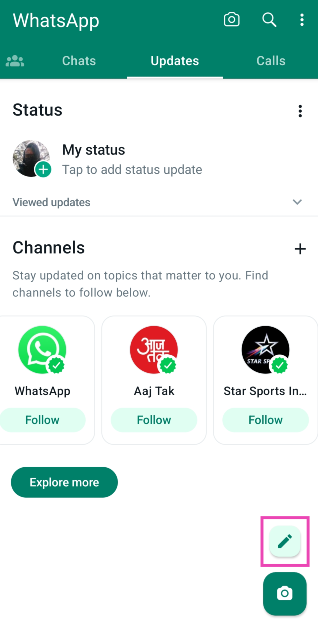
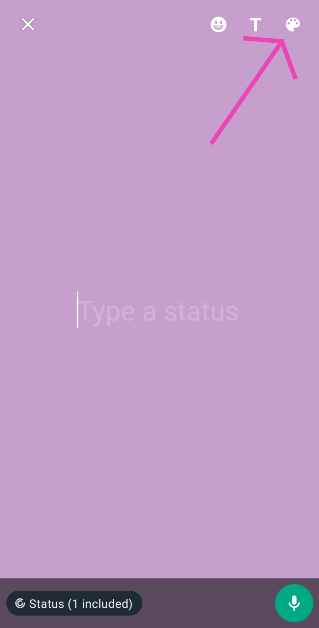
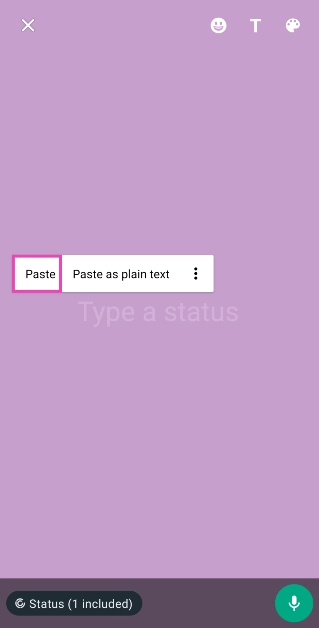
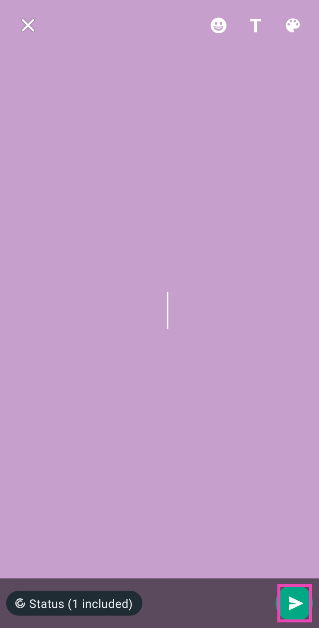
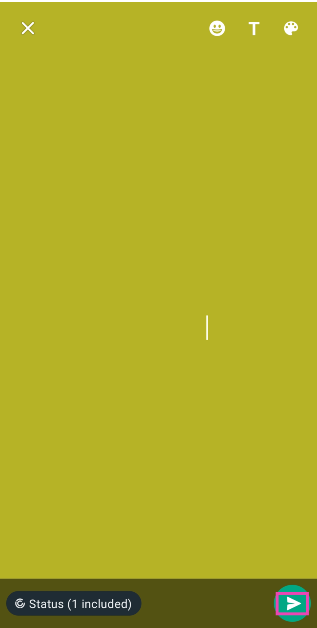
Step 1: Search Google for the empty character. Copy it to your clipboard. Or simply copy it from here ‘⠀’. Make sure you don’t copy the quotes. Step 2: Launch WhatsApp on your device and switch to the Updates tab. Step 3: Tap on the pencil icon at the bottom right corner of the screen. Step 3: Tap on the pencil icon at the bottom right corner of the screen. Step 4: Select a background colour by tapping the paint board icon at the top right corner of the screen. Step 4: Select a background colour by tapping the paint board icon at the top right corner of the screen. Step 5: Paste the empty character from your clipboard into the text field. Step 5: Paste the empty character from your clipboard into the text field. Step 6: Hit the Send icon. Step 6: Hit the Send icon. Step 7: The blank status will be uploaded to your WhatsApp profile. Step 7: The blank status will be uploaded to your WhatsApp profile.

Use a third-party app to post a blank status update on WhatsApp

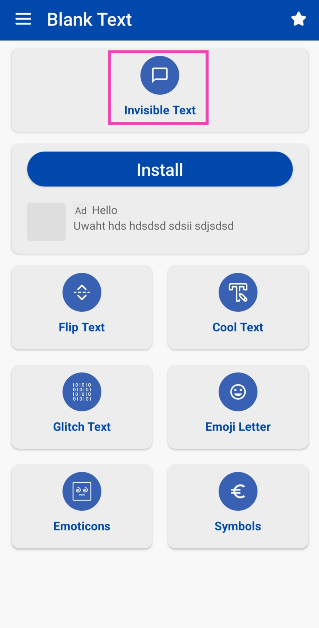
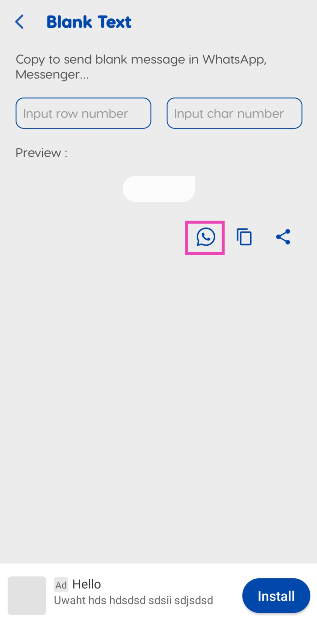
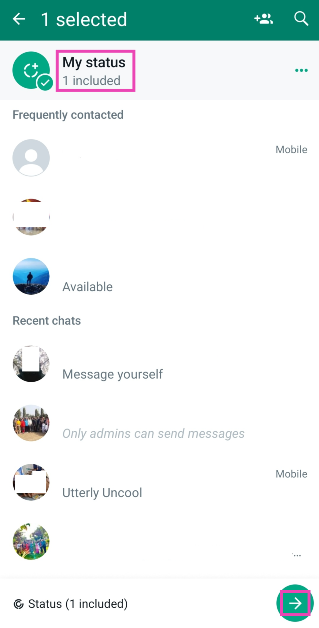
Step 1: Install the Blank Text & Invisible Text app on your smartphone. Step 2: Tap on Invisible Text. Step 3: Tap on Invisible Text. Step 3: Hit the WhatsApp icon. Step 3: Hit the WhatsApp icon. Step 4: Select My Status and hit the Arrow key at the bottom right corner of the screen. Step 4: Select My Status and hit the Arrow key at the bottom right corner of the screen. Step 5: Tap the Send icon at the bottom right corner of the screen to post a blank status. Step 5: Tap the Send icon at the bottom right corner of the screen to post a blank status.

Set a Blank ‘About’ section on WhatsApp

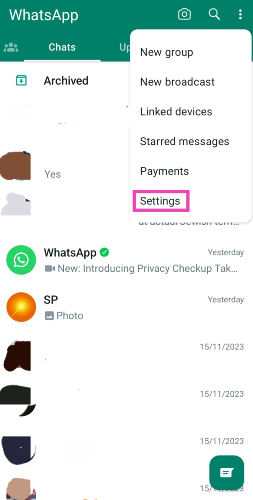
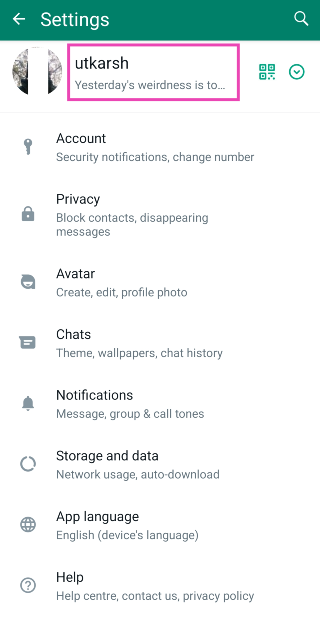
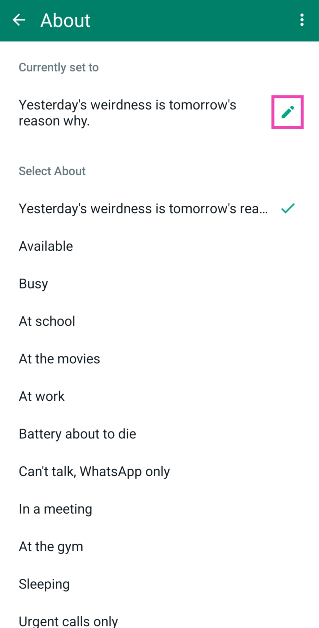
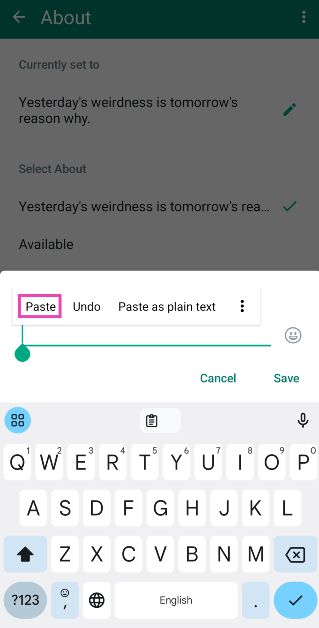
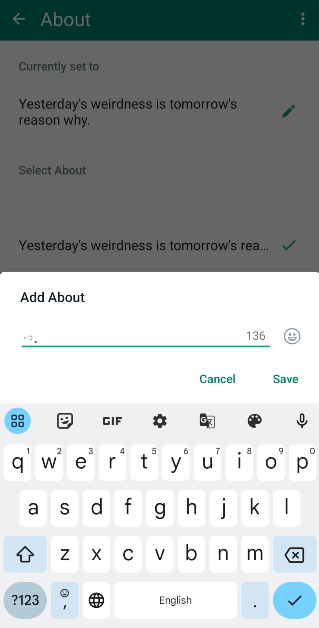
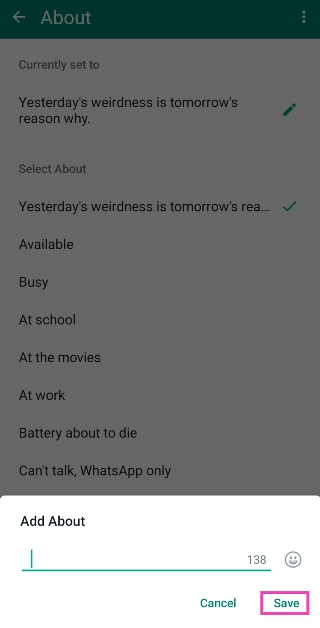
Step 1: Copy the blank character to your clipboard (⠀). Step 2: Launch WhatsApp on your phone. Hit the ellipses at the top right corner of the screen and select Settings. Step 3: Go to Settings. How to share your WhatsApp Status on Instagram? Step 3: Tap on your profile name at the top of the screen. Step 3: Tap on your profile name at the top of the screen. Step 4: Hit the pencil icon next to About. Step 5: Hit the pencil icon again. Step 5: Hit the pencil icon again. Step 6: Paste the blank character and hit Save. Step 6: Paste the blank character and hit Save.

Use the ⇨ ຸ symbols to post a blank ‘About’ on WhatsApp

Step 1: Launch WhatsApp on your phone. Hit the ellipses at the top right corner of the screen and select Settings. Step 3: Go to Settings. How to share your WhatsApp Status on Instagram? Step 2: Tap on your profile name at the top of the screen. Step 3: Tap on your profile name at the top of the screen. Step 3: Hit the pencil icon next to About. Step 4: Hit the pencil icon again. Step 5: Hit the pencil icon again. Step 5: Paste the ⇨ ຸ symbols on the text field. Step 5: Paste the ⇨ ຸ symbols on the text field. Step 6: Delete the arrow symbol and hit Save. Step 6: Delete the arrow symbol and hit Save. Your WhatsApp ‘About’ will be set to blank.

Set a Blank ‘About’ section by changing the privacy settings

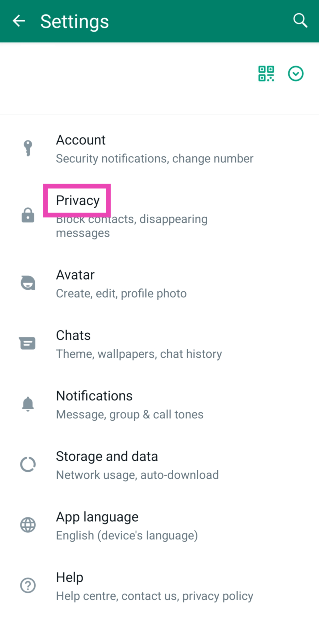
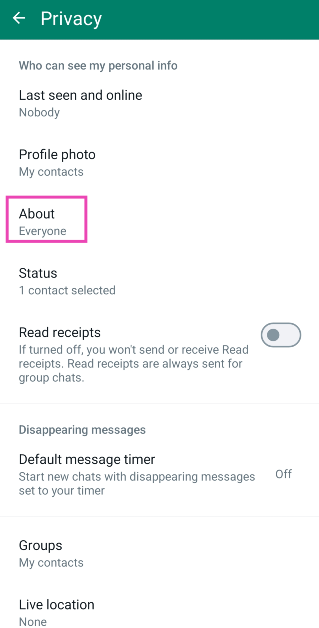
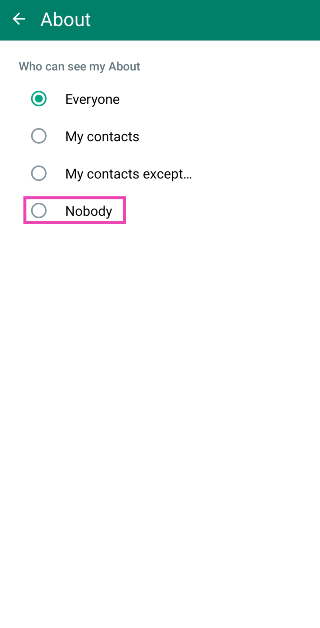
Step 1: Launch WhatsApp on your phone. Hit the ellipses at the top right corner of the screen and select Settings. Step 3: Go to Settings. How to share your WhatsApp Status on Instagram? Step 2: Tap on Privacy. Step 3: Hit Privacy. How to share your WhatsApp Status on Instagram? Step 3: Select About. Step 3: Select About. Step 4: Tap on Nobody. Step 4: Tap on Nobody. Now that nobody can see your WhatsApp ‘About’, it will appear as a blank field for everyone.

Frequently Asked Questions (FAQs)

How do I send a blank message on WhatsApp?

Open your conversation with the person, paste ⇨ ຸ in the message box, erase the arrow symbol, and hit Send. A blank message will be sent to the recipient.

How do I set a blank status on WhatsApp?

To set a blank status on WhatsApp, copy the empty space character to your clipboard (⠀), paste it into the new status page, and hit Send.

How do I keep my WhatsApp About section empty?

You can either post the empty space character in the About section or go to Settings>Privacy>About and select Nobody to make sure it isn’t visible to anyone. Read Also: Vivo X100 series teased to launch in India soon: Details

Conclusion

These are the top 5 ways to set a blank status or ‘About’ section on WhatsApp. After posting the blank status update on WhatsApp, you can also forward it to Facebook. You can find that option after hitting the ellipses at the top right corner of the status update. To send a blank message on WhatsApp, you will need to use the ⇨ ຸ characters. Once you’ve pasted them in the text box, delete the arrow and hit Send. The empty space character does not work for messages. If you know any other way to put up a blank status, let us know in the comments!

How to access Google Messages on other devices using your Google Account

0
Over the last few weeks, Google Messages has received some nifty updates. Most of these updates are a part of Messages’ 1 billion RCS users celebrations. However, there’s one new feature that Google recently added to its messaging app which will appeal to a lot of users. You can now access your Google Messages account on other devices, simply by logging in using your Google Account. Since your Google Account is now linked to your Messages app, this process does not require a QR Code (although the option is still available). Read Also: Apple warns Apple Watch users not to use any third-party chargers to avoid this happening

Device pairing on Google Messages: Pros and Cons

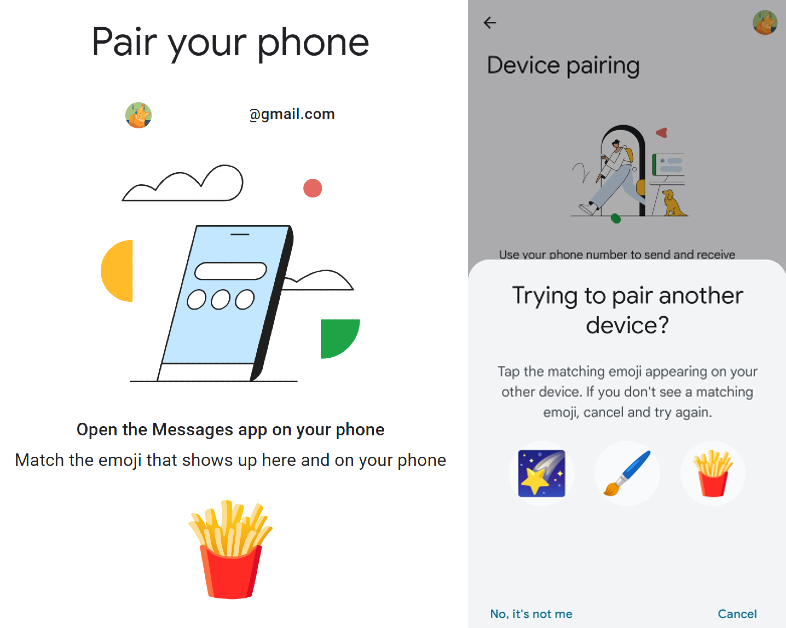
Device pairing on Google Messages: Pros and Cons For any messaging app to survive in modern times, multi-device pairing is a non-negotiable feature. While Google Messages certainly ticks that box, there are a couple of things that still need a bit of improvement. But before we get there, it’d only be fair to mention what Google Messages gets right. With the ability to link your Google Account to the Messages app, the process of pairing other devices has gotten a lot smoother. You don’t need to scan a QR code to access your texts anymore. Simply log in using your Google Account on Messages’ web portal, select the emoji that you see on your smartphone and you’re good to go! This year, WhatsApp upped its device pairing game as well, allowing users to link a maximum of 6 devices to their account at one time. While you can link multiple devices to Google Messages, you can only use it on one computer at any given time. For the app’s web portal to work, you need your smartphone to be active. Messages for Web does not have RCS support yet. Standard carrier charges for SMS will still apply when you send a text using Messages for Web.

Access Google Messages on other devices

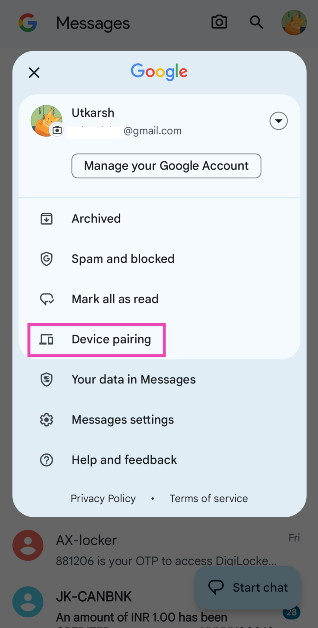
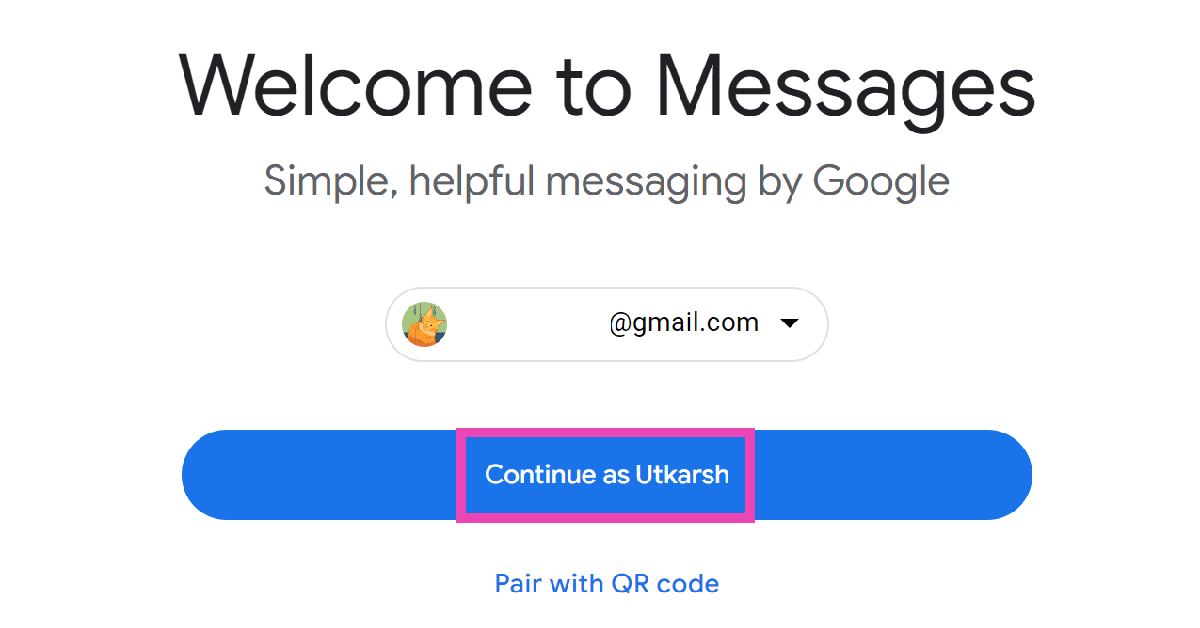
Step 1: Launch the Google Messages app on your phone. Step 2: Hit the profile icon at the top right corner of the screen and select Device Pairing. Step 2: Hit the profile icon at the top right corner of the screen and select Device Pairing. Step 3: On your PC, go to messages.google.com/web and log in using your Google Account. Step 4: Hit Continue. Step 4: Hit Continue. Step 5: Open the Messages app on your phone again and match the emojis on the two devices. Step 5: Open the Messages app on your phone again and match the emojis on the two devices. You will be able to access Google Messages on your PC. To unpair a device, simply hit the cross next to the device name on your smartphone.

Frequently Asked Questions (FAQs)

Does my phone need to be active while I’m using Google Messages on my PC?

Since your computer relies on your phone’s cellular network to send texts using Google Messages, your device must always be turned on.

Can I use my Google Messages account on two computers?

No, you can link your Google Messages account to only one computer at once. You can, however, link it to an Android tablet at the same time.

Does my phone need to be active if the Android tablet linked to Google Messages has cellular network connectivity?

If your Android tablet has a SIM card cellular network connectivity, you can send messages via Google Messages without relying on the primary device. Read Also: Nothing 2a design detail, key specs leaked

Conclusion

This is how you can access and run Google Messages on your PC and other devices using a Google Account. Check out this article, to learn how you create and send Photomojis on the Messages app. If you use WhatsApp as your primary messaging app, you can link up to 6 devices with your account. Read this article to know how you can go about it. Apart from multi-device connectivity, WhatsApp also allows users to link multiple accounts to one device.

Best Amazon year–end smartphone deals you should not miss starting at Rs 25,000

Key Highlights
  • The Amazon year-end deals are currently live on the platform.
  • Customers can buy smartphones from popular brands like Apple and OnePlus.
  • The smartphone deals are for a limited period.
As the year is about to end, Amazon has brought some amazing smartphone deals for its customers. It is the right time to purchase a device for yourself. If you have been planning to purchase a new smartphone, then Amazon has a slew of offers on models from different smartphone brands. We have compiled a list of smartphones that are discounted on Amazon between Rs 25,000 and Rs 53,999. Check out the list over here: Note that this is likely to be a limited offer so we don’t know how long these deals will be available on the e-commerce platform, so we recommend you grab the deals now.

Oneplus Nord CE 3 5G – Rs 24,999

OnePlus Nord CE 3 5G price reduced, gets a price cut of Rs 2,000 OnePlus Nord CE 3 5G was launched in India in July this year. But now the device is on sale at Rs 24,999 on Amazon. The OnePlus Nord CE 3 5G (Review)features a 6.7-inch fluid AMOLED display with 2,412 x 1,080 pixels resolution. The screen has a refresh rate of 120Hz, a P3 colour gamut, 10-bit Colour Depth and HDR10+. The phone is powered by a Qualcomm Snapdragon 782G SoC with Adreno 642L GPU.  It operates on OxygenOS 13.1 on top of Android 13. For the photos and videos, the phone has a triple rear camera setup that includes a 50MP Sony IMX890 primary sensor, an 8MP ultra-wide angle lens and a 2MP macro sensor. There is a 16MP front-facing camera for selfies and video calling. In addition to this, the smartphone boasts a 5,000mAh battery with 80W SuperVOOC charging support.

iQoo Z7 Pro 5G- Rs 23,999

iQoo Z7 Pro 5G iQoo Z7 Pro 5G is currently available for Rs 23,999 on Amazon. iQoo Z7 Pro 5G comes with a 6.78-inch full-HD+ AMOLED display with 2400 x 1080 pixels of resolution and supports a 120Hz refresh rate. The handset runs on FuntouchOS 13 with Android 13. Under the hood, there is an octa-core 4nm MediaTek Dimensity 7200 SoC with Mali-G610 MC4 GPU. iQoo Z7 Pro 5G features a dual rear camera setup that includes a 64-megapixel Samsung GW3 primary sensor, a 2-megapixel depth sensor and a 16-megapixel front-facing sensor for taking selfies and video calling. The 4,600mAh battery in the iQoo Z7 Pro (Review)supports 66W wired fast charging.

iQoo Neo 7 Pro 5G- Rs 32,999

iQoo Neo 7 Pro Review: Design and Display The iQoo Neo 7 Pro 5G is now listed at Rs 32,999 on Amazon. The smartphone has a 6.78-inch full-HD+ AMOLED screen with 1,080×2,400 pixels of resolution and supports a 120Hz refresh rate and a 300Hz touch sampling rate. It is powered by a Snapdragon 8+ Gen 1 chip and operates on Funtouch OS 13 on top of Android 13. The handset has a triple rear camera setup that includes a 50-megapixel primary Samsung GN5 sensor, an 8-megapixel ultra-wide-angle camera and a 2-megapixel macro camera. The iQoo Neo 7 Pro 5G (Review) further includes a 16-megapixel front-facing camera with an f/2.45 aperture for taking selfies and video calling. The iQoo Neo 7 Pro boasts a 5,000mAh battery with 120W Flash Charge support.

OnePlus 11R 5G- Rs 39,999

OnePlus 11R pre-orders open in India: Details inside OnePlus 11R 5G can now be bought for Rs 39,999 on Amazon. This gaming-focused smartphone is powered by the Snapdragon 8+ Gen 1 5G chipset. The device features a 6.74-inch Full-HD+ curved AMOLED display that is notable for its 2772 x 1240 pixel resolution. The dynamic adaptive refresh rate of the screen varies between 40Hz and 120Hz. The OnePlus 11R (Review)has triple back cameras, one of which has a 50MP Sony IMX890 primary sensor, a 4 cm macro camera with a 120-degree ultra-wide lens and an 8 MP ultra wide-angle sensor. The 16MP front camera is located in a notch at the top of the display. The OnePlus 11R’s 5,000mAh battery supports 100W SUPERVOOC flash rapid charging.

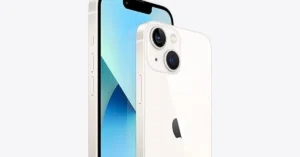
iPhone 13- Rs 52,999

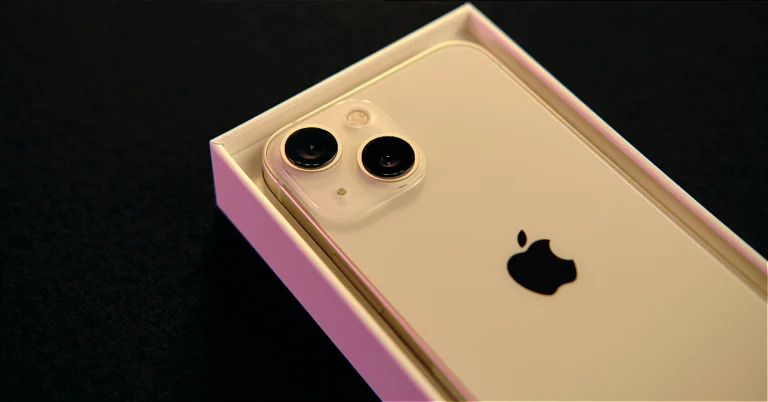
Best mobile deal on iPhone 13, now priced under 50k on Amazon The iPhone 13 was launched in India two years ago and is now up for sale at just Rs 52,999. iPhone 13 features a 6.1-inch Super Retina XDR display. The device is powered by the company’s A15 Bionic chipset. The iPhone 13 has a diagonal rear camera design consisting of a 12-megapixel dual rear camera setup with 4K Dolby Vision HDR support. In addition to this, there is a 12-megapixel TrueDepth selfie camera on the front. The handset is IP68-rated.

Garena Free Fire Redeem Codes Today 19 December 2023: Here is how to claim them

Garena Free Fire is a battle royale game with regular awards and tournaments to keep players interested. If you play Garena Free Fire, you should be aware of the redeem codes that are released on a daily basis. However, because the battle royale game is banned in India, players from other countries can use the Free Fire Redeem codes daily. If you’re unfamiliar with the Garena Free Fire redeem codes or don’t know how to get them, we’ve put together a step-by-step guide to help you redeem them. Check out Garena Free Fire Redeem Codes for 19 December 2023. The Free Fire redeem codes are a great way to get free stuff. These are 12-digit codes that contain alphabets and numbers, as well as an expiration date and time. Because the Garena FF redeem codes cannot be used more than once, you should hurry to the redemption page to claim your free reward before someone else does. To get a free reward, all you have to do is go to reward.ff.garena.com/en, which is the official redemption page. Also, keep an eye on this space for daily updates on Garena Free Fire redemption codes and rewards.

Garena Free Fire Redeem Codes Today 19 December 2023

  • FBH3JUF7Y6T5RFD
  • FSHHEDFBUWYE4T6
  • FOYIH8U7YTG8DBE
  • FKIY8OIR76UJT6H
  • FNDMEO4956UYHTG
  • FNMKOID8S7W6T3F
  • FG4HN5KT6LYU0PO
  • FLKDLO98UAY64QE
  • FFI8UYHGBNRG8UY
  • FTGFSBEN45K6YU8
  • FUJHYT6G7UJ6TUB
  • FTCHGFRT6YJ675B
  • FYHVNDMEKL5O6Y7
  • FINJUJT67HYH644
  • FtFTGVBHNJ4FRUGT
  • FHYJKYI9IERJ56Y
  • FTNMKVI87SYTGE3
  • F45NJ6YO9IO09UK
  • FIA765QRED2CFVG
  • FDTHYR56U6UY44Y
  • FGBDENKIR8GU7YH
  • FNDMRKL5O69IUJH
  • FTHBFT6UHSENJR5
  • FYTJT67UKJTU8IN

How to Get Free Fire Redeem Codes for Garena on 19 December 2023?

  • Visit the Garena Free Fire game’s official website at reward.ff.garena.com.
  • Use your Facebook, Google, VK, Apple ID, Huawei ID, or Twitter account to log in.
  • You’ll be taken to a valid redemption code (s)
  • Copy and paste the 12-digit redemption code into the text box.
  • On the screen, a dialogue box will appear.
  • ‘Ok’ should be selected.
For the latest gadget and tech news, and gadget reviews, follow us on TwitterFacebook and Instagram. For newest tech & gadget videos subscribe to our YouTube Channel. You can also stay up to date using the Gadget Bridge Android App. You can find the latest car and bike news here.

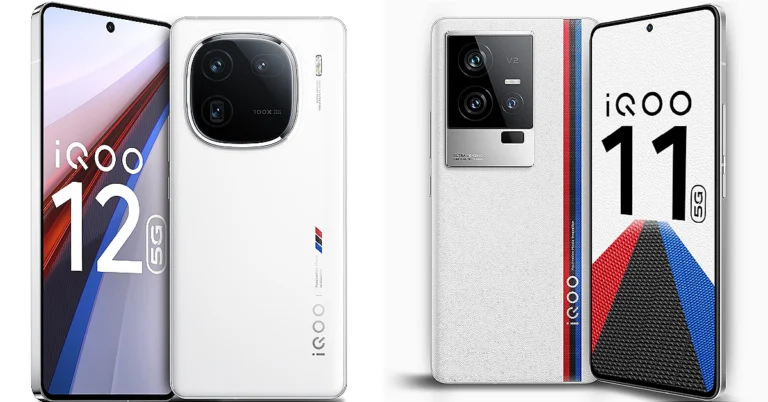
Comparison: iQoo 12 Vs iQoo 11

Vivo’s sub-brand iQoo recently launched iQoo 12 in India. It is the first smartphone brand to adopt and bring Qualcomm’s Snapdragon 8 Gen 3 chipset-powered device to the country. The new smartphone is more advanced as it has received a major upgrade in design, internals and cameras. And to know how much better this year’s phone is compared to last year’s smartphone, we have compared iQoo 12 and iQoo 11 side by side. If you are planning to buy a feature-packed phone which also promises good gaming performance then you must read this comparison.

Display

iQoo 12: 6.78-inch 1.5K AMOLED display iQoo 11: 6.78-inch Samsung E6 AMOLED display

Processor

iQoo 12: Qualcomm Snapdragon 8 Gen 3 SoC iQoo 11: Qualcomm Snapdragon 8 Gen 2 CPU

Rear camera(s)

iQoo 12: Triple rear camera setup that includes a 1/1.3-inch 50-megapixel primary sensor (f/1.68 aperture), a 64-megapixel periscope telephoto (f/2.57 aperture and 100X digital zoom) and a 50-megapixel ultra wide-angle sensor (f/2.0 aperture) iQoo 11: Triple rear camera set up includes 50MP Samsung GN5 primary sensor, a 13MP portrait sensor, and an 8MP ultra-wide sensor Also Read: Vivo X100 series teased to launch in India soon: Details

Selfie camera

iQoo 12: 16-megapixel front-facing camera iQoo 11: 16MP camera sensor

RAM and Storage

iQoo 12: 12GB RAM with 256GB storage and 16GB RAM with 512GB internal storage iQoo 11: 8GB RAM with 256GB storage and 16GB RAM with 256GB memory

Battery

iQoo 12: 5,000mAh battery iQoo 11: 5,000mAh battery

Operating system

iQoo 12: OriginOS 4 on top of Android 14 iQoo 11: Funtouch OS 13 powered by Android 13

Price

iQoo 12: Rs 52,999 iQoo 11: Rs 51,999

Our Take

The iQOO 12 has undergone a significant design update, featuring flat sides and a new camera module. The device is now slimmer and lighter than its predecessor. Both the gaming smartphones have a 6.78-inch AMOLED display the only difference is the make the new gen. iQoo 12 comes with a 1.5K AMOLED display whereas the iQoo 11 adopts a Samsung E6 AMOLED display. However, both screen supports a refresh rate of 144Hz. The device is powered by a Snapdragon 8 Gen 3 processor with 3.3GHz peak clock speed and Adreno 750 GPU. The smartphone also comes equipped with a self-developed Q1 chip, promising efficient gaming performance. In terms of optics, iQoo 12 cameras have also been refreshed featuring a bigger and better sensor. The telephoto offers 100X zoom instead of the previous 20X. Note that there was a portrait sensor on the iQoo 11 which has been replaced by the telephoto camera. The ultrawide camera has also been upgraded, there is a 50MP ultrawide camera with an f/2.0 aperture as opposed to the previous 8-megapixel. Both phones pack a 5,000mAh battery which supports 120W fast charging. iQ00 12 has received a significant upgrade this time. Also, there is hardly any price difference both the new and the older generation, so iQoo 12 is the clear winner.