In This Article
Which devices are eligible for the One UI 7 Beta update?
As of now, these devices are available for the One UI 7 Beta update:- Samsung Galaxy S24 Ultra
- Samsung Galaxy S24+
- Samsung Galaxy S24
- United States of America
- United Kingdom
- China
- India
- Germany
- Poland
- South Korea
Use the Samsung Members app to install One UI 7 Beta
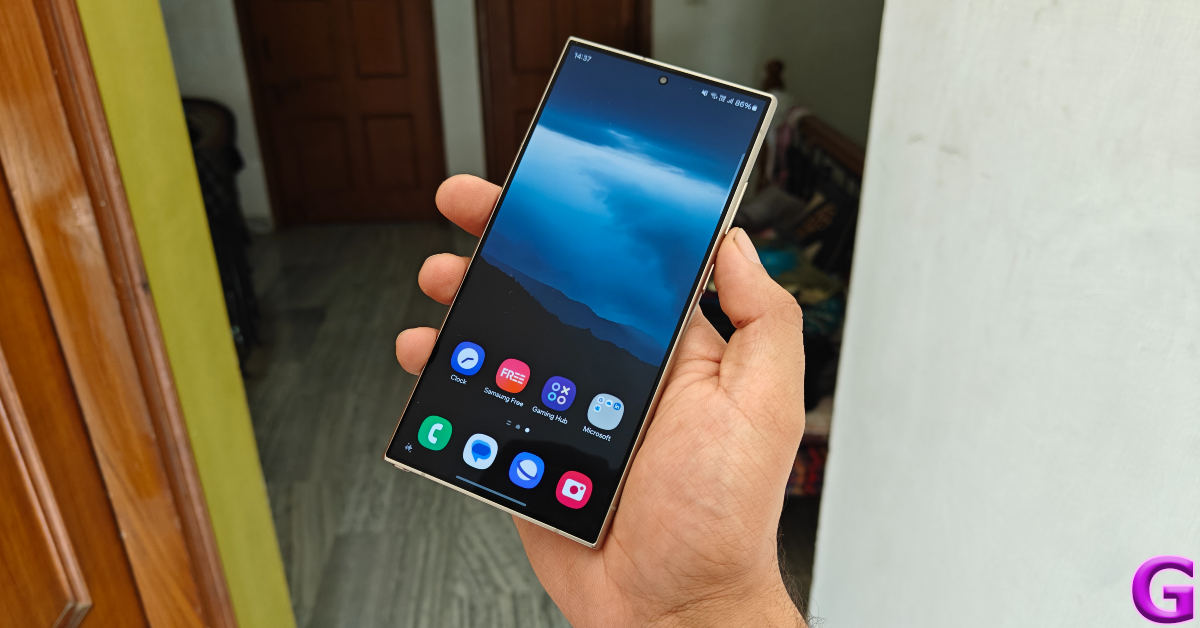 Step 1: Install the Samsung Members app from the Google Play Store or the Galaxy Store.
Step 2: Launch the app on your device and sign in using your Samsung account.
Step 3: Tap the One UI 7 Beta Program banner at the top of the screen.
Step 4: Alternatively, go to the Notices tab and tap the ‘Registration for One UI 7’ entry.
Step 5: Tap on Register.
Step 6: Agree to the terms to enrol into the Beta program.
Step 7: Minimise the app and go to Settings.
Step 8: Scroll down and select Software update.
Step 9: Hit Download under the One UI 7 Beta entry.
Step 10: Once the update has been downloaded, install it and restart your device.
Step 1: Install the Samsung Members app from the Google Play Store or the Galaxy Store.
Step 2: Launch the app on your device and sign in using your Samsung account.
Step 3: Tap the One UI 7 Beta Program banner at the top of the screen.
Step 4: Alternatively, go to the Notices tab and tap the ‘Registration for One UI 7’ entry.
Step 5: Tap on Register.
Step 6: Agree to the terms to enrol into the Beta program.
Step 7: Minimise the app and go to Settings.
Step 8: Scroll down and select Software update.
Step 9: Hit Download under the One UI 7 Beta entry.
Step 10: Once the update has been downloaded, install it and restart your device.
Use ADB to install One UI 7 Beta
 This method only applies to Samsung Galaxy S24 devices whose build number ends with AXK4.
Step 1: Go to Settings and turn on the Developer Mode by tapping your phone’s Build Number 7 times.
Step 2: Go to Developer Options and enable USB debugging.
Step 3: Connect your smartphone to your PC using a USB cable. Allow USB debugging.
Step 4: Download the One UI 7 Beta ZIP package from here.
Step 5: Once the package has been downloaded, change its name to something that is easy to type.
Step 6: Enter the following command using ADB:
This method only applies to Samsung Galaxy S24 devices whose build number ends with AXK4.
Step 1: Go to Settings and turn on the Developer Mode by tapping your phone’s Build Number 7 times.
Step 2: Go to Developer Options and enable USB debugging.
Step 3: Connect your smartphone to your PC using a USB cable. Allow USB debugging.
Step 4: Download the One UI 7 Beta ZIP package from here.
Step 5: Once the package has been downloaded, change its name to something that is easy to type.
Step 6: Enter the following command using ADB:
adb reboot recovery
Step 7: Copy the file you download in the Platform Tools folder. Step 8: Enter the following command:adb devices
Step 9: If you see your device in the list, enter the following command:adb sideload [file name].zip
Step 10: One UI 7 Beta will be flashed on your device.





 Step 3:
 Step 4:
 Step 5:

 Step 3:
 Step 5:
 Step 6:
 Step 7: Repeat
  Step 10: