Other ways to go to the Desktop in Windows 11
Before we show you how to bring back the ‘Show Desktop’ button, you might want to explore other ways to go directly to the desktop from any Window. This will be beneficial to users who like the convenience of going to the desktop with a single click but do not want to trigger the action while trying to use Copilot.Use Keyboard Shortcuts
- Windows Key + D: This keyboard shortcut minimises all the active windows and takes you to your desktop. Pressing the key combination again brings you back to the window you were working on.
- Windows Key + M: This shortcut also minimises all the active windows, but pressing it again will not maximise them. Once you are on the desktop, you will need to manually go to the previous window.
- Windows Key + ,: The Windows key and comma button combination gives you a quick look at your desktop. When you release the Windows key, you will go back to your previous screen. Clicking on the desktop while using this key combination will also bring back the previous window. You cannot interact with the desktop using this key combo.
Use the Windows icon on the taskbar
The Windows icon on the taskbar also lets you go to the desktop at any given time. Simply right-click on the icon and select ‘Desktop’ to go there from any screen. You can also trigger the Power Menu using the Windows Key + X combination, then press D to go to the desktop.Create a Shortcut
You can also create a shortcut that takes you to the desktop and pin it to the taskbar for easier access. Here’s how. Step 1: Right-click on the desktop and go to New>Shortcut.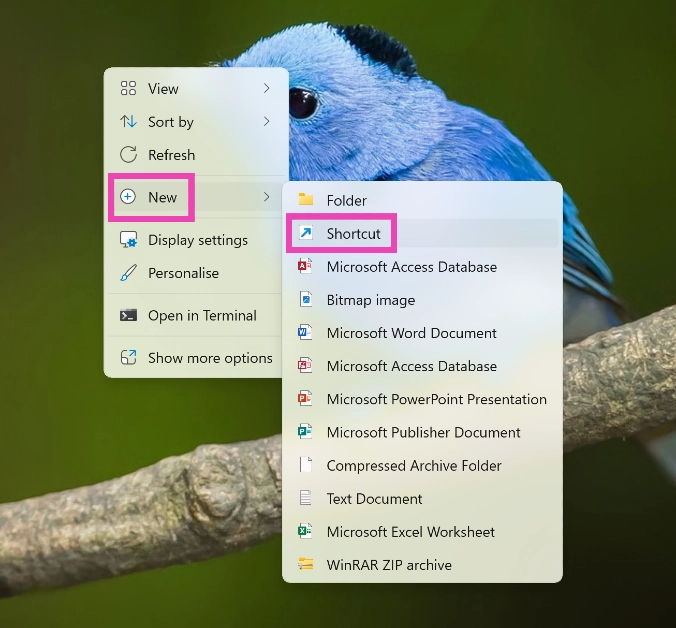 Step 2: Copy the following text and paste it into the box.
explorer.exe shell:::{3080F90D-D7AD-11D9-BD98-0000947B0257}
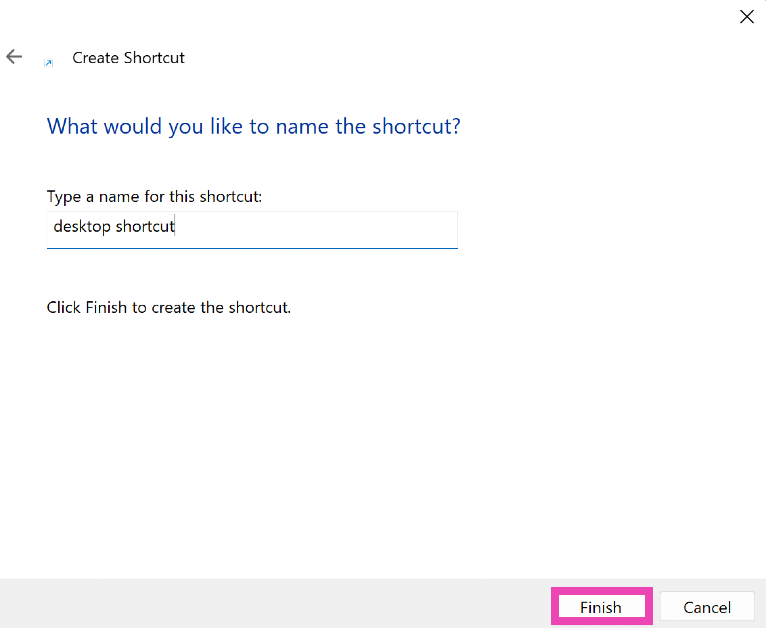
Step 3: Hit Next.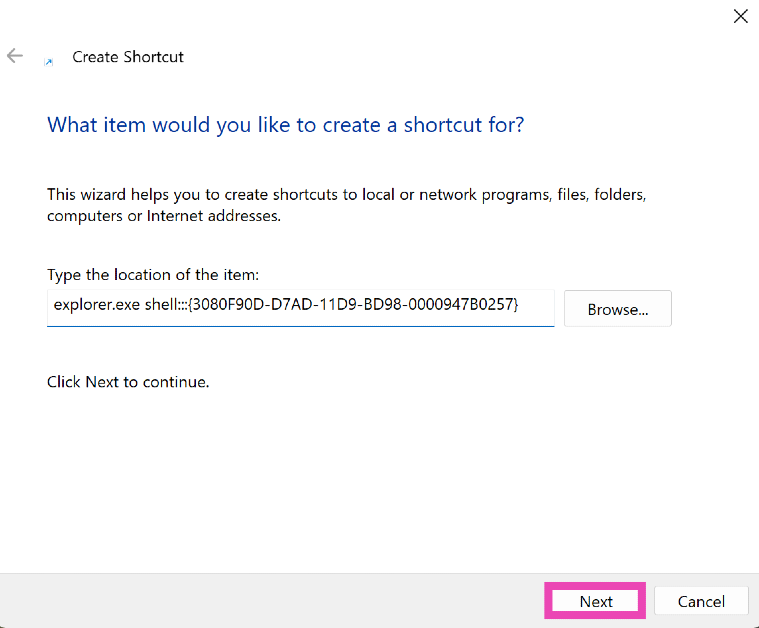 Step 4: Give the Shortcut a name and hit Finish.
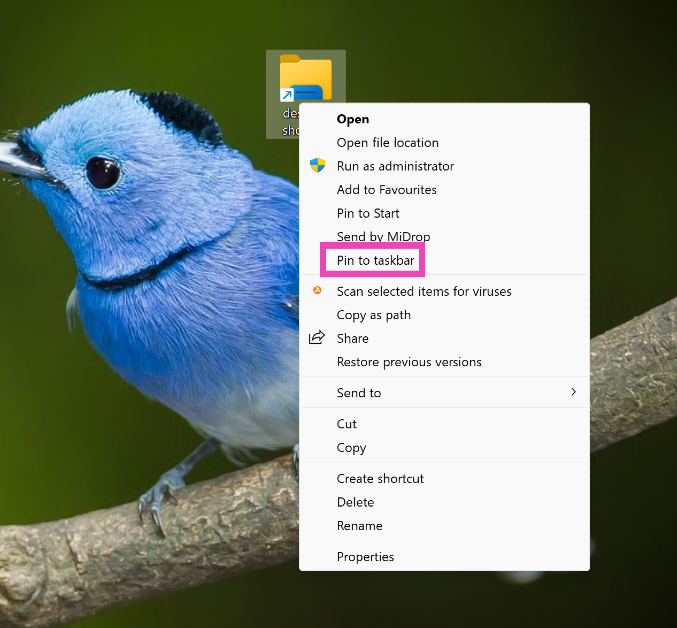
 Step 5: Right-click on the shortcut and select Show more options>Pin to taskbar.
Here’s how you can bring back the ‘Show Desktop Button’ in Windows 11
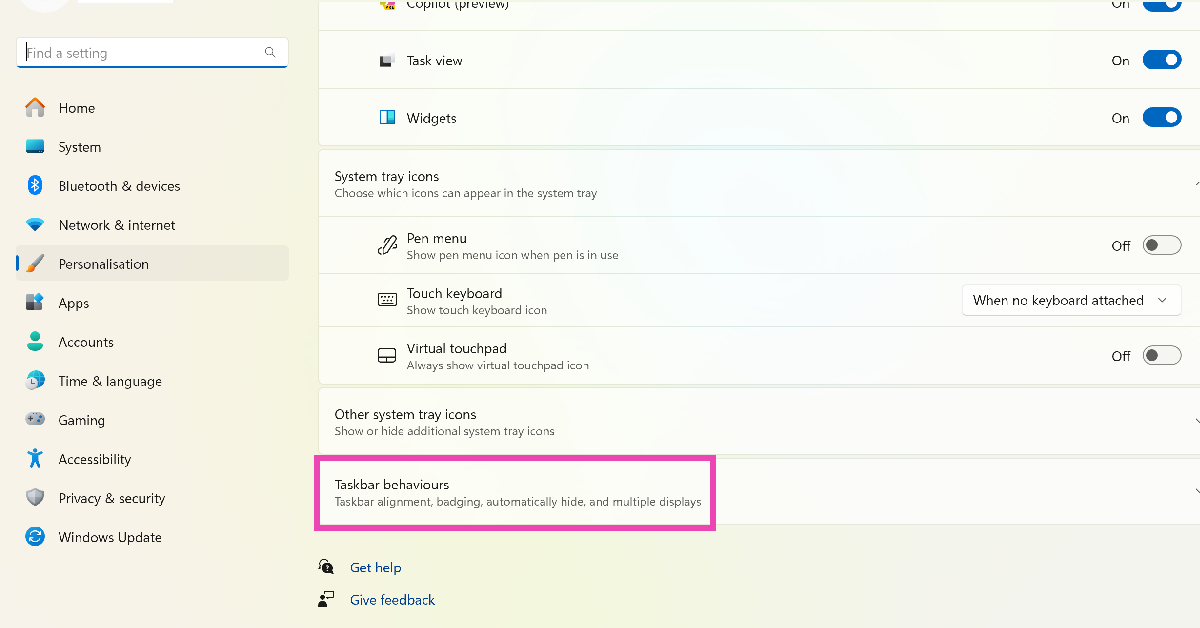
Step 1: Right-click on the taskbar and select Taskbar settings. Step 2: Click on Taskbar behaviours.
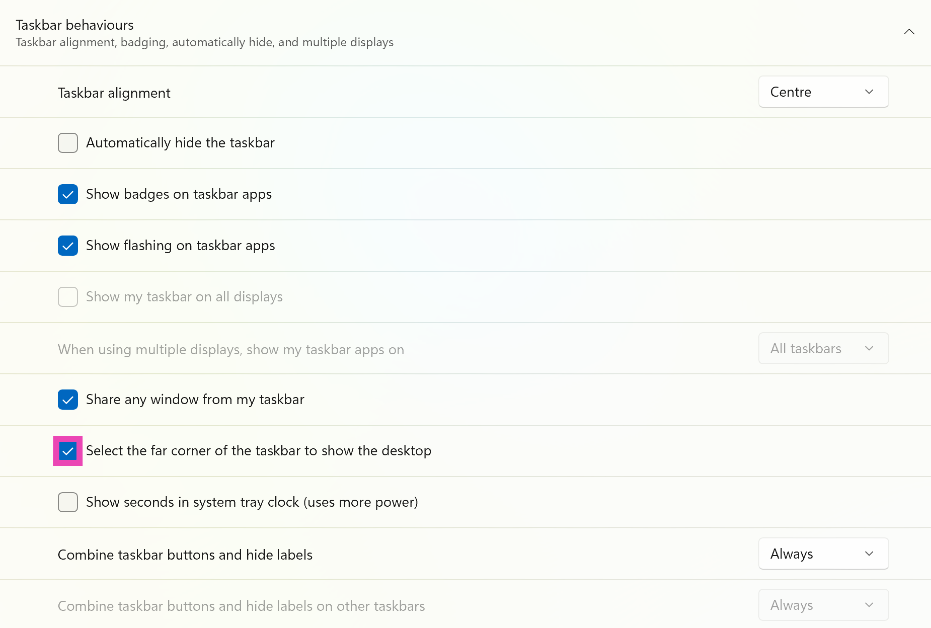
 Step 3: Click on the checkbox for ‘Select the far corner of the taskbar to show the desktop’.
Bonus Tip: Remove Copilot from the taskbar
Step 1: Right-click on the taskbar and select Taskbar settings.
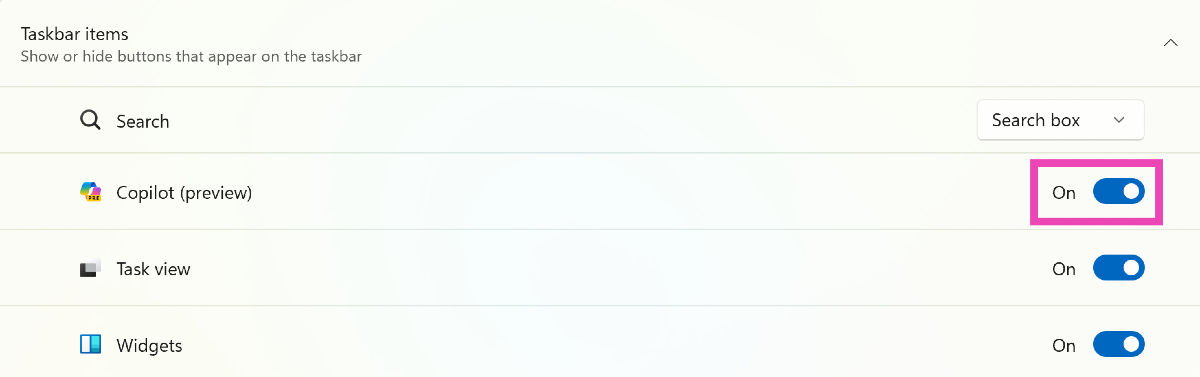
Step 2: Under Taskbar items, turn off the toggle switch for Copilot (Preview).



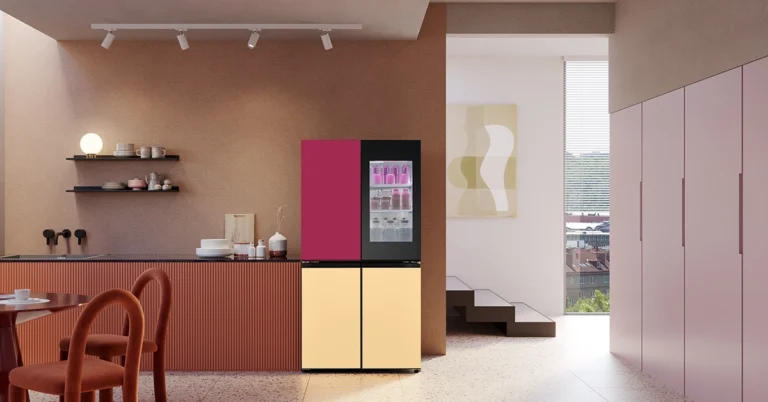
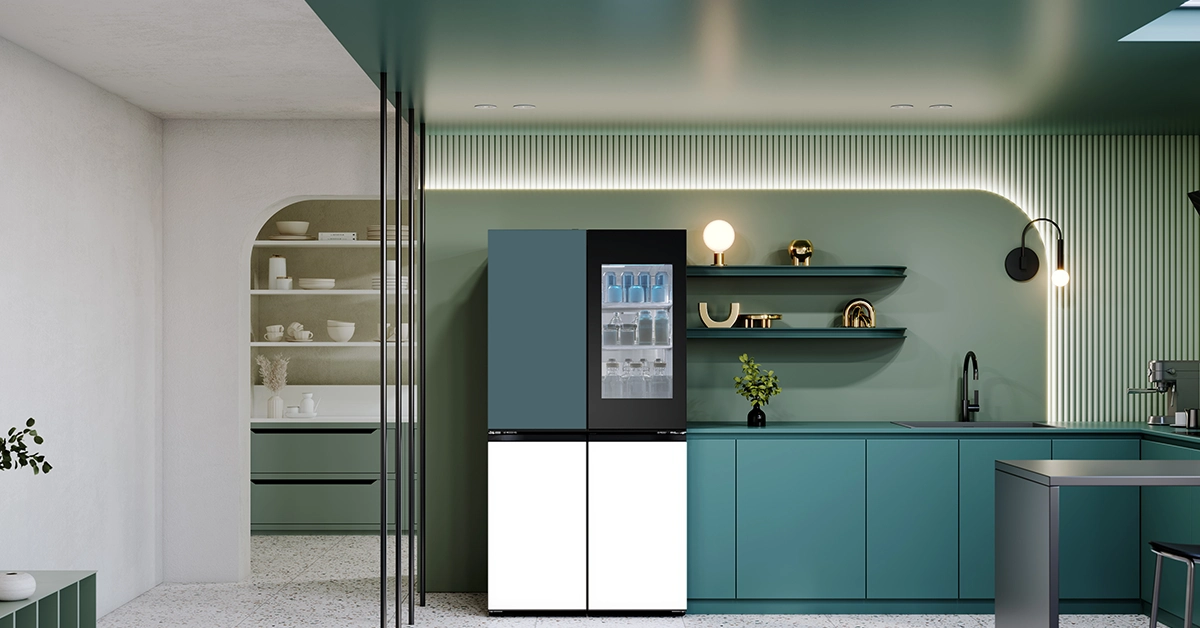 Gauri and Nainika echoed this sentiment, highlighting the synergy between their fashion narrative and the refrigerator’s design ethos. Bollywood actress Taapsee Pannu, who graced the Lakme Fashion Week stage as the showstopper, praised the seamless integration of elegance and innovation in both the refrigerator and the fashion collection.
Beyond aesthetics, the LG MoodUP Refrigerator offers practicality and convenience. With Instaview technology, users can peek inside with a simple knock, while retractable shelves and advanced temperature management ensure optimal food preservation. The inclusion of a built-in Bluetooth speaker further enhances the experience, transforming homes into perfect party venues.
Read Also:
Gauri and Nainika echoed this sentiment, highlighting the synergy between their fashion narrative and the refrigerator’s design ethos. Bollywood actress Taapsee Pannu, who graced the Lakme Fashion Week stage as the showstopper, praised the seamless integration of elegance and innovation in both the refrigerator and the fashion collection.
Beyond aesthetics, the LG MoodUP Refrigerator offers practicality and convenience. With Instaview technology, users can peek inside with a simple knock, while retractable shelves and advanced temperature management ensure optimal food preservation. The inclusion of a built-in Bluetooth speaker further enhances the experience, transforming homes into perfect party venues.
Read Also: 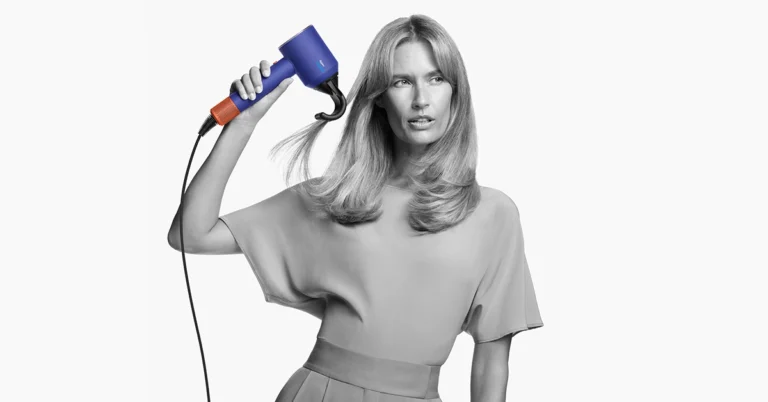
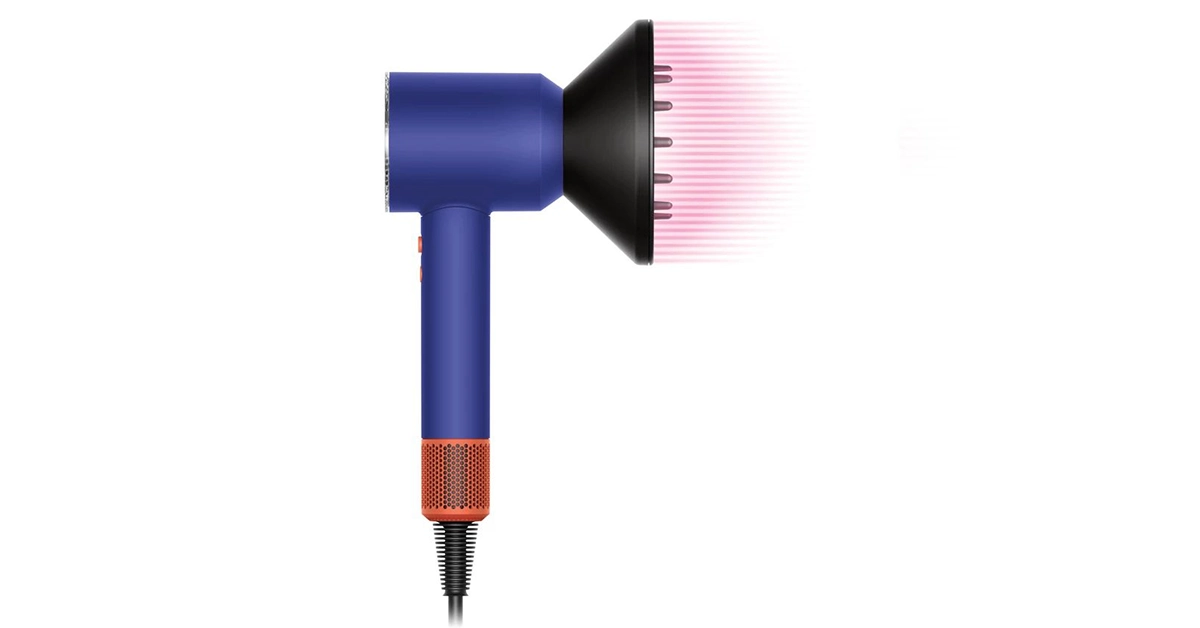 Shawn Lim, Head of Research at Dyson, shed light on the scientific foundation behind the Scalp Protect mode, stating, “From our research into the science of hair, we know that there is a connection between the quality of hair and a healthy scalp. The Scalp Protect mode helps to maintain scalp moisture levels and allows for gentle drying, thus promoting scalp health.”
In addition to its new technology, the Supersonic Nural Hair Dryer boasts a range of new attachments catering to various hair types and styling needs. From the Gentle Air Attachment for fast yet gentle styling to the Flyaway Smoother utilizing the Coanda effect to tame flyaways, Dyson ensures versatility and performance across the board.
Read Also:
Shawn Lim, Head of Research at Dyson, shed light on the scientific foundation behind the Scalp Protect mode, stating, “From our research into the science of hair, we know that there is a connection between the quality of hair and a healthy scalp. The Scalp Protect mode helps to maintain scalp moisture levels and allows for gentle drying, thus promoting scalp health.”
In addition to its new technology, the Supersonic Nural Hair Dryer boasts a range of new attachments catering to various hair types and styling needs. From the Gentle Air Attachment for fast yet gentle styling to the Flyaway Smoother utilizing the Coanda effect to tame flyaways, Dyson ensures versatility and performance across the board.
Read Also: 




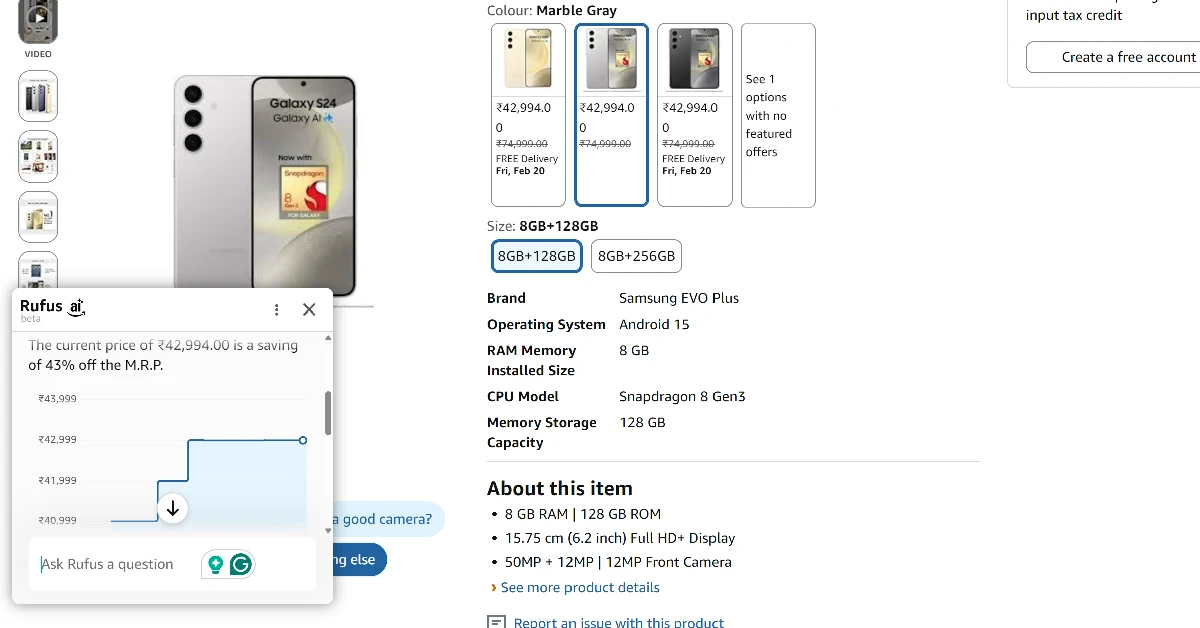
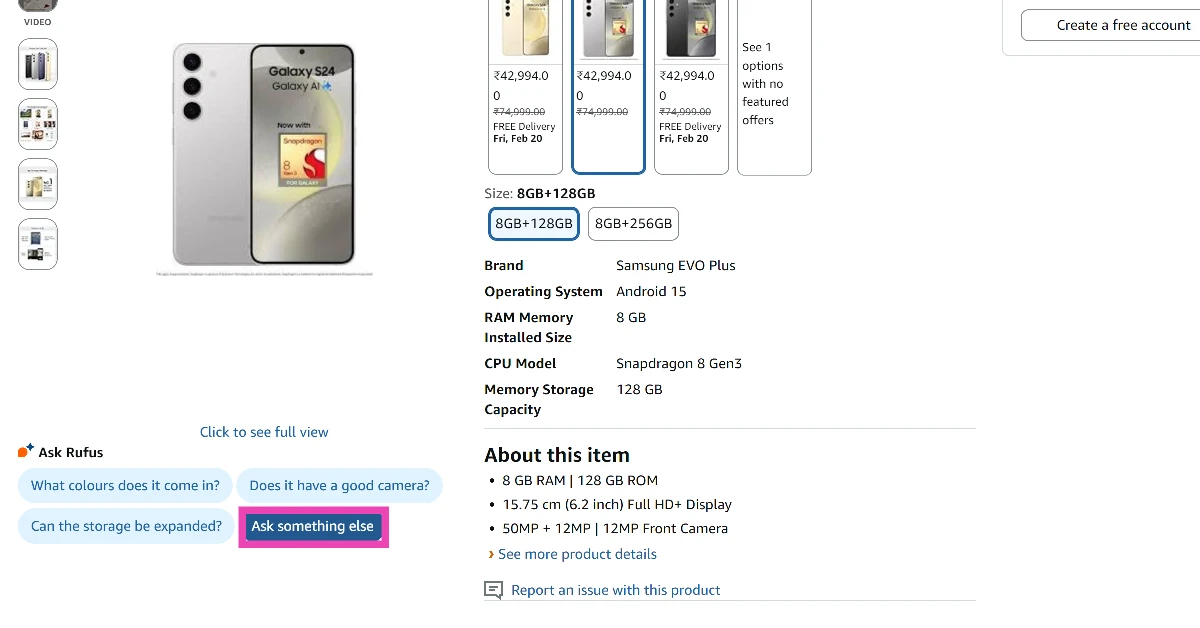 Step 3: Type ‘Show price history‘ as your prompt and hit Enter.
 Step 4: Rufus will generate a graph showing the product’s price history.
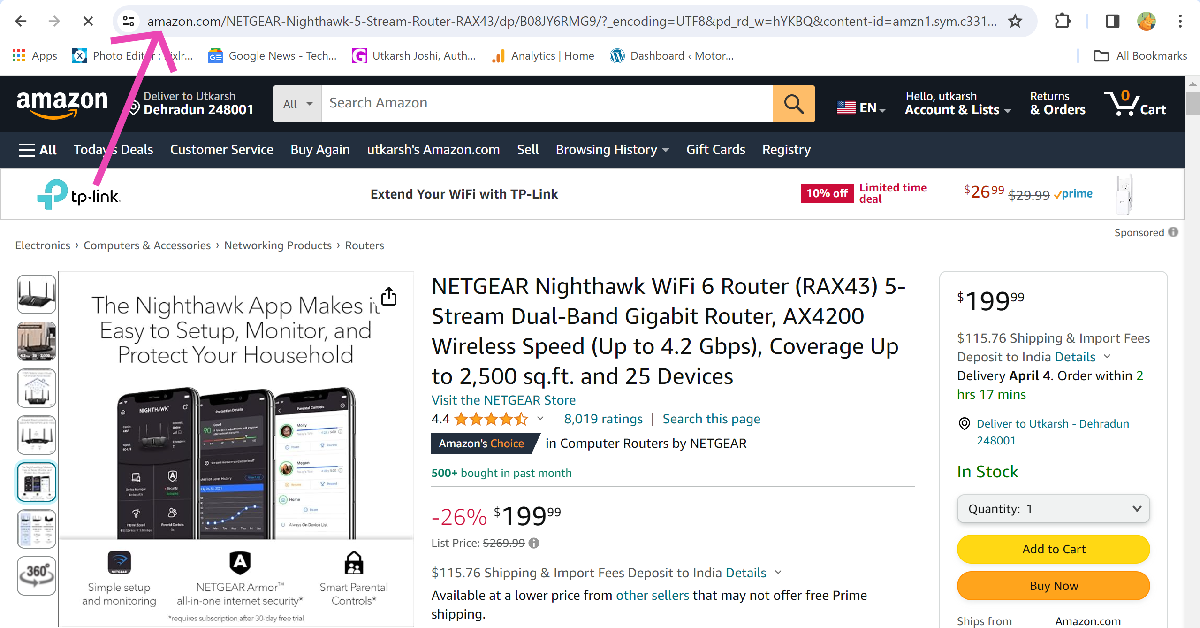 Step 4:
 Step 6: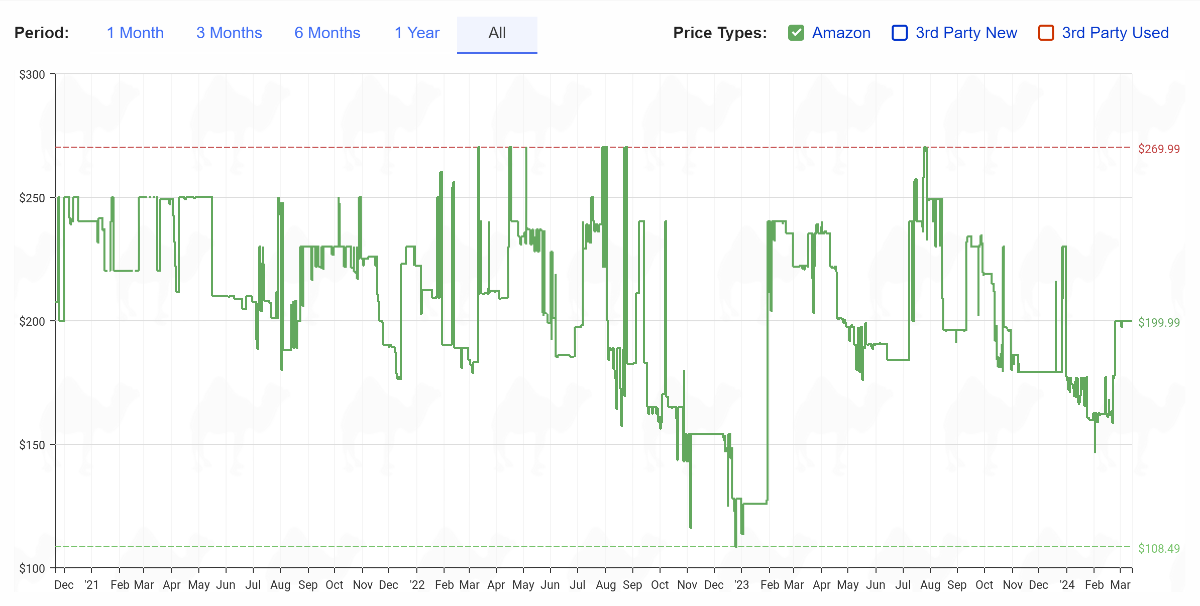
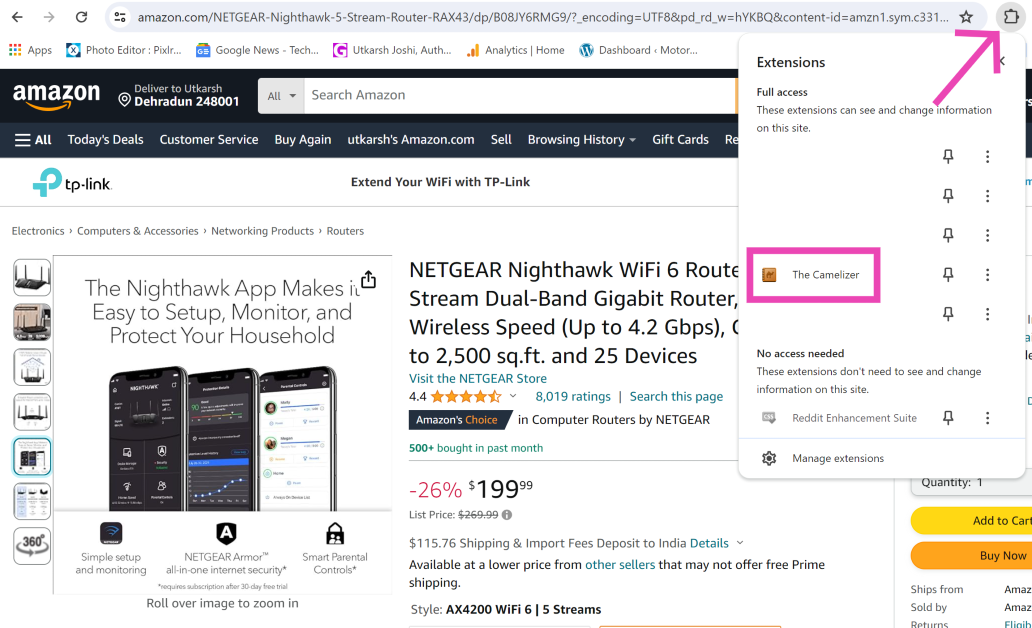 Step 4: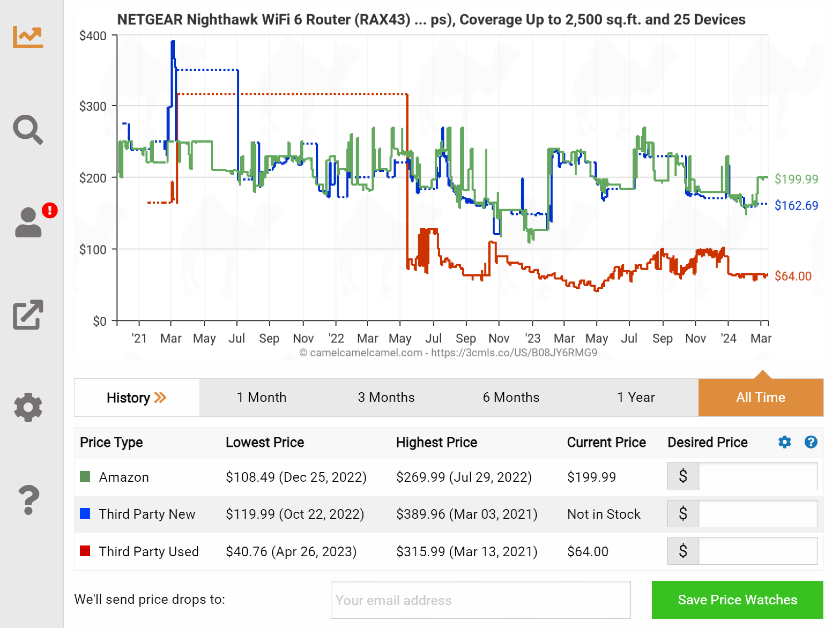
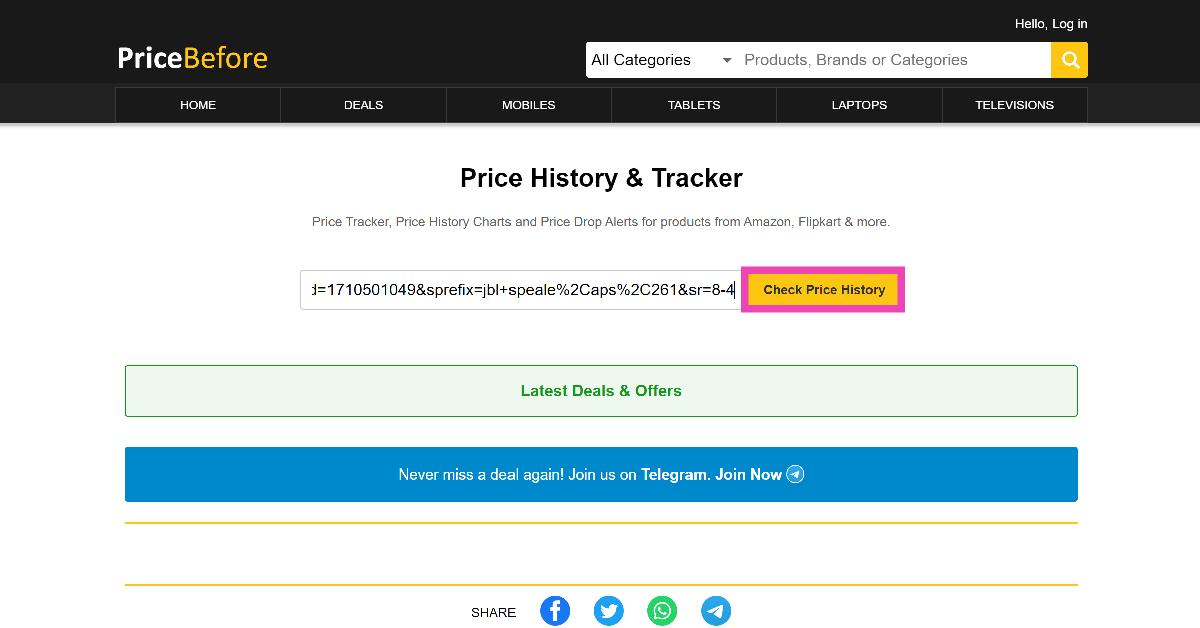 Step 3: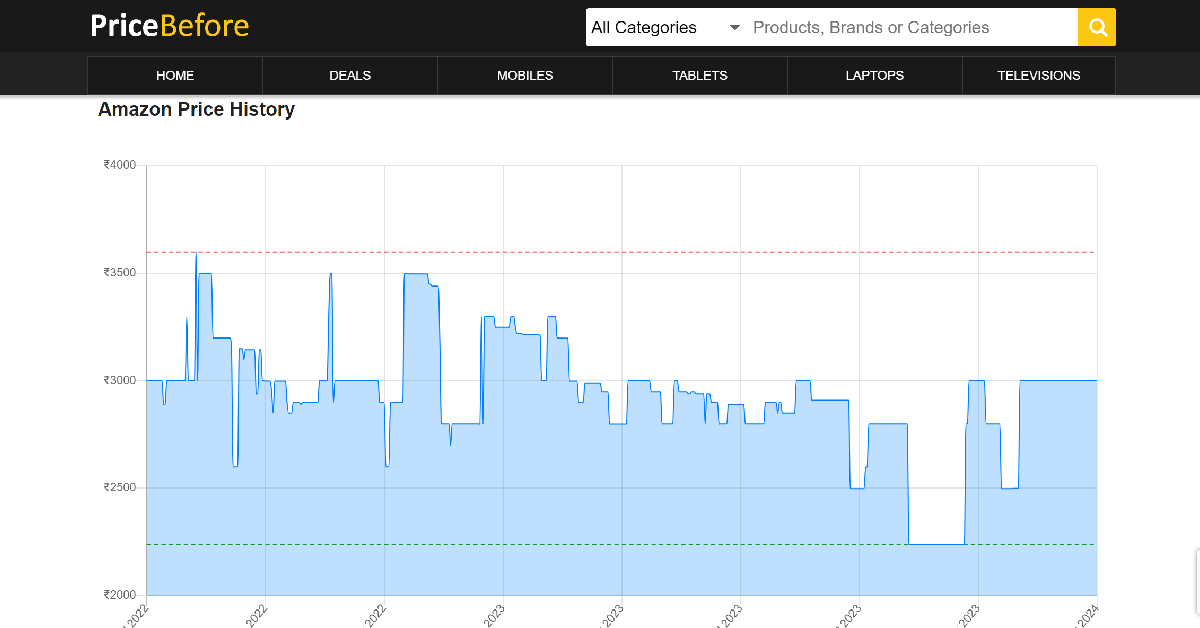
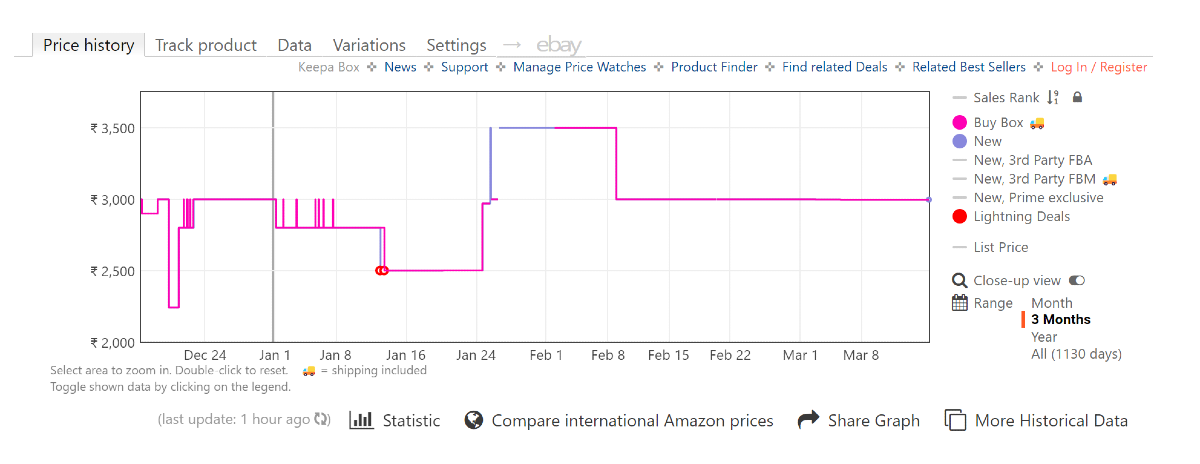
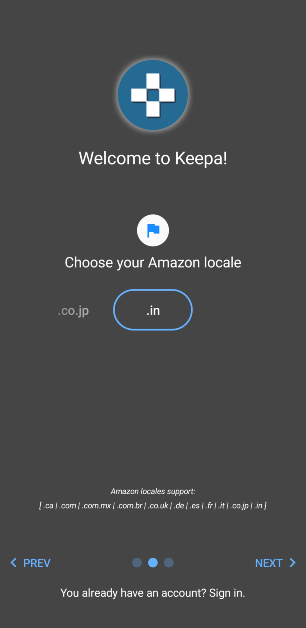 Step 3:
 Step 4: Search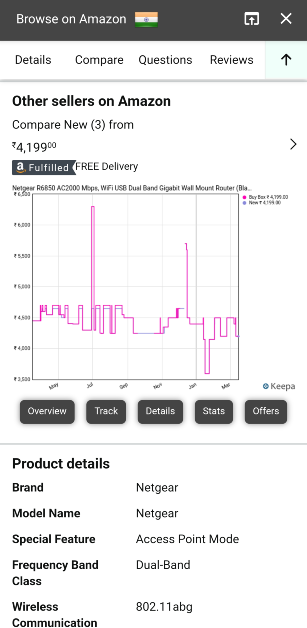
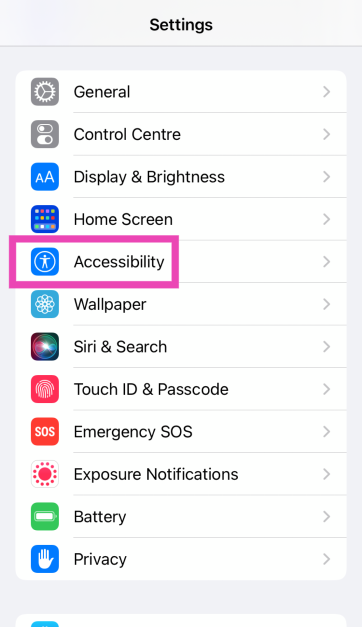 Step 2:
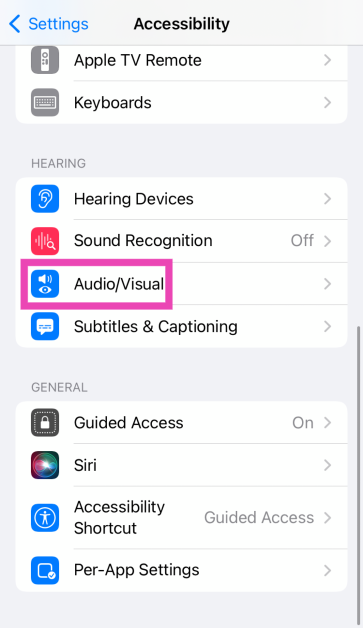 Step 3:
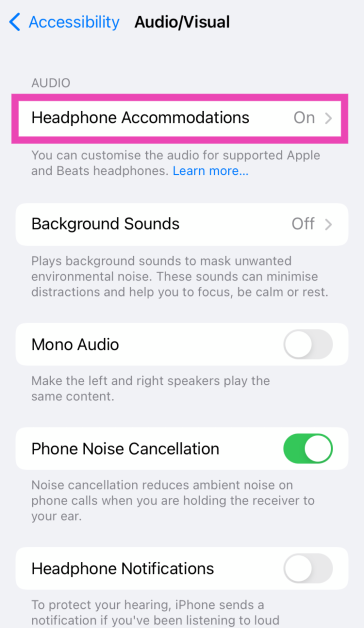 Step 4:
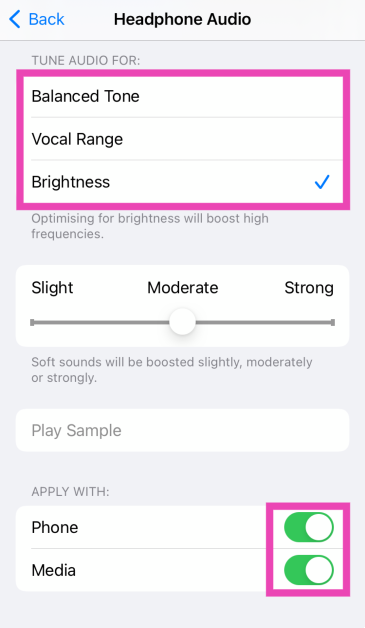 Step 5:
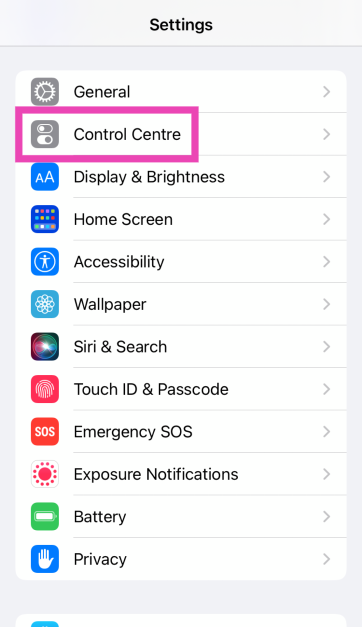 Step 2:
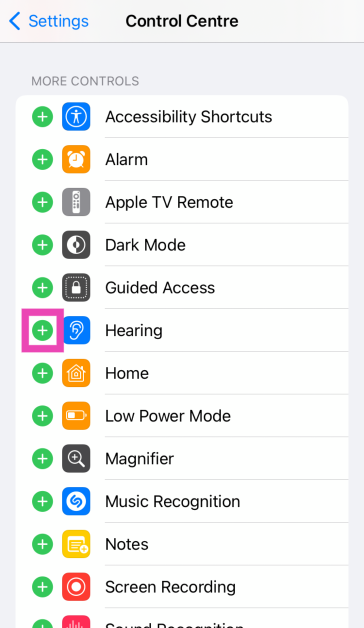 Step 3:
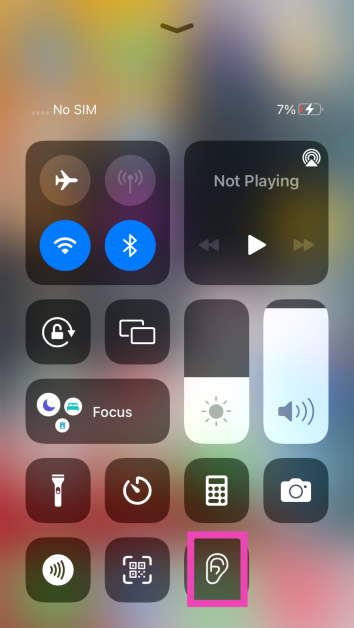 Step 6:
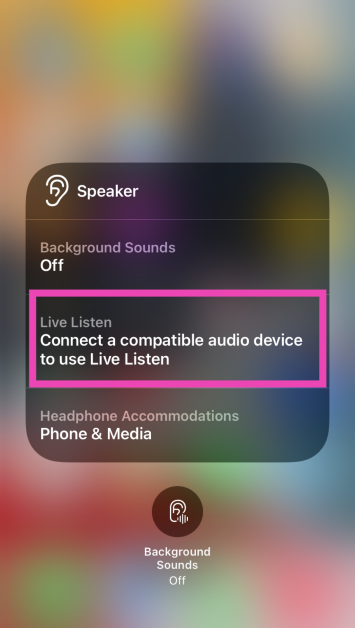 Step 7: