


Key Takeaways
- Samsung users can copy pictures using the native Gallery app by long-pressing an image, selecting 'Copy to clipboard', and then pasting it.
- Google Pixel users can copy images via the app switcher by opening the image in Google Photos, accessing the app switcher, tapping the image icon, and selecting 'Copy'.
- For other Android users (OnePlus, Vivo, iQOO, Oppo), a third-party app like 'Copy to Clipboard' is needed, which allows copying from the Gallery via the Share menu.
Copying text on your Android phone is a seamless and intuitive process. However, the same cannot be said about copying pictures. The ability to copy images is restricted to mobile web browsers. If you want to move an image in your phone’s gallery to the clipboard, you’re out of options unless you use a Samsung device. Other OEMs have to resort to third-party apps to carry out this task. Let’s take a look at the top 4 ways to copy and paste pictures on an Android phone.
Read Also: Apple’s New iPad Mini Packs A17 Pro Power and Apple Intelligence
In This Article
Which method should you use?
Samsung and Google Pixel users have native tools at their disposal to help them with copying and pasting pictures on their devices. The native Gallery app on Samsung phones has a ‘Copy’ function. Meanwhile, Google Pixels allow users to copy an image from any app using the app switcher.
If you’re a OnePlus, Vivo, iQOO, or Oppo user, you will need to take the help of a third-party app like Copy to Clipboard for this task. The good thing is that this app doesn’t ask for any intrusive permissions to do its job. The process to copy an image is fairly straightforward, and you aren’t spammed with ads across your phone’s interface.
Use the native Gallery app on Samsung
Samsung users can copy pictures on their phones using the native Gallery app. Here’s how.
Step 1: Launch the native Gallery app on your Samsung phone.
Step 2: Long-press the thumbnail of the picture you want to copy.
Step 3: Hit the ellipses in the bottom right corner of the screen.
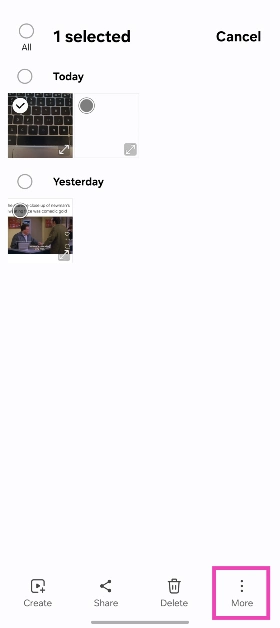
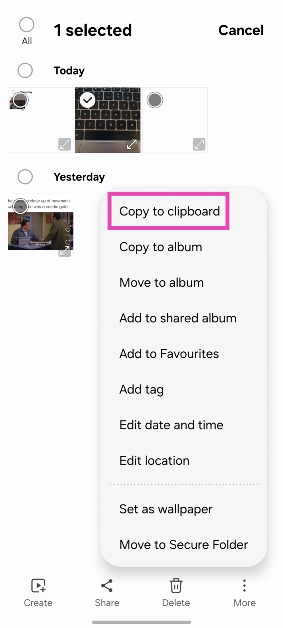
Step 4: Select Copy to clipboard.
Step 5: Open the page where you want to paste the image.
Step 6: Long-press an empty spot.
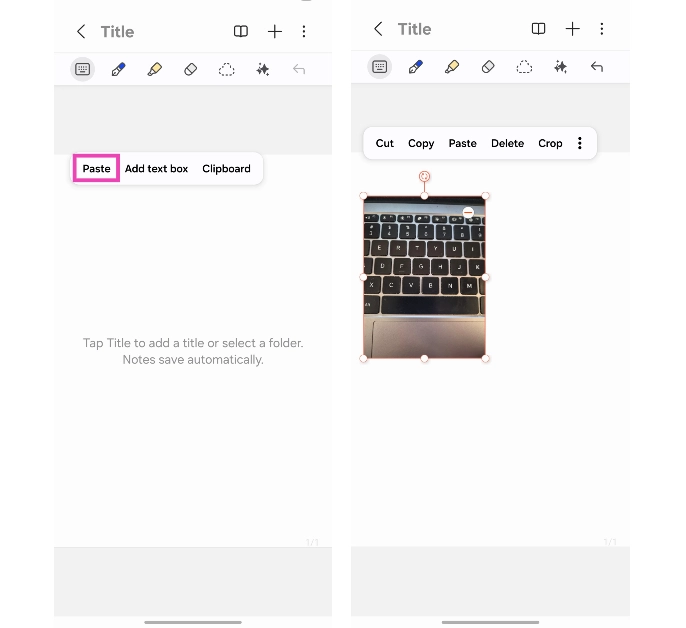
Step 7: Hit Paste.
Copy an image from the web browser
Step 1: Go to the webpage containing the image.
Step 2: Long-press the image and select Copy from the pop-up menu.
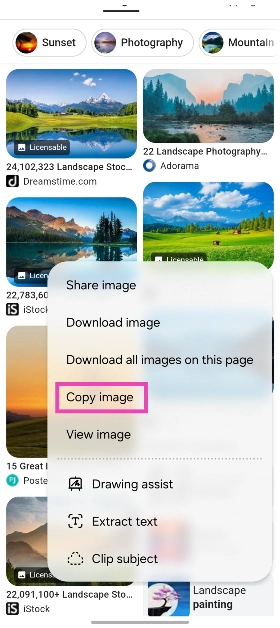
Step 3: Open a chat in an instant messenger or create a note on your phone.
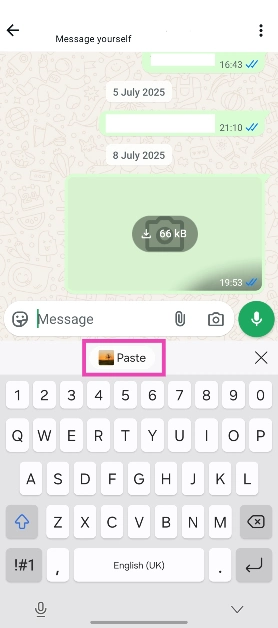
Step 4: Hit Paste.
Copy an image on Google Pixel
Step 1: Open the picture in the Google Photos app.
Step 2: Go to the app switcher. Make sure the card of the Photos app is on the screen.
Step 3: Hit the image icon next to the picture.
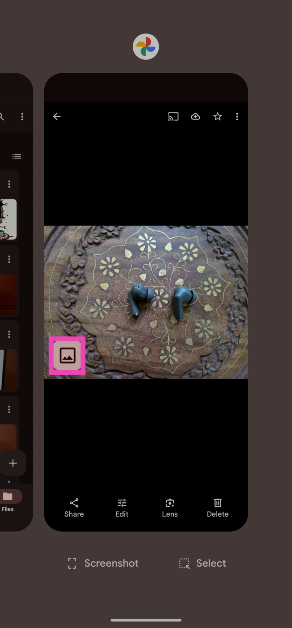
Step 4: Tap on Copy.
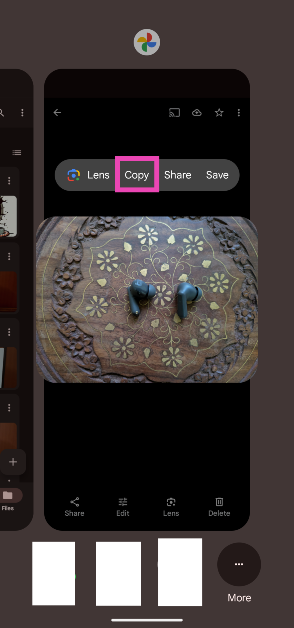
Step 5: Go to the page where you want to paste the image.
Step 6: Long-press an empty spot and hit Paste.
Use a third-party app
Step 1: Install the Copy to Clipboard app from the Google Play Store.
Step 2: Launch the Gallery app on your phone and open the picture you wish to copy.
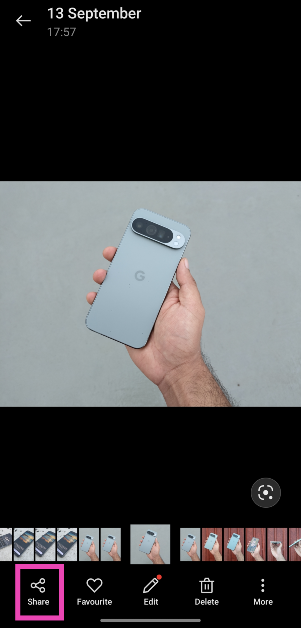
Step 3: Hit the Share icon in the bottom toolbar.
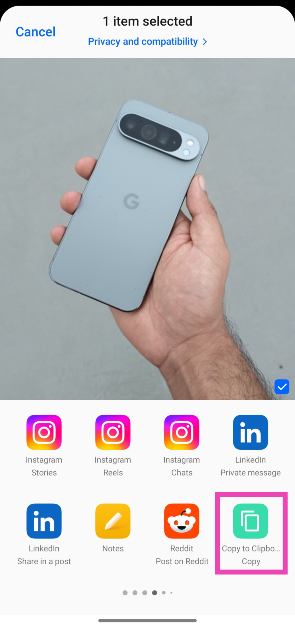
Step 4: Swipe through the list of apps and tap on Copy to Clipboard.
Bonus Tip: Extract the subject from an image and copy it to the clipboard
Step 1: Launch the Google Photos app on your iPhone.
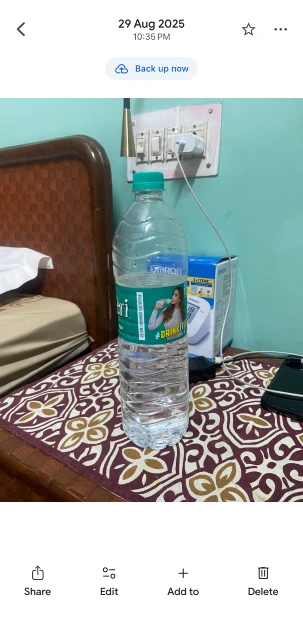
Step 2: Open an image with a clear subject.
Step 3: Long-press the subject in the image.
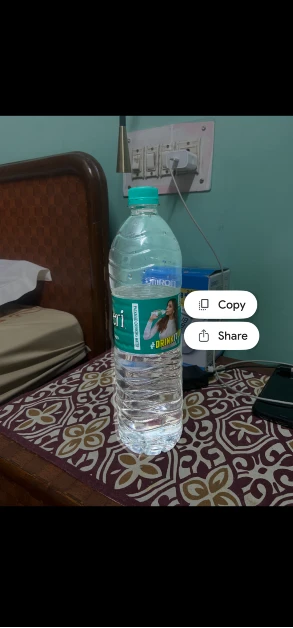
Step 4: The app will create a cutout of the subject. You can choose to copy it to the clipboard or share it as a sticker via a messaging app.
Frequently Asked Questions (FAQs)
How do I copy pictures from my Android phone’s gallery?
Install the Copy to Clipboard app on your device, open the image in the Gallery app, hit the Share icon, and tap on ‘Copy to clipboard’.
Can I extract the subject from an image on my Android phone?
To separate the subject of an image from the background, long-press it in the picture and hit ‘Copy’.
Is there a third-party app to separate the image subject from the background?
The Photoroom app is an excellent tool to remove the subject from the background of any picture. You can also use the Remove.bg web tool on the Chrome browser for this task.
Do the copied images get saved on my phone?
No, copied images do not get saved on your phone. Instead, they are temporarily saved on the clipboard.
How do I view the clipboard on my phone?
Tap a blank space on a text field to access the keyboard and tap the clipboard icon in the top row to view the copied items.
Read Also: Vivo X200, X200 Pro, X200 Pro Mini powered by MediaTek Dimensity 9400 SoC Announced
Conclusion
This is how you can copy and paste pictures on an Android smartphone. If this isn’t a native feature on your Android phone and you don’t want to download a third-party app for it, you can always take a screenshot of the image and copy it to the clipboard instead. If you have any questions, let us know in the comments!


