



Whatsapp announced that it has rolled out a new feature to transfer chat history data directly from your iPhone to select Android (Samsung) smartphones. The way to enable this is via Samsung’s SmartSwitch app by physically connecting a Samsung phone with an iPhone via a Lightning to USB-C cable. Before this make sure to check the compatibility of your devices.
Be sure you’ve got the latest version of the Samsung SmartSwitch app 3.7.22.1 or higher. The device should be running Android 10 or higher. WhatsApp application on iOS should be version 2.21.160.17 or higher and version 2.21.16.20 or higher on Android (Samsung) devices. Now follow the below steps to start the transfer.
Step 1 – Connect both the devices using Lightning to USB-C cable and wait for the notification to appear on the screen.
Step 2 – Follow the steps mentioned in the Samsung Smart Switch application.
Step 3 – After setting it up the phone will ask you to scan a QR code from your connected iPhone.
Read Also: Transferring file between Samsung smartphone and Windows 10
Step 4 – Once done successfully the above screen will be displayed on the phone.
Step 5 – Press start to begin the process.
Step 6 – Now login to WhatsApp on your Samsung phone using the same phone number, which was being used in the other phone.
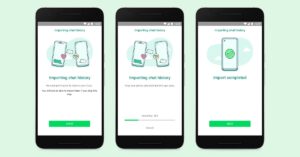
Step 7 – Whatsapp will ask you to “Import“ data soon after you are successfully logged in.
Step 8 – After the importing process is complete you are good to go and can view older chats in the Android smartphone.
Following these steps is an easy way to transfer your WhatsApp data from an iOS device directly to your android smartphone. Talking about the support for other devices, the company is constantly adding new models of phones to its list to be able to use this feature. Till that time one can always use the old traditional way of backing up the WhatsApp data by heading to Settings>Chats>Chat backup and transferring the chats directly on the new phone via the internet (but this internet method, at the moment, only supports Android to Android or iOS to iOS).
For the latest gadget and tech news, and gadget reviews, follow us on Twitter, Facebook and Instagram. For newest tech & gadget videos subscribe to our YouTube Channel. You can also stay up to date using the Gadget Bridge Android App. You can find the latest car and bike news here.


