Unlike Android, iOS does not let you change the notification sound for every third-party app on your iPhone. Using device settings, you can set custom alert tones for Apple’s suite of apps, but that’s about it. Third-party instant messaging apps like WhatsApp and Telegram allow users to change the sounds for certain notifications, but only from within the app. Today, we bring you the top 4 ways to change app notification sound on iPhone.
Can I create a custom ringtone on my iPhone from scratch?
Short answer – yes. If you find the system tones on your iPhone bland and uninspiring, you can take matters into your own hands. There are two ways to go about creating a custom ringtone – iTunes and Garage Band. If you want to set your favourite song as your ringtone, choose iTunes. If you have an idea for a ringtone or notification tone that you want to bring to life, Garage Band is your guy.
Apple allows you to create a 30-second ringtone from any song on your iTunes library. On your Mac or PC, select the song, right-click on it, and go to Song Info>Options. Select the 30-second segment that you want to convert into a ringtone and go to File>Convert>Create AAC Version. Open the file in Finder and change its format from m4a to m4r. Connect your iPhone to your Mac/PC and drop the file in the Tones folder. Now, go to Settings>Sounds & Haptics>Ringtone and select the song from the list.
If you know your way around Garage Band, you can use it to create a 30-second sample. Once the sample has been recorded, hit ‘Share’ and select ‘Ringtone’. Now go to Export>Use Song As>Standard Ringtone. Voila! Your iPhone ringtone will be changed successfully.
Change the app notification sounds on iPhone
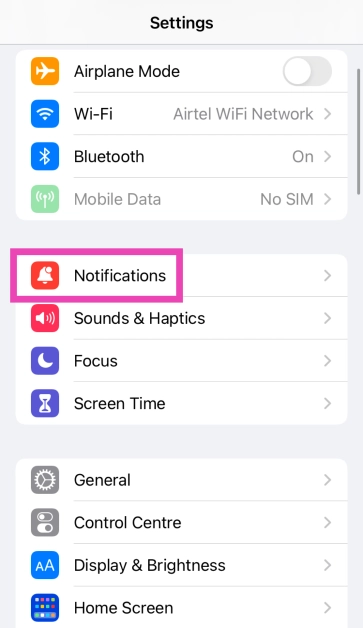
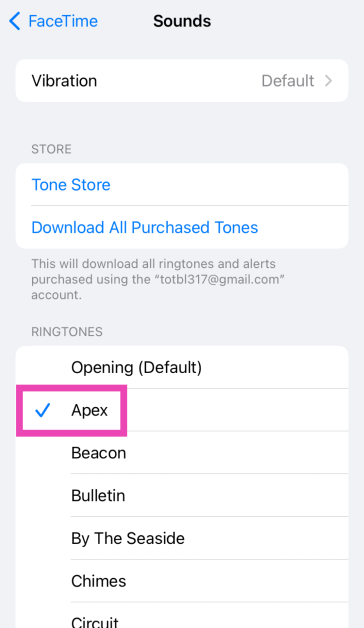
Step 1: Go to Settings and select Notifications.
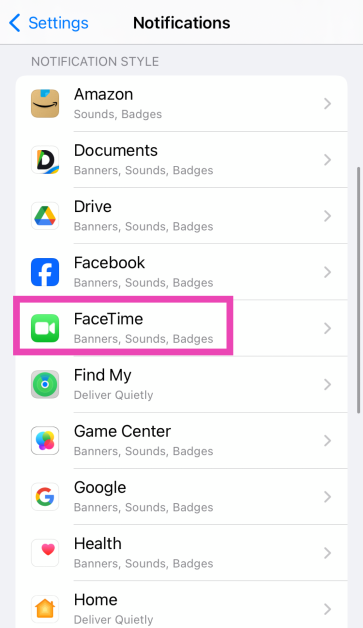
Step 2: Scroll down and select the app for which you want to set a custom notification sound. You can only change the notification sound for Apple’s suite of apps.
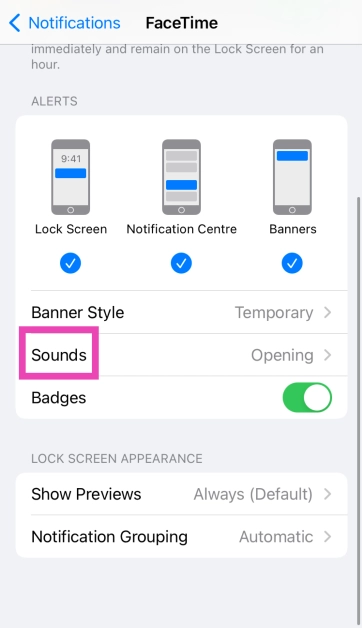
Step 3: Tap on Sounds.
Step 4: Select a new sound for the app’s notification from the list.
Change the alert tone
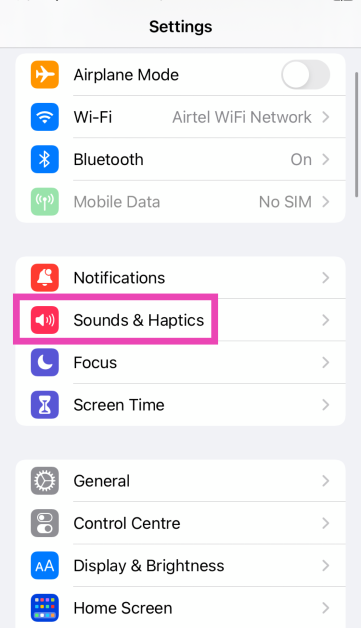
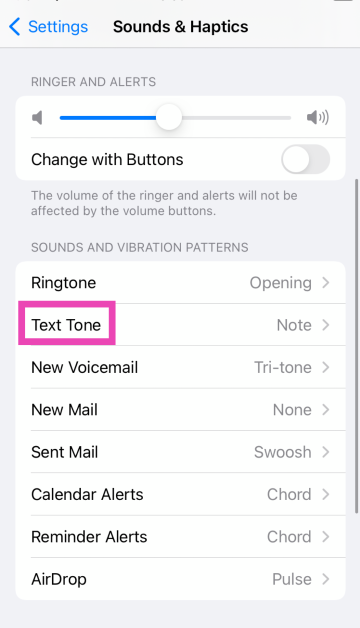
You can also change the alert tone for voicemail, new mail, calendar alerts, and more from the Sounds & Haptics settings on your iPhone. Here’s how.
Step 1: Go to Settings and select Sounds & Haptics.
Step 2: Tap on the alert tone you wish to change.
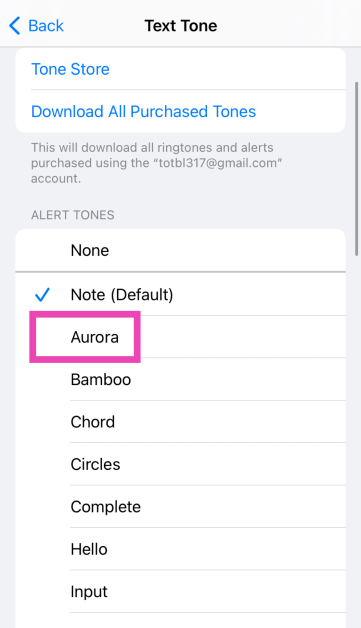
Step 3: Select a new tone from the list.
Change the notification sound for WhatsApp on iPhone
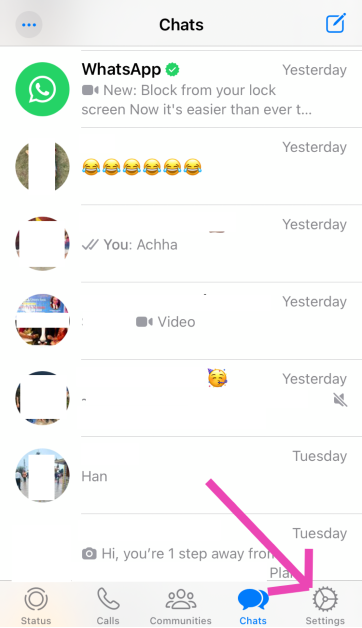
Step 1: Launch WhatsApp on your iPhone and switch to the Settings tab.
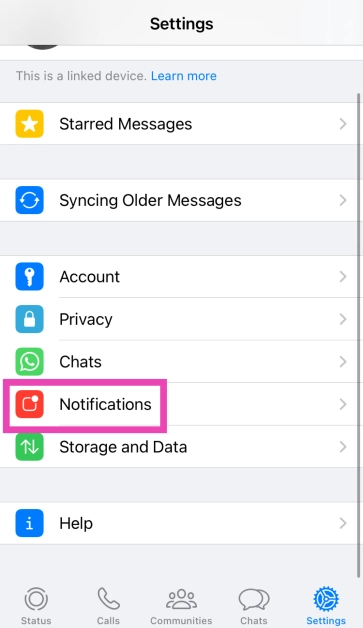
Step 2: Tap on Notifications.
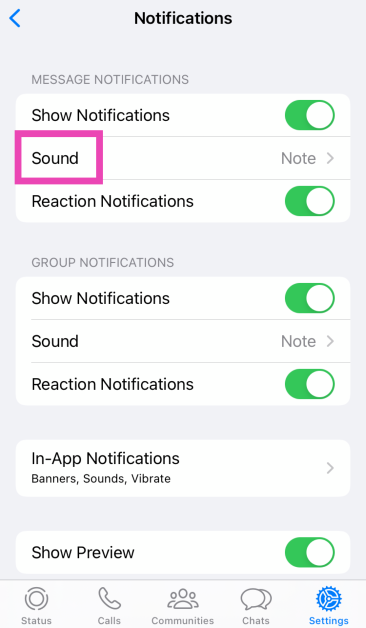
Step 3: Tap on Sound (under the category you wish to customise).
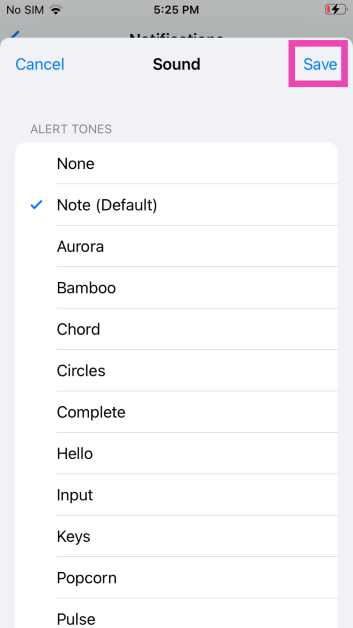
Step 4: Select the new notification sound and hit Save.
Change the notification sound for Telegram
Step 1: Launch Telegram on your iPhone.
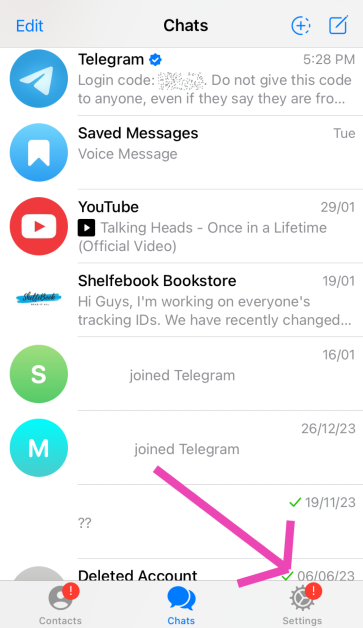
Step 2: Switch to the Settings tab.
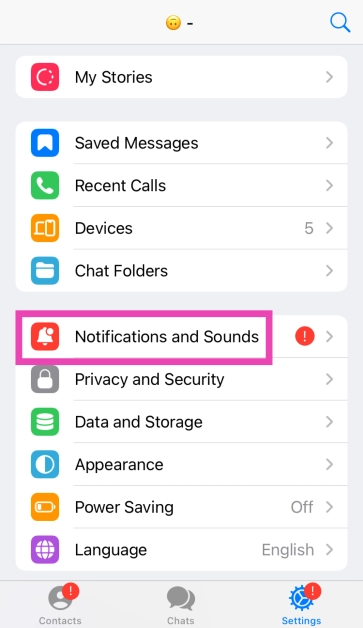
Step 3: Tap on Notifications and Sounds.
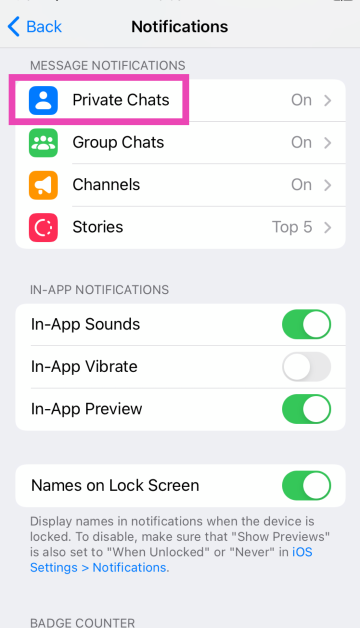
Step 4: Select the category for which you want to change the notification sound.
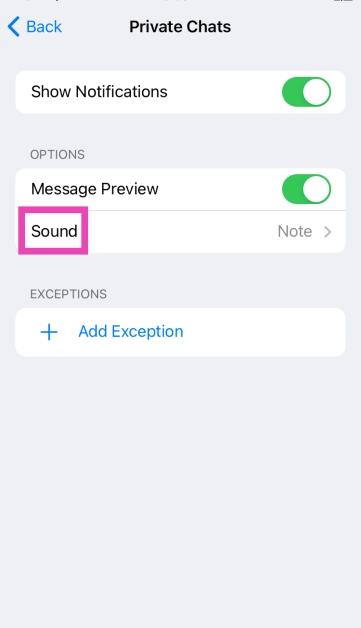
Step 5: Tap on Sound.
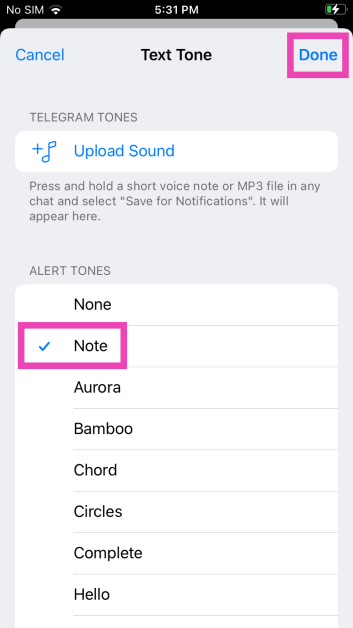
Step 6: Select a new notification sound from the list and hit Done.
Frequently Asked Questions (FAQs)
Can I change the notification sound for any app on my iPhone?
Your iPhone only lets you change the notification sounds for Apple’s native apps. These apps include Apple Maps, Facetime, Messages, Mail, and more.
How do I change WhatsApp’s notification sound on my iPhone?
Launch WhatsApp, go to Settings>Notifications>Sound and select a new tone.
How do I change my iPhone’s ringtone?
Go to Settings>Sounds & Haptics>Ringtone and select a new tone. You can also purchase a new tone from Apple’s Tone Store.
These are the top 4 ways to change app notification sounds on iPhone. While there is a vast library of sounds to choose from, you can also purchase new alert tones from Apple’s tone store. If you know any other way to change the notification for a specific app on your iPhone, let us know in the comments!
If you’re thinking of buying a good pair of headphones for your home office, there are a couple of things you need to consider. Of course, exceptional call quality is a non-negotiable factor, but if your household tends to get noisy at times, you may want to consider a good ANC headset that lets you focus at work. Finding the perfect headphones that are suited to your needs can be a daunting task. To make your job easier, here are the top 10 headphones under $200 in the USA for working from home.
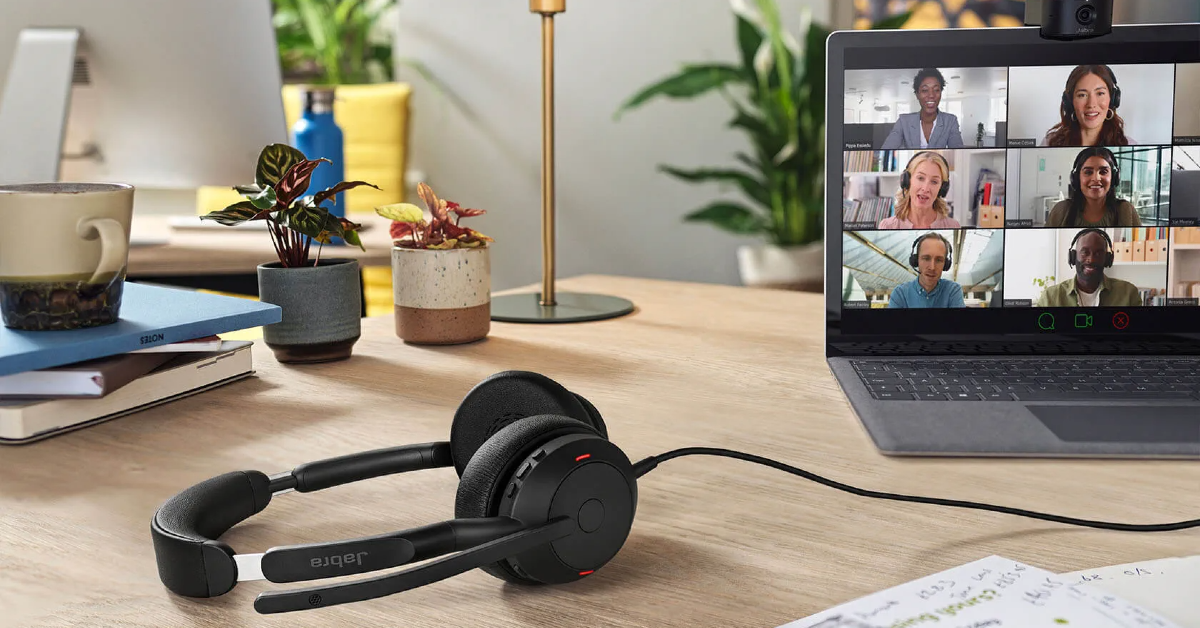
Specially designed to offer a professional call experience, the Jabra Evolve2 65 is one of the headphones under $200 for working from home in the USA. The Evolve2 65 works with all Unified Communications (UC) platforms. There is also a special Microsoft Teams variant on offer if most of your work calls are hosted on that platform. This variant is optimised to deliver the best possible performance on Microsoft Teams. While it doesn’t support ANC, the Evolve2 65 does a good job of passively filtering out the surrounding noise to a significant degree. If you’re working from an office, you can turn on the red busylight on the headphones to let everyone around you know that you’re occupied with a task or on a call.
Poly Voyager Focus 2 offers 3 levels of hybrid Active Noise Cancellation to tune out the surrounding noise and get rid of any distractions. One of its best features is the boom microphone which creates a noise-free bubble in front of your mouth with its Acoustic Fence technology. The result is a crystal-clear calling experience. This boom mic meets the Microsoft Teams Open Office premium microphone requirements. The Voyager Focus 2 offers up to 25 hours of talk time on a single charge and can be plugged into your PC and used as a wired headset when the battery runs out. It also offers multi-device connectivity, which means you can connect it to more than one device at once.
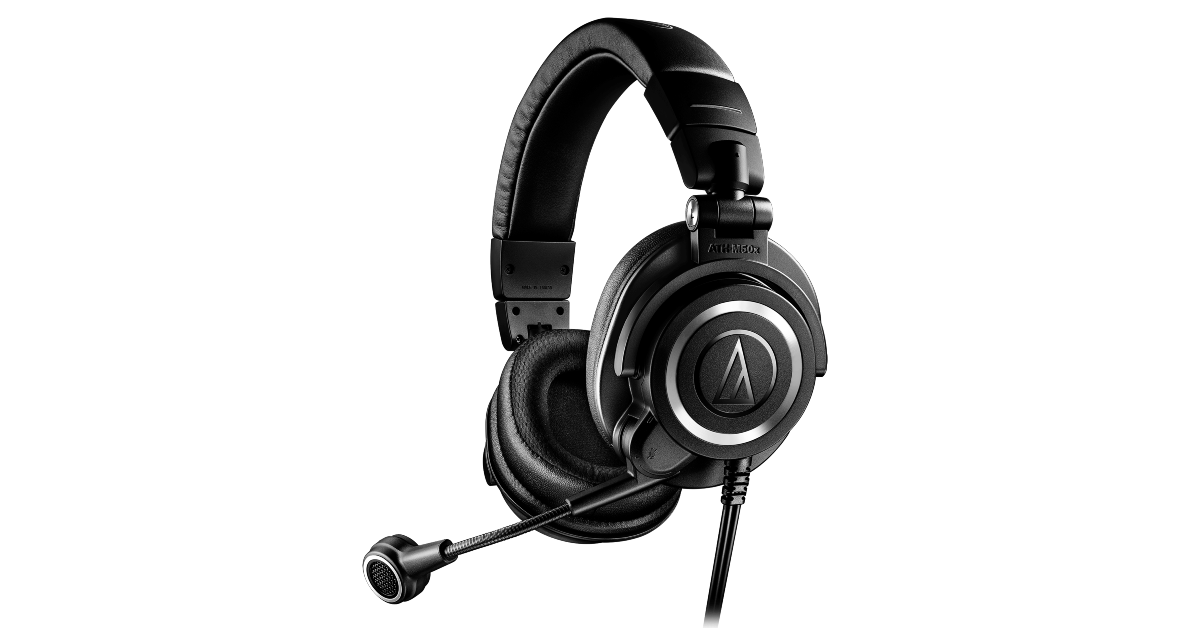
Audio Technica’s ATH-M50xSTS headset brings the sound quality of the popular ATH-50x headphones and integrates it with the superior call quality of the 20 Series microphones. Ideal for working from home, the cardioid condenser microphone on these headphones is perfect for streaming as well as work calls. The headphones are available in XLR/Analog and USB/Digital variants – the latter being more accessible to work with. One of our favourite features on these headphones is ‘flip to mute’ which automatically mutes you on the stream/call as soon as you flip up the boom microphone.
The Jabra Evolve2 50 are super comfortable to wear for an extended period of time. Its cushioned headband and ergonomic earcups perfectly wrap around the head, exerting minimal pressure. These headphones are equipped with ANC, which helps in filtering out the surrounding noise and focusing on work. Its speech-separating and noise-cancelling algorithms are crucial in delivering a professional performance on online conference calls. Like the Evolve2 65, the Evolve2 50 is also available in the Microsoft Teams variant. The UC variant is optimised for all the major communications platforms.
With a wireless range of up to 50 metres/164 feet, you can walk around freely in your home office while taking a work call on the Poly Voyager 4320 UC. On a full charge, these headphones provide up to 24 hours of talk time. The boom mic on the Voyager 4230 UC is equipped with Audio Fence technology, which expertly picks up your voice, filtering it from the surrounding noise. The headphones have a super accessible dedicated mute button for calls. It also features multi-point connectivity, allowing you to connect it to several devices at once. Using an office base (sold separately), you can also connect it to a desk phone.
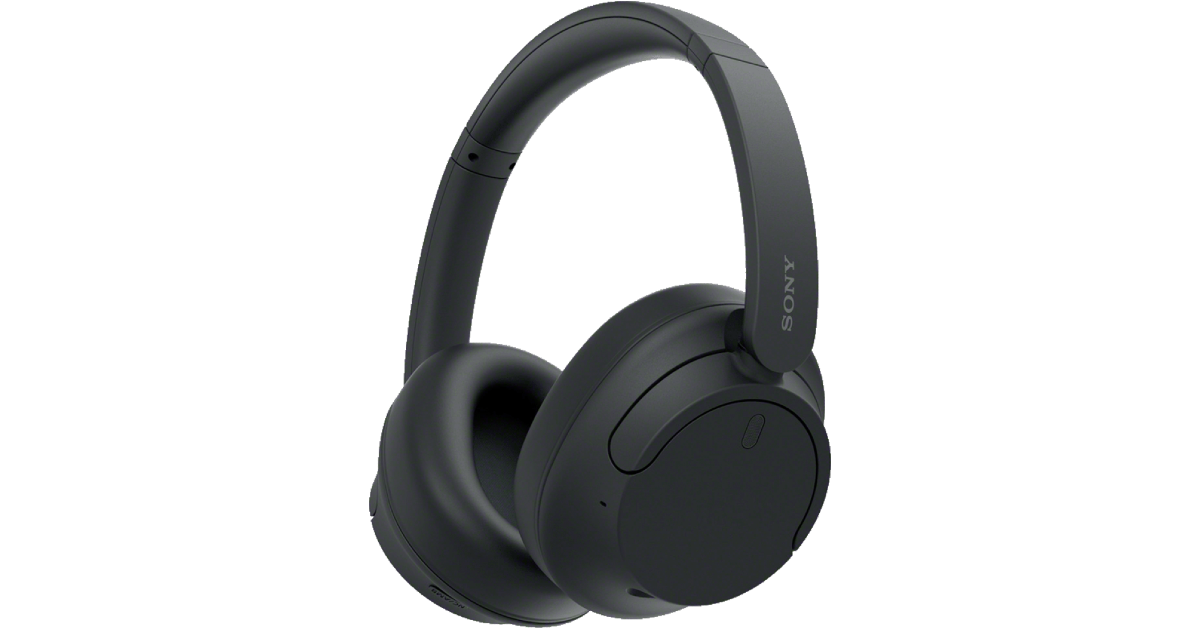
Although they are designed for music consumption, Sony WH-CH720N’s superior calling experience makes it one of the best headphones under $200 in the USA for working from home. Equipped with Precise Voice Pickup technology, a beamforming mic, and Wind Noise Reduction Structure, the WH-CH720N is perfect for work and for play. You pair these headphones to two devices at one time. So, if you get a call on your phone while watching a movie on your PC, you won’t need to take off your headphones to answer it. The headphones also let you know which device is ringing and switch the connection automatically. Read our review of the Sony WH-CH720N here.
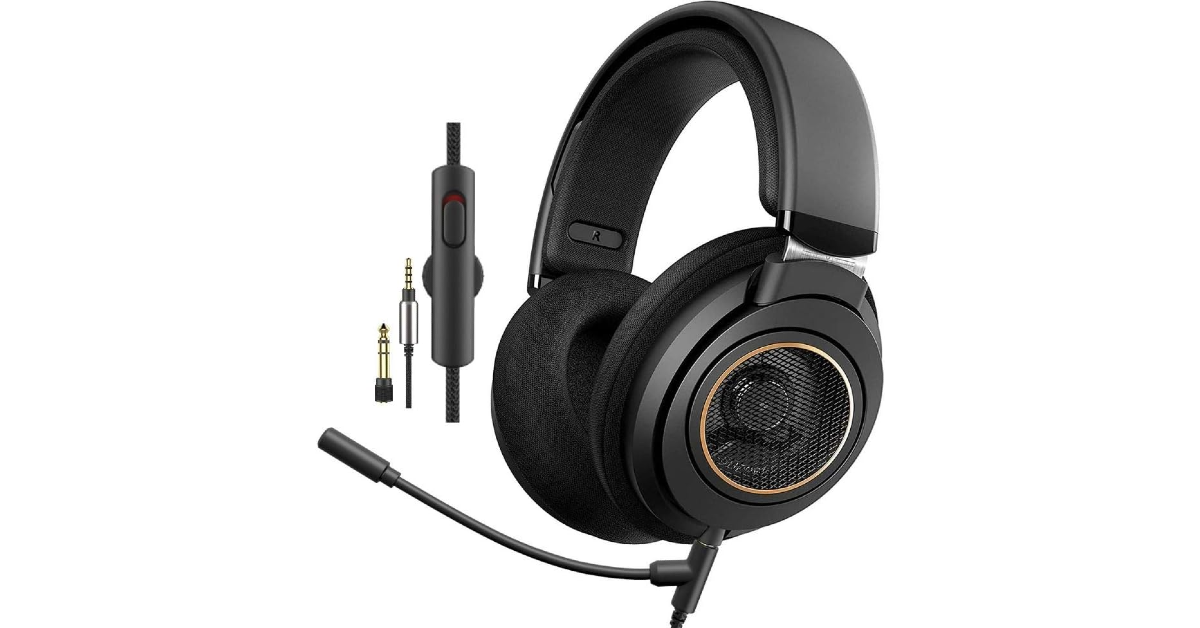
The Philips SHP9600MB comes with a detachable boom mic that is perfect for working from home. The open-back design of the headphones offers a spacious soundstage. Delivering the audio on the SHP9600MB are 50mm drivers. The soundstage offers a balanced mix of frequencies – something the audiophiles will appreciate. The ergonomic design of the earcups and the cushioned headband ensure that you don’t get fatigued after long hours of wearing the headset. You also get a 9.8ft cable inside the box, making it easier to move around with the headphones on.
Looking for some affordable options? The Logitech Zone Vibe 100 is a good pick. Priced under $100, these headphones are ideal for working from home. The memory foam covered with soft knitted fabric makes for comfortable earpads – something you wouldn’t mind wearing for hours at a stretch. The noise-cancelling microphone can be flipped up to mute yourself on calls. On a full charge, these headphones offer 20 hours of listening time and 18 hours of talk time. 5 minutes of charging is enough to power them for an hour of listening time. The Zone Vibe 100 also offers multi-point connectivity. Certainly one of the best headphones you can buy under $200 in the USA for working from home.
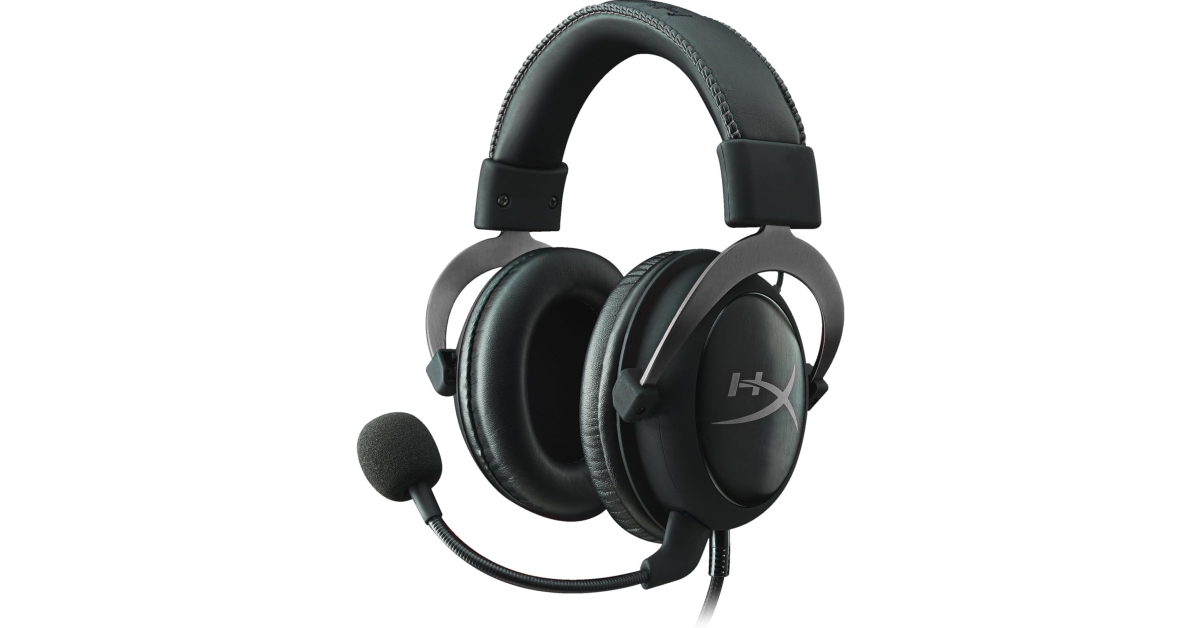
The Hyper X Cloud II takes care of your gaming and work demands all at once. Its detachable noise-cancelling boom mic is as good for online conference calls as it is for gaming lobbies. The memory foam ear cushions and padded headband with a leatherette fabric offer high-end comfort which allows you to wear the headphones for hours without a break. Delivering the audio output on these headphones are large 53mm drivers. Its Advanced Audio Control Box has volume controls for the audio control and microphone along with a dedicated slider that acts as a mute switch.
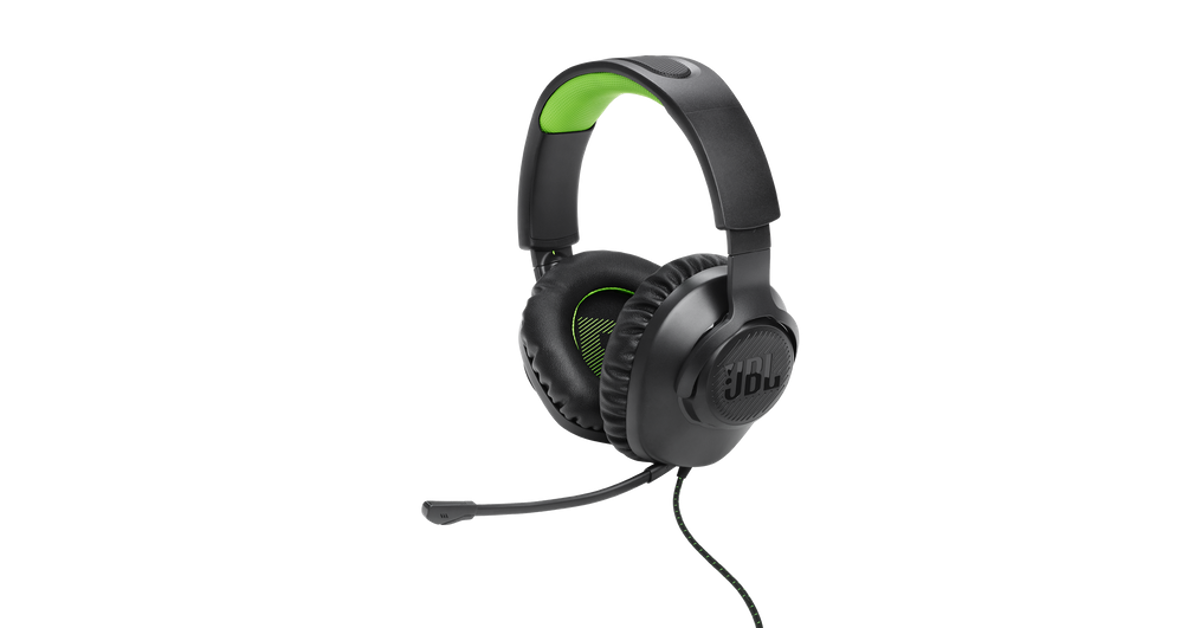
Ending this list is the ultra-affordable JBL Quantum 100X Console. Designed for work and play, these gaming headphones are a rock-solid option for online meetings as well. The detachable boom mic keeps your voice in focus and tunes out the surrounding noise on a call. For a pair of gaming headphones, the Quantum 100X Console looks professional, with no tacky RGB or flashy highlights. If you like to game, you will certainly enjoy the detailed and dynamic soundscapes this headset has to offer.
These are the top 10 headphones for under $200 that you can buy in the USA for working from home. If you think we missed out on a headset that deserves to be on this list, give it a shout-out in the comments. And while you’re here, check out our list of the top 10 smartphones under $1,000 too.
Gemini with Pro 1.0 model is available in over 40 languages and more than 230 countries and territories.
It is capable of doing highly complex tasks like coding, logical reasoning, following nuanced instructions and collaborating on creative projects.
Google has revealed that Bard, its AI chatbot, will now go by Gemini. The software company claims that consumers in more than 230 nations and territories can now interact with the Gemini Pro 1.0 model in more than 40 languages. The firm has introduced two new experiences under Gemini Advanced, giving you access to our most powerful AI model, Ultra 1.0, as well as a new mobile app that makes collaboration easier when on the go.
While announcing the rebranding, Google said, “Our mission with Bard has always been to give you direct access to our AI models, and Gemini represents our most capable family of models. To reflect this, Bard will now simply be known as Gemini.”
Users across the globe can not access Gemini and chat with its Pro 1.0 model in over 40 languages and more than 230 countries and territories. Along with this, it has also released two new experiences — Gemini Advanced and a mobile app — to help you easily collaborate with the best of Google AI.
Gemini Advanced gives access to Ultra 1.0 which is the company’s latest AI model. According to the company, Gemini Advanced is proficient at handling highly complex tasks like coding, logical reasoning, following nuanced instructions and collaborating on creative projects. It can not only allow users to have in-depth conversations but also better understand the context of your previous prompts. It can be your tutor by creating step-by-step instructions, sample quizzes or back-and-forth discussions customised to your preferred learning method.
Moreover Gemini Advanced can help you with more advanced coding scenarios, serving as a sounding board for ideas and helping you evaluate different coding approaches. It can also help content creators generate fresh content, analyse recent trends and brainstorm improved ways to grow their audiences.
Gemini Advanced is currently available in over 150 countries and territories in English, and we’ll expand it to more languages over time. It will be part of the new Google One AI Premium Plan for $19.99/month, starting with a two-month trial at no cost.
Google has also rolled out a new mobile experience for Gemini and Gemini Advanced with a new app on Android and the Google app on iOS. You can text, speak, or add an image to the Gemini app for a variety of on-the-go assistance. You can take a picture of your flat tyre and ask for instructions, generate a custom image for your dinner party invitation or ask for help writing a difficult text message.
Beginning today, Gemini is being made available in English on Android and iOS phones in the United States and will be fully available in the coming weeks. Starting next week, you’ll be able to access it in more locations in English, and in Japanese and Korean, with more countries and languages coming soon.
Noise Buds Xero has an innovative Sound+ Algorithm.
It comes with a 12.4mm PEEK + TITANIUM driver.
The earphones offer 3-level of ANC Modes.
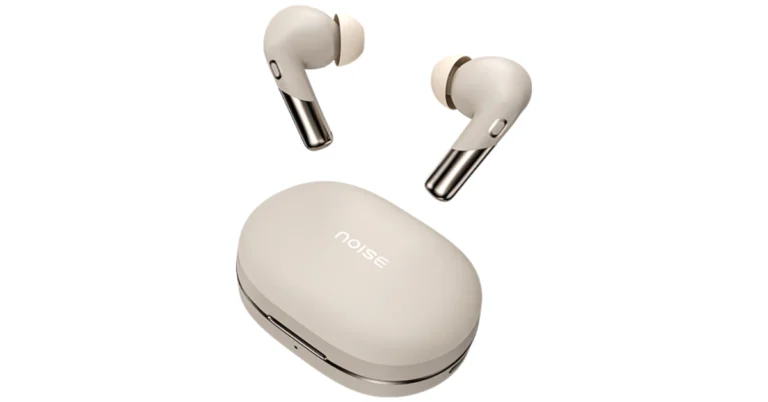
Indian tech brand Noise has released a new set of Truly Wireless Earphones- Noise Buds Xero. The new TWS features a 12.4mm driver unit in addition to six microphones. The audio device also comes with an Adaptive Hybrid ANC of up to 50 dB. Additionally, it runs for up to 6 hours with just 10 minutes of quick charge.
Noise Buds Xero specifications, features
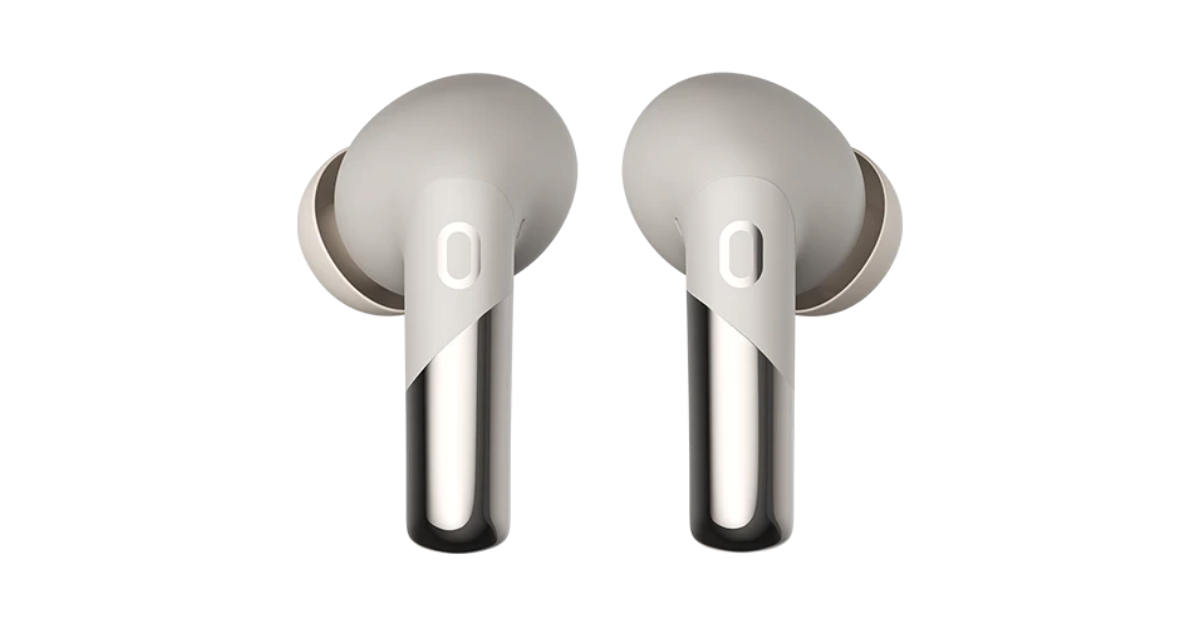
Noise Buds Xero comes with a premium matte and chrome design. It is equipped with a 12.4mm PEEK + TITANIUM driver with an advanced triple-mic setup for smoother and clearer conversations. It offers in-ear detection, allowing the users to instantly play or pause the audio by just removing the TWS or putting them back in the ear. Additionally, it offers ‘Concert for One’ and Adaptive Hybrid Noise Cancellation up to 50 dB and adapts seamlessly to surroundings, ensuring premium audio in bustling cities or crowded offices. The earbuds offer 3-level of ANC Modes: Deep, Light and Transparent.
It has an innovative Sound+ Algorithm provides a steady and noise-free experience in all situations, eliminates echo and improves speech quality with dynamic range control. For synchronised audio and video, the Buds Xero TWS promises a low latency of 50ms. Users may control their earphones using touch commands.
The Noise Buds Xero delivers up to 50 hours of playtime. With just 10 minutes of quick charge, it can offer 6 hours of battery life.
Along with Bluetooth v5.3, it is accompanied by HyperSync technology for hassle-free pairing. It is compatible with both Android and iOS devices. The TWS earphones are IPX5 water resistance rated and support AI Voice Assistants.
Noise Buds Xero has launched in India at an introductory price of Rs 3,999. The wireless earphones come in Chrome Blue, Chrome Beige and Chrome Black colour options. The device will be available for purchase via Flipkart, Amazon, Myntra and gonoise.com.
Commenting on the launch, Amit Khatri, Co-Founder, Noise said, “With the unveiling of Noise Buds Xero, we’re orchestrating a personalised concert experience for every individual. This launch marks a breakthrough in our mission to immerse our discerning consumers in cutting-edge audio experiences. These earbuds are yet another product that outline our commitment to redefine the premium TWS landscape, seamlessly blending design, innovation, and performance into a harmonious symphony of unparalleled excellence.”
You would think that deleting an app from your Android phone is a fairly easy process, but that is not always the case. While the third-party apps that you download from the Play Store can be removed directly from the app drawer, that may not always be the case for certain bloatware apps. This issue is more common in budget smartphones that ship with a lot of bloatware apps to bring down the cost of the phone. But there are a few ways to handle this problem. Today, we bring you the top 6 ways to remove the apps that Android won’t let you uninstall on your phone.
Why doesn’t Android let you uninstall certain apps on your phone?
Not every app on your phone follows the same rules. Some apps, like Google Play Services, are crucial to the functioning of your device and are baked into the operating system. Deleting these apps from your phone is out of the question. Google’s suite of apps can’t be removed from your Android phone either, even though they do not play any tangible role in its functioning.
Other than Google, your smartphone’s manufacturer has its set of ‘system apps’ that get the same kind of protection. These include basic apps like Phone, Clock, Calculator, etc. At best, you can substitute them with a third-party app. You may be wondering if there are any third-party apps which, once installed, cannot be removed from your phone. The answer is no. However, if you have granted them admin access to your phone, you cannot uninstall them until those privileges are revoked.
One of the most annoying aspects of owning an Android phone is the bloatware that comes along with it. While these bloatware apps can be removed from the device, some budget phones may not give you the option to permanently delete social media apps like Facebook. If you wish to remove an app, be it a system app or otherwise, follow the methods mentioned below.
Disable the app
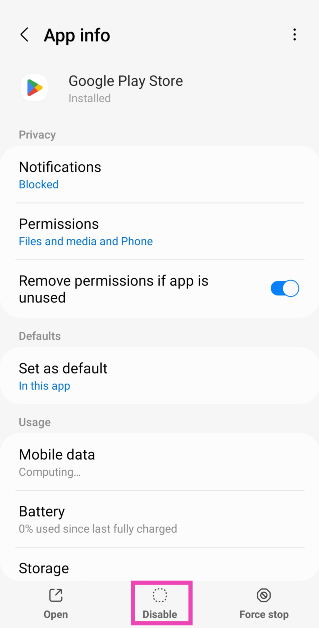
The bloatware apps that cannot be uninstalled from your Android device have a ‘disable’ option that removes them from the app drawer and pauses their background activity. This option is also provided for Google’s suite of apps that are baked into the Android ecosystem. Here’s how you can disable an app that can’t be removed from your Android phone.
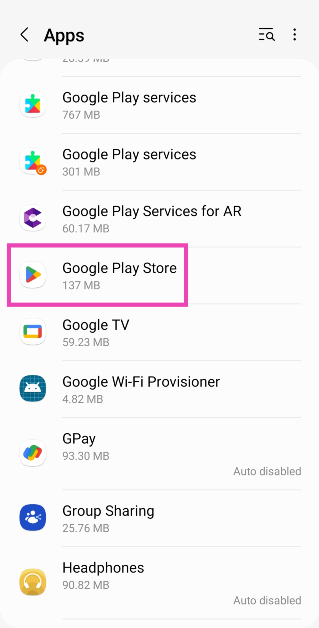
Step 1: Go to Settings and tap on Apps.
Step 2: Select the app you wish to disable.
Step 3: Hit Disable at the bottom of the screen.
Auto-disable apps
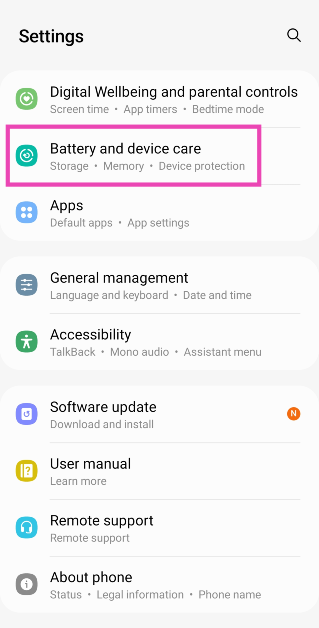
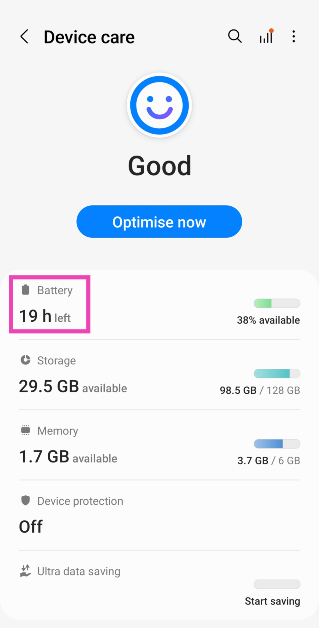
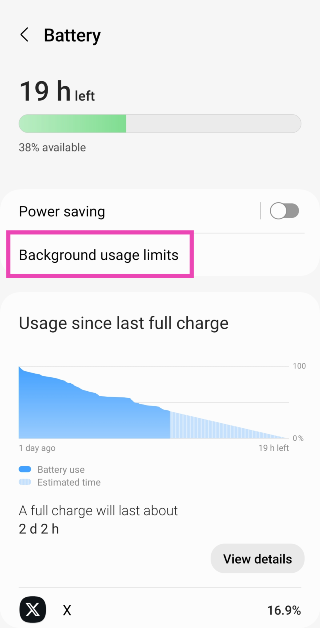
As a blanket measure, you can choose to auto-disable the unused apps on your phone. Once your phone notices that you haven’t opened an app in a long time, it will automatically pause its background activity and put it to sleep. Here’s how you can enable this feature.
Step 1: Go to Settings and select Battery and device care.
Step 2: Tap on Battery.
Step 3: Select Background usage limits.
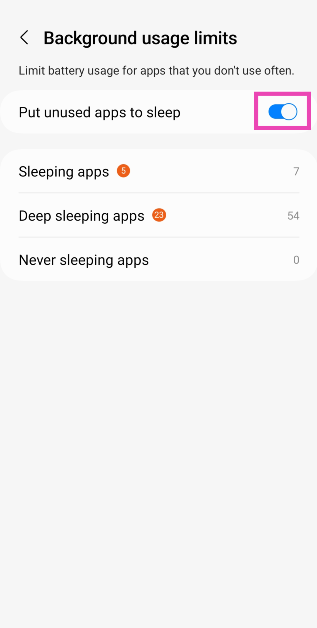
Step 4: Turn on the toggle switch for Put unused apps to sleep.
Remove admin access for the app
Apps that have administrative access to your device cannot be removed unless this access is revoked. Anti-virus and phone tracking apps fall into this category. Here’s how you can remove their admin access.
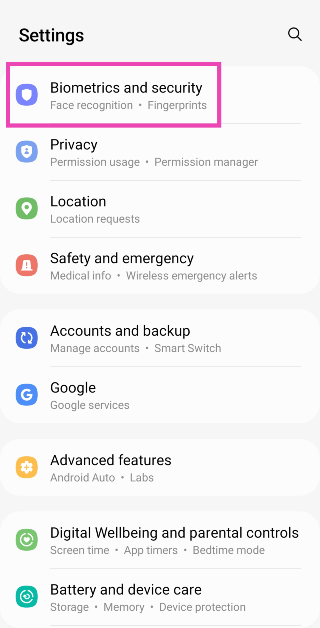
Step 1: Go to Settings and select Biometrics and security.
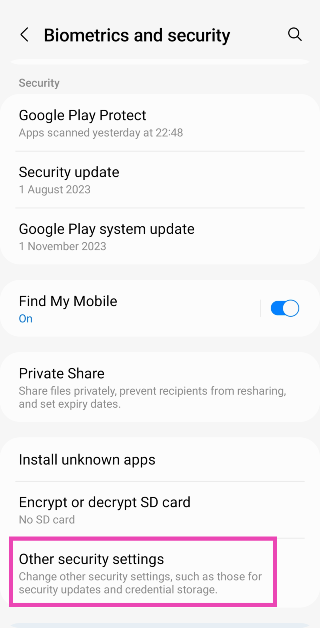
Step 2: Tap on Other security settings.
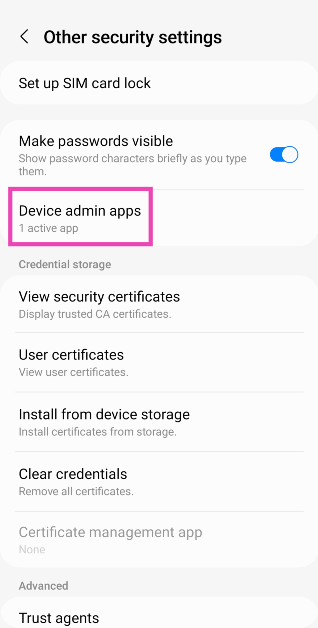
Step 3: Select Device admin apps.
Step 4: Turn off the toggle switch for the app you wish to remove from your device.
Step 5: Go back to Settings and tap on Apps.
Step 6: Select the app and hit Uninstall.
Another way to remove admin access from an app
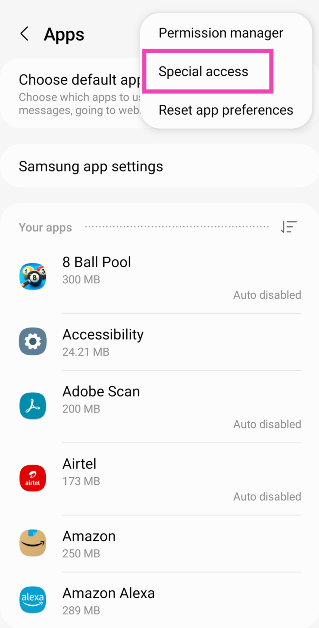
Step 1: Go to Settings and select Apps.
Step 2: Hit the ellipses at the top right corner of the screen.
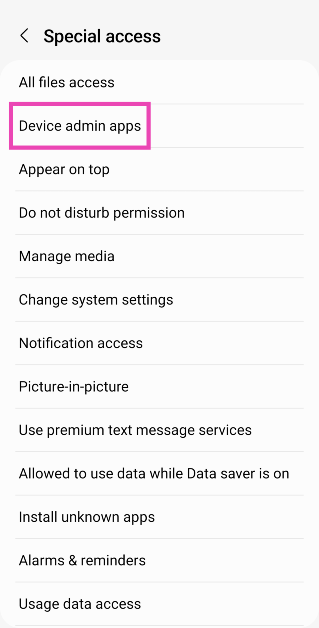
Step 3: Tap on Special access.
Step 4: Select Device admin apps.
Step 5: Turn off the toggle switch for the app you wish to uninstall.
Step 6: Go to the previous page, select the app, and hit Uninstall.
Use Android Debug Bridge (ADB) to remove apps that Android won’t let you uninstall
While disabling an app puts it to sleep, it doesn’t entirely remove it from your device. If you want to completely get rid of the stubborn apps on your phone, you need to use ADB. But before you do that, you need to turn on USB Debugging on your device. Let’s walk you through the entire process.
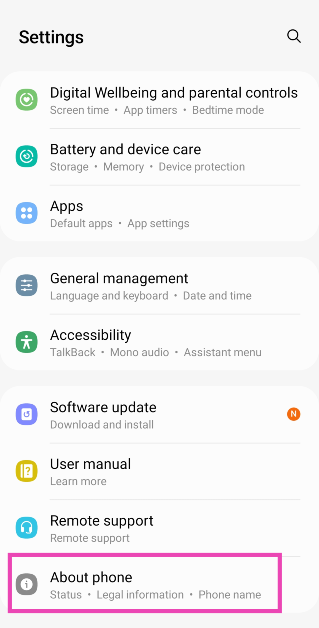
Step 1: Go to Settings and select About Phone.
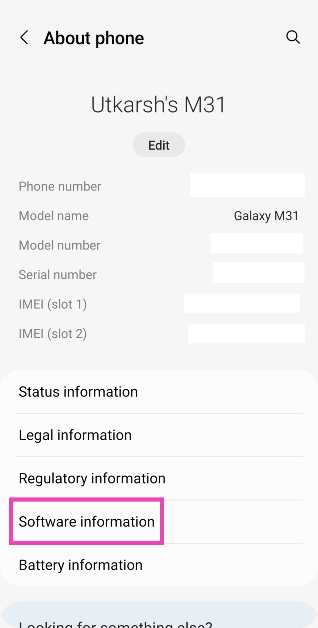
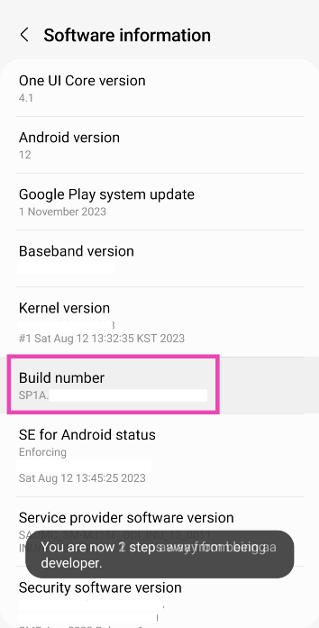
Step 2: Tap on Software Information.
Step 3: Find the Build Number and tap on it 7 times. You will then enter Developer Mode.
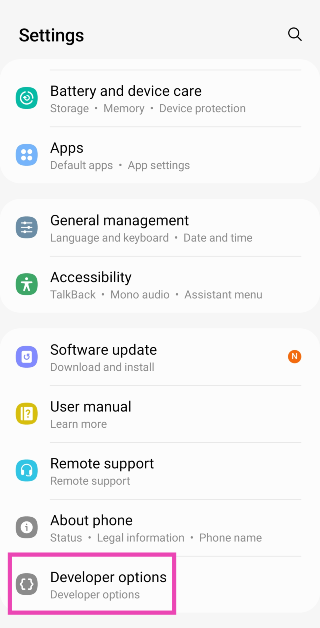
Step 4: Go back to Settings and select Developer Options.
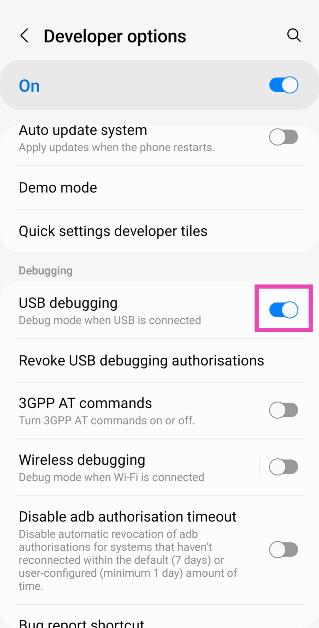
Step 5: In the Debugging section, turn on the toggle switch for USB Debugging.
Now that USB Debugging is enabled, follow these steps to install ADB and remove unwanted apps from your device.
Step 6: Connect your smartphone to your PC via a USB cable. A popup box will appear on your phone. Confirm that you want to allow USB Debugging.
Step 7: Download the official ADB driver package for your PC from this page.
Step 8: Extract the package to your preferred location. Press Shift + right-click and select Open PowerShell window here.
Step 9: Find the name of the app package that you wish to remove from your device. You can use the App Inspector tool to find it.
Step 10: In the PowerShell window, type ./adb uninstall followed by a space and the name of the app package.
Step 11: Hit Enter.
The app will be removed from your device.
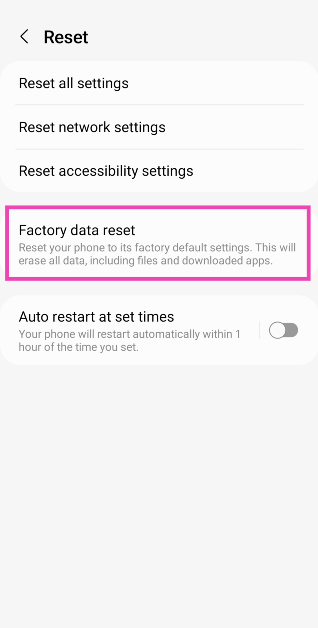
Perform a factory reset
If the methods mentioned above didn’t work, a factory reset is in order. We recommend this method if you accidentally installed a malicious app that refuses to get deleted. This method will wipe all the data on your phone, so make sure you create a backup beforehand.
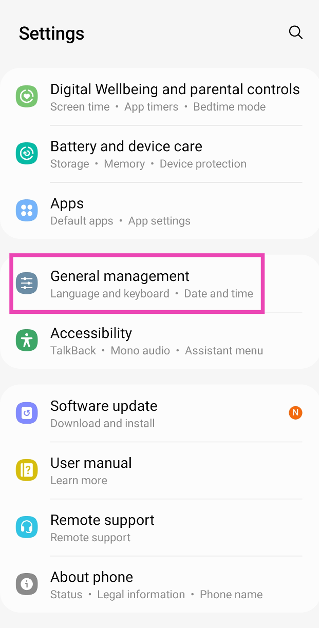
Step 1: Go to Settings and select General management.
Step 2: Tap on Reset.
Step 3: Scroll down and select Factory data reset.
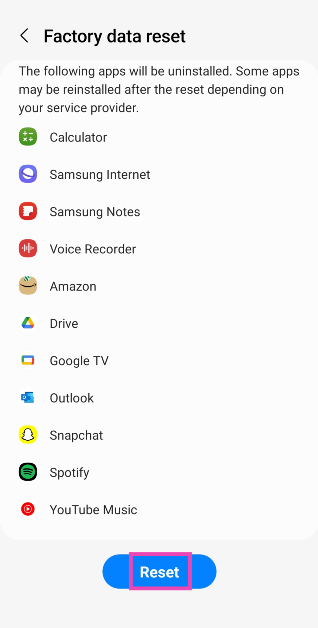
Step 4: Scroll down and hit Reset.
Frequently Asked Questions (FAQs)
How do I delete multiple apps on my Android phone at once?
Go to Google Play Store, tap your profile picture at the top right corner of the screen, select Manage apps and device, switch to the Manage tab, check the boxes next to the apps you wish to delete and hit the bin sign at the top right corner of the screen.
How do I remove an app that won’t uninstall from my Android phone?
Download ADB on your PC and connect your phone via a USB cable after enabling USB debugging on it. Open PowerShell on the page where you extracted ADB and enter the following command: ./adb uninstall (app package name).
Can I delete apps with admin access?
As long as an app has admin access on your phone, it cannot be deleted.
How do I revoke admin access from an app?
Go to Settings>Biometrics and security>Device admin apps and turn off the toggle switch for the app in question.
How do I disable an app on my phone?
Go to Settings>App>App Management, select the app, and hit ‘Disable’.
There are the top 6 ways to remove apps that Android won’t let you uninstall on your phone. If you have any questions or know any other ways to tackle this issue, let us know in the comments. If you think a third-party app is causing trouble on your phone, restart your device in Safe Mode and check if the problems reappear.
Itel P55, Itel P55+ features a 50MP AI Dual Camera system.
Both phones feature a 6.6 HD+ display.
The devices are priced under 10K.
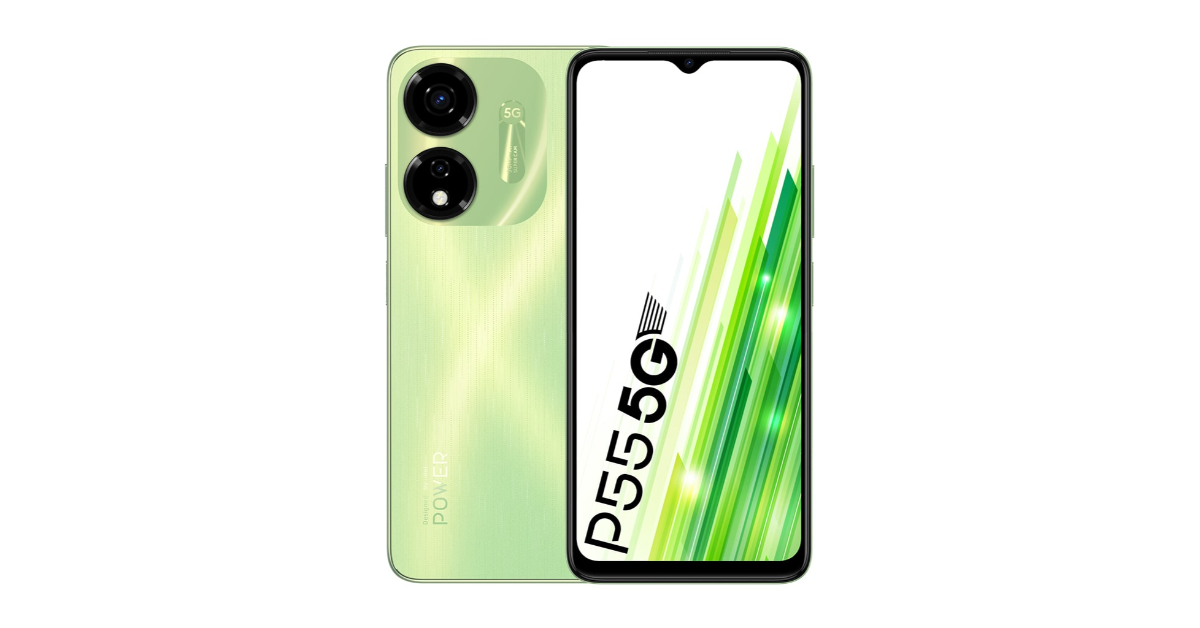
Itel has launched two new smartphones in India- Itel P55 and Itel P55+. Both smartphones are priced under Rs 10,000. They are powered by Unisoc T606 SoC with support for Memory Fusion technology. The device features an AI-powered 50-megapixel dual rear camera. The budget smartphones also include a 5,000mAh battery with 45W fast charging support.
Itel P55, Itel P55+ price in India, sale details
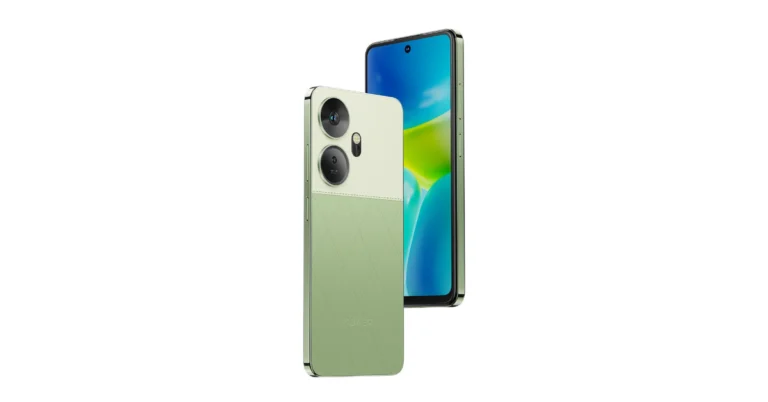
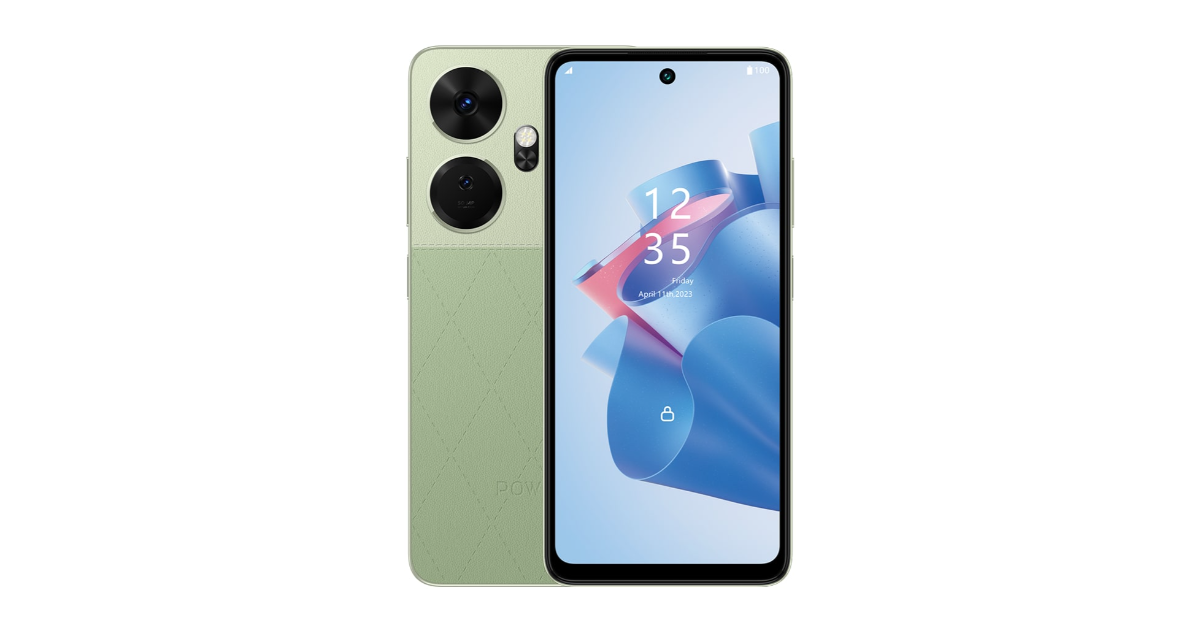
Itel P55 will be available with 4GB RAM and a 128GB storage option priced at Rs 6,999. While the 8+16GB RAM with 128GB variant will be available offline for Rs 8,999. It comes in three colour options of Aurora Blue, Moonlit Black and Brilliant Gold. On the other hand, Itel P55+ comes with a price tag of Rs 9,499 for 16GB RAM with 256GB storage. It will be available in two Meteor Black and Royal Green (Vegan Leather finish) options.
The devices are scheduled to go on sale on February 13 in the country at noon via Amazon. There is an introductory offer of a Rs 500 discount on both the itel P55 and P55+ models with bank offers.
Both Itel P55 and Itel P55+ feature a 6.6-inch HD+ display with 720 x 1,640 pixels of resolution and a refresh rate of 90Hz. The screen also has a Dynamic Bar feature that shows notifications and more. The devices run on Android 13 and are powered by an octa-core Unisoc T606 SoC with Memory Fusion technology.
Itel P55 and Itel P55+ come with an AI-powered 50-megapixel dual rear camera setup. The handset also includes an 8-megapixel front-facing camera for taking selfies. Both phones have a 5,000mAh battery. The P55 comes with 18W charging support while the P55+ includes 45W fast charging support which takes from 0 to 100% in just 72 minutes, or 70% in just 30 minutes.
Commenting on the launch, Mr. Arijeet Talapatra, CEO, itel India said, “Our power series of phones remains ever-popular with users opting for advanced processing capabilities and extended battery life on their smartphones. The introduction of the itel P55 and P55+ is a massive addition to our portfolio, underscoring our dedication to innovation, blending unparalleled features, sleek aesthetics, and cutting-edge technology, all wrapped in competitive price points. The introduction of the Android 14 Go OS is a worldwide first and will help users access multiple applications simultaneously. Our focus remains on bringing the best possible features to the masses of India, and the launch of the new Power series at such an unbelievable price point solidifies our position in the sub-10K market as brave innovators.”
Garena Free Fire is a battle royale game with regular awards and tournaments to keep players interested. If you play Garena Free Fire, you should be aware of the redeem codes that are released on a daily basis. However, because the battle royale game is banned in India, players from other countries can use the Free Fire Redeem codes daily. If you’re unfamiliar with the Garena Free Fire redeem codes or don’t know how to get them, we’ve put together a step-by-step guide to help you redeem them. Check out Garena Free Fire Redeem Codes for 9 February 2024.
The Free Fire redeem codes are a great way to get free stuff. These are 12-digit codes that contain alphabets and numbers, as well as an expiration date and time. Because the Garena FF redeem codes cannot be used more than once, you should hurry to the redemption page to claim your free reward before someone else does. To get a free reward, all you have to do is go to reward.ff.garena.com/en, which is the official redemption page. Also, keep an eye on this space for daily updates on Garena Free Fire redemption codes and rewards.
iQoo has started taking pre-orders for the Neo 9 Pro via its official website in India and also on Amazon.
But ahead of the official launch, the price of the upcoming phone has leaked on the web.
Those booking the device in advance will receive a discount of Rs 1,000.
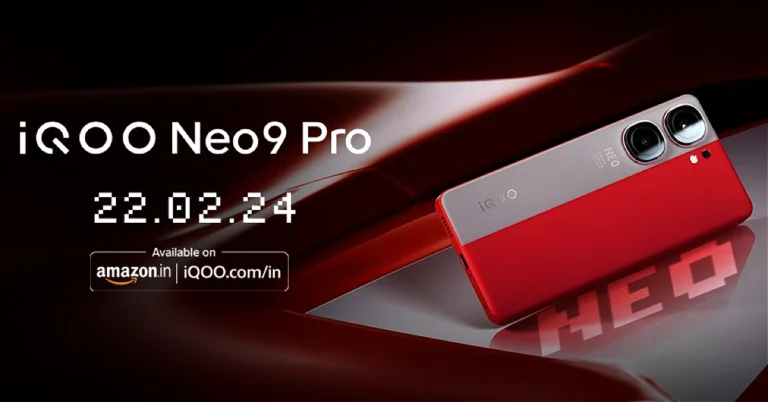
iQoo Neo 9 Pro is set to launch in India on February 22 but before the official announcement, the price of the upcoming phone has surfaced on the web. The company also started taking pre-orders for the smartphone today via Amazon and its official website. The phone is confirmed to come with a Snapdragon 8 Gen 2 SoC. It will feature a dual-tone rear panel.
According to the tipster, iQoo No 9 Pro will be available with a price tag of Rs 34,999 in India for 8GB RAM with 256GB storage. The tipster shared a screenshot of the product page which also mentions a bank offer of Rs 3,000.
The handset is also listed to come in a 12GB RAM with 256GB storage option which is expected to be priced around Rs 40,000.
As we mentioned earlier, the iQoo Neo 9 Pro pre-order window opened in India today via Amazon and iQoo’s official website. Consumers who wish to reserve the phone in advance must pay a 1,000 Rupee refundable deposit. As per the company, the device will come with 2 2-year warranty (including 12 months extended warranty). Post-launch, the device will be available for purchase via Amazon in the country. The company has also created a dedicated microsite to tease its availability.
iQoo No 9 Pro will be featuring a dual-tone rear panel. The back of the phone is confirmed to sport a leather finish in shades of grey and vibrant red. In addition, there is a dual camera on the back panel which is expected to include a 50-megapixel IMX920 primary sensor with OIS and an 8-megapixel ultra-wide lens.
As per the official listing, the device will come in two colour options of Conqueror Black with a shiny finish and Fiery Red with a dual-tone faux leather finish.
The company has already confirmed that the Snapdragon 8 Gen 2 SoC has been used for the iQoo Neo 9 Pro in India instead of the MediaTek Dimensity chipset used for the Chinese variant. Yes, under the hood of the iQoo Neo 9 Pro in China is a MediaTek Dimensity 9300 SoC. It is likely to come with a 6.78-inch LTPO AMOLED display with a 144Hz refresh rate. The display will offer 3,000 nits of peak brightness. It is expected to house a 5,160mAh battery with 120W wired fast charging support.
Fujifilm Instax Pal features a multi-use detachable ring.
Pal camera comes loaded with multiple features.
The digital camera can connect with the Instax Link Printer Series.
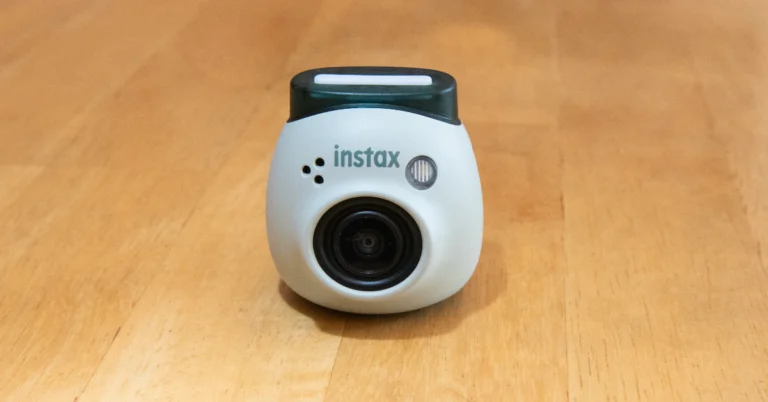
Fujifilm India has released a new palmed-sized portable camera- Instax Pal in India. It has an eye-catching design and comes in a compact form factor. It is a mini version of the popular Instax camera by the company allowing clicking pictures quickly anytime and anywhere. The camera will be available in distinct shades with a multi-use detachable ring.
Speaking about the new launch, Mr. Koji Wada, Managing Director, of FUJIFILM India, said, “As the younger and upcoming generations embrace effortless and convenient photography to freeze timeless moments in their fast-paced lifestyle, they are looking for trendy options that match their vibe. Catering to this segment, the newly launched INSTAX Pal ensures that impressive photography fits in everyone’s hands which has been our mission with the Instax series for the past 25 years. It also enables users to preserve their beloved moments within their pockets with on-the-go printing. At Fujifilm India, we are committed to making future-ready cameras that deliver pictures with unparalleled finesse.”
Fujifilm Instax Pal price in India, availability
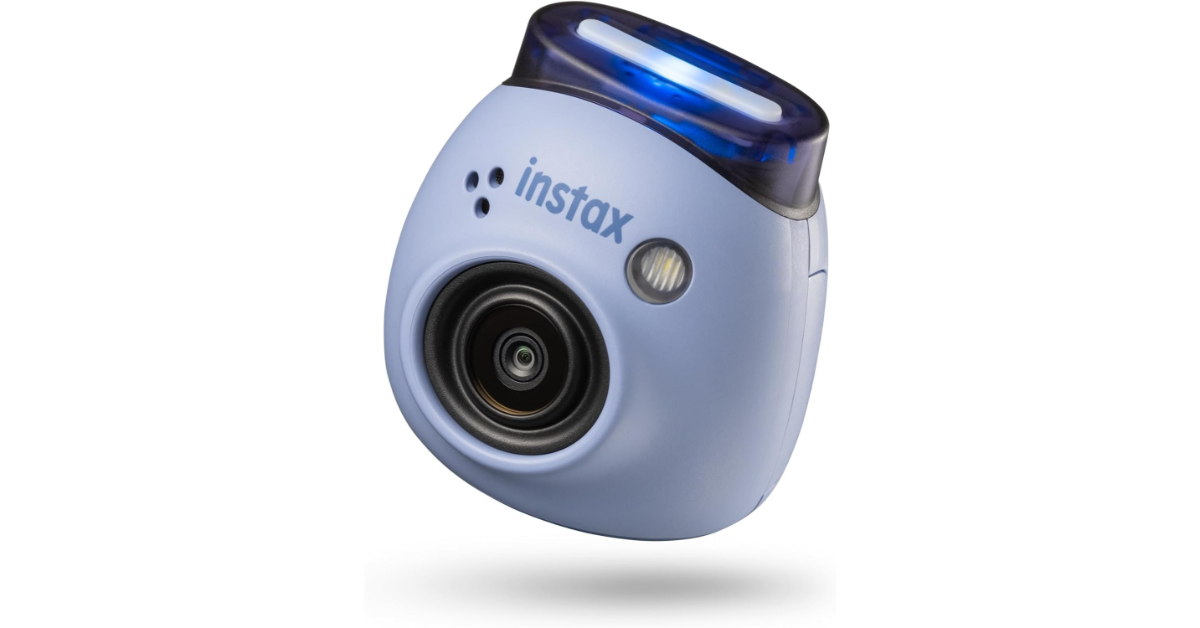
Fujifilm Instax Pal has been launched in India with a price tag of Rs 10,999. The portable camera will be available in five colour options of — Gem Black, Powder Pink, Pistachio Green, Lavender Blue and Milky White. The camera can be purchased via Fujifilm India retail stores and website. Users also have the option to pair their Instax Pal with separate silicone cases that include a strap carabiner and a Link Mode switch, enabling quick photo printing using the Instax Link Series printers right after capturing the image.
Fujifilm Instax Pal is a compact palm-sized digital camera that allows users to capture spontaneous moments and memories. To shrink the camera size, the company has removed the printing function. It comes with a multi-use detachable ring for easier hold in hand and work as a stand.
The Instax camera has an array of features making shooting photos in various settings more enjoyable and easy. The Standard Mode, activated by pressing the shutter button on the rear panel, utilises a wide-angle lens to capture high spots or sharp angles. Therefore, users may click images with just one hand, something that smartphones frequently struggle with.
Additionally, the Remote Mode lets users remotely capture group or selfie pictures and view the images as they are shot by pairing the camera with a smartphone via Bluetooth and the Instax Pal app. With the interactive app, one can also resize the photos in mini, Square or Wide formats and add emojis, stickers or text to the images. Additionally, the Interval Mode grabs a continuous series of photographs at a three-second interval.
Pal can connect with Instax Link Printer Series – Mini Link 2, Wide Link and Square Link and other Instax cameras – Mini LiPlay and Mini EVO, enabling users to print clicked images as Instax prints in various sizes
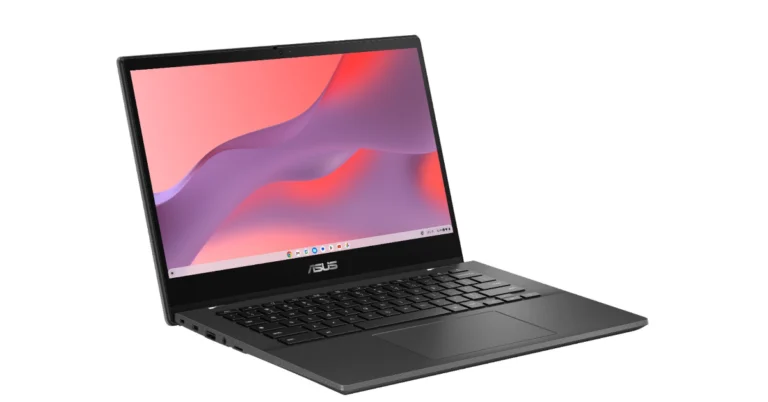
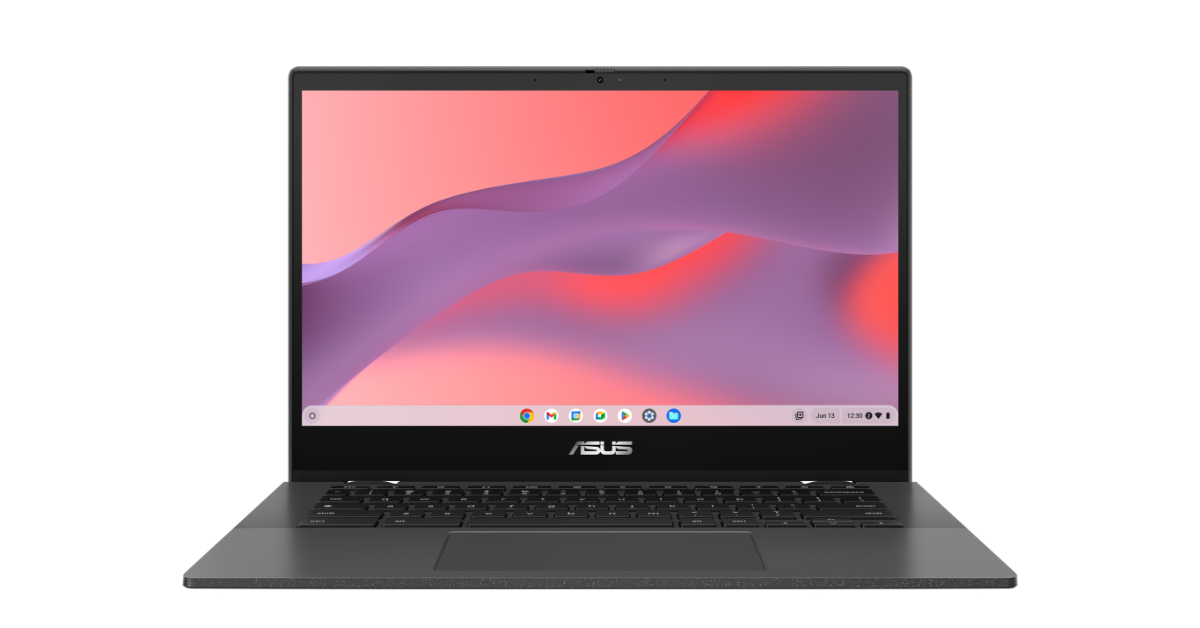
Asus Chromebook CM14 allows to run Linux PC apps as ChromeOS supports Linux backend runtime.
The device has an integrated physical shutter that simply slides over the webcam for privacy.
The laptop also features a 14-inch FHD LED Backlit Anti-glare touch display.
Asus has launched Chromebook CM14 (CM1402CM2A) in India today. The new Asus laptop is powered by MediaTek Kompanio 520 Processor. The machine comes with the latest version of ChromeOS. It features a 720p web camera with a physical shutter for added privacy. The laptop also comes with MIL-STD 810H US military-grade durability certification.
Asus Chromebook CM14 (CM1402CM2A) specifications
The Asus Chromebook CM14 (CM1402CM2A) is highlighted with a 14-inch FHD LED Backlit Anti-glare touch display with 1920 x 1080 pixels of resolution. The screen has a 77% Screen Body Ratio offering 220 nits Brightness and 45% NTSC Colour Gamut. The machine comes with the US MIL-STD 810H military-grade standard. Under the hood, there is Octa-Core MediaTek Kompanio 520 that comes with Arm Mali G52 MC2 2EE GPU. It is available with 8GB LPDDR4X RAM and 128GB eMMC 5.1 storage. The device also includes a Micro SD card reader.
It runs on the latest version of Chrome OS with Google Play offering a rich library of Android apps, games, music, movies, TV, books and more. The company is promising to provide a 12-month Google One subscription. The membership includes 100 GB of cloud storage to use across Google Drive, Gmail and Google Photos, plus many other benefits. Also, there is an Asus WiFi Master for ChromeOS for improved speed, stability, and range. It comes with integrated dual-band Wi-Fi 6 to ensure stable signals and superfast speeds.
The Asus Chromebook CM14 has a full-sized spill-resistant keyboard with 1.5 mm key travel. The touchpad measures 5.8 inches across the diagonal providing smooth, responsive, expansive and comfortable gesture inputs. Both the keyboard and touchpad are protected by ASUS Antimicrobial Guard proven to inhibit bacterial growth by up to 99% over 24 hours, keeping the Chromebook CM14 series cleaner and safer
Additionally, the notebook sports a 720p HD camera with a physical shutter for added privacy. The Chromebook equips a 42wh 2S1P, 2-cell Li-ion Battery offering up to 15 hours of endurance on a single charge.
Asus Chromebook CM14 (CM1402CM2A) price in India and sale details
Asus Chromebook CM14 (CM1402CM2A)comes with a starting price of Rs 26,990. It is offered in a single Gray colour option. The laptop can be purchased by Amazon in the country.
Garena Free Fire is a battle royale game with regular awards and tournaments to keep players interested. If you play Garena Free Fire, you should be aware of the redeem codes that are released on a daily basis. However, because the battle royale game is banned in India, players from other countries can use the Free Fire Redeem codes daily. If you’re unfamiliar with the Garena Free Fire redeem codes or don’t know how to get them, we’ve put together a step-by-step guide to help you redeem them. Check out Garena Free Fire Redeem Codes for 8 February 2024.
The Free Fire redeem codes are a great way to get free stuff. These are 12-digit codes that contain alphabets and numbers, as well as an expiration date and time. Because the Garena FF redeem codes cannot be used more than once, you should hurry to the redemption page to claim your free reward before someone else does. To get a free reward, all you have to do is go to reward.ff.garena.com/en, which is the official redemption page. Also, keep an eye on this space for daily updates on Garena Free Fire redemption codes and rewards.
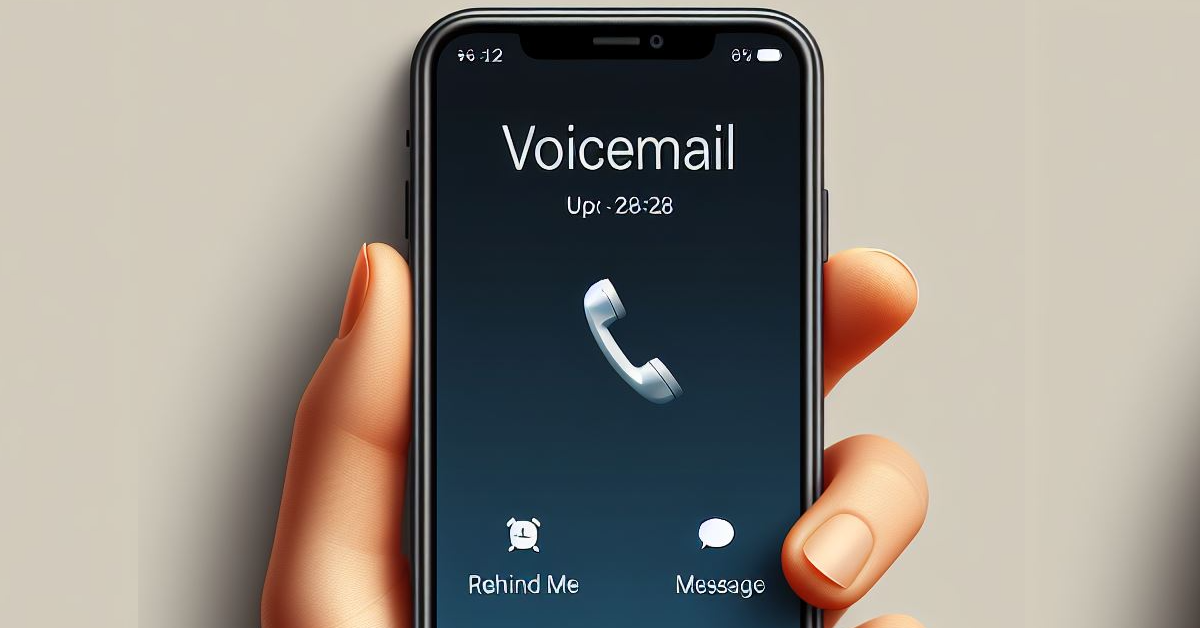
When someone sends you a voicemail after dialling your number, it doesn’t show up as a ‘missed call’ on your phone. This is because the call did technically go through and the caller was able to reach you via voicemail. This can be quite a conundrum as some users prefer receiving missed call alerts for phone calls that they did not pick up. If you are one of them, you may want to consider discontinuing voicemail services on your phone. Today, we bring you the top 4 ways to turn off or deactivate voicemail on an iPhone.
Now that smartphones are heavily reliant on an internet connection, voice mails have become obsolete. If your phone is connected to the internet at all times, you don’t need a voicemail to receive important messages while you’re away. Most instant messaging apps, including iMessage, allow users to send voice messages. These messages are received instantly, given your phone has an active internet connection.
Some apps also allow users to send ephemeral voice notes. This means the voice notes self-destruct once the recipient has listened to them. If you don’t use an instant messenger, the caller can always contact you on social media platforms.
Use a dial code
The easiest way to turn off your voicemail is by using a dial code. Here’s how.
Step 1: Launch the Phone app on your iPhone.
Step 2: Switch to the Keypad tab.
Step 3: Enter #004#.
Step 4: Hit the Call button.
Step 5: Hit Dismiss in the popup box.
Fill up the mailbox
If you fill up your voicemail inbox with messages, no one else will be able to leave new messages on it. You will need another phone for this method.
Step 1: Put your iPhone in Airplane Mode using the Control Centre. This is done to ensure any incoming calls are directed to your voicemail.
Step 2: Using another phone, call your number.
Step 3: Start leaving voicemails until your inbox is full. Typically, it should take between 30-40 voicemails to fill up your inbox.
Once full, no one will be able to reach your voicemail.
Use an MMI code
Step 1: Launch the Phone app and switch to the keypad.
Step 2: Enter *#61# and hit Dial.
Step 3: Write down the mailbox number on a piece of paper and hit Dismiss.
Step 4: Go to Settings and select Phone.
Step 5: Tap on Call Forwarding.
Step 6: Turn on the toggle switch and tap on Forward To.
Step 7: Enter the mailbox number. Save the changes.
Step 8: Go back to the Phone app and switch to the Keypad tab.
Step 9: Enter ##004# and hit Dial.
Step 10: All voicemail services will be deactivated on your phone. Hit Dismiss.
Contact your network provider
If you don’t wanna go through the deactivation process on your phone, you can directly call your network provider and get them to cancel the voicemail service for your number. Here are the helpline numbers of the major network carriers.
Verizon: 1-800-922-0204
AT&T: 1-800-331-0500
T-Mobile: 1-800-937-8997
Xfinitiy: 1-888-936-4968
Frequently Asked Questions (FAQs)
How do I turn off voicemail on my iPhone?
The universal dial code for deactivating voicemail is #004#. If that doesn’t work, contact your network carrier.
How do I change my voicemail greeting on an iPhone?
To change your voicemail greeting, go to Phone>Voicemail>Greeting>Custom>Record and record the message. Hit ‘Save’ once you’re done.
How do I delete all voicemails at once?
Go to Phone>Voicemail>Edit, select all the messages one by one, and hit ‘Delete’.
These are the top 4 ways to turn off or deactivate voicemail on your iPhone. If you know of any other way to accomplish this task, let us know in the comments. While you’re here, check out this article to learn how to change your voicemail greeting on an iPhone. This article explains how to carry out the same process on your Android phone.
The Amazfit Active smartwatch will go on sale tomorrow.
The device supports BT calling and Alexa for hands-free control.
The wearable comes with 120+ sports modes.
Popular smart wearable brand focusing on health and fitness, Amazfit today announced the launch of the Amazfit Active smartwatch in India. The device features a 1.75-inch HD AMOLED display with a stainless-steel frame. In addition to this, it includes health monitoring features like 24-hour heart rate, SPO2 and stress monitoring. Additionally, it offers more than 120 sports modes along with 5 satellite positioning systems and route navigation.
Amazfit Active price in India, sale details
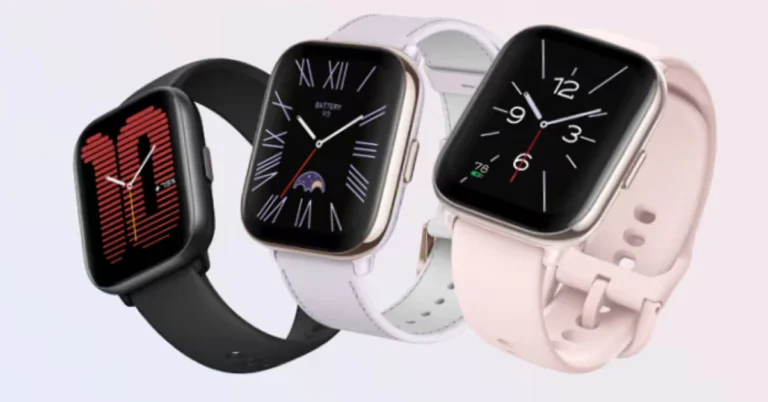
Amazfit Active price in India is set at Rs 12,999. The smartwatch comes in three colour options of Lavender Purple, Midnight Black, and Petal Pink. Customers can purchase the Amazfit active on the company’s website, Amazon and select offline stores.
Amazfit Active specifications
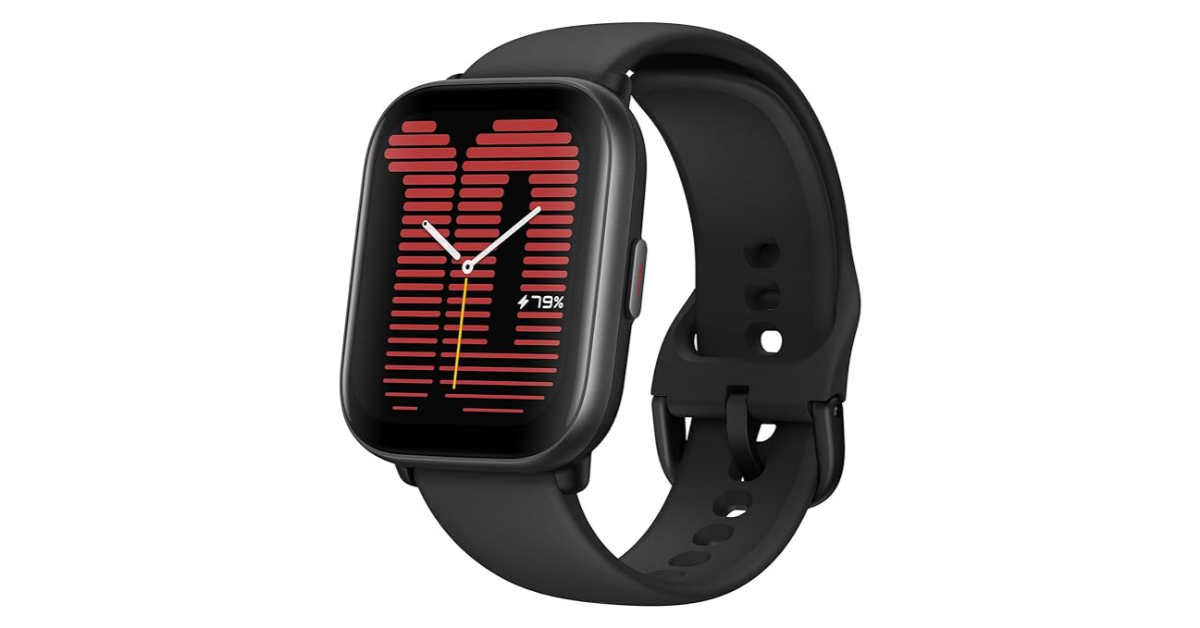
Amazfit Active has a lightweight design and weighs only 24g though it has a robust aluminium alloy middle frame. It also has a smooth, skin-friendly silicone strap. The smartwatch features a 1.75-inch HD AMOLED display with 390 x 450 pixels of resolution, 341 ppi and 73% screen-to-body ratio. The device also supports an always-on display feature.
With its AI-powered personal coach, Zepp Coach users can benefit from customised exercises for all training backgrounds. The Zepp Coach introduces scientific training methods, evaluating the user’s physical fitness, fatigue level, and training status based on exercise intensity.
Whereas the innovative Readiness Score on the watch evaluates your level of physical readiness each morning based on information about heart rate, stress, sleep, heart rate variability, respiration, and temperature. The Readiness Score provides personalised suggestions for the day, contributing to overall well-being based on both mental and physical recovery.
Amazfit Active also includes health monitoring features like 24×7 heart rate, blood-oxygen saturation, and stress level monitors. Additionally, it supports over 120 sports modes. Moreover, it comes equipped with five satellite positioning systems that ensure precise navigation. The built-in microphone and speaker enable seamless communication. It also supports Bluetooth calling. Users can also take control of their phone’s music directly from the watch. The Amazfit Active comes with built-in Amazon Alexa, serving as a smart assistant on the wrist.
The Infinix Smart 8 features a 50MP dual-AI camera.
The device comes with a 6.6-inch HD+ display with a 90-Hz refresh rate.
The phone runs on Android 13 Go Edition-based XOS 13.
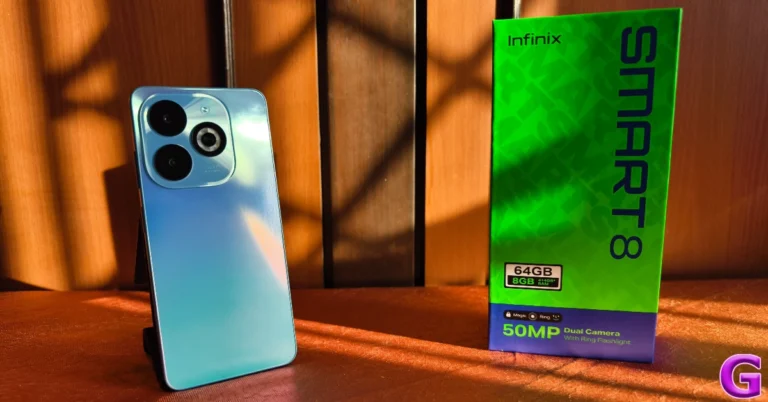
Infinix Smart 8 new variant has launched in India. At the time of launch in January, the company introduced it in a single 4GB RAM with 64GB of storage. But the firm has introduced a new 8GB RAM with 128GB storage option. Infinix Smart 8 is powered by MediaTek Helio G36 SoC and is shipped with Android 13 Go Edition-based XOS 13. The handset comes equipped with a 5,000 mAh battery.
Infinix Smart 8 new 8GB RAM with 128GB storage model has been introduced with a price tag of Rs Rs 7,999 in the country. The new model will be available via Flipkart in the country on February 8 at noon.
Infinix Smart 8 was launched in India last month after its global debut with 4GB of RAM with 64GB of storage variant priced at Rs 7,499. The handset is offered in Galaxy White, Rainbow Blue, Shiny Gold, and Timber Black colour options.
Infinix Smart 8 specifications
The Infinix Smart 8 comes with a 6.6-inch HD+ display with 1,612 x 720 pixels of resolution. The screen comes with a 90Hz refresh rate and a touch sampling rate of 180Hz. The panel supports 500 nits of peak brightness. It also features a Magic Ring feature akin to Apple’s dynamic island. The expandable notch feature enables functions such as face unlock, background call management, charging animations, and charge completion reminders, adding a layer of convenience and personalisation for users.
An octa-core Unisoc T606 SoC powers it with 8GB of LPDDR4X RAM and 128GB of eMMC 5.1 storage. The smartphone also includes an expandable RAM feature, while the internal storage can be further expanded up to 2TB using a microSD card. The device operates on XOS 13 skinned over Android 13.
The mobile phone sports a 50-megapixel main sensor, an AI camera, and a quad-LED Ring flash for photos and videos. In terms of selfies, there is an 8-megapixel front-facing camera with an LED flash.
In terms of connectivity, there is dual 4G, nano SIM, Wi-Fi, Bluetooth 5.0, GPS, GLONASS, and a USB Type-C port. Additionally, the handset packs a 5,000mAh battery.
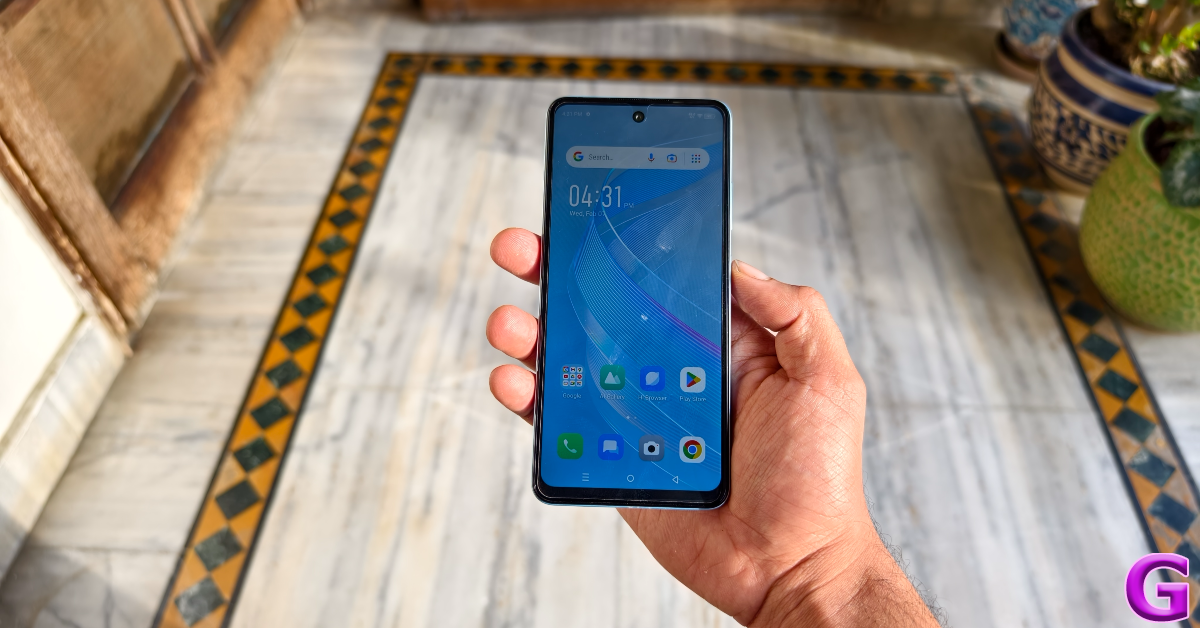
Last month, Infinix added another budget smartphone to its Smart 8 Series. Earlier, we reviewed the Smart 8 HD smartphone, which is currently priced at Rs 6,299. The new Smart 8 is priced slightly higher at Rs 7,099 and packs some important updates. Under the hood, it is powered by the MediaTek G36 chipset. While its design remains largely unchanged, the rear camera module gets a new 50MP primary shooter. The Smart 8 is also available in a 4GB RAM variant, with an 8GB RAM model about to launch soon. Keen to check out the new updates, we used the Infinix Smart 8 for a week, here is our in-depth review of the Infinix Smart 8 smartphone.
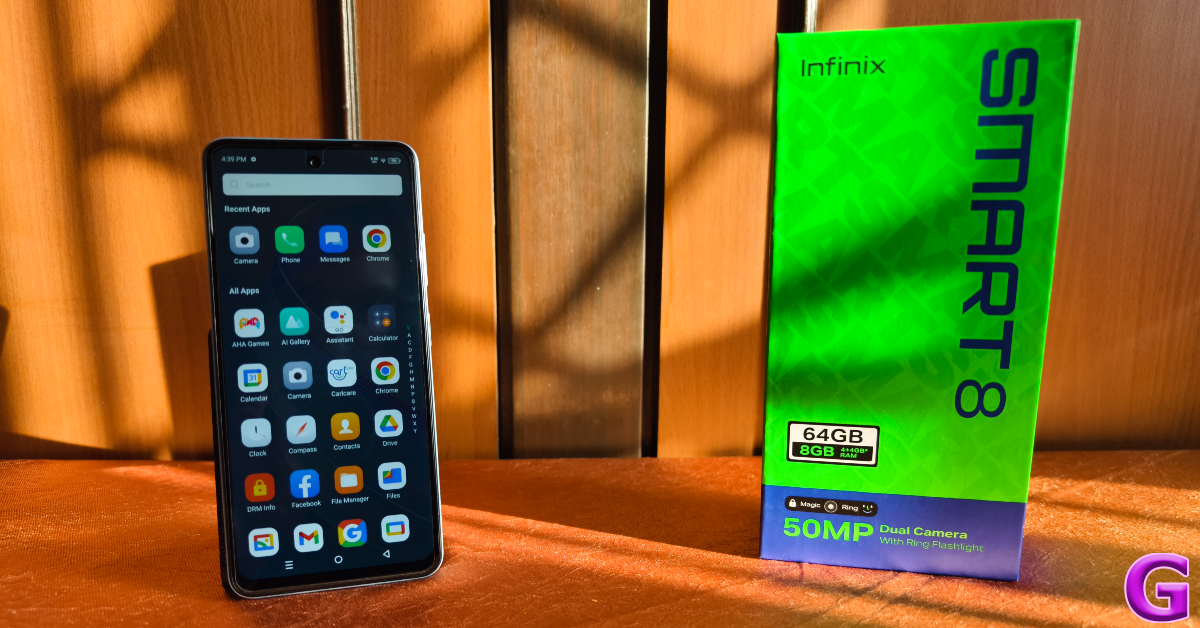
Inside the Infinix Smart 8 retail box, you get the smartphone, a 10W power adapter, a USB Type-C cable, a clear (hard) plastic case, a SIM ejector tool, a user manual, and a warranty card. There are four colour variants on offer – Galaxy White, Rainbow Blue, Shiny Gold, and Timber Black.
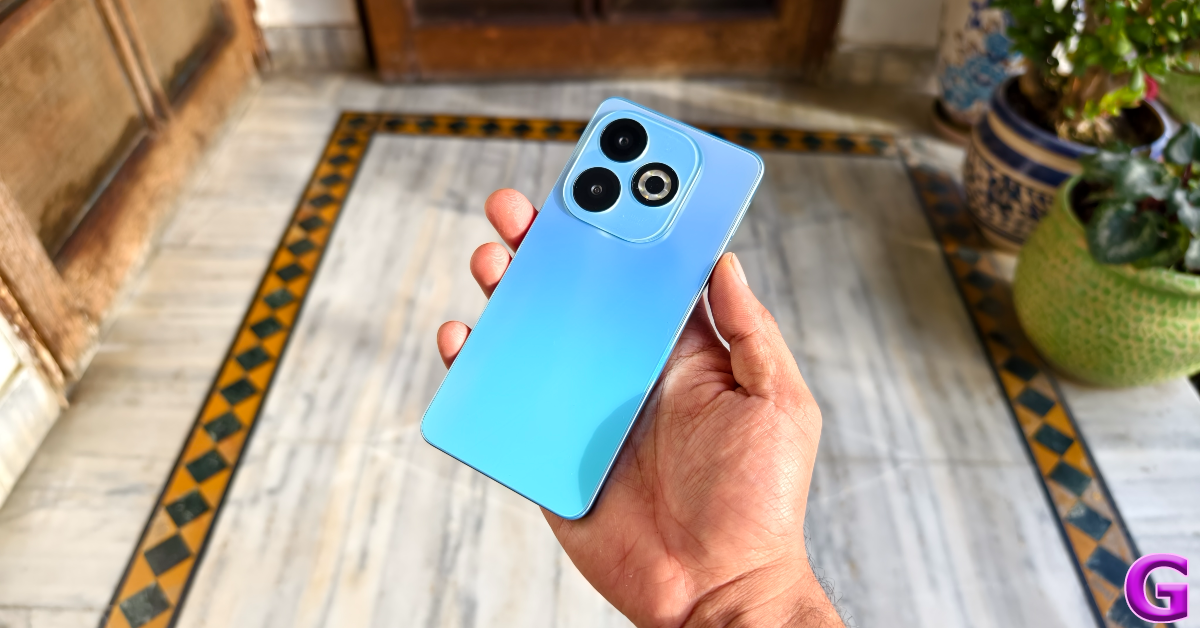
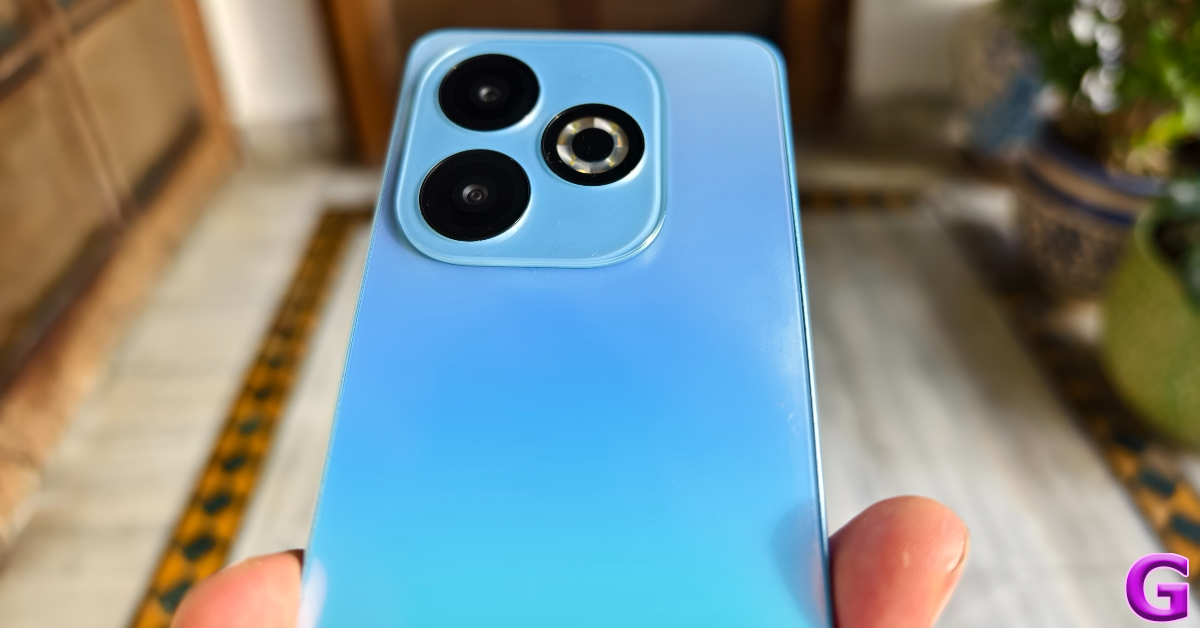
Infinix Smart 8 follows the design language of the ‘HD’ model, which was launched in December 2023. The two lenses and the ring LED flash at the back are aligned in a triangular formation, much like the newer crop of iPhones. Infinix has added a two-step camera panel to house the lenses and ring LED flash on the Smart 8 HD. We used the Rainbow Blue variant of the Infinix Smart 8 for this review. True to its name, it reflects a colourful pattern when light falls on the plastic back panel.
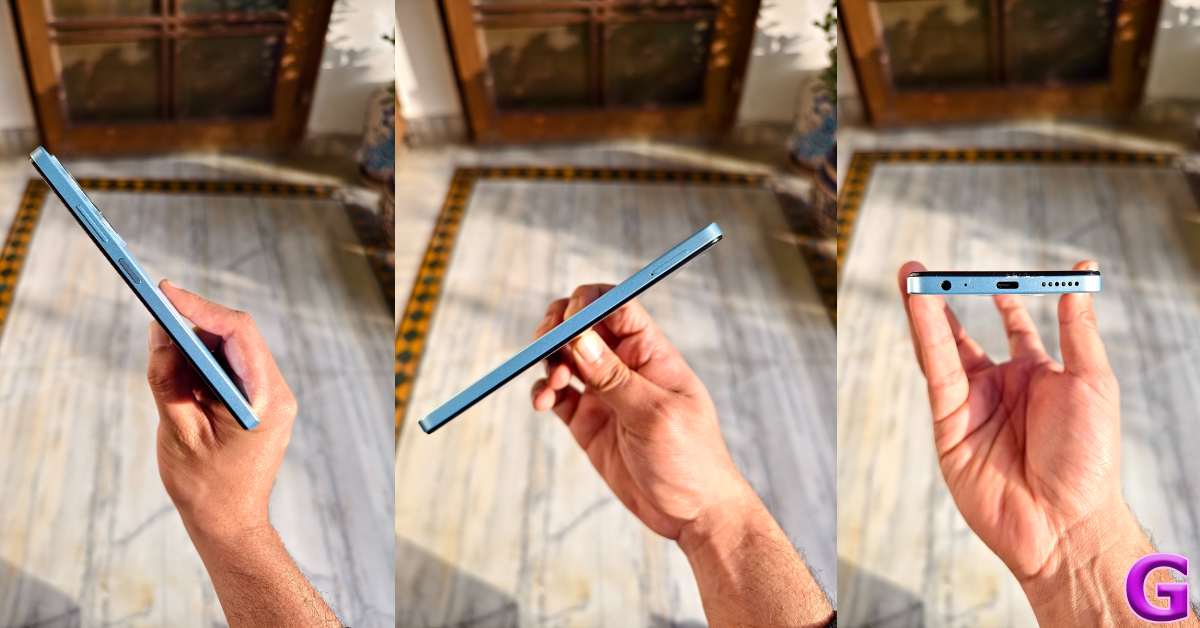
The right edge of the plastic frame houses the volume rocker key and the power button (that also doubles as a fingerprint scanner). On the left, you’ll find the hybrid SIM tray. The 3.5mm headphone jack, microphone, USB Type-C port, and speaker grille have been positioned at the bottom of the phone. There is no secondary microphone or speaker grille on the top edge.
Despite losing the ‘HD’ monicker, the Infinix Smart 8 has the same display panel as the Smart 8 HD. The 6.6-inch IPS LCD has a refresh rate of 90Hz and a peak brightness of 500 nits. This display is surrounded by sizeable bezels that get thicker around the chin. The selfie camera is housed in a punch-hole cutout, which Infinix calls the ‘Magic Ring’. This Magic Ring pops up with animations for Face Unlock, Background Call, Charging, Charge Completion, and Low Battery. It feels like a rudimentary form of Apple’s Dynamic Island. There is also a small LED notification light positioned above the top bezel.
The touch response offered by the 90Hz display is very fluid and smooth. The haptic feedback is sharper than what we’re used to seeing in this price range. The device does a good job of keeping up with the swipe gestures and doesn’t feel like it’s lagging. It is certainly one of the better displays we have played around with in this category. A peak brightness of 500 nits is fine if you’re using the phone indoors, however, under direct sunlight, you will need to cover the display with your palm to make it legible.
Watching video content on this 720 x 1,612p LCD panel is a fun experience. While it does not have Widevine L1 certification, the picture quality is just fine. The colours are punchy and the images are detailed. The primary speaker is loud albeit a bit tinny. You won’t feel the need to pull out your headphones while watching videos on the phone.
Infinix Smart 8: Performance and Cameras
Powering the Infinix Smart 8 is the MediaTek Helio G36 SoC, which is an improvement over the Unisoc T606 processor on the Smart 8 HD variant. The smartphone also packs 4GB RAM which is 1GB more than its ‘HD’ sibling. Both smartphones have an internal storage of 64GB. However, Infinix will launch the 8GB RAM + 128GB variant in India soon.
Being an entry-level smartphone, we didn’t expect the Smart 8 to excel at every task we threw at it. It takes a little time to load the apps, but there is no noticeable when they are running. Multitasking on the smartphone does not present any issues either unless you are crowding its memory with too many heavy tasks at once. Routine tasks like video and voice calling, social media browsing, media playback, and others are handled with ease.
While the MediaTek G36 processor is not meant for heavy gaming, it can handle titles like Garena Free Fire fairly well. The touch reception isn’t on par with the gaming smartphones in the category above and the phone does lose a few frames now and then, but the overall performance is passable. We used the smartphone during the winter, so it didn’t overheat easily. After 30 minutes of gaming, the internal temperature of the smartphone did rise slightly but it did not have any real effect on the performance.
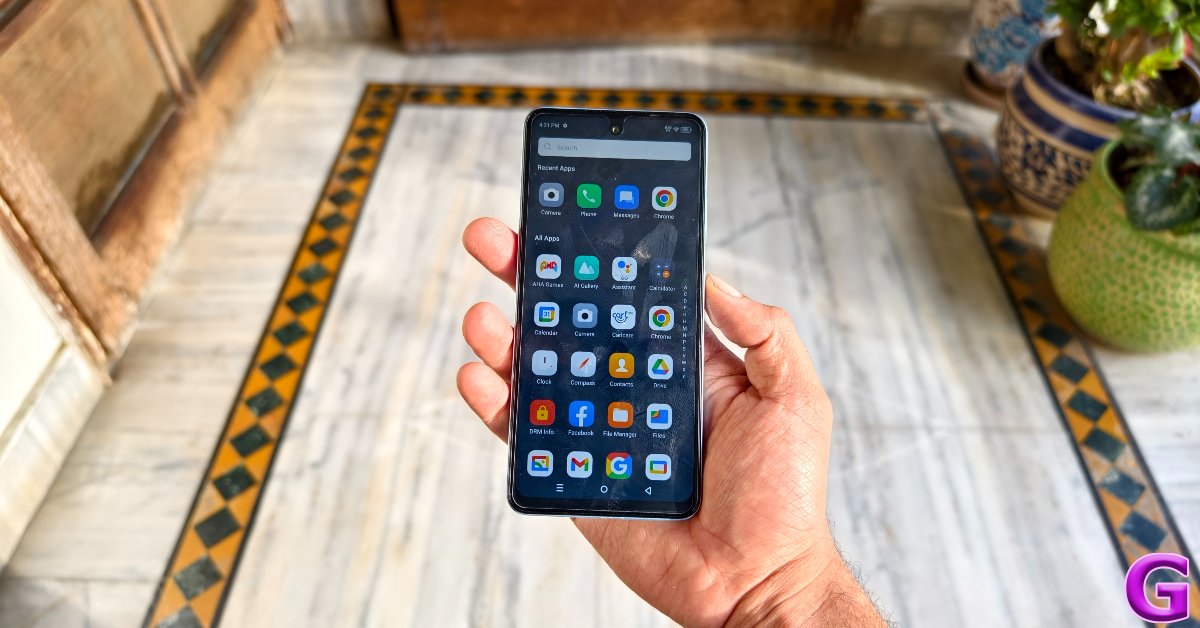
One of our favourite things about Infinix’s budget smartphones is the software experience. Unlike other devices in this category, the software experience is very clean. There are a couple of bloatware apps on the device, but they can be removed with ease. The Android-13-based XOS 13 is easy on the eyes and very accessible to use. The gesture controls offered by XOS bring a new level of accessibility to the smartphone. You can assign special functions to gestures like swiping up and down with 2 fingers, pinching in and out, clockwise and anti-clockwise rotation with 2 fingers, and more.
The 5,000 mAh battery pack can power the smartphone for an entire day. Our daily usage consisted of watching video content, sending and receiving emails, social media browsing, video calling, and gaming. On average, we were left with 10-15% at the end of the day. With 10W charging support, the Infinix Smart 8 can be fully charged in 3 hours. The smartphone also supports reverse-wired charging.
One of the bigger highlights of the Infinix Smart 8 is its 50MP camera, which we thoroughly used during the review period. This main sensor puts up a good performance in outdoor daylight conditions. The images produced are sharp and rich in colour. We were happy with the details that the 50MP sensor managed to capture. The contrast level in the images is certainly bumped up in the photoprocessing stage and the end results are ‘social media ready’ instead of being neutral, but that isn’t something we can hold against an entry-level smartphone.
The quality of the images takes a hit in limited lighting conditions. The Night Mode kicks in automatically in darker conditions but the images produced are soft and grainy. The camera app also has a Portrait Mode that does a good job of focussing on the object but doesn’t apply the optimum amount of blur in the background.
Selfies taken with the 8MP camera are a tag overprocessed. The smartphone applies a skin-smoothening effect to the selfies. On the bright side, you can use the LED notification light as a flash or fill light to take selfies at night. The camera app also has some fun face filters. The front and rear cameras can record 1080p and 720p videos at 30fps.
At Rs 7,099 (Flipkart), the Infinix Smart 8 is a great deal. The MediaTek Helio G36 chipset is a big improvement over the Unisoc processors we usually see in this price range. On top of that, a refined design and an updated camera lens are well worth paying an extra Rs 800 over the Smart 8 HD variant. Compared to other smartphones in this price bracket, Smart 8’s punch-hole cutout, LED notification light (which also acts as a front flash), and super-fast side-mounted fingerprint camera make it a very easy smartphone to recommend.
Over the last few years, mobile gaming has really taken off. FPS games like Fortnite, PUBG, and Call of Duty Mobile have been a huge success on the two major mobile platforms. While most of the big gaming titles are available on both platforms, there are some exclusive games that can only be played on Android. If you recently made the switch to an iPhone and can’t find your favourite game on the App Store, here are 5 methods that will help you download and play Android games on iOS.
Is it possible to run Android apps and games on iOS?
Android emulators for iPhones make it possible to run Android apps and games on iOS. Earlier, the only way to go about running an emulator on your iPhone was by jailbreaking the device. This deterred a lot of people as jailbreaking your iPhone voids its warranty. Depending on your location, jailbreaking may lie in a legally grey area.
However, most modern emulators do not require you to jailbreak your device. While you cannot download them directly, you can find them on third-party stores like Cydia and AltStore. Once installed, emulators can reproduce the Android environment on your iPhone. You may still face some lags and unexpected crashes while running the more demanding gaming titles, but the lighter games will run without any hiccups.
GBA4iOS
Game Boy Advance and Nintendo enthusiasts may have heard of the GBA4iOS emulator for iPhones and other iOS devices. The good news is that it can also support Android games for the iOS platform. Once you install the app on your device, you need to download the game’s ROM from Safari. The ROM can be directly loaded on the GBA4iOS app. iPhones running iOS 8 or below can directly download the emulator from the GBA4iOS website. Newer iOS versions need BuildStore to download the emulator. One of the advantages of using GBA4iOS is that you don’t need to jailbreak your device. The gameplay is smooth and you will rarely experience any lags or jitters.
Appetize
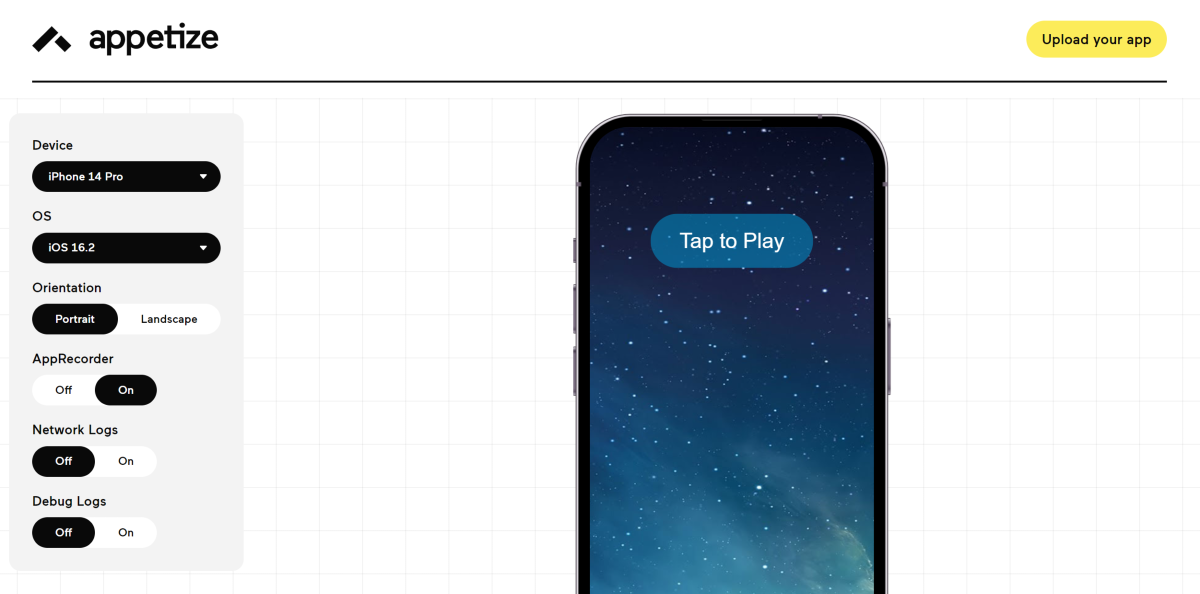
Appetize is another great emulator that lets you run Android apps and games on iPhone. This emulator runs the app on your iPhone’s web browser, so its functionality may be limited. However, it is still good for certain games and apps. One of the advantages of using Appetize is that you don’t need to download the Android app on your iPhone. First, you need to download Appetize from its official website and make an account on the platform. Once that’s done, hit ‘Upload’ to upload your Android file. Enter your email address upon opening the file. You will receive a link in your email inbox, using which you can run the app on your iPhone’s web browser.
Android
One of the popular Android emulators around, iAndroid makes it easy to play Android games on your iPhone. To get iAndroid on your iPhone, you need to download the Cydia app (from the official website). Once the app is downloaded, open it and go to Manage>Sources. Search for iAndroid and download it on your iPhone. Once iAndroid has been installed on your device, you can use it to simulate the Android OS experience and even download any app of your choice. You may face the odd jitter, but overall, this app works pretty well.
Dalvik Emulator
Dalvik is another emulator you can download from the Cydia Store to run Android games on your iPhone. This emulator works great on iPads as well. The process to download the Dalvik emulator is the same as iAndroid. Download Cydia from its official website, launch the app, and go to Manage>Sources. Search for Dalvik and install the emulator on your iPhone. Dalvik runs smoothly and does not cause a lot of crashes on your device. You can download unmodified versions of Android apps using this emulator.
iNDS Emulator
Popular for being one of the best Nintendo DS emulators for iOS, the iNDS emulator also lets you play some Android games on your iPhone. The good news is that you don’t need to jailbreak your iPhone to run this emulator. The app efficiently runs ROM files from a number of sources. The graphics are clean and smooth, pushing the gameplay to the optimum level. To get iNDS on your iPhone you need to download the Tweakbox app first. Once Tweakbox has been installed, launch it, go to the Menu, search for iNDS, and install it on your device.
Frequently Asked Questions (FAQs)
How do I play Android games on my iPhone?
Download the iAndroid emulator using the Cydia app to run Android apps and games on your iPhone. iAndroid is free to use and does not require any subscription to function.
How do I play Game Boy Advance games on my iPhone?
Apps like GBA4iOS, Happy Chick, Delta Emulator, and Provenance let you play games across all the major retro platforms on your iPhone. Read this article to learn more.
How do I play SNES games on my iPhone?
To play Super Nintendo games on your iPhone, download the Delta Emulator using AltStore. Read this article for a step-by-step walkthrough.
This is how you can download and play Android games on your iPhone. Most Android games offer cross-platform compatibility, meaning you can download them from the App Store on your iPhone and log in using your registered account so as to not lose any progress. If you know any other way to play Android games on your iOS device, let us know in the comments!
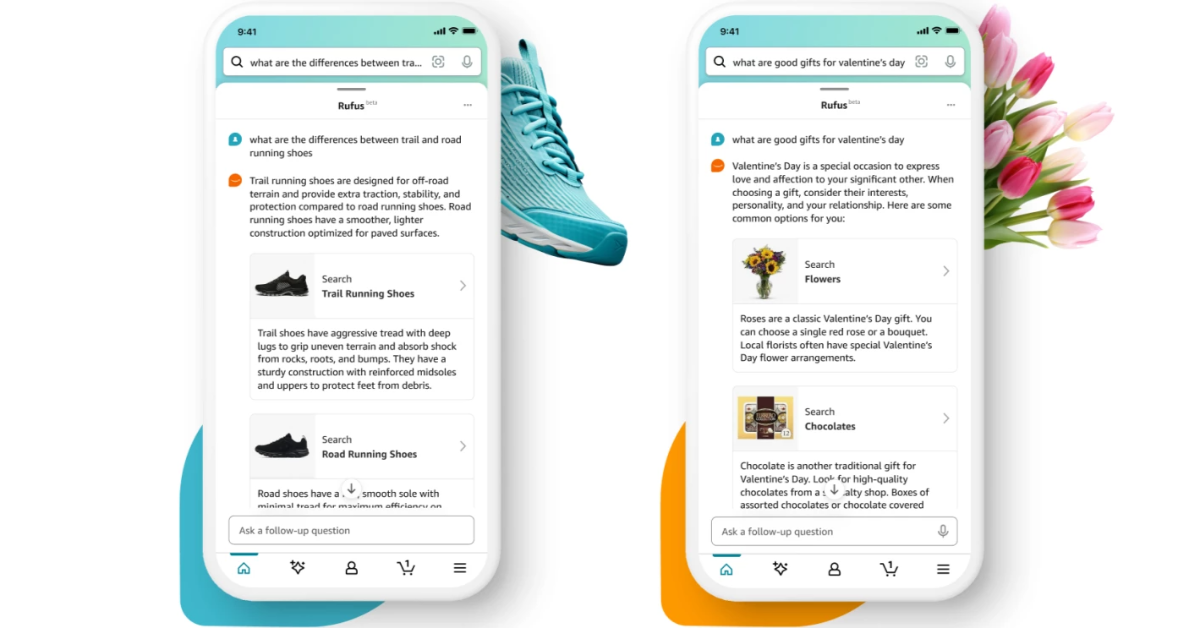
Rufus is being rolled out to select users in the US.
Rufus generates answers using relevant information from across Amazon and the web.
The AI chatbot can also do a comparison.
Amazon has finally joined the generative artificial intelligence (AI) competition, proving that it’s better late than never. The e-commerce platform has introduced Rufus, an AI-powered shopping assistant. The AI chatbot will handle recommendations and questions for you, making shopping even more convenient and easy. Rufus also allows for product comparisons.
Rufus will be your new shopping assistant on Amazon. After Alexa, the popular voice assistant the e-commerce platform will support the new generative artificial intelligence (AI) assistant. Rufus will be limited to the beta version of the Amazon mobile app in the US as it is under the testing phase. Once it is free from any bugs or difficulties the AI chatbot will be rolled out to all the users across the globe. “Rufus will progressively roll out to additional U.S. customers in the coming weeks,” the firm said.
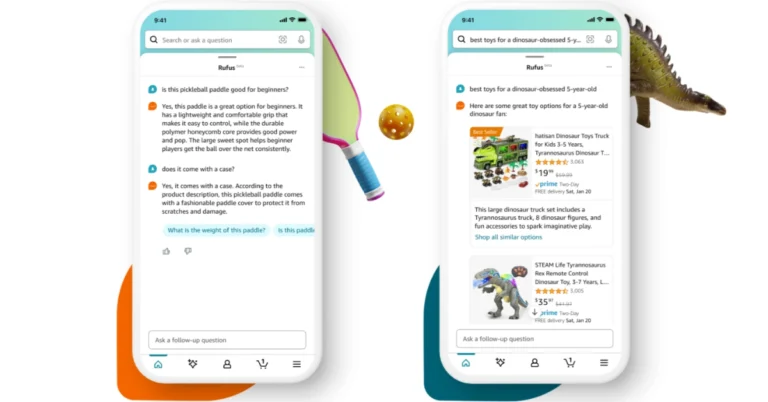
According to the tech giant, Rufus is an expert shopping assistant who has been trained on both the Amazon product catalogue and information from across the web to answer customer questions on shopping needs, products, and comparisons, make recommendations based on this context, and facilitate product discovery in the same Amazon shopping experience customers use regularly.
The blog post says, ” Rufus is a generative AI-powered expert shopping assistant trained on Amazon’s extensive product catalogue, customer reviews, community Q&As, and information from across the web to answer customer questions on a variety of shopping needs and products, provide comparisons, and make recommendations based on conversational context.”
Rufus is said to improve the shopping experience on Amazon by helping them find and discover the finest products to match their needs.
With Rufus, customers can learn what to look for while shopping product categories by conducting more general product research on Amazon. They can ask questions to the AI chatbot like “What to consider when buying headphones?”, “what to consider when detailing my car at home?”, or “What are clean beauty products?” to get better results. The Amazon AI Assistant can also help you shop for occasion or purpose. Rufus suggests shoppable product categories when you ask questions such as “What do I need for cold weather golf?” or “I want to start an indoor garden.”
Users can also make comparisons by asking “What’s the difference between lip gloss and lip oil?” or “Compare drip to pour-over coffee makers”
As mentioned earlier Rufus is currently under beta and will be available in the US to select users. Beta users of the Amazon Shopping app simply start typing or speaking their questions into the search bar in Amazon’s mobile app and a Rufus chat dialog box will appear at the bottom of their screen.
Consumers can tap on suggested questions, and ask follow-up questions by expanding the chat dialogue window. They can also swipe down to send the chatbot chat dialogue box back to the bottom of their screen to dismiss.
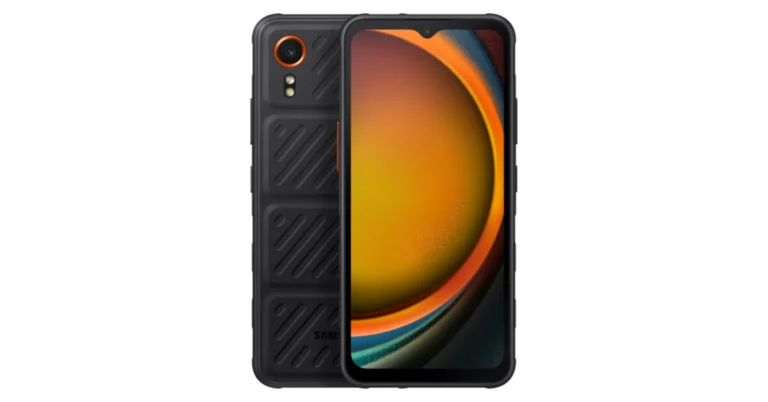
The Samsung Galaxy XCover 7 has launched in India.
The device comes in two variants Enterprise and a Standard Edition.
The smartphone has Gorilla Glass Victus protection and can withstand severe weather or similar hazards.
Samsung has officially announced the launch of its new rugged smartphone in India- Galaxy XCover 7. Prior to the launch the handset was listed on the device support page in India. The new device can withstand severe weather or similar hazards. The phone’s display is responsive when used while wearing gloves and features Gorilla Glass Victus protection on the front panel. It comes with an IP68-certified build and military-grade (MIL-STD-810H) durability. Besides this it has a 50-megapixel camera on its rear.
Samsung Galaxy XCover 7 price in India, sale details
Samsung Galaxy XCover 7 price in India starts at Rs 27,208 for the Standard Edition. Whereas the Enterprise Edition price is set at Rs 27,530. The new rugged phone comes in a single configuration of 6GB RAM with 128GB storage.
As per the company it will offer two years of warranty on the Enterprise Edition and one year on the Standard Edition. Additionally the firm will also offer a subscription for 12-months for Knox Suite on the more expensive Enterprise model.
Samsung Galaxy XCover 7 specifications
The Samsung Galaxy XCover 7 sports a 6.6-inch full-HD+ TFT display with 1,080 x 2,408 pixels of resolution. The screen comes with a refresh rate of 60 Hz and Corning Gorilla Glass Victus+ protection. The device displays also allow for adjustments to touch sensitivity, making them easy to use for workers wearing gloves. As per the company it has been extensively tested for use with sanitizers.
The device is IP68-rated for water and dust resistance and includes military-grade (MIL-STD-810H) durability. It is designed to be shock-resistant to drops of up to 1.5m.
In terms of software, the phone operates on Android 14 out of the box. Under its hood, there is a 6nm octa-core, believed to be a MediaTek Dimensity 6100 SoC with 6GB of RAM and 128GB of internal storage that can be expanded up to 1TB via a microSD card.
For photos and videos, the Samsung Galaxy XCover 7 features a single 50-megapixel camera with an f/1.8 aperture. In terms of selfies, there is a 5-megapixel front-facing camera. The rugged phone includes a customisable XCover key to enable shortcuts and improved productivity, as well as barcode scanning with Knox Capture. In addition to this, the speakers get Dolby Atmos audio support.
For connectivity, there is a USB Type-C port with Pogo pin connectors, 5G, GPS, GLONASS, Galileo, BeiDou, QZSS, and a 3.5mm audio jack. The sensors on the phone include an accelerometer, proximity sensor, geomagnetic sensor, gyro sensor, and proximity sensor.
Garena Free Fire is a battle royale game with regular awards and tournaments to keep players interested. If you play Garena Free Fire, you should be aware of the redeem codes that are released on a daily basis. However, because the battle royale game is banned in India, players from other countries can use the Free Fire Redeem codes daily. If you’re unfamiliar with the Garena Free Fire redeem codes or don’t know how to get them, we’ve put together a step-by-step guide to help you redeem them. Check out Garena Free Fire Redeem Codes for 7 February 2024.
The Free Fire redeem codes are a great way to get free stuff. These are 12-digit codes that contain alphabets and numbers, as well as an expiration date and time. Because the Garena FF redeem codes cannot be used more than once, you should hurry to the redemption page to claim your free reward before someone else does. To get a free reward, all you have to do is go to reward.ff.garena.com/en, which is the official redemption page. Also, keep an eye on this space for daily updates on Garena Free Fire redemption codes and rewards.
In the fast-evolving world of online gambling, the year 2024 marks a significant milestone, especially in the realm of Esports betting. This dynamic and rapidly growing segment has transformed from a niche interest into a global phenomenon, capturing the attention of millions and reshaping the landscape of online casinos.
The Current State of Esports iGaming
The global esports betting market, once valued at USD 0.9 billion in 2020, has witnessed a substantial surge, reaching USD 1.7 billion in 2022. This remarkable growth trajectory underscores the increasing influence of Esports as a major player in the online gambling sector. Key titles like NBA 2K, the FC Series, and NHL have become focal points for betting, creating a rich ecosystem for wagers and engagement.
The Integration of Technology in Online Casinos
The integration of advanced technologies such as Artificial Intelligence (AI), Virtual and Augmented Reality (VR and AR), and blockchain is revolutionizing online casinos. AI is increasingly used to personalize gaming experiences and analyze player behavior. VR and AR are enhancing the immersion of live dealer games, bringing a more realistic experience to online gambling. Blockchain technology, notably through cryptocurrencies, is gaining ground for its security and transparency advantages, leading to an increase in crypto-focused casinos.
Mobile Gaming: The New Frontier
The trend towards mobile-first design in online casinos is undeniable. The focus on mobile-friendly gameplay caters to the growing number of users who prefer the convenience of playing on their smartphones. This shift has led to innovations in game selection and user interface, making mobile gaming a key area of growth in the online casino industry.
The Expansion of Live Dealer and Skill-Based Games
Live dealer games have bridged the gap between land-based and online casinos, offering real-time interaction with live dealers. This sector is set to grow, with more innovative game formats being added. Similarly, skill-based games are on the rise, attracting players who enjoy a competitive aspect in their gaming experience. This aligns with the preferences of younger generations, broadening the player demographic.
Esports Betting: The New Mainstay
Esports betting is expected to continue its upward trajectory in 2024. This sector offers diverse betting options, from match-win bets to complex accumulators, catering to a wide range of strategies. The market is diversifying with more betting markets and options, particularly in competitive video game tournaments. This growth is not just limited to traditional Esports titles but is also expanding into virtual sports betting, providing alternatives to traditional sports betting.
The Ethical and Legal Landscape
As Esports betting grows, so do the ethical and legal challenges. Issues such as match-fixing, underage gambling, and addiction are of concern, necessitating strict policies and procedures to maintain integrity and protect individuals. The legal landscape varies globally, with some regions fully legalizing and regulating Esports betting, while others remain in a gray area.
The Future Outlook
The future of Esports betting in online casinos looks promising. With technological innovations, responsible gambling practices, and a focus on sustainability and security, the industry is poised for continued growth. The dynamic blend of gaming and betting is evolving into a significant segment of the gambling industry, offering an engaging way for fans to interact with their favorite games and teams.
In conclusion, 2024 is set to be an exciting year for the iGaming industry, with Esports betting at the forefront. This segment of online gambling is not just a passing trend but a significant, evolving part of the industry, set to provide thrilling experiences for players and bettors alike.
WhatsApp may be the most popular instant messenger around, but Telegram is by far the more feature-laden messaging app. The instant messaging app allows you to save messages and media from any chat into one easily accessible folder. In its newest update, the platform has made changes to this folder, making it more accessible. You don’t need to scroll all the way to the top to find a message anymore. Here is how you can use Saved Messages 2.0 on Telegram. Make sure you update the app to gain access to the newest set of features.
Telegram’s newest update brings new features for regular and premium users. The biggest of them all is ‘Saved Messages 2.0’ which now lets you sort your saved messages by chat. This makes it incredibly easy to locate old saved messages. The saved messages folder also has a ‘Shared Media’ tab that lets you view all the saved videos, pictures, and documents in one place. Premium subscribers can add emojis as tags to saved messages to categorise them even further.
The new update also lets you pause video messages and voice notes while sending them to a user. You can lock the record button and hit the pause icon to gather your thoughts before hitting play and continuing your message. You can also tap on the ‘view-once’ icon to make sure the message self-destructs after the recipient has viewed it. On top of that, you can view the exact time your message was read by the recipient simply by tapping on it.
How to Save a message on Telegram?
Step 1:Launch the Telegram app on your smartphone.
Step 2: Go to the chat containing the message that you want to save.
Step 3:Long-press the message and hit the forward icon at the top right corner of the screen.
Step 4: Select Saved Messages as the destination folder.
How to access and use Saved Messages 2.0 on Telegram?
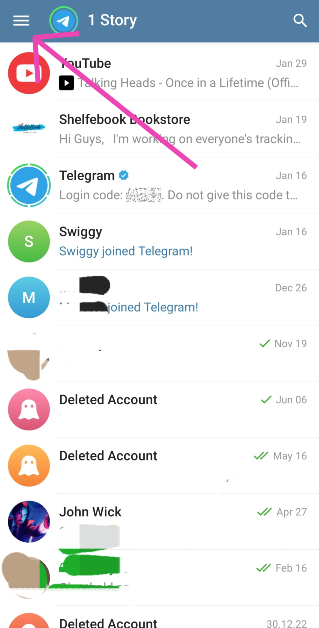
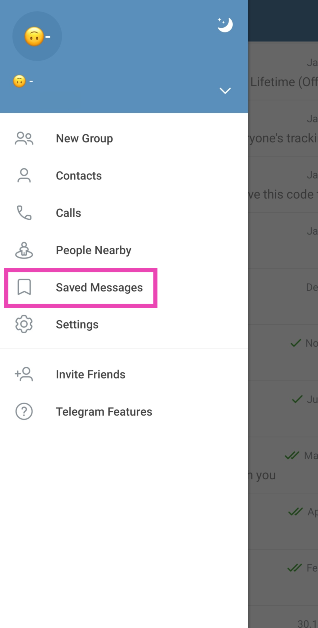
Step 1:Launch the Telegram on your phone and hit the hamburger menu at the top left corner of the screen.
Step 2: Select Saved Messages.
Step 3: All the messages you have saved from different chats will appear in one list-like pattern.
Step 4: You can send a message to this chat to save it as a note.
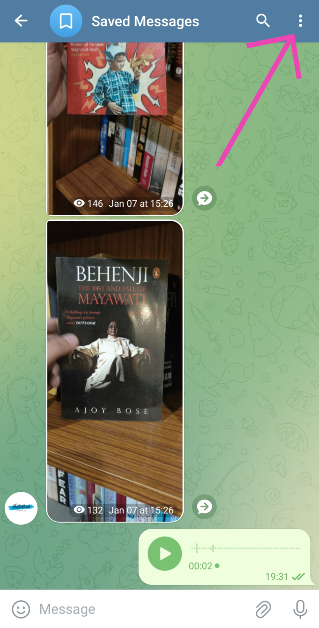
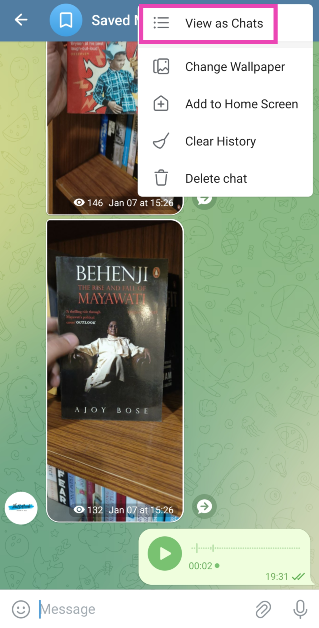
Step 5: To sort the messages by their respective chats, hit the ellipses at the top right corner of the screen and select View as Chats. You can also hit the banner to achieve the same result.
Step 6: Tap on a chat to view all the saved messages from it.
Step 7: Switch to the Media tab to view all the saved media files in one place.
Frequently Asked Questions (FAQs)
How do I save a message on Telegram?
Long-press the message, hit the forward sign, and select Saved Messages as the destination folder to save a message on Telegram.
Can I add tags to saved messages on Telegram?
Only Premium subscribers can add emojis as tags to their saved messages. These tags can be accessed by tapping the Search symbol in the saved messages folder.
How do I send a one-time voice recording on Telegram?
To send a one-time voice or video message on Telegram, press and hold its icon, lock it, and hit the view-once icon before sending.
This is how you can use the newly updated ‘Saved Messages 2.0’ feature on Telegram. You can use saved messages to send messages, documents, voice notes, video messages, and more to yourself. You don’t need to send a message to someone else in order to save it. Simply go to the saved messages folder and send the things you want to save.
One of the best aspects of buying from Apple is that you get reliable and quick assistance from the customer support staff whenever necessary. If your iPhone’s screen gets broken, you can get it repaired within a day from the Genius Bar at your local Apple Store. The only catch is that you need to make a reservation beforehand. If you walk into the store without one, you may have to wait for the current appointments to be over before getting your device checked. Today, we show you how to make a Genius Bar appointment at an Apple Store in the USA or UK.
Is something wrong with your Apple device? Here are your options
Not every problem with your device necessitates visiting the Apple Store Genius Bar. You can resolve most software issues at home with a little bit of troubleshooting and looking up help online. You may want to check out our ‘How To’ section for an answer to your problem. You can also use Apple’s customer helplines if you’re facing issues with one of the services.
US Helpline Numbers
1-800-275-2273: For general issues related to your device.
1-800-800-2775: For help related to Educational Devices.
1-877-204-3930: For help with issues related to Apple’s accessibility tools.
1-877-233-8552: For help with Apple Cash.
1-866-752-7753: For Enterprise customers.
UK Helpline Numbers
08000480408: Contact Apple Online Store.
08001076285: Contact Apple Customer Support.
08000582222: Contact Apple Store forBusiness.
08000480408: Contact Apple Store for Education.
However, if you’re facing a hardware-related problem on your device, you will need to visit an Apple Store or an Apple-authorised service centre to get it fixed. The process of making an appointment is very simple.
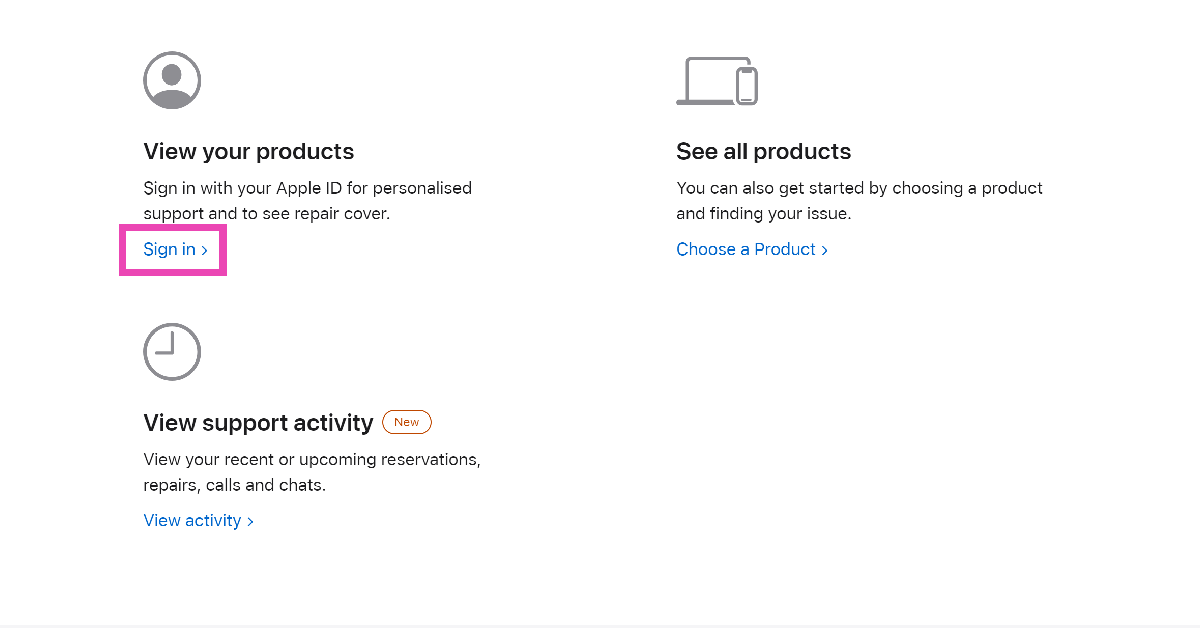
How to make a Genius Bar appointment at an Apple Store
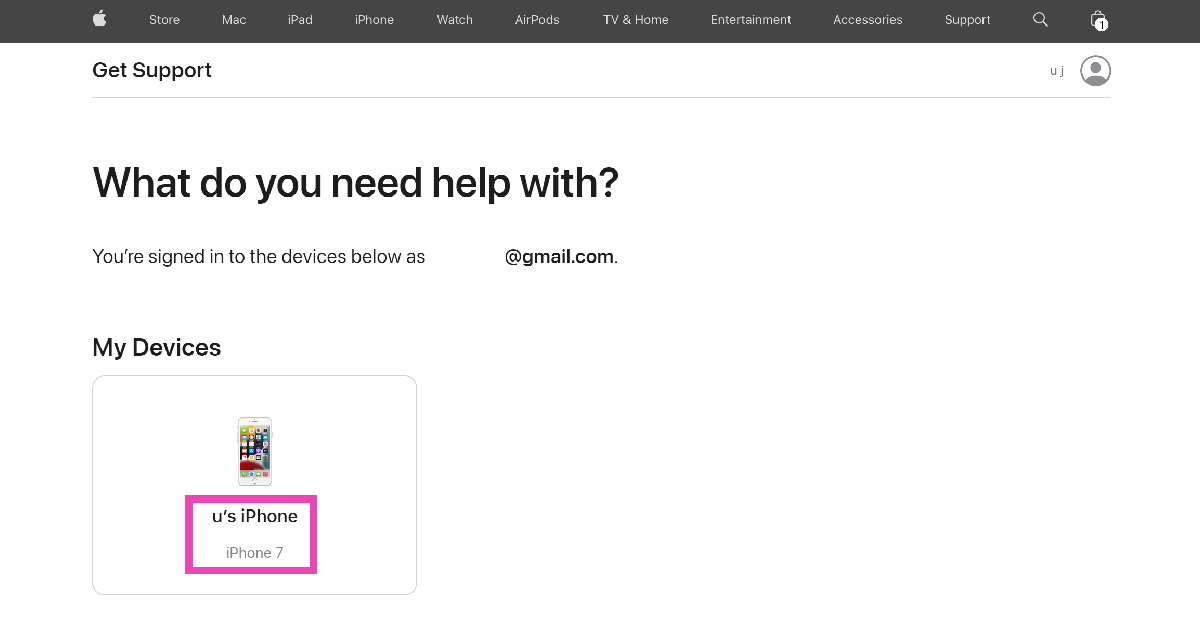
Step 2: Select the device for which you are seeking support.
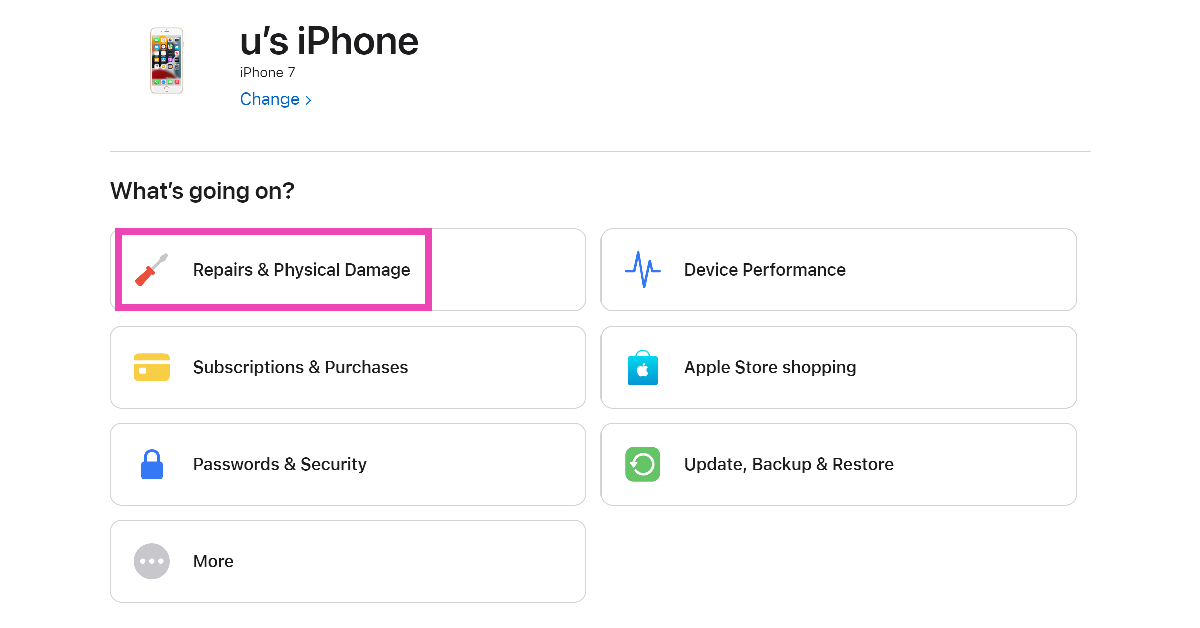
Step 3: Select the problem you are facing with your device.
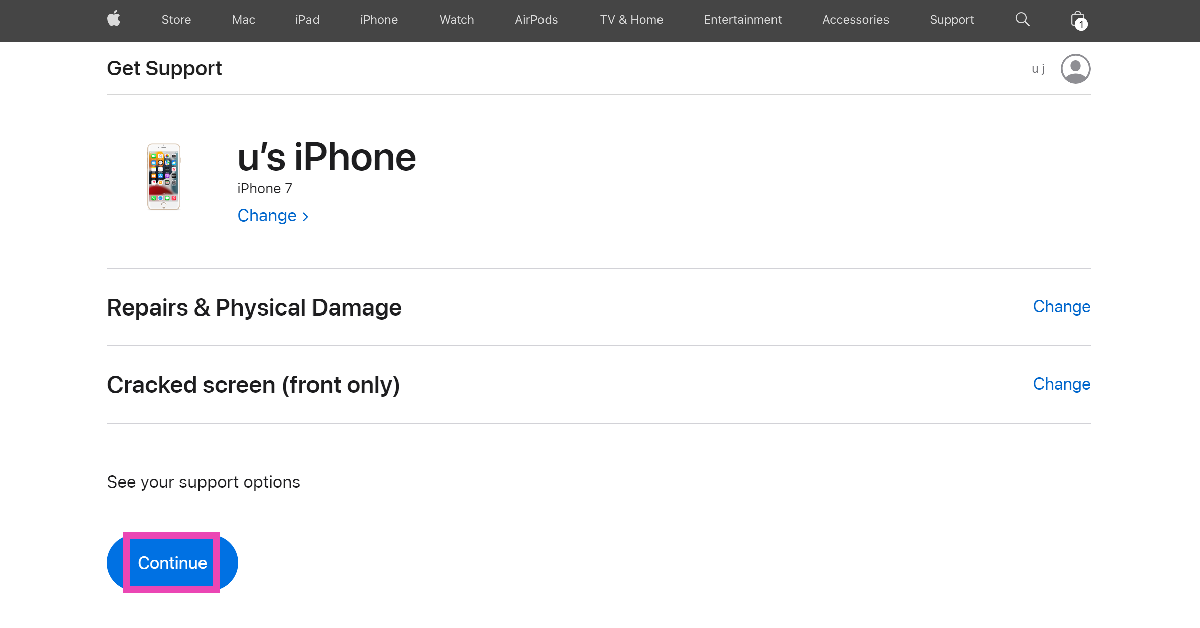
Step 4: Hit Continue.
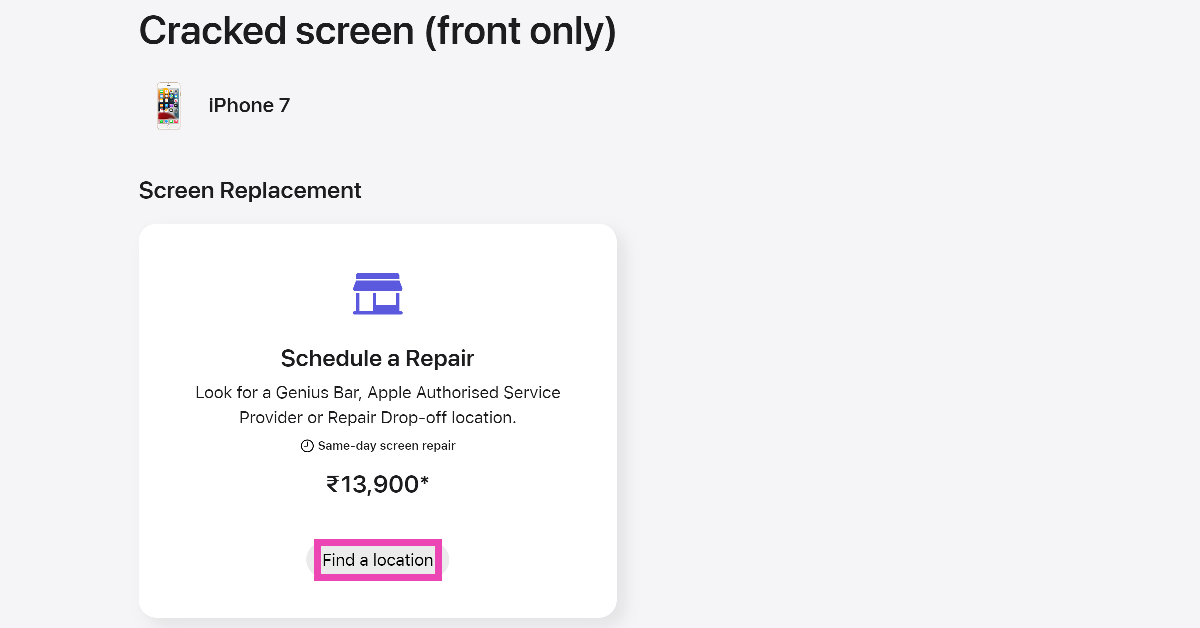
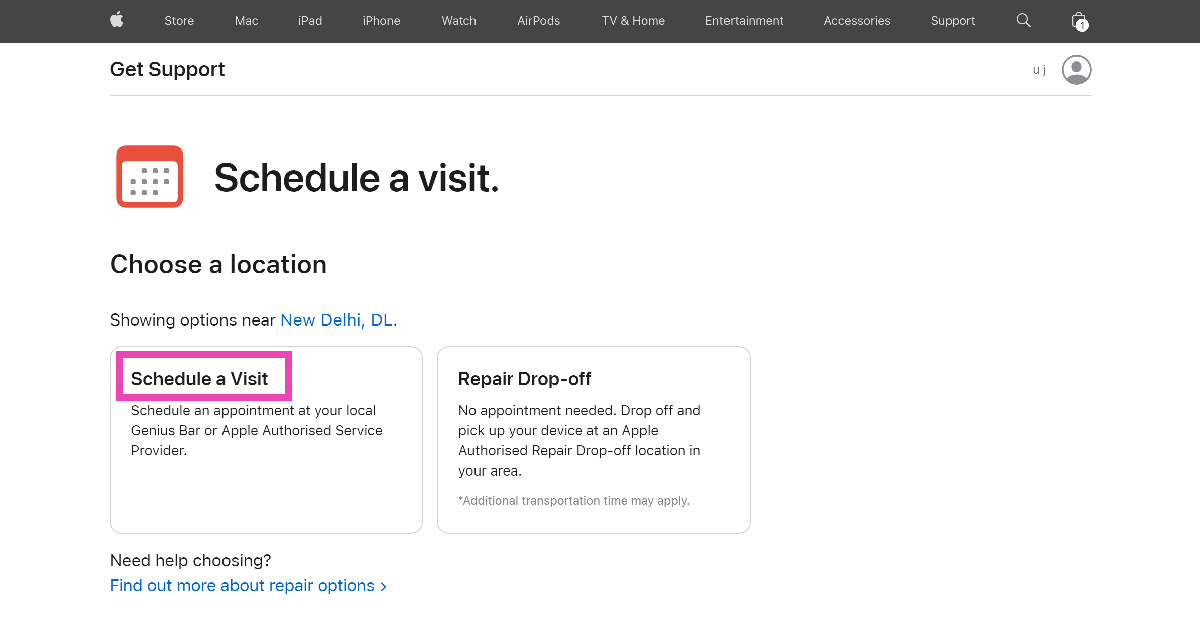
Step 5: Click on Find Location in the ‘Schedule a Repair’ section.
Step 6: Click on Schedule a Visit.
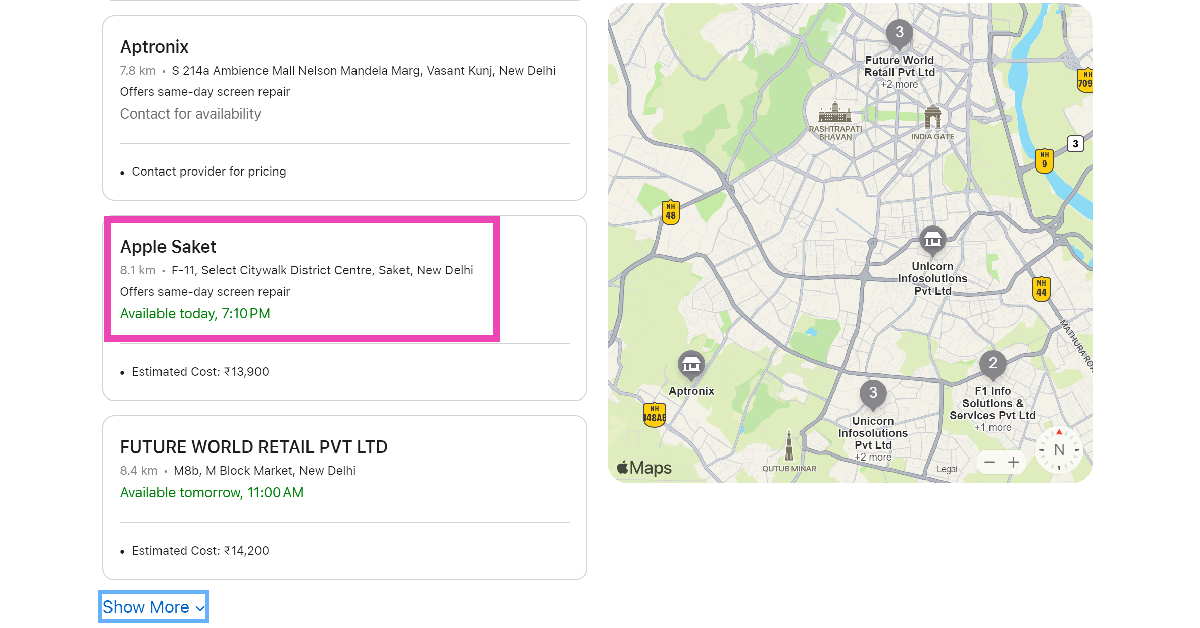
Step 7: Scroll down and select the Apple Store nearest to your location. If there are no Apple Stores near you, select an authorised repair centre.
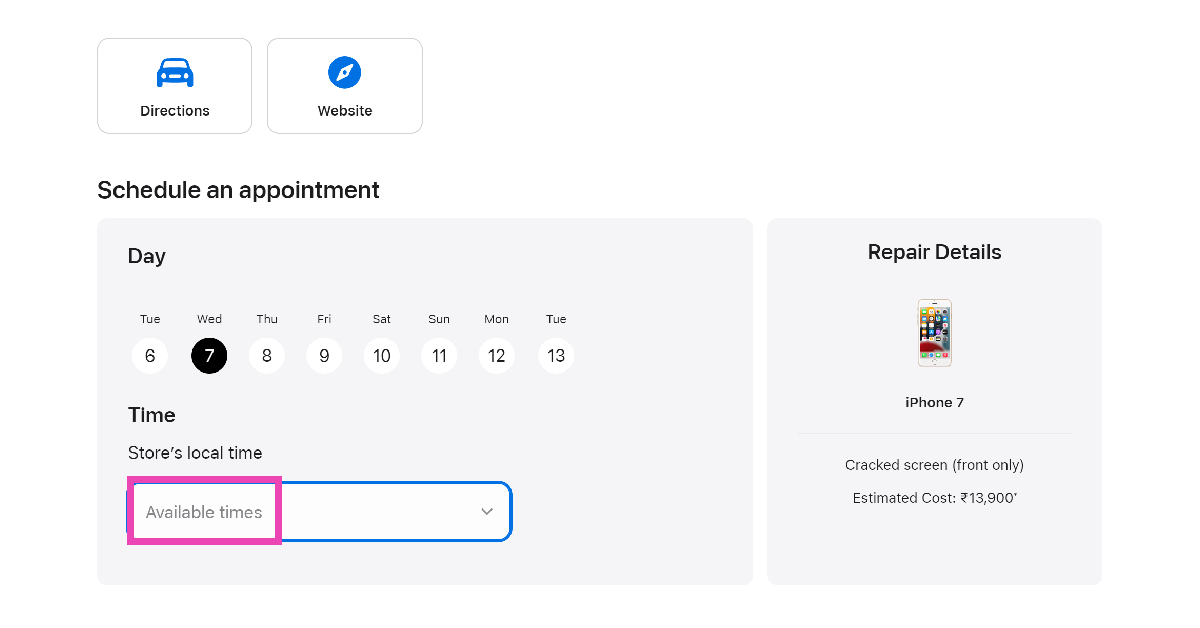
Step 8: Pick the day of your visit and click on Store’s local time to select the appointment time.
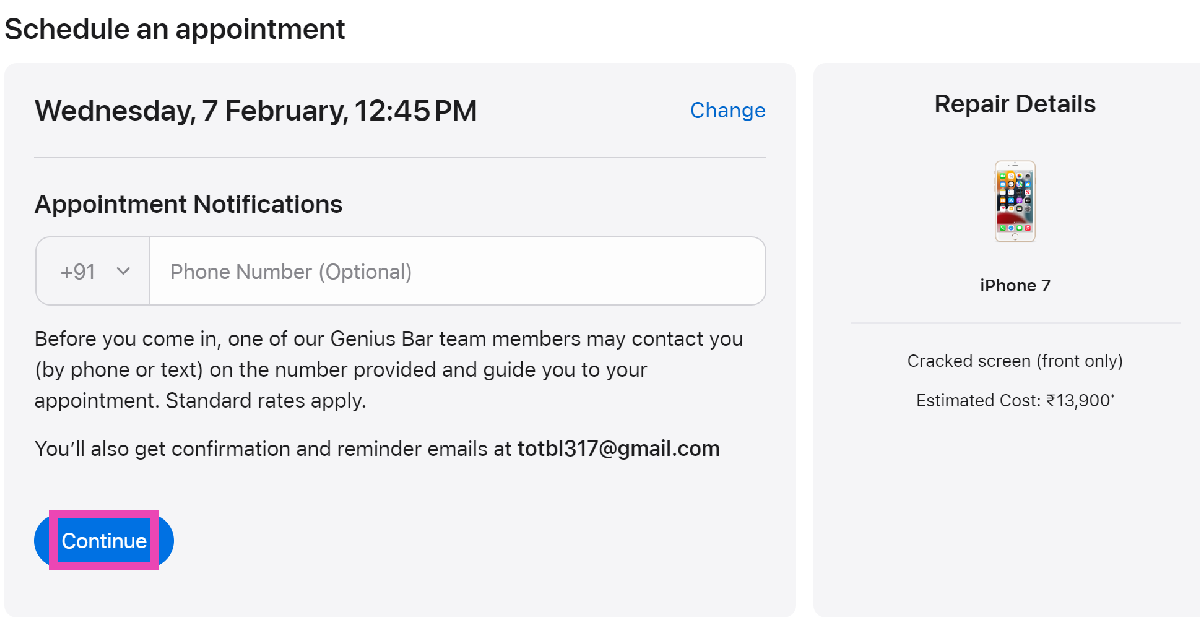
Step 9: You may enter your phone number to receive appointment notifications. This is entirely optional. Hit Continue.
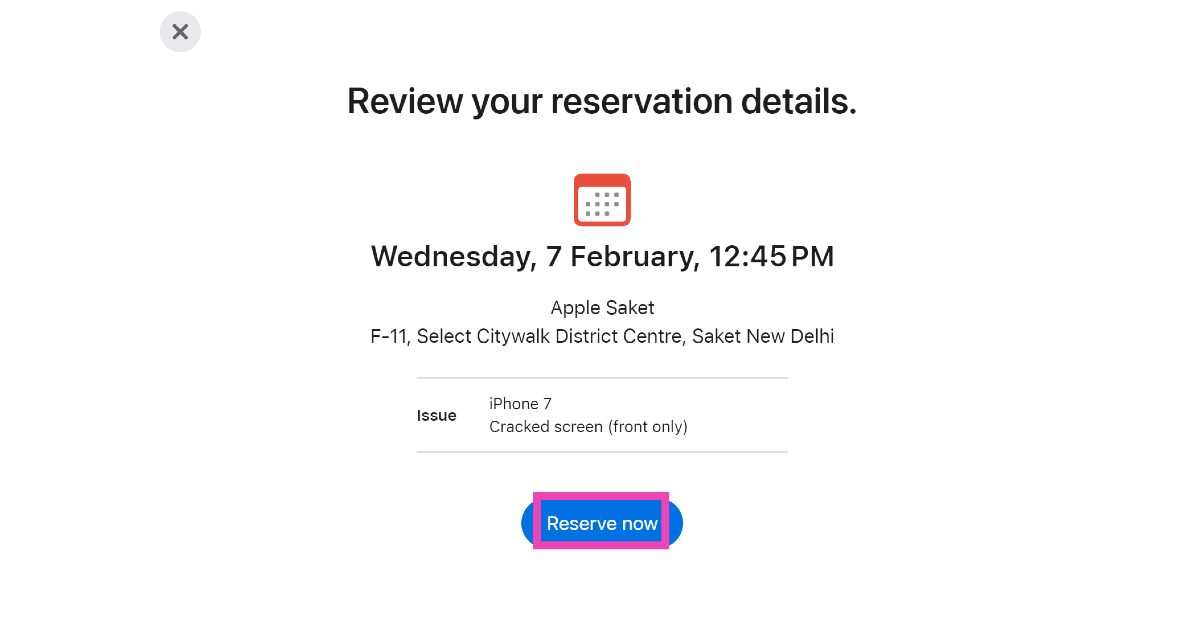
Step 10: On the following page, click on Reserve Now.
Your appointment at the Genius Bar will be reserved.
Frequently Asked Questions (FAQs)
How do I book an appointment at Apple’s Genius Bar?
Go to the Apple Support Page, select your device and the problem you are facing with it, choose an Apple Store near you, and schedule a visit.
How do I get my iPhone repaired if there are no Apple Stores in my area?
If there are no Apple Stores in your area, you can use the Apple Support Page to schedule a visit to an Apple-authorised repair centre.
How much does AppleCare+ for iPhone cost in the US?
Prices for iPhone 15’s Apple Care+ package start at $11.49 monthly or $219 for 2-year coverage. For the Pro models, buyers have to spend $13.49 monthly or $269 for 2-year coverage.
This is how you can book an appointment at Apple’s Genius Bar in the USA or UK. If you know any other way to get this done, let us know in the comments! Also, check out this article to learn how you can contact Apple Support to get help for Apple devices.
The HP Spectre x360 laptop features 2.8K OLED screens.
The display supports up to 120Hz refresh rate.
The laptops come with smart AI-enhanced features.
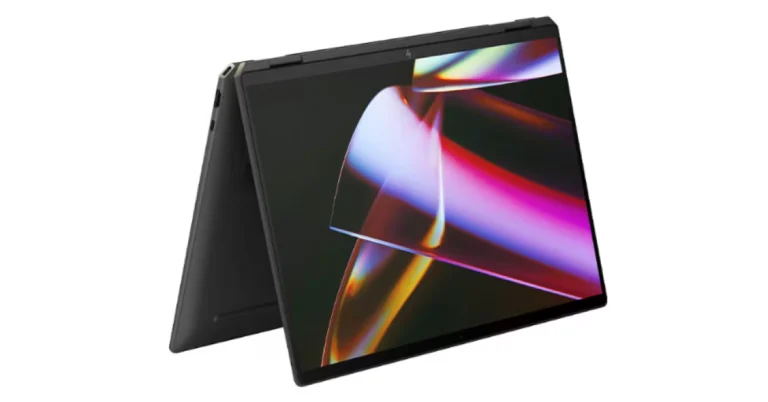
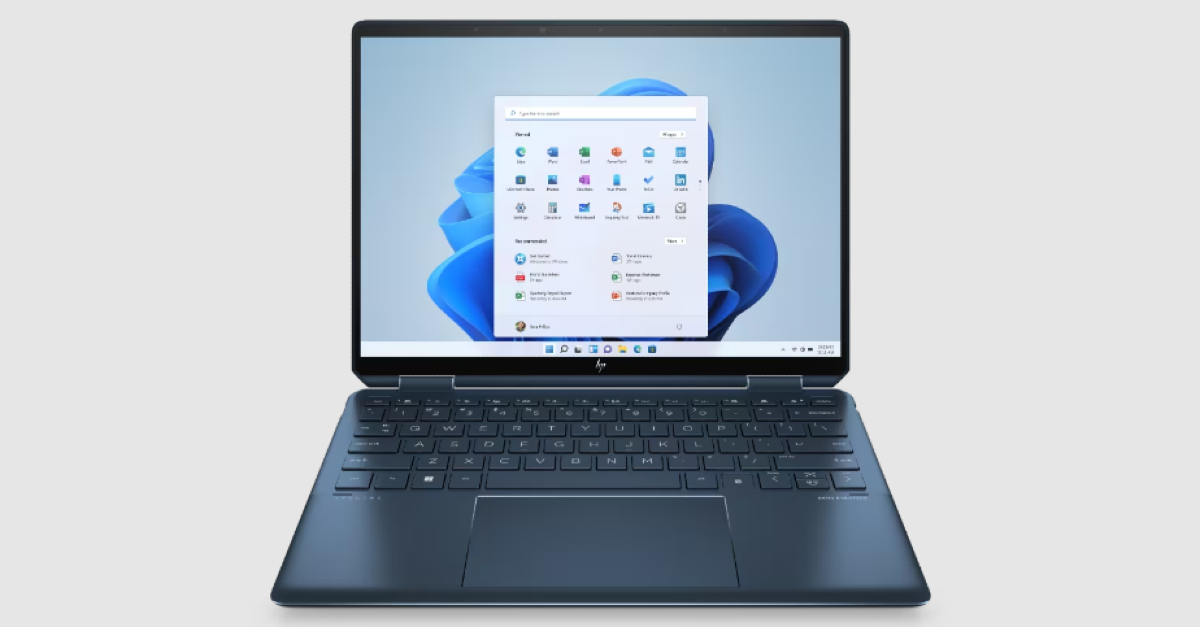
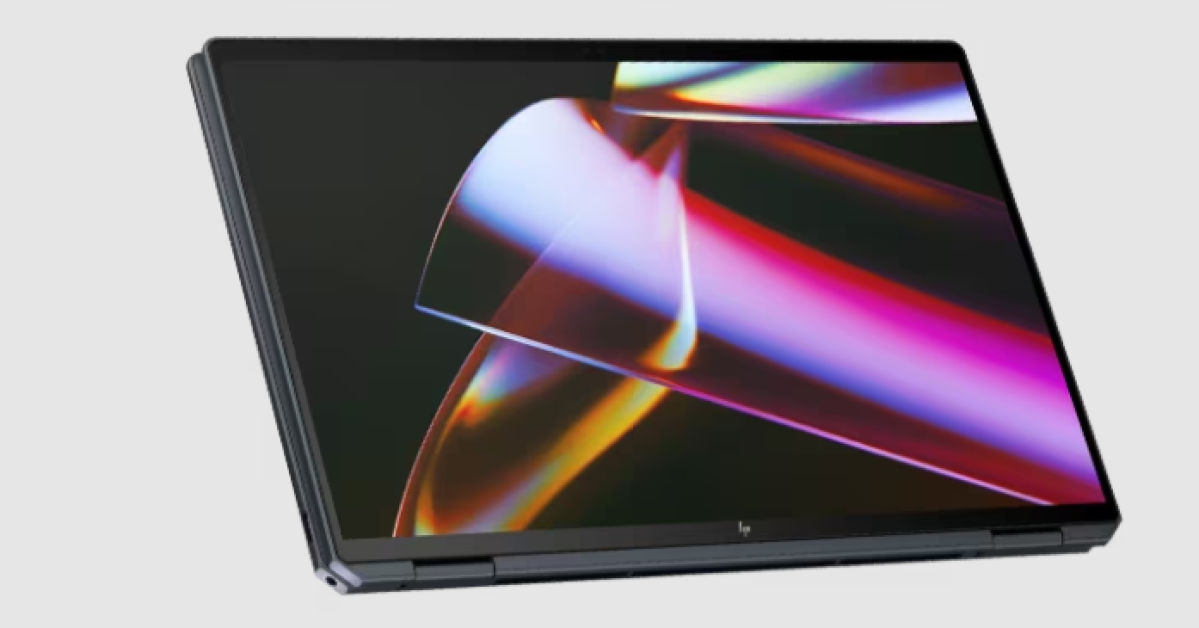
HP Spectre x360 16, HP Spectre x360 14 laptops launched in India today. The 14-inch and 16-inch laptops are powered by Intel Core Ultra 7 processors with RTX 4050 GPUs integrated. The new Spectre laptops feature smart AI enhancements. Notably, they represent HP’s inaugural consumer portfolio integrating a Neural Processing Unit (NPU) for efficient AI workload management.
HP Spectre x360 16, HP Spectre x360 14 price in India, sale details
HP Spectre x360 16 price in India starts at Rs 1,79,999. It is available in Nightfall Black colour. On the other hand, the Spectre x360 14 pricing begins at Rs 1,64,999. It is available in Nightfall Black and Slate Blue colours. The new laptops can be purchased via HP World stores, HP Online store, and at all leading retail counters.
HP Spectre x360 16, HP Spectre x360 14 specifications
The HP Spectre x360 14-inch and 16-inch laptops feature 2.8K OLED screens with a 16:10 aspect ratio and the refresh rate can adjust from 48 Hz to 120 Hz based on the type of content being viewed. The display comes with IMAX Enhanced Certification for watching movies. The HP Spectre x360 16-inch has the world’s largest haptic touchpad for a Windows-based 16-inch PC.
Under the chassis, there are Intel Core Ultra 7 processors. The smart AI-enhanced features of the new x360 are said to improve security, performance, and collaboration. Furthermore, HP’s Spectre laptops are the company’s first consumer lineup to have a Neural Processing Unit (NPU) for AI workloads. The machine includes three engine machines (CPU, GPU, and NPU) and NVIDIA Studio with RTX 4050 GFX to facilitate expedited video editing and enhanced productivity and content creation. The device also offers built-in security features including wake-on-approach, walk-away lock, and privacy alerts that warn users of prying eyes.
The convertible laptops come equipped with a 9 MP camera that can be adjusted for low light using hardware. Additionally, it offers adaptive screen adjustments like a screen dimmer when the user looks away to save power and variable refresh rate for immersive performance and power efficiency.
The automatic performance optimization also adjusts fan noise and temperatures based on applications being used, placement of the laptop, and battery status. Moreover, users can improve video and calls with Windows Studio effects which offload AI features like automatic framing, background blur, and the ability to maintain eye contact onto the NPU for engaging connections.
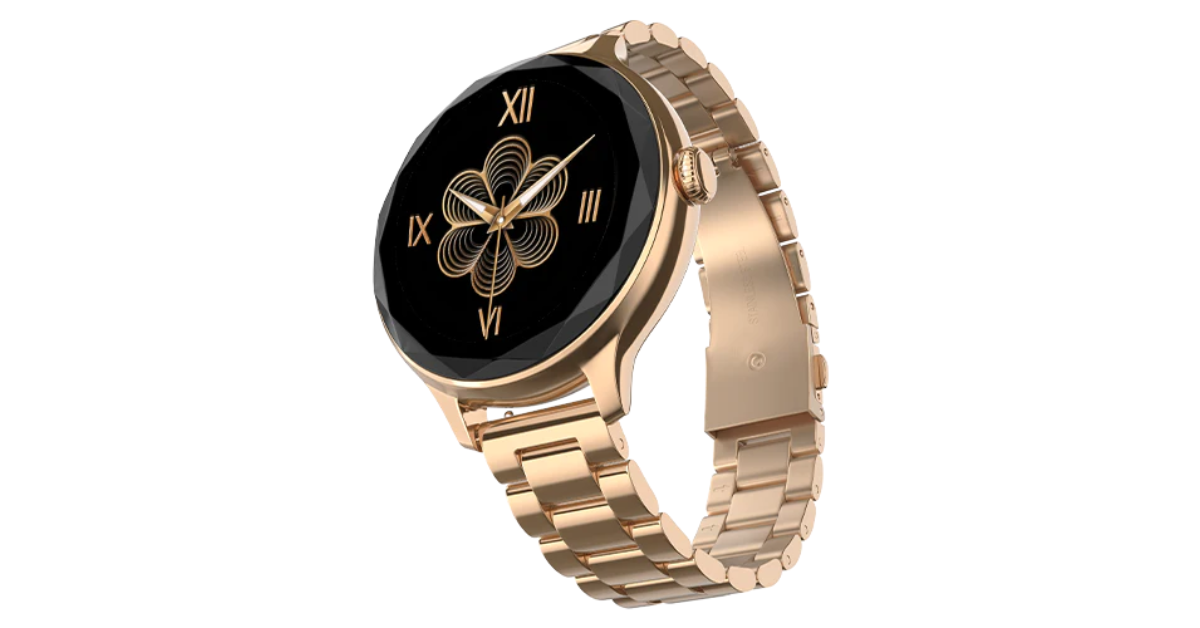
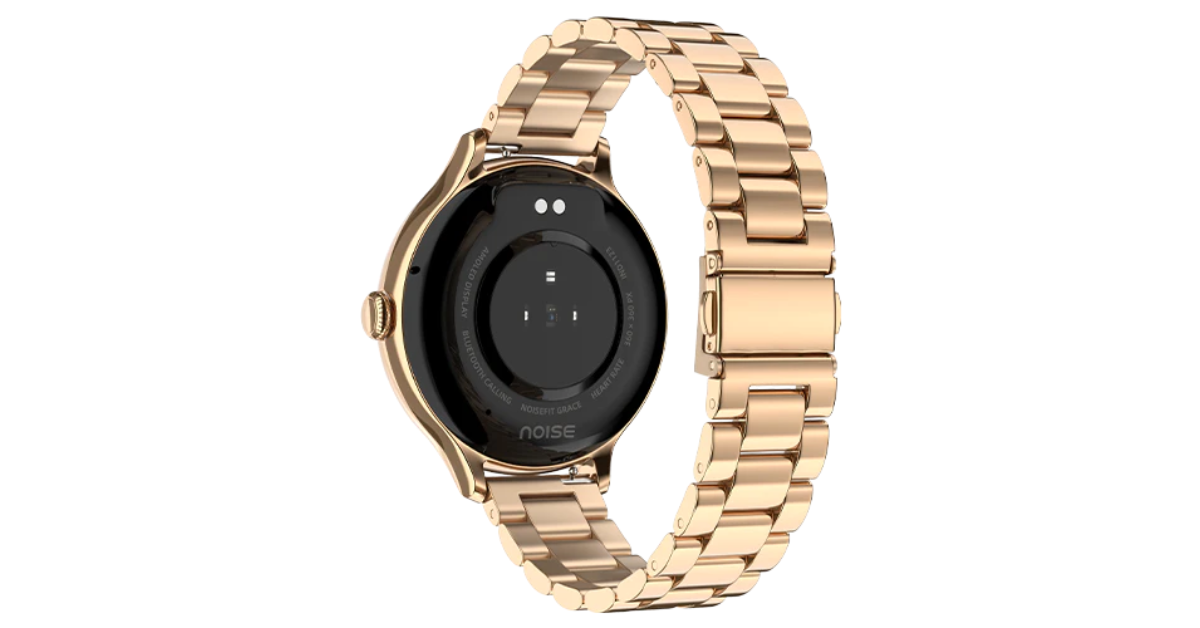
NoiseFit Grace smartwatch supports Bluetooth Calling with Noise Tru Sync technology
The wearable comes with multiple sports modes.
It is IP67 water and dust resistance rated.
The smartwatch also supports 100+ watch faces.
Indian tech brand Noise has expanded its smartwatch portfolio with the launch of the NoiseFit Grace smartwatch. The newly launched tracker sports a cut dial design and sleeker size with a metallic build and link strap specially designed for women. In addition to this, it comes with essential health metrics such as heart rate, SpO2, and more. The device is said to provide 4 days of battery life on a single charge.
Noisefit Grace price in India and availability
Noisefit Grace has been launched in India with a price tag of Rs 2,999. The device will be available in three colour options of Rose Gold, Metal Silver, and Jet Black. It can be purchased via Flipkart, and the brand’s website, gonoise.com
Noisefit Grace specifications
Noisefit Grace sports a 1.1-inch AMOLED with 360 x 360 pixels of resolution. The screen supports Always on and comes with 600 nits of peak brightness. Additionally, it has a cut dial design and a sleeker size with a metallic build and link strap. Along with Bluetooth calling the fitness tracker includes an AI voice assistant and an in-built calendar. Customers can also benefit from more than 100 watch faces and sports modes, as well as a seamless pairing experience with the NoiseFit App.
Noisefit Grace is IP67-rated for water and dust resistance. The smartwatch enables quick access to the dial pad and recent call logs with storage for up to 10 contacts for quick calling. It also includes a wide range of functions for tracking health and productivity. Women may efficiently track vital health indicators including heart rate, SpO2, sleep patterns, and stress levels, among others, with the help of Noise Health Suite. On the other hand, the integrated Productivity Suite keeps daily reminders and weather forecasts easily accessible. Along with weather updates and a notification display, it offers an Alarm, camera control, music control, and calculator.
We have been testing the OnePlus 12 since its introduction last week in India. So this is our in-depth review of OnePlus 12. Given that the design is quite similar to the OnePlus 11 from the previous year, we will discuss the advantages and disadvantages as well as what has changed. It costs about Rs 64,999 in India and includes the top Snapdragon 8 Gen 3 SoC processor for 2024. The device is the successor to last year’s OnePlus 11, but still lacks the IP68 certification; however, it does come with a wireless charging capability this time. Let’s discuss it further in the review of the OnePlus 12 below.
OnePlus 12 Review: Design and Display
Many of the features from the previous generation are still present in OnePlus. Actually, the design has remained the same and has a striking resemblance to the OnePlus 11 (as said). Despite having a similar appearance, the design has been improved. A few design modifications have been made, particularly to the weight and thickness. The smartphone now has a larger battery capacity, which undoubtedly makes it heavier and thicker.
Looking at the design language, OnePlus has continued to use the previous generation’s style. Again, the camera device is circular. Within the module, the Hasselblad logo sits on a glossy marble finish module housing four camera lenses. We also observed some gorgeous glitter in it that gives the appearance of the brightness of the night stars. There are two colour options for the OnePlus 12: Silky Black and Flowy Emerald.
For the review, we got the Flowy Emerald colour variant, which has a matte finish and a marble-like design that actually looks pretty fantastic. According to the company it is inspired by the magnificent sight of New Zealand’s braided Dart River, where emerald ribbons pulse with vivid energy. Flowy Emerald captures the essence of natural wonders and uses cutting-edge AG technology along with a precise etching process to give the phone’s glass back cover a premium texture with exquisite dynamism.
Take note that Corning Gorilla 5 protects the back panel.
Despite having a matte appearance, the back feels a little slick to the touch. Therefore, we advise you to put a silicon case on it to prevent accidental drops or slips from your hand. Using a back cover will safeguard the glass-made rear panel and provide you with a firm grip. And yes, the back cover is present inside the box, so need to purchase a new one, unless you want a different appearance.
The phone is undoubtedly heavier due to its larger battery and the usage of glass and metal materials. But despite this, you don’t feel like it’s a very heavy handset.
In addition, the edges have rounded corners and a curved finish. Gorilla Glass Victus 2 protection has been added to the display. The bezels are kept to a minimum, which looks pretty good. In addition, it has a high-quality appearance and feel thanks to the metal frame and the soft curves on both sides. Our small hands could comfortably use the phone with one hand because it is not overly broad. The gadget is not waterproof, but it does have an IP65 classification for dust and splash resistance.
The alert slider is on the left side of the frame, and the power and volume buttons are on the right. It includes an IR blaster on top, a dual SIM card slot and a USB Type C port speaker unit at the bottom.
Let’s proceed to the display next. The main feature of the OnePlus 12 is its 6.82-inch quad-HD+ LTPO OLED screen, which boasts a resolution of 1,440 x 3,168 pixels. The variable refresh rate of the front panel spans from 1Hz to 120Hz. Furthermore supported is a screen brightness of 4,500 nits. Keep in mind that this OnePlus smartphone’s screen is the brightest we’ve ever seen.
It provides incredibly smooth and lifelike images for an excellent viewing experience. Additionally, TÜV Rheinland certifies it for Intelligent Eye Care because of its capacity to efficiently decrease blue light output and intelligently modify the colour temperature in response to varying ambient conditions.
Because it is an LTPO panel, the display can automatically transition between a refresh rate of 1Hz to 120Hz while maintaining a relatively low power consumption, depending on user preferences and particular usage conditions. On the other hand, Dolby Vision is also supported, enhancing the visual experience overall with incredibly bright colours, sharp contrast, and showcasing well even the minutest details.
The touch response of the display functions perfectly. Sweaty hands and mishaps during both intense gameplay and regular use are greatly reduced thanks to the Aqua Touch’s ability to detect moist fingers and water droplets on the screen and adjust accordingly. Dolby Atoms is supported by the dual speaker setup and dedicated spatial audio, which provides high-quality audio with less acoustic resonance even without headphones. We quite loved it.
OnePlus 12 Review: Performance and cameras
Qualcomm’s 4nm Snapdragon 8 Gen 3 SoC, one of the most potent chipsets for Android premium phones, powers the device underneath. The device supports up to 512GB of UFS 4 internal storage in addition to up to 12GB of LPDDR5X RAM.
The OnePlus 12 offers good performance in all areas, including gaming and daily use. With almost no lag or glitches, the OxygenOS optimisation made for an excellent experience.
The whole experience is powerful and quite positive even in terms of gaming. In terms of regular use, there is very little temperature rise and you also receive Vapor Chamber cooling. Thus, we would conclude that it is highly optimised for gaming.
Because this phone has the most powerful chipset available, it can play high-end games very well. Playing games and multitasking on this device is quite effortless. Call of Duty Mobile, Asphalt 9, PUBG New State, BGMI, and other games all functioned flawlessly without any lags or frame dips.
Based on Android 14, OxygenOS 14 powers the OnePlus 12. The shelf has improved because you can configure the toggles and several currently available widgets; the previous shelf was not that large. You can change the backgrounds, style, support for AOD themes, colour, fingerprint animation, and edge lighting for notifications have been added.
Numerous additional developments are included, such as enhanced memory management, software, and performance optimisations.
The device walks in with five years of security patches and four years of Android upgrades, but with the most recent Galaxy S24 Series, Samsung is delivering seven years of software updates. Maybe OnePlus will also do that with the next version? Maybe.
What makes the OnePlus 12 a heavy lifter is its latest Trinity Engine that is a software-based feature, which is claimed to handle multitasking, offer smoother performance and also power efficiency. It does this by utilising six different technologies: CPU-Vitalization, ROM-Vitalization, RAM-Vitalization, HyperBoost, HyperRendering and HyperTouch.
Thus, the optimal performance is determined by the CPU Vitalization. It improves the device’s efficiency and smoothness. Then there is ROM vitalization, which is associated with storage usage and refers to providing you with optimal storage experiences through efficient storage utilisation. RAM vitalization works to speed up RAM access if an application requires more RAM than the engine can supply.
And also the Hyper Boost, a crucial feature for gamers that gives you extra power to play with improved performance. For more realistic, immersive gaming, hyperrendering reduces latency and battery consumption while enhancing frame interpolation. Last but not least, the HyperTouch offers end-to-end touch control that guarantees accuracy or mis-touch protection for responsiveness and stability that win games.
Aside from this, there are no call dropouts and the call quality is generally decent. The fingerprint sensor is also working fine for us since the day we set up the device.
Now let’s talk about the cameras, the camera setup is quite similar to the OnePlus Open so let’s see how good the camera experience is on the flagship device. OnePlus 12’s standout feature is its triple rear camera setup powered by Hasselblad. It includes a Sony LYT-808 sensor with a 50-megapixel primary camera (OIS, and f/1.6 aperture), a 64-megapixel telephoto secondary lens (OIS, 3X optical zoom and f/2.6 aperture) and a 48-megapixel ultra-wide-angle lens (114-degree field-of-view). The 32-megapixel front-facing camera (f/2.4 aperture) is provided for video calling and selfies. So that’s the camera aspect so let’s go straight into the camera samples to see how it performs.
Speaking of the daylight pictures, you can get excellent details and rich, beautiful colours there as well. The photographs have excellent overall quality and a very natural appearance. In actuality, the colours are rich in tones without being overly saturated, and the dynamic range is pleasant and broad. You can see that the details are good by zooming in.
The 48-megapixel ultra-wide-angle lens produced remarkably similar images, and the colour reproduction was accurate once more. We would describe it as being roughly comparable to the main camera. The dynamic range appears mostly acceptable, and the sharpness levels are fairly good. It’s really useful to have an ultra-wide-angle camera.
With the ability to zoom 3x optically, the telephoto lenses can now capture a wealth of information. Additionally consistent are the colour and dynamic range. It performs well in this case as well in terms of sharpness levels.
Let’s move on to the close-up photographs, where you can see even more vibrant colours and excellent overall image quality. Also, the backdrop blur looks fantastic. Keep in mind that the telephoto lens, which handles the macro department, provides an abundance of details and has performed an excellent job with macros.
You will be able to take pictures in 1x, 2x, and 3x for portraits. The telephoto lens handles 3x, while the primary camera handles 1x and 2x. The skin tones appear rather realistic, the results are good, and there are no saturation problems. The telephoto lens has some edge detection issues, but overall quality is good and edge detection is acceptable at 1x and 2x zoom. In actuality, it is not that crisp, and in certain instances, the edges were not very good.
There are plenty of details under artificial indoor light, and the night mode provides decent details outdoors as well. It does not overexpose or over-brighten, but the details and dynamic range are excellent. In a dim light, we also observed a few lens flare incidents. Regarding selfies, the 32-megapixel front-facing camera performs nicely; we particularly enjoyed the colour tones. The dynamic range is lovely, and the skin tones seem natural. The selfies don’t feature any beauty effects on the face, but the edge detection in the portrait selfies gives the images an unnatural appearance.
While testing, our review unit also received its first OTA update. After updating the OnePlus 12’s camera app got support for the ProXDR feature in the Google Photos app which wasn’t available before the software update landed. It is essentially a kind of display technology that uses atomization to brighten the dark areas in images.
There is also one major upgrade, which is now the OnePlus 12 has received – the Master Mode. It is basically a camera feature by Hasselblad for colour tuning. And trust us, this is the main USP of the device. If you prefer more candid shots, you will definitely adore this option. We simply can’t get enough of using this ability to snap photos. The outcomes were, in fact, remarkably close to what our eyes saw even in low light conditions. The Master Mode is visible just next to Video mode that was home to Pro mode earlier. Don’t fret the Pro mode is still there. Just tap on the Mater mode and you will see two options on the extreme left Auto and Pro.
Master ModeNight PortaitMaster Mode
The OnePlus 12 has good video quality when recording in 8K at 24 frames per second, although there are some noticeable issues with contrast and white balance. Additionally, the gadget can record in 4K at 60 frames per second, where the colour appears rather natural. The OIS + EIS combination stabilisation system performs wonderfully, and the overall video quality is excellent. The other video quality is also quite high; even when walking, the stabilisation is strong, and the colours and dynamic range also seem fantastic.
While the white balance appears slightly amiss in videos taken with telephoto lenses, overall we would say the telephoto lens performed well with OIS in terms of stabilisation. Films in 4K at 60 frames per second can also be captured by the ultrawide lens. You can take 4K 30 frames per second selfie videos with the front-facing camera.
The battery capacity is arguably among the best that we have seen in the flagship category or pricing range. The battery has a very long lifespan. You can easily obtain up to two days of battery life with casual to regular usage.
However, if you use the device heavily, the battery life may still last up to one and a half days, or perhaps just one day if you play a lot of games. These results are based on our testing, which involved utilising the camera, social media apps, browsing, and other apps while making a few calls.
The smartphone can be charged at 100W rapid speed in roughly 23 minutes. Additionally, it comes with built-in compatibility for 50W wireless charging which needs to be bought separately. And yes, unlike some smartphones, this one carried the charger within the box.
Verdict
In terms of build quality, the OnePlus 12 is a good gadget. Overall, the design is rather appealing and has a high-end feel about it. The display, an OLED LTPO panel with excellent colour reproduction, is incredibly vibrant and vivid. Dolby Vision and HDR10+ compatibility mean that this panel is jam-packed with the greatest features available. Furthermore, the HDR option allows for a brightness increase of up to 4,500 nits.
Everything has been handled by the Trinity Engine, including app opening times, response times, and memory management. From a software and performance standpoint, it’s a good device.
Despite having an IP certification, the product is not waterproof. In this price range, IP68 certification is required, therefore OnePlus should have offered it, however, it’s missing.
The OnePlus 12 cameras perform incredibly well in daylight conditions, particularly in colour and dynamic range. Overall, the image processing is excellent. The telephoto and ultra wide-angle lenses perform nicely. The phone doesn’t overheat, however playing games for extended periods warms the phone, particularly the area surrounding the camera module.
In conclusion, the OnePlus 12 is a very good package, particularly considering its camera sensors. It might not have the finest photography performance available in this price range, but it won’t let you down in any way. We think OnePlus’s pricing is also really good. We wholeheartedly endorse the OnePlus 12 as a great all-around flagship device based on user experience.