Garena Free Fire is a battle royale game with regular awards and tournaments to keep players interested. If you play Garena Free Fire, you should be aware of the redeem codes that are released on a daily basis. However, because the battle royale game is banned in India, players from other countries can use the Free Fire Redeem codes daily. If you’re unfamiliar with the Garena Free Fire redeem codes or don’t know how to get them, we’ve put together a step-by-step guide to help you redeem them. Check out Garena Free Fire Redeem Codes for 14 February 2024.
The Free Fire redeem codes are a great way to get free stuff. These are 12-digit codes that contain alphabets and numbers, as well as an expiration date and time. Because the Garena FF redeem codes cannot be used more than once, you should hurry to the redemption page to claim your free reward before someone else does. To get a free reward, all you have to do is go to reward.ff.garena.com/en, which is the official redemption page. Also, keep an eye on this space for daily updates on Garena Free Fire redemption codes and rewards.
Horse racing is an ancient sport that has been around for a very long time. It started in old times and is now popular all over the world. This sport is about more than just fast horse racing; it involves smart planning and a unique bond between the horse and its rider. Today, with more technology being used every day, horse racing is beginning to change. New devices and tools are making it easier to train horses, allowing fans to watch races and place bets on their favorite horses from anywhere. These advancements are blending traditional horse racing with new, exciting changes.
The Digital Transformation of Horse Racing
Horse racing is changing a lot because of technology, especially in how people bet on races. Now, thanks to platforms like 1xbe offers betting on horse race, fans don’t have to go to the race track to place a bet; they can do it online from anywhere in the world. This change is significant because it makes betting easier and allows more people to join in on the fun. Additionally, there are now mobile apps for horse racing that let fans see updates about races, choose their bets, and learn lots of details about the races right from their hands. The shift to online betting and the availability of these apps make the betting process simpler and more exciting for fans, giving them the feeling of being part of the action even if they’re not physically on the track.
Data Analytics and Machine Learning in Horse Racing
Data analytics and machine learning are changing the game in horse racing, making it easier to guess who will win and helping horses get ready to perform their best by looking at a lot of information, like how the track is or the weather, and even how a horse has done before or how healthy it is, these tools can predict which horse might win. This helps people who are betting to choose smarter and also helps trainers and horse owners make better plans to help their horses do well. Machine learning, a kind of smart computer program, helps spot details that people might miss, giving everyone a deeper understanding of what might affect a race. This isn’t just about making better bets; it’s also about taking care of the horses, making sure they’re healthy and trained just right for them.
Wearable Technology for Horses
Wearable technology for horses includes things like sensors, GPS, and health monitors. These gadgets help us know how a horse is feeling and how well it’s doing by checking its heart rate, how warm it is, and how it moves. This information is super helpful for people who take care of and train horses. For example, GPS can track how far and fast a horse runs, helping trainers make better workout plans. If a horse starts feeling sick or shows signs of not being okay, these devices let the caretakers know right away so they can help the horse. There are many stories where this technology has helped horses run better in races and stay healthy. One story is about a place where horses are trained, and they use these gadgets to make their training even better. This helped the horses do better in races and not get hurt as much. Another time, a device found out a horse was getting really sick, which could have stopped it from racing ever again, but because they found out early, they were able to treat the horse, and it got back to racing.
Virtual Reality and Augmented Reality in Fan Experience
Image: World Wide Web
Virtual Reality (VR) and Augmented Reality (AR) are changing how people watch horse racing, making it feel like you’re right there on the track. With VR, you can wear a headset and feel like you’re standing next to the track or even riding a horse in the race. It makes watching the races more exciting because you can see everything up close, just like you’re really there. AR makes things even better by putting extra information about the race right on your phone or computer screen while you’re watching. It can tell you more about the horses, the people riding them, and the track. There are also VR games about horse racing where you can pretend to be in a race, take care of your own stable of horses, or train them.
Blockchain and Betting Security
Blockchain technology is like a super smart notebook that keeps track of horse racing bets in a way that’s safe and clear so that everyone can trust it. This notebook is special because once something is written in it, nobody can change it or make it disappear. That’s really important for making sure bets on horse races are fair, and nobody cheats. With blockchain, every bet is written down carefully so that the people who win get their money correctly. It’s also great because it stops people from trying to trick the system since everyone can check the bets to make sure they’re right.
The Role of Social Media and Streaming Services
Social media and streaming services have made horse racing more popular and brought fans worldwide closer together. Now, people can use websites like Facebook or Twitter to talk about the races, share who they think will win, and celebrate when their favorite horse crosses the finish line first. This helps fans feel like they’re part of a big group, no matter where they live. Also, with streaming services, anyone with a phone or computer can watch horse races live without needing a TV. This means that even races happening far away can have fans from different places watching.
The Future of Horse Racing Events
Horse racing events are about to change a lot because of new technology. Now, people can use drones to see the races from the sky, allowing everyone to see every part of the race like never before. There’s also talk about using artificial intelligence, or AI, to help train horses and even make decisions during a race, which could make races safer and more fair. Soon, we might even see jockeys who are controlled by AI, making decisions in a flash by looking at a lot of data. And for fans who can’t be at the race, virtual reality might let them feel like they’re right there in the middle of the action, no matter where they are. It’s a big step into a new time for horse racing, making it easier for everyone to enjoy and safer for those participating.
If you like to travel, the new Samsung Galaxy S24 has just the feature for you! As a part of its new Galaxy AI suite of features, Samsung Galaxy S24 lets you translate spoken conversations in real time. At the time of writing this article, this feature supports 15 languages including English, Hindi, French, Chinese, Italian, and more. All the computing required to carry out the translation takes place on the device itself. Here’s how you can use the Galaxy AI Interpreter tool to translate spoken conversations.
As we mentioned earlier, the computing required to translate spoken conversations takes place on your device. This means you don’t need to be connected to the Internet to use the Interpreter tool on your Galaxy device. If you’re travelling overseas and don’t want to splurge on an expensive mobile data plan, this feature will still work on your device.
Before you begin, you need to download the language packs for the source and target languages. This does require an internet connection. An average language pack is around 200-400MB in size. Make sure you are connected to the WiFi or you will end up spending the bulk of your mobile data plan.
You can also change the voice of the speaker for the Interpreter tool. As of now, there are 2 voice styles on offer – one male and one female. You can also select the pace at which the speaker voices the translated text. You can also flip the panel showing the translated text upside down, making it easier for the other person to view it.
Translate spoken conversations using Galaxy AI
Step 1: Go to Settings and select Advanced features.
Step 2: Tap on Advanced intelligence.
Step 3: Tap on Interpreter.
Step 4: Tap on Language packs for translation.
Step 5: Download your desired languages. There are 15 languages to choose from.
Step 6: Go back to the home page and swipe down from the status bar to access the Quick Settings Menu.
Step 7: Tap on Interpreter.
Step 8: Select the source language on the bottom panel and the target language on the top panel.
Step 9: Hit the microphone button in the bottom panel and start speaking.
Step 10: Once you stop speaking, Galaxy AI will translate your speech into the target language.
Step 11: Hit the layout icon at the top of the screen to flip the top panel. This makes it easier for the other person to read the translated text.
Frequently Asked Questions (FAQs)
Where can I find the Interpreter tool in the Samsung Galaxy S24 Series smartphones?
Swipe down from the status bar and tap on the ‘Interpreter’ tile in the Quick Settings Menu.
Does Galaxy AI require an internet connection to translate spoken conversations?
No, you can translate spoken conversations using Galaxy AI without access to the internet. However, you will need to download the language packs first.
Is Galaxy AI free to use?
Galaxy AI is free to use until the end of 2025, after which Samsung will likely introduce a subscription model for the service.
This is how you can use Galaxy AI on the new Samsung Galaxy S24 Series to translate spoken conversations. All the computing required to translate spoken conversations takes place on your Galaxy device. This means you don’t need to be connected to the internet to use the Interpreter tool. Read this article to learn how you can use the generative photo editing feature on the new Galaxy S24 smartphones.
Samsung’s newest Galaxy S24 Series feels like a landmark device for AI tech. While there have been a few AI features on Pixel smartphones over the years, Samsung’s Galaxy AI on the S24 Series breathes new life into several different native apps. While some of these features may cater to a niche audience, it doesn’t make them any less cool. One of our favourite uses of Galaxy AI is in Samsung’s web browser. With just a couple of taps, you can summarise the article you’re reading and translate it into any language you like. Here’s how you can use Samsung Galaxy S24’s AI tech to summarise web pages, notes, and voice notes.
The new Galaxy S24 Series is all about its AI features. While it carries forward its exceptional performance (owing to the Snapdragon 8 Gen 3 SoC) and a powerful set of cameras, the integrated AI tech is where it breaks new ground and sets itself apart from the Galaxy S Series of the past. We’ve talked about the generative photo editing features of the Galaxy AI, so let’s turn our focus to its summarization features.
Like the newer Pixel smartphones, Samsung’s native voice recorder app can now transcribe the voice notes for you. If there are multiple speakers on the voice recording, they will be classified accordingly. Galaxy AI does its best to ensure there are no redundancies and grammatical errors in the transcribed text. However, if the speech isn’t overtly clear, a few errors will manage to creep in. Thankfully, these errors are easy to ignore. Galaxy AI summarises the transcribed text for you and formats it in a manner that is easy to read. It generates keywords related to topics that it deems important. Tapping on a keyword takes you to the part where it is mentioned in the text.
Another cool Galaxy AI feature is web page summarisation. If you don’t have enough time to read a lengthy article, you can hit the AI icon and generate a summary of the webpage. The browser app gives you the option to generate a detailed summary as well. You can translate this summary into any language you like.
Use Galaxy AI to summarise web pages
Step 1: Go to Settings and select Advanced features.
Step 3: Hit the Galaxy AI icon at the bottom of the screen.
Step 4: Tap on Summarise. You can also use Galaxy AI to auto-format, spell-check, and translate the text. There is a word limit for the summarisation feature.
Step 5: Galaxy AI will generate a summary of the text.
Step 6: To create a detailed summary, hit the options icon.
Step 7: Tap on Detailed and hit Done.
Use Galaxy AI to transcribe and summarise a voice note
Step 1: Go to the native Samsung voice recorder app and select a voice note.
Step 2: Hit the Transcribe button.
Step 3: Select the language and hit Transcribe. You may need to download a language pack for this.
Step 4: Once the recording has been transcribed, switch to the Summary tab.
Step 4: This is where you will find the formatted summary along with the relevant keywords. Tap on a keyword to view the content associated with it.
Frequently Asked Questions (FAQs)
Which phones will get the Galaxy AI?
Samsung Galaxy is currently available on the latest Galaxy S24 Series. The tech outfit will also bring its AI features to the Galaxy S23 Series (including S23 FE) and 2023’s Z Series in a future update.
Is Galaxy AI free to use?
According to Samsung, all Galaxy AI features will be free to use until the end of 2025. After that, the company may introduce a subscription model for the service.
How do I summarise a news article using Galaxy AI?
Open the news article in Samsung’s native browser, hit the Galaxy AI icon at the bottom of the screen, and tap on ‘Summarise’.
This is how you can use Galaxy AI on the Samsung Galaxy S24 Series to summarise web pages, notes, and voice notes. You can also use it to auto-format, spell-check, and translate the summarised text. The native Notes app lets you generate attractive covers for your notes as well. Read this article to learn how to use AI photo-editing features on your new Galaxy S24 smartphone.
The India launch is also confirmed to take place on the same day.
Finally, Nothing has officially revealed the launch date of Nothing Phone 2a. The upcoming phone is set to arrive next month. This is going to be the company’s third smartphone and an affordable toned-down variant of Nothing Phone 2 that launched last year. The device is likely to feature a dual rear camera setup. It is expected to be powered by MediaTek Dimensity 7200 SoC.
Nothing Phone 2a launch is scheduled to take place on March 5. The phone is anticipated to be released as a less expensive variant of the Nothing Phone 2, which debuted the previous year. The company took to Twitter to make the announcement where it also shared a short video. As per the announcement the Nothing Phone 2a will launch at 11:30 GMT (5:30 pm IST). Note that the India launch will also take place on the same day. The company’s X account for India and Flipkart have officially confirmed the March 5 event.
Fresh. Eyes.
The official Phone (2a) launch event is happening on 5 March 2024, 11:30 GMT. pic.twitter.com/eE6hPjXOeB
As we mentioned earlier, Nothing has also shared a short video on its X account. However, it has not revealed much about Phone 2a it shows two white dots resembling eyes blinking with a black background.
Just before the official announcement, Nothing Phone 2a was spotted listed on the TUV certification website with model number A142. The listing suggests, that the Nothing Phone 2a will come with a 45W charging speed. It will also get USB Power Delivery (PD) standard support, which means that the Nothing Phone 2a should be able to be charged using any USB PD-compliant charger. Earlier the upcoming handset also appeared listed on the Bureau of Indian Standards(BIS) site.
As per a leak, the Phone 2a is likely to come in Black and White colour options and in two different configurations: 8GB of RAM with 128GB storage and 12GB RAM with 256GB of storage. The phone’s price is speculated below EUR 400 (approx Rs 36,800).
In addition to this, it is speculated to feature a 6.7-inch AMOLED display manufactured by BOE and Visionox under the product number rm692h5. The screen is expected to have 1,084 x 2,412 pixels of resolution. The display may also support a refresh rate of 120Hz. The phone is slated to be powered by a MediaTek Dimensity 7200 chipset.
Moreover, the mobile is rumoured to come with a dual rear camera setup that may include a 50-megapixel Samsung S5KNG9 1/1.5-inch main sensor and the 50-megapixel Samsung S5KJN1 1/2.76-inch ultrawide lens. The phone is anticipated to feature a 32-megapixel Sony IMX615 sensor on the front.
While the Samsung Galaxy S24 Series may look like its predecessor, it takes a big leap forward when it comes to the AI features onboard the device. Marking the debut of ‘Galaxy AI’, the Galaxy S24 can intelligently accomplish a range of tasks for you. From translating live calls to creating simple summaries of articles and notes, the Galaxy AI makes its presence felt on the new device. Among all the new AI-based features, Generative Photo Editing has been attracting a lot of eyes. So, let’s take a deep dive into this AI photo-editing feature and see how it works on your new Samsung Galaxy S24.
Here are the new Galaxy AI photo-editing features on the Samsung Galaxy S24 Series
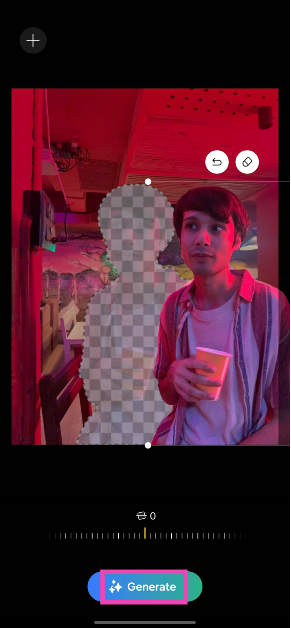
Samsung Galaxy S24 offers not one but two AI-based photo editing features. The most talked about feature is ‘generative photo editing’. This tool allows you to separate any object from the picture and move it anywhere you want. The void left by the object gets filled up with the power of Generative AI. This is where Samsung’s Galaxy AI excels the most. It analyses the picture and gains important cues to fill in the important details in the blank spot. We tried it for a bunch of images and it exceeded our expectations by a considerable factor.
What we found impressive was how Galaxy AI performed when there was a painting or artwork in the background. Shifting an object in front of an artwork did not mess up the final result at all. Instead, Galaxy AI studied the visible part of the artwork and filled the blank space with something similar. Other objects in the background were filled in accordingly. Here’s one example.
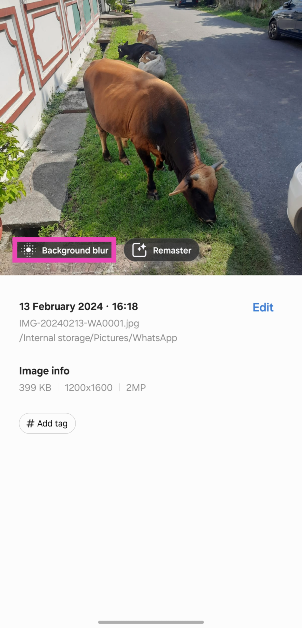
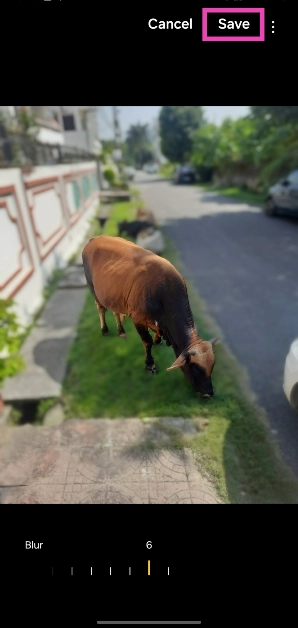
Apart from generative editing, the Galaxy AI can also come up with helpful suggestions for your pictures. If you forgot to apply the blur effect on a close-up portrait shot, you can use the editor to do it later. It also does a good job of removing shadows and reflections from your pictures. On top of that, you can ‘remaster’ a dimly lit image and brighten it up.
Use Generative AI on the Samsung Galaxy S24 Series to edit your pictures
Step 1: Launch the Gallery app on your smartphone and open the image you want to edit.
Step 2: Hit the pencil icon at the bottom of the screen to launch the photo editor.
Step 3: Tap the blue icon with stars on the left side of the screen to access Galaxy AI.
Step 4:Long press the object you wish to move or delete from the picture. You can also draw something around the object to select it.
Step 5: Once the object has been selected, you can resize it by dragging its corners. To shift the object, long press it and move it around.
Step 6: Hit Generate. Galaxy AI will take a few seconds to fill in the blank spots created by shifting or removing the object.
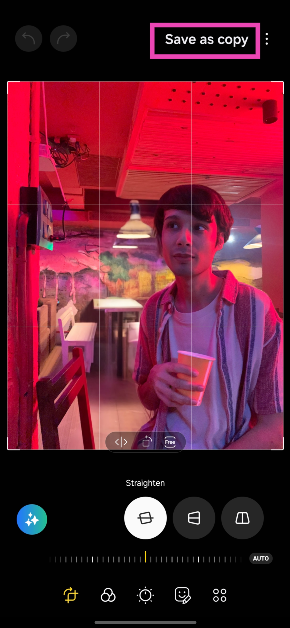
Step 7: Once the new image has been rendered, hit Done.
Step 8: Hit Save as copy at the top right corner of the screen.
Use Galaxy AI for editing suggestions
Galaxy AI can also come up with helpful editing suggestions to spruce up your pictures. For every picture you choose, it will come up with relevant suggestions. If you select a close-up picture, the editor will help you add the appropriate amount of blur to the background. Images with distracting shadows and reflections can also be fixed using this tool. Here’s how.
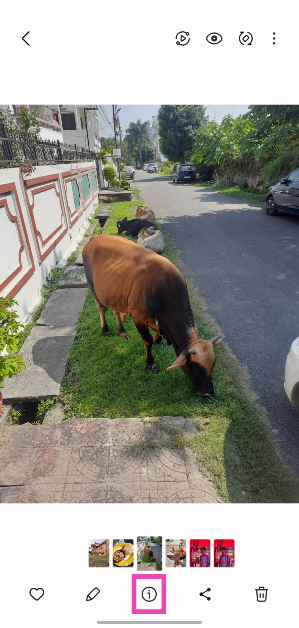
Step 1: Select a picture from the Gallery app on your phone.
Step 2: Hit the ‘i’ icon at the bottom of the screen.
Step 3: Galaxy AI will come up with the relevant editing suggestions for the picture.
Step 4: Tap on a suggestion to apply the changes.
Step 5: Hit Save and select Save as a copy (if you want to keep the original).
Frequently Asked Questions (FAQs)
Is Galaxy AI free to use on the Samsung Galaxy S24 Series?
Samsung’s Galaxy AI features will be provided for free until the end of 2025 on supported devices. The tech giant plans on introducing a subscription model for its AI services after that.
Can I use Galaxy AI’s generative editing feature on any picture?
Yes, Galaxy AI’s generative editing feature works on all images, even the ones that haven’t been shot using your Samsung Galaxy smartphone.
Where can I find the Galaxy AI editing feature on my smartphone?
If your smartphone supports Galaxy AI, open the picture you wish to edit, tap the pencil icon at the bottom of the screen, and then hit the blue icon with the stars to access the generative editing feature.
This is how you can use the AI photo-editing features on your Samsung Galaxy S24 Series smartphone. The ‘Generative photo editing’ editing feature requires an internet connection to work as its computing process does not take place on your device. However, remastering a picture using Galaxy AI does not require the internet. Go to Settings>Advanced features>Advanced intelligence and turn on the toggle switch for ‘Process data only on device’ to disable online processing.
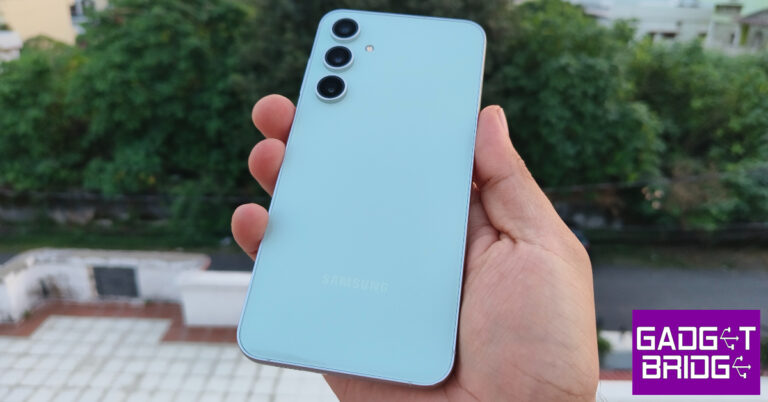
Samsung Galaxy S23 FE has received a price cut of Rs 5,000.
Along with the price revision, the company also offers additional bank offers on the device.
Samsung Galaxy S23 FE, which debuted in India last October, is now available at a lower price. The device has currently received a price cut. The handset is currently available in two different configurations and both models are discounted in the country. The details of the price reduction and other details for the smartphone are listed below.
Samsung has dropped the price of Galaxy S23 FE in India by Rs 5,000. After the price cut the 8GB RAM with 256GB storage is selling at Rs 54,990. On the other hand, the 8GB RAM with 256GB storage will be available at a reduced price of Rs 59,990.
Along with the price cut, Samsung is also providing additional discount offers on the purchase of smartphones. The HDFC Credit or Debit card customers will get a discount of Rs 10,000 on the purchase of Samsung Galaxy S23 FE which will bring down the price of both variants to Rs 44,990 and Rs 49,990 respectively.
Samsung Galaxy S23 FE features a 6.4-inch FHD+ Dynamic AMOLED display with 2340 x 1080 pixels resolution. The screen supports a variable refresh rate of 60 to 120Hz. The front panel is protected with Corning Gorilla Glass 5. The device is powered by a Samsung Exynos 2200 4nm processor with Samsung Xclipse 920 GPU. The phone runs on Android 13 with One UI 5 out of the box.
For photography and videography, the handset features a triple rear camera set-up that includes a 50-megapixel main camera with f/1.8 aperture and OIS, a 12-megapixel ultra-wide-angle sensor, and an 8-megapixel telephoto lens with OIS and 3X Optical Zoom. For selfies, there will be a 10-megapixel front-facing camera.
In terms of connectivity, there is 5G SA/NSA, 4G VoLTE, Wi-Fi 6E, Bluetooth 5.3, GPS + GLONASS, NFC, and a USB 3.1 port for charging. The S23 FE also includes an in-display fingerprint sensor for biometrics. The handset packs a 4500mAh battery with 25W wired fast charging and support for wireless charging, and wireless power share. It comes with an IP68 rating for water resistance and the stereo speakers on the phone support Dolby Atmos.
While many big players in the Indian market provide exceptional cleaning abilities from makers such as Philips and Dyson, there is a new entrant here called Dreame, which launched its set of Vacuum cleaners in India in Jan 2024. We got our hands on one of the devices to check it out. This is the Dreame U10 (cordless) Vacuum Cleaner Review, with which we have been tinkering around for over 10 days. Let’s see if it is worth the price.
Dreame U10 Vacuum Cleaner Review: Design
First up, this cordless Vacuum Cleaner is packed well within a small-ish cardboard case. That is also because it does not come with a lot of attachments like the mightier Dyson or Philips. However, it does come with a few attachments that are great for day-to-day use and cleaning out the home.
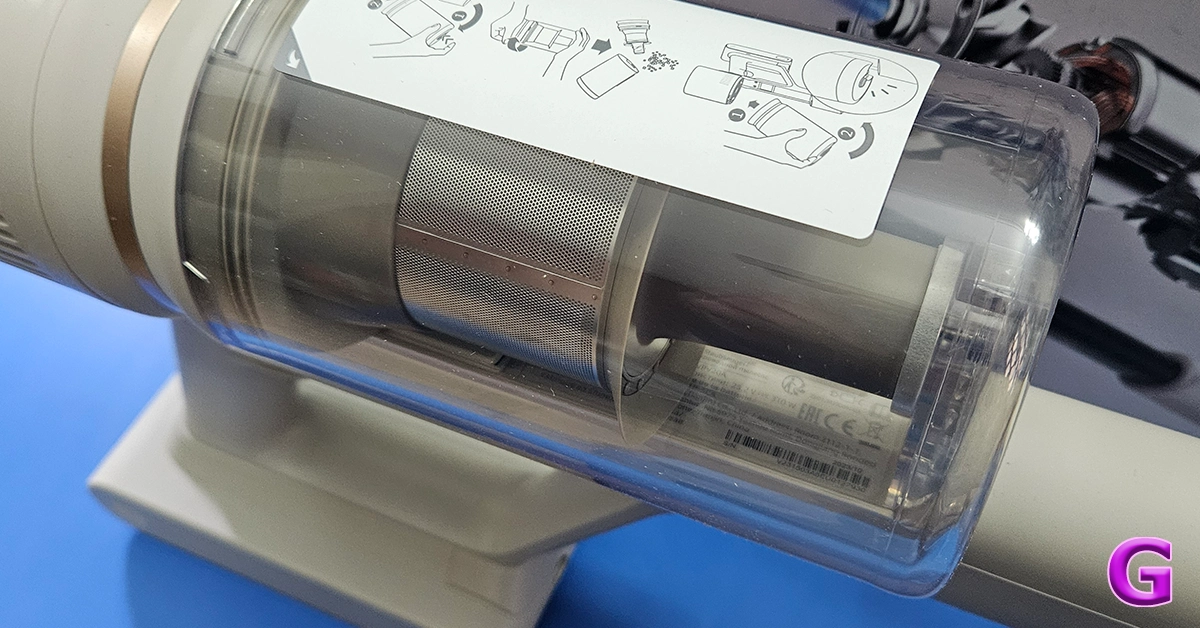
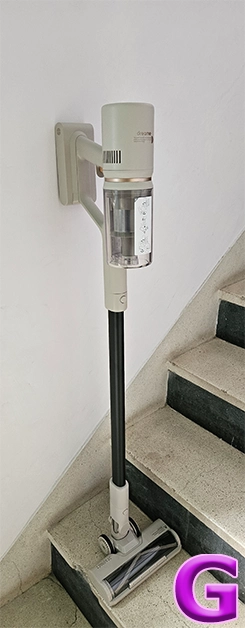
Out of the box, the Dreame U10 Vacuum Cleaner also looks like the rest of the pack. In fact, it seems a bit inspired by the Dyson series. However, it does have its distinct features. It is a trigger-style Vacuum Cleaner that when pressed sucks the dust at quite a rapid pace. The main enclosure consists of the rechargeable battery, the suction motor and also the transparent enclosure to trap all the dust and gunk.
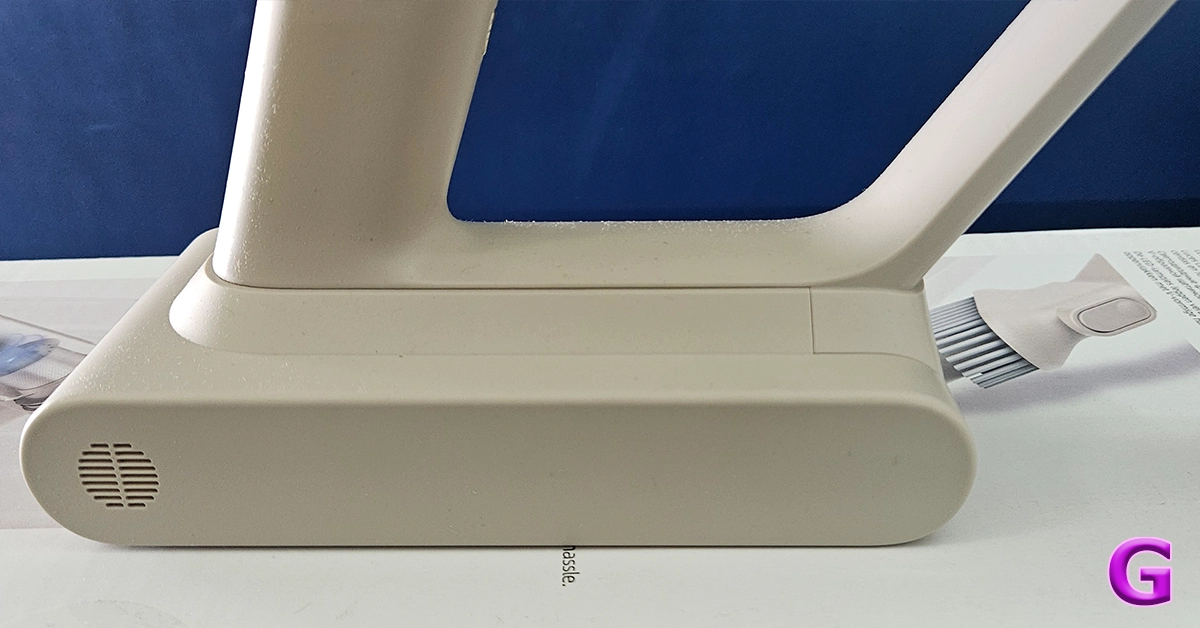
In the box, you also get two attachments and one long neck to connect the primary brush roller addon to clean hard as well carpeted floors. This also has an LED light in front of it for the user to easily see the debris and dust in front. The other one is a smaller stick-tip head which can be used for cleaning the keyboard, nooks and corners of the sofa, and also windows and blinds. With it, there is also a wall attachment on which you can hang the cleaner for easy storage.
Now here is the fun part. Indian homes get dusty very quickly as there is a lot of construction everywhere and a lot of dust seeps in. We found the Dreame U10 Vacuum Cleaner to be a very good assistant in taking care of the day-to-day sweeping needs. It charges fully in under 1 hour and the 2,500mAh battery lasted us for about 30 minutes. This is based on the fact that a 150-250 square yard area can be cleaned very easily in that much time. For larger areas, you would need to charge it once again.
There is a speed button at the back of the Dreame U10 Vacuum Cleaner, which can run the cleaner at three suction levels – slow, medium and fast. We used it to clean a lot of things and its suction power is great. 99% of the time it was able to pick up things like dust, larger particles and even hair with ease. Things like ribbons and tough threads got stuck in the floor head, but we were able to remove them easily.
The smaller attachment for sofas works better in our opinion and removed dust and slop from our living room sofas in a jiffy. There was dust stuck to it for years and with the Dreame U10 Vacuum Cleaner’s powerful motor, we were able to remove it quite rapidly.
It all boils down to the price for this one. Since it is a very new product in the market we were hoping to see a price tag of under Rs 10,000 to compete with the likes of Kent and a few others. However, the company is selling it for a little higher (Rs 11,999) in eComm places like Amazon. Is it worth the price? Since the pros outweigh the cons we will recommend it. However, there is stiff competition out there and for a few thousand more you will get extra attachments and even longer-lasting batteries from makers like Philips and even Xiaomi with its Vacuum robos. All in all, if you are just looking to clean hard floors and a little bit of sofas on a lesser budget, you can definitely pick this one up.
TV shopping can be an arduous task. Apart from deciding the specs you want for your TV, you also need to take into account the size of the display along with the lighting condition in your living room. There is also the question of deciding which TV fits your budget. If you’re stuck in a similar conundrum and are seeking an easy resolution, you’ve landed on the right page. Here are our picks for the top 10 4K TVs in the USA across all price segments.
LG OLED G3 was one of the best 4K Smart TVs launched in 2023. Available in four size variants, the 55-inch G3 OLED costs $1,899 while the 83-inch variant fetches $5,299. Powered by the α9 AI Processor Gen6 chip, the LG OLED G3 produces some of the best images we’ve seen on a high-end OLED TV. The Micro Lens Display along with Brightness Booster Max tech produces up to 70% brighter images. The AI tech can sense what you’re watching and select the best picture and sound settings to maximise your viewing experience. You can hang the TV like a frame on the wall using the bracket included in the box, leaving minimal space between the TV and the wall.
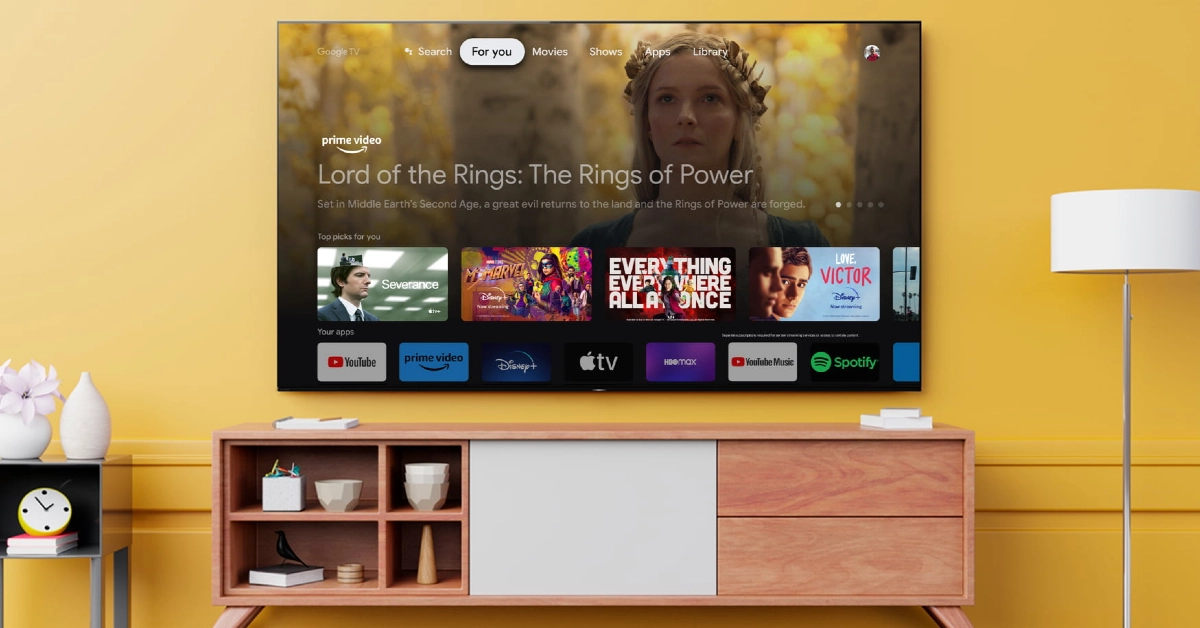
Sony’s A95L Quantum Dot OLED TV made a lot of waves last year. Considered by many to be the best 4K Smart TV in the USA now, the Sony A95L delivers stunning images with rich colours and perceptible texture. These pictures are produced with the help of the Cognitive Processor XR. The A95L applies 4K upscaling to non-4K content. The luminance is kept constant for colours from all viewing angles. The QD-OLED panel minimises the glare and reflection on the display, which makes the TV very versatile in different lighting conditions. Google TV support makes the A95L very accessible to users and brings a superior OS experience to the Smart TV.
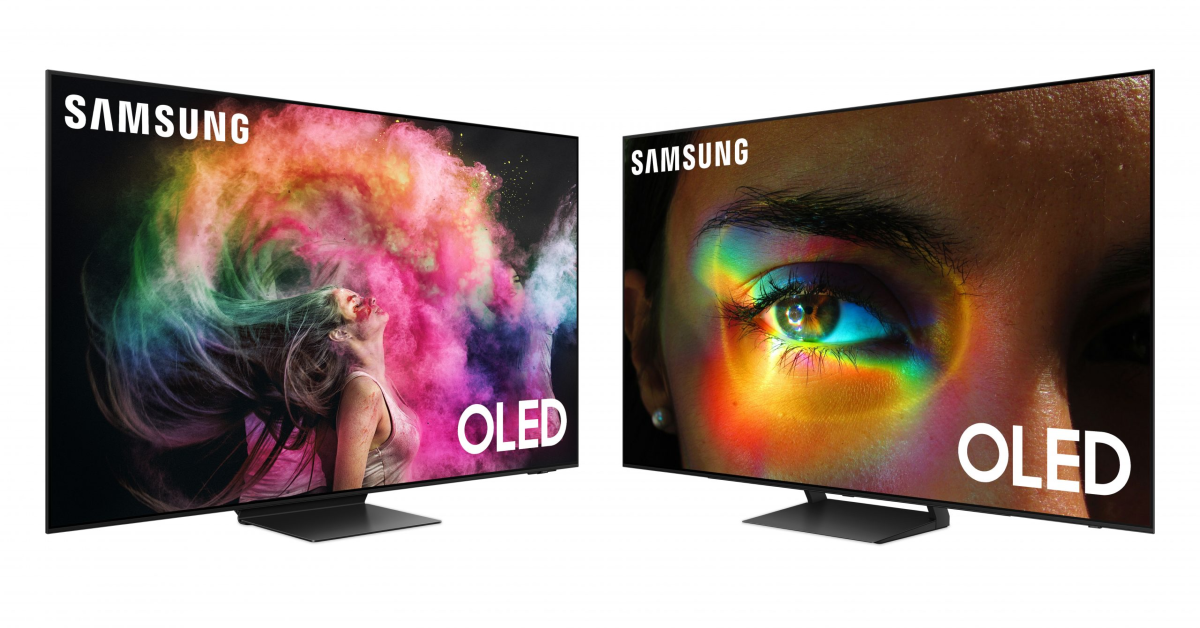
Samsung S95C is available in three size variants – 55 inches ($,1899), 65 inches ($2,699), and 77 inches ($3,899). Powering the S95C is the Neural Quantum Processor 4K which employs 20 different neural networks to produce stunning 4K images on the display. Like the Sony A95L, the Samsung S95C also rocks the QD-OLED display. The tiny Quantum Dots deliver 30% brighter visuals. Dolby Atmos and Object Tracking Sound+ tech fill the room with enveloping surround sound, centring the viewer and elevating the audio experience. The Samsung One Connect box that comes with the TV reduces the mess created by wires. You can connect all the input wires to this box which then connects to the TV.
Here is the price breakdown for all size variants of the Sony A80L.
55 inches: $1,699
65 inches: $,1999
77 inches: $2,999
83 inches: $4,799
The OLED panel on the A80L produces stunning, deep blacks and vivid, punchy colours. It is powered by Cognitive Processor XR, the same engine as its Quantum Dot cousin (Sony A95L). Apart from being a visual delight, the Sony A80L is also a brilliant TV for gaming. Being a Sony product, the A80L is perfect for your PS5. The TV automatically switches to Game Mode when you load a gaming title. While watching movies, the A80L reverts to Standard Mode. The display supports 4K/120fps and has a variable refresh rate along with an Auto Low Latency Mode.
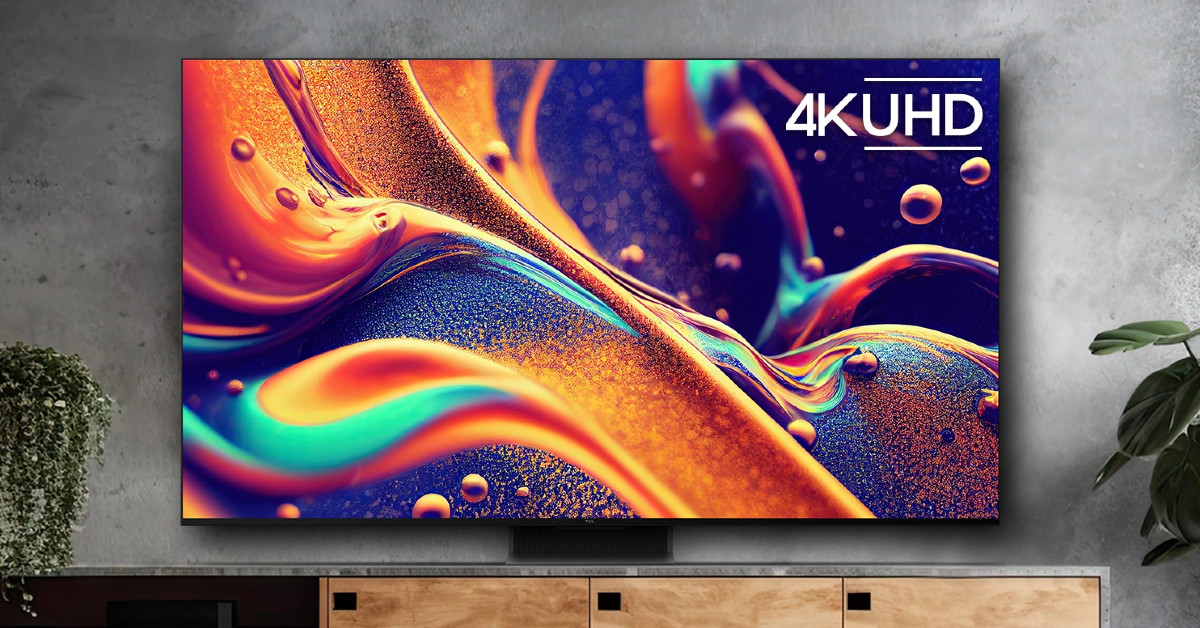
TCL’s flagship QM8 Series starts at $1,699 for the 55-inch and goes up to $11,999 for the 98-inch variant. For a QLED TV, the TCL QM8 is priced very aggressively. This Smart TV supports 4K resolution and reaches up to 2,000 nits of peak brightness. A refresh rate of 120Hz ensures smooth motion on the display, ideal for everything from gaming to live sports. The 2,300 local dimming zones adapt to the content displayed on the screen, producing rich and deep blacks without image blooming. Handling the OS duties on this TV is the Google TV Smart OS.
Prices for Samsung S90C start at $1,599 for the 55-inch variant and go up to $3,499 for the 83-inch display. The Neural Quantum Processor powering the S90C can non-4K content to 4K resolution with ease. This is carried out using 20 specialized neural networks. The AI deep learning tech is also used to analyse every scene and detect the level of brightness required by the different areas on the screen. Samsung S90C also has a unique gaming hub that categorises all your titles, apps, and gaming devices in one place.
Hisense U8K is our value-for-money pick for this list. It is available in four size variants – 55 inches ($749.99), 65 inches ($999.99), 75 inches ($1,299.99), and 85 inches ($1,999.99). Equipped with the Mini-LED Pro tech, the Hisense U8K can deliver bright, lucid, and detailed images. The TV’s precise local dimming helps in controlling the backlight and brings forth an elevated HDR experience. Producing the audio output on the Hisense U8K is a 5-speaker 2.1.2 multi-channel surround system. It delivers a peak sound output of 50W.
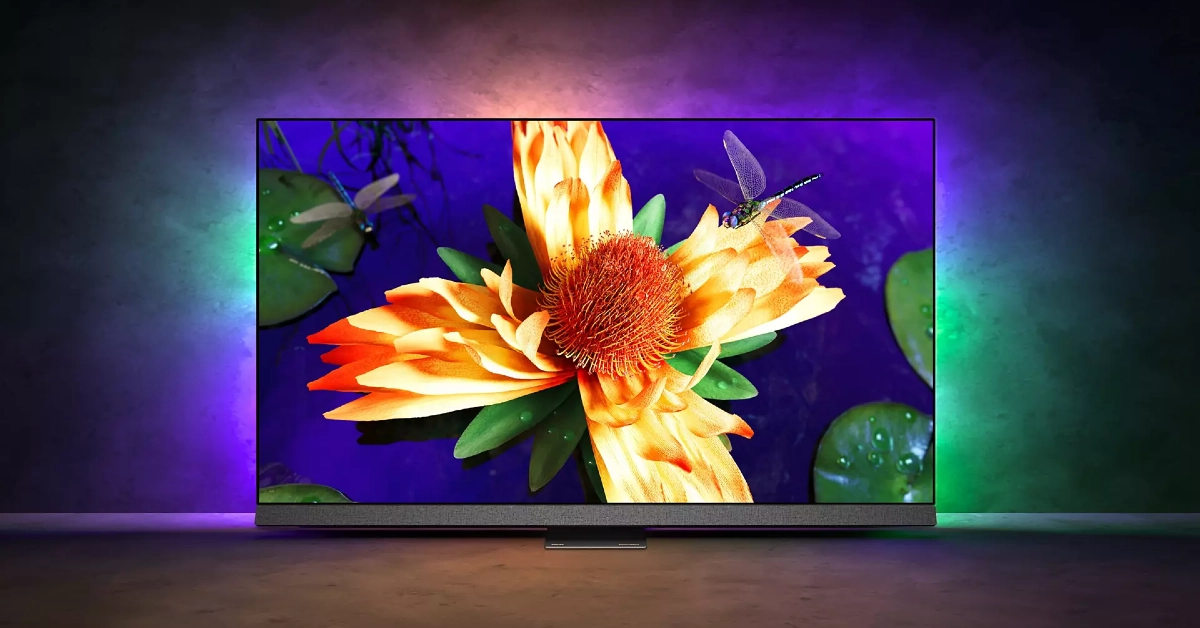
Philips OLED 907 sports a 4K resolution and 120Hz refresh rate. Delivering the ultra HD images on this display is the P5 AI Perfect Picture Engine. One of our favourite visual aspects of this TV is the IMAX Enhanced Mode which creates a special cinematic experience for movies that were originally made to play in IMAX theatres. Handling the OS duties on the Philips OLED 907 is Android TV 11. A 16GB internal memory capacity is optimum for downloading all your favourite streaming apps along with other lifestyle content. The audio output on this TV is provided by Bowers & Wilkins. The 3.1 channel delivers a peak audio output of 80 Watts.
Vizio V Series is one of the most affordable 4K Smart TVs you can buy in the USA right now. Prices for this Smart TV start at $248 for the 43-inch variant and go up to $628 for the 70-inch unit. The 4K panel on this TV supports Dolby Vision HDR. The 60Hz refresh rate is optimum for watching content across all the major OTT platforms. There are 3 2.1 HDMI ports on this TV. Talking about connectivity, the V Series also supports WiFi 6E. There is one Ethernet at the back of the TV and one USB port to the side. The sound output on this TV is delivered by two 10W digital audio amplifiers.
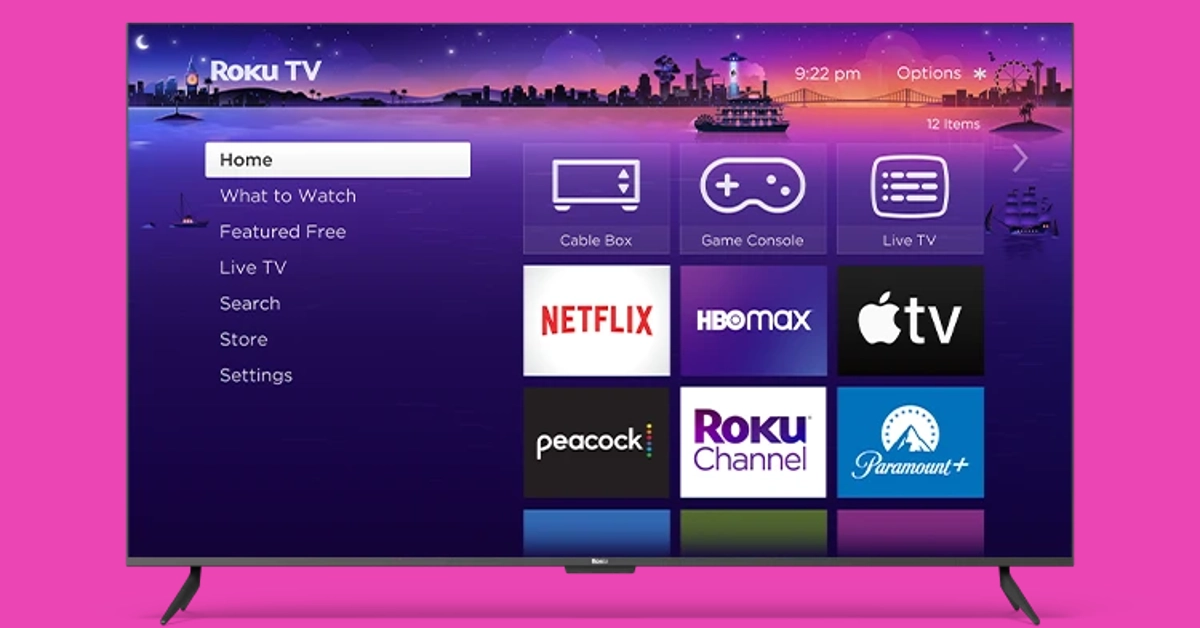
Ending this list is another budget pick under $300. The Roku Select Series starts at S229 for the 43-inch model and goes up to $649 for the 75-inch unit. If you’re on a tight budget, this is one of the best deals you can get right now on a 4K Smart TV in the USA. The 4K panel on Roku’s Select line of TV supports HDR10+, bringing a vivid colour palette and superior viewing experience to your living room. With automatic onboard, Roku’s Smart TV can adjust itself to the lighting of the room. This TV works with AirPlay, Apple Home, Alexa, and Google Home. One of the cooler features of the Roku Select Series is the headphone port on its remote, which allows for discreet viewing sessions without disturbing anyone around you.
These are our picks for the top 10 4K TVs you can buy in the USA right now. These picks cover all the major categories and price points. If you think we missed out on a TV that deserves a spot on this list, let us know in the comments!
Poco X6 5G 12GB RAM with 256GB storage is currently up for sale in India.
The new variant went on sale after it was launched last month.
The handset includes a triple rear camera setup and a 120Hz display.
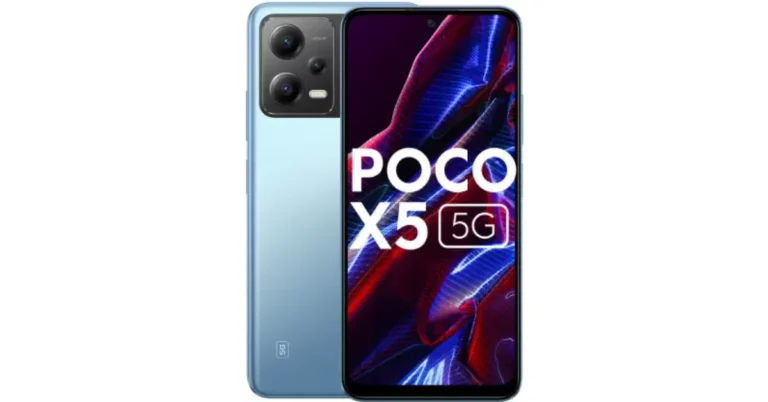
Poco X6 5G which launched in India earlier last month was only made available in India in two different configurations. One month after its release the company brought another 12GB RAM with a 256GB storage option to the market, which is currently available for purchase. Poco X6 5G is powered by the Snapdragon 7s Gen 2 chip. It runs on new HyperOS software and supports 67W fast charging.
Poco X6 5G 12GB RAM with 256GB storage price in India
Poco X6 5G 12GB RAM with 256GB storage variant can be purchased at Rs 23,999 in India. The company is also offering a discount of Rs 3,000 if it is purchased via ICICI, HDFC, Axis and SBI bank cards or EMI transactions. The phone comes in two colour options Mirror Black and Snowstorm White.
Poco X6 also comes with 8GB RAM with 256GB storage at Rs 21,999. Whereas the top of the line 12GB RAM with 512GB storage option comes with a price tag of Rs 24,999.
The Poco X6 5G features a 6.67-inch AMOLED display with a resolution of 1.5K – 2712 x 1220. The display panel has a screen-to-body ratio of 94.27% and a pixel density of 446 PPI. It has a colour gamut of 100% DCI-P3 (typ), showcasing a colour depth of over 68.7 Billion+ colours. The display also features a refresh rate of 120Hz and supports Dolby Vision. The device runs on the new HyperOS on top of Android 14 and is powered by Snapdragon 7s Gen 2 SoC with up to 12GB RAM and 512GB storage.
The handset comes with a triple rear camera setup that includes a 64-megapixel main camera lens with OIS, an 8-megapixel ultra-wide-angle lens and a 2-megapixel macro camera. For selfies, the handset includes a 16-megapixel front-facing camera.
The Poco X6 5G is backed by a 5,100mAh battery with 67W fast charging support. For connectivity, there is 5G, 4G LTE, Bluetooth, NFC, GPS, and a USB Type-C port for charging. The 3.5mm jack is missing on the pro model whereas the standard model has. The sensors on the phones include an accelerometer, gyroscope, proximity sensor and e-compass.
Garena Free Fire is a battle royale game with regular awards and tournaments to keep players interested. If you play Garena Free Fire, you should be aware of the redeem codes that are released on a daily basis. However, because the battle royale game is banned in India, players from other countries can use the Free Fire Redeem codes daily. If you’re unfamiliar with the Garena Free Fire redeem codes or don’t know how to get them, we’ve put together a step-by-step guide to help you redeem them. Check out Garena Free Fire Redeem Codes for 13 February 2024.
The Free Fire redeem codes are a great way to get free stuff. These are 12-digit codes that contain alphabets and numbers, as well as an expiration date and time. Because the Garena FF redeem codes cannot be used more than once, you should hurry to the redemption page to claim your free reward before someone else does. To get a free reward, all you have to do is go to reward.ff.garena.com/en, which is the official redemption page. Also, keep an eye on this space for daily updates on Garena Free Fire redemption codes and rewards.
Garena Free Fire is a battle royale game with regular awards and tournaments to keep players interested. If you play Garena Free Fire, you should be aware of the redeem codes that are released daily. However, because the battle royale game is banned in India, players from other countries can use the Free Fire Redeem codes daily. If you’re unfamiliar with the Garena Free Fire redeem codes or don’t know how to get them, we’ve put together a step-by-step guide to help you redeem them. Check out Garena Free Fire Redeem Codes for 11 February 2024.
The Free Fire redeem codes are a great way to get free stuff. These are 12-digit codes that contain alphabets and numbers, as well as an expiration date and time. Because the Garena FF redeem codes cannot be used more than once, you should hurry to the redemption page to claim your free reward before someone else does. To get a free reward, all you have to do is go to reward.ff.garena.com/en, which is the official redemption page. Also, keep an eye on this space for daily updates on Garena Free Fire redemption codes and rewards.
Garena Free Fire Redeem Codes Today 12 February 2024
F5DCV3B4N5JIG8U7
FYTGDSBWE4576JYH
F7YTGE45NTJKIGUJ
FHNSJUA65RQ2FDCV
F3BERNFJUCYTSRAF
FYMUYTYHF6YG7FQ
FBHWEURF7Y6TGBD
FNJEKR5IUTGMK8U
FEFTHY66T7U57YH
FKI765ATRQFD2V3E
FYHFTY6KJ8IT67K
FIUYSGY6H67T5KY
FLUOIHMGKFO5ITK
FIUYSGY6H67T5KY
FLUOIHMGKFO5ITK
FYMUYTYHF6YG7FQ
FBHWEURF7Y6TGBD
FNJEKR5IUTGMK8U
FEFTHY66T7U57YH
FFGBYHRDTFGY5MK
FYUJTI67UJ45EO9
F5GBTGNVK6O9IUYH
FMKOUYJ655T0TDEB
FNRH67UTHTN77BYV
How to Get or Redeem Free Fire Redeem Codes for Garena on 12 February 2024?
Immersive Noise Cancellation: The Redmi Buds 5 comes equipped with 46dB Hybrid Noise Cancellation, effectively blocking out 99.5% of background noise, ensuring users enjoy a distraction-free audio experience.
Crystal-Clear Communication: With dual-mic AI voice enhancement technology, the Redmi Buds 5 ensures crystal-clear communication for calls, voice commands, and everyday use, enhancing user convenience.
Exceptional Sound Quality: Featuring 12.4mm dynamic titanium drivers, they deliver exceptional sound quality across all frequencies, providing users with a balanced and precise audio experience.
Unmatched Call Quality: Xiaomi‘s proprietary dual-channel AI algorithm enables these to deliver unmatched call quality, even in challenging conditions such as windy environments.
Xiaomi has announced the launch of its latest innovation, the Redmi Buds 5, aiming to redefine the audio experience for consumers in India. With advanced features like Hybrid Noise Cancellation, AI voice enhancement, and dynamic titanium drivers, the Redmi Buds 5 promises to deliver an immersive audio experience like never before. Let’s dive into the details of this exciting new product and explore how it’s set to make waves in the Indian market.
Customizable Audio Experience: Users can personalize their audio experience with various audio effects, including Standard, Enhanced Treble, Enhanced Bass, and Enhanced Voice, catering to individual preferences.
Fast-Charging Feature: These offer a fast-charging feature, providing up to 2 hours of playtime with just 5 minutes of charging and a total playtime of 38 hours with the case, ensuring uninterrupted music on the go.
Redmi Buds 5 Pricing and Availability
Xiaomi has announced that the Redmi Buds 5 will be available in three stunning colors – Fusion Purple, Fusion Black, and Fusion White, starting from 20th February 2024. Consumers can purchase the Redmi Buds 5 for INR 2,999 across various platforms, including Mi.com, and Amazon.in, Flipkart, Mi Homes, and Xiaomi retail partners. Additionally, Xiaomi is offering a limited period offer wherein customers can avail the Redmi Buds 5 at a discounted price of Rs. 2,499 with the purchase of any Redmi Note 13 Smartphone Series or Xiaomi and Redmi Pad, making it an attractive deal for audio enthusiasts across India.
Xiaomi’s launch marks another milestone in its commitment to delivering cutting-edge technology to consumers worldwide. With its impressive features, competitive pricing, and limited-period offer, the Redmi Buds 5 is set to become a game-changer in the premium earbuds segment in India. Stay tuned for the official release of the Redmi Buds 5 on 20th February 2024, and experience the next level of audio excellence with Xiaomi.
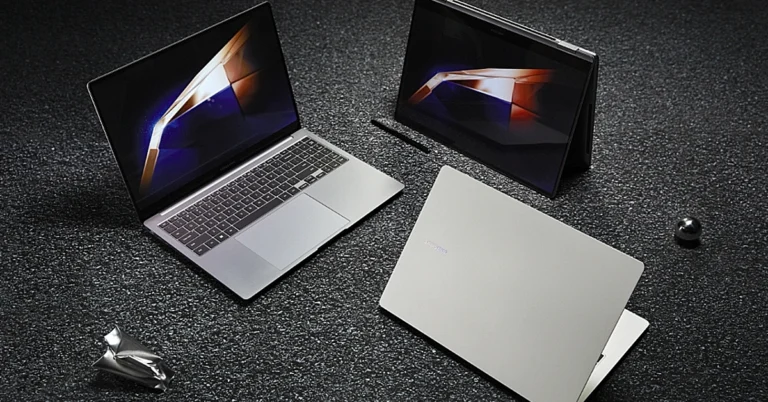
In a groundbreaking move that marks the next stage of technological advancement, Samsung, the premier consumer electronics brand in India, has revealed that pre-reservations are now open for their highly-anticipated Galaxy Book4 series in the Indian market. This significant achievement is set to revolutionize the personal computing industry, ushering in a new era of increased productivity, mobility, and connectivity for users nationwide.
Get ready to be at the forefront of innovation with the Galaxy Book4 series by pre-reserving your spot today. For just a token payment of INR 1999, you can secure early access to this revolutionary lineup of devices that will transform the way we engage with technology. But this offer is more than just a simple reservation.
By taking part in this journey, you’ll be rewarded with a plethora of exclusive benefits worth INR 5000, enhancing your ownership experience of the Galaxy Book4 devices with unmatched value and utility. Trust us, you won’t want to miss out on this gesture of appreciation from Samsung.
The Galaxy Book4 series is a masterpiece of cutting-edge technology, carefully designed to provide users with an unparalleled experience. It boasts a powerful processor that enhances its computing capabilities and a stunning display that offers vibrant colors and immersive interaction. Together, these advancements push the boundaries of traditional computing.
Have you ever wanted to share a video on X (formerly Twitter) without the caption attached to it? Quote-tweeting the post does not have the same effect as it retains the original caption and doesn’t autoplay the video when it appears on other people’s feeds. Twitter users are also more likely to click on a video if it is embedded into your post instead of being quoted. Don’t know how to share a video on X (Twitter) without retweeting it? Check out these 6 methods.
When should you share a video on your X (formerly Twitter) feed without quote-tweeting it?
If you’re new to X (Twitter), you’re probably wondering why the platform allows different ways to share videos on your profile. That’s because each mode of sharing has its unique purpose. A retweet simply shares the original poster to your feed without any input from you. If you want to add your commentary to the post, you can choose to quote-tweet it. Finally, X also gives you the option to strip the caption from the video and share it with a new title.
You can use this option to share a video as a reaction to something. Meaning, you can respond to another post with that video. You can add your title to the video but the name of the original poster always appears underneath it. The new interactions are also added to the original post. Apart from responding to other posts, you can use this method to quote a tweet with a video as well.
Share someone’s video on X (Twitter) without retweeting
Step 1: Go to the post containing the video.
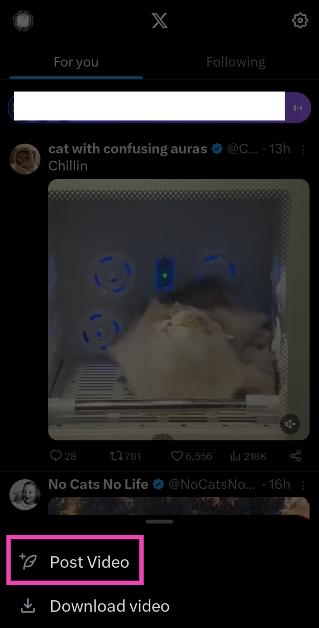
Step 2: Long-press the video and select Post Video.
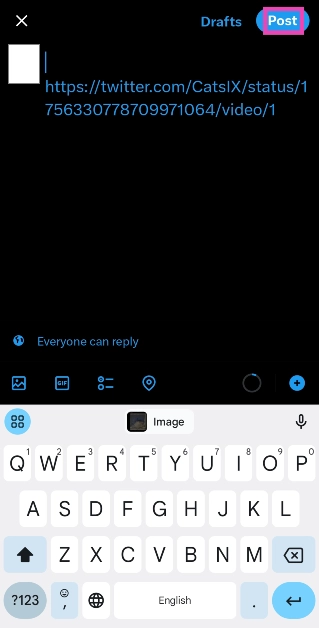
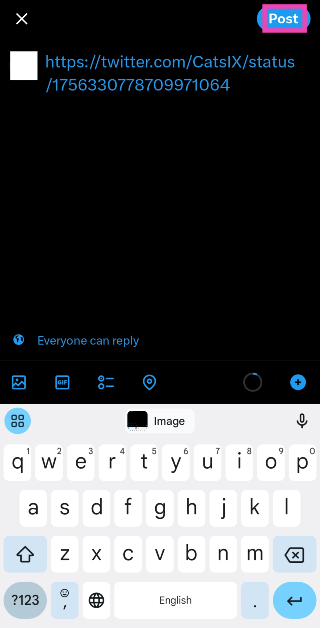
Step 3: The shortened link will appear in the tweet drafter.
Step 4: Add a caption for the video. This step is voluntary.
Step 5: Hit Post at the top right corner of the screen.
Share a video without retweeting by copying its link
Step 1: Go to the post containing the video.
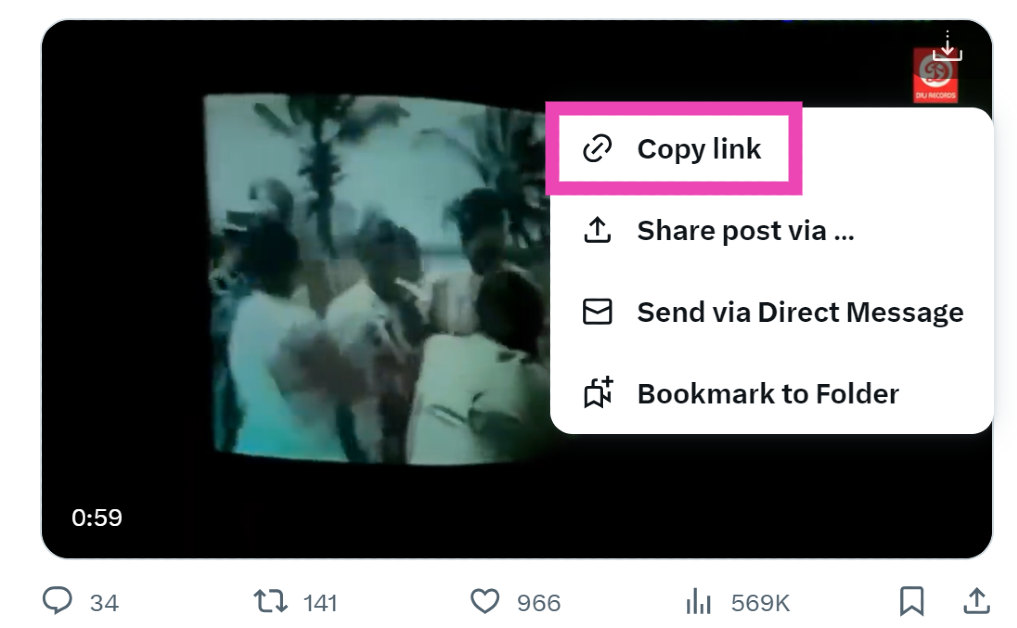
Step 2: Hit the Share icon.
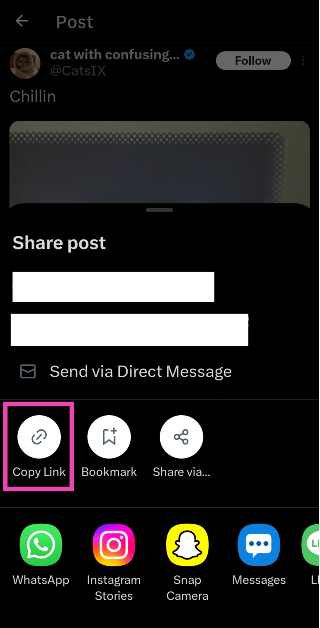
Step 3: Tap on Copy Link.
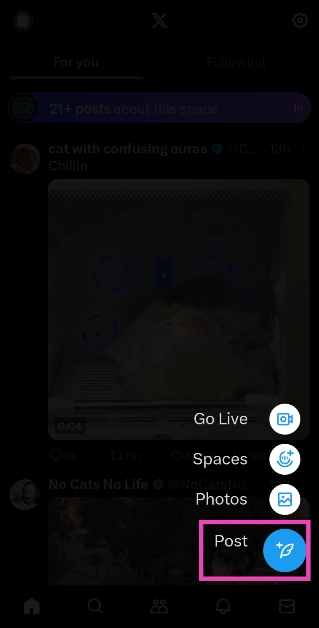
Step 4: Go back to the home page and tap the blue plus icon. Hit Post.
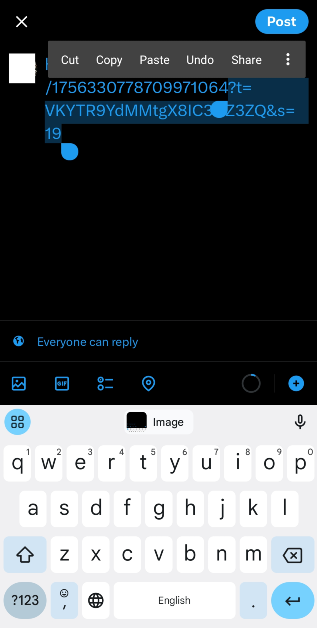
Step 5: Paste the link in the box.
Step 6: Shorten the link manually. You can do this by deleting everything from the link after the status ID, starting from the ‘?’ sign.
Step 7: Enter a caption for the video and hit Post.
Share someone’s video on X (Twitter) without retweeting (PC)
Step 1: Go to the post containing the video.
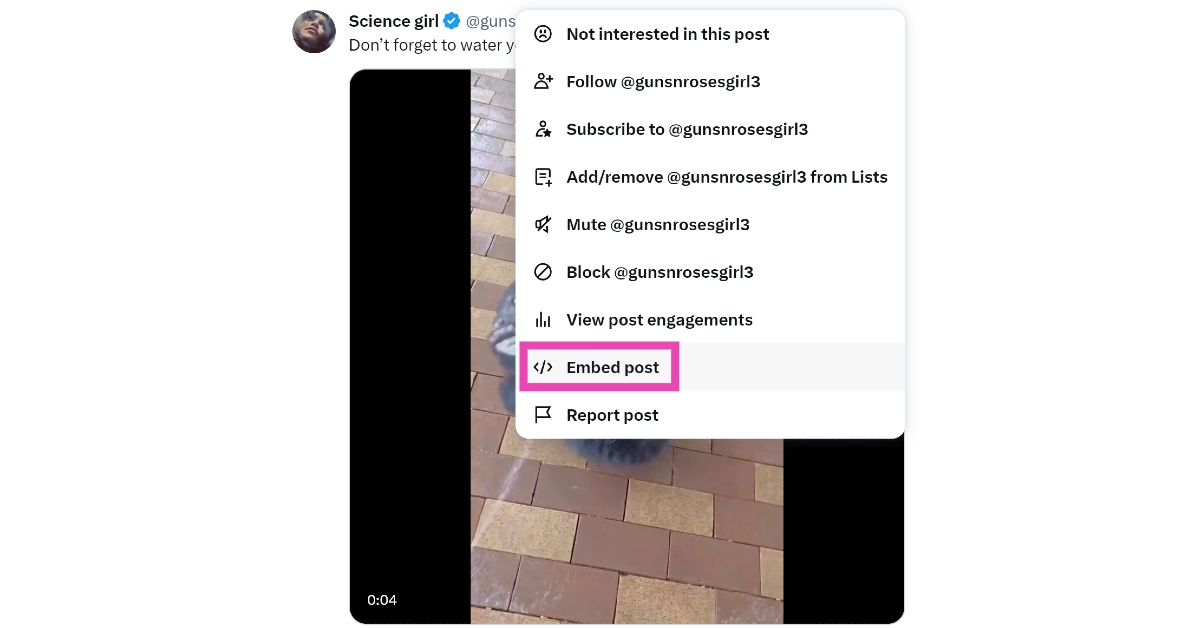
Step 2: Hit the ellipses and select Embed post.
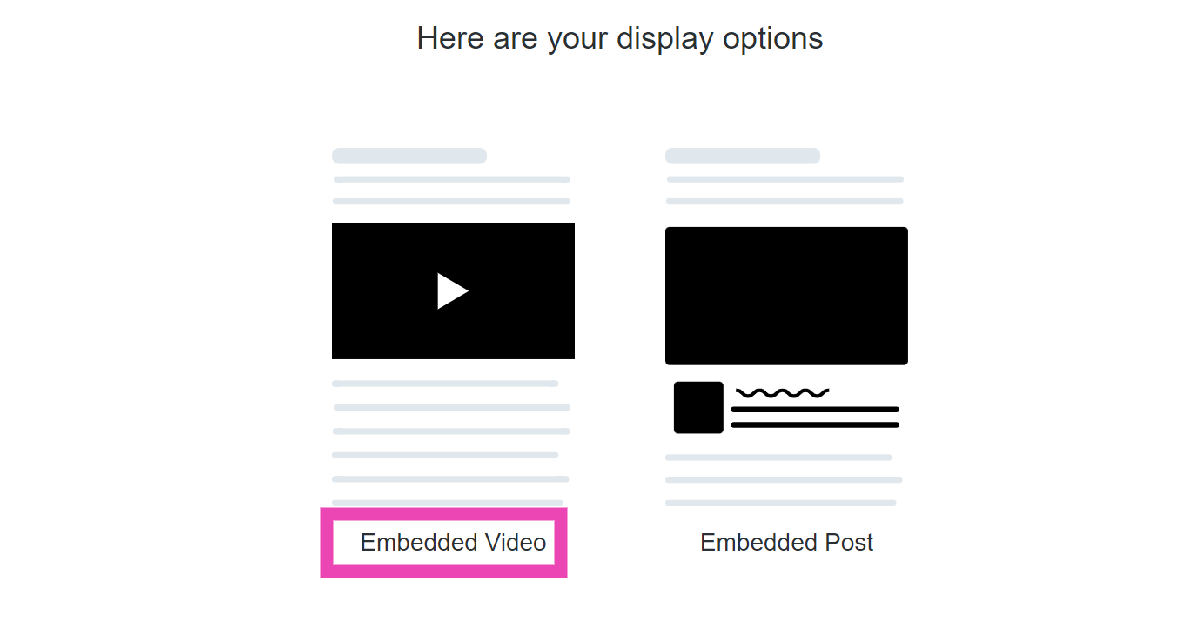
Step 3: Select Embedded Post.
Step 4: Click on Copy Code.
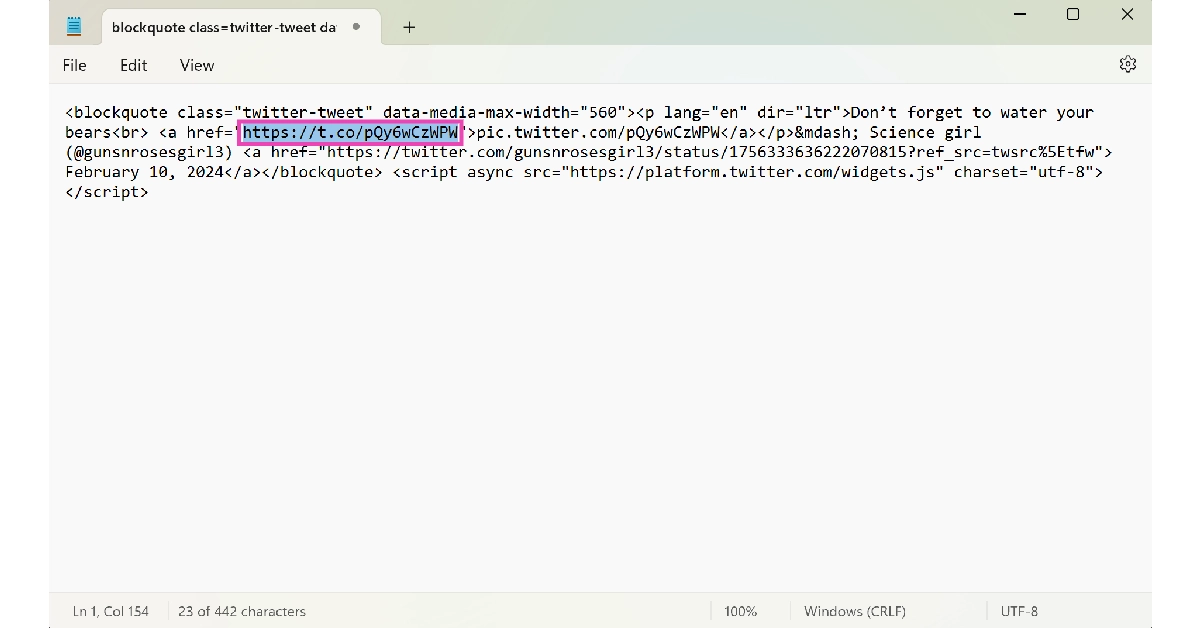
Step 5: Launch Notepad (or any text editor) on your PC and paste the code.
Step 6: Copy the firsthyperlink from the code.
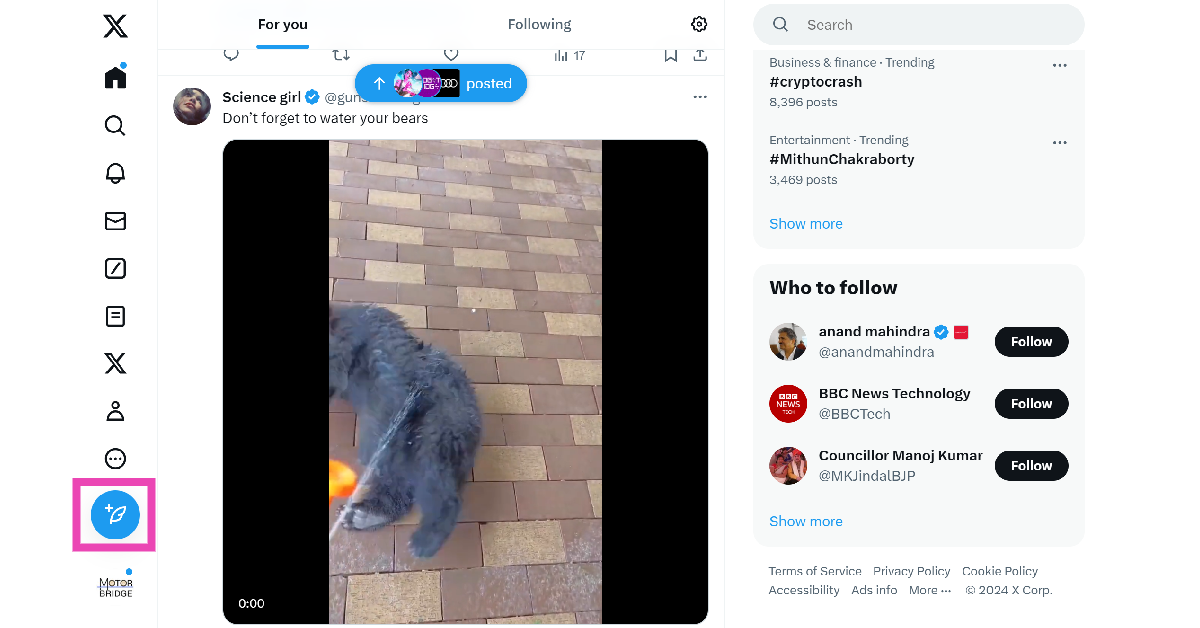
Step 7: Go back to your Twitter home page and click on the Create Tweet icon.
Step 8: Paste the link.
Step 9: Add text to the post (voluntary) and hit Post.
Download the video and post it from your account
The methods mentioned above give credit to the original poster of the video. If you don’t want the OP’s name under the video, download it as a file on your device and post it from your profile. Twitter Blue subscribers can natively download videos on the app. Here’s how.
Step 1: Launch the X app on your smartphone and select the video you want to download.
Step 2: Make sure the video is in full screen.
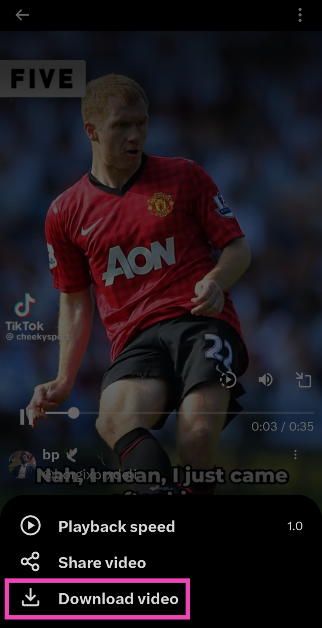
Step 3: Hit the ellipses at the top-right corner of the screen.
Step 4: Select Download video.
Step 5: Go back to the home page and hit the blue plus icon followed by Post.
Step 6: Select the video from your device’s gallery.
Step 7: Hit Post.
Download the video and post it from your account (PC)
Step 2: Click on Chrome Extension at the top of the screen. This will redirect you to the Chrome Webstore.
Step 3: Select Add to Chrome.
Step 4: Hit the Download icon at the top right corner of any video to save it on your device.
Step 5: Now, post the video from your X account.
Frequently Asked Questions (FAQs)
How do I download a video from X (Twitter)?
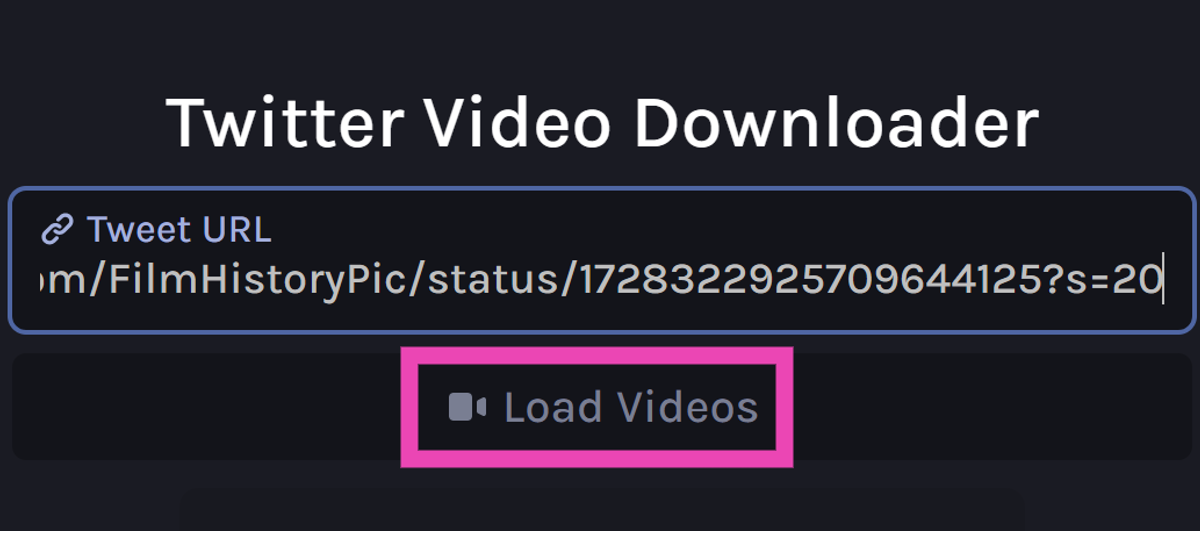
Copy the link to the video, go to https://twittervid.com/, and paste it into the box. Click on ‘Load Videos’ and select a video resolution. The video will be downloaded to your device.
How do I share a video on X (Twitter) without retweeting the source?
Long press the video and select ‘Post Video’ to share it without the original tweet. The name of the original poster of the video will appear under the video in your post.
What is the video time and file size limit for Twitter Blue subscribers?
Twitter Blue or X Premium subscribers can upload videos up to 3 hours long. The maximum file size allowed is 8GB.
These are the top 6 ways to share a video on X (Twitter) without retweeting it. The only way you can share a video without crediting the OP is by downloading it as a file on your device. If you know any other way to go about this task, let us know in the comments!
Garena Free Fire is a battle royale game with regular awards and tournaments to keep players interested. If you play Garena Free Fire, you should be aware of the redeem codes that are released on a daily basis. However, because the battle royale game is banned in India, players from other countries can use the Free Fire Redeem codes daily. If you’re unfamiliar with the Garena Free Fire redeem codes or don’t know how to get them, we’ve put together a step-by-step guide to help you redeem them. Check out Garena Free Fire Redeem Codes for 11 February 2024.
The Free Fire redeem codes are a great way to get free stuff. These are 12-digit codes that contain alphabets and numbers, as well as an expiration date and time. Because the Garena FF redeem codes cannot be used more than once, you should hurry to the redemption page to claim your free reward before someone else does. To get a free reward, all you have to do is go to reward.ff.garena.com/en, which is the official redemption page. Also, keep an eye on this space for daily updates on Garena Free Fire redemption codes and rewards.
Do you feel uncomfortable when people around you are constantly glancing at your laptop? Whether you’re on a flight or working from a shared workplace, your laptop’s screen is bound to attract eyeballs. Luckily, if you are working on Chrome, you can do something about keeping your active tabs from prying eyes. While Google Chrome does not have a dedicated feature for hiding tabs on the browser, there are a couple of workarounds that will serve you well. So, let’s jump right into it.
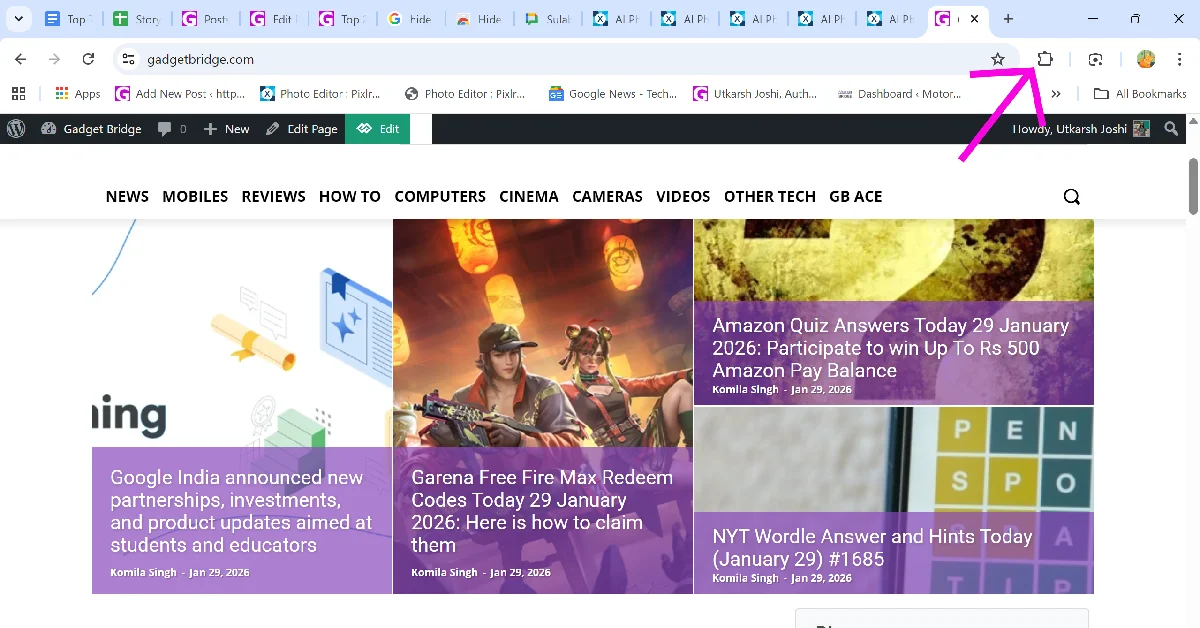
There is no direct way to hide tabs on Google Chrome. There are a couple of extensions that claim to hide tabs on the browser, but they close all tabs and wipe your profile settings instead. Once all tabs are closed, these extensions do not offer a way to retrieve them. We would highly suggest steering clear of these misleading extensions.
Now that we’re not going down the extensions route, it leaves us with two options. You can either hide the tab bar entirely by going full screen or pin a tab to shorten it. The latter hides the title of the tab but not the thumbnail. You can also choose to open the tabs you wish to hide in another Chrome window altogether. You can switch between the two browser windows by swiping up on the touchpad of your laptop with three fingers. If you don’t want the websites you visit to be recorded in the browser history, use the incognito tab instead. You can trigger it by pressing Ctrl + Shift + N.
Hide tabs on Google Chrome by going full-screen
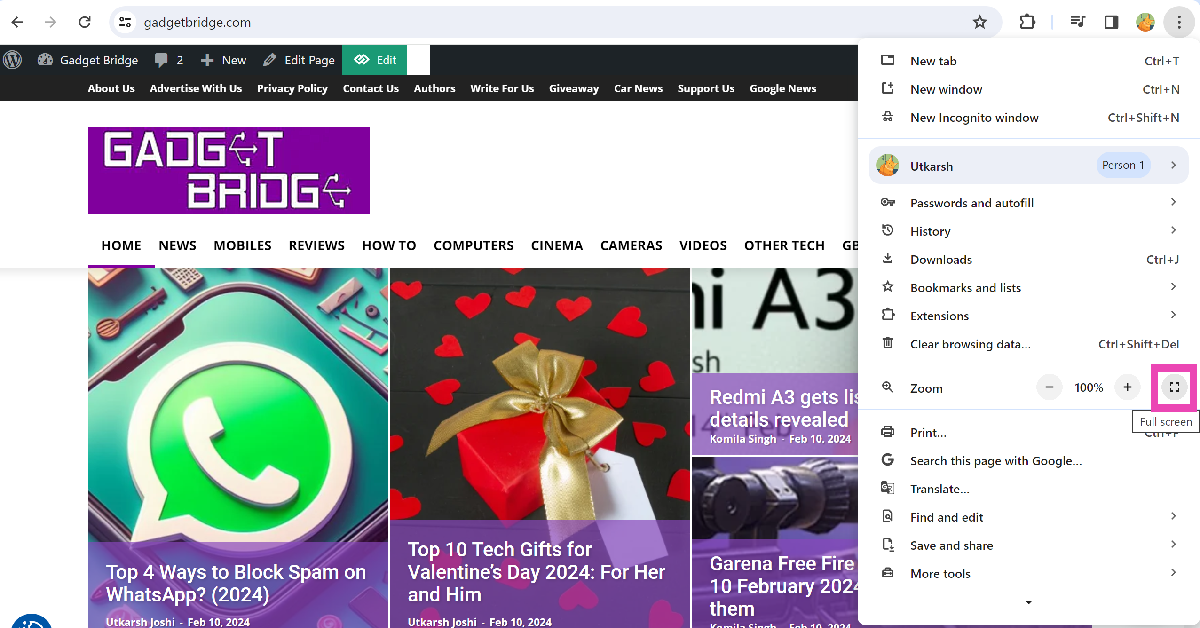
Did you know that you can expand the current tab on your web browser and make it go full screen? Not only does it curb distractions, but it also hides all your tabs from the screen. To go full screen on Google Chrome, simply press F11 on your keyboard. If pressing the F11 key triggers a shortcut, press Fn + F11 to use the web browser in full-screen mode. You can also click on the ellipses and hit the expand icon next to the zoom functions to make your current tab cover the entire screen. To go back to regular mode press F11 (or Fn + F11) again or simply move your cursor to the top of the screen and hit the cross icon.
Pin the tab
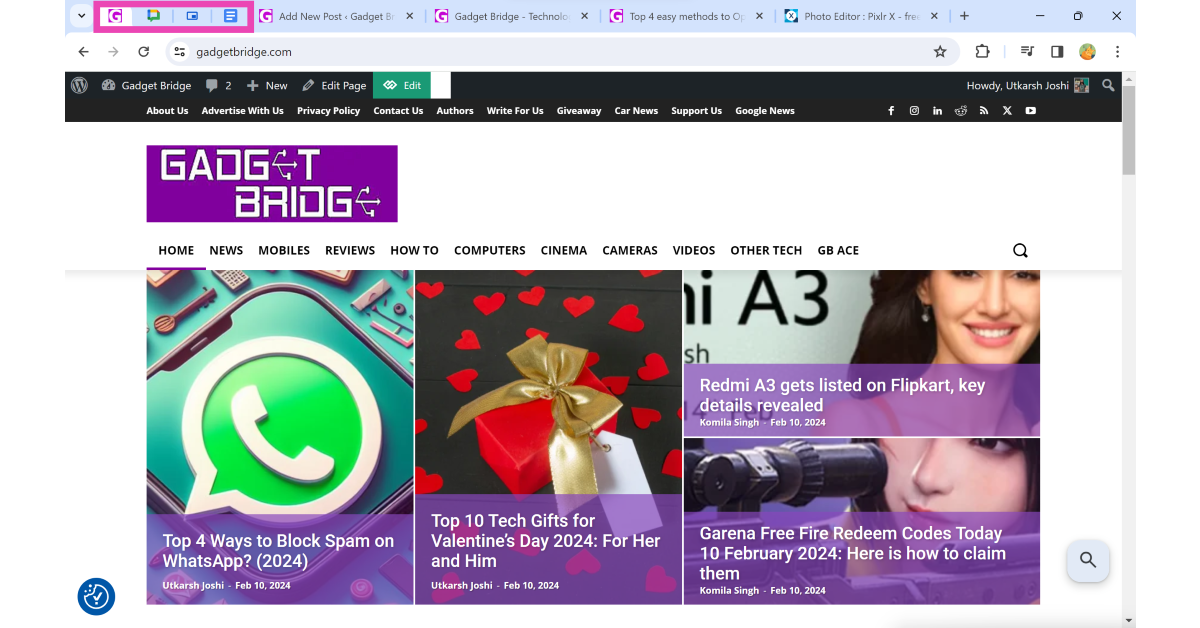
Pinning a tab moves it to the extreme left of the tab bar. Once you pin a tab, you can’t see its title. The only way to recognise a pinned tab is by its thumbnail. To pin a tab, right-click on it and select ‘Pin’. This will permanently lock the tab in the first position. Any tabs pinned after that will be queued behind it. To unpin a tab, right-click on it and hit ‘Unpin’.
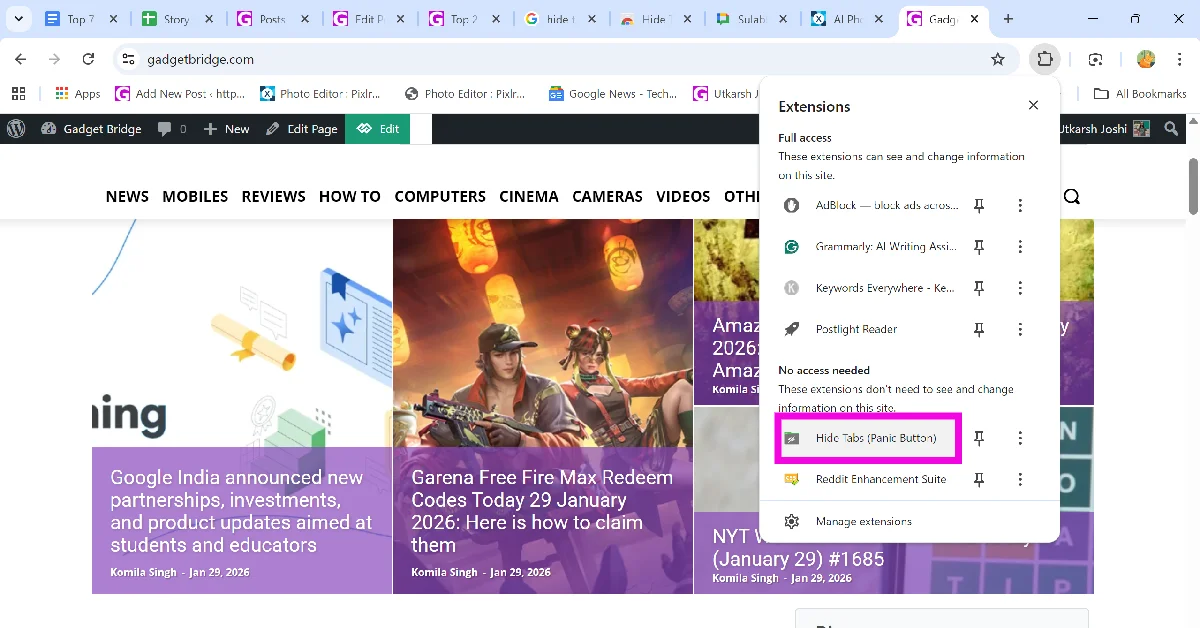
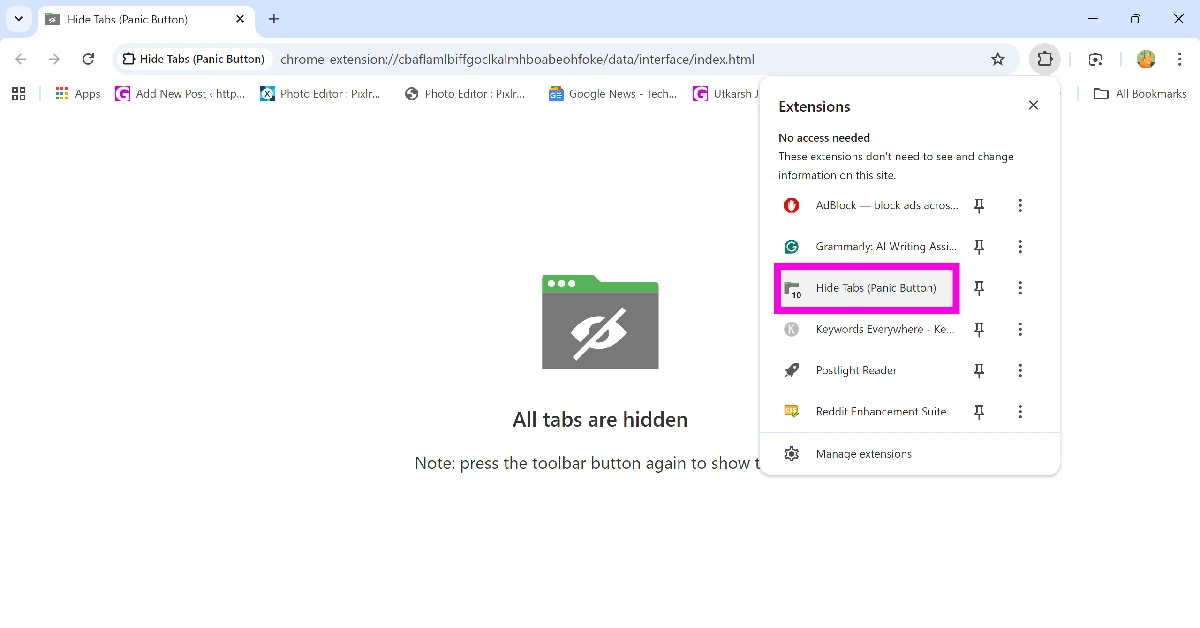
Step 3: Select the Hide Tabs extension. This will hide all your current tabs instantly.
Step 4: Click the Hide Tabs extension again to restore all hidden tabs.
Create a tab group
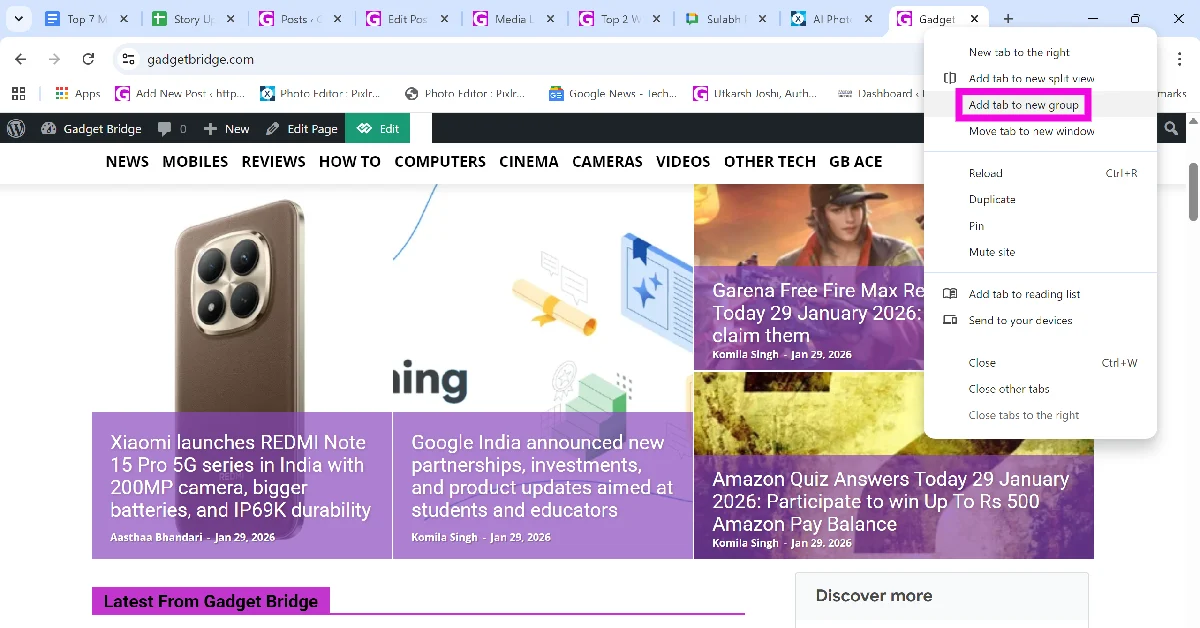
Google Chrome lets you bunch different tabs into a group. Once a group is created, you can minimise it with a single click, effectively hiding it from the tab bar. Here’s how you can go about it.
Step 1:Right-click the tab you want to hide and select Add tab to new group.
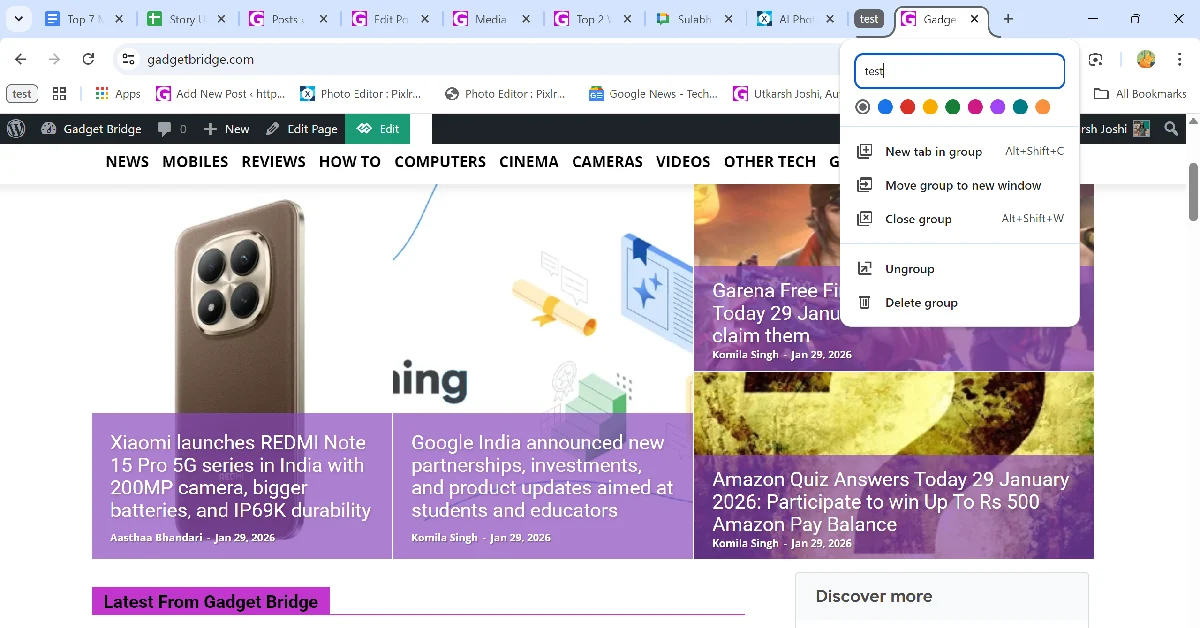
Step 2: Give the group a name. This step is optional.
Step 3: Once the group is created, click its icon to hide the tab(s) in it.
Frequently Asked Questions (FAQs)
Is there a Google Chrome extension to hide tabs in the web browser?
While there are a couple of ‘Panic Button’ extensions that claim to hide tabs on Google Chrome, they simply close all your tabs and wipe your Chrome profile from the browser without giving you the option to restore them.
How do I use Google Chrome in fullscreen?
Press F11 (or Fn + F11) on your keyboard to use Google Chrome in full screen. This will hide the tab bar entirely. You can also hit the expand icon next to the zoom option in Chrome’s menu to go full screen.
How do I open multiple tabs at once on Google Chrome?
Use the Open Multiple URLs Chrome extension to open multiple tabs at once. You can also open multiple websites upon startup by going to Settings>On Startup>Open a specific page or set of pages.
These are the top 4 ways to hide your active tabs on Google Chrome. If you know of any other way to accomplish this task, let us know in the comments! Use the incognito window to visit websites that you don’t want to be recorded in your browser history. While you’re here, read this article to learn how to use the new Reading Mode on Chrome.
Receiving spam messages is never fun, but it is twice as annoying to deal with on your primary messaging app. WhatsApp is no stranger to spam pushers and other malicious entities trying to scam you out of money. Once the WhatsApp notification pops up on your phone, your natural response is to click on it. Some scammers use this as a strategy to get you to click on phishing links. To combat this, WhatsApp now allows users to block spam senders from the lock screen itself. Today, we bring you the top 5 ways to block spam on WhatsApp.
Over the last couple of years, spam and malicious scams have increased drastically on WhatsApp. Most of the extortion scams operate by either making you click on a malicious link or gaining access to your device by making you download an APK. If you receive a suspicious message from an unknown number, you should be mindful of how you interact with it. To tackle spam (and other kinds of malicious content) on the platform, do not hesitate to use the block button liberally.
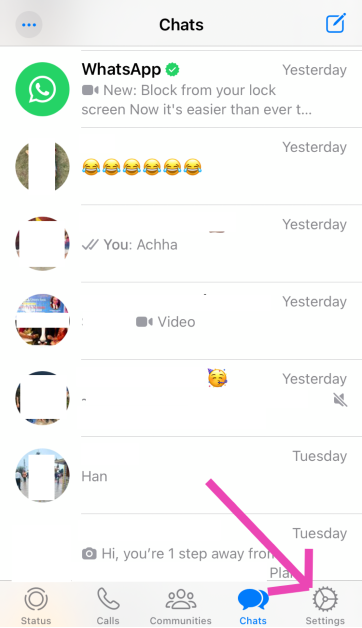
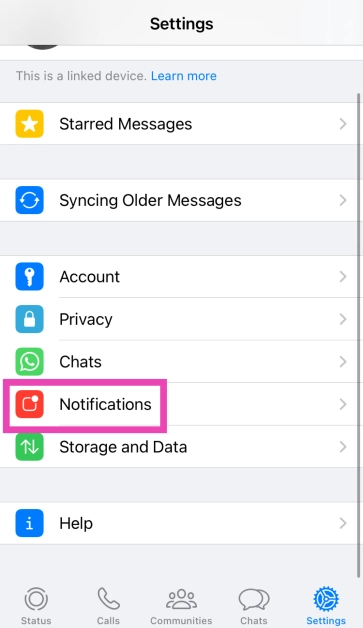
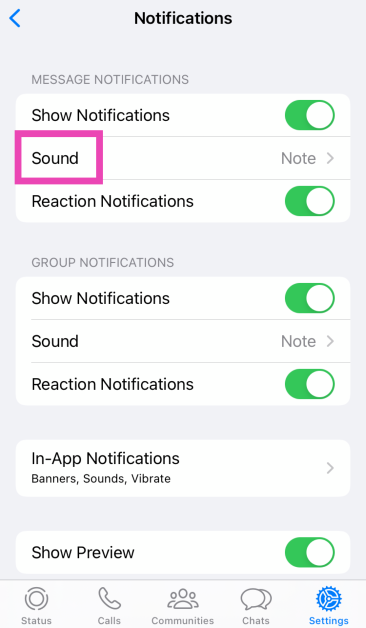
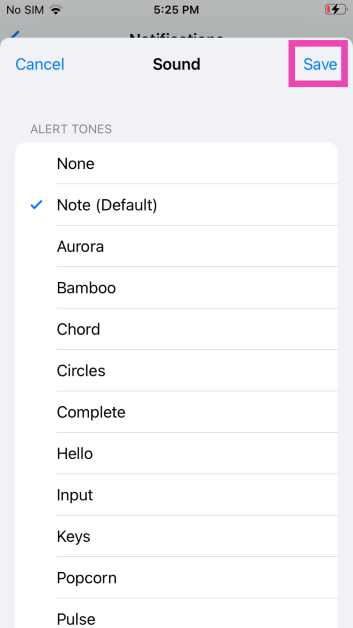
Even though the security measures in place haven’t kept up with the volume of spam pushed on the platform, WhatsApp is taking steps to filter unwanted content. The messenger recently introduced a new feature that allows users to block unknown numbers directly from the lock screen. As soon as you receive a new message notification, you can expand it and hit the block button. This saves you from accidentally clicking on phishing links and other malicious content.
Block spam messages on WhatsApp directly from the lock screen
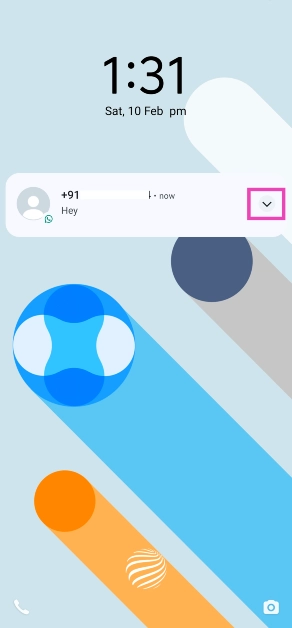
WhatsApp’s new feature lets you block spam messages directly from the lock screen. This feature is being rolled out in a phased manner so it may take some time to reach your device. Make sure the app is updated to its latest version on your device.
Step 1: Hit the arrow next to the message on your lock screen.
Step 2: Select Block from the list of quick actions.
Block a sender from the chat thread
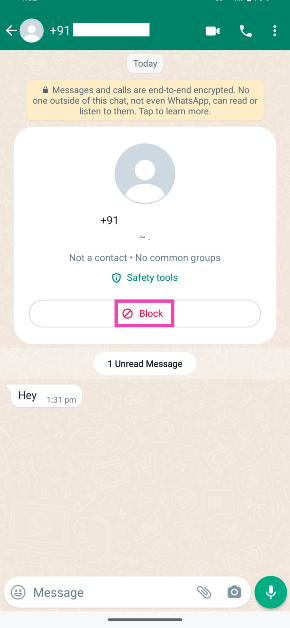
Step 1:Launch WhatsApp and open the message from the unknown sender.
Step 2: Hit the Block button on the sender’s card.
Use the block button on the sender’s WhatsApp profile
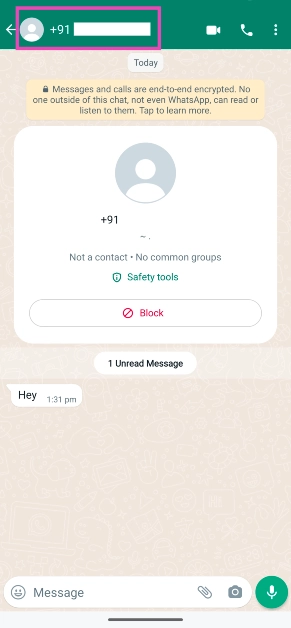
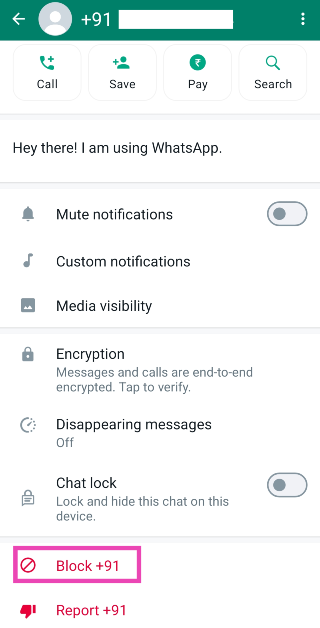
Step 1:Launch WhatsApp and open the conversation thread with the person you want to block.
Step 2: Tap on their contact number/name at the top of the screen.
Step 3: Scroll down and hit the Block button at the bottom of their profile.
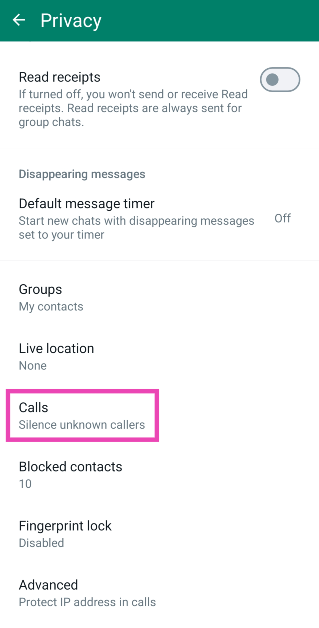
Silence WhatsApp calls from unknown numbers
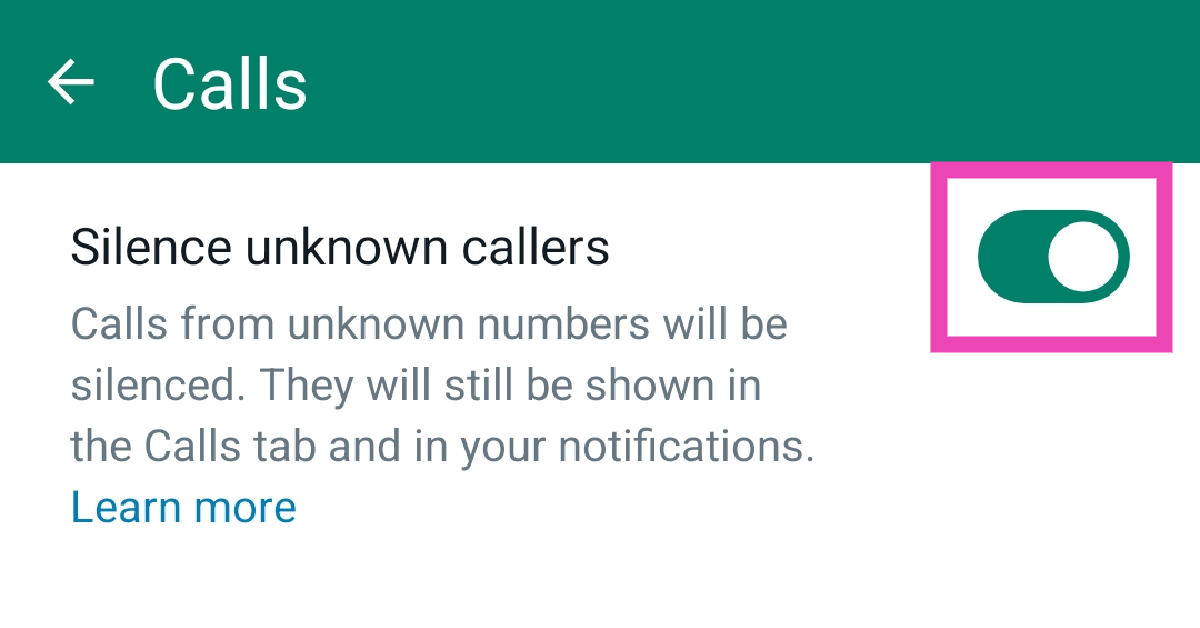
Sometimes, spam pushers resort to calling you on WhatsApp. This tactic is also used by a lot of scammers. Luckily, WhatsApp allows you to silence all calls from unknown numbers. Once the call has ended, you will get a notification alert about the missed call. Here’s how you can enable this feature.
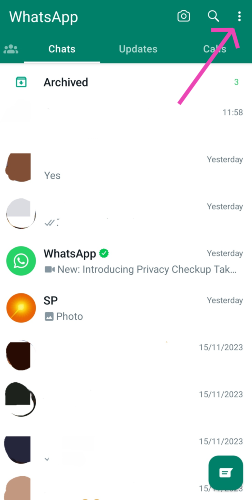
Step 1:Launch WhatsApp and hit the ellipses at the top right corner of the screen.
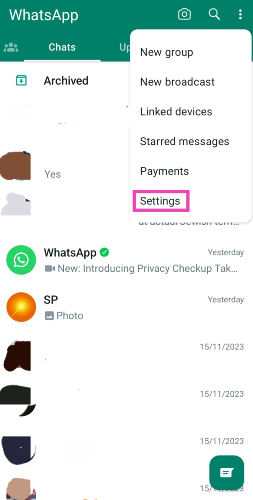
Step 2: Go to Settings.
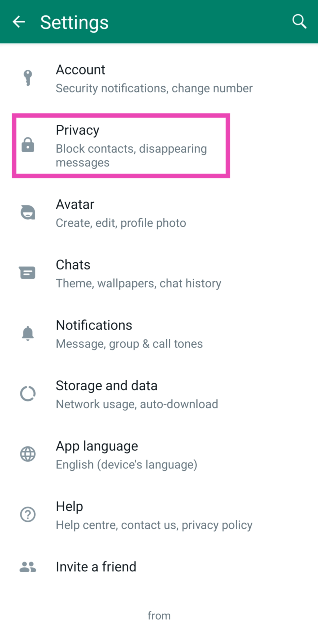
Step 3: Select Privacy.
Step 4: Tap on Calls.
Step 5: Turn on the toggle switch next to ‘Silence unknown callers’.
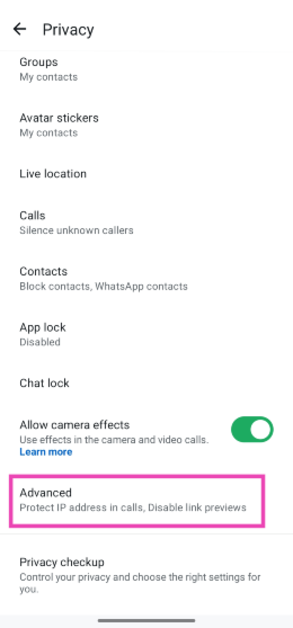
Block messages from unknown accounts
Step 1:Launch WhatsApp and hit the ellipses at the top right corner of the screen.
Step 2: Go to Settings.
Step 3: Select Privacy.
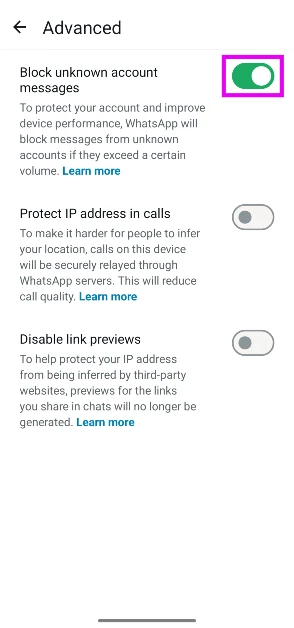
Step 4: Scroll down and go to Advanced.
Step 5: Hit the toggle switch next to Block unknown account messages. This feature will block large volumes of messages sent from unknown numbers.
Frequently Asked Questions (FAQs)
What’s the easiest way to block someone on WhatsApp?
Simply expand the new message notification on your lock screen and hit the Block button to block the sender. This only works for people who aren’t in your contact list.
How do I block calls from unknown callers on WhatsApp?
While you can’t block calls from unknown numbers on WhatsApp, the platform offers you the option to silence them. Go to Settings>Privacy>Calls and turn on the toggle switch next to ‘Silence unknown callers’.
Where can I see my WhatsApp block list?
Go to Settings>Privacy>Blocked Contacts to view your block list on WhatsApp.
How do I block unknown numbers from sending me spam on WhatsApp?
Go to Settings>Privacy>Advanced and turn on the toggle switch next to ‘Block unknown account messages’.
How do I enable ‘Strict account settings’ on WhatsApp?
Go to Settings>Privacy>Advanced>Strict account settings and select ‘Turn on’.
These are the top 5 ways to block spam senders on WhatsApp. Despite your best efforts, spam has a way of creeping into your WhatsApp inbox. To reduce the volume of unwanted messages, don’t hand out your primary number to businesses and e-services. If you know any other way to tackle spam on the platform, let us know in the comments!
Valentine’s Day is just around the corner and if you haven’t already purchased a gift for your significant other, now would be a good time to whip out the credit card and start adding items to your cart. If you don’t know where to begin, you’ve landed on the right page. While you can never go wrong with flowers and chocolates, if you want to go the extra mile, a tech gift can make things really special. So, without further ado, let’s take a look at the top 10 tech gifts you can buy for your partner on Valentine’s Day 2024 for your loved one.
The new iPhone 15 runs on the A16 Bionic chipset from the 14 Pro series. The newest entry-level variant of the iPhone features the Dynamic Island, a 48MP primary camera, and a 12MP ultrawide lens. The new features that were introduced on the iPhone 14 Pro models are a part of the iPhone 15’s base variant. However, it doesn’t get the latest Apple A17 Pro chipset and also misses out on the titanium band. But, its relatively affordable pricing makes it a good buy.
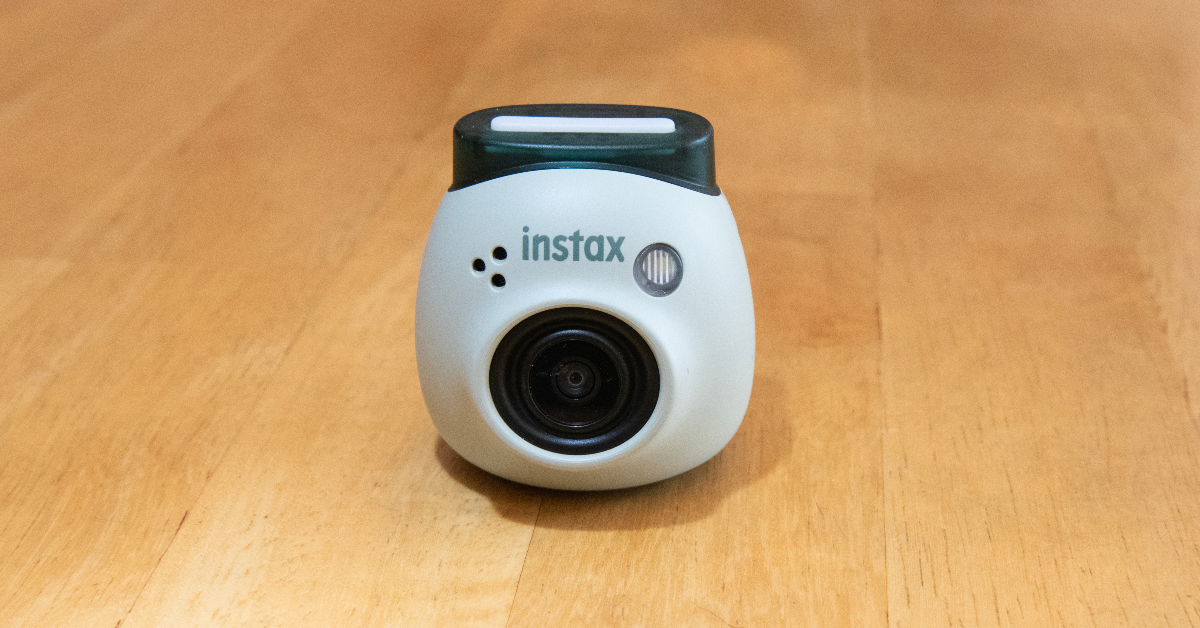
The new Fulijilm Instax Pal is the perfect gift to preserve your memories with your partner in style. For the Polaroid-obsessed, the Instax Pal would make an amazing gift. This palm-sized Polaroid camera can easily fit inside your pocket. Fujifilm has removed the printing function from the camera to increase its portability. The digital images taken by the Instax Pal can be printed using an Instax Link Series smartphone printer. The portable camera is available in five colour options — Gem Black, Powder Pink, Pistachio Green, Lavender Blue and Milky White.
The entry-level Kindle variant is the perfect gift for voracious readers. While it may be the most basic Kindle model, it matches most of the specs of the Paperwhite. We reviewed the e-reader when it was launched and were impressed by the glare-free display and the overall reading experience. The 300 ppi resolution is ideal for reading books, newspapers, and graphic novels on the e-reader. The 4 LEDs do a good job of lighting up the display in dark conditions. You can use the toolbar to adjust the brightness of the device. With an internal storage capacity of 16GB, the Kindle can store thousands of books.
Give your partner a ring this Valentine’s Day – but make it smart. boAt’s smart ring can track health and fitness metrics just like a smartwatch. With a 5ATM water resistance, you can even wear this ring while swimming. Its premium ceramic build contributes massively to its premium aesthetic. Integrated with smart touch controls, this ring can be used to click pictures, change track, pause/play media playback, and navigate applications. You can view your health and fitness data in the boAt Smart Ring app at any given time.
The JBL Go 3 brings the party wherever you go. This waterproof portable speaker is one of the best tech gifts you can give to your partner for Valentine’s Day in 2024. The Go 3 has a power output of 4.3W and offers 5 hours of playback on a single charge. It has dimensions of 3.4 x 2.7 x 1.6 inches and weighs just 200 grams. You can easily carry it around in your pocket all day. The portable speaker can be charged using a USB Type-C cable but it takes 2.5 hours to fully charge the device.
Smart in more ways than one, the Razer Ansu Smart Glasses let you take calls, play music, and enjoy and enjoy the omnidirectional sound with no hiccups. A low latency of 60ms ensures there is no delay between the audio and the video feed. Anzu smart glasses have touch panels on the stem which let you control media playback and answer calls with just a single tap. On top of that, they are also voice assistant-compatible. On a single charge, the smart functions of these glasses can run for more than 5 hours.
The Classic variant of the Samsung Galaxy Watch6 is a thing to behold. The physical rotating bezel around the 1.5-inch Super AMOLED display is both stylish and practical. Navigating the interface of the watch becomes much easier with this bezel. Running on Wear OS 4 skinned with One UI Watch 5, the Galaxy Watch6 is also one of the smartest smartwatches out there. The range of apps available on the Play Store ensures you never spend a dull moment with this app. You can read and respond to your WhatsApp message directly from the watch and even check your email on the go. Check out our review of the smartwatch here.
These cute Echo smart speakers are a perfect addition to your nightstand. The best part about them is that they don’t occupy a lot of space and can carry out most of the functions of a regular Echo Dot. The temperature and motion sensors are some of the sore misses on the Echo Pop. However, since they are primarily intended to be used as nightstand speakers, there isn’t much need for those sensors to begin with. What the Echo Pop does best is provide cutting-edge software experience with its built-in routines, smart device support, and tons of skills. Check out our full review here.
Nothing’s subsidiary brand CMF put out some interesting products last year. Primarily operating in the budget segment, CMF’s products offer high value for money. We were very impressed by the Buds Pro back when we reviewed the TWS headset. The hockey puck design of the charging case is novel and has a nice finish to it. The audio output of the earbuds has that signature Nothing tuning and a diverse soundstage. Although a little bass-heavy, the CMF Buds Pro’s audio output is very enjoyable. Certainly one of the best tech gifts you can give your significant other this Valentine’s Day.
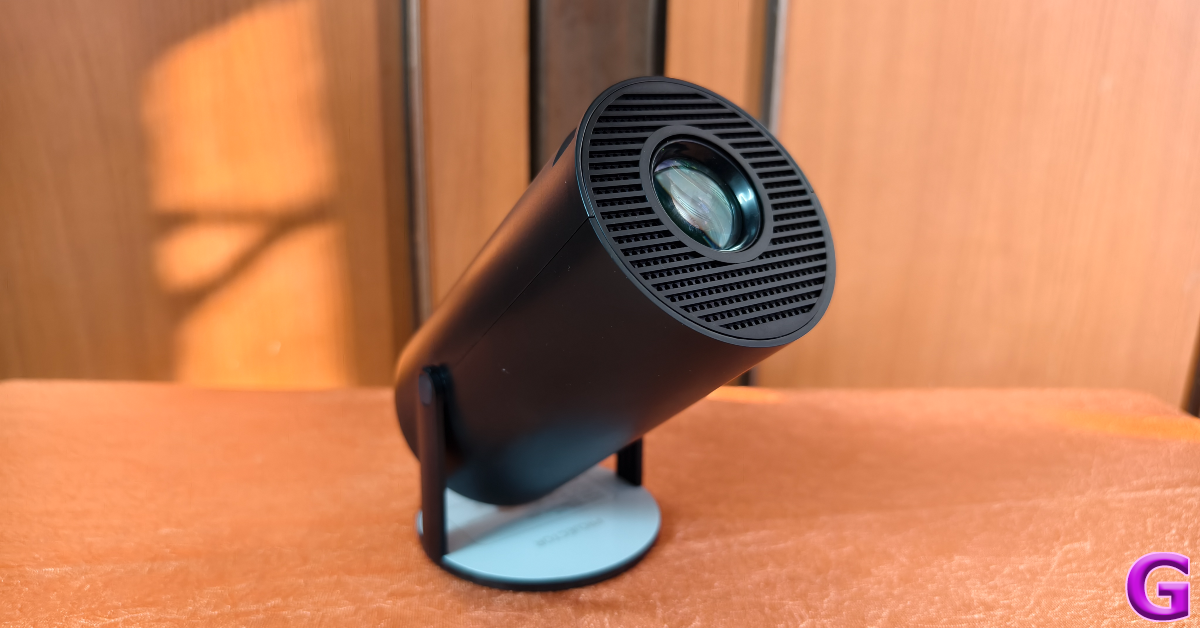
Clokowe T08 Mini Projector
The Clokowe T08 mini projector is a fun, offbeat tech gift for Valentine’s Day 2024. This projector is incredibly easy to use and can connect to your smartphone, laptop, or tablet within seconds. It can rotate up to 180 degrees, which means you can even point it at the ceiling and enjoy HD visuals. The projector can deliver 720p footage and features automatic keystone correction. A 3W speaker is integrated into the device, and you can also pair it with your home speaker via a 3.5mm headphone jack or a Bluetooth connection. The images produced by the projector are sharp, detailed, and rich in colour. Here’s our full review of the projector.
These are the top 10 tech gifts you can give to your partner this Valentine’s Day (2024). Done with gift shopping already? Let us know what you got in the comments! Also, keep a look at the Valentine’s Day discounts offered by e-commerce platforms this week.
Redmi A3 has been listed on Flipkart and Mi India websites.
The upcoming phone will feature a circular camera module.
It will have a leather-textured rear panel.
Redmi A3 is confirmed to launch in India on February 14. But before the official release, the key specifications of the upcoming phone have been confirmed by the company. The device has been listed on the e-commerce platform Flipkart to not only tease its availability but also reveal the key details. As per the microsite, the phone will house a 5,000mAh battery.
Ahead of the Redmi A3 launch in India, the company has created a dedicated microsite on Flipkart as well as on its official website. The device is scheduled to launch in the country on February 14.
In terms of design, the Redmi A3 will come with a Halo Design featuring a round dual rear camera module. The phone can be seen in a green colour with a leather-textured rear panel that is reminiscent of that of its predecessor. The company logo is positioned at the bottom. The teased images also show the USB Type-C charging port.
The device will come with a 90 Hz display. The phone will come with 6GB RAM with support for 6GB virtual RAM. Additionally, the smartphone will be backed by a 5,000mAh battery. But there have also been hints about other important phone specs. The device was previously spotted at African stores. The listing indicates that the smartphone might be powered by a MediaTek chip. The description also offered a 64GB built-in storage option with 4GB of RAM.
Additionally, the upcoming phone is said to include an 8-megapixel selfie camera while the rear camera setup may sport a 13-megapixel main camera. The battery is also expected to get 10W wired charging support.
Reportedly the Redmi A3 may have a 6.71-inch display. In addition to this, a 32GB and 128GB internal storage option was suggested. Android 13 Go Edition is speculated to come pre-installed on the mobile phone. The company is likely to offer the upcoming smartphone in three colour options: forest green, blue, and black.
Garena Free Fire is a battle royale game with regular awards and tournaments to keep players interested. If you play Garena Free Fire, you should be aware of the redeem codes that are released on a daily basis. However, because the battle royale game is banned in India, players from other countries can use the Free Fire Redeem codes daily. If you’re unfamiliar with the Garena Free Fire redeem codes or don’t know how to get them, we’ve put together a step-by-step guide to help you redeem them. Check out Garena Free Fire Redeem Codes for 10 February 2024.
The Free Fire redeem codes are a great way to get free stuff. These are 12-digit codes that contain alphabets and numbers, as well as an expiration date and time. Because the Garena FF redeem codes cannot be used more than once, you should hurry to the redemption page to claim your free reward before someone else does. To get a free reward, all you have to do is go to reward.ff.garena.com/en, which is the official redemption page. Also, keep an eye on this space for daily updates on Garena Free Fire redemption codes and rewards.
The rise of No KYC (Know Your Customer) casinos represents a notable move towards prioritizing player privacy and ease of use. Traditional online gambling platforms often demand thorough identity checks from their users, but No KYC casinos break away from this norm. They offer a way for players to enjoy betting without having to reveal personal or financial details, essentially allowing them to remain anonymous. In this guide, we’ll explore the different kinds of No KYC casinos, shedding light on what sets them apart and the advantages they bring to the table.
In this article we will discuss:
Mobile No KYC Casinos
Live Dealer No KYC Casinos
Instant Withdrawal No KYC Casinos
Instant Play No KYC Casinos
Bitcoin No KYC Casinos
Mobile No KYC Casinos
The emergence of mobile No KYC casinos is a boon for gamers who value the flexibility to play whenever and wherever they like. These platforms are tailor-made for an optimal gaming experience on mobile devices like smartphones and tablets. This means you can dive into your preferred casino games at any moment, free from the cumbersome process of identity checks. Mobile No KYC casinos shine in their ability to combine top-notch performance with user-friendly design, offering an extensive variety of games from slots to table games, all the while keeping your identity under wraps.
Advantages include:
Ease of Use: Enjoy gaming on the move, anytime, free from verification delays.
Anonymity: Keep your personal details private, adding an extra layer of safety.
Wide Selection: Access a diverse range of games perfectly suited for mobile play.
Live Dealer No KYC Casinos
Live dealer No KYC casinos bring the vibrant atmosphere of a brick-and-mortar casino right into your home. They enable players to immerse themselves in real-time table games like blackjack, roulette, and baccarat, all facilitated by actual dealers through video streaming. This innovative approach combines the excitement of live gambling with the discreetness of No KYC platforms. Hence, players get to relish in an authentic gambling experience while safeguarding their privacy.
Key advantages:
Realistic Experience: The direct interaction with dealers elevates the gaming experience to new heights.
Privacy Preserved: Participate in live games while keeping your personal details to yourself.
Diverse Options: Enjoy a broad selection of live table games and various betting limits to suit your style.
Instant withdrawal No KYC casinos offer a game-changing advantage for players who prioritize speed and simplicity in their transactions. These platforms stand out by ensuring rapid processing, allowing players to get their hands on their winnings in no time, all without the need for KYC verification. This aspect is especially attractive for those looking to quickly and discreetly access their funds.
Key perks include:
Quick Access: Get your winnings fast, bypassing any verification hold-ups.
Anonymity: Keep your transactions private, safeguarding your identity.
Streamlined Payments: Benefit from a smooth and efficient process for managing your money.
Instant Play No KYC Casinos
Instant play No KYC casinos are designed for players who prefer immediate access to casino games without the need for downloads or prolonged registration processes. These casinos offer a wide array of games directly through web browsers, ensuring players can start playing almost instantly upon visiting the site. This type of casino combines the ease of no-download gaming with the privacy benefits of No KYC platforms.
Benefits:
Ease of Use: Play directly through your web browser without downloads.
Quick Access: Start playing immediately with no registration hurdles.
Diversity: Access a vast selection of games instantly.
Bitcoin No KYC Casinos
Bitcoin No KYC casinos are at the forefront of combining cryptocurrency benefits with anonymous gambling. By allowing players to deposit, play, and withdraw in Bitcoin (and often other cryptocurrencies), these casinos offer an unparalleled level of anonymity and security. The decentralized nature of cryptocurrencies, coupled with the No KYC policy, ensures that players’ identities and transactions remain private.
Benefits:
Anonymity: Complete transactions without revealing your identity.
Security: Leverage the security features of cryptocurrencies.
Global Access: Play and transact from anywhere without currency restrictions.
Conclusion
No KYC casinos represent a significant milestone in the evolution of online gambling, providing players with privacy, convenience, and accessibility. Whether you prefer the immersive experience of live dealer games, the convenience of mobile gaming, the efficiency of instant withdrawals, the simplicity of instant play, or the anonymity of Bitcoin transactions, there’s a No KYC casino to meet your needs. As the popularity of these platforms continues to grow, players need to conduct due diligence and choose reputable No KYC casinos that offer fair play, robust security measures, and a wide selection of games. By doing so, you can enjoy the thrill of online gambling while safeguarding your privacy and security.
You can find a much more detailed guide on no KYC casinos (including no KYC casinos list) here.
While deleting a single app on your Android device is a piece of cake, things take a complicated turn when you want to mass delete them. Long-pressing an app on the home screen or app drawer reveals its quick menu, instead of letting you select multiple apps to apply blanket actions. Visiting the ‘Apps’ section on device settings is no help either. Luckily, not all hope is lost since there is one lesser-known way that lets you accomplish this task. Here’s how you can delete multiple apps at once on an Android phone.
When should I mass delete apps on my Android phone?
While managing and organising their smartphones, users often want to delete the apps that have been lying around for a while without being used even once. Let’s be honest, we are all guilty of mindlessly installing apps on our devices only to never return to them again. Some users prefer installing a bunch of similar apps that cater to a particular task and then picking the best of the lot. The trouble arises when you want to delete the rest of the apps at once.
Long-pressing and deleting apps can take a long time, especially with all the pop-up boxes asking you to confirm your action every time you hit the delete button. Luckily, Android phones have the mass delete option tucked away in the Google Play Store. Since people rarely ever use the Play Store to uninstall apps, this feature goes unnoticed. But once you start using it, there’s no looking back.
Delete multiple apps at once from the app drawer
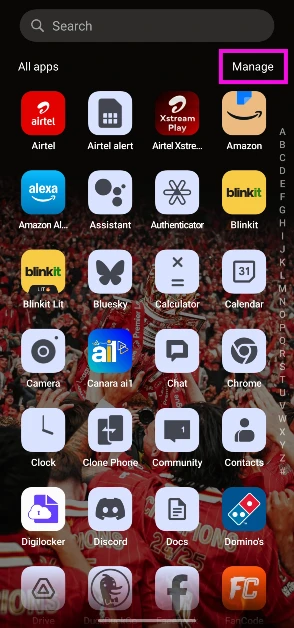
Step 1:Unlock your phone and swipe up to go to the app drawer.
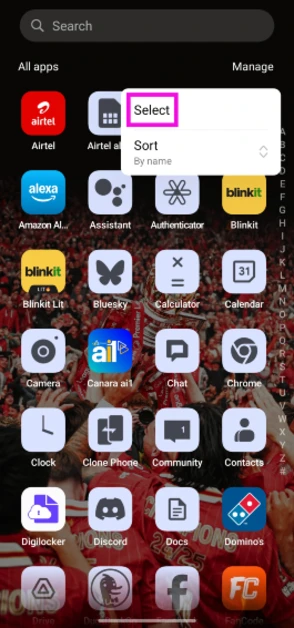
Step 2: Tap on Manage or hit the ellipses.
Step 3: Tap on Select.
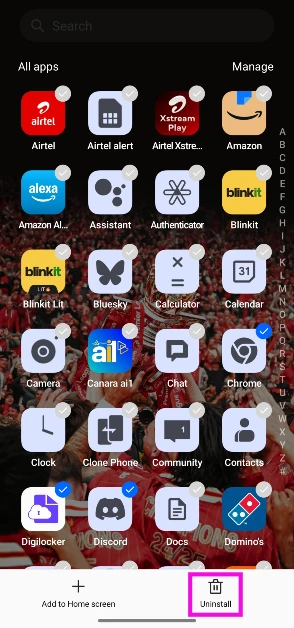
Step 4: Tap the apps you wish to delete.
Step 5: Hit the Uninstall button at the bottom of the screen.
Delete multiple apps at once using the Google Play Store
Apart from being Android’s official marketplace, the Google Play Store also lets you manage the apps on your device. You can use it to delete multiple apps on your phone at once. There is no other native way to go about this task. Follow these steps.
Step 1: Launch the Google Play Store on your Android phone.
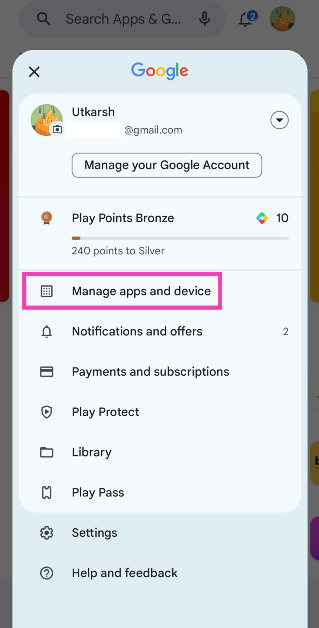
Step 2: Tap your profile picture at the top right corner of the screen.
Step 3: Select Manage apps and device.
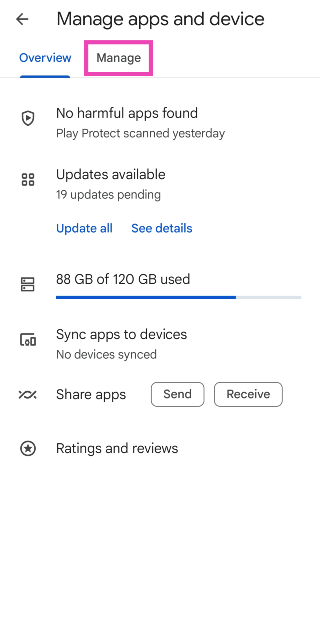
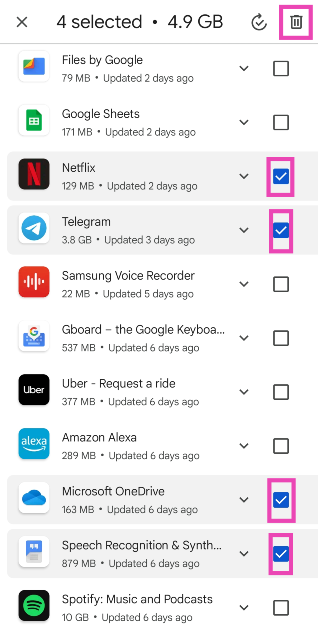
Step 4: Switch to the Manage tab.
Step 5: Tap the checkboxes next to the apps you wish to uninstall.
Step 6: Hit the bin sign at the top right corner of the screen.
The apps you selected will be removed from your device.
Use a third-party app (UnApp)
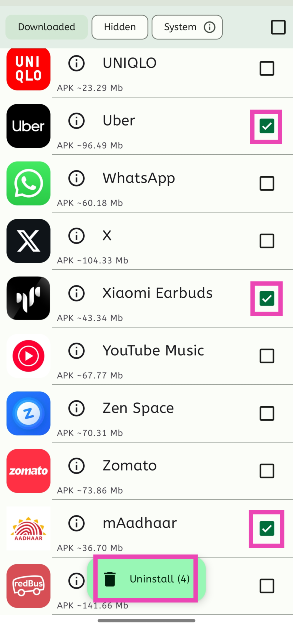
The method mentioned above only works for apps that were downloaded via the Google Play Store. If you want to mass delete apps downloaded from third-party sources, use the UnApp app.
Step 1:Download and installUnApp from the Google Play Store.
Step 2: Launch the app and hit the checkbox next to the apps you wish to uninstall.
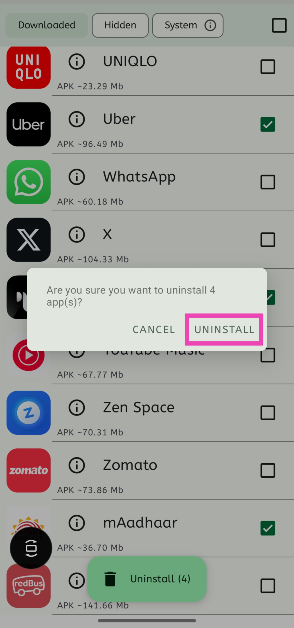
Step 3: Tap on Uninstall.
Step 4:Confirm your selection.
Bonus Tip: Delete multiple apps on your iPhone at once
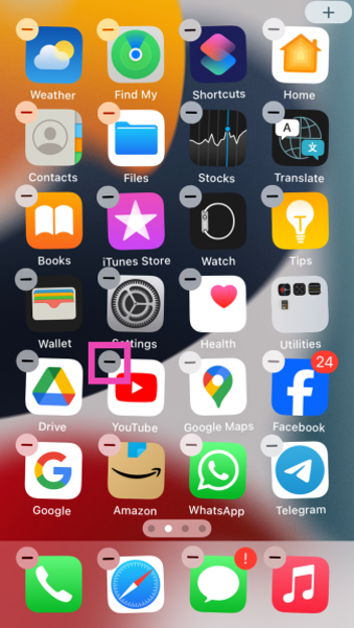
Step 1:Unlock your iPhone and long-press anywhere on the home screen.
Step 2: The app icons on the home screen will start wiggling back and forth. Hit the minus icon to delete an app.
Step 3:Confirm your selection in the popup box.
Step 4: The apps will continue to wiggle on the screen. Hit the minus icon on another app to remove it.
Continue doing this until the undesired apps have been removed from your iPhone.
Frequently Asked Questions (FAQs)
How do I remove apps that cannot be uninstalled on my phone?
You can either disable the uninstallable apps by going to Settings>Apps or use ADB to remove the app package on your Android phone.
Is there a way to delete multiple apps at once on my Android phone?
The only way to delete multiple apps at once on your Android phone is by going to the Google Play Store, selecting ‘Manage apps and device’, switching to the ‘Manage’ tab, checking the boxes next to the apps you wish to remove and hitting the bin icon at the top of the screen.
How do I mass delete the apps downloaded from third-party sources?
Apps downloaded from third-party sources cannot be uninstalled from the Play Store. You can download the UnApp app for this task.
What is the fastest way to delete apps on my Android phone?
The fastest way to delete an app on an Android phone is by long-pressing its icon in the app drawer and selecting ‘Uninstall’.
How to delete the data accumulated by an app on my Android phone?
Go to Settings>Apps, select the app, tap on ‘Storage’, and hit ‘Clear data’.
This is how you can delete multiple apps on your Android phone at once. If you know any other way to go about this task, let us know in the comments! While you’re here, check out this article to learn how to delete those stubborn apps on your phone that refuse to be uninstalled.
Unlike Android, iOS does not let you change the notification sound for every third-party app on your iPhone. Using device settings, you can set custom alert tones for Apple’s suite of apps, but that’s about it. Third-party instant messaging apps like WhatsApp and Telegram allow users to change the sounds for certain notifications, but only from within the app. Today, we bring you the top 4 ways to change app notification sound on iPhone.
Can I create a custom ringtone on my iPhone from scratch?
Short answer – yes. If you find the system tones on your iPhone bland and uninspiring, you can take matters into your own hands. There are two ways to go about creating a custom ringtone – iTunes and Garage Band. If you want to set your favourite song as your ringtone, choose iTunes. If you have an idea for a ringtone or notification tone that you want to bring to life, Garage Band is your guy.
Apple allows you to create a 30-second ringtone from any song on your iTunes library. On your Mac or PC, select the song, right-click on it, and go to Song Info>Options. Select the 30-second segment that you want to convert into a ringtone and go to File>Convert>Create AAC Version. Open the file in Finder and change its format from m4a to m4r. Connect your iPhone to your Mac/PC and drop the file in the Tones folder. Now, go to Settings>Sounds & Haptics>Ringtone and select the song from the list.
If you know your way around Garage Band, you can use it to create a 30-second sample. Once the sample has been recorded, hit ‘Share’ and select ‘Ringtone’. Now go to Export>Use Song As>Standard Ringtone. Voila! Your iPhone ringtone will be changed successfully.
Change the app notification sounds on iPhone
Step 1: Go to Settings and select Notifications.
Step 2: Scroll down and select the app for which you want to set a custom notification sound. You can only change the notification sound for Apple’s suite of apps.
Step 3: Tap on Sounds.
Step 4: Select a new sound for the app’s notification from the list.
Change the alert tone
You can also change the alert tone for voicemail, new mail, calendar alerts, and more from the Sounds & Haptics settings on your iPhone. Here’s how.
Step 1: Go to Settings and select Sounds & Haptics.
Step 2: Tap on the alert tone you wish to change.
Step 3: Select a new tone from the list.
Change the notification sound for WhatsApp on iPhone
Step 1: Launch WhatsApp on your iPhone and switch to the Settings tab.
Step 2: Tap on Notifications.
Step 3: Tap on Sound (under the category you wish to customise).
Step 4: Select the new notification sound and hit Save.
Change the notification sound for Telegram
Step 1: Launch Telegram on your iPhone.
Step 2: Switch to the Settings tab.
Step 3: Tap on Notifications and Sounds.
Step 4: Select the category for which you want to change the notification sound.
Step 5: Tap on Sound.
Step 6: Select a new notification sound from the list and hit Done.
Frequently Asked Questions (FAQs)
Can I change the notification sound for any app on my iPhone?
Your iPhone only lets you change the notification sounds for Apple’s native apps. These apps include Apple Maps, Facetime, Messages, Mail, and more.
How do I change WhatsApp’s notification sound on my iPhone?
Launch WhatsApp, go to Settings>Notifications>Sound and select a new tone.
How do I change my iPhone’s ringtone?
Go to Settings>Sounds & Haptics>Ringtone and select a new tone. You can also purchase a new tone from Apple’s Tone Store.
These are the top 4 ways to change app notification sounds on iPhone. While there is a vast library of sounds to choose from, you can also purchase new alert tones from Apple’s tone store. If you know any other way to change the notification for a specific app on your iPhone, let us know in the comments!
If you’re thinking of buying a good pair of headphones for your home office, there are a couple of things you need to consider. Of course, exceptional call quality is a non-negotiable factor, but if your household tends to get noisy at times, you may want to consider a good ANC headset that lets you focus at work. Finding the perfect headphones that are suited to your needs can be a daunting task. To make your job easier, here are the top 10 headphones under $200 in the USA for working from home.
Specially designed to offer a professional call experience, the Jabra Evolve2 65 is one of the headphones under $200 for working from home in the USA. The Evolve2 65 works with all Unified Communications (UC) platforms. There is also a special Microsoft Teams variant on offer if most of your work calls are hosted on that platform. This variant is optimised to deliver the best possible performance on Microsoft Teams. While it doesn’t support ANC, the Evolve2 65 does a good job of passively filtering out the surrounding noise to a significant degree. If you’re working from an office, you can turn on the red busylight on the headphones to let everyone around you know that you’re occupied with a task or on a call.
Poly Voyager Focus 2 offers 3 levels of hybrid Active Noise Cancellation to tune out the surrounding noise and get rid of any distractions. One of its best features is the boom microphone which creates a noise-free bubble in front of your mouth with its Acoustic Fence technology. The result is a crystal-clear calling experience. This boom mic meets the Microsoft Teams Open Office premium microphone requirements. The Voyager Focus 2 offers up to 25 hours of talk time on a single charge and can be plugged into your PC and used as a wired headset when the battery runs out. It also offers multi-device connectivity, which means you can connect it to more than one device at once.
Audio Technica’s ATH-M50xSTS headset brings the sound quality of the popular ATH-50x headphones and integrates it with the superior call quality of the 20 Series microphones. Ideal for working from home, the cardioid condenser microphone on these headphones is perfect for streaming as well as work calls. The headphones are available in XLR/Analog and USB/Digital variants – the latter being more accessible to work with. One of our favourite features on these headphones is ‘flip to mute’ which automatically mutes you on the stream/call as soon as you flip up the boom microphone.
The Jabra Evolve2 50 are super comfortable to wear for an extended period of time. Its cushioned headband and ergonomic earcups perfectly wrap around the head, exerting minimal pressure. These headphones are equipped with ANC, which helps in filtering out the surrounding noise and focusing on work. Its speech-separating and noise-cancelling algorithms are crucial in delivering a professional performance on online conference calls. Like the Evolve2 65, the Evolve2 50 is also available in the Microsoft Teams variant. The UC variant is optimised for all the major communications platforms.
With a wireless range of up to 50 metres/164 feet, you can walk around freely in your home office while taking a work call on the Poly Voyager 4320 UC. On a full charge, these headphones provide up to 24 hours of talk time. The boom mic on the Voyager 4230 UC is equipped with Audio Fence technology, which expertly picks up your voice, filtering it from the surrounding noise. The headphones have a super accessible dedicated mute button for calls. It also features multi-point connectivity, allowing you to connect it to several devices at once. Using an office base (sold separately), you can also connect it to a desk phone.
Although they are designed for music consumption, Sony WH-CH720N’s superior calling experience makes it one of the best headphones under $200 in the USA for working from home. Equipped with Precise Voice Pickup technology, a beamforming mic, and Wind Noise Reduction Structure, the WH-CH720N is perfect for work and for play. You pair these headphones to two devices at one time. So, if you get a call on your phone while watching a movie on your PC, you won’t need to take off your headphones to answer it. The headphones also let you know which device is ringing and switch the connection automatically. Read our review of the Sony WH-CH720N here.
The Philips SHP9600MB comes with a detachable boom mic that is perfect for working from home. The open-back design of the headphones offers a spacious soundstage. Delivering the audio on the SHP9600MB are 50mm drivers. The soundstage offers a balanced mix of frequencies – something the audiophiles will appreciate. The ergonomic design of the earcups and the cushioned headband ensure that you don’t get fatigued after long hours of wearing the headset. You also get a 9.8ft cable inside the box, making it easier to move around with the headphones on.
Looking for some affordable options? The Logitech Zone Vibe 100 is a good pick. Priced under $100, these headphones are ideal for working from home. The memory foam covered with soft knitted fabric makes for comfortable earpads – something you wouldn’t mind wearing for hours at a stretch. The noise-cancelling microphone can be flipped up to mute yourself on calls. On a full charge, these headphones offer 20 hours of listening time and 18 hours of talk time. 5 minutes of charging is enough to power them for an hour of listening time. The Zone Vibe 100 also offers multi-point connectivity. Certainly one of the best headphones you can buy under $200 in the USA for working from home.
The Hyper X Cloud II takes care of your gaming and work demands all at once. Its detachable noise-cancelling boom mic is as good for online conference calls as it is for gaming lobbies. The memory foam ear cushions and padded headband with a leatherette fabric offer high-end comfort which allows you to wear the headphones for hours without a break. Delivering the audio output on these headphones are large 53mm drivers. Its Advanced Audio Control Box has volume controls for the audio control and microphone along with a dedicated slider that acts as a mute switch.
Ending this list is the ultra-affordable JBL Quantum 100X Console. Designed for work and play, these gaming headphones are a rock-solid option for online meetings as well. The detachable boom mic keeps your voice in focus and tunes out the surrounding noise on a call. For a pair of gaming headphones, the Quantum 100X Console looks professional, with no tacky RGB or flashy highlights. If you like to game, you will certainly enjoy the detailed and dynamic soundscapes this headset has to offer.
These are the top 10 headphones for under $200 that you can buy in the USA for working from home. If you think we missed out on a headset that deserves to be on this list, give it a shout-out in the comments. And while you’re here, check out our list of the top 10 smartphones under $1,000 too.





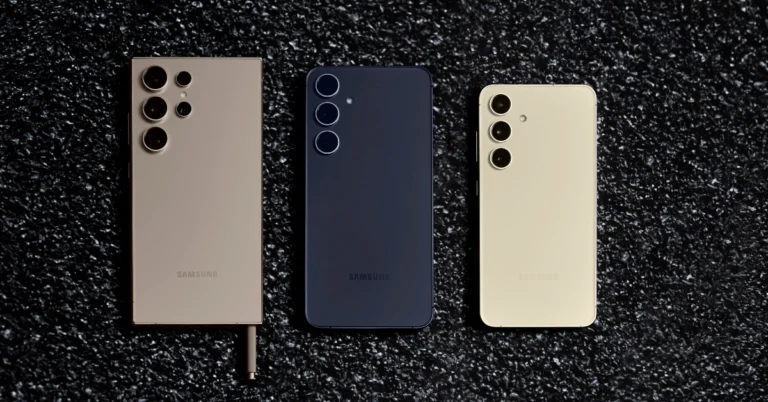
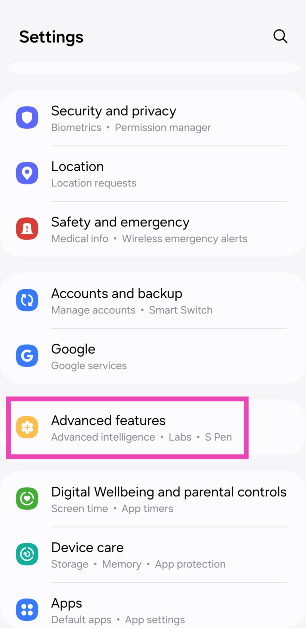
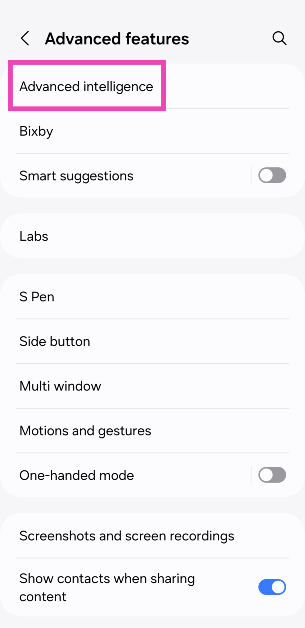
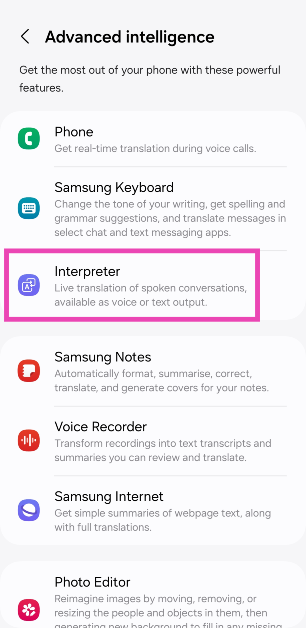
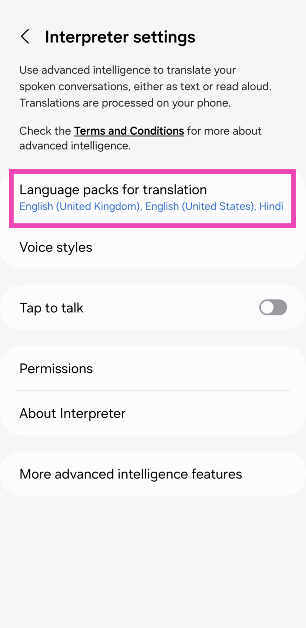
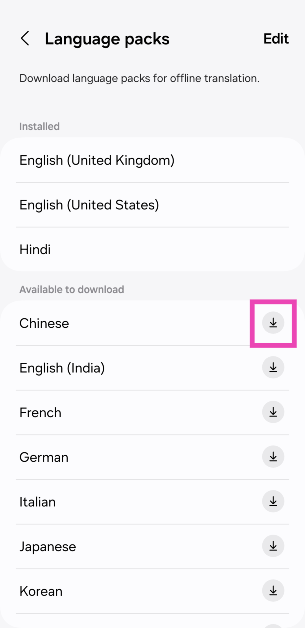
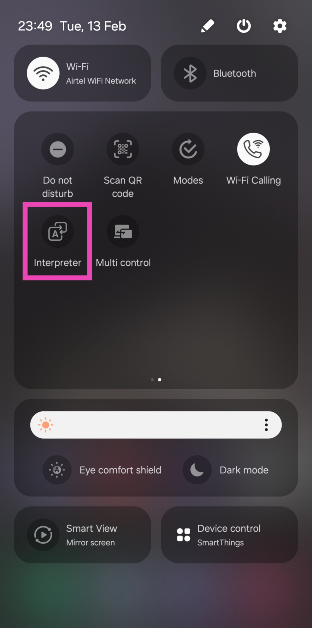
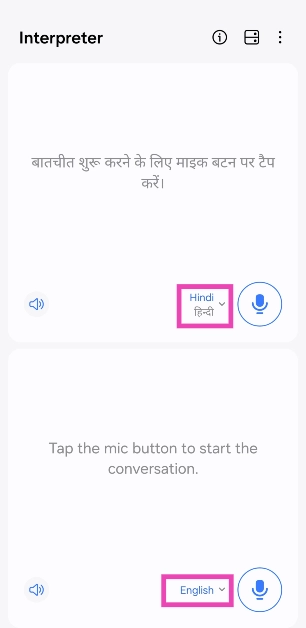
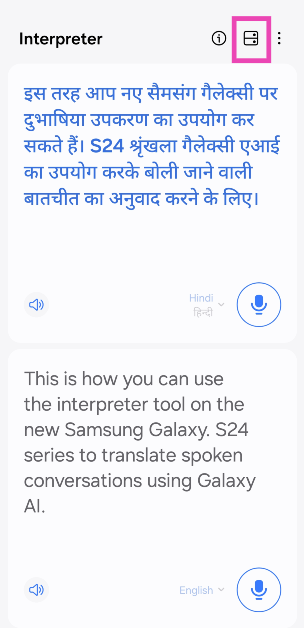
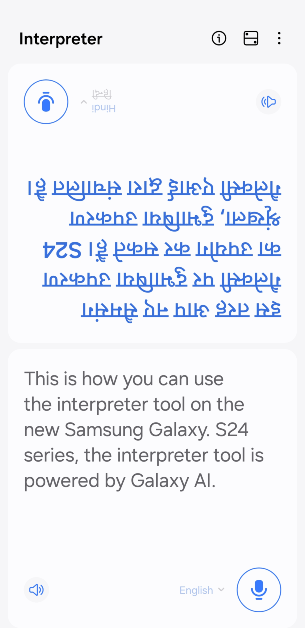
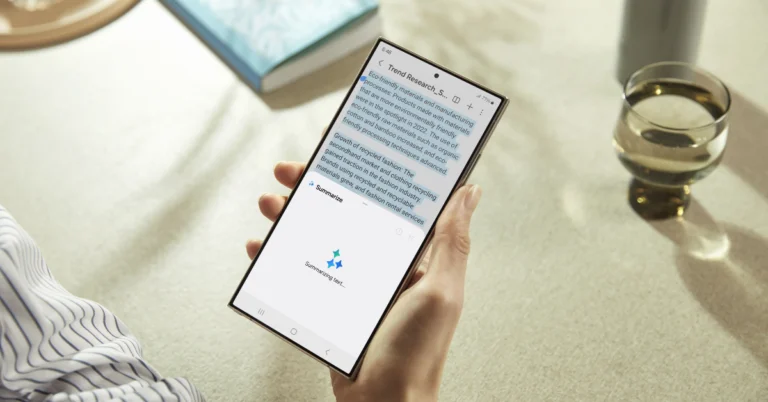
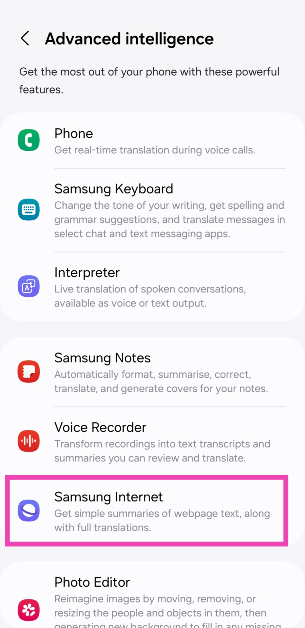
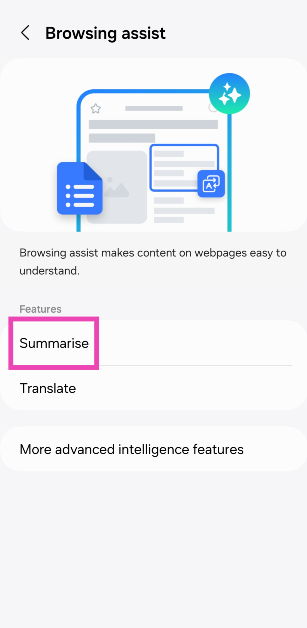

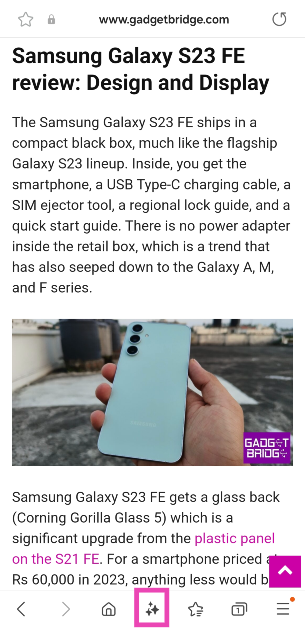
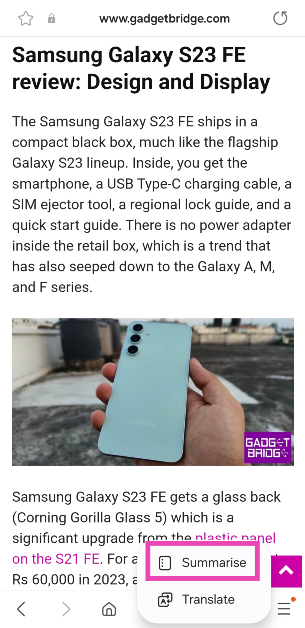
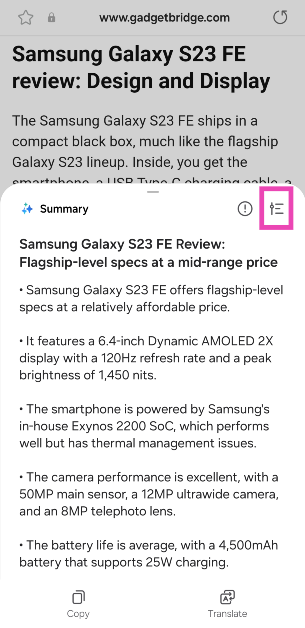
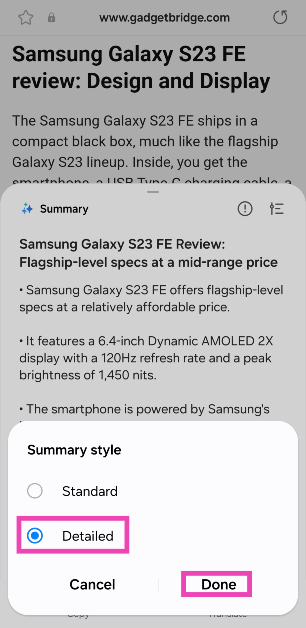
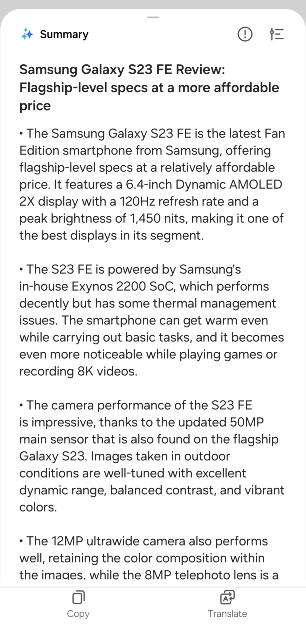
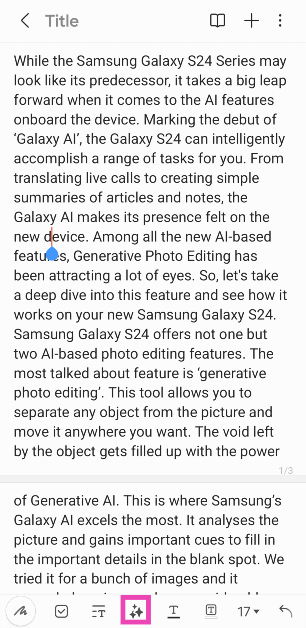
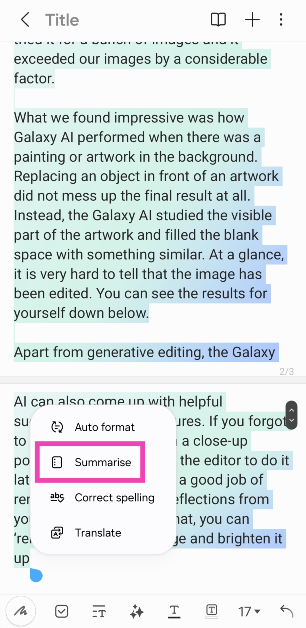
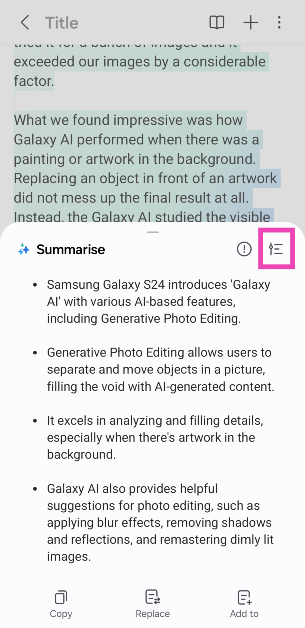
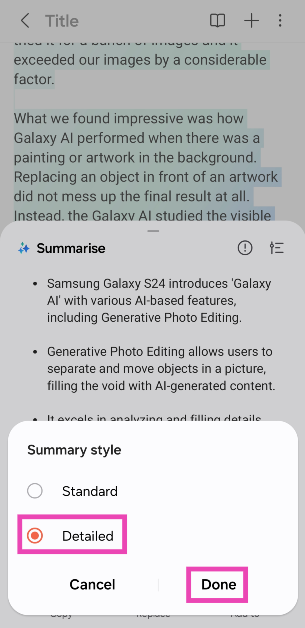
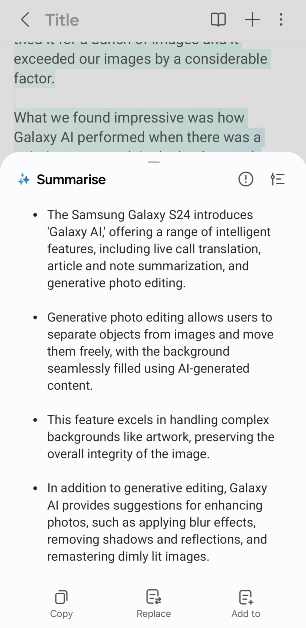
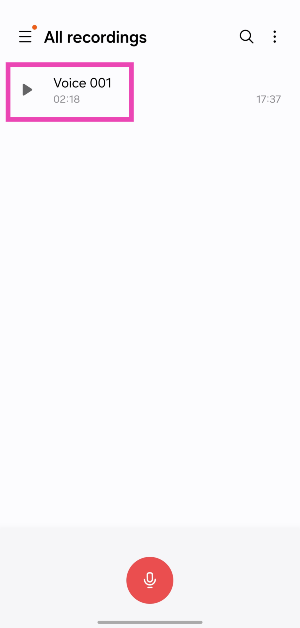
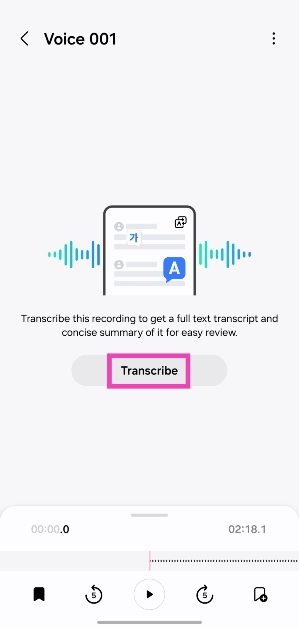
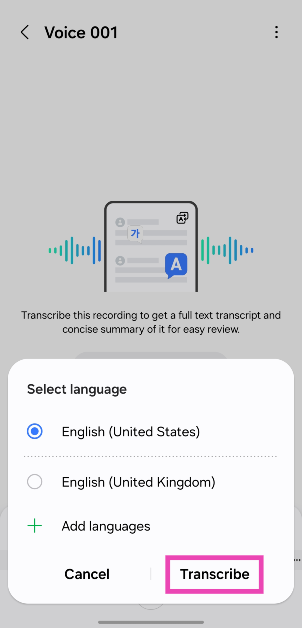
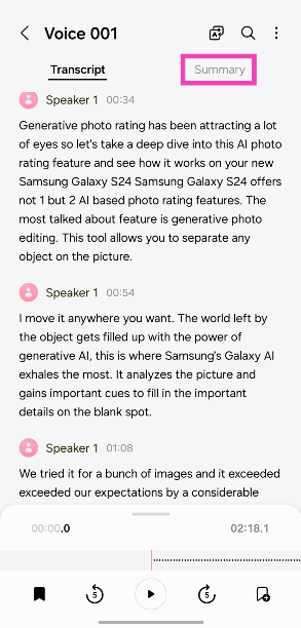
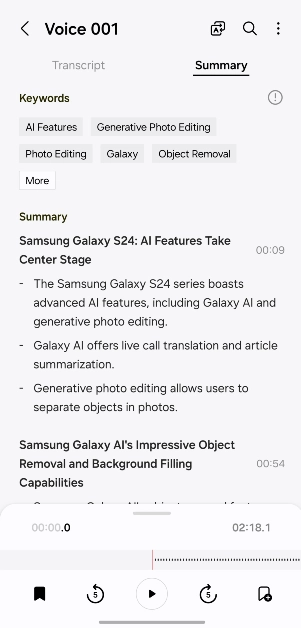

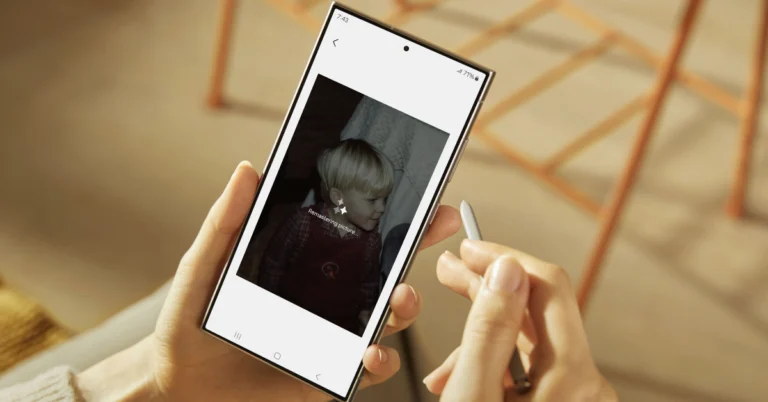


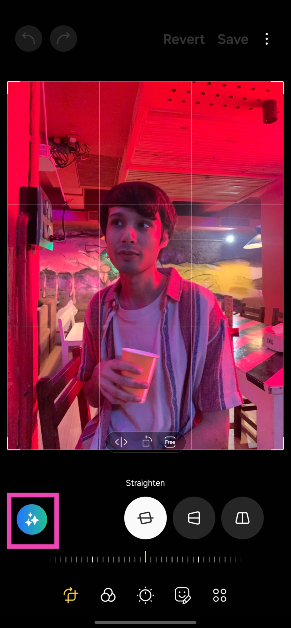 Step 4: Long press