Finding out if someone has blocked you on Instagram can be a tricky task. The third-party apps that claim to let you know who has blocked you on the platform are mostly fake and malicious. The only way to go about this is by looking out for certain signs and making an informed deduction. You will also need a secondary account and some common friends with the user to help you out. So, let’s take a look at what you should do to find out if someone has blocked you on Instagram.Read Also:Easy Ways to Blur Out Part of a Picture on iPhone
Before you begin
If you want to confirm that you have been blocked by another user on Instagram, using your throwaway may no longer work. This is because Instagram gives users the option to block all your existing accounts at once. Other accounts that you may create on your device will be blocked right away. This feature reduces the risk of stalking and cyber harassment.
The good news is that you don’t need to create a new account solely to confirm whether you’ve been blocked by someone. Using Incognito Mode on your phone’s web browser will do the trick. Since the incognito tab is not linked to your Instagram profile, you can access anyone’s profile to confirm that they are still on the platform. If the profile still does not show up, it means they have deactivated their account.
Search for their username on the Instagram app
Once someone blocks you on Instagram, their profile does not show up in the immediate results once you search for their username. Go to the explore tab on the Instagram app, and hit the search bar at the top of the page to look up the profile of the person you suspect has blocked you. Their profile will only show up once you switch to the ‘Accounts’ tab in the full search results.
Visit the Instagram profile
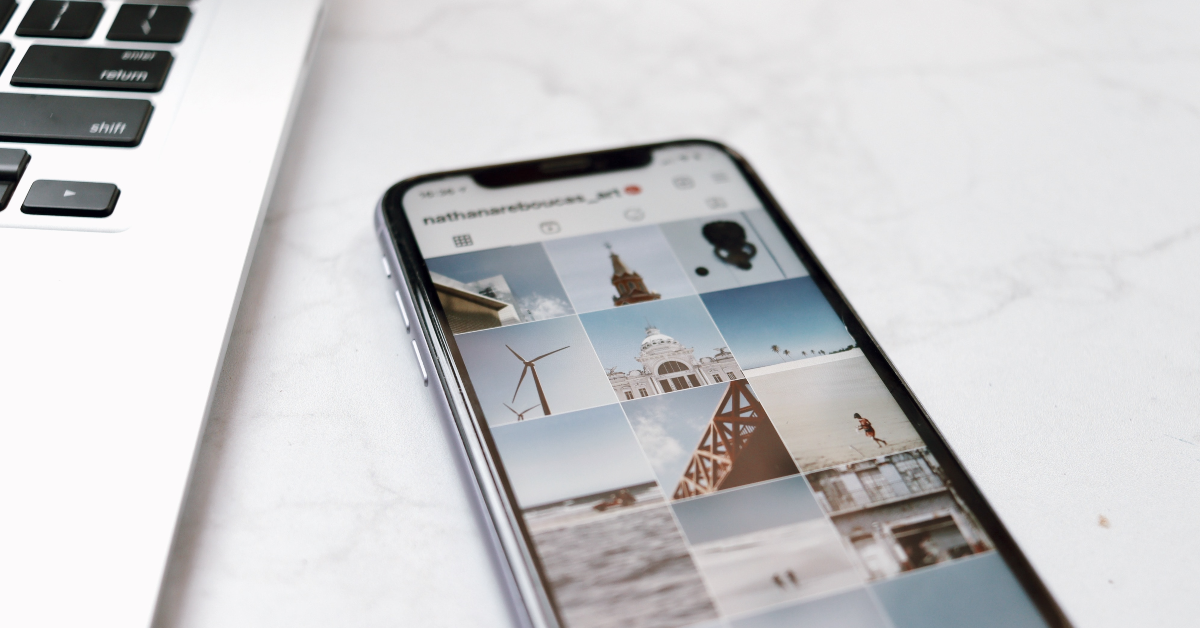
When you visit an Instagram profile that you have been blocked from accessing, you will not be able to view or interact with any content on it. Furthermore, you won’t get access to the posts, followers, and following counters on the profile. All three counters will display 0 if you have been blocked by the owner of the handle.
Visit the Instagram profile using a web browser
If you suspect a user has blocked you on Instagram, look up their profile on your phone’s web browser. Make sure you are logged into Instagram through your primary account. Then go to https://www.instagram.com/(username). Substitute (username) with the Instagram handle of the user. If you get the ‘Sorry, this page isn’t available message’, it means you have been blocked by the user.
Check their Threads profile
Once someone blocks you on Instagram, you also get blocked from accessing their Threads profile. Launch the Threads app on your phone and search for the person’s username. Since the Threads and Instagram handle is the same for every user, this won’t be hard. If you cannot view the user’s Threads profile, they have likely blocked you on Instagram.
Are you two not following each other on Instagram?
This method will only work if you were previously ‘mutuals’ with the Instagram user. Instagram automatically removes the user as your follower once they block your profile. The user is also removed from your following list. Go through both lists and search for the user’s profile. If you can’t find them there, you may be blocked.
Are your DMs not being read?
Once someone blocks you on Instagram, your messages no longer reach them on the app. You will stop receiving read receipts. You can ask a mutual friend to check if their messages are being read by the user. If that is the case, it is probable that they have blocked you. Instagram does not delete the chat history once you have been blocked by someone on the platform.
Check their profile name in DMs
When someone blocks you on Instagram, your conversation with them does not display their name anymore. Instead, it will be listed as ‘Instagram User’. This is one of the strongest signs that someone has blocked you on Instagram. You will be able to view the user’s profile picture but tapping on it in their profile won’t maximise it.
Visit the Instagram profile using a throwaway account
This is the best way to confirm whether you have been blocked by someone. After carrying out the steps mentioned above, simply make a secondary account on Instagram and visit the profile of the person who you suspect has blocked you. If their profile shows up in the search results and you can view the counters on their profile, it means your primary account has been blocked by the user.
Frequently Asked Questions (FAQs)
How do I know if someone has blocked me on Instagram?
If you can’t view the user’s profile on your main account but it is accessible on a secondary or throwaway account, it means they have blocked you on the platform.
Was I blocked or did they deactivate Instagram?
If you can view the user’s profile in incognito mode on your web browser but not on the Instagram app, it means they have blocked your profile.
Can I see who’s blocked me on Instagram?
No, Instagram does not let you view the list of people who have blocked you on Instagram.
Does Instagram notify people when I block them?
No, Instagram does not notify anyone when you block them on the platform.
Can I still access chat history with the person that I have blocked on Instagram?
These are the top 8 ways to find out if someone has blocked you on Instagram. When you’re using a throwaway account to check the user’s profile, make sure that it is not linked to the email or phone number used by your primary account. This is because once you are blocked by a user, all your secondary accounts linked to that particular email and phone number are blocked as well.
The AirPods Pro (3rd generation) with Lightning charging case, the AirPods (3rd generation) with MagSafe charging case, and the Pro (2nd generation) with MagSafe charging case (USB Type-C) are all discounted.
The offers can only be availed through the official website and Apple Stores in Mumbai and Delhi.
Apple is offering up to 50 percent off on its AirPods. As a part of a special Diwali offer from Apple online and at offline Apple stores, customers buying iPhones will only be eligible to take advantage of the special deal. In addition to this, the firm will also offer more to the buyers though this offer is only time-limited. So let’s quickly find out how to avail of these offers.Also Read:Here is how to get Rs 43,500 off on iPhone 14 Plus on FlipkartApple today officially announced a special Diwali offer for its fans this festive season. The thing is that Apple is giving up to 50 percent off on its AirPods to its customers who buy an iPhone 14 or iPhone 14 Plus. The offer is available on Apple online and at Apple stores in BKC (Mumbai) and Saket (Delhi).In addition to offering a flat 50% discount on AirPods, customers will also be eligible for a free six-month subscription to Apple Music.Note that this offering is for a limited duration valid through November 14 in Apple stores in Saket, Delhi, and BKC, Mumbai, as well as on Apple’s website.Also, this offer applies only when you purchase any iPhone 14 or iPhone 14 Plus with a pair of AirPods (3rd generation) with Lightning Charging Case, or AirPods (3rd generation) with MagSafe Charging Case or AirPods Pro (2nd generation). These devices are all discounted as part of Apple’s Diwali offer.Also read:iPhone 14 is now available for as low as 15k during Flipkart’s Big Diwali SaleApple iPhone 14 is currently listed at Rs 69,900. Whereas the iPhone 14 Plus now comes for Rs 79,900.
AirPods (3rd generation) with Lightning charging case- Rs 9,950 (Buy)
AirPods (3rd generation) with MagSafe charging case- Rs 10,950 (Buy)
AirPods Pro (2nd generation) with MagSafe charging case (USB‑C)- Rs 14,950 (Buy)
It’s that time of the year when the Air Quality Index spikes across North India, reaching hazardous levels. The situation is much worse in the capital, New Delhi, where the AQI even reaches 999 in some areas. To mitigate the toxic effects of rising air pollution levels, air purifiers have become the need of the hour. In this article, we bring you the best air purifiers under Rs 10,000 that you can buy right now.Read Also:Bixby Text Call feature is now available in India, Here is how to enable it
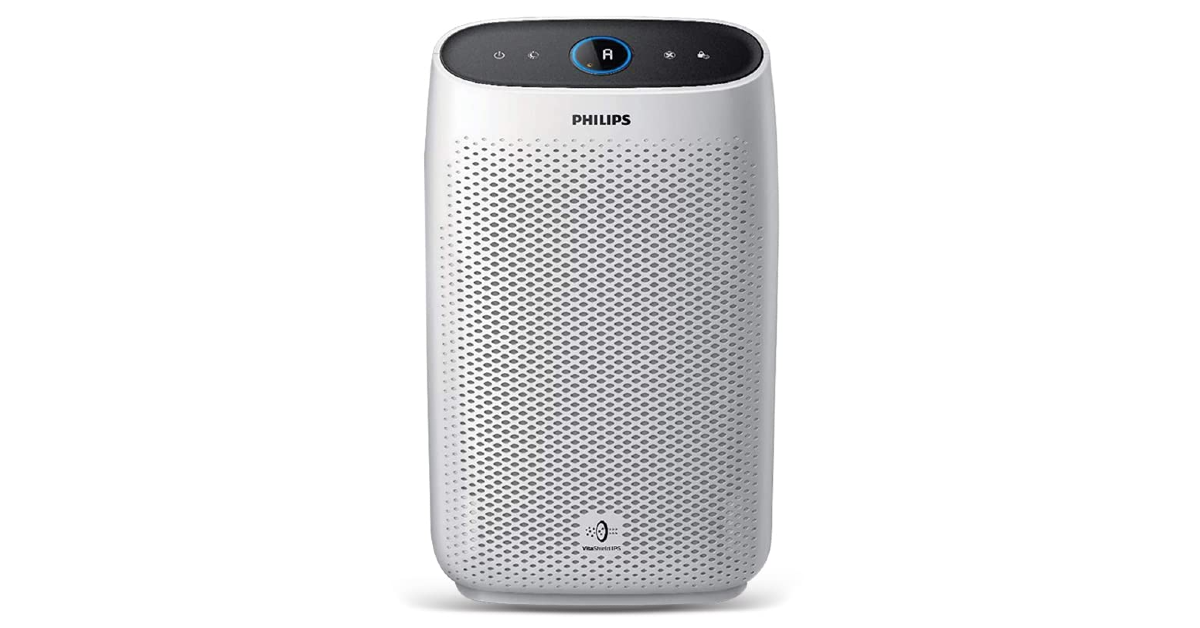
Philips Ac1215/20 Air Purifier
Price: Rs 9,499 on AmazonThe Ac1215/20 air purifier from Philips can filter out 99.97% of airborne pollutants as small as 0.003 microns. This includes bacteria, viruses, pollen, and dust mites. It can purify an average room (18ft x 12ft x 8ft) in under 12 minutes, with a CADR of 270 m³/hour. The air is passed through three layers of filtration – pre-layer, activated carbon filter, and true HEPA filter. You can also view the air quality in real-time on the Ac1215/20’s 4-colour indicator. The air purifier is also equipped with multiple lighting levels if you want to keep it turned on throughout the night.
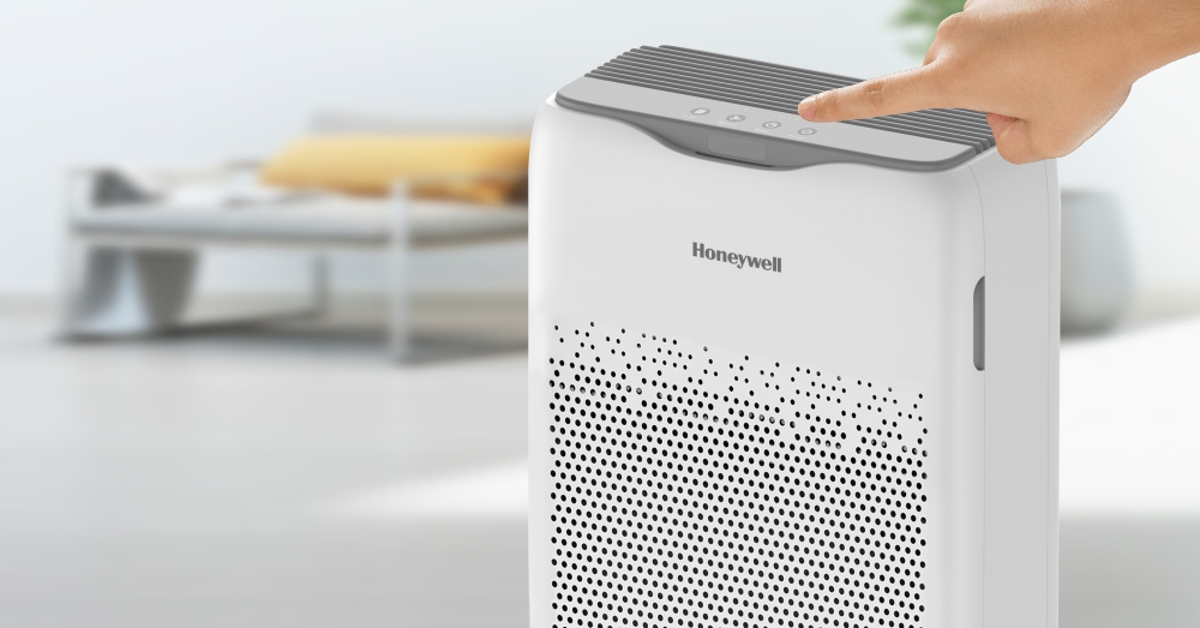
Honeywell Air Touch V2 Air Purifier
Price: Rs 7,298 on AmazonThe Honeywell Air Touch V2 has a coverage area of 388 sq. ft. and a CADR of up to 250 m³/hour. It can filter out 99.99% of micro allergens and airborne pollutants from the air including PM10 and PM2.5. The air is first passed through a pre-filter, followed by an activated carbon filter, and finally a high-grade H13 HEPA filter. The air purification cycle is carried out every 12 minutes. There is a real-time PM2.5 level indicator on the air purifier as well. When it’s working at its highest speed, the air purifier reaches a maximum noise level of 47.5 dB/a. The Honeywell Air Touch V2 is one of the best air purifiers you can buy right now under Rs 10,000.
Sharp Room Air Purifier
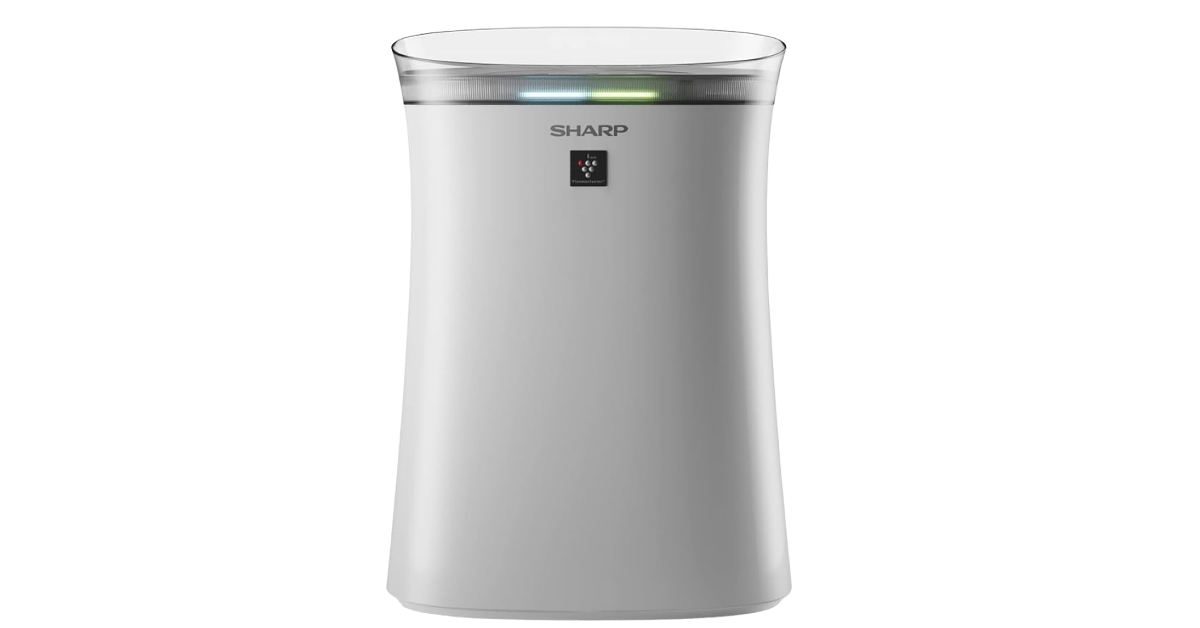
Price: Rs 9,490 on AmazonThe Sharp Air Purifier has dimensions of 20.9 x 38.3 x 54cm and a functional range of 320 sq. ft. This air purifier uses Sharp’s patented plasmacluster purification process in conjunction with the three-step filtration (pre-filter, activated carbon filter, and HEPA filter) mechanism. It can filter out 99.97% allergens and microscopic dust as small as 0.3 microns. The active carbon filter also deodorizes the room of cigarette smoke and pet odour, while also removing Volatile Organic Compounds (VOCs) from the air. There are two modes on this air purifier – Auto mode and Haze mode. Sharp claims a filter life of 2 years.
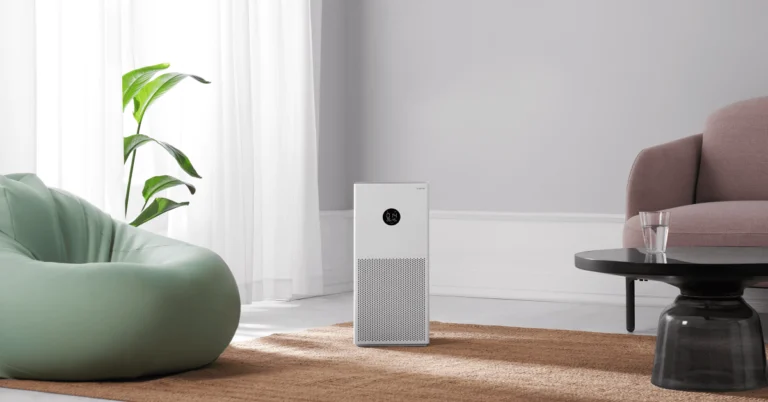
Xiaomi Smart Air Purifier 4 Lite
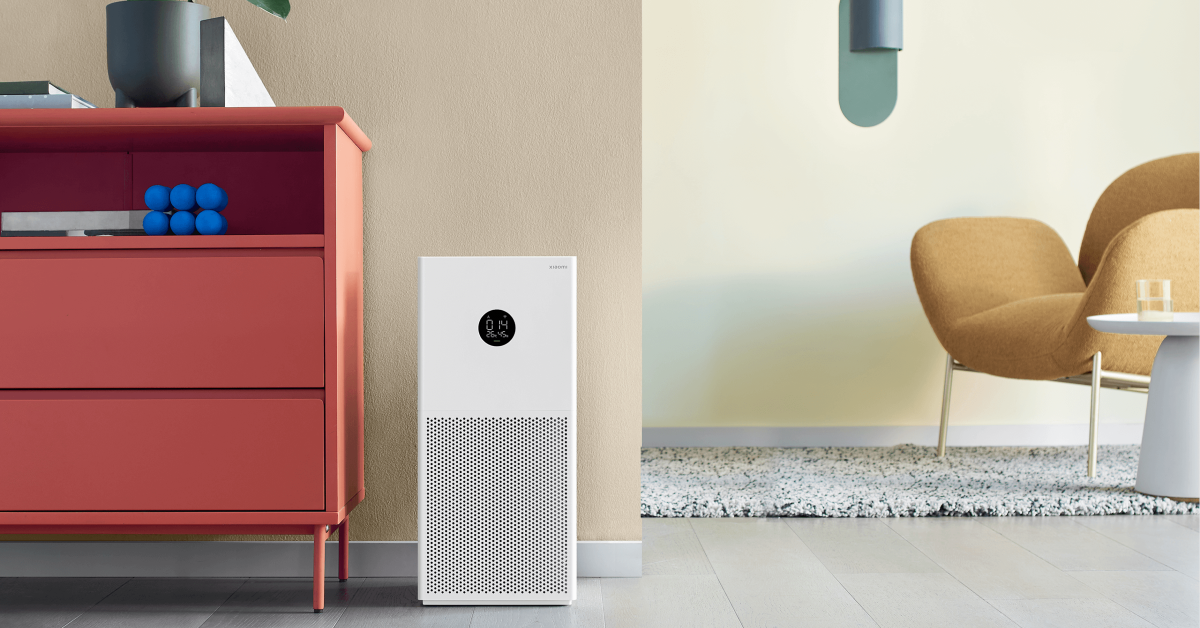
Price: Rs 10,999 on Mi.comThe Xiaomi Smart Air Purifier 4 Lite is priced slightly above Rs 10,000, but we have to include it on this list solely because of its amazing purifying capability. This air purifier is one of the most popular ones around. It can take in air from all directions and has an effective coverage area of 269 – 463 sq. ft. This air purifier has a CADR of up to 360 m³/h and can provide 6000L of clean air per minute. Xiaomi’s triple-layer filtration system can remove 99.99% allergens and dust particles as small as 0.1 microns. The Xiaomi Smart Air Purifier 4 Lite has a dedicated app that can be used to toggle between different modes and set up voice control.
Amazon Basics Air Purifier
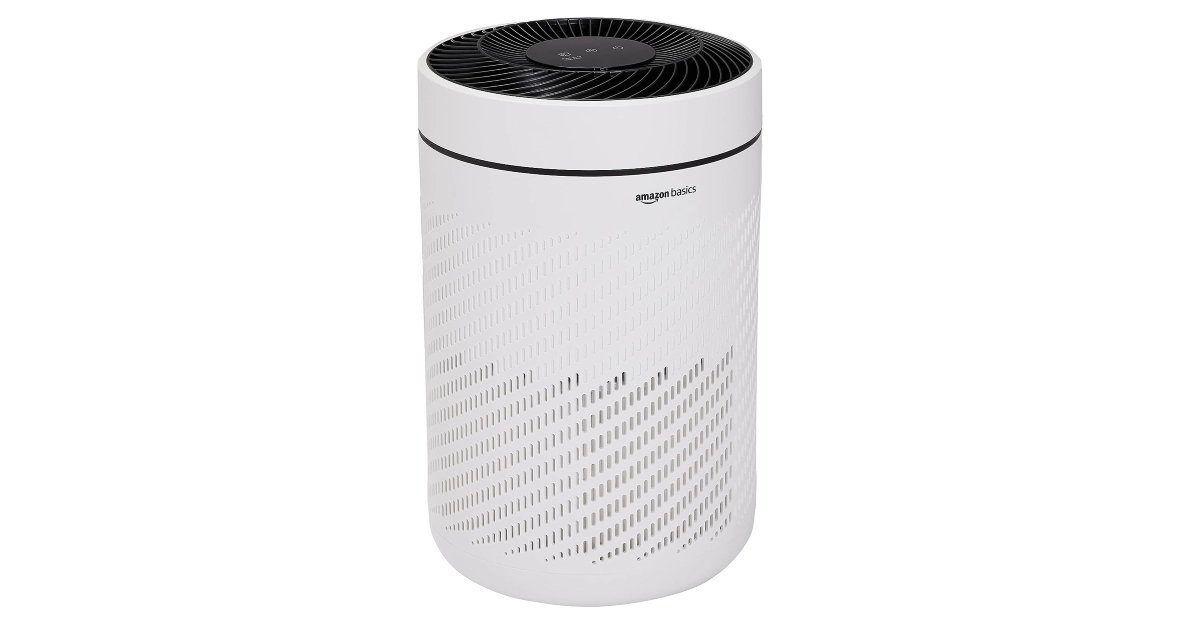
Price: Rs 4,712 on AmazonThe Amazon Basics Air Purifier has a CADR of 250 m³/h and a coverage area of up to 300 sq. ft. Its 4-colour LED display can indicate air quality level in real-time. The H13 True HEPA filter on this purifier can filter out 99.97% of harmful air particles including PM2.5. The HEPA filter has a functional life of around 4,000 – 5,500 hours. It can also trap cigarette smoke, dust, pet odour, and pollen. There are three modes on this air purifier – Auto, Turbo, and Night Mode. In Night Mode, the device turns down the noise and curbs the noise level while also effectively keeping the air pure.
Rosekm Small Air Purifier
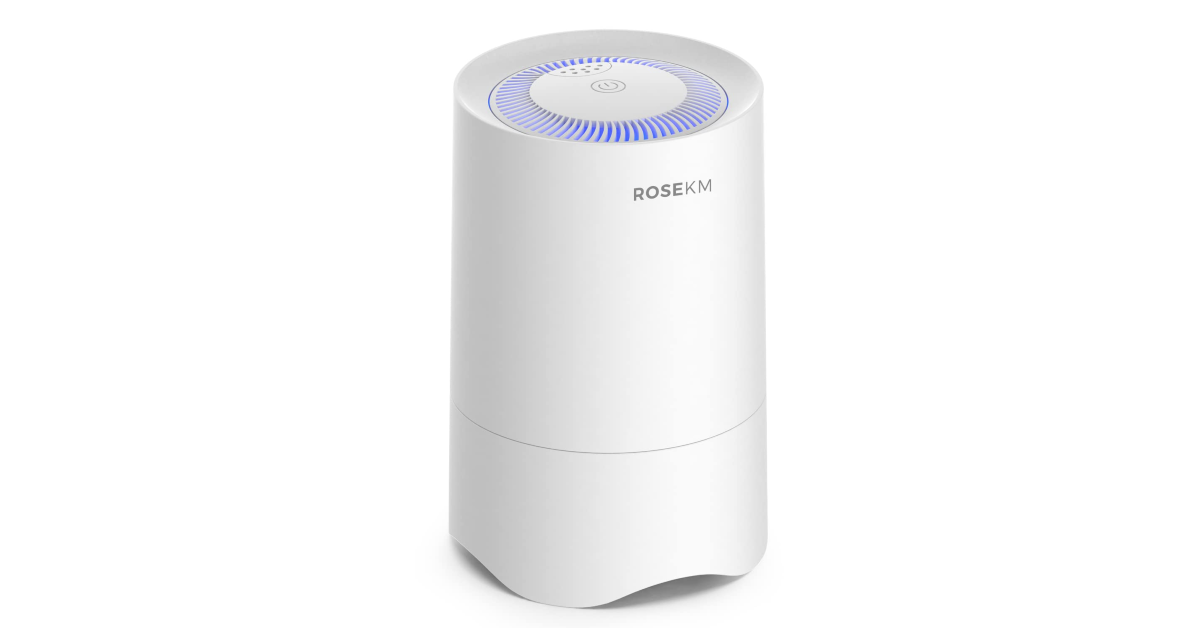
Price: Rs 1,798 on AmazonThis compact air purifier is perfect for small rooms, cubicles, bed stands, work desks, and kitchens. If you want fresh air around you while you sleep, place this air purifier on your nightstand and let it do its thing. Apart from air filtration, the Rosekm Small Air Purifier also offers aromatherapy. You can pour a few drops of your favourite essential oil on the purifier’s aroma pad to refresh the air with pleasant scents. The H13 HEPA filter on this device can capture 99.97% of allergens from the air. The air purifier comes with a one-year warranty. Read Also:Oppo Reno 8T 5G price slashed, now available for Rs 12,765
Conclusion
These are the best air purifiers under Rs 10,000 that you can buy right now. Apart from checking out the air filtration system and functional range, also make sure you know about the warranty period and maintenance support offered by the manufacturer on the product. Since the HEPA filter needs to be changed every 6-12 months, any product with good maintenance support is more favourable.
The 6GB RAM with 128GB storage option was announced at the time of launch.
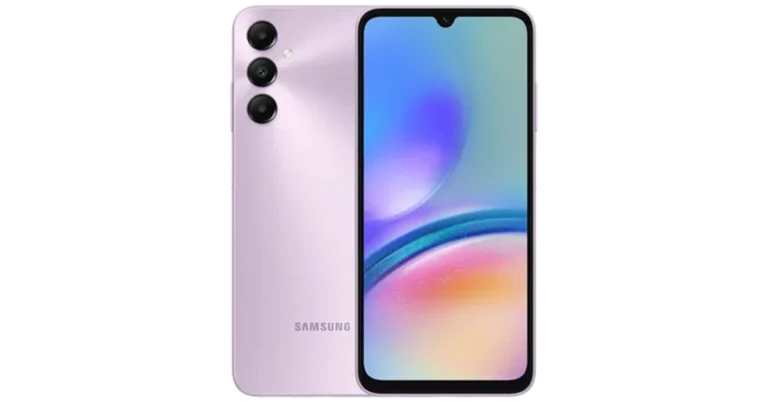
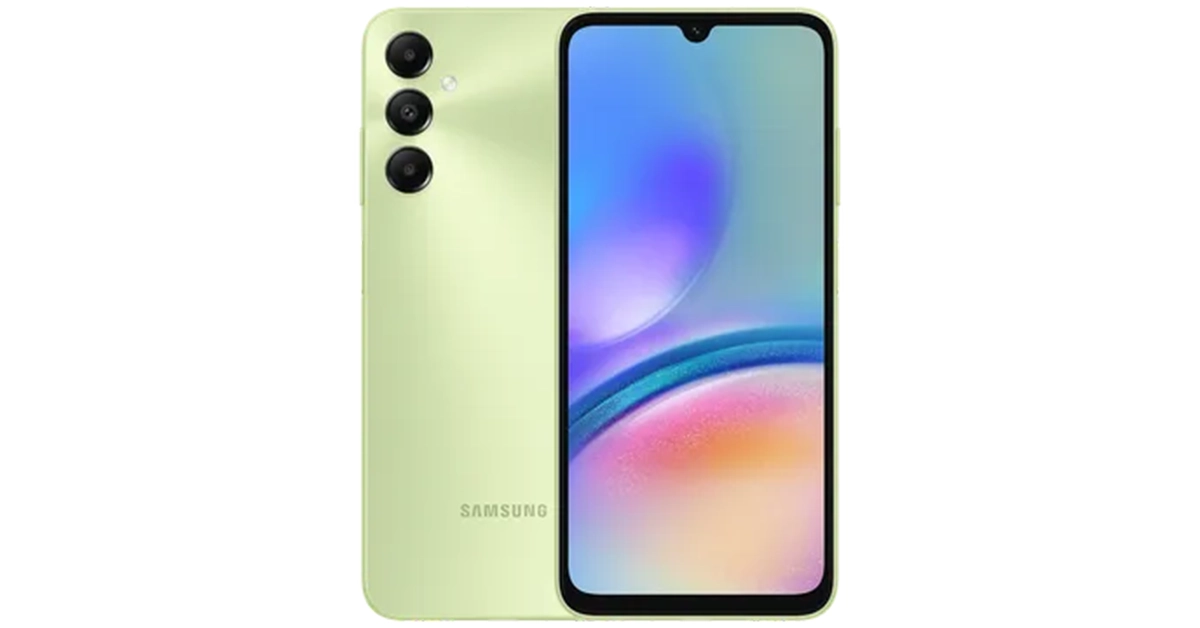
Samsung Galaxy A05s was launched in India last month. The device was then introduced in a single variant priced under 15k. The company has now launched another model for the phone therefore providing customers with more options at a lower cost. The phone has a 6.7-inch full-HD+ LCD display. The device comes equipped with a Snapdragon 680 SoC. It runs on Android 13 with OneUI. There is a 5,000mAh battery onboard.Samsung has introduced a new 4GB RAM with 128GB storage option for the Galaxy A05s. This is now the new base model and its price starts at Rs 13,499. There is another 6GB RAM with 128GB storage option that was launched last month priced at Rs 14,999.The smartphone is offered in three colour options Black, Light Green, and Light Violet. Customers will get an instant discount of Rs 1,000 on SBI Bank credit card EMI transactions. The company will also offer EMI options starting at Rs 1,150 per month by Samsung Finance+, select banks and NBFC’s. The device will be available for purchase via the company’s website in the country.Also Read:Bixby Text Call feature is now available in India, Here is how to enable it
Samsung Galaxy A05s specifications
The Samsung Galaxy A05s features a 6.7-inch full-HD+ PLS LCD with 1,080×2,4000 pixels of resolution. The bezels on the sides are slim while the chin is noticeable. It operated on One UI 5.1 with Android 13 out-of-the-box. Under its hood, there is an octa-core Snapdragon 680 SoC with up to 6GB RAM and a 128GB storage option. The storage can be expanded up to 1TB using a microSD card. The device has an Adreno 610 GPU for graphics.The Samsung smartphone comes with a triple rear camera set up positioned vertically at the left corner along with a circular LED flash unit. The camera setup includes a 50-megapixel primary shooter with an f/1.8 aperture. Furthermore, the system includes a secondary 2-megapixel macro lens with an f/2.4 aperture and a tertiary 2-megapixel depth sensor with an f/2.4 aperture. For selfies, the smartphone features a 13-megapixel front-facing camera with f/2.0 aperture housed inside a centre-aligned waterdrop notch.The Samsung Galaxy A05s is fuelled by a 5,000mAh battery with 25W charging support. For connectivity, there is a 3.5mm audio jack, 4G LTE, dual-band Wi-Fi, Bluetooth 5.1, GPS, and a USB Type-C port. Along with a fingerprint sensor the handset includes an accelerometer, light sensor and proximity sensor.
Garena Free Fire is a battle royale game with regular awards and tournaments to keep players interested. If you play Garena Free Fire, you should be aware of the redeem codes that are released on a daily basis. However, because the battle royale game is banned in India, players from other countries can use the Free Fire Redeem codes daily. If you’re unfamiliar with the Garena Free Fire redeem codes or don’t know how to get them, we’ve put together a step-by-step guide to help you redeem them. Check out Garena Free Fire Redeem Codes for 8 November 2023.The Free Fire redeem codes are a great way to get free stuff. These are 12-digit codes that contain alphabets and numbers, as well as an expiration date and time. Because the Garena FF redeem codes cannot be used more than once, you should hurry to the redemption page to claim your free reward before someone else does. To get a free reward, all you have to do is go to reward.ff.garena.com/en, which is the official redemption page. Also, keep an eye on this space for daily updates on Garena Free Fire redemption codes and rewards.
Garena Free Fire Redeem Codes Today 8 November2023
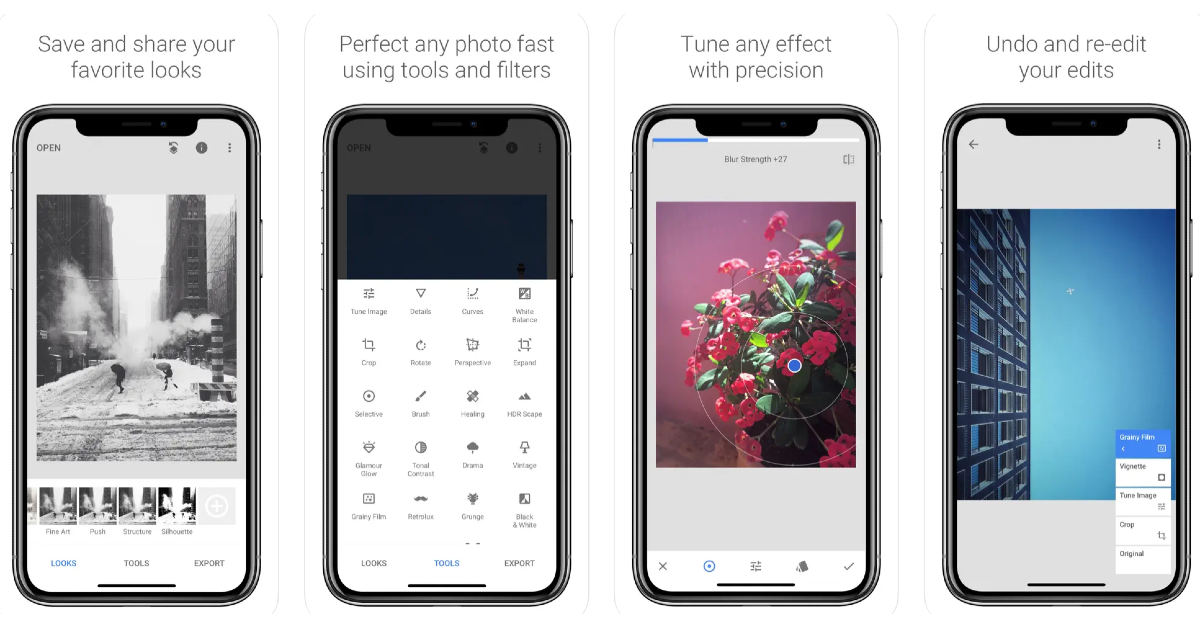
Your iPhone’s photo editor can easily control the background blur on portrait shots. But what if you want to blur out a specific portion of the image that is not in the background? The answer may not be as simple. While native Android editors can accomplish this task, you will need to rely on third-party apps for iPhone. In this article, we bring you some easy ways to blur out part of a picture on your iPhone.Read Also:Facebook’s back button not working? Here’s how you can fix it
Use Snapseed to blur out a part of a picture on iPhone
Step 1:Download and install the Snapseed app on your iPhone.Step 2:Load the picture you want to edit on Snapseed.Step 3: Tap on Tools.Step 4: Select Lens Blur.Step 5:Drag the circle on the photo to the area that you want to blur. You can even adjust the size of the circle.Step 6: Tap the Checkmark once you’re done.Step 7: Hit the Export icon and save the image to your iPhone’s camera roll.
Use WhatsApp to pixelate any image
WhatsApp’s native picture edit has a pixelation feature that can help you blur out personal details from any picture. Here’s how you can use it.Step 1:Launch the WhatsApp app on your iPhone and open your conversation with the person you want to send the image.Step 2: Tap the plus icon at the bottom left corner of the screen and select Photo & Video Library. Select the picture.Step 3: On the editing page, hit the pencil icon at the top right corner of the screen.Step 4: Tap the blur pen at the bottom right corner of the screen.Step 5:Brush the area that you want to blur.Step 6: Your selected area will be pixelated. Hit Done at the top left corner of the screen.
Bonus Tip: Use the Markup tool to hide sensitive information from your pictures and screenshots
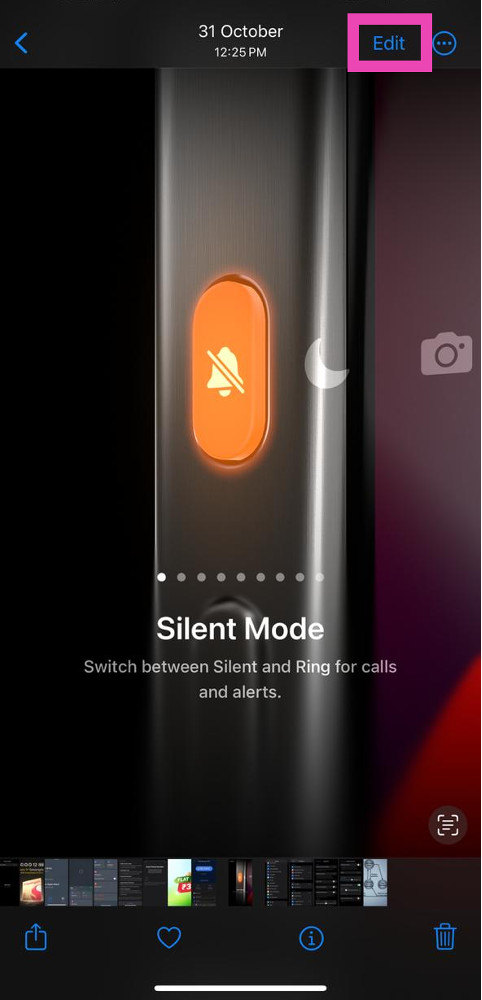
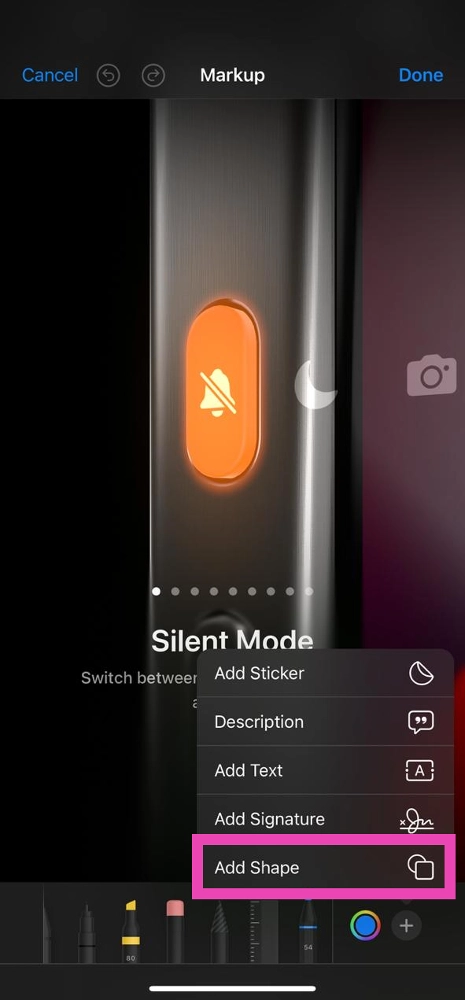
Step 1:Open the picture you want to blur in the Photos app.Step 2: Hit the Edit option at the top right section of the screen.Step 3: Hit the marker icon at the top right section of the screen to access the Markup tool.Step 4: Hit the plus icon at the bottom right corner of the screen and select the square shape.Step 5: Adjust the size of the square box and move it to the part of the picture that you want to hide.Step 6: Select the colour that you want to fill inside the box.Step 7: Hit Done at the top right corner of the screen.
Frequently Asked Questions (FAQs)
How do I blur a part of a picture on my iPhone?
To blur a part of a picture on your iPhone, download a third-party editing app like Snapseed and use its blur tool.
How do I hide sensitive information on my iPhone screenshots?
iPhone’s native Markup tool can hide any sensitive information from your pictures and screenshots. Once you open the image in the Photos app, go to Edit>Markup>Plus icon>Square share and move it to the area you want to cover. Then, select the colour you want to fill into the shape.
How do I apply the blur portrait effect to my pictures on my iPhone?
You can apply the portrait effect and blur the background of any image on your iPhone by using the depth control tool. Simply tap the Edit option at the top right corner of the screen and hit the focal length option on the left to control the background blur.Read Also:Diwali Gifting Guide 2023: Best tech gifts for your loved ones
Conclusion
This is how you can blur out part of a picture on your iPhone. Read this article to learn how to blur out part of a picture on Android. If there’s a specific third-party editing tool that you like to use for this task, let us know in the comments!
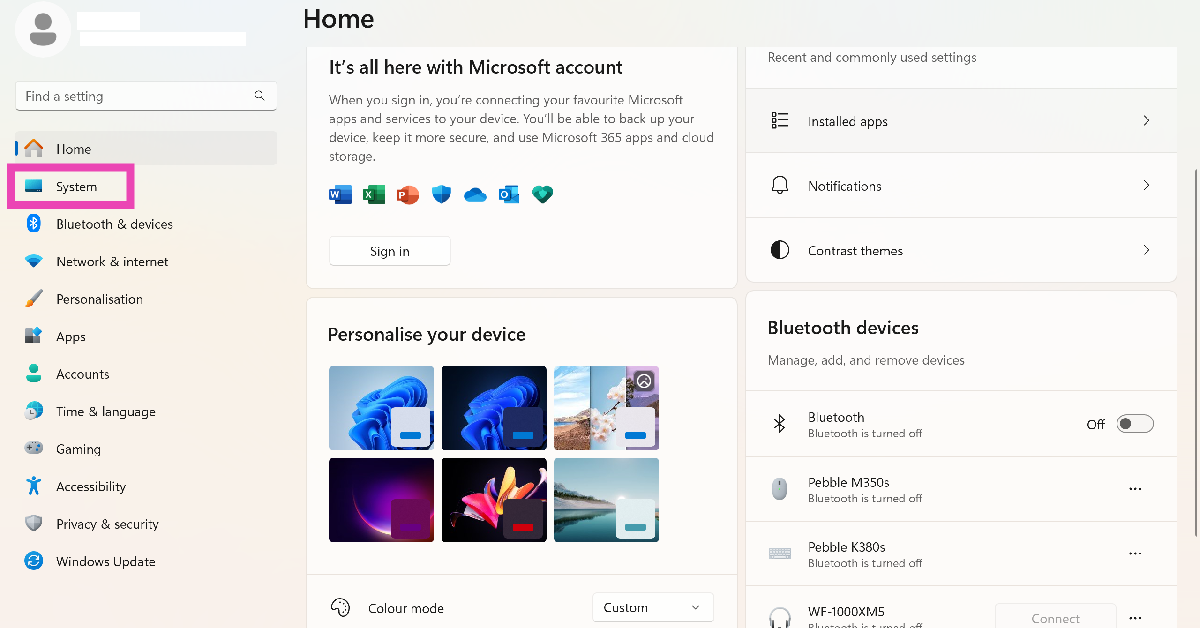
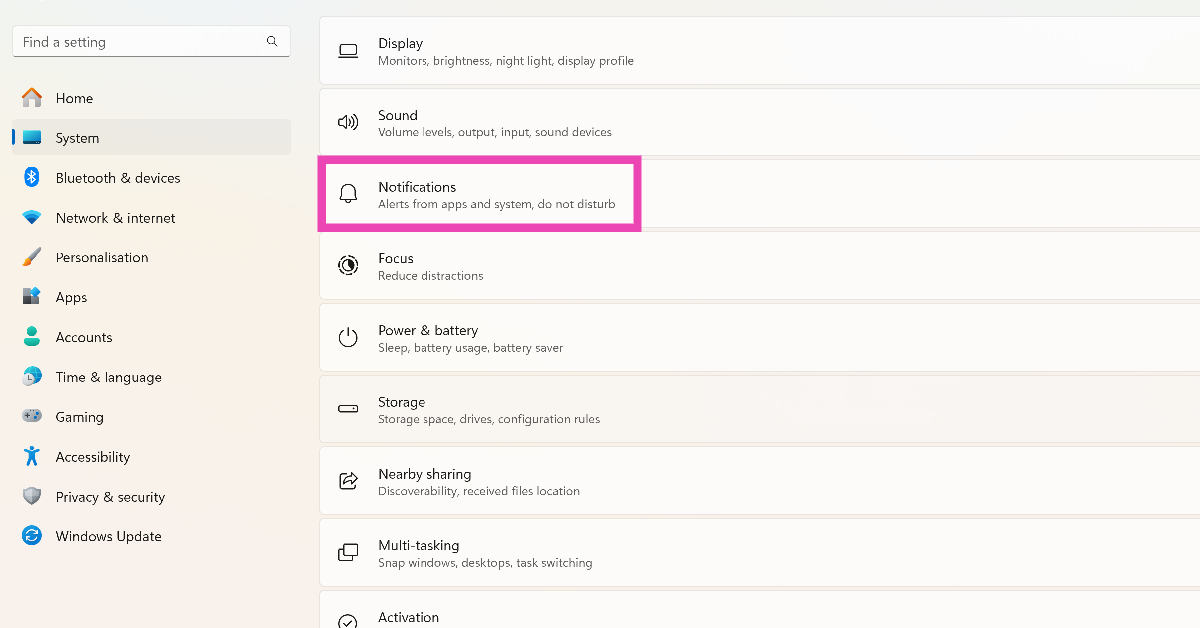
Step 1: Launch the Settings app and select System from the side menu.Step 2: Click on Notifications.Step 3: Scroll down and turn on the toggle switch for Microsoft Teams.
Turn off Do Not Disturb
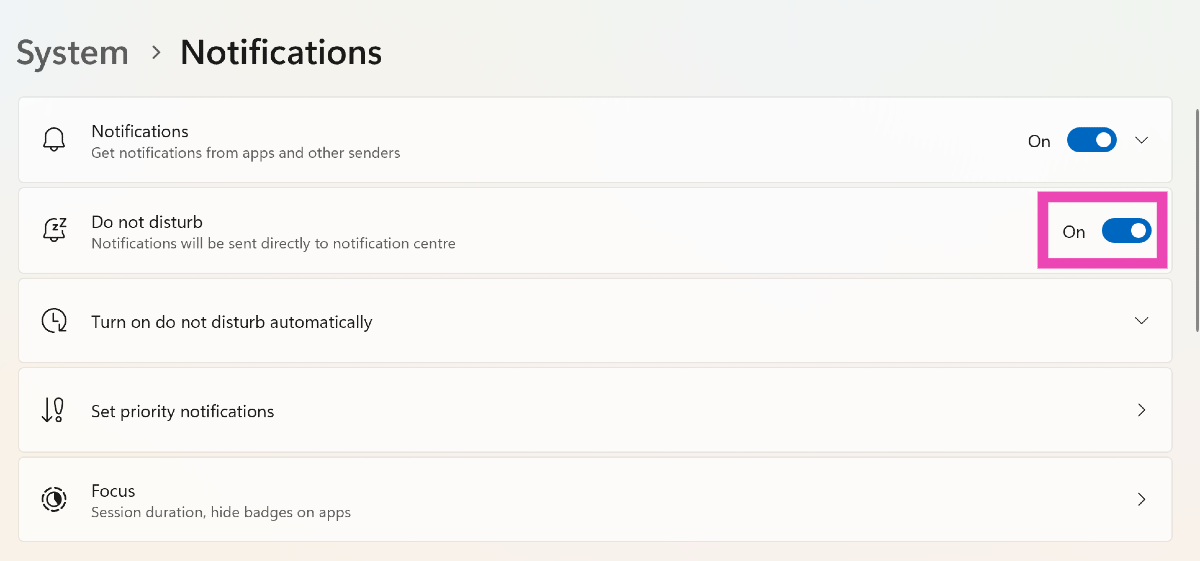
Step 1: Launch the Settings app and select System from the side menu.Step 2: Click on Notifications.Step 3: Scroll down and turn off the toggle switch for Do Not Disturb.
Change your Microsoft Teams status
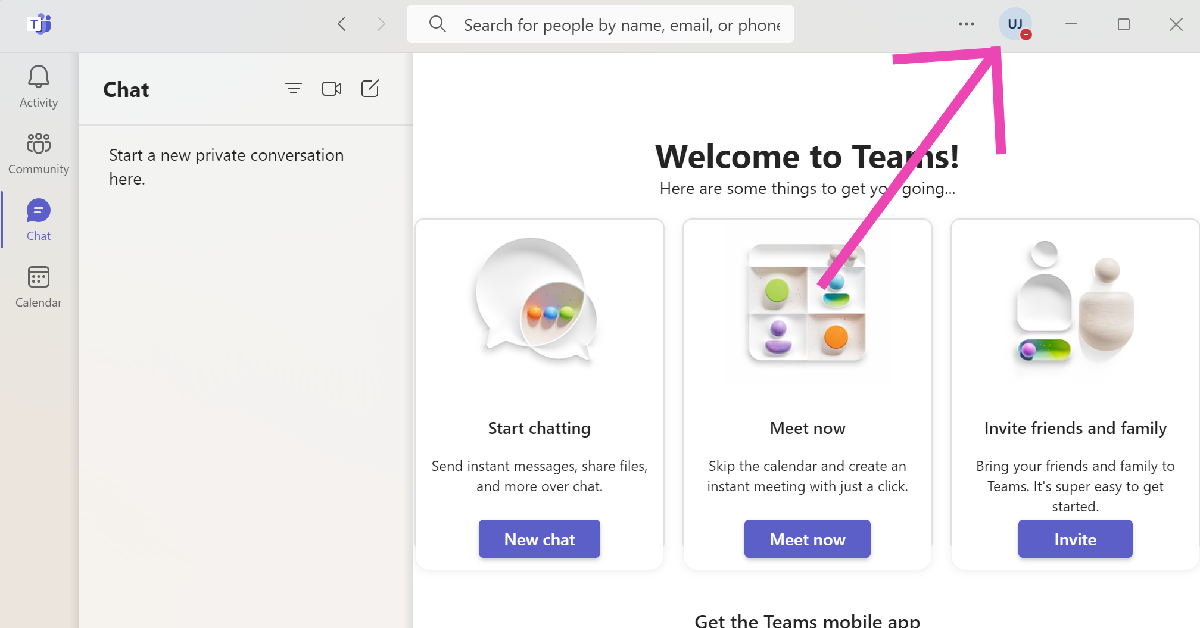
The Microsoft Teams app does not send you any notifications when your status is set to Busy or Do Not Disturb. Here is how you can change it back to Available.Step 1:Launch the Microsoft Teams app on your PC or laptop.Step 2: Click the profile icon at the top of the screen.Step 3: Click on your activity status and change it to anything else other than Busy or Do Not Disturb.
Turn on Notifications for a particular channel on Microsoft Teams
Step 1:Launch the Microsoft Teams app on your PC or laptop.Step 2:Right-click on a channel.Step 3: Move the cursor to Channel Notifications and select All Activity.
End your Focus Session
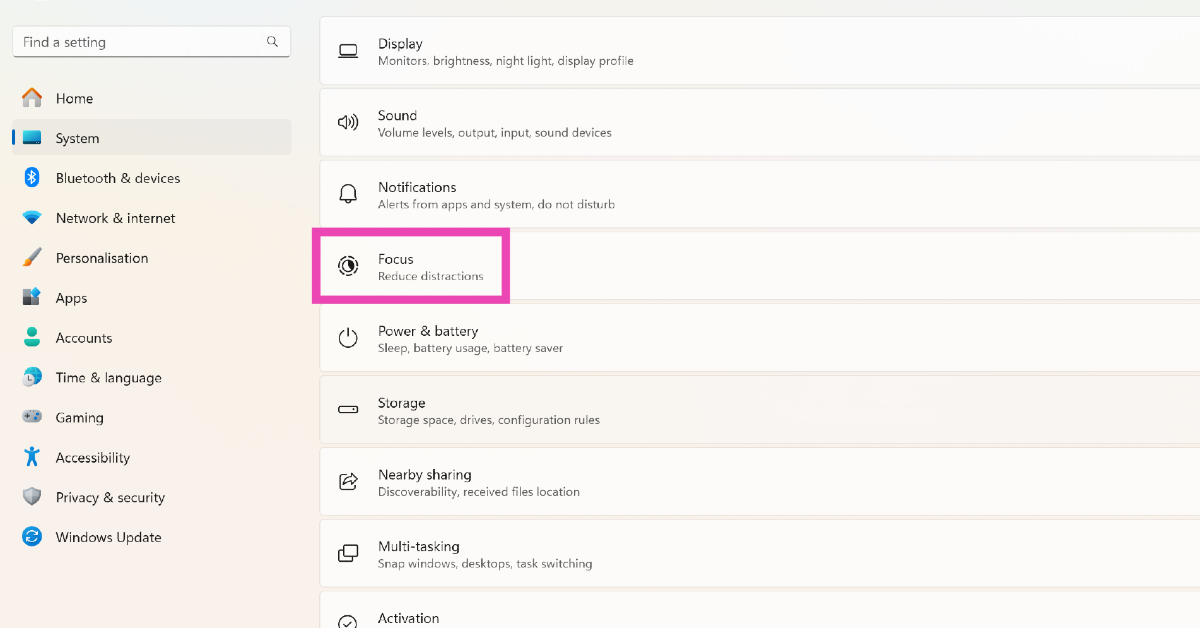
When you start a Focus Session on your Windows PC or laptop, all notification alerts are paused until the session lasts. Here’s how you can turn it off.Step 1: Launch the Settings app and select System from the side menu.Step 2: Click on Focus.Step 3: Click on Stop focus session.
Update the Microsoft Teams app
If you are unable to receive notifications from the Microsoft Teams app due to a bug-related issue, check the app for any updates. Usually, these kinds of bugs are quickly fixed by the developers with a swift update. Hit the ellipses in the Microsoft Teams app and select Check for Updates.
Turn off your PC’s battery saver
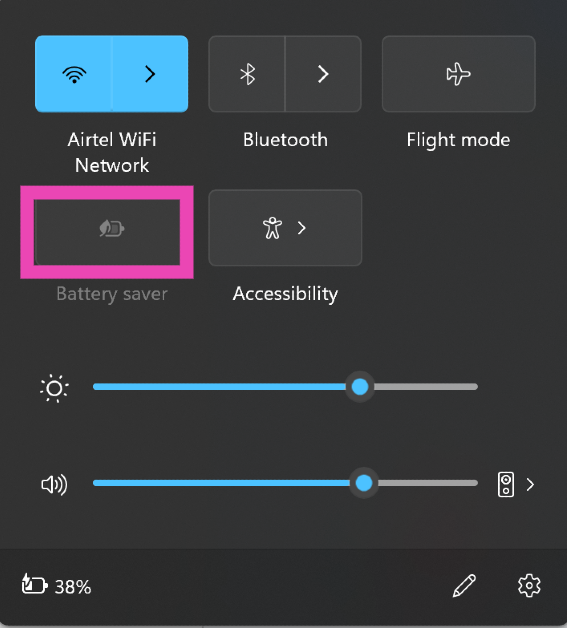
Once your PC or laptop hits a low battery level, it triggers the battery saver. In battery saver mode, all notification alerts to your PC are paused. You can turn off the battery saver even when your PC is low on charge. Hit the battery icon in the bottom right section of the taskbar and click on battery saver to turn it off. You can also go to Settings>System>Power and Battery to turn off the battery saver.
Log out and log into Microsoft Teams
If you aren’t able to receive Microsoft Teams notifications due to an account-related issue, logging out and then logging back into the app will help. Click your profile icon on the top of the screen and select Sign out. Log back in using your phone number or Microsoft account.
Repair the Microsoft Teams app
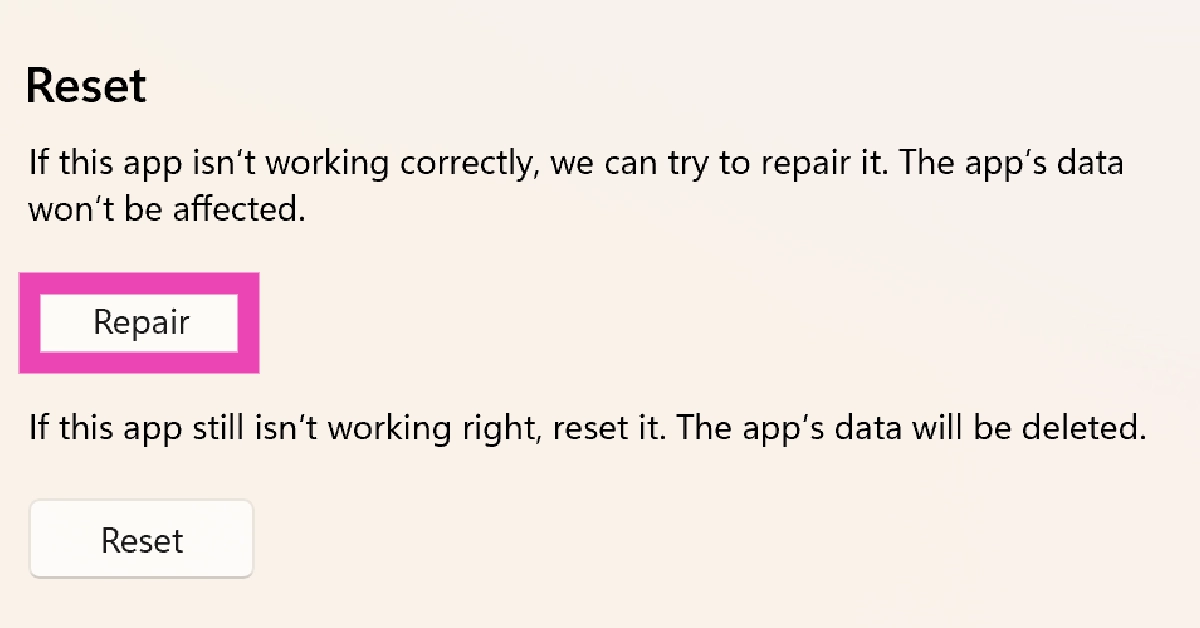
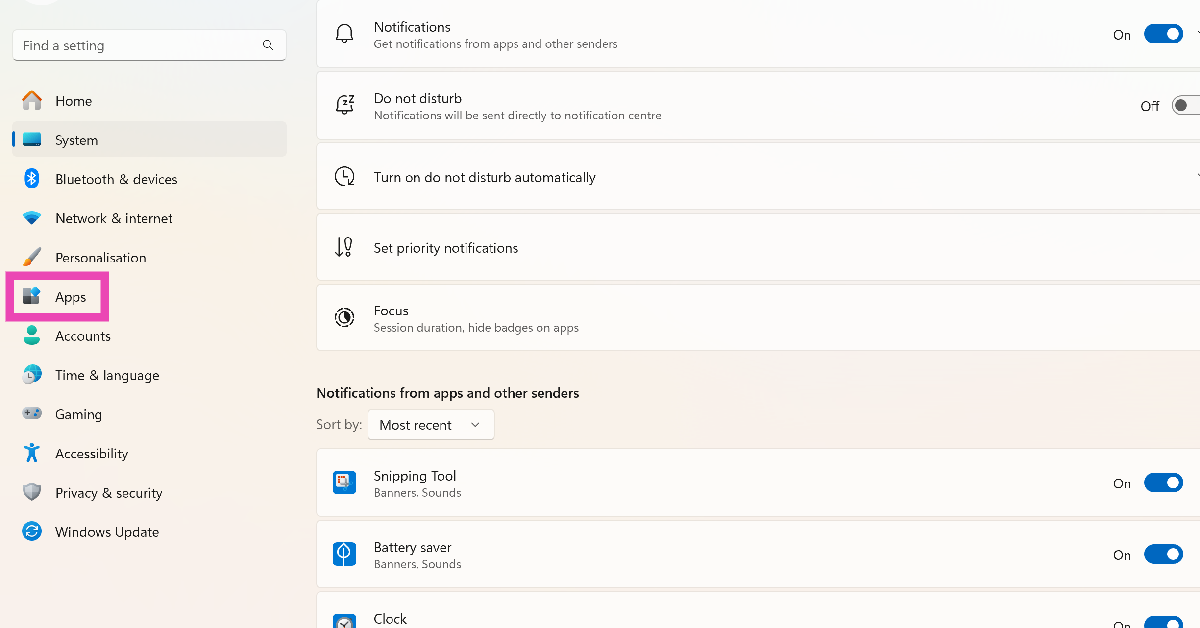
Step 1: Go to Settings and select Apps.Step 2: Click on Installed apps.Step 3: Scroll down to Microsoft Teams and click on the ellipses next to it.Step 4: Select Advanced Options.Step 5: Scroll down and select Repair.
Check if Microsoft Team’s servers are down
The Microsoft Teams notifications may not be working because it is experiencing a server outage. To confirm this, go to DownDetector.in and search for Microsoft Teams. If you see a spike in user reports, it is very likely that the app’s servers are down.
Frequently Asked Questions (FAQs)
How do I fix the Microsoft Teams app if it is malfunctioning on my PC?
Go to Settings>Apps>Installed Apps and click the ellipses next to Microsoft Teams. Go to Advanced Options, scroll down and hit Repair.
How do I turn on the notifications to Microsoft Teams?
Go to Settings>System>Notifications and turn on the toggle switch next to Microsoft Teams.
Why am I not receiving any notifications from Microsoft Teams?
If your availability status is set to Busy or Do Not Disturb, you will not receive any notifications from Microsoft Teams. To change your status, hit your profile icon at the top of the screen and select Available.Read Also:Poco C65 with 50-megapixel dual camera setup launched globally
Conclusion
This is how you can fix the ‘Microsoft Teams notifications not working’ issue on Windows 10 and 11. Microsoft Teams also has a very handy web portal that you can use if the app is still blocking notification alerts on your Windows PC or laptop. Make sure you allow notification access to the web portal before proceeding. If any of these fixes worked for you, let us know in the comments!
Incoming calls will be answered by Bixby’s automated voice
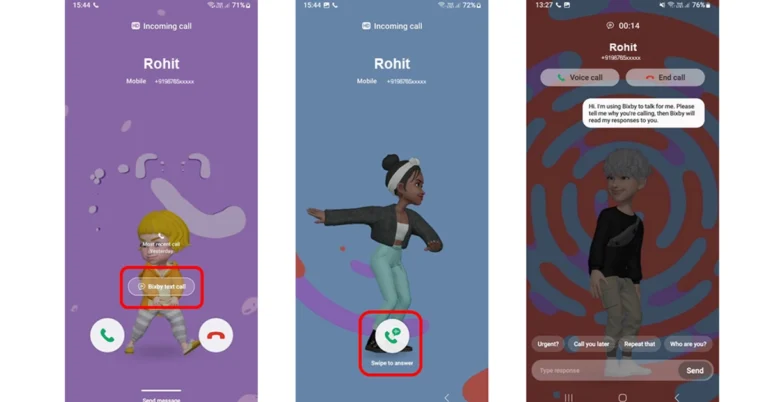
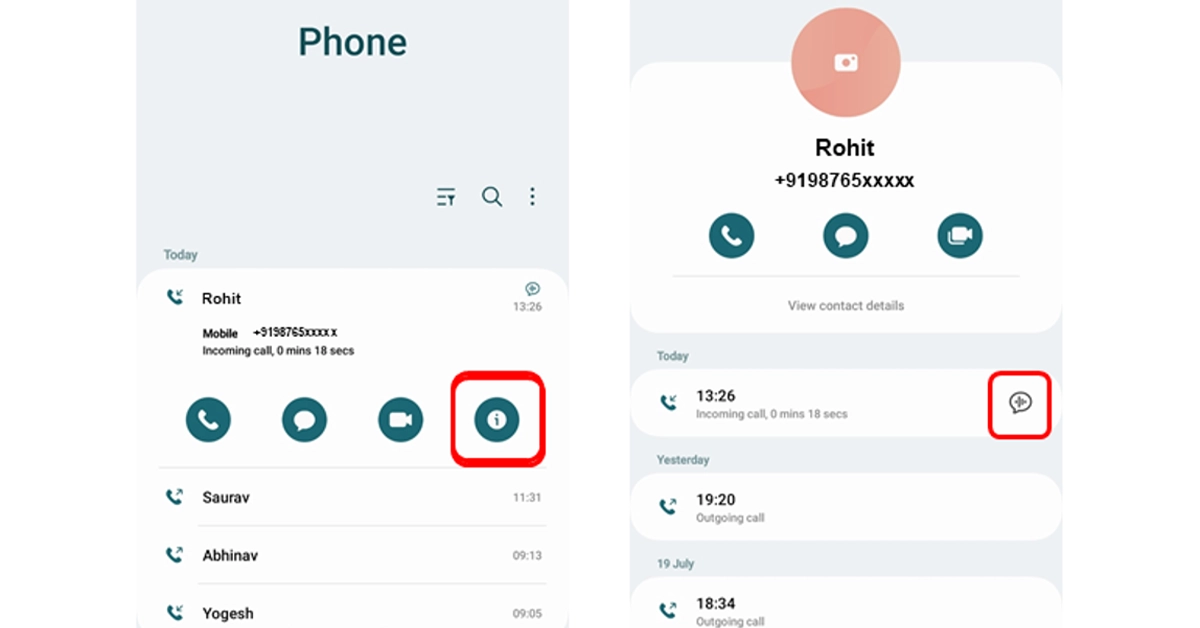
Samsung recently brought Auto Blocker for Galaxy devices. Now it has started rolling out an update for Bixyby. Samsung’s AI assistant is getting some upgrades featuring the Bixby Text Call feature in English.Samsung’s latest upgrade for its AI assistant brings Bixby Text Call to India. The latest feature is only being made available for a select few Galaxy smartphones. The feature allows Bixyby to answer and respond to your incoming calls.Note that incoming calls will be answered by Bixby’s automated voice. After that, it is up to you if you want to simply start typing with the keyboard or select a quick response, and Bixby will read your messages to the caller. Once Bixby Text Call ends you can review your conversations if necessary.Also Read:Oppo Reno 8T 5G price slashed, now available for Rs 12,765You can read the messages sent during the call although you won’t be able to hear the conversation. The caller will only hear an automated voice. When you receive a call tap on that and then on the next screen, swipe up on the green coloured icon to initiate a Bixby text call.Note that the caller will know about an automated voice. Bixby will also ask the caller who they are and why they are calling. Know that whatever caller speaks will be transcribed and displayed on the screen. Also, you can respond by selecting a quick response at the bottom of the screen, or typing what you would like to say. Tap Send. Bixby will then read your response to the caller.Users can also switch from Bixby text call to a voice call by tapping Voice Call at the top of the screen. To end the call, tap End Call at the top of the screen.As mentioned earlier this feature will be supported by a few Samsung smartphones and can be used only during incoming calls.Galaxy Z Fold 5, Galaxy Z Flip 5Galaxy Z Fold 4, Galaxy Z Flip 4Galaxy Z Fold 3, Galaxy Z Flip 3Galaxy Z Fold 2/ Galaxy Z Flip 2Galaxy Z Flip 5G, Galaxy Z Fold 5GGalaxy S23 series, Galaxy S22 seriesGalaxy S21 series, Galaxy S20 seriesGalaxy A34, Galaxy A54, Galaxy A52s 5GGalaxy A82 5G, Galaxy A53 5G, Galaxy A33 5GGalaxy S20 FE, Galaxy Note 20, Galaxy Note 20+Galaxy A71 5G, and Galaxy A51 5G
How to enable Bixby Text Call
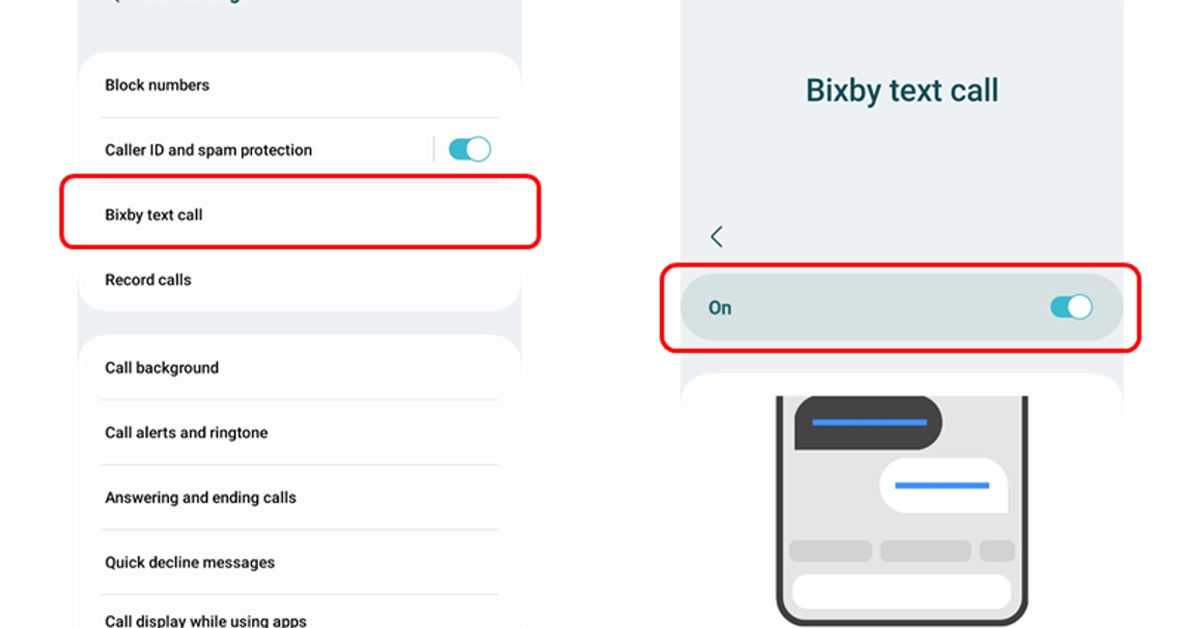
Step 1: Open the Phone app on your supported phone.Step 2: Tap on More Options.Step 3: Go to Settings.Step 4: Turn on the Bixby text call feature in the Bixby text call window.Step 5: If a language package is not installed on your device then download a language package when asked.Step 6: Tap Download and then click on Continue to go to the Galaxy Store where you can Install the language package.Step 7: After enabling the Bixby text call, edit Bixby text call settings such as language and voice.Step 8: You can also add new quick responses or customize existing ones for Bixby text calls.
The Oppo Reno 8T 5G features a 6.7-inch micro-curved AMOLED screen.
The display supports a 120Hz refresh rate.
The device comes with a 4,800mAh battery and supports 67W fast charging.
It is powered by Qualcomm Snapdragon 695 5G.
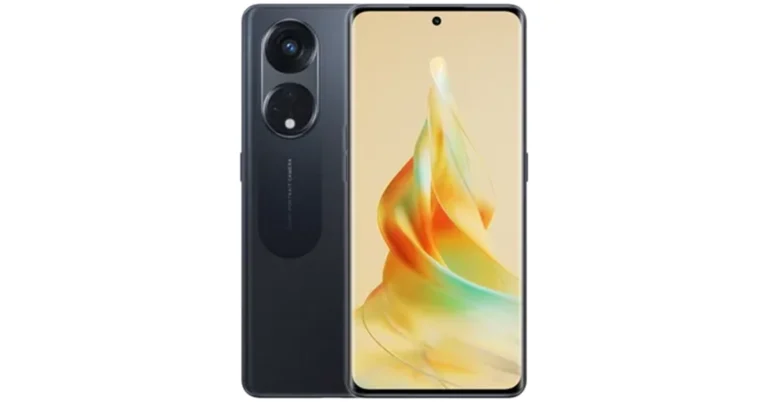
Oppo Reno 8T 5G price has significantly decreased in India. This phone is available at half price on Croma. Surprisingly this smartphone was launched in India just a few months ago, yet how did its price become so low? The details are provided below.
Oppo Reno 8T 5G price and sale details
Croma is running a Festival of Dreams sale on its platform. During which the Oppo Reno 8T 5G is available with a massive discount of Rs 12,765. In addition to this, the e-commerce platform is also offering up to Rs 750 instant discount on IDFC Bank credit card and EMI transactions.Note that this smartphone is available at the pricing only on Croma. There is now a price cut on Flipkart and Oppo Store.Oppo Reno 8T 5G was launched in India at Rs 29,999 in February this year. The device comes in a single 8GB RAM with a 128GB storage option.Also Read:Reliance Jio launches JioMotive GPS tracker for your vehicles
Oppo Reno 8T 5G specifications
Oppo Reno 8T comes with a 6.7-inch micro-curved AMOLED with a 1,080 x 2,412-pixel resolution. The screen supports a refresh rate of 120Hz, a screen-to-body ratio of 93% and uses an AI Adaptive Eye Protection System. Additionally, it has Widevine L1 certification.The smartphone runs on ColorOS 13.0 and is powered by Qualcomm Snapdragon 695 5G SoC. There is a provision for a microSD card slot supporting up to 1TB of storage expansion.Oppo Reno 8T 5G features a triple rear camera setup that includes a 108MP primary sensor, a 2MP macro sensor as well as a 2MP depth sensor. It comes with a selfie camera with a 32MP resolution on the front for video calls.The smartphone has a 4,800mAh battery supporting 67W SUPERVOOC fast-charging technology.
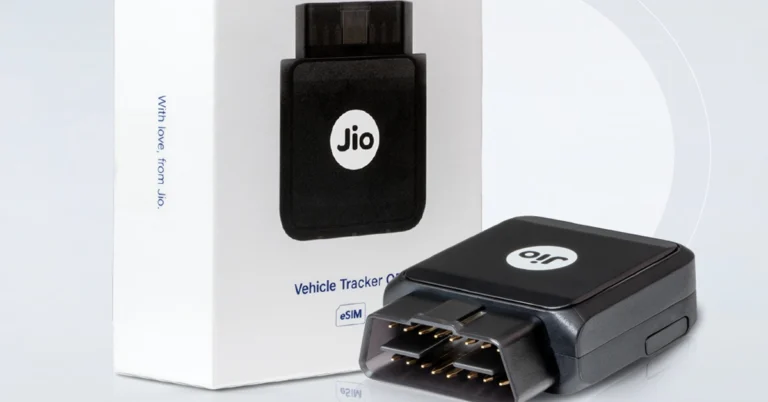
Reliance Jio has announced the launch of a new tracker in India. After launching a Bluetooth tracker JioTag the company has introduced JioMotive, a plug-and-play 4G GPS tracker for cars. It can be plugged into an OBD port in your car to track its real-time location. In addition to this, the GPS tracker also works as a WiFi hotspot for your car. Not only it can track the real-time location of your car it can also do speed tracking and route tracking.
JioMotive Plug-and-Play 4G GPS Tracker price and availability
The JioMotive Plug-and-Play 4G GPS Tracker has been launched with a price tag of Rs 11,999. But it can be purchased for Rs 4,999 as an introductory offer. The device is currently available for purchase via Reliance Digital store and Jio official store. Reliance Jio is also giving away first-year subscriptions for free. From the second year, one has to pay an annual amount of Rs 599.Also Read:Poco C65 with 50-megapixel dual camera setup launched globally
JioMotive Plug-and-Play 4G GPS Tracker features
JioMotive Plug-and-Play 4G GPS Tracker easily connects your car’s OBD-II port, which is normally found under the dashboard, close to the steering wheel. It can be used to get the real-time location of your car and work as a WiFi hotspot for your vehicle. In addition to this, the device also gives you access to important data about performance, health and more.To keep your family and your car protected the tacker can also check real-time speed, track your vehicle’s route and do much more.Here are some more features of the JioMotive Plug-and-Play 4G GPS Tracker:Geo-FencingGeo-Fencing is an important feature that your car must have if you hand over your vehicle to someone not known to you or your driver. It allows you to set up parimeters, or geofences around specific areas like your home, office or your kid’s school. Whenever your car enters or exits these predefined areas you will receive instant notification, keeping you updated on vehicle movements.Vehicle Health DiagnosticsJioMotive Plug-and-Play 4G GPS Tracker will also keep a close eye on your car’s battery voltage, air intake temperature, engine load and coolant temperature at all times. It also sends alerts on hundreds of DTC codes, that allow you to take better care of your car and save on maintenance costs.Driving Behaviour AnalysisJioMotive alerts you to instances of over-speeding harsh braking, rapid acceleration and sudden turns, promoting safer driving. Plus, you can review your past trip history to understand your driving patterns.Time FencingSet up time-specific fencing on the JioThings app and if your car is started or moved within that time frame you will receive immediate notifications.Anti-theft, anti-tow, accident alertsThese safety features make use of JiMotive’s inbuilt 3D gyroscope and accelerometer in case of such untoward events and get instant alerts on your phone to take steps. Even if the device is removed or tampered with from the OBD port you will receive notifications to take quick action.In-car Wi-Fi hotspotYou can now stay connected with your loved ones thanks to JioMotive which also works as a car hotspot. It allows you to connect up to 8 devices at the same time.


 Once someone blocks you on Instagram, their profile does not show up in the immediate results once you search for their username. Go to the explore tab on the Instagram app, and hit the search bar at the top of the page to look up the profile of the person you suspect has blocked you. Their profile will only show up once you switch to the ‘Accounts’ tab in the full search results.
 When you visit an Instagram profile that you have been blocked from accessing, you will not be able to view or interact with any content on it. Furthermore, you won’t get access to the posts, followers, and following counters on the profile. All three counters will display 0 if you have been blocked by the owner of the handle.
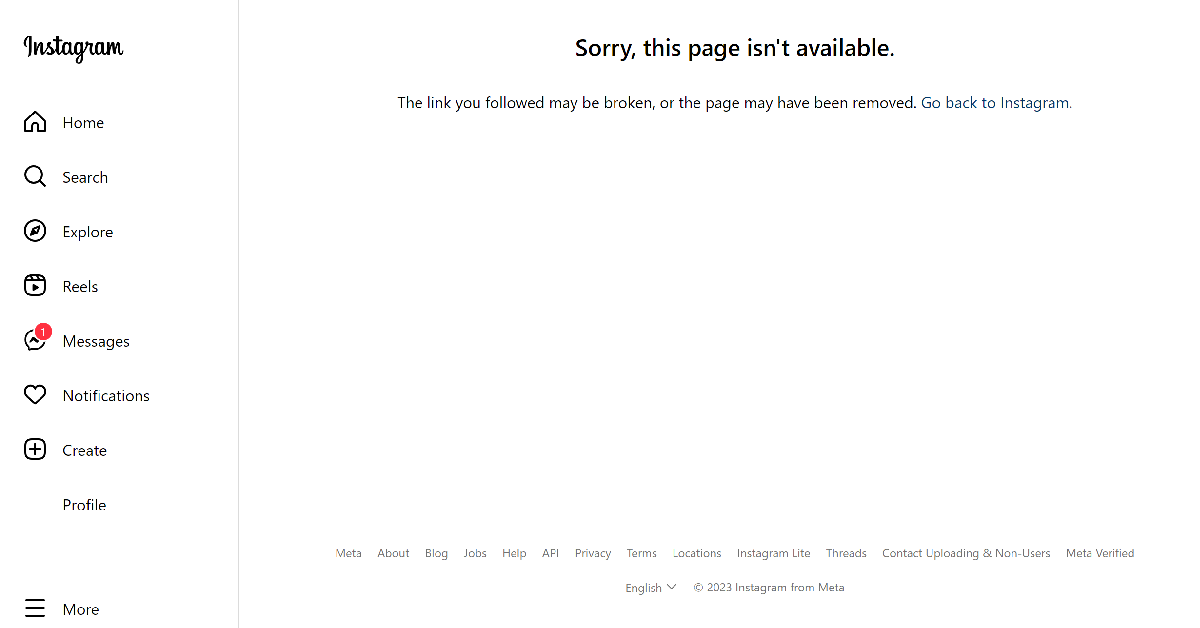 If you suspect a user has blocked you on Instagram, look up their profile on your phone’s web browser. Make sure you are logged into Instagram through your primary account. Then go to https://www.instagram.com/(username). Substitute (username) with the Instagram handle of the user. If you get the ‘Sorry, this page isn’t available message’, it means you have been blocked by the user.
 Once someone blocks you on Instagram, you also get blocked from accessing their Threads profile. Launch the Threads app on your phone and search for the person’s username. Since the Threads and Instagram handle is the same for every user, this won’t be hard. If you cannot view the user’s Threads profile, they have likely blocked you on Instagram.
 This method will only work if you were previously ‘mutuals’ with the Instagram user. Instagram automatically removes the user as your follower once they block your profile. The user is also removed from your following list. Go through both lists and search for the user’s profile. If you can’t find them there, you may be blocked.
 Once someone blocks you on Instagram, your messages no longer reach them on the app. You will stop receiving read receipts. You can ask a mutual friend to check if their messages are being read by the user. If that is the case, it is probable that they have blocked you. Instagram does not delete the chat history once you have been blocked by someone on the platform.
 When someone blocks you on Instagram, your conversation with them does not display their name anymore. Instead, it will be listed as ‘Instagram User’. This is one of the strongest signs that someone has blocked you on Instagram. You will be able to view the user’s profile picture but tapping on it in their profile won’t maximise it.
 This is the best way to confirm whether you have been blocked by someone. After carrying out the steps mentioned above, simply make a secondary account on Instagram and visit the profile of the person who you suspect has blocked you. If their profile shows up in the search results and you can view the counters on their profile, it means your primary account has been blocked by the user.


 Step 1: Download
 Step 3:
 Step 5:
 Step 2:
 Step 3: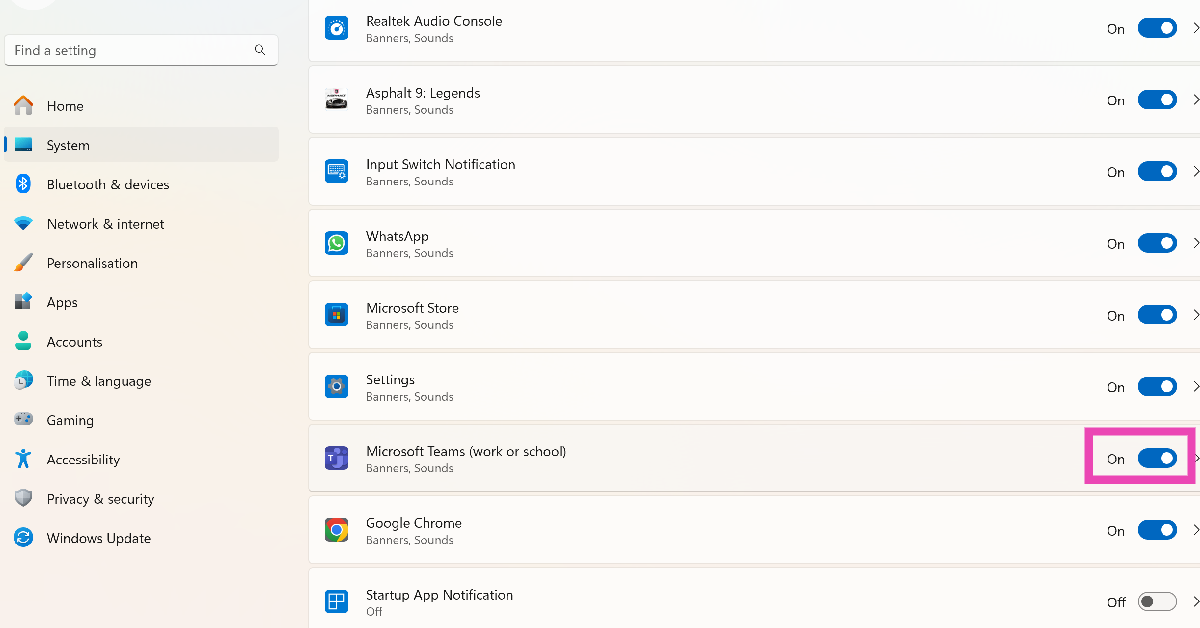
 Step 3: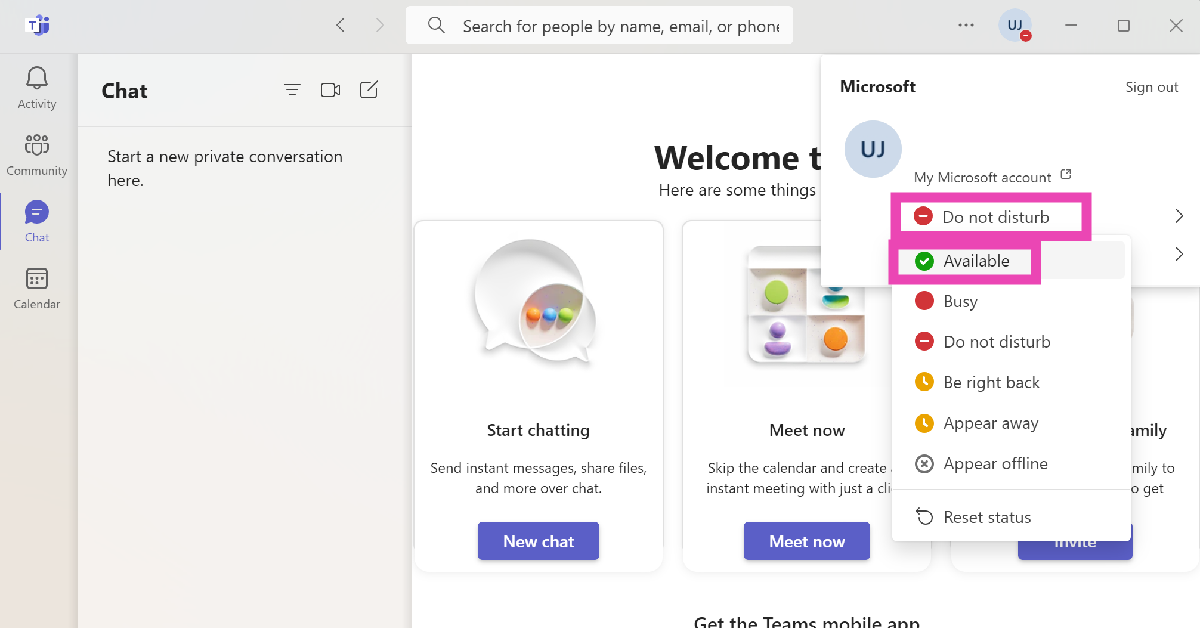
 Step 3: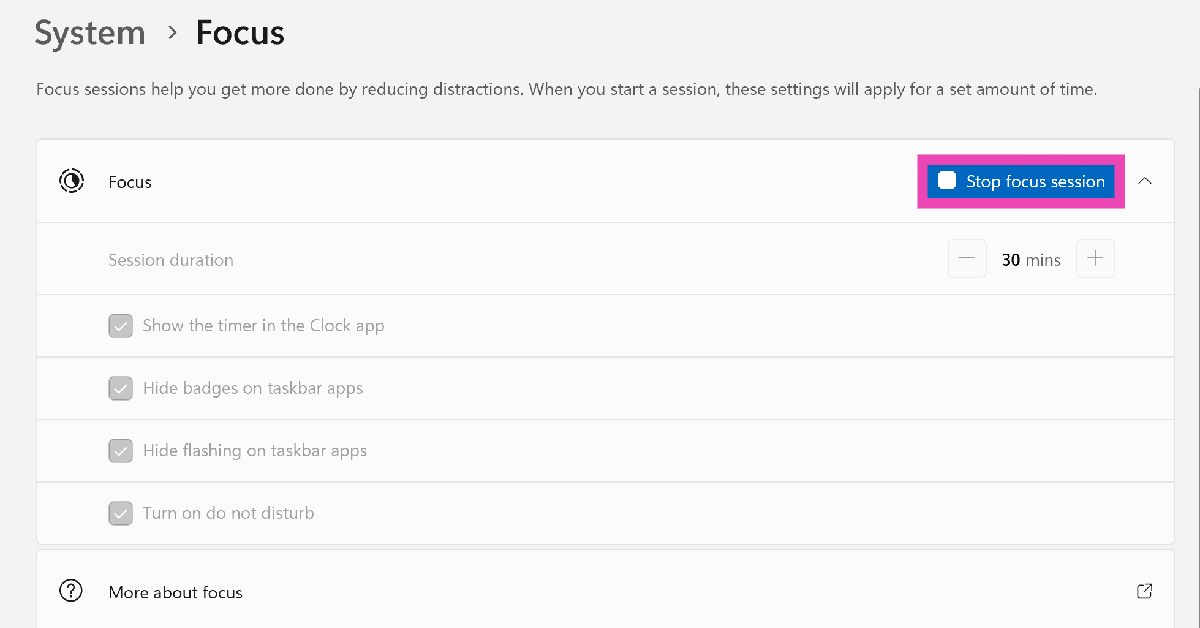
 Step 2:
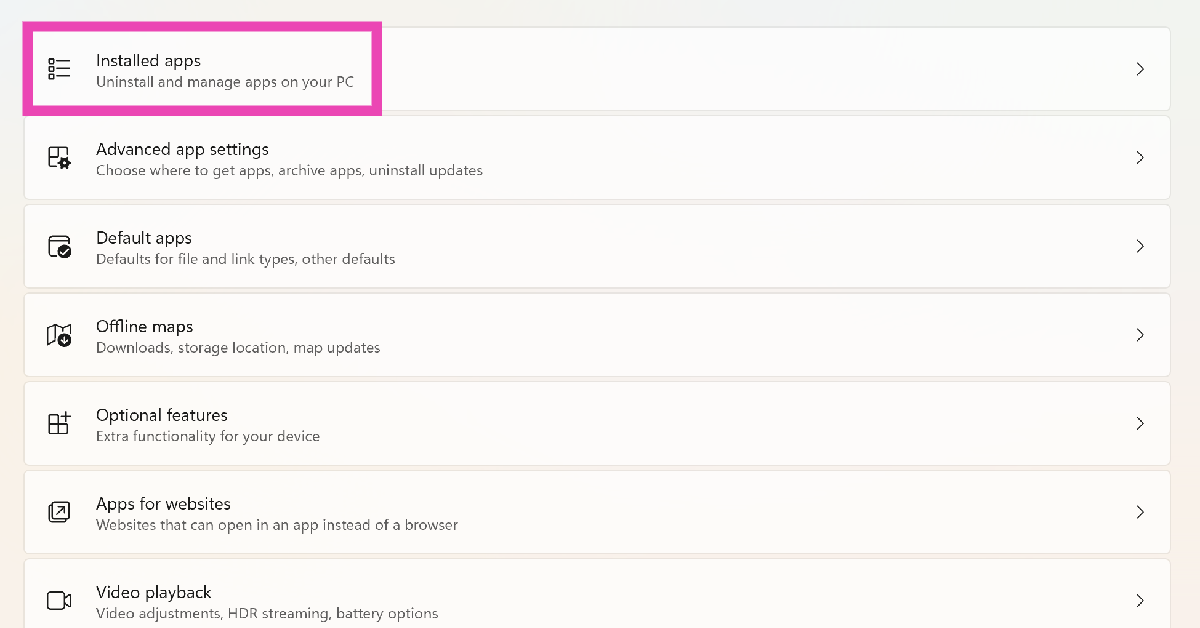 Step 3:
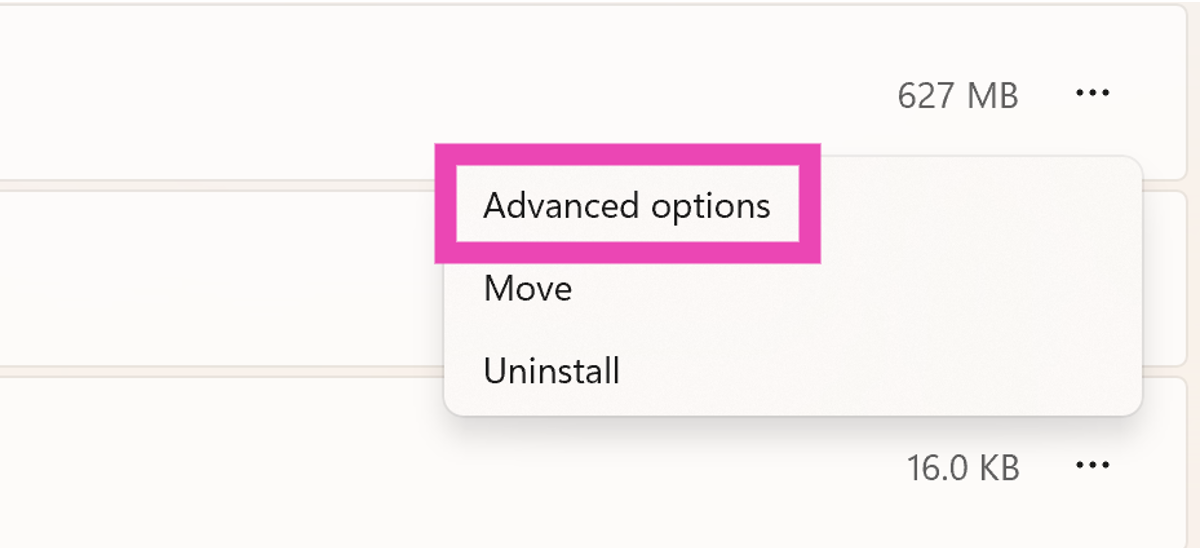 Step 5: