Garena Free Fire is a battle royale game with regular awards and tournaments to keep players interested. If you play Garena Free Fire, you should be aware of the redeem codes that are released on a daily basis. However, because the battle royale game is banned in India, players from other countries can use the Free Fire Redeem codes daily. If you’re unfamiliar with the Garena Free Fire redeem codes or don’t know how to get them, we’ve put together a step-by-step guide to help you redeem them. Check out Garena Free Fire Redeem Codes for 16 October 2023.The Free Fire redeem codes are a great way to get free stuff. These are 12-digit codes that contain alphabets and numbers, as well as an expiration date and time. Because the Garena FF redeem codes cannot be used more than once, you should hurry to the redemption page to claim your free reward before someone else does. To get a free reward, all you have to do is go to reward.ff.garena.com/en, which is the official redemption page. Also, keep an eye on this space for daily updates on Garena Free Fire redemption codes and rewards.
Garena Free Fire Redeem Codes Today 16 October2023
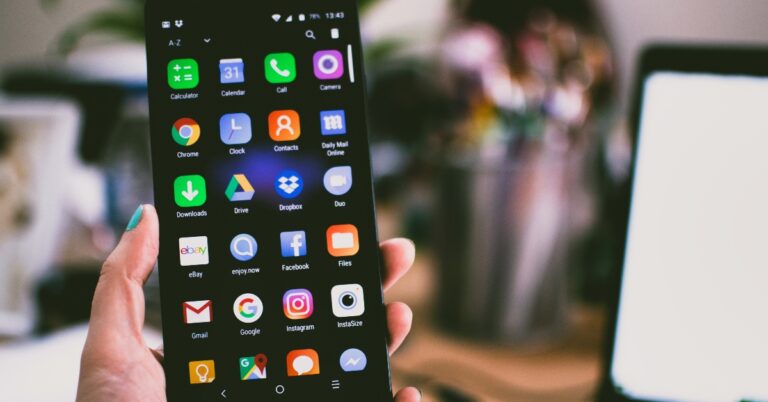
If you use a lot of apps on your phone, its cached data can occupy a significant portion of your device’s memory over a period of time. An app’s cache serves an important purpose in its smooth and swift functioning. Every app reaches its cached memory to pull out the frequently used items instead of downloading them all over again. Over a period of time, these items can become outdated and therefore useless. It is recommended that you clear your phone’s cache every few weeks. In this article, we bring you the top 4 ways to clear the app cache on your Android phone.Read Also:Top 4 Ways to Automatically Forward Text Messages to Another Phone or PC
What happens when you clear an app’s cache? How often should you clear it?
An app’s cache stores temporary information that can be immediately presented to the phone whenever you launch it. This makes the app load faster. Things are app layout, thumbnails, search history, and other kinds of information are stored in the cache. When you clear an app’s cache, this data gets deleted from your phone’s memory. When you launch an app after clearing its cache, it will take slightly longer to load.
Over a period of time, an app’s cache can get bulky. Collectively, the caches of several apps can occupy a significant part of your phone’s storage. At this point, the space that the cache occupies on the ROM can slow down the device. Therefore, it is advised that you delete the cache of your most used apps whenever you notice sluggishness on your phone.
Sometimes, clearing an app’s cache can help with fixing its functional issues. Remember when we said that a cache stores temporary files related to the app layout, thumbnails, search queries, and more? These temporary files are known to get corrupted. For example, if an app just changed its layout, yet your phone reaches to the cache for the old one, it may throw up some error. Clearing the temporary memory can help with that.
Clear app cache on Android
Step 1: Go to Settings and select Apps.Step 2:Select the app for which you want to clear the cache.Step 3: Tap on Storage.Step 4: Select Clear cache.
Clear browser cache on Android
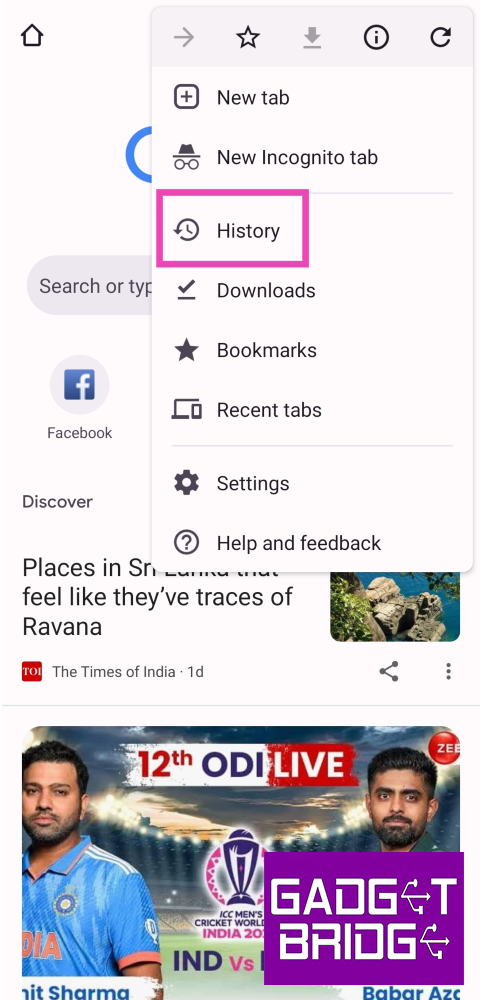
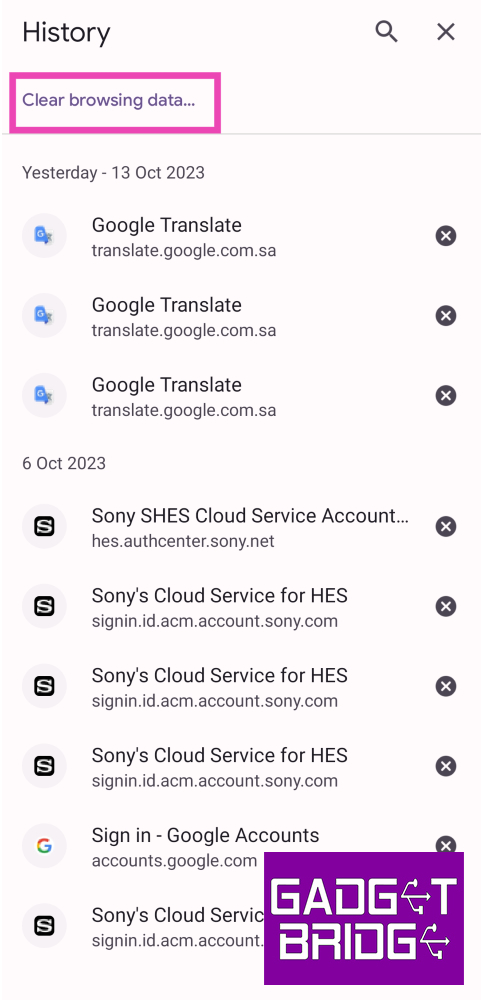
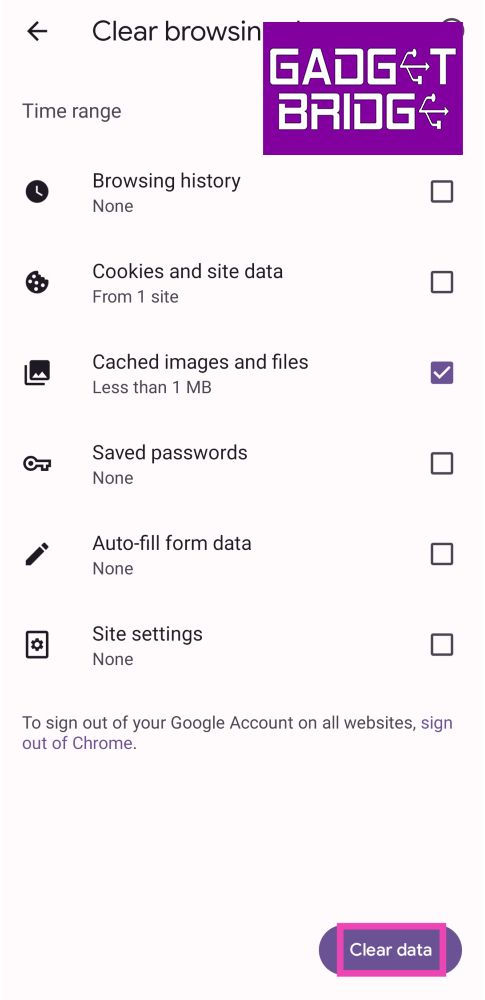
Step 1: Launch the Google Chrome browser app on your smartphone.Step 2: Tap the ellipses at the top right corner of the screen and select History.Step 3: Select Clear Browsing Data.Step 5: Check the boxes next to Cached images and files.Step 6: Tap on Clear data.
Clear the cache using in-app settings
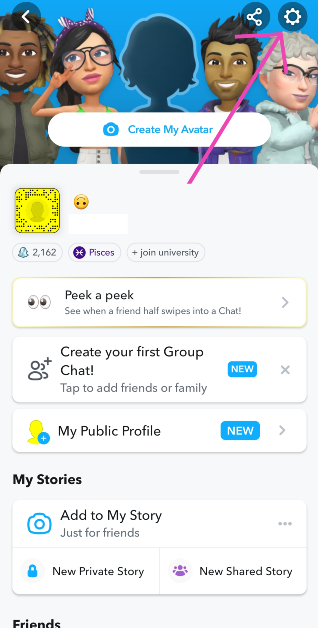
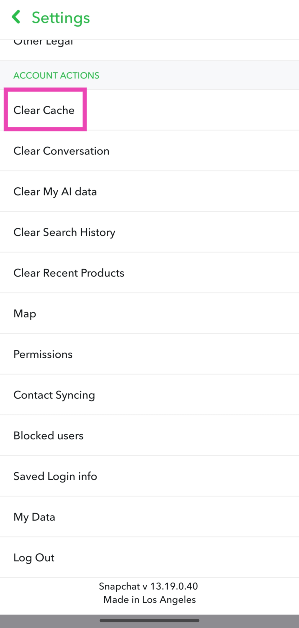
Some apps have the option to clear the cache integrated into their settings menu. Snapchat is one example. Here’s how you can clear its cache.
Step 1: Launch the app and head over to its Settings.
Step 2: Scroll down and look for the Clear Cache option. Select it.
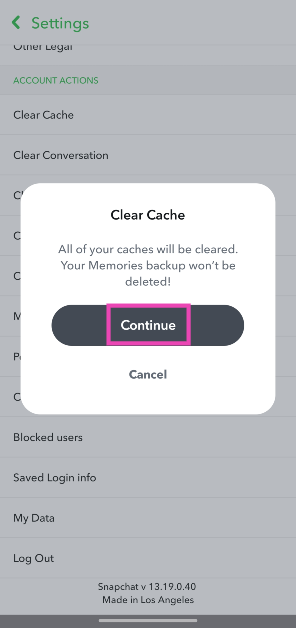
Step 3:Confirm your selection in the popup box.
Clear the cache of all the apps at once using a third-party app
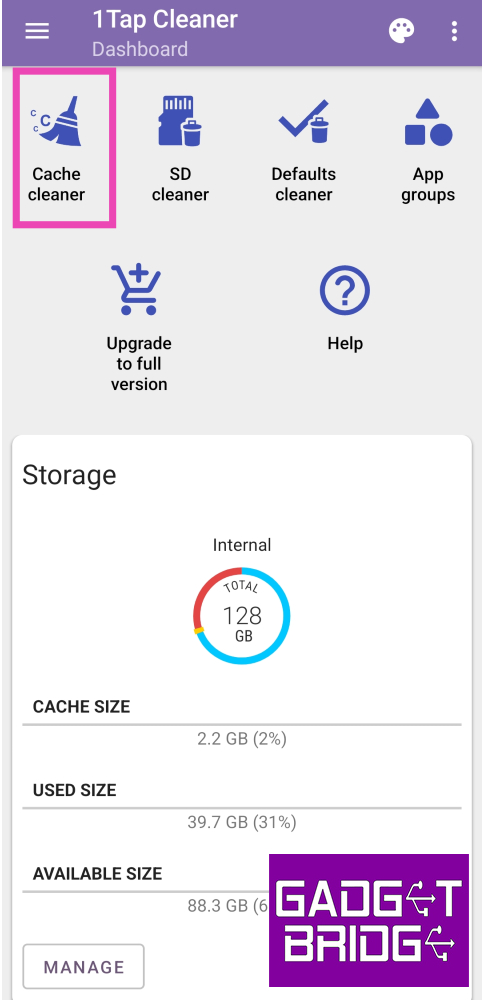
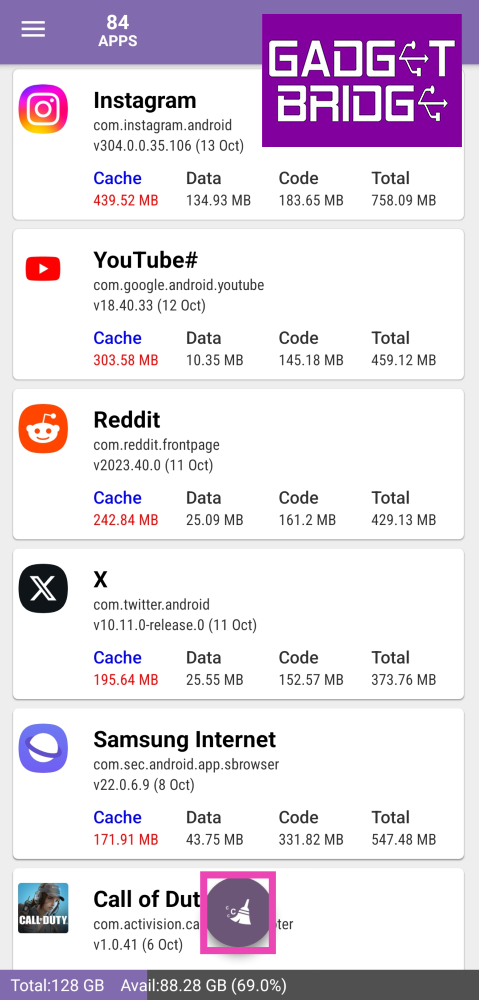
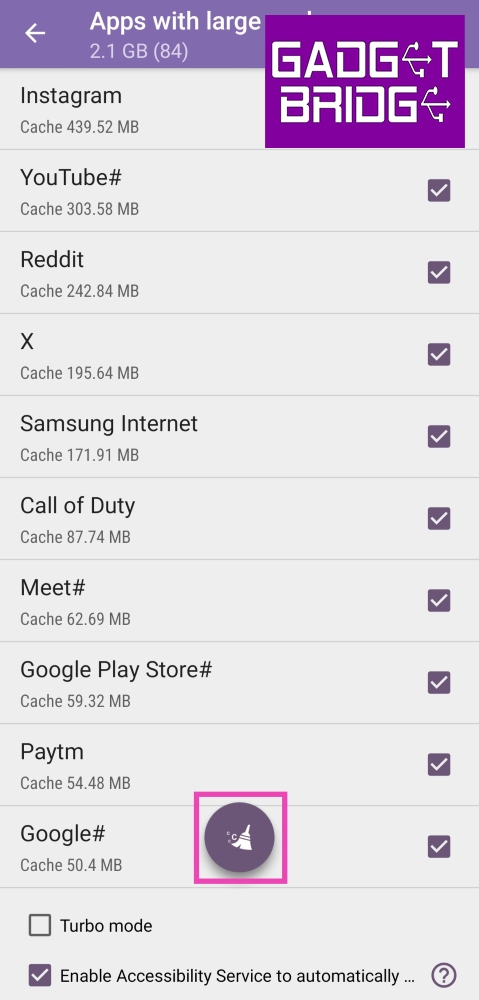
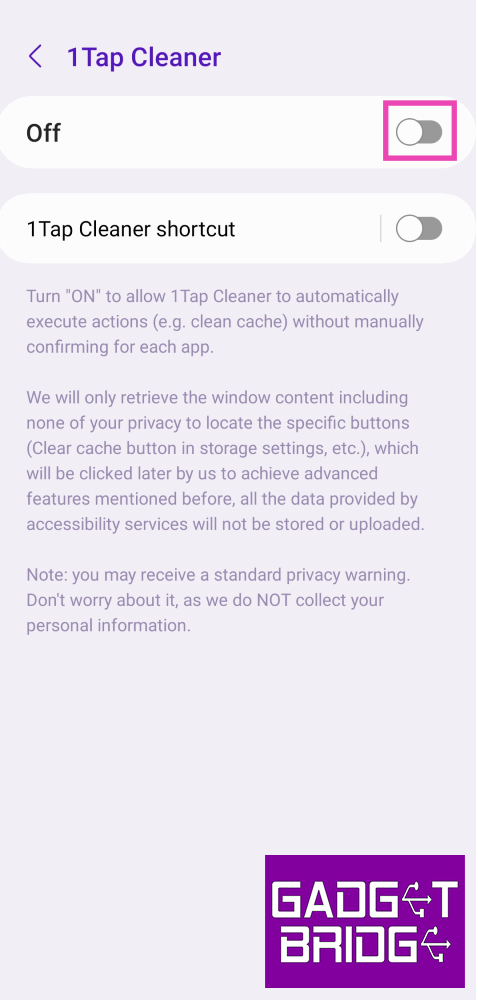
Step 1:Install the 1Tap Cleaner app on your Android phone.Step 2:Launch the app and give it the necessary permissions.Step 3: Tap on Cache Cleaner.Step 4: Select if you want to clear the memory of apps with large cache or all apps at once. Hit the broom icon.Step 5: Tap the checkbox for the apps up for cache clearing.Step 6: Give 1Tap Cleaner full control of your phone by turning on its toggle switch in Accessibility settings. This will 1Tap Cleaner to individually go through every app and clear its cache.Step 7: Once the necessary accessibility permission has been given, 1Tap Cleaner will automatically go through every app in App Settings and clear its cache.
Frequently Asked Questions (FAQs)
What does cache mean on Android?
A cache is a collection of the most frequently used files that an app locally stores on your device for quick and smooth functioning. For example – a web browser may store the banner images from a website you visit frequently, making the webpage load faster every time you visit it.
What does clearing the cache do on Android?
Clearing the cache on your phone frees up much-needed storage space and gets rid of old files that may be prone to corruption.
These are the top 4 ways to clear the app cache on your Android phone. While there are no native ways to clear the cache of all apps at once, third-party apps like 1Tap Cleaner make it possible to carry out that task. If you know another way of clearing the app cache on your phone, let us know in the comments!
There is nothing more annoying than YouTube going down while you’re enjoying watching videos from your favourite content creators. Sometimes, these issues may not even be network-related. Users often report that the YouTube app on their smartphones crashes seemingly at random. There are multiple things that can cause this malfunction. In this article, we bring you the top 12 ways to fix the ‘YouTube app crashing or not working’ issue on Android.Read Also:Samsung Galaxy A05s India launch set for October 18, specs revealed
Reasons why YouTube might be crashing on your phone
App crashes are not uncommon on Android phones. They can happen due to a variety of reasons, some of which are listed below.
Insufficient storage: If your phone’s internal storage is filled to the brim, it will struggle with opening apps. There needs to be some breathing space in the internal storage for the apps to work smoothly on your phone.
Poor network: The YouTube app requires strong internet connectivity to stream videos without any hiccups. If there’s trouble with the network, the app will struggle to load the videos, often leading to unexpected crashes.
Outdated app: Older app versions of YouTube are riddled with bugs that can cause it to crash. Make sure you’re using the updated version at all times to bypass this issue.
Software glitches: Your phone’s OS can sometimes glitch in weird ways and cause apps to crash unexpectedly. A quick restart typically fixes this.
Other third-party apps: Modded apps and third-party clients for YouTube can interfere with the functioning of the main app, causing it to crash.
Force Stop the YouTube app
Step 1: Go to Settings and select Apps.Step 2: Select YouTube.Step 3: Tap on the Force Stop option at the bottom of the screen and confirm your selection in the following dialogue box.
Clear YouTube Cache
Step 1: Go to Settings and select Apps.Step 2: Select YouTube.Step 3: Tap on Storage.Step 4: Select Clear cache from the bottom toolbar.
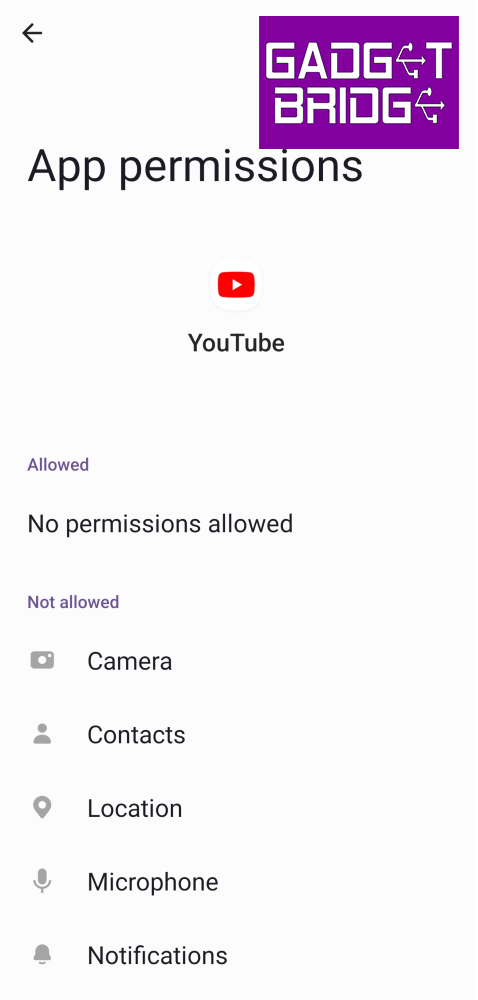
Give YouTube the necessary permissions
Step 1: Go to Settings and select Apps.Step 2: Select YouTube.Step 3: Tap on Permissions.Step 4:Sanction the necessary permission.
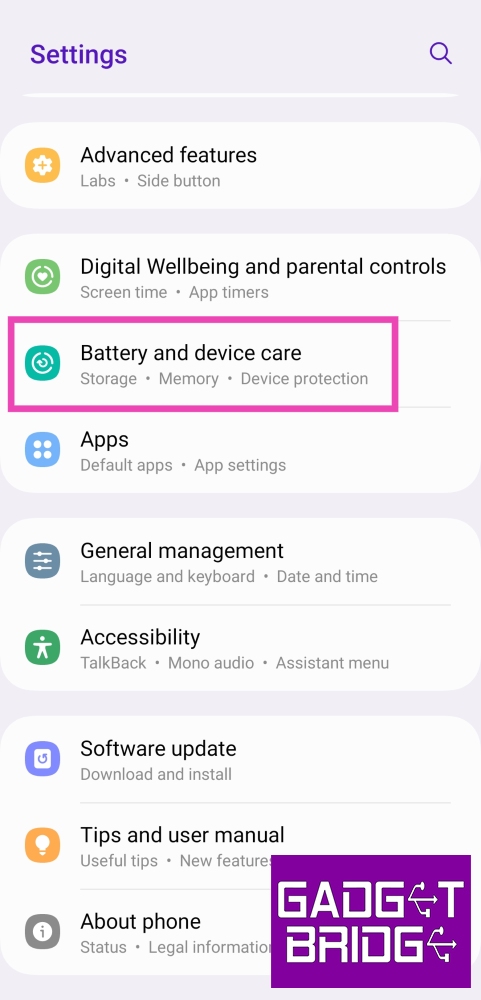
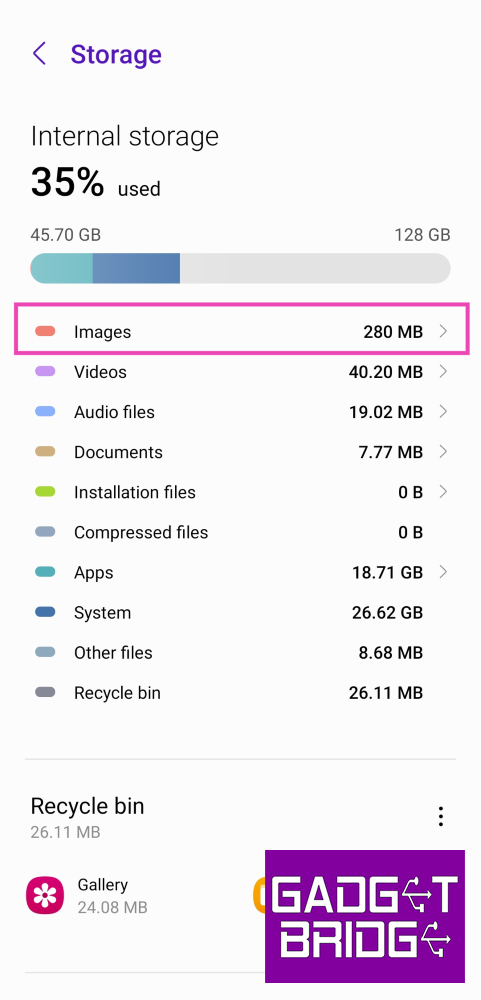
Check your phone’s storage
If your phone’s storage is close to full, it may lead to unexpected app crashes. Here’s how you can clear your phone’s storage to make more room.Step 1: Go to Settings and select Battery and device care.Step 2: Tap on Storage.Step 3: Tap the category from which you want to delete certain files.Step 4: Long press a file to select it. Hit the Delete icon at the bottom to remove it and clear up space.
Restart your smartphone
A quick restart can sort out most of the background issues with your device. If the YouTube app on your phone keeps crashing randomly, try rebooting your phone. Press and hold the side key to access the power menu, then hit Restart. If pressing the side key triggers the voice assistant, press and hold the side key and volume up key together to access the power menu.
Reset Google Play Services
Step 1: Go to Settings and select Apps.Step 2: Tap on Google Play Services.Step 3: Select Storage.Step 4: Tap on Manage Storage.Step 5: Select Clear all data.
Disable your VPN service
Oftentimes, VPNs can interfere with the general functioning of YouTube and cause it to unexpectedly crash. If your VPN service is turned on, disable it for a while and check if the issue springs up again. To disable the VPN, launch the VPN app and hit the Disconnect button.
Uninstall and Reinstall the YouTube app
Sometimes, removing the YouTube app from your device and then reinstalling it can fix minor background issues causing it to crash. To uninstall YouTube from your device, long press its icon in the app drawer and hit Uninstall. Go to Google Play Store, search for YouTube, and tap on Install to reinstall it on your device.
Update the YouTube app
If you’re using an older version of YouTube it may be the culprit behind random crashes. Old versions of apps are known to be riddled with bugs that are usually creased out in later updates. To update the YouTube app on your device, go to the Google Play Store, search for YouTube, and hit Update.
Open YouTube in the mobile web browser
If the YouTube app keeps crashing on your phone, you can always watch videos on its website instead. App-related issues can be bypassed by opening YouTube in Google Chrome and searching for the video you want to watch. If you want to easily access the website, you can pin its browser shortcut on your phone’s home screen.
Check if YouTube is down
YouTube’s servers being down can lead to inadvertent crashes. Go to Downdetector.in and search for YouTube to check if this is the case. If you notice a spike in recent user reports, it means that YouTube is experiencing a server outage. The only thing you can do in this situation is wait for Google to restore its servers.
Update your phone’s OS
Step 1: Connect your phone to a WiFi network and plug in its charger.Step 2: Go to Settings and select Software update.Step 3: Tap on Download and Install. Your smartphone will check for any new updates.Step 4: If an update is available, tap on Install Now. You can also schedule the update for a later time.
Frequently Asked Questions (FAQs)
Why does the YouTube app keep crashing on my Android phone?
There could be multiple reasons behind this problem. YouTube is known to crash due to bugs in the app, lack of storage space, corrupted cache, and other network-related issues.
How do I keep the YouTube app from crashing on my Android phone?
To prevent the YouTube app from crashing on your Android phone, force stop and restart it, clear its cache, disable your VPN, and restart your device.
How do I check if YouTube is down?
To check if YouTube is experiencing a server outage, go to DownDetector.in and search for YouTube.
Why does YoluTube stop playing when I exit the app?
These are the top 12 ways to fix the ‘YouTube app crashing or not working’ issue on Android. If the above fixes didn’t work for you, try performing a factory reset of your device. Make sure your personal data is backed up as a complete reset of the device will erase all data on it. If you found this article helpful, let us know in the comments!
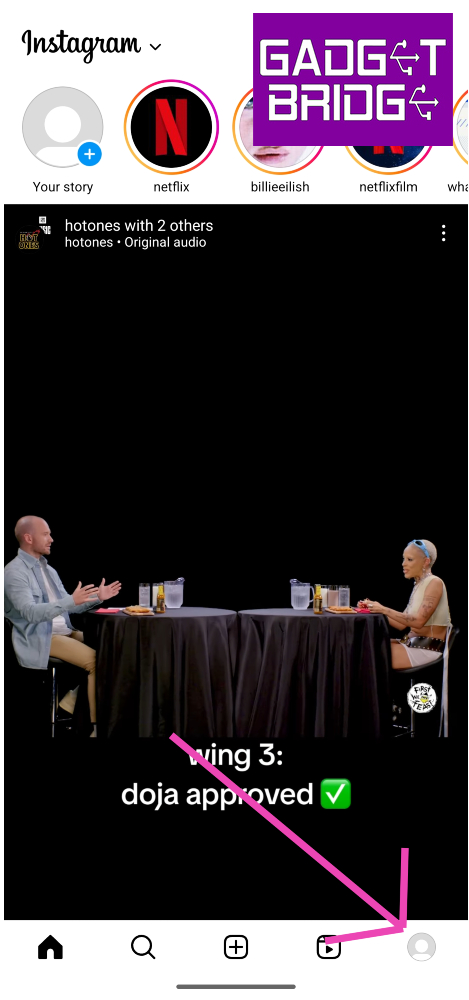
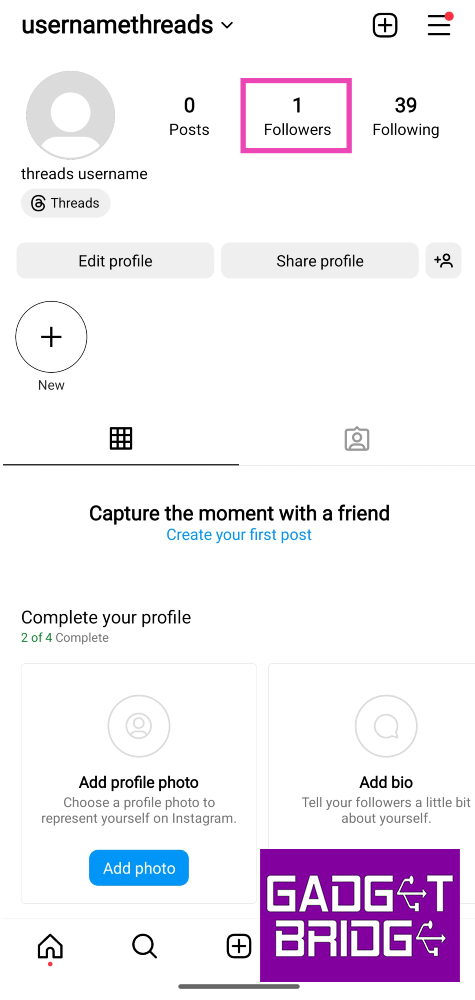
Step 1:Launch the Instagram app and tap your profile picture at the bottom right corner of the screen.Step 2: Tap on the Followers section of your profile.Step 3: Hit the Remove button next to the follower you want to remove.
What happens when you remove a follower on Instagram?
Once you remove a follower on Instagram, they will no longer be able to view your posts, Stories, or Reels in their feed. If your profile is set to private, they will lose access to all the content you have uploaded on Instagram. If you have a public profile, they will be able to view and interact with your content. Non-followers can send you DMs on Instagram, but they show up in the ‘Requests’ folder.
How to block someone on Instagram?
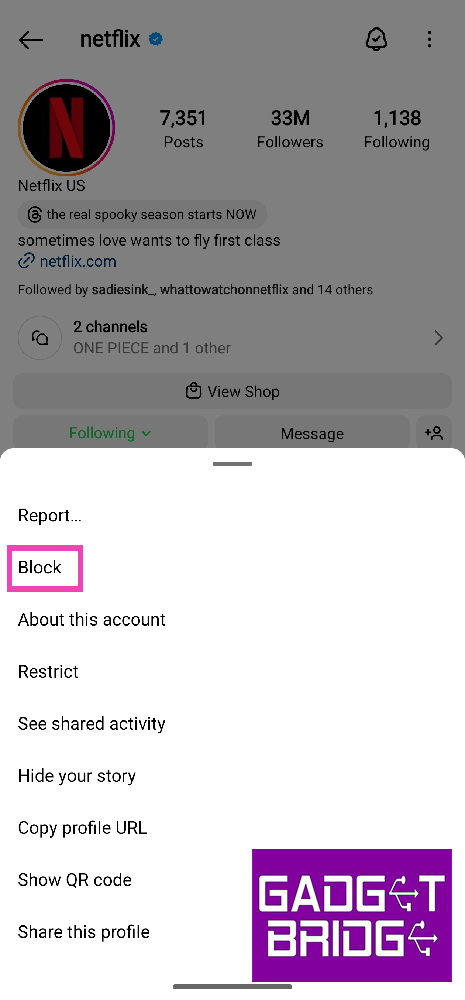
Step 1:Launch the Instagram app and hit the search icon at the bottom of the screen.Step 2: Search the handle of the Instagram profile you want to block.Step 3: Once you land on their profile, tap the ellipses at the top right corner of the screen and hit Block.
What happens when you block someone on Instagram?
Blocking someone is a hard measure that makes sure they lose access to your profile and are not able to interact with your content in any capacity. Blocked users will also not be able to send your direct messages on Instagram. If someone reposts your content on their Story, your blocked users will not be able to see it. Instagram does not notify the user when you block them on the platform. If you think blocking is a hard measure, Instagram also allows you to ‘Restrict’ users. Once you restrict a user, their comments on your posts are put on a buffer until you flag them. Until then, only the restricted user will be able to see their comment on your profile. Instagram does not send read receipts of DMs to restricted users.
Frequently Asked Questions (FAQs)
Does Instagram notify the other person when you remove them as a follower?
No, users do not get notified when they are removed as a follower by someone else.
When you remove a follower can they still see your posts?
Non-followers can view your posts and stories if your profile is public. To limit access to your profile, either post exclusively for close friends or make your profile private.
How do I remove followers in bulk?
To remove multiple followers in bulk, simply head over to the ‘follower’ section on your Instagram profile and hit ‘Remove’ next to every profile while scrolling down.Read Also:Vivo V29 Pro Review: The complete camera smartphone?
Conclusion
This is what happens when you remove a follower or block someone on Instagram. There are certain third-party apps that claim to let you know whether you have been blocked by someone on Instagram. These apps are usually malicious and push malware on your device under the disguise of being a useful tool. There is no way to know for sure whether someone has blocked you on Instagram. Here are some pointers that can help you determine whether you have been blocked by a particular user.For the latest gadget and tech news, and gadget reviews, follow us on Twitter, Facebook and Instagram. For newest tech & gadget videos subscribe to our YouTube Channel. You can also stay up to date using the Gadget Bridge Android App. You can find the latest car and bike news here.
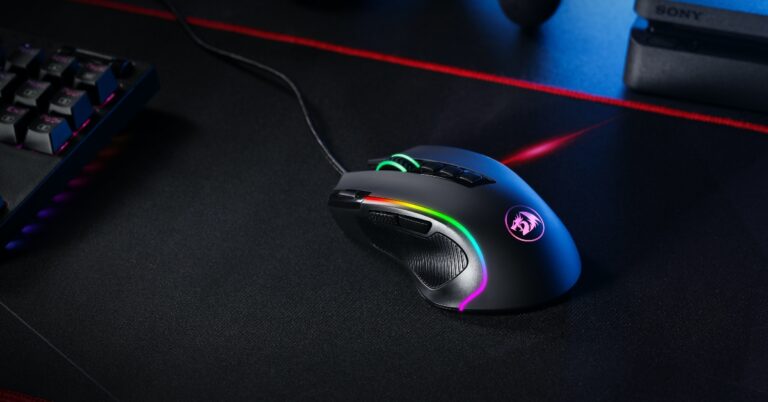
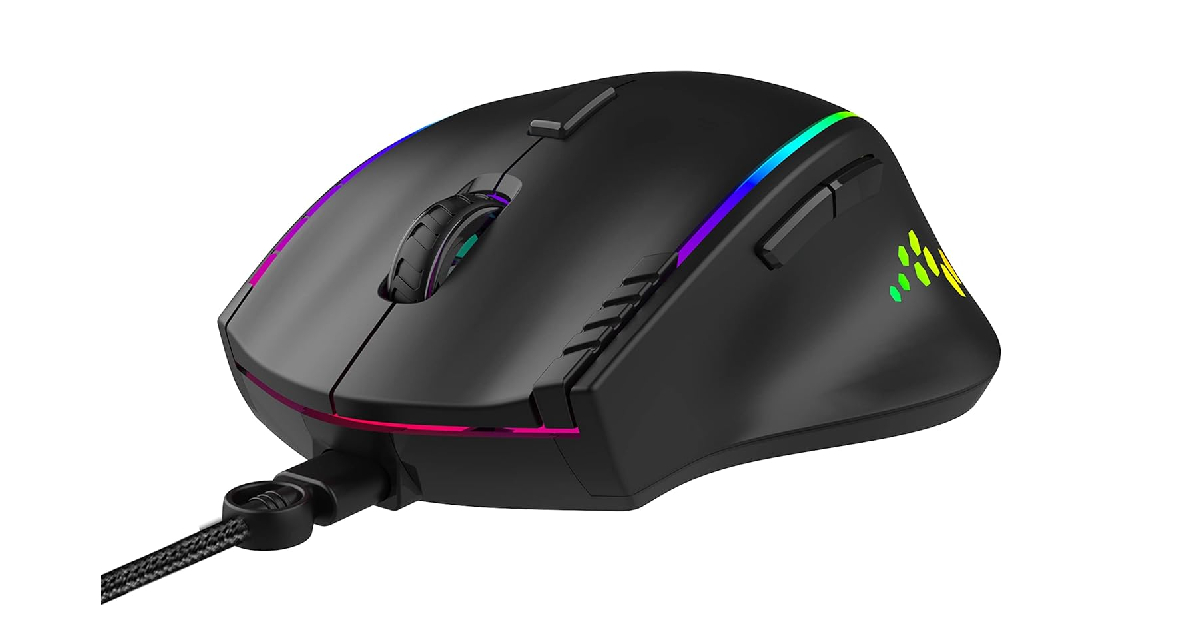
Launched for the public last month, the new Counter-Strike 2 builds upon the legacy of CS:GO and brings its own special flair to the gameplay. Users can play Counter-Strike 2 by simply updating CS:GO on Steam. The 5th iteration in the Counter-Strike series, CS2 is already gaining wide popularity among the gaming audience. If you plan on playing the game for the first time, it will be much more enjoyable with a dedicated gaming mouse. In this article, we bring you the top 5 gaming mouse under Rs 1,000 for Counter-Strike 2.Read Also:Vivo V29 Pro Review: The Complete Camera Smartphone?
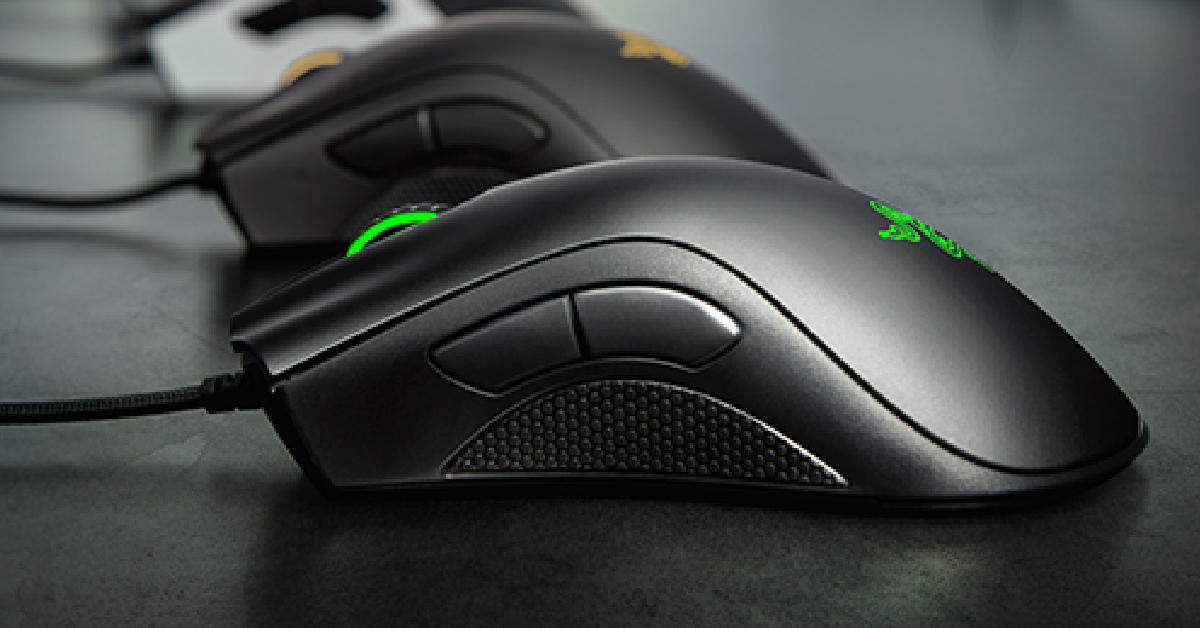
Razer DeathAdder Essential Wired Gaming Mouse
Price: Rs 998 on AmazonThe Razer DeathAdder Essential wired gaming mouse is available for Rs 998 on Amazon right now, making it an amazing deal. This gaming mouse has a powerful 6,400 dpi optical sensor that facilitates fast movement and super quick swipes. The 5 hyper response buttons on this mouse can be programmed to suit your style of play. These buttons have been lab-tested for up to 10 million clicks. The DeathAdder also has a very ergonomic design, making it ideal for long gaming sessions.
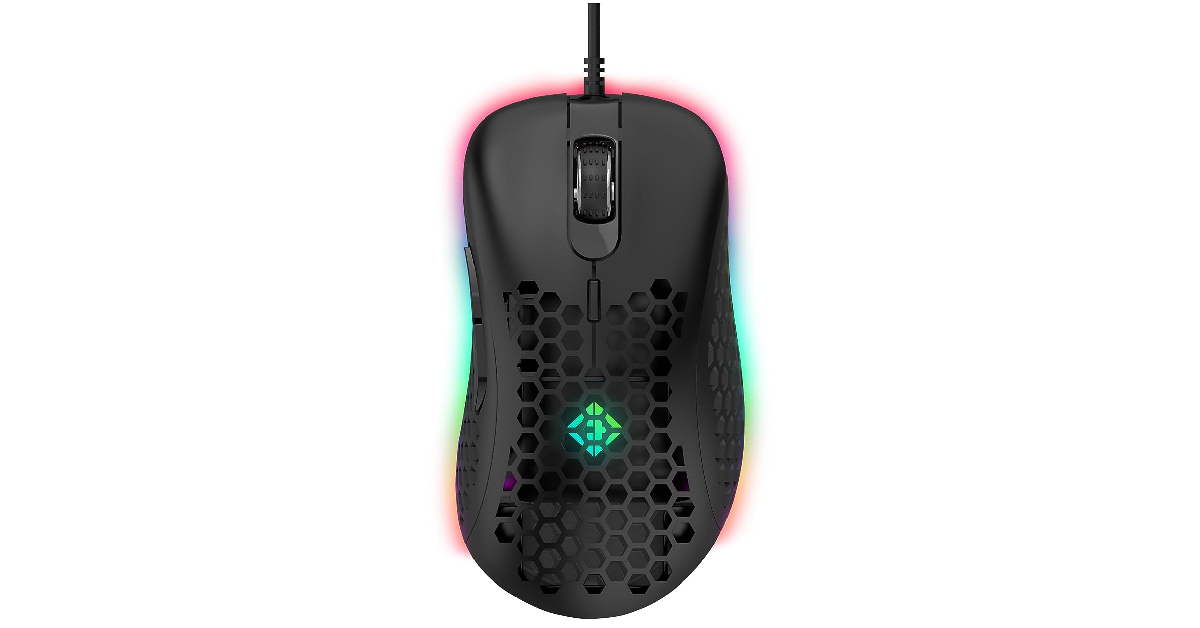
Cosmic Byte Spectrum RGB
Price: Rs 649 on AmazonCosmic Byte Spectrum is the best ‘honeycomb’ design mouse you can buy for under Rs 1,000. The honeycomb design makes the mouse lightweight and easy to control in intense gameplay. The DPI level of this mouse can be set anywhere between 200-12800 using the accompanying software. This software can be used to customise the RGB lighting on the mouse as well. With a maximum tracking speed of 60IPS and 20G acceleration, the Cosmic Byte Spectrum RGB is a great choice for a gaming mouse under Rs 1,000 for Counter-Strike 2.
Ant Esports GM600
Price: Rs 429 on AmazonThe Ant Esports GM600 has 6 adjustable DPI levels – 800, 1600, 2400, 3200, 4800, and 7200. There are 14 customisable RGB backlights. Users can change the intensity and speed of these backlights using the accompanying software. There are 7 programmable buttons on this mouse. Its ergonomic design and convenient thumb rest immensely help in maintaining a good grip and cutting down on fatigue.
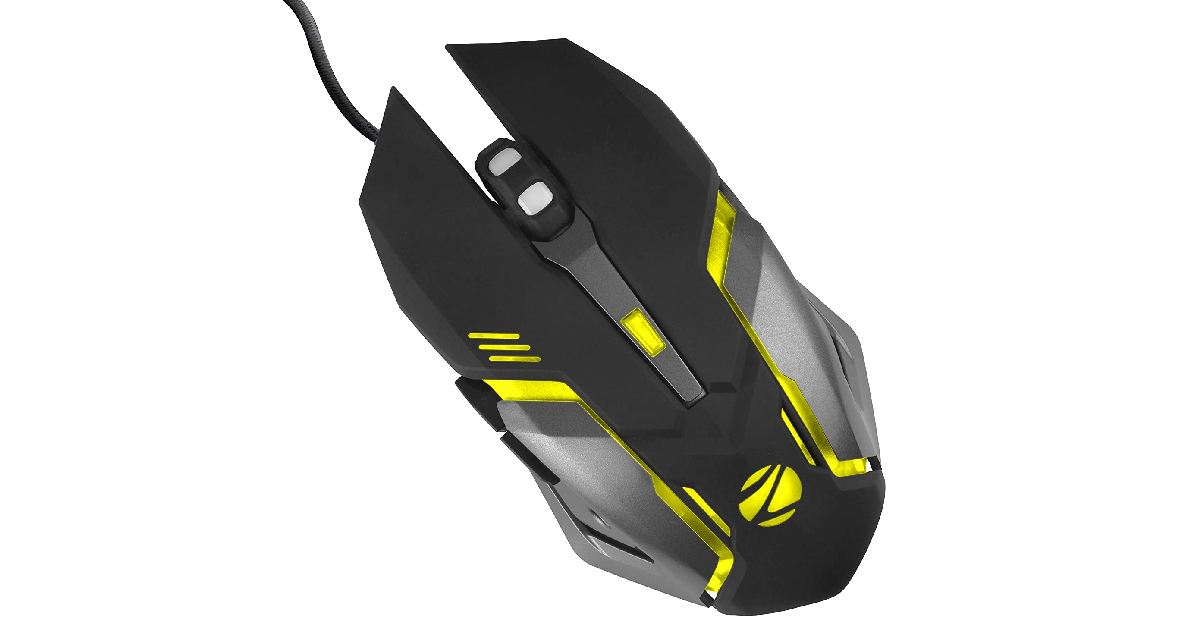
Zebronics Transformer M
Price: Rs 299 on AmazonThe Zebronics Transformer M is one of the most popular and affordable gaming mice out there. It gets a 3200 DPI sensor with adjustable DPI levels (1000, 1600, 2400, 3200), 6 programmable buttons, dedicated forward and backwards buttons, a braided cable, and RGB lighting that supports 7 colours. The efficient sensor on this mouse can track on most surfaces. The device is entirely plug-and-play.
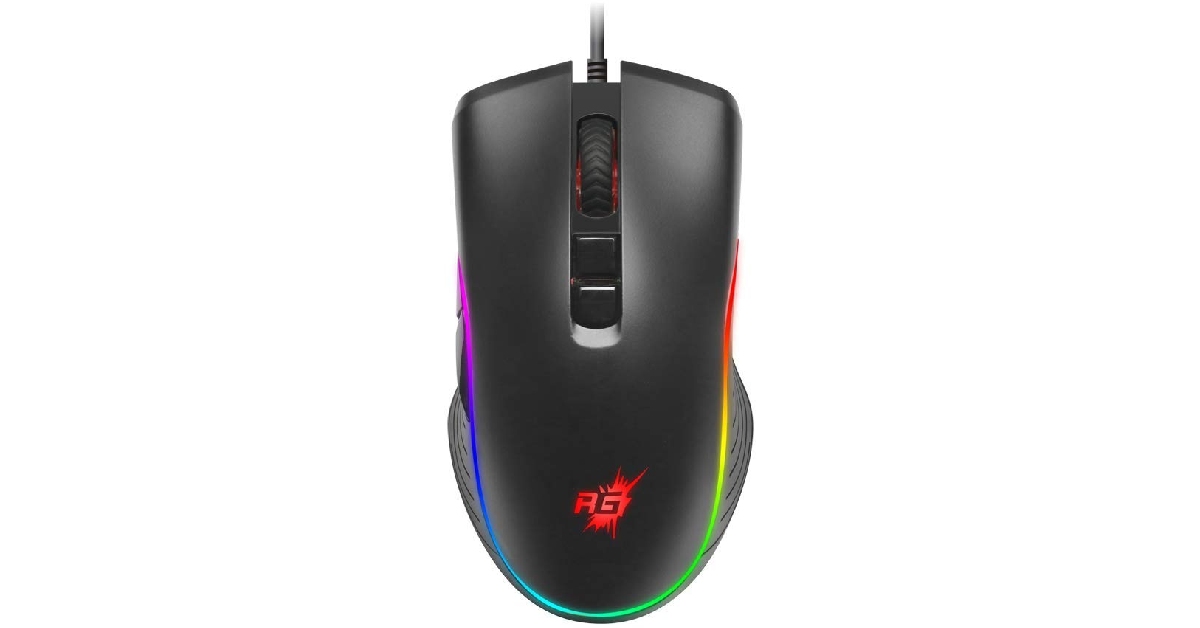
Redgear A-20 Wired Gaming Mouse
Price: 229 on AmazonPriced at just Rs 229, the Redgear A-20 is one of the cheapest gaming mice you can buy right now. This mouse gets a 4800 DPI sensor, adjustable DPI levels, 7 programmable buttons, durable switches, and 16.8 million colour customisation options for the RGB through the companion software. The 1.8m braided cable attached to the mouse is durable and efficient. The design of the Redgear A-20 is ergonomic and meant for prolonged gaming sessions.Read Also:JioBharat B1 4G phone with JioPay launched in India
Garena Free Fire is a battle royale game with regular awards and tournaments to keep players interested. If you play Garena Free Fire, you should be aware of the redeem codes that are released on a daily basis. However, because the battle royale game is banned in India, players from other countries can use the Free Fire Redeem codes daily. If you’re unfamiliar with the Garena Free Fire redeem codes or don’t know how to get them, we’ve put together a step-by-step guide to help you redeem them. Check out Garena Free Fire Redeem Codes for 14 October 2023.The Free Fire redeem codes are a great way to get free stuff. These are 12-digit codes that contain alphabets and numbers, as well as an expiration date and time. Because the Garena FF redeem codes cannot be used more than once, you should hurry to the redemption page to claim your free reward before someone else does. To get a free reward, all you have to do is go to reward.ff.garena.com/en, which is the official redemption page. Also, keep an eye on this space for daily updates on Garena Free Fire redemption codes and rewards.
Garena Free Fire Redeem Codes Today 14 October2023
Checking your phone for new messages while you’re at work can hamper your productivity if you get sucked into checking other apps as well. There is a simple fix to this problem – forward all your texts to your PC or work mobile. There are several ways you can go about it. Some messaging apps, like Google Messages, offer multi-device support. You can also use a dedicated SMS forwarding app to accomplish this task. In this article, we bring you the top 4 ways to automatically forward text messages to another phone number or PC.Read Also:OnePlus Open India launch to take place on October 19
Forward your text messages to another device by pairing it with Google Messages
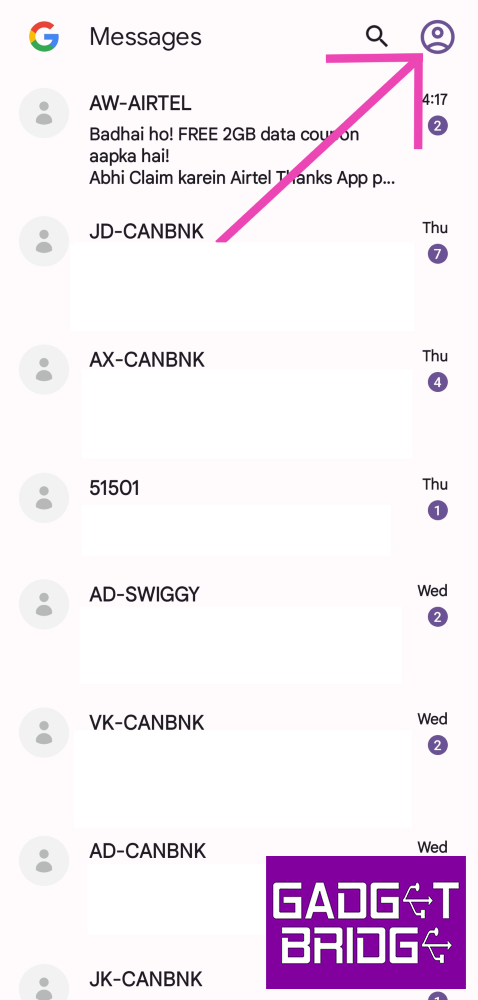
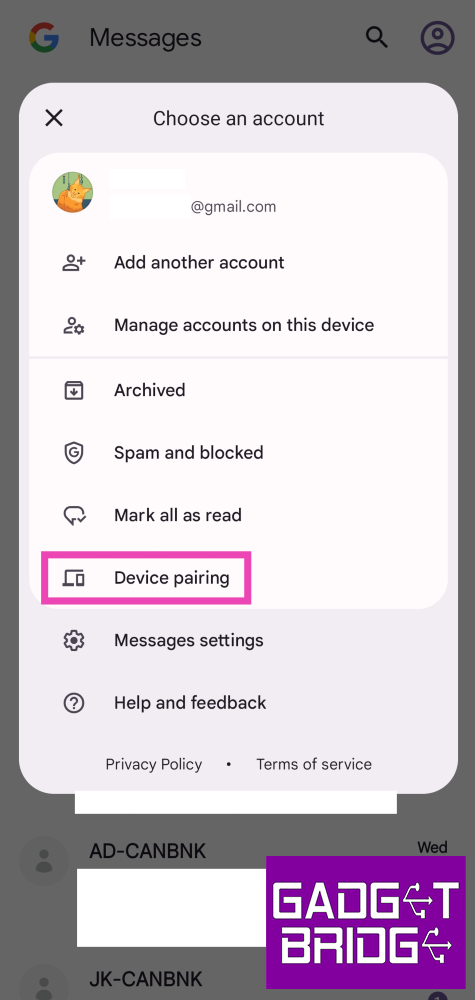
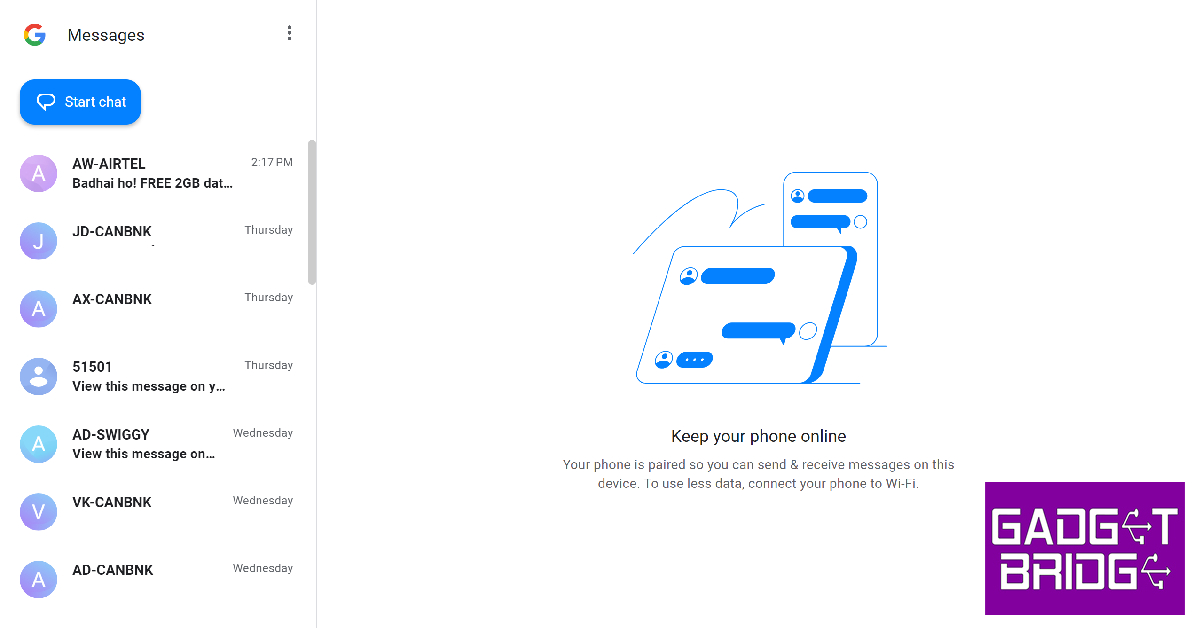
Step 1:Launch the Google Messages app on your smartphone.Step 2: Tap the profile icon at the top right corner of the screen.Step 3: Tap on Device pairing.Step 4: Now go to https://messages.google.com/web/ on your secondary device.Step 5: Select the QR code scanner option on the Google Messages app.The two devices will be paired together. You will be able to receive all text messages on your PC or secondary mobile.
Use the Link to Windows app to automatically forward text messages to your PC
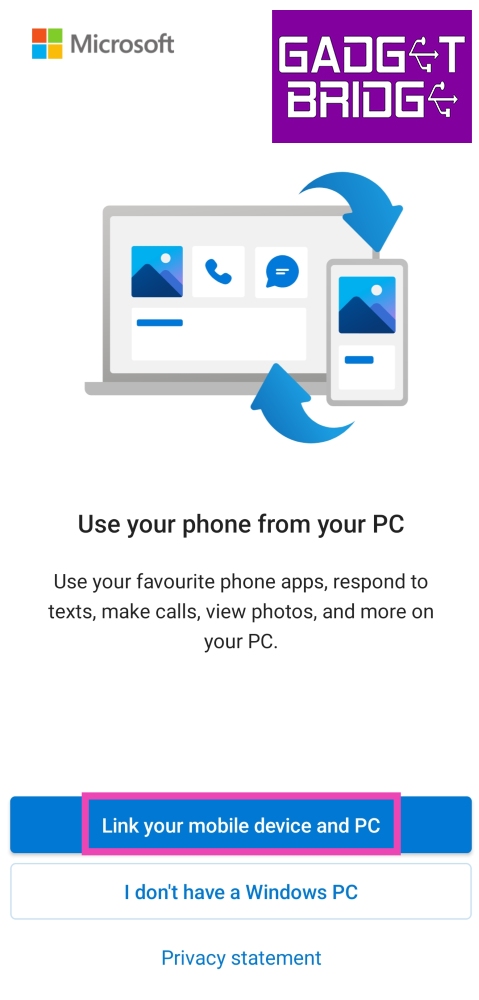
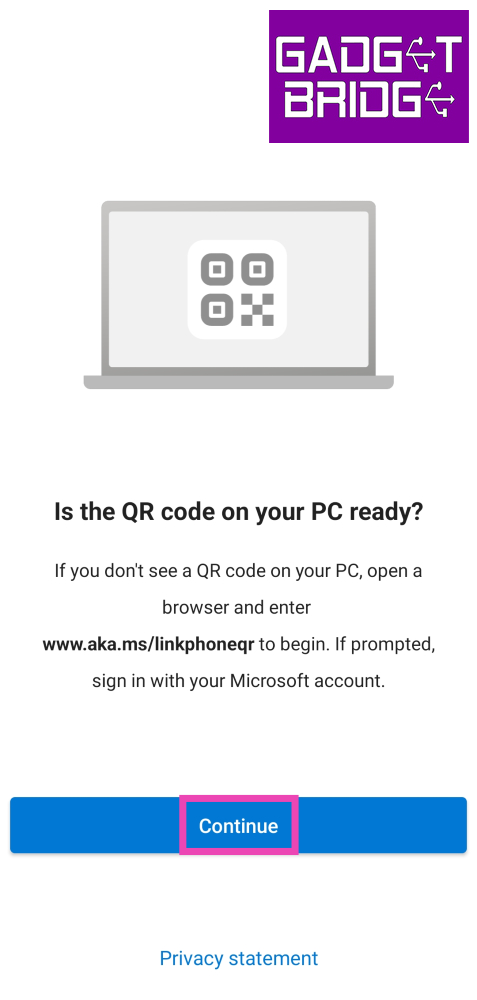
Step 1: Swipe down from the status bar and tap on the Link to Windows tile.Step 2: Open the Phone Link app on your Windows PC and log into your Microsoft Account.Step 3: Use the QR Code to pair your smartphone to your PC.Step 4: Give the Link to Windows app the necessary permissions.Step 5: Click on the Messages tab in the Phone Link app on your PC to access all your messages.
Automatically forward messages to another phone or mobile number using IFTTT
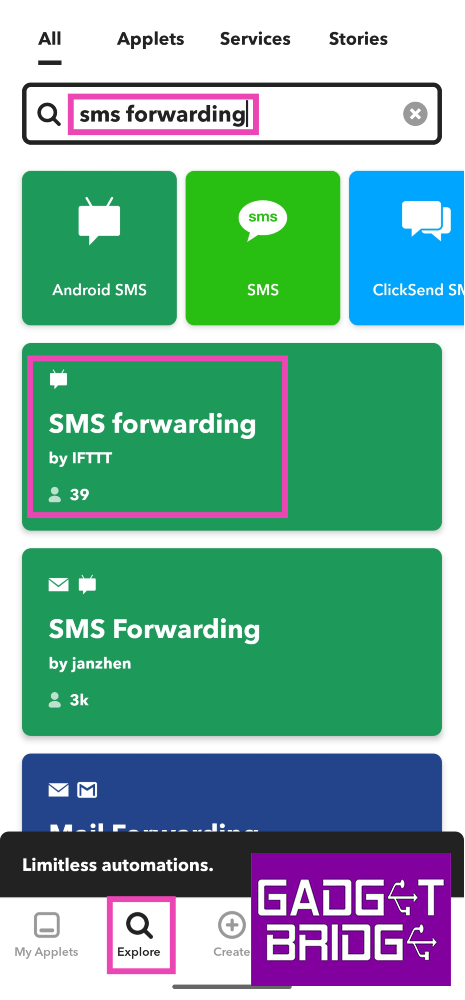
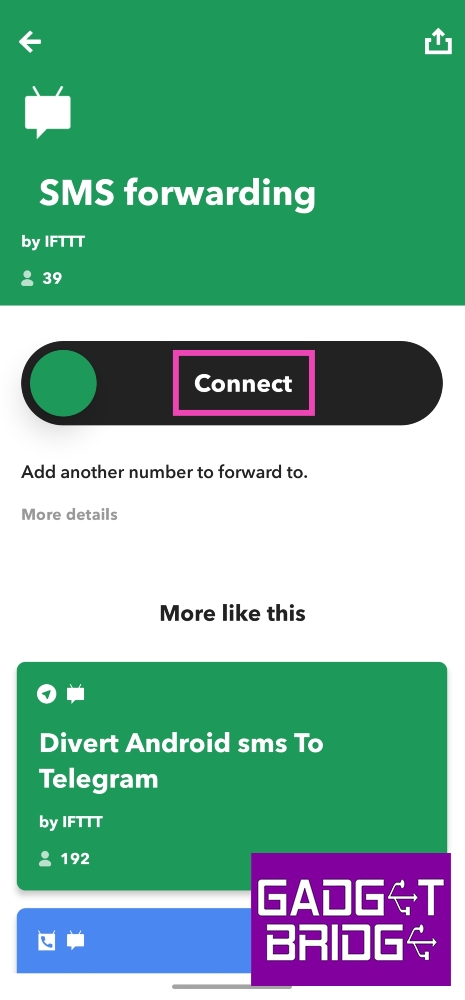
Step 1:Install the IFTTT app on your phone.Step 2:Login using your preferred account and switch to the Explore tab.Step 3: Search for SMS forwarding and select the applet created by IFTTT.Step 4: Tap on Connect.Step 5: Enter the phone number to which you want to forward your text messages.Step 6: Hit Done.
Use the SMS Forwarder app to automatically forward texts to another number or email
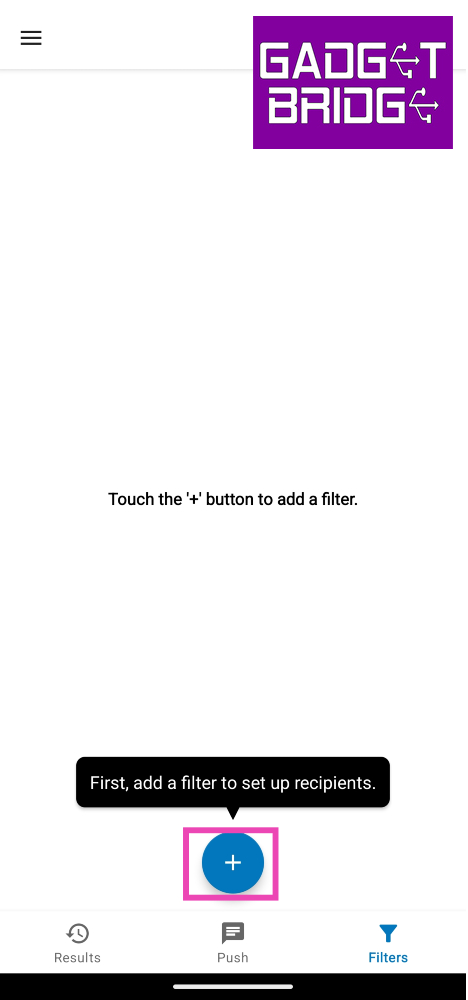
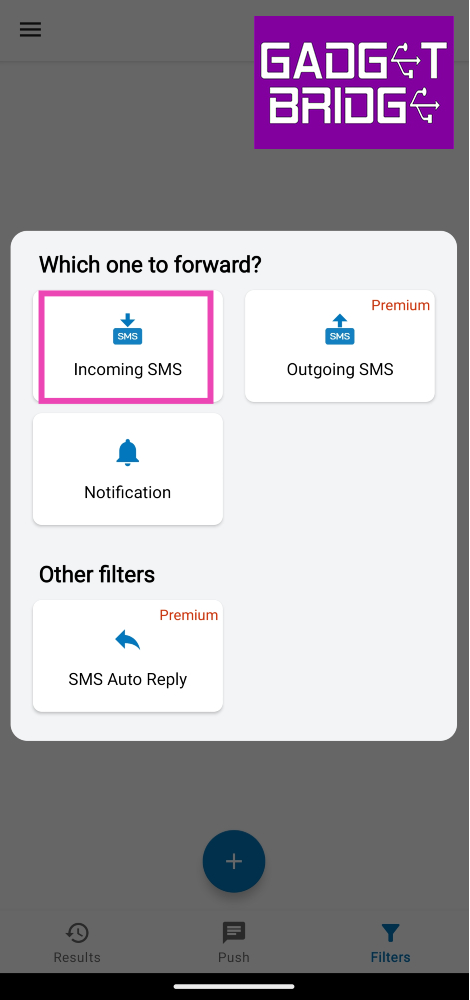
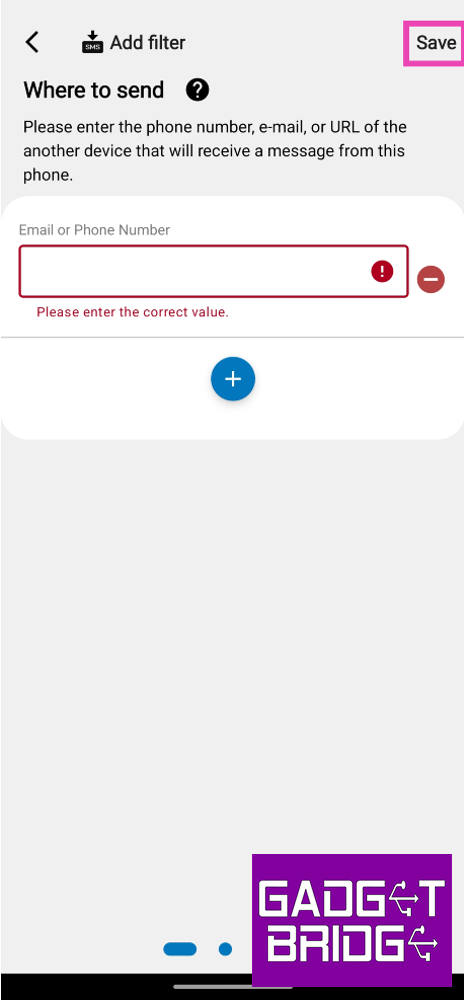
Step 1:Install the SMS Forwarder app on your Android smartphone.Step 2:Launch the app and hit the plus icon at the bottom of the screen.Step 3: Tap on Incoming SMS.Step 4: Enter the email or phone number to which you want to forward the text messages.Step 5: Hit Save at the top right corner of the screen.To make sure the app works as intended, allow it to run in the background and deactivate battery optimisation for it.
Frequently Asked Questions (FAQs)
Is it possible to forward all my text messages to another phone number?
You can forward your text messages to another device or phone number by using the IFTTT app. If you don’t wanna sign up for the IFTTT app, the SMS Forwarder app can accomplish the same task.
How do I access the text messages on my phone on my PC?
Use the Link to Windows app on your phone to access your text messages, calls, photos, apps, and more on your PC.
Can I use my Google Messages account on two devices?
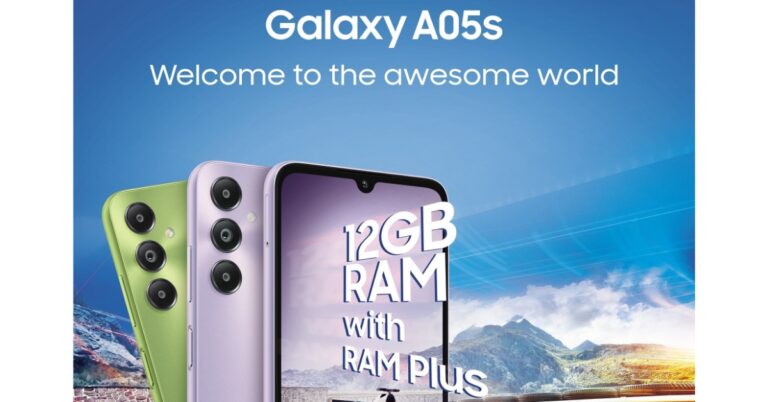
Samsung is all set to announce a new entry-level smartphone in the Indian market. The company has officially confirmed that the Samsung Galaxy A05s will debut in the country on October 18. Even before the official announcement the specs and design of the upcoming phone recently surfaced online. The device CAD renders were also leaked in the past. The company has confirmed that the phone will sport a 50-megapixel triple rear camera setupSamsung Galaxy A05s launch in India is set for October 18. Rumours and leaks of the forthcoming device are already doing rounds on the internet. However, the teasers have revealed the design of the phone but the company has also revealed the key specs and the colour options of the device.As per the company, Samsung Galaxy A05s will be available in three refreshing colours – light green, light violet and black. It is said to feature a refined build and finish and will carry forward Samsung’s signature Galaxy design.It has been revealed that the Samsung Galaxy A05s will be highlighted with a massive 6.7-inch FHD+ display for an immersive viewing experience. The bezels on the sides are slim while the chin is noticeable. For taking pictures and videos the handset will come with a triple rear camera set up positioned vertically at the left corner along with a circular LED flash unit. The camera system will include a 50-megapixel primary shooter that is said to offer vivid and rich pictures, even in low light conditions. The camera module will also include a 2-megapixel depth sensor and another 2-megapixel macro lens. The details about the selfie camera have not been disclosed but the teaser image reveals a centre-aligned waterdrop notch.Also Read:Google Pixel 8 Series first sale in India begins: Pricing and offer details insideThe Samsung Galaxy A05s is confirmed to be powered by a Qualcomm Snapdragon 680 processor built on 6nm process technology offering better multitasking between the apps.Recently the phone was spotted at Google Play Console listing with codename a05ssnndxx. The listing suggests an octa-core Qualcomm Snapdragon 680 SoC paired with an Adreno 610 GPU along with 6GB of RAM. Galaxy A05s may include a full-HD+ display with 1080 x 2400 pixels of resolution. It is likely to pack a 4,000mAh battery with 25W fast charging support. Android 13-based OneUI 5.1 will be shipped out of the box. Moreover, the device is speculated to sport a side-mounted fingerprint sensor.
For the latest gadget and tech news, and gadget reviews, follow us on Twitter, Facebook and Instagram. For newest tech & gadget videos subscribe to our YouTube Channel. You can also stay up to date using the Gadget Bridge Android App. You can find the latest car and bike news here.
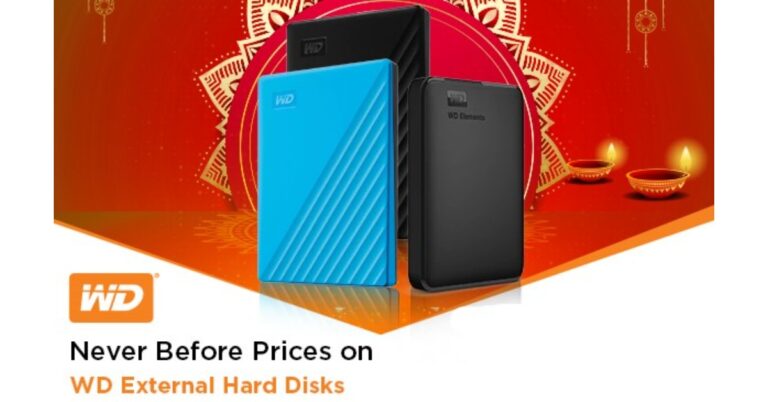
Western Digital a popular name in manufacturing Flash and HDD franchises has announced massive discounts on its SSDs and SD cards during the ongoing festive sales in India. WD storage devices will be available at discounted rates on e-commerce platforms, Amazon and Flipkart.Amazon Great Indian Sale and Flipkart Big Billion Days Sale in on and Western Digital is offering good bargains to its customers. As per the company buyers at Amazon and Flipkart can get enjoy discounts of up to 75% on SanDisk SSDs, SanDisk 128GB & above memory cards, and Pendrives.During the Sale, SanDisk 1TB and 2TB Extreme Portable SSDs are getting massive discounts. The SSDs 1TB will be available for as low as Rs 7,199 down from Rs 32,000. On the other hand, its 2TB variant will now come at Rs 11,299, which was initially selling at Rs 55,000. It is compatible with PCs, Mac Computers, Smartphones, and tablets. The SSD comes with IP65 water and dust resistance and up to 3 meters of drop protection.Also Read:JioBharat B1 4G phone with JioPay launched in IndiaThe Western Digital 5TB My Passport hard drive offers automatic backup and comes with all necessary cables it is formatted for Windows 10+ to deliver plug-and-play storage out of the box. During the Amazon Great Indian Sale and Flipkart Big Billion Days Sale, the device will not sell at its original price of Rs 20,00 but will be available at Rs 10,499. The storage device comes with USB 3.0 with Automatic Backup. It is 256 Bit AES Hardware Encryption and Password Protection. The hard drive works with Windows and Mac, External HDD-Black.WD 1.5TB Elements Hard Drive will be selling at Rs 4,999 instead of its original price of Rs 5,600. The storage device has USB 3.0 with high-capacity storage and fast data transfer rates, universal connectivity and massive capacity. This device is compatible with Windows PCs and Windows PCs. However, it is not encrypted nor password-protected
For the latest gadget and tech news, and gadget reviews, follow us on Twitter, Facebook and Instagram. For newest tech & gadget videos subscribe to our YouTube Channel. You can also stay up to date using the Gadget Bridge Android App. You can find the latest car and bike news here.
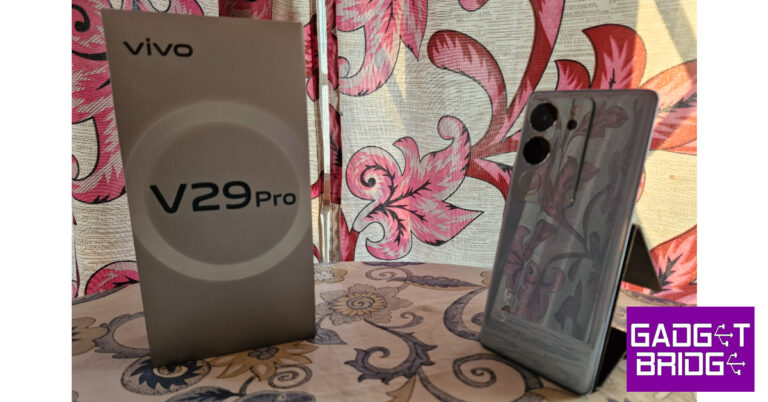
After launching the V27 Pro in March, Vivo has swiftly refreshed its camera-centric midrange series with a new offering. Launched earlier this month, the Vivo V29 Pro gets a key upgrade to its camera module and some minor tweaks to the design. We reviewed the Vivo V27 Pro earlier this year and were quite happy with the camera performance that it delivered. What we like about the new V29 Pro is that it ditches the gimmicky 2MP macro sensor for a more useful 12MP telephoto lens. As of now, both smartphones are priced at Rs 39,999 (8GB RAM + 256GB storage). With the festive season right around the corner, expect some lucrative deals on these smartphones in the coming weeks. But for now, let’s take a good look at how the Vivo V29 Pro performed in our review.Read Also:Oppo Find N3 Flip with an Alert Slider debuts in India
Vivo V29 Pro review: Design and Display
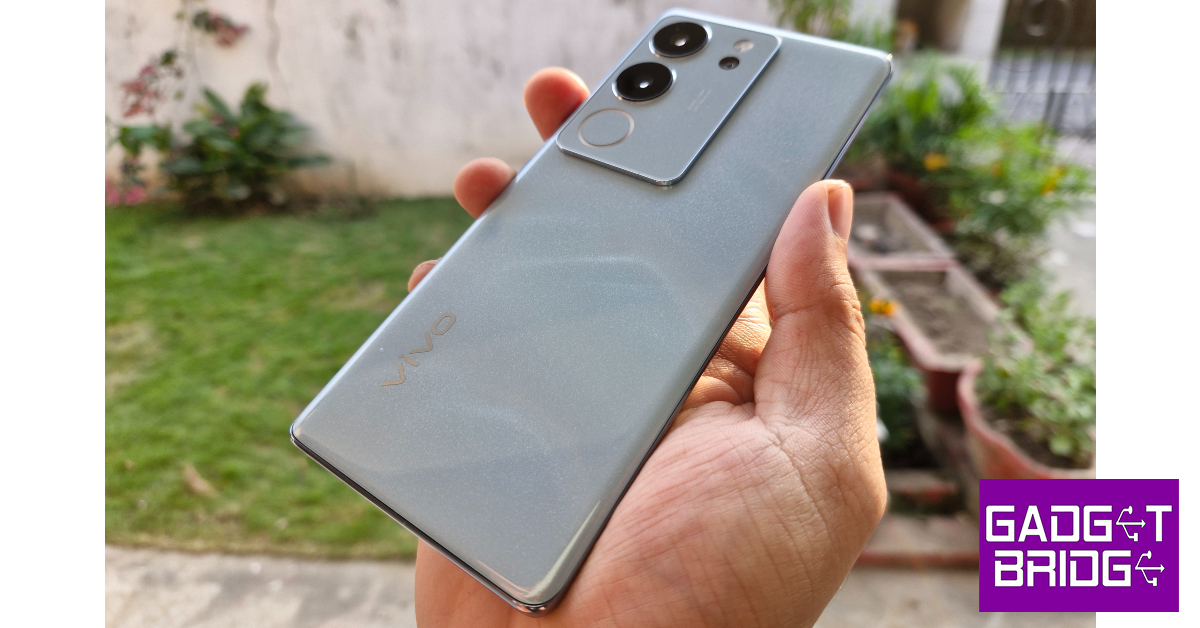
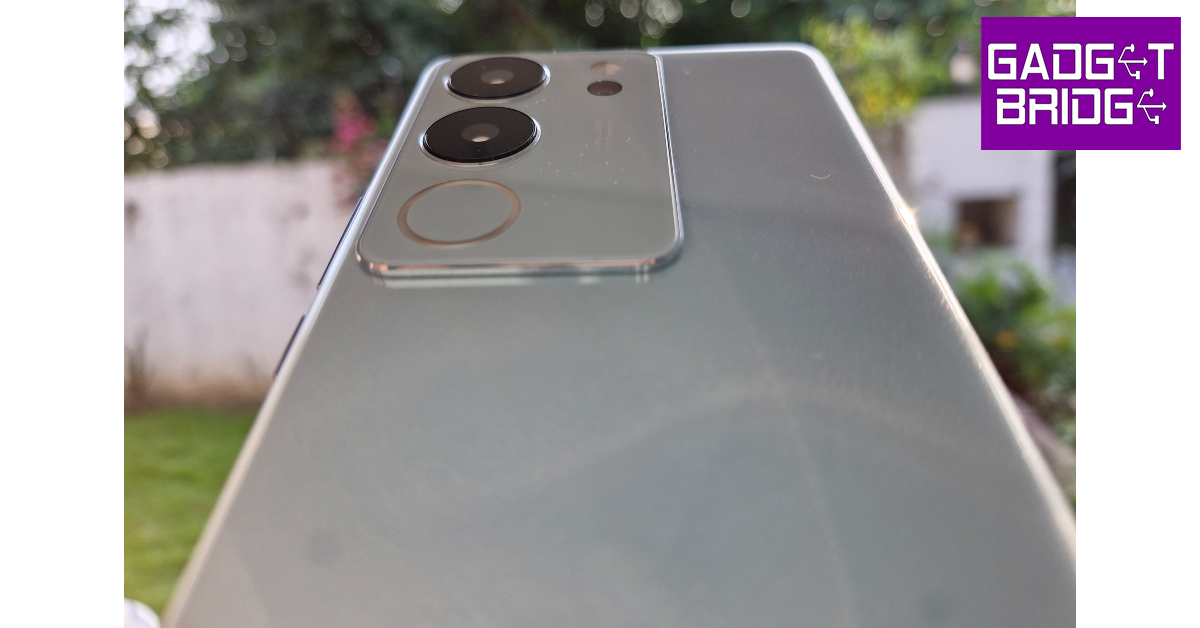
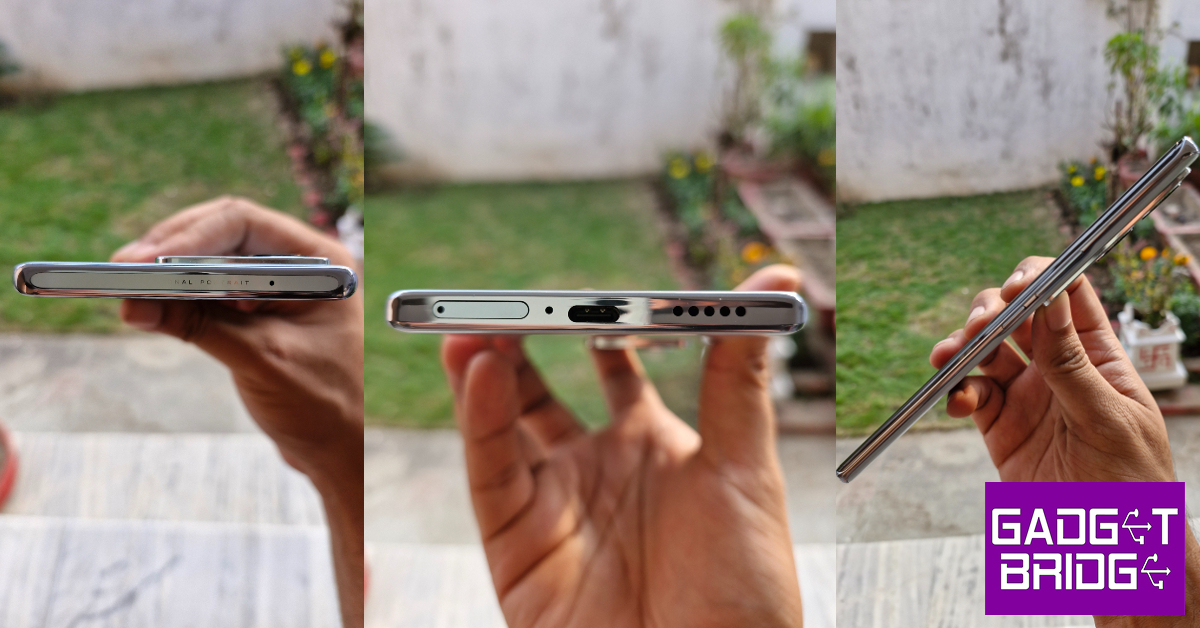
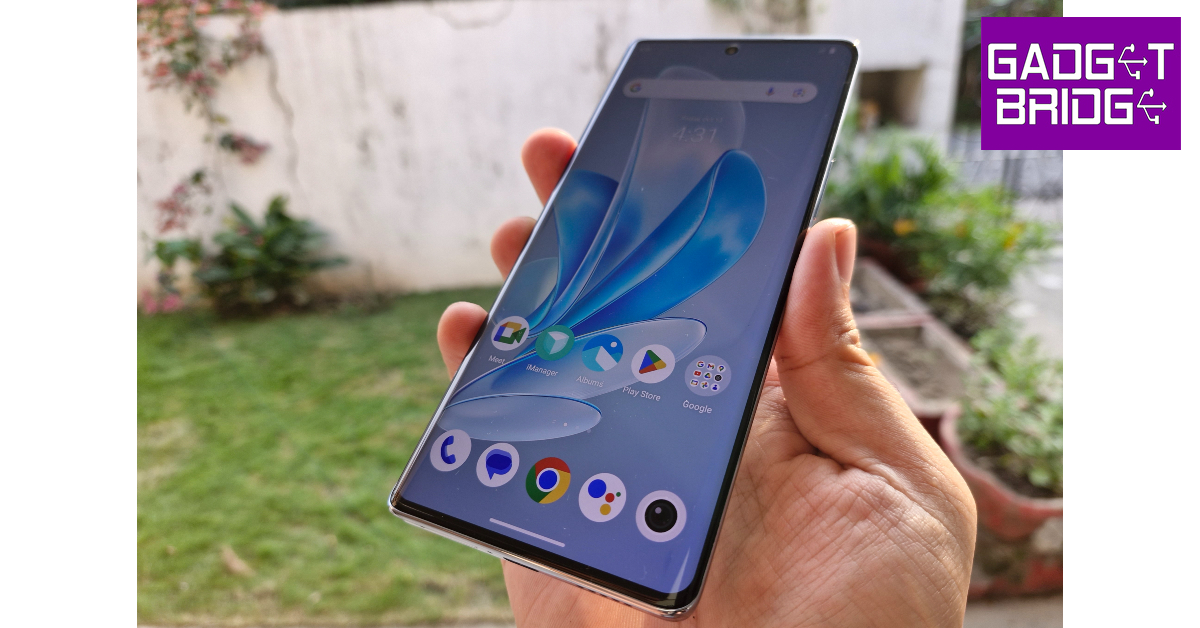
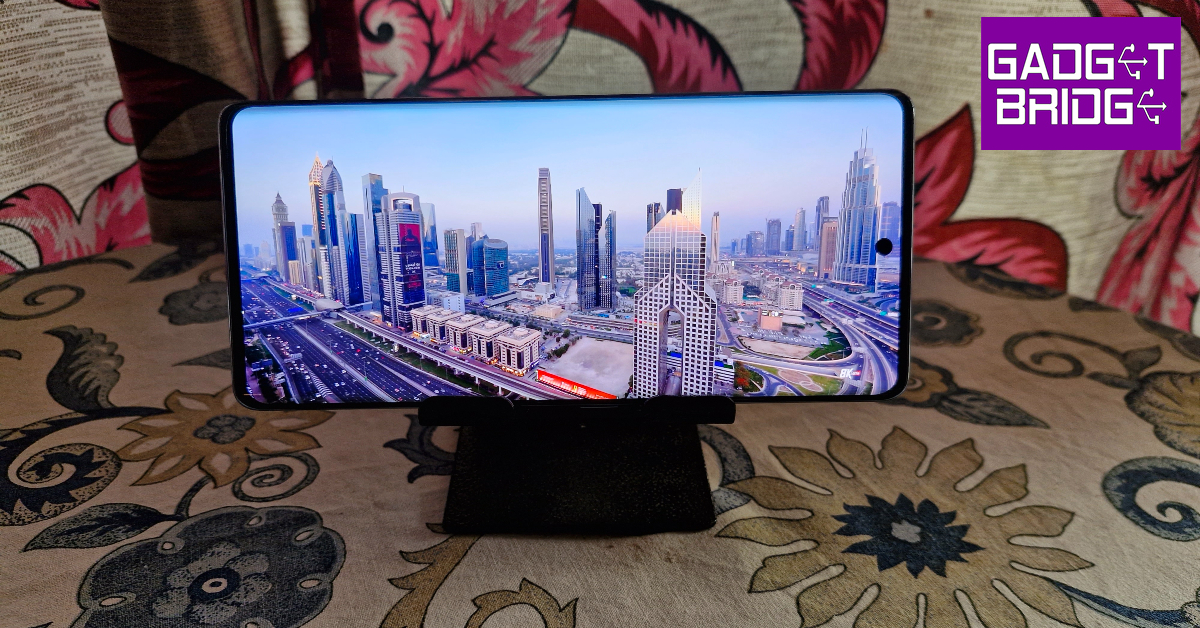
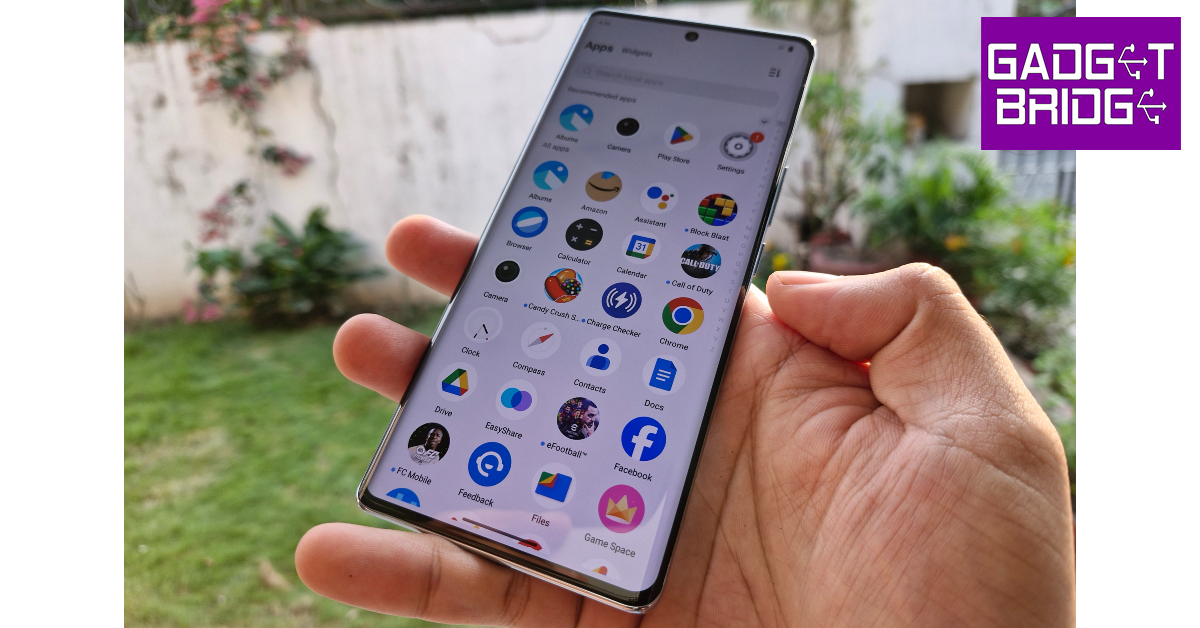
The unboxing experience of the Vivo V29 Pro is similar to its predecessor. Inside the retail box, you get the smartphone, a clear plastic case, a power adapter, a USB Type-C charging cable, a SIM ejector tool, a quick start guide, and a warranty booklet.Vivo likes to experiment with the back panels on its midrange V Series. The V27 Pro featured a matte finish glass back that could change its colour when exposed to UV light. While some may dismiss colour-changing back panels as a gimmick, we quite like the splash of personality they bring to the devices. The new V29 Pro employs what Vivo calls ‘3D Particle Technology’ to produce an effect that resembles snowy mountain peaks on the back panel. While it may sound dramatic, it looks quite tasteful. It gives off the appearance of a sandstone texture, but it is entirely glossy. No matte finish for the V29 Pro.The rectangular camera module gets a few key design tweaks as well. The Aura light is now wider and more refined. It is placed below the ultrawide lens. A new telephoto lens also finds its way into this camera module, making the smartphone’s camera setup very well-rounded. The LED flash sits above the telephoto lens.The metal frame around the smartphone houses the volume rocker and power key on its left edge. The SIM tray, primary microphone, USB charging port, and speaker grille are positioned on the bottom edge. The left side of the frame is left buttonless and the top edge gets a secondary microphone and ‘Professional Portrait’ lettering.The 6.78-inch curved AMOLED display on the V29 Pro is the same size as its predecessor but gets a small bump in resolution. The 2800 x 1260p FHD+ panel has a maximum refresh rate of 120Hz. To conserve the battery life, the refresh rate can be dialled down to 60Hz. The smartphone also has a ‘Smart Switch’ feature for adaptive refresh rate. The selfie camera is housed in a punch-hole cutout at the top of the display.The touch response offered by the curved AMOLED display on the V29 Pro is quite smooth, even though it is a step behind the flagship displays. Flicking through apps and navigating the phone using swipe gestures is a seamless experience. We streamed HD content on this smartphone across different OTT apps. The performance was very similar to the V27 Pro. The images produced on the screen were detailed, crispy, and packed with a lot of vibrant colours. The only letdown is the single speaker grille, which produces a tinny output that is devoid of any significant low end. A stereo speaker setup would have massively elevated the content-watching experience.
Vivo V29 Pro Review: Performance and Cameras
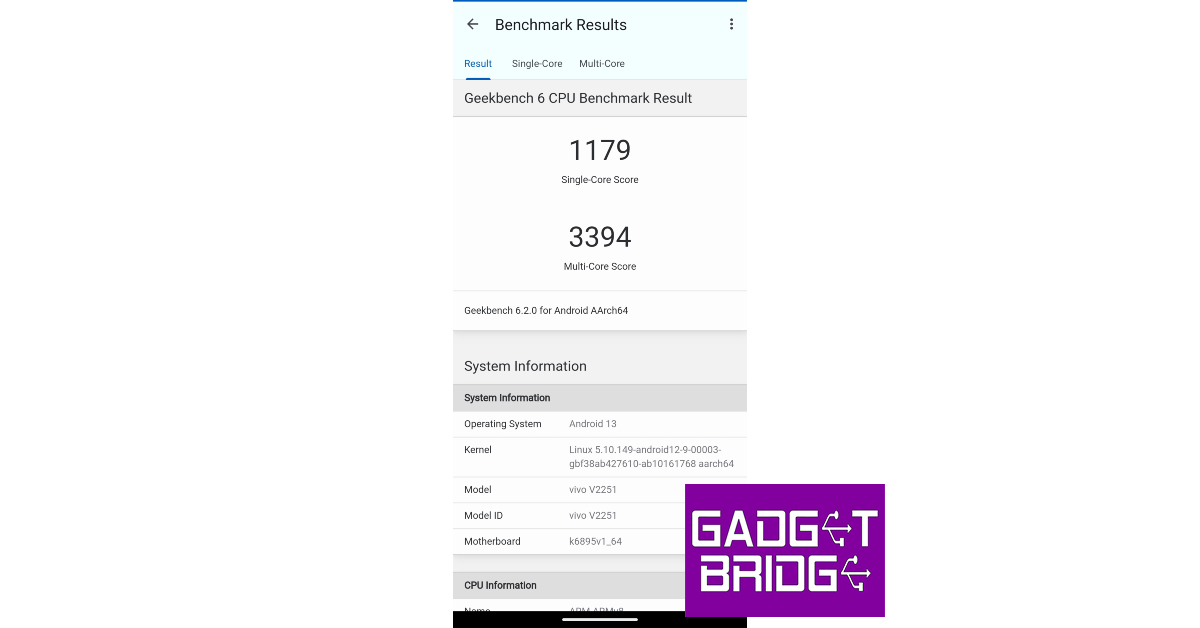
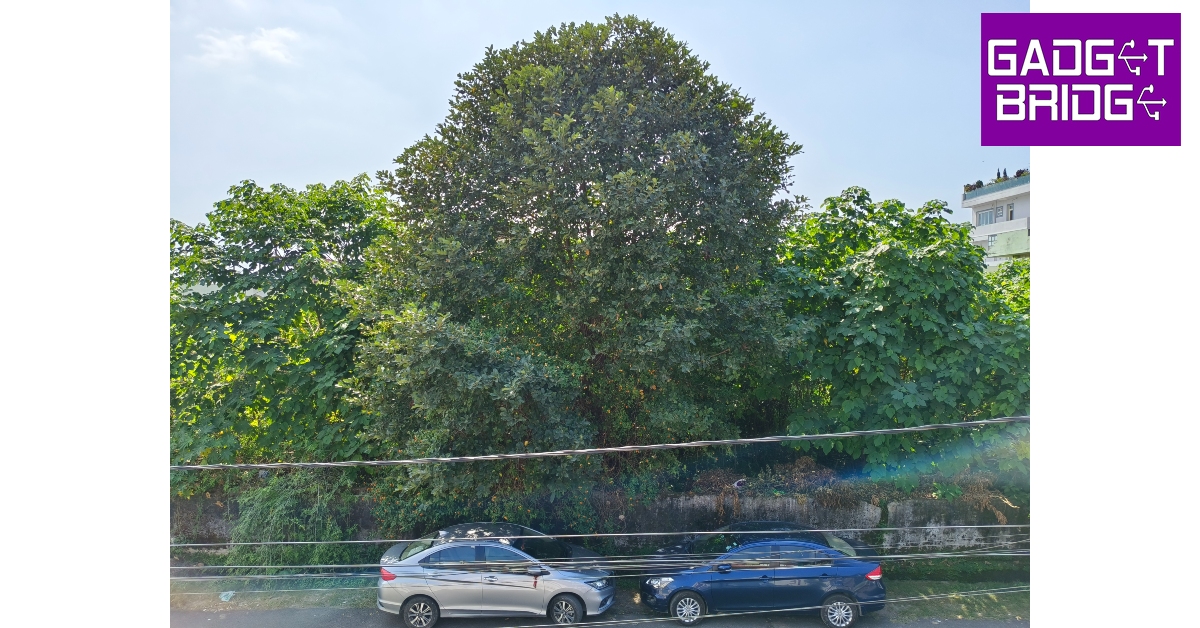
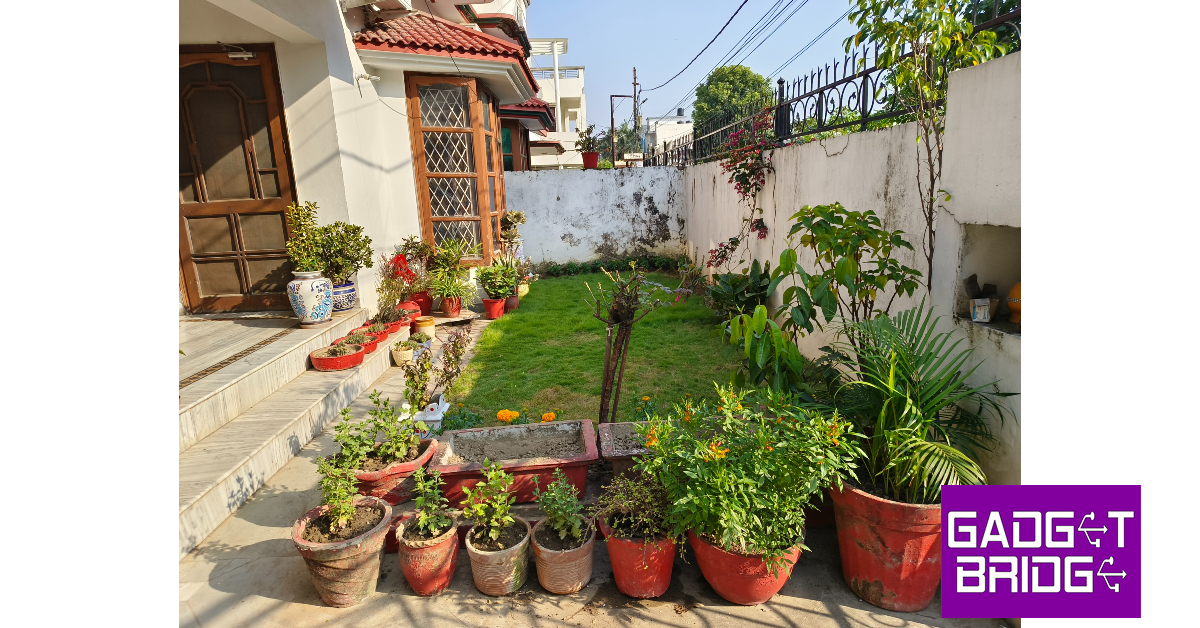
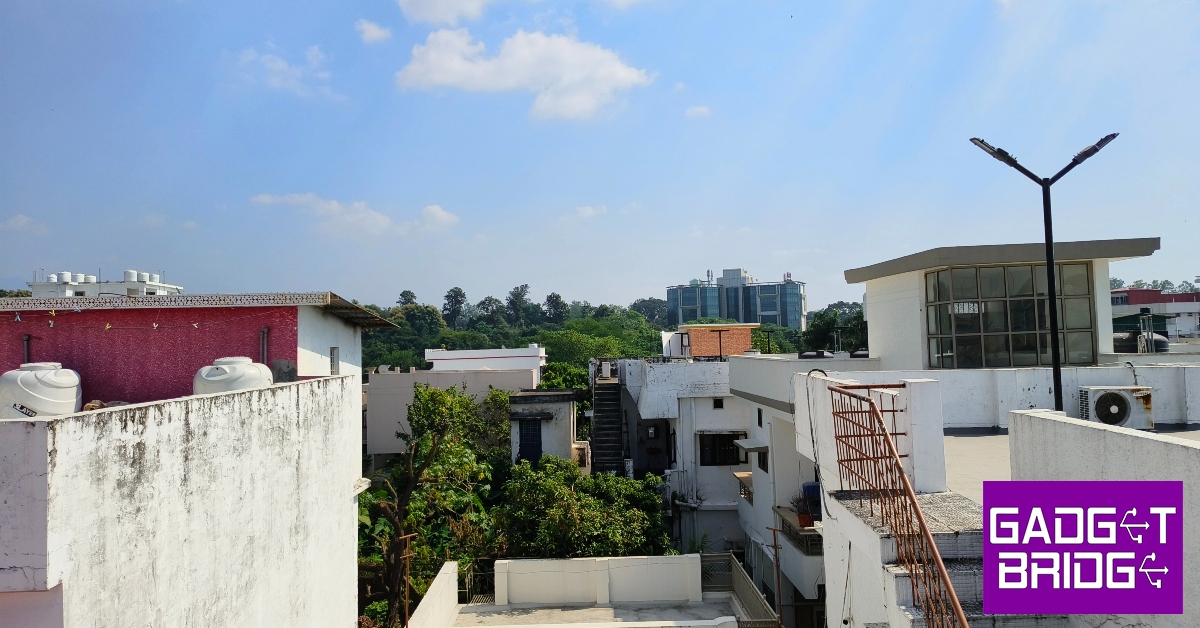
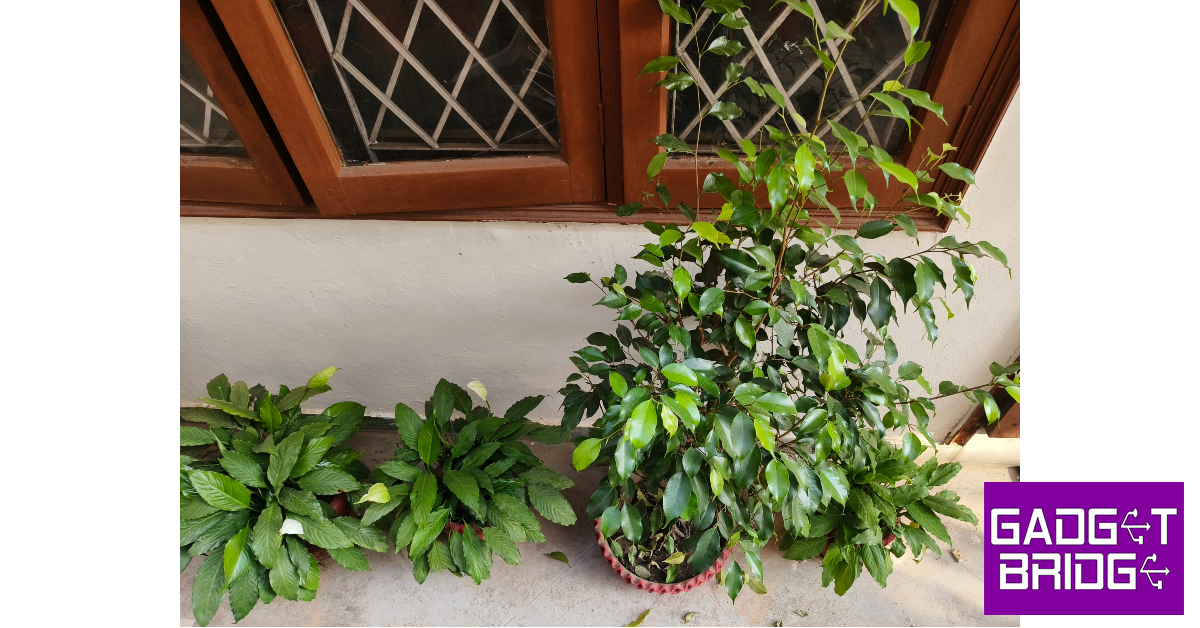
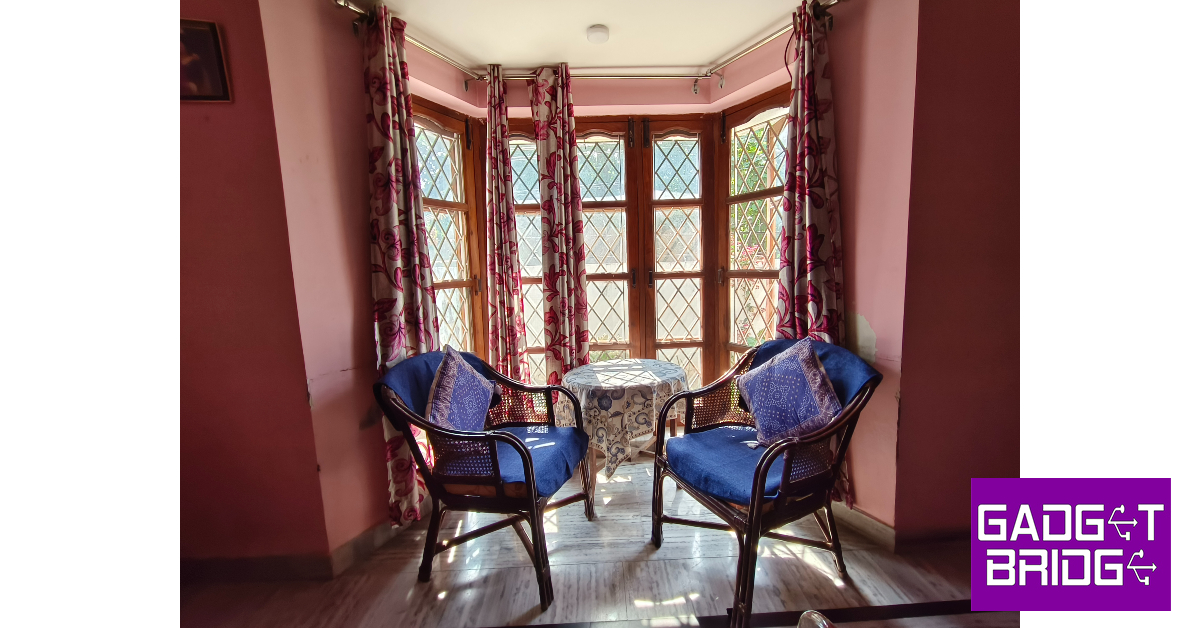
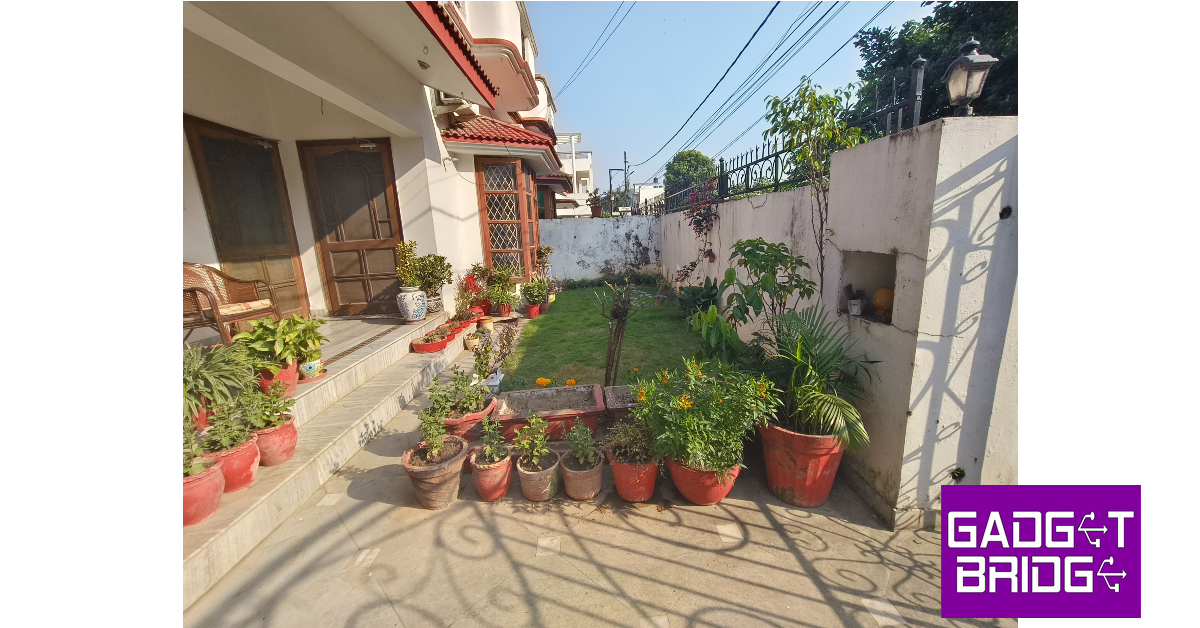
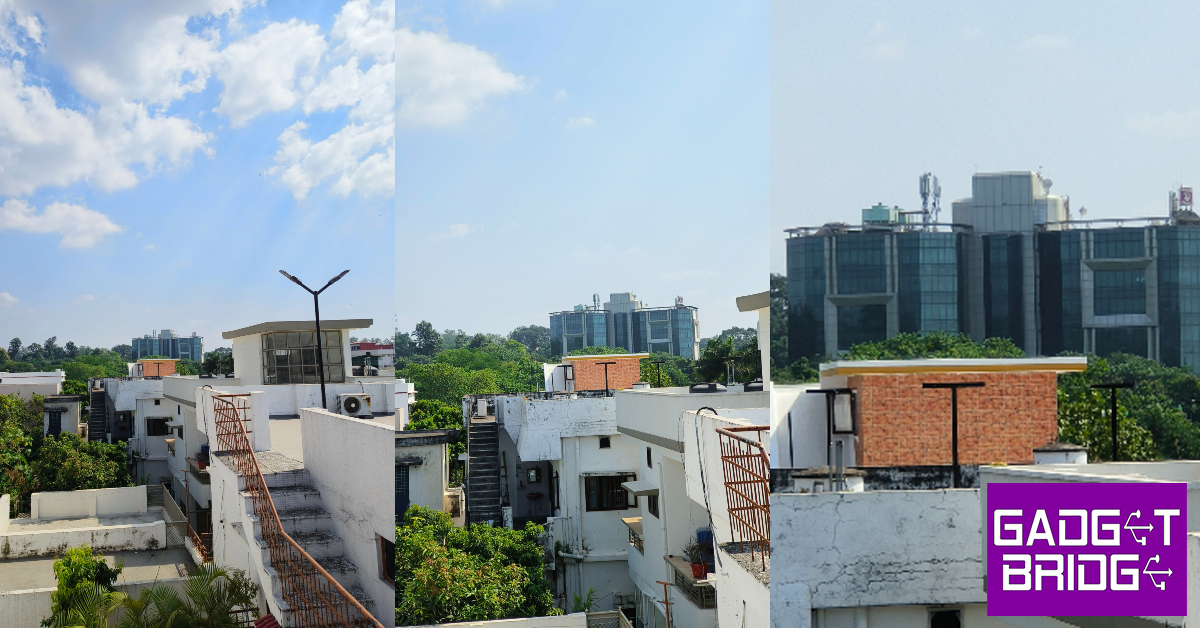
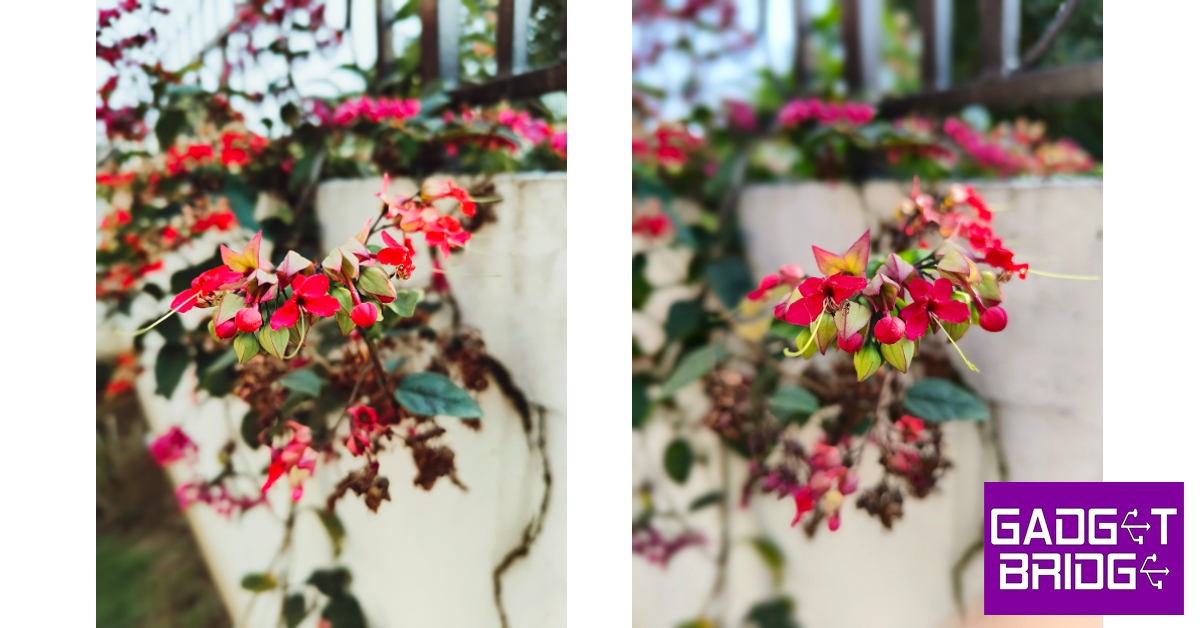
The V29 Pro retains the MediaTek Dimensity 8200 SoC and gets rid of the 128GB base variant. The smartphone is available with a fixed 256GB storage capacity with 2 RAM options – 8GB and 12GB. The higher RAM variant is priced at Rs 42,999 – the same as its V27 Pro counterpart. We used the 12GB RAM variant of the Vivo V29 Pro for this review.Even though there are no changes to the chipset, the smartphone performs marginally better on the Geekbench 6 test. It scored 1,179 points on the single-core test and 3,394 points on the multi-core test. In comparison, Vivo V27 Pro scored 1,151 and 3,099 points respectively. The smartphone handles everyday tasks like web browsing, instant messaging, video calling, and media playback with the utmost ease. While using the V29 Pro for a week, we never felt that the phone was struggling to keep up with the tasks we threw at it.Even tried a fair bit of gaming on the smartphone. Its Ultra Large Vapor Chamber Bionic Cooling System facilitates fluid dissipation of heat and ensures that the internal temperature of the smartphone is kept in check during intense gaming sessions. We played Call of Duty Mobile and eFootball 2024 on this smartphone. During our review period, the Vivo V29 Pro did not present any major issues. There were no significant frame drops or stutters during gameplay.OS duties on the Vivo V29 Pro are handled by Android 13 skinned with Funtouch 13. The significant bloatware on the device robs it of a clean look. The constant notifications from Vivo’s app market and browser are nothing but spam. We’d suggest getting rid of all the bloatware apps on the device before you begin using it. Bloatware issues aside, Funtouch OS offers all the essential features you expect on an Android phone. We like the personalisation options for the lock screen that the OS has to offer. The dynamic effects for the fingerprint scanner, charging animation, and other functions are also quite fun.Moving on, Vivo has also updated the battery specs on the V29 Pro. While it carries forward the 4,600 mAh battery pack, it now supports 80W fast charging. The power brick supplied in the retail box can charge the smartphone to 50% in under 20 minutes. It took us only 40 minutes to charge the phone from 15% to 100%. The 4,600 mAh battery pack is good enough to last an entire day on moderate to heavy usage.Vivo’s V Series is known for its exemplary camera performance, and the V29 Pro is no different. As we mentioned earlier, the smartphone’s camera module gets a key upgrade in the form of a 12MP telephoto lens. The 50MP primary camera and the 8MP ultrawide lens have been carried forward from the V27 Pro.Indoor ShotThe 50MP primary shooter produces brilliant results in outdoor lighting. The images taken with this camera are very vibrant and have a good dynamic range without coming across as overprocessed. In limited lighting conditions, the sensor lets in ample light to capture all the essential details and the night mode efficiently creases all the grain from the images. The image processing, again, is on point when rendering pictures taken at night.The V29 Pro also features a brighter, more refined ‘Aura light’. What felt like a gimmick on the V27 Pro now finds some purpose on the V29 Pro. For starters, you can control its warmth from the camera app (1,800K to 4,500K), depending on the kind of shot you want. The light can go from a warm red tone to a cool yellowish-white. In dimly lit conditions, the Aura light does make a difference while taking portrait shots. We’re excited to see how Vivo further develops it in future generations of the smartphone.Indoor Ultrawide ShotPictures taken from the 8MP ultrawide lens are still a bit soft, but it is quite decent overall. The colours seem a little washed when compared to the primary lens, but it is something you expect from the ultrawide shooters in this price range. On the bright side, this lens takes well-lit shots in limited lighting, which is where other ultrawide sensors often seem to fail. Suffice it to say, you will keep returning to this lens for wide-angle shots. The new 12MP telephoto lens is a stark improvement over the 2MP macro lens. Its performance is still akin to a lot of entry-level telephoto shooters but it still finds a lot of use compared to the macro lens.1x vs 2x vs 6x zoomPortrait ModeVivo V29 Pro has an India-exclusive ‘Wedding’ portrait effect which brings out the vividness in colour and shoots up the contrast between the subject and the background. This effect is ideal when you’re in a colourful environment. The normal portrait mode takes good shots, effectively separating the subject from the background and applying an appropriate amount of blur. The 50MP selfie camera tends to struggle with capturing accurate skin tones but takes good-quality images. This selfie camera can record 4K videos at 30 and 60fps, much like the main sensor.Read Also:Google is replacing passwords with passkeys default login
Conclusion
The Vivo V29 Pro is one of the best camera-focused smartphones you can buy right now. The changes that Vivo has made to the camera module have paid off quite well. The refreshed Aura light serves its purpose by taking great portrait shots in limited lighting. We also like that you can control its colour temperature from the camera app. The new 12MP telephoto lens is a massive improvement over the 2MP macro sensor. The curved AMOLED display is a delight to use but the lack of a stereo speaker is a bit of a letdown.



 Step 2: Select
 Step 3:
 Step 4: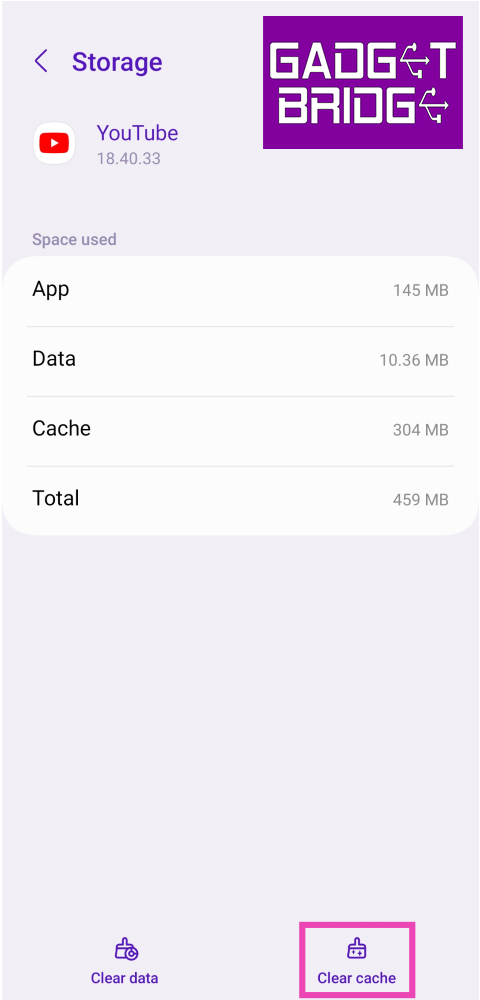
 Step 3:
 Step 5:
 Step 6:
 Step 2: Scroll down and look for the Clear Cache option. Select it.
 Step 3: Confirm your selection in the popup box.
 Step 4:
 Step 5:
 Step 6:
 Step 7: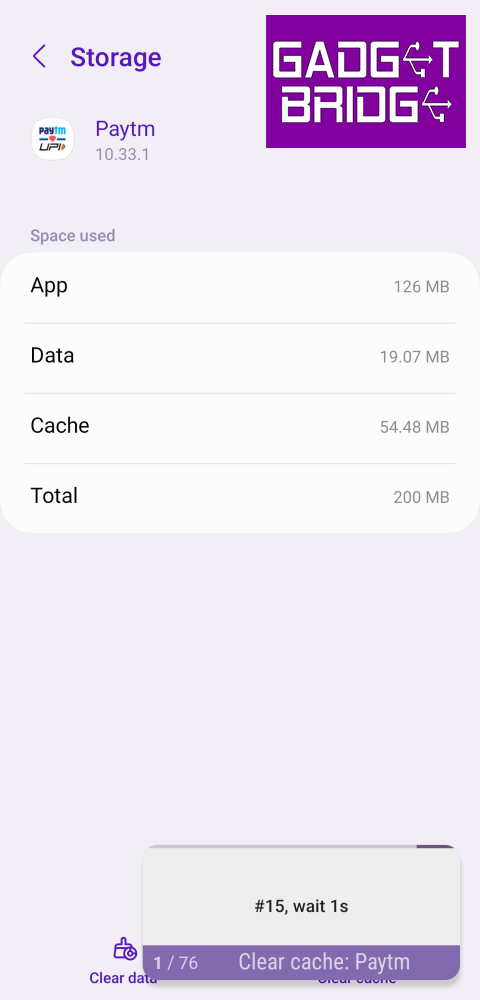
 Step 2:
 Step 4: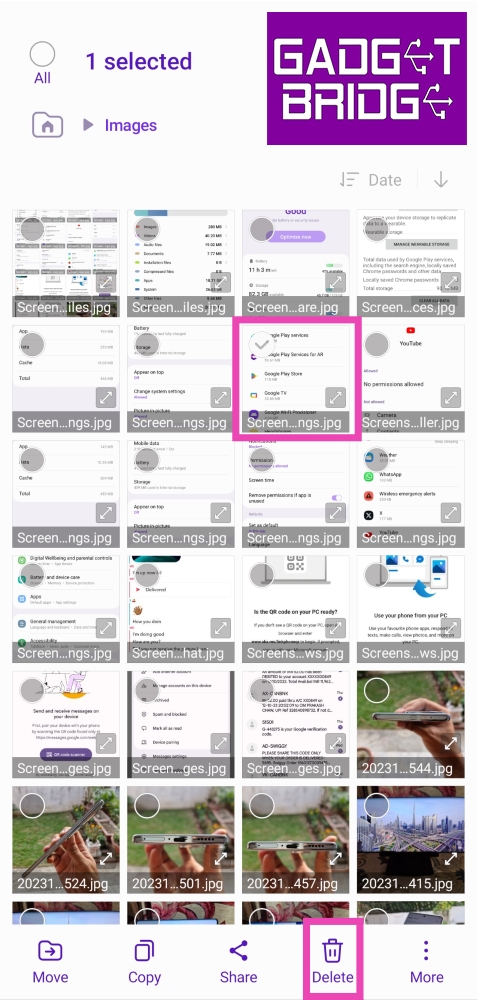

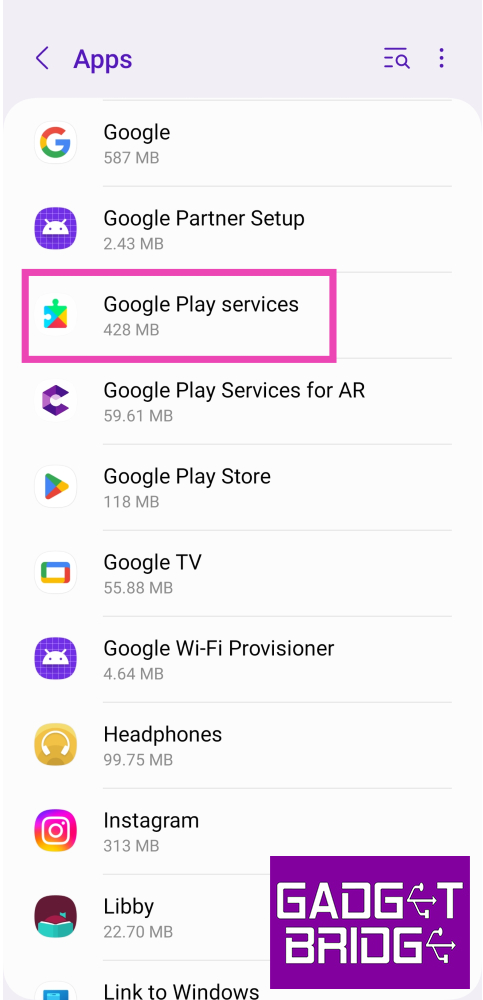 Step 3:
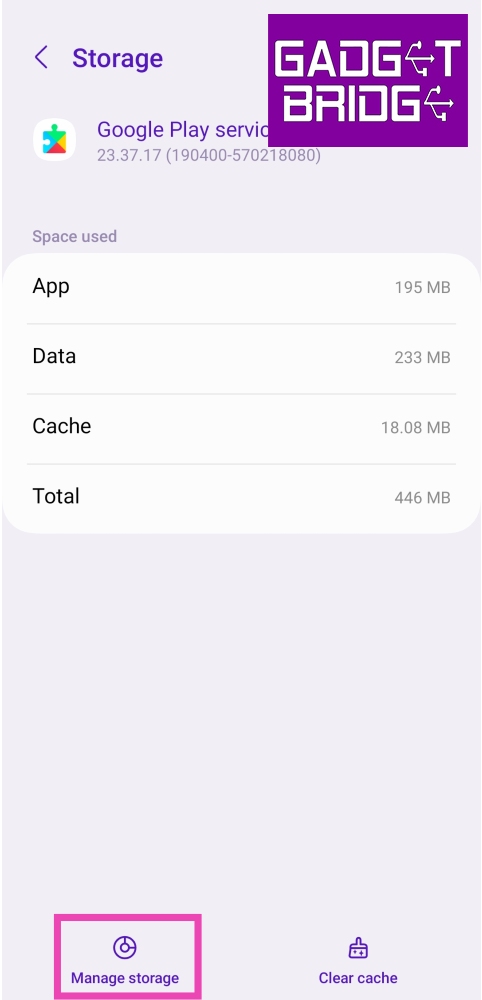 Step 5: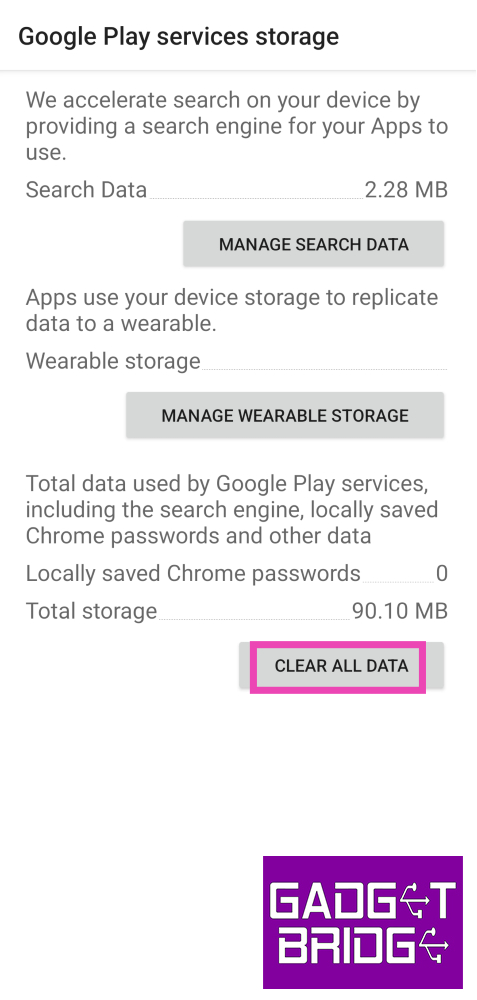



 If the YouTube app keeps crashing on your phone, you can always watch videos on its website instead. App-related issues can be bypassed by opening YouTube in Google Chrome and searching for the video you want to watch. If you want to easily access the website, you can pin its browser shortcut on your phone’s home screen.
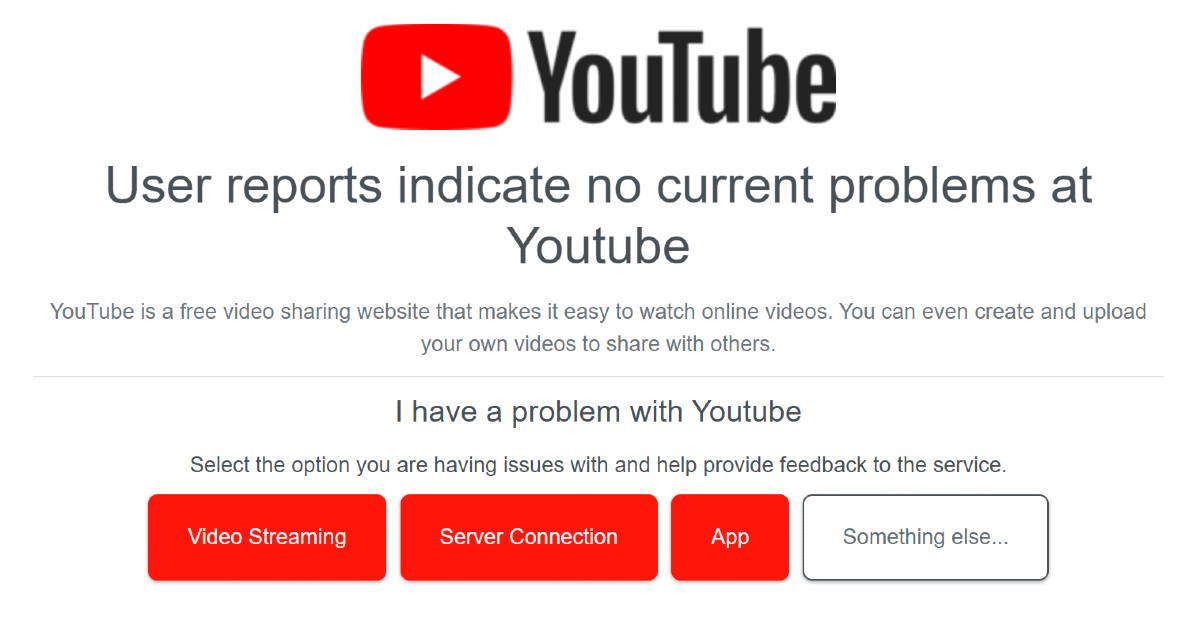 YouTube’s servers being down can lead to inadvertent crashes. Go to
  Step 3:
 Step 4:
 Step 2:
 Step 3: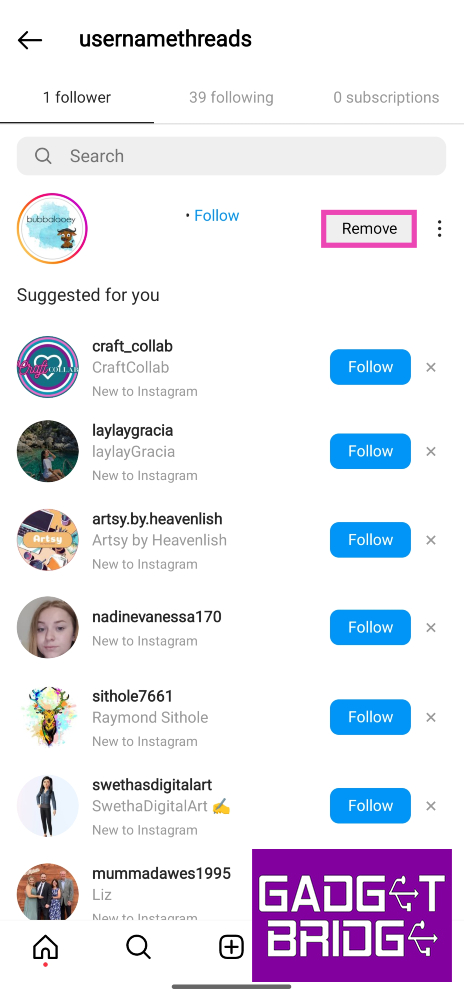

 Step 3:
 Step 4: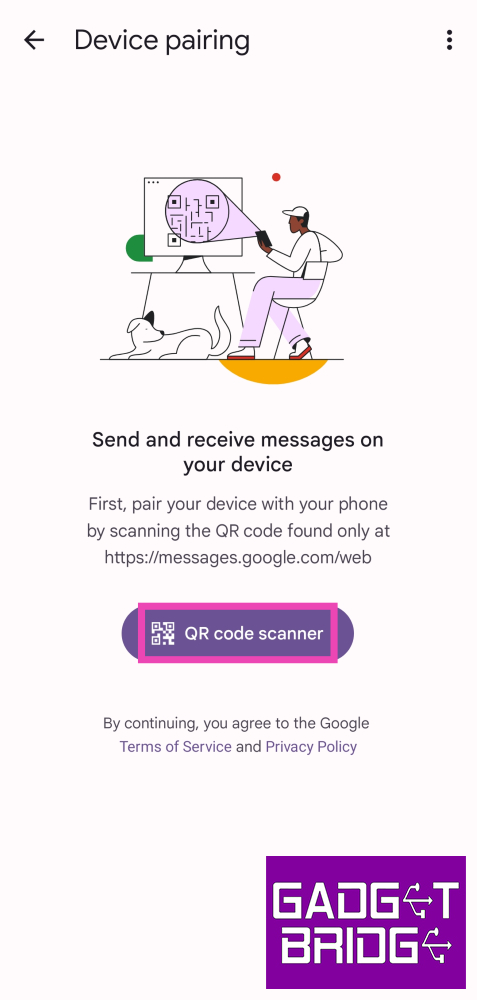
 Step 2:
 Step 4: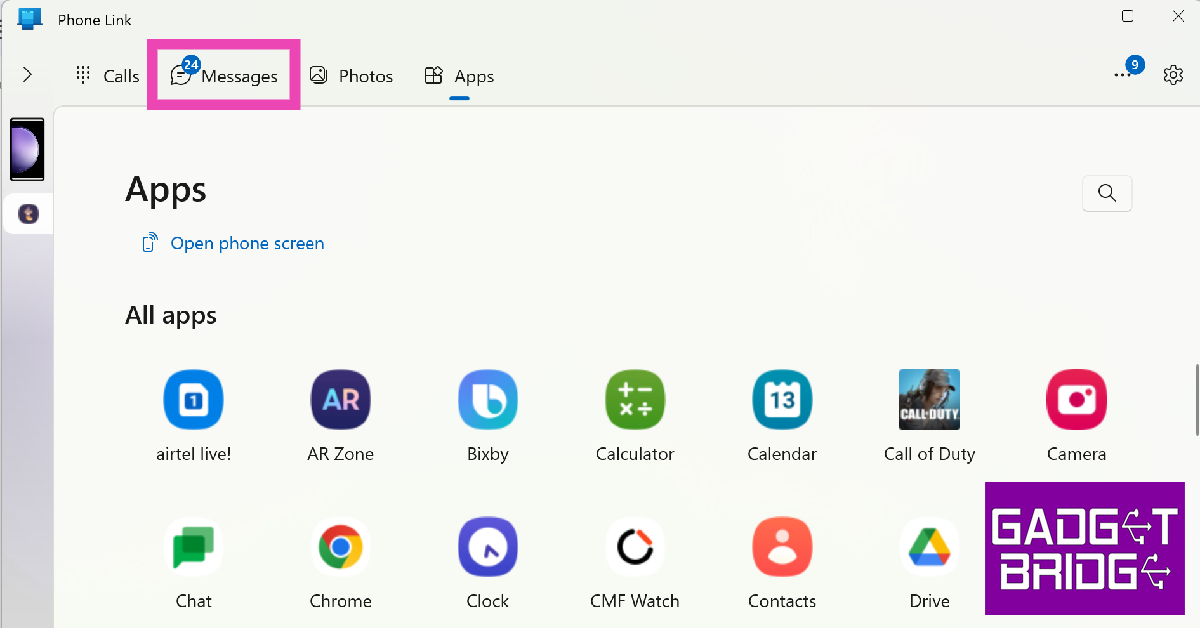
 Step 4:
 Step 5:
 Step 6:
 Step 3:
 Step 4:
 Step 5: